<!DOCTYPE html>
    <html lang="vi" xmlns="http://www.w3.org/1999/xhtml" prefix="og: http://ogp.me/ns#">
    <head>
<title>Cách thêm hình ảnh vào file PDF trên máy Mac</title>
<meta name="description" content="Cách thêm hình ảnh vào file PDF trên máy Mac - Savefile - Tin Tức -...">
<meta name="author" content=".: Nguoicodonvn2008.info - Cõi lòng người cô đơn :.">
<meta name="copyright" content=".: Nguoicodonvn2008.info - Cõi lòng người cô đơn :. [admin@nguoicodonvn2008.info]">
<meta name="robots" content="index, archive, follow, noodp">
<meta name="googlebot" content="index,archive,follow,noodp">
<meta name="msnbot" content="all,index,follow">
<meta name="generator" content="NukeViet v4.5">
<meta http-equiv="Content-Type" content="text/html; charset=utf-8">
<meta property="og:title" content="Cách thêm hình ảnh vào file PDF trên máy Mac">
<meta property="og:type" content="website">
<meta property="og:description" content="Savefile - Tin Tức - https&#x3A;&#x002F;&#x002F;www.nguoicodonvn2008.info&#x002F;vi&#x002F;news&#x002F;savefile&#x002F;kien-thuc-may-tinh&#x002F;cach-them-hinh-anh-vao-file-pdf-tren-may-mac-4126.html">
<meta property="og:site_name" content=".&#x3A; Nguoicodonvn2008.info - Cõi lòng người cô đơn &#x3A;.">
<meta property="og:url" content="https://www.nguoicodonvn2008.info/vi/news/savefile/kien-thuc-may-tinh/cach-them-hinh-anh-vao-file-pdf-tren-may-mac-4126.html">
<link rel="shortcut icon" href="https://www.nguoicodonvn2008.info/favicon.ico">
<link rel="canonical" href="https://www.nguoicodonvn2008.info/vi/news/savefile/kien-thuc-may-tinh/cach-them-hinh-anh-vao-file-pdf-tren-may-mac-4126.html">
<link rel="alternate" href="https://www.nguoicodonvn2008.info/vi/news/rss/" title="Tin Tức" type="application/rss+xml">
<link rel="alternate" href="https://www.nguoicodonvn2008.info/vi/news/rss/karaoke-dual/" title="Tin Tức - Karaoke Dual" type="application/rss+xml">
<link rel="alternate" href="https://www.nguoicodonvn2008.info/vi/news/rss/nhac-tre/" title="Tin Tức - Nhạc trẻ" type="application/rss+xml">
<link rel="alternate" href="https://www.nguoicodonvn2008.info/vi/news/rss/tru-tinh/" title="Tin Tức - Trữ tình" type="application/rss+xml">
<link rel="alternate" href="https://www.nguoicodonvn2008.info/vi/news/rss/nuoc-ngoai/" title="Tin Tức - Nước ngoài" type="application/rss+xml">
<link rel="alternate" href="https://www.nguoicodonvn2008.info/vi/news/rss/remix/" title="Tin Tức - Remix" type="application/rss+xml">
<link rel="alternate" href="https://www.nguoicodonvn2008.info/vi/news/rss/tam-su-tinh-yeu/" title="Tin Tức - Tâm sự tình yêu" type="application/rss+xml">
<link rel="alternate" href="https://www.nguoicodonvn2008.info/vi/news/rss/tho-suu-tam/" title="Tin Tức - Thơ sưu tầm" type="application/rss+xml">
<link rel="alternate" href="https://www.nguoicodonvn2008.info/vi/news/rss/cuoc-song/" title="Tin Tức - Cuộc sống" type="application/rss+xml">
<link rel="alternate" href="https://www.nguoicodonvn2008.info/vi/news/rss/phan-mem/" title="Tin Tức - Phần mềm" type="application/rss+xml">
<link rel="alternate" href="https://www.nguoicodonvn2008.info/vi/news/rss/kien-thuc-may-tinh/" title="Tin Tức - Kiến thức máy tính" type="application/rss+xml">
<link rel="alternate" href="https://www.nguoicodonvn2008.info/vi/news/rss/hoc-tap/" title="Tin Tức - Học tập" type="application/rss+xml">
<link rel="alternate" href="https://www.nguoicodonvn2008.info/vi/news/rss/tai-lieu/" title="Tin Tức - Tài liệu" type="application/rss+xml">
<link rel="alternate" href="https://www.nguoicodonvn2008.info/vi/news/rss/de-thi/" title="Tin Tức - Đề thi" type="application/rss+xml">
<link rel="preload" as="style" href="https://www.nguoicodonvn2008.info/assets/css/font-awesome.min.css" type="text/css">
<link rel="preload" as="style" href="https://www.nguoicodonvn2008.info/themes/default/css/bootstrap.non-responsive.css" type="text/css">
<link rel="preload" as="style" href="https://www.nguoicodonvn2008.info/themes/default/css/style.css" type="text/css">
<link rel="preload" as="style" href="https://www.nguoicodonvn2008.info/themes/default/css/style.non-responsive.css" type="text/css">
<link rel="preload" as="style" href="https://www.nguoicodonvn2008.info/themes/default/css/news.css" type="text/css">
<link rel="preload" as="style" href="https://www.nguoicodonvn2008.info/themes/default/css/custom.css" type="text/css">
<link rel="preload" as="script" href="https://www.nguoicodonvn2008.info/assets/js/jquery/jquery.min.js" type="text/javascript">
<link rel="preload" as="script" href="https://www.nguoicodonvn2008.info/assets/js/language/vi.js" type="text/javascript">
<link rel="preload" as="script" href="https://www.nguoicodonvn2008.info/assets/js/DOMPurify/purify3.js" type="text/javascript">
<link rel="preload" as="script" href="https://www.nguoicodonvn2008.info/assets/js/global.js" type="text/javascript">
<link rel="preload" as="script" href="https://www.nguoicodonvn2008.info/assets/js/site.js" type="text/javascript">
<link rel="preload" as="script" href="https://www.nguoicodonvn2008.info/themes/default/js/news.js" type="text/javascript">
<link rel="preload" as="script" href="https://www.nguoicodonvn2008.info/themes/default/js/main.js" type="text/javascript">
<link rel="preload" as="script" href="https://www.nguoicodonvn2008.info/themes/default/js/custom.js" type="text/javascript">
<link rel="preload" as="script" href="https://www.nguoicodonvn2008.info/themes/default/js/bootstrap.min.js" type="text/javascript">
<link rel="stylesheet" href="https://www.nguoicodonvn2008.info/assets/css/font-awesome.min.css">
<link rel="stylesheet" href="https://www.nguoicodonvn2008.info/themes/default/css/bootstrap.non-responsive.css">
<link rel="stylesheet" href="https://www.nguoicodonvn2008.info/themes/default/css/style.css">
<link rel="stylesheet" href="https://www.nguoicodonvn2008.info/themes/default/css/style.non-responsive.css">
<link rel="StyleSheet" href="https://www.nguoicodonvn2008.info/themes/default/css/news.css">
<link rel="stylesheet" href="https://www.nguoicodonvn2008.info/themes/default/css/custom.css">
<style type="text/css">
	body{background: #fff;}
</style>
    </head>
    <body>
<div id="print">
	<div id="hd_print">
		<h2 class="pull-left">.&#x3A; Nguoicodonvn2008.info - Cõi lòng người cô đơn &#x3A;.</h2>
		<p class="pull-right"><a title=".&#x3A; Nguoicodonvn2008.info - Cõi lòng người cô đơn &#x3A;." href="https://www.nguoicodonvn2008.info/">https://www.nguoicodonvn2008.info</a></p>
	</div>
	<div class="clear"></div>
	<hr />
	<div id="content">
		<h1>Cách thêm hình ảnh vào file PDF trên máy Mac</h1>
		<ul class="list-inline">
			<li>Thứ ba - 25/05/2021 00:59</li>
			<li class="hidden-print txtrequired"><em class="fa fa-print">&nbsp;</em><a title="In ra" href="javascript:;" onclick="window.print()">In ra</a></li>
			<li class="hidden-print txtrequired"><em class="fa fa-power-off">&nbsp;</em><a title="Đóng cửa sổ này" href="javascript:;" onclick="window.close()">Đóng cửa sổ này</a></li>
		</ul>
		<div class="clear"></div>
		<div id="hometext">
		</div>
				<div class="imghome">
			<img alt="Cách thêm hình ảnh vào file PDF trên máy Mac" src="https://st.quantrimang.com/photos/image/2021/05/17/them-hinh-anh-vao-file-pdf-tren-may-mac2.jpg" width="460" class="img-thumbnail" />
		</div>
		<div class="clear"></div>
		<div id="bodytext" class="clearfix">
			<p style="text-align: justify;">Preview là một ứng dụng cực kỳ hữu ích với người dùng macOS. Không chỉ đóng vai trò như một công cụ đa năng cho phép người dùng mở các loại tệp tài liệu văn bản, PDF, hình ảnh, Photoshop, ảnh RAW… Preview còn có thể hỗ trợ chuyển đổi nhanh định dạng tệp, và thậm chí thực hiện hàng loạt tinh chỉnh trên tệp đó.</p>

<p style="text-align: justify;">Trong bài viết này, chúng ta sẽ cùng tìm hiểu cách chèn hình ảnh vào một tệp PDF thông qua tiện ích đa năng Preview trên máy Mac.</p>

<h2 style="text-align: justify;">Cách thêm hình ảnh vào file PDF với Preview</h2>

<p style="text-align: justify;">Theo mặc định, bạn sẽ không thể cắt, sao chép, hay dán văn bản cũng như hình ảnh vào một tệp PDF, ngay cả khi tệp đó đang được ở trong ứng dụng Preview. Tuy nhiên, có một mẹo độc đáo để giải quyết hạn chế đó một cách nhanh chóng và dễ dàng.</p>

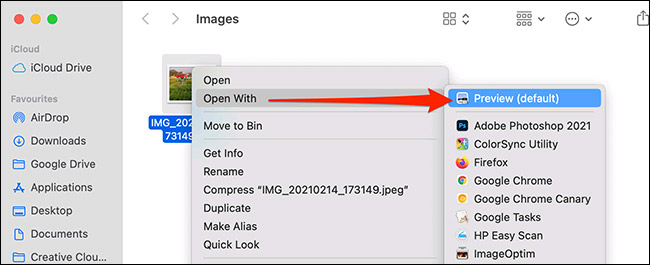
<p style="text-align: justify;">Trước tiên, trong Finder, hãy mở thư mục chứa hình ảnh mà bạn muốn thêm vào tệp PDF của mình. Nhấp chuột phải vào hình ảnh đó, trong menu hiện ra, hãy chọn<strong>&nbsp;Open With &gt; Preview</strong>.</p>

<p style="text-align: justify;"><img alt="Chọn Open With &gt; Preview" data-i="0" data-src="https://st.quantrimang.com/photos/image/2021/05/17/them-hinh-anh-vao-file-pdf-tren-may-mac1.jpg" data-was-processed="true" height="265" src="https://st.quantrimang.com/photos/image/2021/05/17/them-hinh-anh-vao-file-pdf-tren-may-mac1.jpg" width="650" /></p>

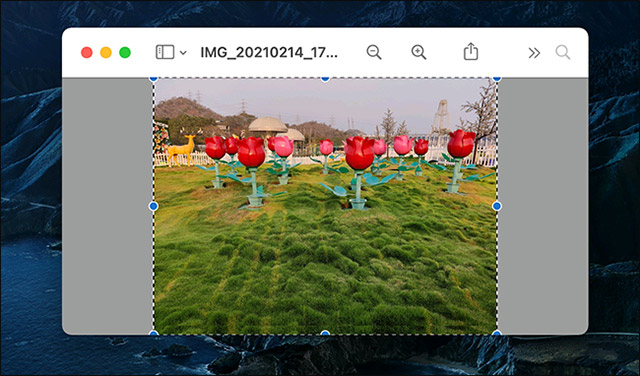
<p style="text-align: justify;">Khi cửa sổ Preview mở ra, bạn nhấn tổ hợp phím<strong>&nbsp;Command + A</strong>&nbsp;trên bàn phím để chọn toàn bộ hình ảnh.</p>

<p style="text-align: justify;"><img alt="Nhấn Command + A" data-i="1" data-src="https://st.quantrimang.com/photos/image/2021/05/17/them-hinh-anh-vao-file-pdf-tren-may-mac2.jpg" data-was-processed="true" height="376" src="https://st.quantrimang.com/photos/image/2021/05/17/them-hinh-anh-vao-file-pdf-tren-may-mac2.jpg" width="640" /></p>

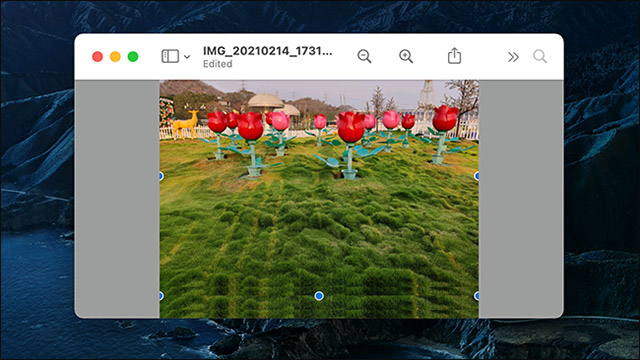
<p style="text-align: justify;">Tiếp theo, nhấn<strong>&nbsp;Command + C</strong>&nbsp;để sao chép hình ảnh. Bây giờ, bạn cần làm một thao tác nghe có vẻ kỳ lạ nhưng cần thiết để mẹo này có thể thực hiện thành công: Nhấn&nbsp;<strong>Command + V</strong>&nbsp;để dán đè bản sao của hình ảnh này lên chính nó trong cửa sổ Preview.</p>

<p style="text-align: justify;"><img alt="Dán đè bản sao của hình ảnh" data-i="2" data-src="https://st.quantrimang.com/photos/image/2021/05/17/them-hinh-anh-vao-file-pdf-tren-may-mac3.jpg" data-was-processed="true" height="360" src="https://st.quantrimang.com/photos/image/2021/05/17/them-hinh-anh-vao-file-pdf-tren-may-mac3.jpg" width="640" /></p>

<p style="text-align: justify;">Mặc dù cả hai hình ảnh về cơ bản đều là một, không khác gì nhau, những điểm mấu chốt nằm ở chỗ hình ảnh sao chép bạn vừa dán đè lên ảnh gốc bây giờ đã trở thành một đối tượng có thể dán được vào tệp PDF thông qua Preview.</p>

<p style="text-align: justify;">Tiếp tục sao chép “hình ảnh dán đè” này bằng cách nhấn&nbsp;<strong>Command + C</strong>. Hình ảnh bây giờ sẽ được lưu vào khay nhớ tạm thời (clipboard) của máy Mac. Bạn có thể đóng Preview.</p>

<div style="text-align: justify;">&nbsp;</div>

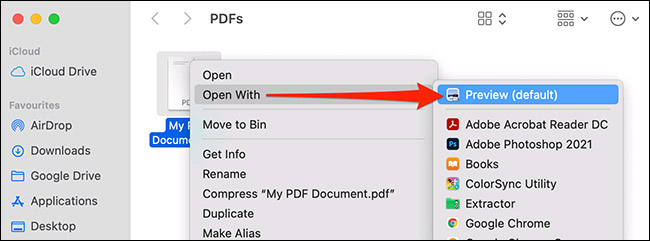
<p style="text-align: justify;">Tiếp theo, thông qua Finder, hãy điều hướng đến vị trí tệp PDF mà bạn muốn dán hình ảnh. Lại nhấp chuột phải vào tệp PDF đó và chọn&nbsp;<strong>Open With &gt; Preview.</strong></p>

<p style="text-align: justify;"><img alt="Chọn Open With &gt; Preview" data-i="3" data-src="https://st.quantrimang.com/photos/image/2021/05/17/them-hinh-anh-vao-file-pdf-tren-may-mac4.jpg" data-was-processed="true" height="241" src="https://st.quantrimang.com/photos/image/2021/05/17/them-hinh-anh-vao-file-pdf-tren-may-mac4.jpg" width="650" /></p>

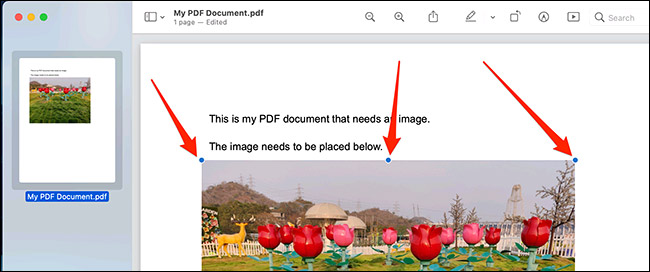
<p style="text-align: justify;">File PDF sẽ lập tức được mở trong Preview. Bây giờ, hãy cuộn đến trang PDF mà bạn muốn chèn hình ảnh vừa sao chép vào, sau đó nhấn&nbsp;<strong>Command + V</strong>&nbsp;để dán ảnh.</p>

<p style="text-align: justify;">Tất nhiên, bạn cũng có thể sử dụng các tùy chọn xử lý hình ảnh đã dán để định vị lại hoặc thay đổi kích thước của nó trong tài liệu PDF.</p>

<p style="text-align: justify;"><img alt="Nhấn Command + V để dán ảnh vào PDF" data-i="4" data-src="https://st.quantrimang.com/photos/image/2021/05/17/them-hinh-anh-vao-file-pdf-tren-may-mac5.jpg" data-was-processed="true" height="272" src="https://st.quantrimang.com/photos/image/2021/05/17/them-hinh-anh-vao-file-pdf-tren-may-mac5.jpg" width="650" /></p>

<p style="text-align: justify;">Preview sẽ tự động lưu các thay đổi, do đó, bạn sẽ không cần phải lưu tệp PDF đã chỉnh sửa của mình theo cách thủ công. Chỉ cần đóng tài liệu và các thay đổi của bạn đã được lưu. Nếu bạn cần chèn nhiều nhiều hình ảnh hơn vào file PDF của mình, chỉ cần lặp lại quy trình trên.</p>
		</div>
				<div id="author">
						<p>
				<strong>Nguồn tin:</strong>
				Quantrimang.com
			</p>
		</div>
	</div>
	<div id="footer" class="clearfix">
		<div id="url">
			<strong>URL của bản tin này: </strong><a href="https://www.nguoicodonvn2008.info/vi/news/savefile/kien-thuc-may-tinh/cach-them-hinh-anh-vao-file-pdf-tren-may-mac-4126.html" title="Cách thêm hình ảnh vào file PDF trên máy Mac">https://www.nguoicodonvn2008.info/vi/news/savefile/kien-thuc-may-tinh/cach-them-hinh-anh-vao-file-pdf-tren-may-mac-4126.html</a>

		</div>
		<div class="clear"></div>
		<div class="copyright">
			&copy; .&#x3A; Nguoicodonvn2008.info - Cõi lòng người cô đơn &#x3A;.
		</div>
		<div id="contact">
			<a href="mailto:admin@nguoicodonvn2008.info">admin@nguoicodonvn2008.info</a>
		</div>
	</div>
</div>
        <div id="timeoutsess" class="chromeframe">
            Bạn đã không sử dụng Site, <a onclick="timeoutsesscancel();" href="https://www.nguoicodonvn2008.info/#">Bấm vào đây để duy trì trạng thái đăng nhập</a>. Thời gian chờ: <span id="secField"> 60 </span> giây
        </div>
        <div id="openidResult" class="nv-alert" style="display:none"></div>
        <div id="openidBt" data-result="" data-redirect=""></div>
		</script>
		<div class="car-top">
  <span><img src="https://www.nguoicodonvn2008.info/themes/default/images/car.png" alt=""></span>
</div>
<script src="https://www.nguoicodonvn2008.info/assets/js/jquery/jquery.min.js"></script>
<script>var nv_base_siteurl="/",nv_lang_data="vi",nv_lang_interface="vi",nv_name_variable="nv",nv_fc_variable="op",nv_lang_variable="language",nv_module_name="news",nv_func_name="savefile",nv_is_user=0, nv_my_ofs=-4,nv_my_abbr="EDT",nv_cookie_prefix="nv4c_e856T",nv_check_pass_mstime=1738000,nv_area_admin=0,nv_safemode=0,theme_responsive=0,nv_recaptcha_ver=2,nv_recaptcha_sitekey="",nv_recaptcha_type="image",XSSsanitize=1;</script>
<script src="https://www.nguoicodonvn2008.info/assets/js/language/vi.js"></script>
<script src="https://www.nguoicodonvn2008.info/assets/js/DOMPurify/purify3.js"></script>
<script src="https://www.nguoicodonvn2008.info/assets/js/global.js"></script>
<script src="https://www.nguoicodonvn2008.info/assets/js/site.js"></script>
<script src="https://www.nguoicodonvn2008.info/themes/default/js/news.js"></script>
<script src="https://www.nguoicodonvn2008.info/themes/default/js/main.js"></script>
<script src="https://www.nguoicodonvn2008.info/themes/default/js/custom.js"></script>
<script type="application/ld+json">
        {
            "@context": "https://schema.org",
            "@type": "Organization",
            "url": "https://www.nguoicodonvn2008.info",
            "logo": "https://www.nguoicodonvn2008.info/uploads/angel.gif"
        }
        </script>
<script src="https://www.nguoicodonvn2008.info/themes/default/js/bootstrap.min.js"></script>
<script type="text/javascript">
var $scrolltop = $('.car-top');
$scrolltop.on('click', function () {
    $('html,body').animate({
        scrollTop: 0
    }, 800);
    $(this).addClass("car-run");
    setTimeout(function(){ $scrolltop.removeClass('car-run');}, 1000);
    return false;
});
$(window).on('scroll', function ()
{ 
    if($(window).scrollTop() >= 200)
    {
        $scrolltop.addClass("show");
        $scrolltop.addClass("car-down");
    }
    else
    {
       $scrolltop.removeClass("show");
       setTimeout(function(){ $scrolltop.removeClass('car-down');}, 300);
    }
});
</script>
</body>
</html>