<!DOCTYPE html>
    <html lang="vi" xmlns="http://www.w3.org/1999/xhtml" prefix="og: http://ogp.me/ns#">
    <head>
<title>Cách thay đổi phông chữ và cỡ chữ trong Outlook</title>
<meta name="description" content="Cách thay đổi phông chữ và cỡ chữ trong Outlook - Savefile - Tin Tức -...">
<meta name="author" content=".: Nguoicodonvn2008.info - Cõi lòng người cô đơn :.">
<meta name="copyright" content=".: Nguoicodonvn2008.info - Cõi lòng người cô đơn :. [admin@nguoicodonvn2008.info]">
<meta name="robots" content="index, archive, follow, noodp">
<meta name="googlebot" content="index,archive,follow,noodp">
<meta name="msnbot" content="all,index,follow">
<meta name="generator" content="NukeViet v4.5">
<meta http-equiv="Content-Type" content="text/html; charset=utf-8">
<meta property="og:title" content="Cách thay đổi phông chữ và cỡ chữ trong Outlook">
<meta property="og:type" content="website">
<meta property="og:description" content="Savefile - Tin Tức - https&#x3A;&#x002F;&#x002F;www.nguoicodonvn2008.info&#x002F;vi&#x002F;news&#x002F;savefile&#x002F;kien-thuc-may-tinh&#x002F;cach-thay-doi-phong-chu-va-co-chu-trong-outlook-6501.html">
<meta property="og:site_name" content=".&#x3A; Nguoicodonvn2008.info - Cõi lòng người cô đơn &#x3A;.">
<meta property="og:url" content="https://www.nguoicodonvn2008.info/vi/news/savefile/kien-thuc-may-tinh/cach-thay-doi-phong-chu-va-co-chu-trong-outlook-6501.html">
<link rel="shortcut icon" href="https://www.nguoicodonvn2008.info/favicon.ico">
<link rel="canonical" href="https://www.nguoicodonvn2008.info/vi/news/savefile/kien-thuc-may-tinh/cach-thay-doi-phong-chu-va-co-chu-trong-outlook-6501.html">
<link rel="alternate" href="https://www.nguoicodonvn2008.info/vi/news/rss/" title="Tin Tức" type="application/rss+xml">
<link rel="alternate" href="https://www.nguoicodonvn2008.info/vi/news/rss/karaoke-dual/" title="Tin Tức - Karaoke Dual" type="application/rss+xml">
<link rel="alternate" href="https://www.nguoicodonvn2008.info/vi/news/rss/nhac-tre/" title="Tin Tức - Nhạc trẻ" type="application/rss+xml">
<link rel="alternate" href="https://www.nguoicodonvn2008.info/vi/news/rss/tru-tinh/" title="Tin Tức - Trữ tình" type="application/rss+xml">
<link rel="alternate" href="https://www.nguoicodonvn2008.info/vi/news/rss/nuoc-ngoai/" title="Tin Tức - Nước ngoài" type="application/rss+xml">
<link rel="alternate" href="https://www.nguoicodonvn2008.info/vi/news/rss/remix/" title="Tin Tức - Remix" type="application/rss+xml">
<link rel="alternate" href="https://www.nguoicodonvn2008.info/vi/news/rss/tam-su-tinh-yeu/" title="Tin Tức - Tâm sự tình yêu" type="application/rss+xml">
<link rel="alternate" href="https://www.nguoicodonvn2008.info/vi/news/rss/tho-suu-tam/" title="Tin Tức - Thơ sưu tầm" type="application/rss+xml">
<link rel="alternate" href="https://www.nguoicodonvn2008.info/vi/news/rss/cuoc-song/" title="Tin Tức - Cuộc sống" type="application/rss+xml">
<link rel="alternate" href="https://www.nguoicodonvn2008.info/vi/news/rss/phan-mem/" title="Tin Tức - Phần mềm" type="application/rss+xml">
<link rel="alternate" href="https://www.nguoicodonvn2008.info/vi/news/rss/kien-thuc-may-tinh/" title="Tin Tức - Kiến thức máy tính" type="application/rss+xml">
<link rel="alternate" href="https://www.nguoicodonvn2008.info/vi/news/rss/hoc-tap/" title="Tin Tức - Học tập" type="application/rss+xml">
<link rel="alternate" href="https://www.nguoicodonvn2008.info/vi/news/rss/tai-lieu/" title="Tin Tức - Tài liệu" type="application/rss+xml">
<link rel="alternate" href="https://www.nguoicodonvn2008.info/vi/news/rss/de-thi/" title="Tin Tức - Đề thi" type="application/rss+xml">
<link rel="preload" as="style" href="https://www.nguoicodonvn2008.info/assets/css/font-awesome.min.css" type="text/css">
<link rel="preload" as="style" href="https://www.nguoicodonvn2008.info/themes/default/css/bootstrap.non-responsive.css" type="text/css">
<link rel="preload" as="style" href="https://www.nguoicodonvn2008.info/themes/default/css/style.css" type="text/css">
<link rel="preload" as="style" href="https://www.nguoicodonvn2008.info/themes/default/css/style.non-responsive.css" type="text/css">
<link rel="preload" as="style" href="https://www.nguoicodonvn2008.info/themes/default/css/news.css" type="text/css">
<link rel="preload" as="style" href="https://www.nguoicodonvn2008.info/themes/default/css/custom.css" type="text/css">
<link rel="preload" as="script" href="https://www.nguoicodonvn2008.info/assets/js/jquery/jquery.min.js" type="text/javascript">
<link rel="preload" as="script" href="https://www.nguoicodonvn2008.info/assets/js/language/vi.js" type="text/javascript">
<link rel="preload" as="script" href="https://www.nguoicodonvn2008.info/assets/js/DOMPurify/purify3.js" type="text/javascript">
<link rel="preload" as="script" href="https://www.nguoicodonvn2008.info/assets/js/global.js" type="text/javascript">
<link rel="preload" as="script" href="https://www.nguoicodonvn2008.info/assets/js/site.js" type="text/javascript">
<link rel="preload" as="script" href="https://www.nguoicodonvn2008.info/themes/default/js/news.js" type="text/javascript">
<link rel="preload" as="script" href="https://www.nguoicodonvn2008.info/themes/default/js/main.js" type="text/javascript">
<link rel="preload" as="script" href="https://www.nguoicodonvn2008.info/themes/default/js/custom.js" type="text/javascript">
<link rel="preload" as="script" href="https://www.nguoicodonvn2008.info/themes/default/js/bootstrap.min.js" type="text/javascript">
<link rel="stylesheet" href="https://www.nguoicodonvn2008.info/assets/css/font-awesome.min.css">
<link rel="stylesheet" href="https://www.nguoicodonvn2008.info/themes/default/css/bootstrap.non-responsive.css">
<link rel="stylesheet" href="https://www.nguoicodonvn2008.info/themes/default/css/style.css">
<link rel="stylesheet" href="https://www.nguoicodonvn2008.info/themes/default/css/style.non-responsive.css">
<link rel="StyleSheet" href="https://www.nguoicodonvn2008.info/themes/default/css/news.css">
<link rel="stylesheet" href="https://www.nguoicodonvn2008.info/themes/default/css/custom.css">
<style type="text/css">
	body{background: #fff;}
</style>
    </head>
    <body>
<div id="print">
	<div id="hd_print">
		<h2 class="pull-left">.&#x3A; Nguoicodonvn2008.info - Cõi lòng người cô đơn &#x3A;.</h2>
		<p class="pull-right"><a title=".&#x3A; Nguoicodonvn2008.info - Cõi lòng người cô đơn &#x3A;." href="https://www.nguoicodonvn2008.info/">https://www.nguoicodonvn2008.info</a></p>
	</div>
	<div class="clear"></div>
	<hr />
	<div id="content">
		<h1>Cách thay đổi phông chữ và cỡ chữ trong Outlook</h1>
		<ul class="list-inline">
			<li>Thứ tư - 21/12/2022 23:49</li>
			<li class="hidden-print txtrequired"><em class="fa fa-print">&nbsp;</em><a title="In ra" href="javascript:;" onclick="window.print()">In ra</a></li>
			<li class="hidden-print txtrequired"><em class="fa fa-power-off">&nbsp;</em><a title="Đóng cửa sổ này" href="javascript:;" onclick="window.close()">Đóng cửa sổ này</a></li>
		</ul>
		<div class="clear"></div>
		<div id="hometext">
		</div>
				<div class="imghome">
			<img alt="Cách thay đổi phông chữ và cỡ chữ trong Outlook" src="https://st.quantrimang.com/photos/image/2022/12/16/thay-doi-phong-chu-va-co-chu-trong-outlook1.jpg" width="460" class="img-thumbnail" />
		</div>
		<div class="clear"></div>
		<div id="bodytext" class="clearfix">
			<div class="ckeditor-html5-audio" style="text-align: center;">
<audio controls="controls" controlslist="nodownload" src="https://st.quantrimang.com/photos/media/2022/12/22/638073031805815022.mp3">&nbsp;</audio>
</div>

<p style="text-align: justify;">Trong ứng dụng Microsoft Outlook cho Windows, Mac và cả nền tảng web, bạn có thể thay đổi kiểu phông chữ và cỡ chữ cho từng email cụ thể, cũng như cho tất cả các email của mình một cách dễ dàng. Cùng tìm hiểu ngay sau đây.</p>

<h2 style="text-align: justify;">Cách thay đổi phông chữ và cỡ chữ trong ứng dụng Outlook trên Windows, Mac</h2>

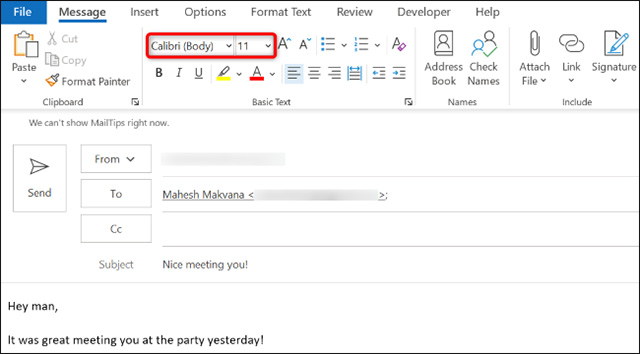
<p style="text-align: justify;">Nếu bạn muốn thay đổi phông chữ và cỡ chữ cho một email cụ thể, thì trước tiên, hãy mở email đó trong ứng dụng Outlook trên máy tính Windows hoặc Mac của mình. Ở đầu giao diện email, trong tab “<strong>Message</strong>”, hãy nhấp vào menu thả xuống “<strong>Font</strong>” để chọn một kiểu phông chữ mới. Tương tự, hãy nhấp vào menu thả xuống có tiêu đề “<strong>Font Size</strong>” để chọn kích thước cho phông chữ mới mà bạn vừa chọn.</p>

<p style="text-align: justify;"><img alt=" “Font Size” " data-i="0" data-src="https://st.quantrimang.com/photos/image/2022/12/16/thay-doi-phong-chu-va-co-chu-trong-outlook1.jpg" data-was-processed="true" height="354" src="https://st.quantrimang.com/photos/image/2022/12/16/thay-doi-phong-chu-va-co-chu-trong-outlook1.jpg" width="640" /></p>

<p style="text-align: justify;">Trong trường hợp bạn muốn thay đổi phông chữ mặc định của Outlook trên máy Mac, trước tiên, hãy khởi chạy ứng dụng Outlook và chọn&nbsp;<strong>Outlook &gt; Preferences &gt; Fonts</strong>&nbsp;từ thanh menu. Sau đó, bên cạnh loại email bạn muốn đặt kiểu phông chữ mặc định, hãy nhấp vào “<strong>Font</strong>”. Chọn phông chữ và cỡ chữ theo ý thích của bạn và tất cả đã hoàn tất.</p>

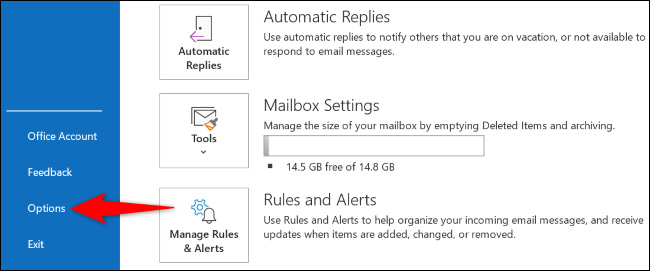
<p style="text-align: justify;">Để thay đổi phông chữ và kích thước phông chữ mặc định trong phiên bản Outlook cho Windows, trước tiên hãy khởi chạy ứng dụng Outlook và chọn “<strong>Options</strong>” từ thanh bên trái. Nếu bạn không nhìn thấy thanh menu này, ở góc trên cùng bên trái của ứng dụng, hãy nhấp vào “<strong>File</strong>”.</p>

<p style="text-align: justify;"><img alt="Thay đổi phông chữ mặc định " data-i="1" data-src="https://st.quantrimang.com/photos/image/2022/12/16/thay-doi-phong-chu-va-co-chu-trong-outlook2.jpg" data-was-processed="true" height="271" src="https://st.quantrimang.com/photos/image/2022/12/16/thay-doi-phong-chu-va-co-chu-trong-outlook2.jpg" width="650" /></p>

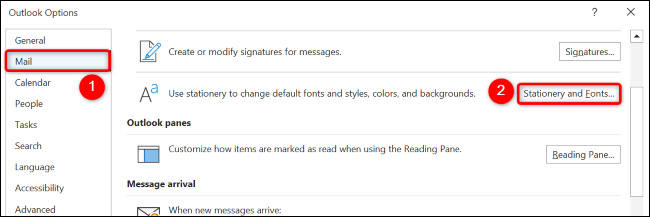
<p style="text-align: justify;">Bạn sẽ thấy cửa sổ “<strong>Outlook Options</strong>” hiện ra. Ở thanh bên trái, nhấp vào “Mail”. Trên ngăn bên phải, chọn “<strong>Stationery and Fonts</strong>”.</p>

<p style="text-align: justify;"><img alt="Chọn “Stationery and Fonts”" data-i="2" data-src="https://st.quantrimang.com/photos/image/2022/12/16/thay-doi-phong-chu-va-co-chu-trong-outlook3.jpg" data-was-processed="true" height="217" src="https://st.quantrimang.com/photos/image/2022/12/16/thay-doi-phong-chu-va-co-chu-trong-outlook3.jpg" width="650" /></p>

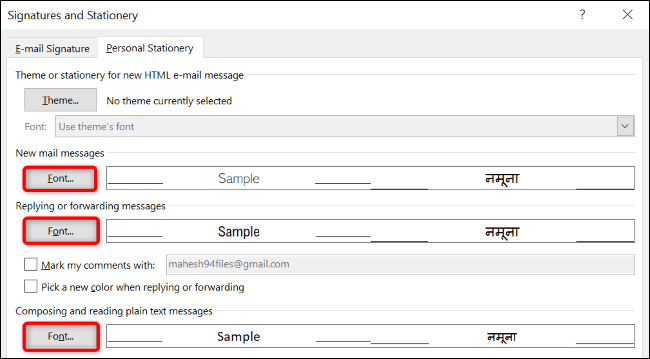
<p style="text-align: justify;">Cửa sổ “<strong>Signatures and Stationery</strong>” sẽ mở ra. Tại đây, trong phần dành cho loại email mà bạn muốn thay đổi phông chữ và cỡ chữ, hãy chọn “<strong>Font</strong>”.</p>

<p style="text-align: justify;"><img alt="Chọn “Font”" data-i="3" data-src="https://st.quantrimang.com/photos/image/2022/12/16/thay-doi-phong-chu-va-co-chu-trong-outlook4.jpg" data-was-processed="true" height="359" src="https://st.quantrimang.com/photos/image/2022/12/16/thay-doi-phong-chu-va-co-chu-trong-outlook4.jpg" width="650" /></p>

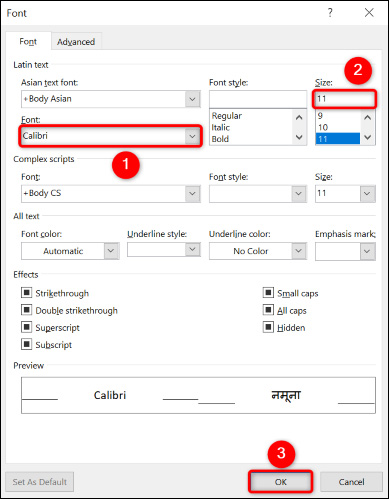
<p style="text-align: justify;">Trên cửa sổ “<strong>Font</strong>”, hãy nhấp vào menu thả xuống “<strong>Font</strong>” và chọn một phông chữ theo ý thích của bạn. Tương tự, chọn cỡ chữ từ menu “<strong>Size</strong>”.</p>

<p style="text-align: justify;">Sau đó, ở cuối cửa sổ, nhấp vào “<strong>OK</strong>”.</p>

<p style="text-align: justify;"><img alt="" data-i="4" data-src="https://st.quantrimang.com/photos/image/2022/12/16/thay-doi-phong-chu-va-co-chu-trong-outlook5.jpg" data-was-processed="true" height="499" src="https://st.quantrimang.com/photos/image/2022/12/16/thay-doi-phong-chu-va-co-chu-trong-outlook5.jpg" width="389" /></p>

<p style="text-align: justify;">Tiếp tục chọn “<strong>OK</strong>” và “<strong>OK</strong>” trên hai cửa sổ đang mở khác.</p>

<p style="text-align: justify;">Từ giờ trở đi, Outlook sẽ sử dụng phông chữ và kích thước phông chữ được chỉ định cho email của bạn.</p>

<h2 style="text-align: justify;">Thay đổi phông chữ và cỡ chữ trong Outlook Web</h2>

<p style="text-align: justify;">Phiên bản web của Outlook cũng cho phép bạn thay đổi phông chữ và kích thước phông chữ cho tất cả email hoặc những email cụ thể dễ dàng.</p>

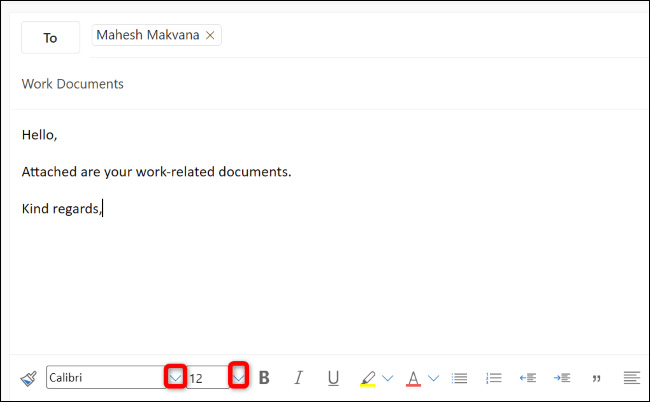
<p style="text-align: justify;">Để thay đổi phông chữ và cỡ chữ cho một email cụ thể, trước tiên hãy mở email đó. Sau đó, ở phần dưới cùng của nội dung email, bạn nhấp vào biểu tượng mũi tên xuống bên cạnh tên phông chữ hiện tại. Chọn một phông chữ mới và bạn đã hoàn tất. Để chọn kích thước phông chữ, nhấp vào biểu tượng mũi tên xuống bên cạnh kích thước hiện tại và chọn kích thước mới.</p>

<p style="text-align: justify;"><img alt="Nhấp vào biểu tượng mũi tên xuống" data-i="5" data-src="https://st.quantrimang.com/photos/image/2022/12/16/thay-doi-phong-chu-va-co-chu-trong-outlook6.jpg" data-was-processed="true" height="402" src="https://st.quantrimang.com/photos/image/2022/12/16/thay-doi-phong-chu-va-co-chu-trong-outlook6.jpg" width="650" /></p>

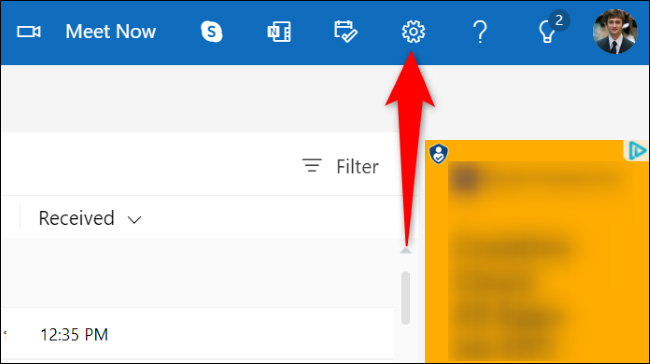
<p style="text-align: justify;">Nếu bạn muốn đặt phông chữ và cỡ chữ mặc định cho email của mình, thì ở góc trên cùng bên phải của giao diện Outlook, hãy nhấp vào biểu tượng bánh răng.</p>

<p style="text-align: justify;"><img alt="Nhấp vào biểu tượng bánh răng" data-i="6" data-src="https://st.quantrimang.com/photos/image/2022/12/16/thay-doi-phong-chu-va-co-chu-trong-outlook7.jpg" data-was-processed="true" height="364" src="https://st.quantrimang.com/photos/image/2022/12/16/thay-doi-phong-chu-va-co-chu-trong-outlook7.jpg" width="650" /></p>

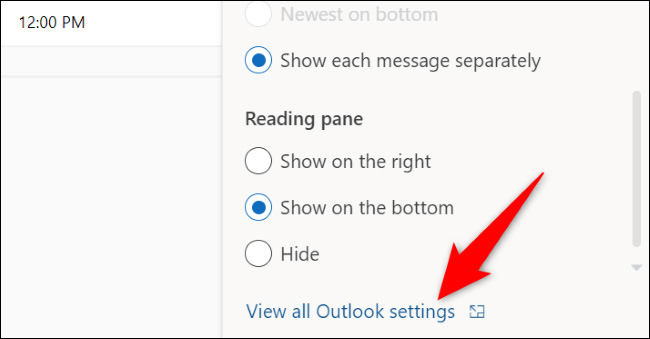
<p style="text-align: justify;">Trong menu mở ra, ở dưới cùng, hãy chọn “<strong>View All Outlook Settings</strong>”.</p>

<p style="text-align: justify;"><img alt="Chọn “View All Outlook Settings”" data-i="7" data-src="https://st.quantrimang.com/photos/image/2022/12/16/thay-doi-phong-chu-va-co-chu-trong-outlook8.jpg" data-was-processed="true" height="339" src="https://st.quantrimang.com/photos/image/2022/12/16/thay-doi-phong-chu-va-co-chu-trong-outlook8.jpg" width="650" /></p>

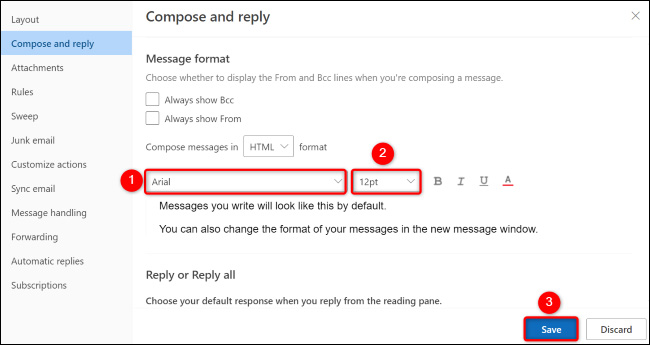
<p style="text-align: justify;">Trong menu “<strong>Settings</strong>”, chọn&nbsp;<strong>Mail &gt; Compose and Reply</strong>.</p>

<p style="text-align: justify;"><img alt="" data-i="8" data-src="https://st.quantrimang.com/photos/image/2022/12/16/thay-doi-phong-chu-va-co-chu-trong-outlook9.jpg" data-was-processed="true" height="286" src="https://st.quantrimang.com/photos/image/2022/12/16/thay-doi-phong-chu-va-co-chu-trong-outlook9.jpg" width="650" /></p>

<p style="text-align: justify;">Trên khung bên phải, cuộn xuống phần “<strong>Message Format</strong>”. Sau đó, nhấp vào tên phông chữ hiện tại và chọn một phông chữ mới. Thay đổi kích thước phông chữ mặc định bằng cách nhấp vào kích thước hiện tại và chọn một tùy chọn mới.</p>

<p style="text-align: justify;">Khi bạn đã thực hiện xong các thay đổi của mình, ở dưới cùng, hãy nhấp vào “<strong>Save</strong>”.</p>

<p style="text-align: justify;"><img alt="Nhấp vào “Save”" data-i="9" data-src="https://st.quantrimang.com/photos/image/2022/12/16/thay-doi-phong-chu-va-co-chu-trong-outlook10.jpg" data-was-processed="true" height="345" src="https://st.quantrimang.com/photos/image/2022/12/16/thay-doi-phong-chu-va-co-chu-trong-outlook10.jpg" width="650" /></p>

<p style="text-align: justify;">Tất cả chỉ đơn giản có vậy. Chúc bạn thực hiện thành công!</p>

<div style="text-align: justify;">&nbsp;</div>
		</div>
				<div id="author">
						<p>
				<strong>Nguồn tin:</strong>
				Quantrimang.com
			</p>
		</div>
	</div>
	<div id="footer" class="clearfix">
		<div id="url">
			<strong>URL của bản tin này: </strong><a href="https://www.nguoicodonvn2008.info/vi/news/savefile/kien-thuc-may-tinh/cach-thay-doi-phong-chu-va-co-chu-trong-outlook-6501.html" title="Cách thay đổi phông chữ và cỡ chữ trong Outlook">https://www.nguoicodonvn2008.info/vi/news/savefile/kien-thuc-may-tinh/cach-thay-doi-phong-chu-va-co-chu-trong-outlook-6501.html</a>

		</div>
		<div class="clear"></div>
		<div class="copyright">
			&copy; .&#x3A; Nguoicodonvn2008.info - Cõi lòng người cô đơn &#x3A;.
		</div>
		<div id="contact">
			<a href="mailto:admin@nguoicodonvn2008.info">admin@nguoicodonvn2008.info</a>
		</div>
	</div>
</div>
        <div id="timeoutsess" class="chromeframe">
            Bạn đã không sử dụng Site, <a onclick="timeoutsesscancel();" href="https://www.nguoicodonvn2008.info/#">Bấm vào đây để duy trì trạng thái đăng nhập</a>. Thời gian chờ: <span id="secField"> 60 </span> giây
        </div>
        <div id="openidResult" class="nv-alert" style="display:none"></div>
        <div id="openidBt" data-result="" data-redirect=""></div>
		</script>
		<div class="car-top">
  <span><img src="https://www.nguoicodonvn2008.info/themes/default/images/car.png" alt=""></span>
</div>
<script src="https://www.nguoicodonvn2008.info/assets/js/jquery/jquery.min.js"></script>
<script>var nv_base_siteurl="/",nv_lang_data="vi",nv_lang_interface="vi",nv_name_variable="nv",nv_fc_variable="op",nv_lang_variable="language",nv_module_name="news",nv_func_name="savefile",nv_is_user=0, nv_my_ofs=-4,nv_my_abbr="EDT",nv_cookie_prefix="nv4c_e856T",nv_check_pass_mstime=1738000,nv_area_admin=0,nv_safemode=0,theme_responsive=0,nv_recaptcha_ver=2,nv_recaptcha_sitekey="",nv_recaptcha_type="image",XSSsanitize=1;</script>
<script src="https://www.nguoicodonvn2008.info/assets/js/language/vi.js"></script>
<script src="https://www.nguoicodonvn2008.info/assets/js/DOMPurify/purify3.js"></script>
<script src="https://www.nguoicodonvn2008.info/assets/js/global.js"></script>
<script src="https://www.nguoicodonvn2008.info/assets/js/site.js"></script>
<script src="https://www.nguoicodonvn2008.info/themes/default/js/news.js"></script>
<script src="https://www.nguoicodonvn2008.info/themes/default/js/main.js"></script>
<script src="https://www.nguoicodonvn2008.info/themes/default/js/custom.js"></script>
<script type="application/ld+json">
        {
            "@context": "https://schema.org",
            "@type": "Organization",
            "url": "https://www.nguoicodonvn2008.info",
            "logo": "https://www.nguoicodonvn2008.info/uploads/angel.gif"
        }
        </script>
<script src="https://www.nguoicodonvn2008.info/themes/default/js/bootstrap.min.js"></script>
<script type="text/javascript">
var $scrolltop = $('.car-top');
$scrolltop.on('click', function () {
    $('html,body').animate({
        scrollTop: 0
    }, 800);
    $(this).addClass("car-run");
    setTimeout(function(){ $scrolltop.removeClass('car-run');}, 1000);
    return false;
});
$(window).on('scroll', function ()
{ 
    if($(window).scrollTop() >= 200)
    {
        $scrolltop.addClass("show");
        $scrolltop.addClass("car-down");
    }
    else
    {
       $scrolltop.removeClass("show");
       setTimeout(function(){ $scrolltop.removeClass('car-down');}, 300);
    }
});
</script>
</body>
</html>