<!DOCTYPE html>
    <html lang="vi" xmlns="http://www.w3.org/1999/xhtml" prefix="og: http://ogp.me/ns#">
    <head>
<title>Cách thay đổi hoặc khôi phục vị trí mặc định của thư mục Camera Roll trong Windows 10</title>
<meta name="description" content="Cách thay đổi hoặc khôi phục vị trí mặc định của thư mục Camera Roll trong Windows 10 - Savefile - Tin Tức -...">
<meta name="author" content=".: Nguoicodonvn2008.info - Cõi lòng người cô đơn :.">
<meta name="copyright" content=".: Nguoicodonvn2008.info - Cõi lòng người cô đơn :. [admin@nguoicodonvn2008.info]">
<meta name="robots" content="index, archive, follow, noodp">
<meta name="googlebot" content="index,archive,follow,noodp">
<meta name="msnbot" content="all,index,follow">
<meta name="generator" content="NukeViet v4.5">
<meta http-equiv="Content-Type" content="text/html; charset=utf-8">
<meta property="og:title" content="Cách thay đổi hoặc khôi phục vị trí mặc định của thư mục Camera Roll trong Windows 10">
<meta property="og:type" content="website">
<meta property="og:description" content="Savefile - Tin Tức -...">
<meta property="og:site_name" content=".&#x3A; Nguoicodonvn2008.info - Cõi lòng người cô đơn &#x3A;.">
<meta property="og:url" content="https://www.nguoicodonvn2008.info/vi/news/savefile/kien-thuc-may-tinh/cach-thay-doi-hoac-khoi-phuc-vi-tri-mac-dinh-cua-thu-muc-camera-roll-trong-windows-10-3119.html">
<link rel="shortcut icon" href="https://www.nguoicodonvn2008.info/favicon.ico">
<link rel="canonical" href="https://www.nguoicodonvn2008.info/vi/news/savefile/kien-thuc-may-tinh/cach-thay-doi-hoac-khoi-phuc-vi-tri-mac-dinh-cua-thu-muc-camera-roll-trong-windows-10-3119.html">
<link rel="alternate" href="https://www.nguoicodonvn2008.info/vi/news/rss/" title="Tin Tức" type="application/rss+xml">
<link rel="alternate" href="https://www.nguoicodonvn2008.info/vi/news/rss/karaoke-dual/" title="Tin Tức - Karaoke Dual" type="application/rss+xml">
<link rel="alternate" href="https://www.nguoicodonvn2008.info/vi/news/rss/nhac-tre/" title="Tin Tức - Nhạc trẻ" type="application/rss+xml">
<link rel="alternate" href="https://www.nguoicodonvn2008.info/vi/news/rss/tru-tinh/" title="Tin Tức - Trữ tình" type="application/rss+xml">
<link rel="alternate" href="https://www.nguoicodonvn2008.info/vi/news/rss/nuoc-ngoai/" title="Tin Tức - Nước ngoài" type="application/rss+xml">
<link rel="alternate" href="https://www.nguoicodonvn2008.info/vi/news/rss/remix/" title="Tin Tức - Remix" type="application/rss+xml">
<link rel="alternate" href="https://www.nguoicodonvn2008.info/vi/news/rss/tam-su-tinh-yeu/" title="Tin Tức - Tâm sự tình yêu" type="application/rss+xml">
<link rel="alternate" href="https://www.nguoicodonvn2008.info/vi/news/rss/tho-suu-tam/" title="Tin Tức - Thơ sưu tầm" type="application/rss+xml">
<link rel="alternate" href="https://www.nguoicodonvn2008.info/vi/news/rss/cuoc-song/" title="Tin Tức - Cuộc sống" type="application/rss+xml">
<link rel="alternate" href="https://www.nguoicodonvn2008.info/vi/news/rss/phan-mem/" title="Tin Tức - Phần mềm" type="application/rss+xml">
<link rel="alternate" href="https://www.nguoicodonvn2008.info/vi/news/rss/kien-thuc-may-tinh/" title="Tin Tức - Kiến thức máy tính" type="application/rss+xml">
<link rel="alternate" href="https://www.nguoicodonvn2008.info/vi/news/rss/hoc-tap/" title="Tin Tức - Học tập" type="application/rss+xml">
<link rel="alternate" href="https://www.nguoicodonvn2008.info/vi/news/rss/tai-lieu/" title="Tin Tức - Tài liệu" type="application/rss+xml">
<link rel="alternate" href="https://www.nguoicodonvn2008.info/vi/news/rss/de-thi/" title="Tin Tức - Đề thi" type="application/rss+xml">
<link rel="preload" as="style" href="https://www.nguoicodonvn2008.info/assets/css/font-awesome.min.css" type="text/css">
<link rel="preload" as="style" href="https://www.nguoicodonvn2008.info/themes/default/css/bootstrap.non-responsive.css" type="text/css">
<link rel="preload" as="style" href="https://www.nguoicodonvn2008.info/themes/default/css/style.css" type="text/css">
<link rel="preload" as="style" href="https://www.nguoicodonvn2008.info/themes/default/css/style.non-responsive.css" type="text/css">
<link rel="preload" as="style" href="https://www.nguoicodonvn2008.info/themes/default/css/news.css" type="text/css">
<link rel="preload" as="style" href="https://www.nguoicodonvn2008.info/themes/default/css/custom.css" type="text/css">
<link rel="preload" as="script" href="https://www.nguoicodonvn2008.info/assets/js/jquery/jquery.min.js" type="text/javascript">
<link rel="preload" as="script" href="https://www.nguoicodonvn2008.info/assets/js/language/vi.js" type="text/javascript">
<link rel="preload" as="script" href="https://www.nguoicodonvn2008.info/assets/js/DOMPurify/purify3.js" type="text/javascript">
<link rel="preload" as="script" href="https://www.nguoicodonvn2008.info/assets/js/global.js" type="text/javascript">
<link rel="preload" as="script" href="https://www.nguoicodonvn2008.info/assets/js/site.js" type="text/javascript">
<link rel="preload" as="script" href="https://www.nguoicodonvn2008.info/themes/default/js/news.js" type="text/javascript">
<link rel="preload" as="script" href="https://www.nguoicodonvn2008.info/themes/default/js/main.js" type="text/javascript">
<link rel="preload" as="script" href="https://www.nguoicodonvn2008.info/themes/default/js/custom.js" type="text/javascript">
<link rel="preload" as="script" href="https://www.nguoicodonvn2008.info/themes/default/js/bootstrap.min.js" type="text/javascript">
<link rel="stylesheet" href="https://www.nguoicodonvn2008.info/assets/css/font-awesome.min.css">
<link rel="stylesheet" href="https://www.nguoicodonvn2008.info/themes/default/css/bootstrap.non-responsive.css">
<link rel="stylesheet" href="https://www.nguoicodonvn2008.info/themes/default/css/style.css">
<link rel="stylesheet" href="https://www.nguoicodonvn2008.info/themes/default/css/style.non-responsive.css">
<link rel="StyleSheet" href="https://www.nguoicodonvn2008.info/themes/default/css/news.css">
<link rel="stylesheet" href="https://www.nguoicodonvn2008.info/themes/default/css/custom.css">
<style type="text/css">
	body{background: #fff;}
</style>
    </head>
    <body>
<div id="print">
	<div id="hd_print">
		<h2 class="pull-left">.&#x3A; Nguoicodonvn2008.info - Cõi lòng người cô đơn &#x3A;.</h2>
		<p class="pull-right"><a title=".&#x3A; Nguoicodonvn2008.info - Cõi lòng người cô đơn &#x3A;." href="https://www.nguoicodonvn2008.info/">https://www.nguoicodonvn2008.info</a></p>
	</div>
	<div class="clear"></div>
	<hr />
	<div id="content">
		<h1>Cách thay đổi hoặc khôi phục vị trí mặc định của thư mục Camera Roll trong Windows 10</h1>
		<ul class="list-inline">
			<li>Chủ nhật - 22/11/2020 23:50</li>
			<li class="hidden-print txtrequired"><em class="fa fa-print">&nbsp;</em><a title="In ra" href="javascript:;" onclick="window.print()">In ra</a></li>
			<li class="hidden-print txtrequired"><em class="fa fa-power-off">&nbsp;</em><a title="Đóng cửa sổ này" href="javascript:;" onclick="window.close()">Đóng cửa sổ này</a></li>
		</ul>
		<div class="clear"></div>
		<div id="hometext">
		</div>
				<div class="imghome">
			<img alt="Cách thay đổi hoặc khôi phục vị trí mặc định của thư mục Camera Roll trong Windows 10" src="https://st.quantrimang.com/photos/image/2020/11/18/thay-doi-vi-tri-mac-dinh-cua-thu-muc-camera-roll-6.jpg" width="460" class="img-thumbnail" />
		</div>
		<div class="clear"></div>
		<div id="bodytext" class="clearfix">
			<p style="text-align: justify;">Thư mục&nbsp;<strong>C:\Users\&lt;user name&gt;\Pictures\Camera Roll (%UserProfile%\Pictures\Camera Roll)</strong>&nbsp;được tạo bởi ứng dụng Camera. Ảnh và video quay bằng camera hoặc webcam tích hợp được lưu theo mặc định vào thư mục Camera Roll.</p>

<p style="text-align: justify;">Nếu muốn, bạn có thể thay đổi vị trí mặc định của thư mục Camera Roll này thành nơi bạn muốn lưu ảnh hoặc video quay bằng ứng dụng Camera của mình theo mặc định.</p>

<p style="text-align: justify;">Hướng dẫn này sẽ chỉ cho bạn cách thay đổi hoặc khôi phục vị trí mặc định của thư mục Camera Roll trong Windows 10.</p>

<h2 style="text-align: justify;">Thay đổi vị trí mặc định của thư mục Camera Roll trong Properties</h2>

<p style="text-align: justify;">1. Nếu chưa thực hiện, bạn sẽ cần tạo một thư mục mới có tên là&nbsp;<strong>Camera Roll</strong>&nbsp;tại vị trí (ví dụ, ổ&nbsp;<strong>D</strong>) mà bạn muốn chuyển thư mục Camera Roll của mình đến.</p>

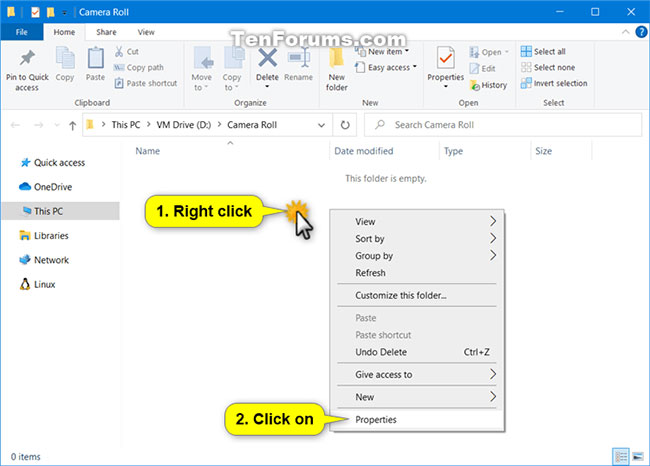
<p style="text-align: justify;">2. Trong&nbsp;<strong>File Explorer</strong>&nbsp;(<strong>Win + E</strong>), sao chép và dán&nbsp;<strong>shell:Camera Roll</strong>&nbsp;vào thanh địa chỉ và nhấn&nbsp;<strong>Enter</strong>&nbsp;để mở vị trí hiện tại của thư mục Camera Roll.</p>

<div style="text-align: justify;">&nbsp;</div>

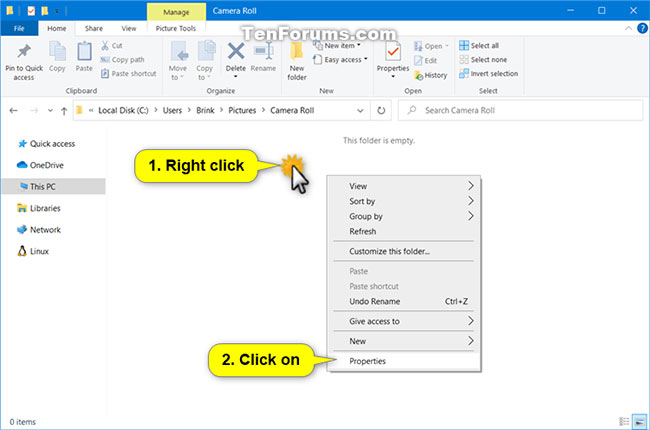
<p style="text-align: justify;">3. Nhấp chuột phải hoặc nhấn và giữ vào một vùng trống trong thư mục&nbsp;<strong>Camera Roll</strong>&nbsp;và chọn&nbsp;<strong>Properties.</strong></p>

<figure>
<div style="text-align: justify;"><img alt="Chọn Properties" data-i="0" data-src="https://st.quantrimang.com/photos/image/2020/11/18/thay-doi-vi-tri-mac-dinh-cua-thu-muc-camera-roll-1.jpg" data-was-processed="true" height="430" src="https://st.quantrimang.com/photos/image/2020/11/18/thay-doi-vi-tri-mac-dinh-cua-thu-muc-camera-roll-1.jpg" width="650" /></div>

<figcaption>
<div style="text-align: justify;">Chọn Properties</div>
</figcaption>
</figure>

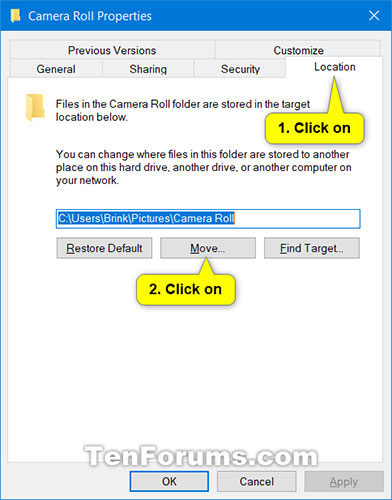
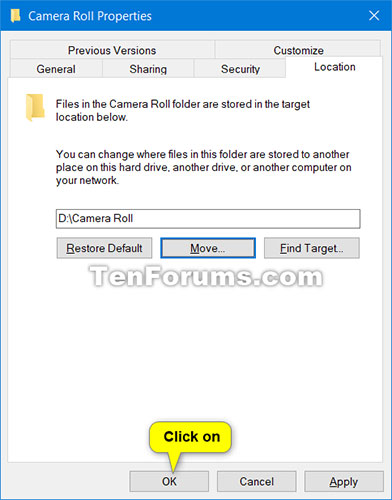
<p style="text-align: justify;">4. Nhấp vào tab&nbsp;<strong>Location</strong>&nbsp;và nhấn vào nút&nbsp;<strong>Move.</strong></p>

<figure>
<div style="text-align: justify;"><img alt="Nhấn vào nút Move" data-i="1" data-src="https://st.quantrimang.com/photos/image/2020/11/18/thay-doi-vi-tri-mac-dinh-cua-thu-muc-camera-roll-2.jpg" data-was-processed="true" height="500" src="https://st.quantrimang.com/photos/image/2020/11/18/thay-doi-vi-tri-mac-dinh-cua-thu-muc-camera-roll-2.jpg" width="392" /></div>

<figcaption>
<div style="text-align: justify;">Nhấn vào nút Move</div>
</figcaption>
</figure>

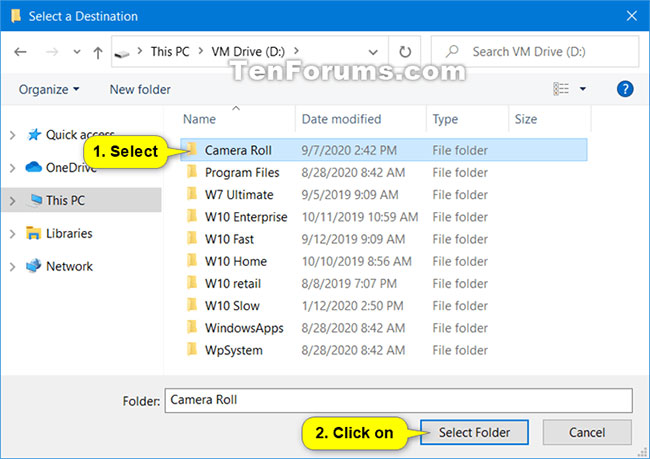
<p style="text-align: justify;">5. Duyệt đến và chọn thư mục&nbsp;<strong>Camera Roll</strong>&nbsp;tại vị trí (ví dụ: &quot;<strong>D:\Camera Roll</strong>&quot;) từ bước 1 và nhấn vào&nbsp;<strong>Select Folder.</strong></p>

<figure>
<div style="text-align: justify;"><img alt="Nhấn vào Select Folder" data-i="2" data-src="https://st.quantrimang.com/photos/image/2020/11/18/thay-doi-vi-tri-mac-dinh-cua-thu-muc-camera-roll-3.jpg" data-was-processed="true" height="459" src="https://st.quantrimang.com/photos/image/2020/11/18/thay-doi-vi-tri-mac-dinh-cua-thu-muc-camera-roll-3.jpg" width="650" /></div>

<figcaption>
<div style="text-align: justify;">Nhấn vào Select Folder</div>
</figcaption>
</figure>

<p style="text-align: justify;">6. Nhấn vào&nbsp;<strong>OK</strong>&nbsp;để áp dụng thay đổi.</p>

<figure>
<div style="text-align: justify;"><img alt="Nhấn OK" data-i="3" data-src="https://st.quantrimang.com/photos/image/2020/11/18/thay-doi-vi-tri-mac-dinh-cua-thu-muc-camera-roll-4.jpg" data-was-processed="true" height="500" src="https://st.quantrimang.com/photos/image/2020/11/18/thay-doi-vi-tri-mac-dinh-cua-thu-muc-camera-roll-4.jpg" width="392" /></div>

<figcaption>
<div style="text-align: justify;">Nhấn OK</div>
</figcaption>
</figure>

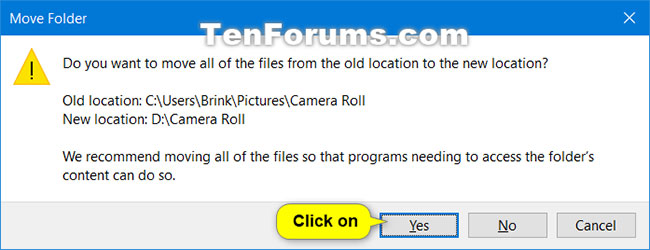
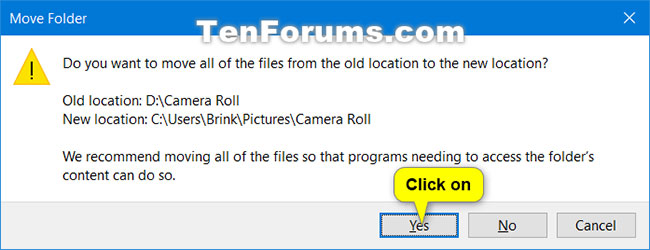
<p style="text-align: justify;">7. Nhấn vào&nbsp;<strong>Yes</strong>&nbsp;để di chuyển tất cả các file từ vị trí cũ sang vị trí mới.</p>

<figure>
<div style="text-align: justify;"><img alt="Nhấn vào Yes để di chuyển tất cả các file" data-i="4" data-src="https://st.quantrimang.com/photos/image/2020/11/18/thay-doi-vi-tri-mac-dinh-cua-thu-muc-camera-roll-5.jpg" data-was-processed="true" height="250" src="https://st.quantrimang.com/photos/image/2020/11/18/thay-doi-vi-tri-mac-dinh-cua-thu-muc-camera-roll-5.jpg" width="650" /></div>

<figcaption>
<div style="text-align: justify;">Nhấn vào Yes để di chuyển tất cả các file</div>
</figcaption>
</figure>

<div style="text-align: justify;">&nbsp;</div>

<h2 style="text-align: justify;">Khôi phục vị trí mặc định của thư mục Camera Roll trong Properties</h2>

<p style="text-align: justify;">1.&nbsp;Mở File Explorer&nbsp;(<strong>Win + E</strong>), sao chép và dán&nbsp;<strong>shell:Camera Roll</strong>&nbsp;vào thanh địa chỉ và nhấn&nbsp;<strong>Enter</strong>&nbsp;để mở vị trí hiện tại của thư mục&nbsp;<strong>Camera Roll.</strong></p>

<p style="text-align: justify;">2. Nhấp chuột phải hoặc nhấn và giữ vào một vùng trống trong thư mục Camera Roll và chọn&nbsp;<strong>Properties.</strong></p>

<figure>
<div style="text-align: justify;"><img alt="Mở thuộc tính thư mục Camera Roll" data-i="5" data-src="https://st.quantrimang.com/photos/image/2020/11/18/thay-doi-vi-tri-mac-dinh-cua-thu-muc-camera-roll-6.jpg" data-was-processed="true" height="466" src="https://st.quantrimang.com/photos/image/2020/11/18/thay-doi-vi-tri-mac-dinh-cua-thu-muc-camera-roll-6.jpg" width="650" /></div>

<figcaption>
<div style="text-align: justify;">Mở thuộc tính thư mục Camera Roll</div>
</figcaption>
</figure>

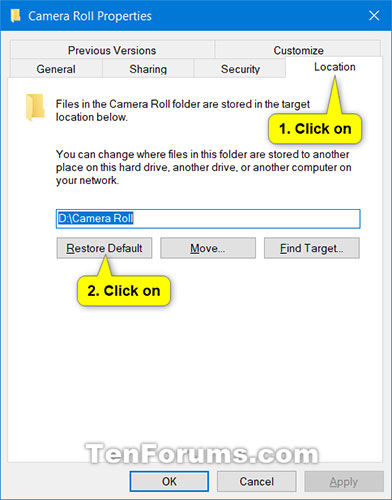
<p style="text-align: justify;">3. Nhấp vào tab&nbsp;<strong>Location</strong>&nbsp;và nhấn vào nút&nbsp;<strong>Restore Default.</strong></p>

<figure>
<div style="text-align: justify;"><img alt="Nhấn vào nút Restore Default" data-i="6" data-src="https://st.quantrimang.com/photos/image/2020/11/18/thay-doi-vi-tri-mac-dinh-cua-thu-muc-camera-roll-7.jpg" data-was-processed="true" height="500" src="https://st.quantrimang.com/photos/image/2020/11/18/thay-doi-vi-tri-mac-dinh-cua-thu-muc-camera-roll-7.jpg" width="392" /></div>

<figcaption>
<div style="text-align: justify;">Nhấn vào nút Restore Default</div>
</figcaption>
</figure>

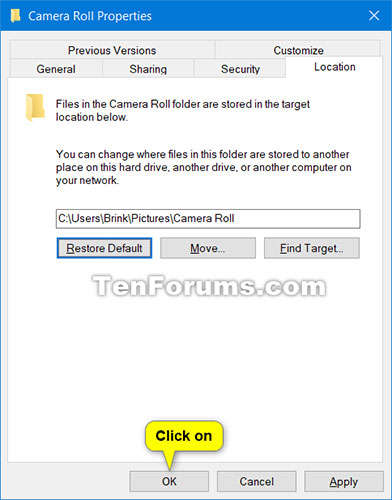
<p style="text-align: justify;">4. Nhấn vào&nbsp;<strong>OK</strong>&nbsp;để áp dụng.</p>

<figure>
<div style="text-align: justify;"><img alt="Nhấn vào OK để áp dụng" data-i="7" data-src="https://st.quantrimang.com/photos/image/2020/11/18/thay-doi-vi-tri-mac-dinh-cua-thu-muc-camera-roll-8.jpg" data-was-processed="true" height="500" src="https://st.quantrimang.com/photos/image/2020/11/18/thay-doi-vi-tri-mac-dinh-cua-thu-muc-camera-roll-8.jpg" width="392" /></div>

<figcaption>
<div style="text-align: justify;">Nhấn vào OK để áp dụng</div>
</figcaption>
</figure>

<p style="text-align: justify;">5. Nếu thư mục Camera Roll không tồn tại ở vị trí mặc định này, hãy nhấn vào&nbsp;<strong>Yes</strong>&nbsp;để tạo nó.</p>

<p style="text-align: justify;">6. Nhấp vào&nbsp;<strong>Yes</strong>&nbsp;để di chuyển tất cả các file từ vị trí cũ sang vị trí mới.</p>

<figure>
<div style="text-align: justify;"><img alt="Chọn Yes để di chuyển file" data-i="8" data-src="https://st.quantrimang.com/photos/image/2020/11/18/thay-doi-vi-tri-mac-dinh-cua-thu-muc-camera-roll-9.jpg" data-was-processed="true" height="250" src="https://st.quantrimang.com/photos/image/2020/11/18/thay-doi-vi-tri-mac-dinh-cua-thu-muc-camera-roll-9.jpg" width="650" /></div>

<figcaption>
<div style="text-align: justify;">Chọn Yes để di chuyển file</div>
</figcaption>
</figure>

<p style="text-align: justify;">7. Sau một thời gian ngắn, thư mục Camera Roll sẽ được khôi phục về vị trí mặc định của nó (ví dụ: &quot;<strong>C:\Users\Brink\Pictures\Camera Roll</strong>&quot;).</p>
		</div>
				<div id="author">
						<p>
				<strong>Nguồn tin:</strong>
				Quantrimang.com
			</p>
		</div>
	</div>
	<div id="footer" class="clearfix">
		<div id="url">
			<strong>URL của bản tin này: </strong><a href="https://www.nguoicodonvn2008.info/vi/news/savefile/kien-thuc-may-tinh/cach-thay-doi-hoac-khoi-phuc-vi-tri-mac-dinh-cua-thu-muc-camera-roll-trong-windows-10-3119.html" title="Cách thay đổi hoặc khôi phục vị trí mặc định của thư mục Camera Roll trong Windows 10">https://www.nguoicodonvn2008.info/vi/news/savefile/kien-thuc-may-tinh/cach-thay-doi-hoac-khoi-phuc-vi-tri-mac-dinh-cua-thu-muc-camera-roll-trong-windows-10-3119.html</a>

		</div>
		<div class="clear"></div>
		<div class="copyright">
			&copy; .&#x3A; Nguoicodonvn2008.info - Cõi lòng người cô đơn &#x3A;.
		</div>
		<div id="contact">
			<a href="mailto:admin@nguoicodonvn2008.info">admin@nguoicodonvn2008.info</a>
		</div>
	</div>
</div>
        <div id="timeoutsess" class="chromeframe">
            Bạn đã không sử dụng Site, <a onclick="timeoutsesscancel();" href="https://www.nguoicodonvn2008.info/#">Bấm vào đây để duy trì trạng thái đăng nhập</a>. Thời gian chờ: <span id="secField"> 60 </span> giây
        </div>
        <div id="openidResult" class="nv-alert" style="display:none"></div>
        <div id="openidBt" data-result="" data-redirect=""></div>
		</script>
		<div class="car-top">
  <span><img src="https://www.nguoicodonvn2008.info/themes/default/images/car.png" alt=""></span>
</div>
<script src="https://www.nguoicodonvn2008.info/assets/js/jquery/jquery.min.js"></script>
<script>var nv_base_siteurl="/",nv_lang_data="vi",nv_lang_interface="vi",nv_name_variable="nv",nv_fc_variable="op",nv_lang_variable="language",nv_module_name="news",nv_func_name="savefile",nv_is_user=0, nv_my_ofs=-4,nv_my_abbr="EDT",nv_cookie_prefix="nv4c_e856T",nv_check_pass_mstime=1738000,nv_area_admin=0,nv_safemode=0,theme_responsive=0,nv_recaptcha_ver=2,nv_recaptcha_sitekey="",nv_recaptcha_type="image",XSSsanitize=1;</script>
<script src="https://www.nguoicodonvn2008.info/assets/js/language/vi.js"></script>
<script src="https://www.nguoicodonvn2008.info/assets/js/DOMPurify/purify3.js"></script>
<script src="https://www.nguoicodonvn2008.info/assets/js/global.js"></script>
<script src="https://www.nguoicodonvn2008.info/assets/js/site.js"></script>
<script src="https://www.nguoicodonvn2008.info/themes/default/js/news.js"></script>
<script src="https://www.nguoicodonvn2008.info/themes/default/js/main.js"></script>
<script src="https://www.nguoicodonvn2008.info/themes/default/js/custom.js"></script>
<script type="application/ld+json">
        {
            "@context": "https://schema.org",
            "@type": "Organization",
            "url": "https://www.nguoicodonvn2008.info",
            "logo": "https://www.nguoicodonvn2008.info/uploads/angel.gif"
        }
        </script>
<script src="https://www.nguoicodonvn2008.info/themes/default/js/bootstrap.min.js"></script>
<script type="text/javascript">
var $scrolltop = $('.car-top');
$scrolltop.on('click', function () {
    $('html,body').animate({
        scrollTop: 0
    }, 800);
    $(this).addClass("car-run");
    setTimeout(function(){ $scrolltop.removeClass('car-run');}, 1000);
    return false;
});
$(window).on('scroll', function ()
{ 
    if($(window).scrollTop() >= 200)
    {
        $scrolltop.addClass("show");
        $scrolltop.addClass("car-down");
    }
    else
    {
       $scrolltop.removeClass("show");
       setTimeout(function(){ $scrolltop.removeClass('car-down');}, 300);
    }
});
</script>
</body>
</html>