<!DOCTYPE html>
    <html lang="vi" xmlns="http://www.w3.org/1999/xhtml" prefix="og: http://ogp.me/ns#">
    <head>
<title>Cách thay đổi chế độ xem Disk Management trên Windows 10</title>
<meta name="description" content="Cách thay đổi chế độ xem Disk Management trên Windows 10 - Savefile - Tin Tức -...">
<meta name="author" content=".: Nguoicodonvn2008.info - Cõi lòng người cô đơn :.">
<meta name="copyright" content=".: Nguoicodonvn2008.info - Cõi lòng người cô đơn :. [admin@nguoicodonvn2008.info]">
<meta name="robots" content="index, archive, follow, noodp">
<meta name="googlebot" content="index,archive,follow,noodp">
<meta name="msnbot" content="all,index,follow">
<meta name="generator" content="NukeViet v4.5">
<meta http-equiv="Content-Type" content="text/html; charset=utf-8">
<meta property="og:title" content="Cách thay đổi chế độ xem Disk Management trên Windows 10">
<meta property="og:type" content="website">
<meta property="og:description" content="Savefile - Tin Tức - https&#x3A;&#x002F;&#x002F;www.nguoicodonvn2008.info&#x002F;vi&#x002F;news&#x002F;savefile&#x002F;kien-thuc-may-tinh&#x002F;cach-thay-doi-che-do-xem-disk-management-tren-windows-10-2971.html">
<meta property="og:site_name" content=".&#x3A; Nguoicodonvn2008.info - Cõi lòng người cô đơn &#x3A;.">
<meta property="og:url" content="https://www.nguoicodonvn2008.info/vi/news/savefile/kien-thuc-may-tinh/cach-thay-doi-che-do-xem-disk-management-tren-windows-10-2971.html">
<link rel="shortcut icon" href="https://www.nguoicodonvn2008.info/favicon.ico">
<link rel="canonical" href="https://www.nguoicodonvn2008.info/vi/news/savefile/kien-thuc-may-tinh/cach-thay-doi-che-do-xem-disk-management-tren-windows-10-2971.html">
<link rel="alternate" href="https://www.nguoicodonvn2008.info/vi/news/rss/" title="Tin Tức" type="application/rss+xml">
<link rel="alternate" href="https://www.nguoicodonvn2008.info/vi/news/rss/karaoke-dual/" title="Tin Tức - Karaoke Dual" type="application/rss+xml">
<link rel="alternate" href="https://www.nguoicodonvn2008.info/vi/news/rss/nhac-tre/" title="Tin Tức - Nhạc trẻ" type="application/rss+xml">
<link rel="alternate" href="https://www.nguoicodonvn2008.info/vi/news/rss/tru-tinh/" title="Tin Tức - Trữ tình" type="application/rss+xml">
<link rel="alternate" href="https://www.nguoicodonvn2008.info/vi/news/rss/nuoc-ngoai/" title="Tin Tức - Nước ngoài" type="application/rss+xml">
<link rel="alternate" href="https://www.nguoicodonvn2008.info/vi/news/rss/remix/" title="Tin Tức - Remix" type="application/rss+xml">
<link rel="alternate" href="https://www.nguoicodonvn2008.info/vi/news/rss/tam-su-tinh-yeu/" title="Tin Tức - Tâm sự tình yêu" type="application/rss+xml">
<link rel="alternate" href="https://www.nguoicodonvn2008.info/vi/news/rss/tho-suu-tam/" title="Tin Tức - Thơ sưu tầm" type="application/rss+xml">
<link rel="alternate" href="https://www.nguoicodonvn2008.info/vi/news/rss/cuoc-song/" title="Tin Tức - Cuộc sống" type="application/rss+xml">
<link rel="alternate" href="https://www.nguoicodonvn2008.info/vi/news/rss/phan-mem/" title="Tin Tức - Phần mềm" type="application/rss+xml">
<link rel="alternate" href="https://www.nguoicodonvn2008.info/vi/news/rss/kien-thuc-may-tinh/" title="Tin Tức - Kiến thức máy tính" type="application/rss+xml">
<link rel="alternate" href="https://www.nguoicodonvn2008.info/vi/news/rss/hoc-tap/" title="Tin Tức - Học tập" type="application/rss+xml">
<link rel="alternate" href="https://www.nguoicodonvn2008.info/vi/news/rss/tai-lieu/" title="Tin Tức - Tài liệu" type="application/rss+xml">
<link rel="alternate" href="https://www.nguoicodonvn2008.info/vi/news/rss/de-thi/" title="Tin Tức - Đề thi" type="application/rss+xml">
<link rel="preload" as="style" href="https://www.nguoicodonvn2008.info/assets/css/font-awesome.min.css" type="text/css">
<link rel="preload" as="style" href="https://www.nguoicodonvn2008.info/themes/default/css/bootstrap.non-responsive.css" type="text/css">
<link rel="preload" as="style" href="https://www.nguoicodonvn2008.info/themes/default/css/style.css" type="text/css">
<link rel="preload" as="style" href="https://www.nguoicodonvn2008.info/themes/default/css/style.non-responsive.css" type="text/css">
<link rel="preload" as="style" href="https://www.nguoicodonvn2008.info/themes/default/css/news.css" type="text/css">
<link rel="preload" as="style" href="https://www.nguoicodonvn2008.info/themes/default/css/custom.css" type="text/css">
<link rel="preload" as="script" href="https://www.nguoicodonvn2008.info/assets/js/jquery/jquery.min.js" type="text/javascript">
<link rel="preload" as="script" href="https://www.nguoicodonvn2008.info/assets/js/language/vi.js" type="text/javascript">
<link rel="preload" as="script" href="https://www.nguoicodonvn2008.info/assets/js/DOMPurify/purify3.js" type="text/javascript">
<link rel="preload" as="script" href="https://www.nguoicodonvn2008.info/assets/js/global.js" type="text/javascript">
<link rel="preload" as="script" href="https://www.nguoicodonvn2008.info/assets/js/site.js" type="text/javascript">
<link rel="preload" as="script" href="https://www.nguoicodonvn2008.info/themes/default/js/news.js" type="text/javascript">
<link rel="preload" as="script" href="https://www.nguoicodonvn2008.info/themes/default/js/main.js" type="text/javascript">
<link rel="preload" as="script" href="https://www.nguoicodonvn2008.info/themes/default/js/custom.js" type="text/javascript">
<link rel="preload" as="script" href="https://www.nguoicodonvn2008.info/themes/default/js/bootstrap.min.js" type="text/javascript">
<link rel="stylesheet" href="https://www.nguoicodonvn2008.info/assets/css/font-awesome.min.css">
<link rel="stylesheet" href="https://www.nguoicodonvn2008.info/themes/default/css/bootstrap.non-responsive.css">
<link rel="stylesheet" href="https://www.nguoicodonvn2008.info/themes/default/css/style.css">
<link rel="stylesheet" href="https://www.nguoicodonvn2008.info/themes/default/css/style.non-responsive.css">
<link rel="StyleSheet" href="https://www.nguoicodonvn2008.info/themes/default/css/news.css">
<link rel="stylesheet" href="https://www.nguoicodonvn2008.info/themes/default/css/custom.css">
<style type="text/css">
	body{background: #fff;}
</style>
    </head>
    <body>
<div id="print">
	<div id="hd_print">
		<h2 class="pull-left">.&#x3A; Nguoicodonvn2008.info - Cõi lòng người cô đơn &#x3A;.</h2>
		<p class="pull-right"><a title=".&#x3A; Nguoicodonvn2008.info - Cõi lòng người cô đơn &#x3A;." href="https://www.nguoicodonvn2008.info/">https://www.nguoicodonvn2008.info</a></p>
	</div>
	<div class="clear"></div>
	<hr />
	<div id="content">
		<h1>Cách thay đổi chế độ xem Disk Management trên Windows 10</h1>
		<ul class="list-inline">
			<li>Thứ tư - 28/10/2020 00:47</li>
			<li class="hidden-print txtrequired"><em class="fa fa-print">&nbsp;</em><a title="In ra" href="javascript:;" onclick="window.print()">In ra</a></li>
			<li class="hidden-print txtrequired"><em class="fa fa-power-off">&nbsp;</em><a title="Đóng cửa sổ này" href="javascript:;" onclick="window.close()">Đóng cửa sổ này</a></li>
		</ul>
		<div class="clear"></div>
		<div id="hometext">
		</div>
				<div class="imghome">
			<img alt="Cách thay đổi chế độ xem Disk Management trên Windows 10" src="https://st.quantrimang.com/photos/image/2020/10/27/thay-doi-che-do-xem-disk-management-2.png" width="460" class="img-thumbnail" />
		</div>
		<div class="clear"></div>
		<div id="bodytext" class="clearfix">
			<p style="text-align: justify;">Disk Management&nbsp;là một tiện ích của Microsoft Windows được giới thiệu lần đầu tiên trong Windows XP để thay thế cho lệnh fdisk. Nó cho phép người dùng xem và quản lý các ổ đĩa được cài đặt trong máy tính và những phân vùng được liên kết với các ổ đó. Mỗi ổ được hiển thị theo bố cục, loại, hệ thống file, trạng thái, dung lượng, dung lượng trống, % trống và khả năng chịu lỗi.</p>

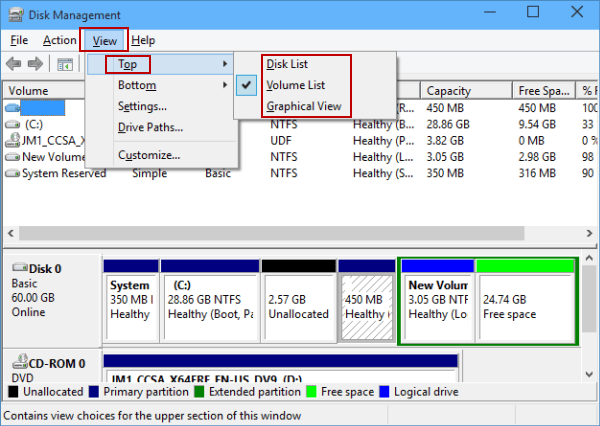
<p style="text-align: justify;">Hình ảnh sau đây cho bạn thấy Disk Management có thể trông như thế nào khi chế độ xem của nó bị thay đổi. Nếu bạn đang băn khoăn về cách thực hiện thì trong bài viết này,&nbsp;<strong>Quantrimang</strong>&nbsp;sẽ minh họa phương pháp thay đổi chế độ xem Disk Management trong máy tính Windows 10 để bạn tham khảo.</p>

<figure>
<div style="text-align: justify;"><img alt="Disk Management khi chế độ xem của nó bị thay đổi" data-i="0" data-src="https://st.quantrimang.com/photos/image/2020/10/27/thay-doi-che-do-xem-disk-management-1.png" data-was-processed="true" height="426" src="https://st.quantrimang.com/photos/image/2020/10/27/thay-doi-che-do-xem-disk-management-1.png" width="600" /></div>

<figcaption>
<div style="text-align: justify;">Disk Management khi chế độ xem của nó bị thay đổi</div>
</figcaption>
</figure>

<h2 style="text-align: justify;">Video hướng dẫn cách thay đổi chế độ xem Disk Management trên Windows 10</h2>

<p style="text-align: center;"><iframe allowfullscreen="allowfullscreen" data-src="https://www.nguoicodonvn2008.info//xem.video/embed/25099" data-was-processed="true" frameborder="0" height="360" scrolling="no" width="480"></iframe></p>

<div style="text-align: justify;">&nbsp;</div>

<h2 style="text-align: justify;">Các bước để thay đổi chế độ xem Disk Management trên Windows 10</h2>

<p style="text-align: justify;"><strong>Bước 1</strong>:&nbsp;Mở Disk Management.</p>

<p style="text-align: justify;"><strong>Bước 2</strong>:&nbsp;Thực hiện theo 1 trong 2 cách sau để thay đổi chế độ xem Disk Management theo cách bạn muốn.</p>

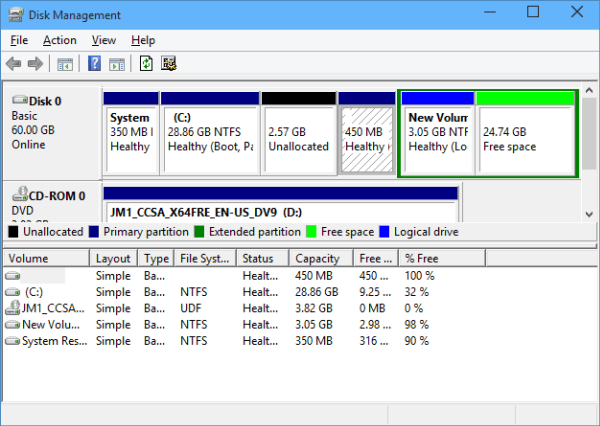
<p style="text-align: justify;"><strong>Cách 1</strong>: Nhấp vào&nbsp;<strong>View</strong>&nbsp;trên thanh menu, nhấn vào&nbsp;<strong>Top</strong>&nbsp;trong menu&nbsp;<strong>View</strong>&nbsp;và chọn 1 trong số các mục&nbsp;<strong>Disk List, Volume List</strong>&nbsp;và<strong>&nbsp;Graphical View&nbsp;</strong>hiển thị từ phần trên cùng.</p>

<figure>
<div style="text-align: justify;"><img alt="Nhấn vào Top trong menu View" data-i="1" data-src="https://st.quantrimang.com/photos/image/2020/10/27/thay-doi-che-do-xem-disk-management-2.png" data-was-processed="true" height="426" src="https://st.quantrimang.com/photos/image/2020/10/27/thay-doi-che-do-xem-disk-management-2.png" width="600" /></div>

<figcaption>
<div style="text-align: justify;">Nhấn vào Top trong menu View</div>
</figcaption>
</figure>

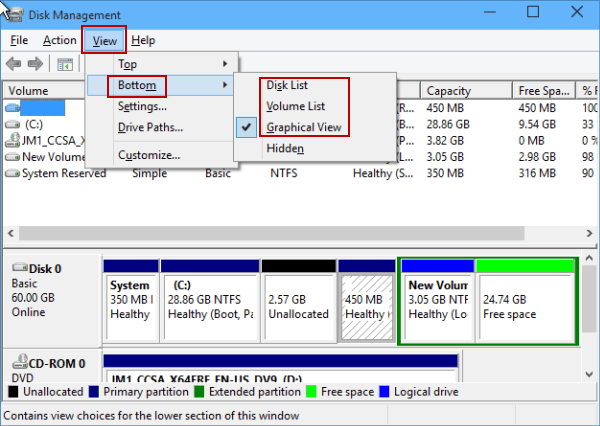
<p style="text-align: justify;"><strong>Cách 2</strong>: Nhấn vào&nbsp;<strong>View</strong>, chọn&nbsp;<strong>Bottom</strong>&nbsp;trong menu và chọn&nbsp;<strong>Disk List, Volume List</strong>&nbsp;hoặc<strong>&nbsp;Graphical View</strong>&nbsp;trong menu phụ để hiển thị ở dưới cùng.</p>

<figure>
<div style="text-align: justify;"><img alt="Nhấn vào View, chọn Bottom" data-i="2" data-src="https://st.quantrimang.com/photos/image/2020/10/27/thay-doi-che-do-xem-disk-management-3.png" data-was-processed="true" height="426" src="https://st.quantrimang.com/photos/image/2020/10/27/thay-doi-che-do-xem-disk-management-3.png" width="600" /></div>

<figcaption>
<div style="text-align: justify;">Nhấn vào View, chọn Bottom</div>
</figcaption>
</figure>

<p style="text-align: justify;">Chúc bạn thực hiện thành công!</p>
		</div>
				<div id="author">
						<p>
				<strong>Nguồn tin:</strong>
				Quantrimang.com
			</p>
		</div>
	</div>
	<div id="footer" class="clearfix">
		<div id="url">
			<strong>URL của bản tin này: </strong><a href="https://www.nguoicodonvn2008.info/vi/news/savefile/kien-thuc-may-tinh/cach-thay-doi-che-do-xem-disk-management-tren-windows-10-2971.html" title="Cách thay đổi chế độ xem Disk Management trên Windows 10">https://www.nguoicodonvn2008.info/vi/news/savefile/kien-thuc-may-tinh/cach-thay-doi-che-do-xem-disk-management-tren-windows-10-2971.html</a>

		</div>
		<div class="clear"></div>
		<div class="copyright">
			&copy; .&#x3A; Nguoicodonvn2008.info - Cõi lòng người cô đơn &#x3A;.
		</div>
		<div id="contact">
			<a href="mailto:admin@nguoicodonvn2008.info">admin@nguoicodonvn2008.info</a>
		</div>
	</div>
</div>
        <div id="timeoutsess" class="chromeframe">
            Bạn đã không sử dụng Site, <a onclick="timeoutsesscancel();" href="https://www.nguoicodonvn2008.info/#">Bấm vào đây để duy trì trạng thái đăng nhập</a>. Thời gian chờ: <span id="secField"> 60 </span> giây
        </div>
        <div id="openidResult" class="nv-alert" style="display:none"></div>
        <div id="openidBt" data-result="" data-redirect=""></div>
		</script>
		<div class="car-top">
  <span><img src="https://www.nguoicodonvn2008.info/themes/default/images/car.png" alt=""></span>
</div>
<div id="run_cronjobs" style="visibility:hidden;display:none;"><img alt="cron" src="/index.php?second=cronjobs&amp;p=j9zNB3Qp" width="1" height="1" /></div>
<script src="https://www.nguoicodonvn2008.info/assets/js/jquery/jquery.min.js"></script>
<script>var nv_base_siteurl="/",nv_lang_data="vi",nv_lang_interface="vi",nv_name_variable="nv",nv_fc_variable="op",nv_lang_variable="language",nv_module_name="news",nv_func_name="savefile",nv_is_user=0, nv_my_ofs=-4,nv_my_abbr="EDT",nv_cookie_prefix="nv4c_e856T",nv_check_pass_mstime=1738000,nv_area_admin=0,nv_safemode=0,theme_responsive=0,nv_recaptcha_ver=2,nv_recaptcha_sitekey="",nv_recaptcha_type="image",XSSsanitize=1;</script>
<script src="https://www.nguoicodonvn2008.info/assets/js/language/vi.js"></script>
<script src="https://www.nguoicodonvn2008.info/assets/js/DOMPurify/purify3.js"></script>
<script src="https://www.nguoicodonvn2008.info/assets/js/global.js"></script>
<script src="https://www.nguoicodonvn2008.info/assets/js/site.js"></script>
<script src="https://www.nguoicodonvn2008.info/themes/default/js/news.js"></script>
<script src="https://www.nguoicodonvn2008.info/themes/default/js/main.js"></script>
<script src="https://www.nguoicodonvn2008.info/themes/default/js/custom.js"></script>
<script type="application/ld+json">
        {
            "@context": "https://schema.org",
            "@type": "Organization",
            "url": "https://www.nguoicodonvn2008.info",
            "logo": "https://www.nguoicodonvn2008.info/uploads/angel.gif"
        }
        </script>
<script src="https://www.nguoicodonvn2008.info/themes/default/js/bootstrap.min.js"></script>
<script type="text/javascript">
var $scrolltop = $('.car-top');
$scrolltop.on('click', function () {
    $('html,body').animate({
        scrollTop: 0
    }, 800);
    $(this).addClass("car-run");
    setTimeout(function(){ $scrolltop.removeClass('car-run');}, 1000);
    return false;
});
$(window).on('scroll', function ()
{ 
    if($(window).scrollTop() >= 200)
    {
        $scrolltop.addClass("show");
        $scrolltop.addClass("car-down");
    }
    else
    {
       $scrolltop.removeClass("show");
       setTimeout(function(){ $scrolltop.removeClass('car-down');}, 300);
    }
});
</script>
</body>
</html>