<!DOCTYPE html>
    <html lang="vi" xmlns="http://www.w3.org/1999/xhtml" prefix="og: http://ogp.me/ns#">
    <head>
<title>Cách thay đổi chế độ thuyết trình cho màn hình trong Windows 10</title>
<meta name="description" content="Cách thay đổi chế độ thuyết trình cho màn hình trong Windows 10 - Savefile - Tin Tức -...">
<meta name="author" content=".: Nguoicodonvn2008.info - Cõi lòng người cô đơn :.">
<meta name="copyright" content=".: Nguoicodonvn2008.info - Cõi lòng người cô đơn :. [admin@nguoicodonvn2008.info]">
<meta name="robots" content="index, archive, follow, noodp">
<meta name="googlebot" content="index,archive,follow,noodp">
<meta name="msnbot" content="all,index,follow">
<meta name="generator" content="NukeViet v4.5">
<meta http-equiv="Content-Type" content="text/html; charset=utf-8">
<meta property="og:title" content="Cách thay đổi chế độ thuyết trình cho màn hình trong Windows 10">
<meta property="og:type" content="website">
<meta property="og:description" content="Savefile - Tin Tức - https&#x3A;&#x002F;&#x002F;www.nguoicodonvn2008.info&#x002F;vi&#x002F;news&#x002F;savefile&#x002F;kien-thuc-may-tinh&#x002F;cach-thay-doi-che-do-thuyet-trinh-cho-man-hinh-trong-windows-10-1907.html">
<meta property="og:site_name" content=".&#x3A; Nguoicodonvn2008.info - Cõi lòng người cô đơn &#x3A;.">
<meta property="og:url" content="https://www.nguoicodonvn2008.info/vi/news/savefile/kien-thuc-may-tinh/cach-thay-doi-che-do-thuyet-trinh-cho-man-hinh-trong-windows-10-1907.html">
<link rel="shortcut icon" href="https://www.nguoicodonvn2008.info/favicon.ico">
<link rel="canonical" href="https://www.nguoicodonvn2008.info/vi/news/savefile/kien-thuc-may-tinh/cach-thay-doi-che-do-thuyet-trinh-cho-man-hinh-trong-windows-10-1907.html">
<link rel="alternate" href="https://www.nguoicodonvn2008.info/vi/news/rss/" title="Tin Tức" type="application/rss+xml">
<link rel="alternate" href="https://www.nguoicodonvn2008.info/vi/news/rss/karaoke-dual/" title="Tin Tức - Karaoke Dual" type="application/rss+xml">
<link rel="alternate" href="https://www.nguoicodonvn2008.info/vi/news/rss/nhac-tre/" title="Tin Tức - Nhạc trẻ" type="application/rss+xml">
<link rel="alternate" href="https://www.nguoicodonvn2008.info/vi/news/rss/tru-tinh/" title="Tin Tức - Trữ tình" type="application/rss+xml">
<link rel="alternate" href="https://www.nguoicodonvn2008.info/vi/news/rss/nuoc-ngoai/" title="Tin Tức - Nước ngoài" type="application/rss+xml">
<link rel="alternate" href="https://www.nguoicodonvn2008.info/vi/news/rss/remix/" title="Tin Tức - Remix" type="application/rss+xml">
<link rel="alternate" href="https://www.nguoicodonvn2008.info/vi/news/rss/tam-su-tinh-yeu/" title="Tin Tức - Tâm sự tình yêu" type="application/rss+xml">
<link rel="alternate" href="https://www.nguoicodonvn2008.info/vi/news/rss/tho-suu-tam/" title="Tin Tức - Thơ sưu tầm" type="application/rss+xml">
<link rel="alternate" href="https://www.nguoicodonvn2008.info/vi/news/rss/cuoc-song/" title="Tin Tức - Cuộc sống" type="application/rss+xml">
<link rel="alternate" href="https://www.nguoicodonvn2008.info/vi/news/rss/phan-mem/" title="Tin Tức - Phần mềm" type="application/rss+xml">
<link rel="alternate" href="https://www.nguoicodonvn2008.info/vi/news/rss/kien-thuc-may-tinh/" title="Tin Tức - Kiến thức máy tính" type="application/rss+xml">
<link rel="alternate" href="https://www.nguoicodonvn2008.info/vi/news/rss/hoc-tap/" title="Tin Tức - Học tập" type="application/rss+xml">
<link rel="alternate" href="https://www.nguoicodonvn2008.info/vi/news/rss/tai-lieu/" title="Tin Tức - Tài liệu" type="application/rss+xml">
<link rel="alternate" href="https://www.nguoicodonvn2008.info/vi/news/rss/de-thi/" title="Tin Tức - Đề thi" type="application/rss+xml">
<link rel="preload" as="style" href="https://www.nguoicodonvn2008.info/assets/css/font-awesome.min.css" type="text/css">
<link rel="preload" as="style" href="https://www.nguoicodonvn2008.info/themes/default/css/bootstrap.non-responsive.css" type="text/css">
<link rel="preload" as="style" href="https://www.nguoicodonvn2008.info/themes/default/css/style.css" type="text/css">
<link rel="preload" as="style" href="https://www.nguoicodonvn2008.info/themes/default/css/style.non-responsive.css" type="text/css">
<link rel="preload" as="style" href="https://www.nguoicodonvn2008.info/themes/default/css/news.css" type="text/css">
<link rel="preload" as="style" href="https://www.nguoicodonvn2008.info/themes/default/css/custom.css" type="text/css">
<link rel="preload" as="script" href="https://www.nguoicodonvn2008.info/assets/js/jquery/jquery.min.js" type="text/javascript">
<link rel="preload" as="script" href="https://www.nguoicodonvn2008.info/assets/js/language/vi.js" type="text/javascript">
<link rel="preload" as="script" href="https://www.nguoicodonvn2008.info/assets/js/DOMPurify/purify3.js" type="text/javascript">
<link rel="preload" as="script" href="https://www.nguoicodonvn2008.info/assets/js/global.js" type="text/javascript">
<link rel="preload" as="script" href="https://www.nguoicodonvn2008.info/assets/js/site.js" type="text/javascript">
<link rel="preload" as="script" href="https://www.nguoicodonvn2008.info/themes/default/js/news.js" type="text/javascript">
<link rel="preload" as="script" href="https://www.nguoicodonvn2008.info/themes/default/js/main.js" type="text/javascript">
<link rel="preload" as="script" href="https://www.nguoicodonvn2008.info/themes/default/js/custom.js" type="text/javascript">
<link rel="preload" as="script" href="https://www.nguoicodonvn2008.info/themes/default/js/bootstrap.min.js" type="text/javascript">
<link rel="stylesheet" href="https://www.nguoicodonvn2008.info/assets/css/font-awesome.min.css">
<link rel="stylesheet" href="https://www.nguoicodonvn2008.info/themes/default/css/bootstrap.non-responsive.css">
<link rel="stylesheet" href="https://www.nguoicodonvn2008.info/themes/default/css/style.css">
<link rel="stylesheet" href="https://www.nguoicodonvn2008.info/themes/default/css/style.non-responsive.css">
<link rel="StyleSheet" href="https://www.nguoicodonvn2008.info/themes/default/css/news.css">
<link rel="stylesheet" href="https://www.nguoicodonvn2008.info/themes/default/css/custom.css">
<style type="text/css">
	body{background: #fff;}
</style>
    </head>
    <body>
<div id="print">
	<div id="hd_print">
		<h2 class="pull-left">.&#x3A; Nguoicodonvn2008.info - Cõi lòng người cô đơn &#x3A;.</h2>
		<p class="pull-right"><a title=".&#x3A; Nguoicodonvn2008.info - Cõi lòng người cô đơn &#x3A;." href="https://www.nguoicodonvn2008.info/">https://www.nguoicodonvn2008.info</a></p>
	</div>
	<div class="clear"></div>
	<hr />
	<div id="content">
		<h1>Cách thay đổi chế độ thuyết trình cho màn hình trong Windows 10</h1>
		<ul class="list-inline">
			<li>Thứ hai - 30/03/2020 01:03</li>
			<li class="hidden-print txtrequired"><em class="fa fa-print">&nbsp;</em><a title="In ra" href="javascript:;" onclick="window.print()">In ra</a></li>
			<li class="hidden-print txtrequired"><em class="fa fa-power-off">&nbsp;</em><a title="Đóng cửa sổ này" href="javascript:;" onclick="window.close()">Đóng cửa sổ này</a></li>
		</ul>
		<div class="clear"></div>
		<div id="hometext">
		</div>
				<div class="imghome">
			<img alt="Cách thay đổi chế độ thuyết trình cho màn hình trong Windows 10" src="https://cdn.fptshop.com.vn/uploads/images/tin-tuc/118768/Originals/dp.png" width="460" class="img-thumbnail" />
		</div>
		<div class="clear"></div>
		<div id="bodytext" class="clearfix">
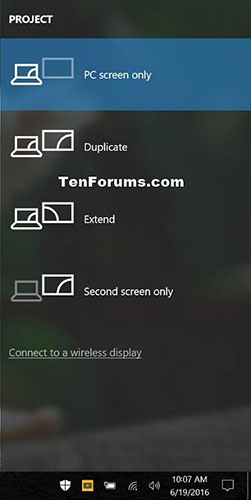
			<p>Display Switch được sử dụng để thay đổi chế độ thuyết trình cho màn hình chính của PC Windows 10, để chỉ chiếu trên màn hình PC (<strong>PC screen only</strong>), chiếu nội dung giống hệt trên màn hình thứ hai (<strong>Duplicate</strong>), mở rộng trên tất cả các màn hình (<strong>Extend</strong>) hoặc chỉ màn hình thứ hai (<strong>Second screen only</strong>).</p>

<p>Hướng dẫn này sẽ chỉ cho bạn cách thay đổi chế độ thuyết trình cho màn hình trong&nbsp;Windows 10.</p>

<table border="1" width="100%">
	<tbody>
		<tr valign="top">
			<td><strong>Chế độ</strong></td>
			<td><strong>Mô tả</strong></td>
		</tr>
		<tr valign="top">
			<td><strong>PC screen only</strong></td>
			<td>Chỉ có màn hình chính hiện tại được kích hoạt. Tất cả các màn hình được kết nối khác sẽ bị vô hiệu hóa. (Khi bạn được kết nối với máy chiếu không dây, tùy chọn này sẽ thay đổi thành&nbsp;<strong>Diconnects</strong>).</td>
		</tr>
		<tr valign="top">
			<td><strong>Duplicate</strong></td>
			<td>Màn hình chính sẽ được nhân đôi trên màn hình thứ hai.</td>
		</tr>
		<tr valign="top">
			<td><strong>Extend</strong>&nbsp;(mặc định)</td>
			<td>Màn hình chính được mở rộng trên tất cả các màn hình hiển thị được kết nối và cho phép bạn có một desktop trải dài chúng.</td>
		</tr>
		<tr valign="top">
			<td><strong>Second screen only</strong></td>
			<td>Màn hình chính hiện tại sẽ bị tắt. Tất cả các màn hình được kết nối khác sẽ vẫn được bật và màn hình thứ hai được sử dụng làm màn hình chính mới.</td>
		</tr>
	</tbody>
</table>

<h2>Thay đổi chế độ thuyết trình cho màn hình trong trong menu flyout Project&nbsp;</h2>

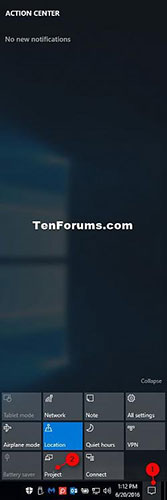
<p>1. Thực hiện bước 2 (<strong>Project</strong>) hoặc bước 3 (<strong>Action Center</strong>) bên dưới, tùy theo cách bạn muốn mở menu flyout Project.</p>

<p>2. Bấm các phím&nbsp;<code>Win</code>+<code>P</code>&nbsp;hoặc vuốt từ cạnh phải của màn hình cảm ứng và chuyển sang bước 4 bên dưới.</p>

<p>3. Mở&nbsp;<strong>Action Center</strong>, nhấn vào nút&nbsp;<strong>Project</strong>&nbsp;và chuyển đến bước 4 bên dưới.</p>

<figure><img alt="Mở Action Center, nhấn vào nút Project" data-i="0" data-src="https://st.quantrimang.com/photos/image/2020/03/30/doi-che-do-thuyet-trinh-cho-man-hinh-1.jpg" data-was-processed="true" height="500" src="https://st.quantrimang.com/photos/image/2020/03/30/doi-che-do-thuyet-trinh-cho-man-hinh-1.jpg" width="167" />
<figcaption>Mở Action Center, nhấn vào nút Project</figcaption>
</figure>

<p>4. Nhấn vào chế độ thuyết trình bạn muốn (<strong>PC screen only, duplicate, extend</strong>&nbsp;hoặc<strong>&nbsp;second screen only</strong>). Bạn cũng có thể nhấn phím mũi tên xuống cho đến khi thấy chế độ chiếu bạn muốn và nhấn&nbsp;<code>Enter</code>&nbsp;để áp dụng.</p>

<p>Ví dụ, nếu có màn hình đen trống và không thể nhìn thấy menu, bạn có thể làm điều này bên dưới để khôi phục cài đặt&nbsp;<strong>Extend</strong>&nbsp;mặc định.</p>

<p>Nhấn các phím&nbsp;<code>Win</code>+<code>P</code>, nhấn phím mũi tên xuống hai lần và bấm&nbsp;<code>Enter</code>.</p>

<figure><img alt="Nhấn vào chế độ thuyết trình bạn muốn" data-i="1" data-src="https://st.quantrimang.com/photos/image/2020/03/30/doi-che-do-thuyet-trinh-cho-man-hinh-2.jpg" data-was-processed="true" height="500" src="https://st.quantrimang.com/photos/image/2020/03/30/doi-che-do-thuyet-trinh-cho-man-hinh-2.jpg" width="251" />
<figcaption>Nhấn vào chế độ thuyết trình bạn muốn</figcaption>
</figure>

<h2>Thay đổi chế độ thuyết trình cho màn hình bằng lệnh</h2>

<p>Sao chép và dán một trong các lệnh bên dưới mà bạn muốn sử dụng vào&nbsp;Command Prompt&nbsp;hoặc hộp thoại&nbsp;<strong>Run</strong>&nbsp;(<code>Win</code>+<code>R</code>) và nhấn&nbsp;<code>Enter</code>.</p>

<p><strong>PC screen only</strong></p>

<pre id="pre0">
<code>%windir%\System32\DisplaySwitch.exe /internal</code></pre>

<p><strong>Duplicate</strong></p>

<pre id="pre1">
<code>%windir%\System32\DisplaySwitch.exe /clone</code></pre>

<p><strong>Extend</strong></p>

<pre id="pre2">
<code>%windir%\System32\DisplaySwitch.exe /extend</code></pre>

<p><strong>Second screen only</strong></p>

<pre id="pre3">
<code>%windir%\System32\DisplaySwitch.exe /external</code></pre>
		</div>
				<div id="author">
						<p>
				<strong>Nguồn tin:</strong>
				Quantrimang.com
			</p>
		</div>
	</div>
	<div id="footer" class="clearfix">
		<div id="url">
			<strong>URL của bản tin này: </strong><a href="https://www.nguoicodonvn2008.info/vi/news/savefile/kien-thuc-may-tinh/cach-thay-doi-che-do-thuyet-trinh-cho-man-hinh-trong-windows-10-1907.html" title="Cách thay đổi chế độ thuyết trình cho màn hình trong Windows 10">https://www.nguoicodonvn2008.info/vi/news/savefile/kien-thuc-may-tinh/cach-thay-doi-che-do-thuyet-trinh-cho-man-hinh-trong-windows-10-1907.html</a>

		</div>
		<div class="clear"></div>
		<div class="copyright">
			&copy; .&#x3A; Nguoicodonvn2008.info - Cõi lòng người cô đơn &#x3A;.
		</div>
		<div id="contact">
			<a href="mailto:admin@nguoicodonvn2008.info">admin@nguoicodonvn2008.info</a>
		</div>
	</div>
</div>
        <div id="timeoutsess" class="chromeframe">
            Bạn đã không sử dụng Site, <a onclick="timeoutsesscancel();" href="https://www.nguoicodonvn2008.info/#">Bấm vào đây để duy trì trạng thái đăng nhập</a>. Thời gian chờ: <span id="secField"> 60 </span> giây
        </div>
        <div id="openidResult" class="nv-alert" style="display:none"></div>
        <div id="openidBt" data-result="" data-redirect=""></div>
		</script>
		<div class="car-top">
  <span><img src="https://www.nguoicodonvn2008.info/themes/default/images/car.png" alt=""></span>
</div>
<script src="https://www.nguoicodonvn2008.info/assets/js/jquery/jquery.min.js"></script>
<script>var nv_base_siteurl="/",nv_lang_data="vi",nv_lang_interface="vi",nv_name_variable="nv",nv_fc_variable="op",nv_lang_variable="language",nv_module_name="news",nv_func_name="savefile",nv_is_user=0, nv_my_ofs=-4,nv_my_abbr="EDT",nv_cookie_prefix="nv4c_e856T",nv_check_pass_mstime=1738000,nv_area_admin=0,nv_safemode=0,theme_responsive=0,nv_recaptcha_ver=2,nv_recaptcha_sitekey="",nv_recaptcha_type="image",XSSsanitize=1;</script>
<script src="https://www.nguoicodonvn2008.info/assets/js/language/vi.js"></script>
<script src="https://www.nguoicodonvn2008.info/assets/js/DOMPurify/purify3.js"></script>
<script src="https://www.nguoicodonvn2008.info/assets/js/global.js"></script>
<script src="https://www.nguoicodonvn2008.info/assets/js/site.js"></script>
<script src="https://www.nguoicodonvn2008.info/themes/default/js/news.js"></script>
<script src="https://www.nguoicodonvn2008.info/themes/default/js/main.js"></script>
<script src="https://www.nguoicodonvn2008.info/themes/default/js/custom.js"></script>
<script type="application/ld+json">
        {
            "@context": "https://schema.org",
            "@type": "Organization",
            "url": "https://www.nguoicodonvn2008.info",
            "logo": "https://www.nguoicodonvn2008.info/uploads/angel.gif"
        }
        </script>
<script src="https://www.nguoicodonvn2008.info/themes/default/js/bootstrap.min.js"></script>
<script type="text/javascript">
var $scrolltop = $('.car-top');
$scrolltop.on('click', function () {
    $('html,body').animate({
        scrollTop: 0
    }, 800);
    $(this).addClass("car-run");
    setTimeout(function(){ $scrolltop.removeClass('car-run');}, 1000);
    return false;
});
$(window).on('scroll', function ()
{ 
    if($(window).scrollTop() >= 200)
    {
        $scrolltop.addClass("show");
        $scrolltop.addClass("car-down");
    }
    else
    {
       $scrolltop.removeClass("show");
       setTimeout(function(){ $scrolltop.removeClass('car-down');}, 300);
    }
});
</script>
</body>
</html>