<!DOCTYPE html>
    <html lang="vi" xmlns="http://www.w3.org/1999/xhtml" prefix="og: http://ogp.me/ns#">
    <head>
<title>Cách tắt Update Windows 11, ngừng cập nhật Win 11</title>
<meta name="description" content="Cách tắt Update Windows 11, ngừng cập nhật Win 11 - Savefile - Tin Tức -...">
<meta name="author" content=".: Nguoicodonvn2008.info - Cõi lòng người cô đơn :.">
<meta name="copyright" content=".: Nguoicodonvn2008.info - Cõi lòng người cô đơn :. [admin@nguoicodonvn2008.info]">
<meta name="robots" content="index, archive, follow, noodp">
<meta name="googlebot" content="index,archive,follow,noodp">
<meta name="msnbot" content="all,index,follow">
<meta name="generator" content="NukeViet v4.5">
<meta http-equiv="Content-Type" content="text/html; charset=utf-8">
<meta property="og:title" content="Cách tắt Update Windows 11, ngừng cập nhật Win 11">
<meta property="og:type" content="website">
<meta property="og:description" content="Savefile - Tin Tức - https&#x3A;&#x002F;&#x002F;www.nguoicodonvn2008.info&#x002F;vi&#x002F;news&#x002F;savefile&#x002F;kien-thuc-may-tinh&#x002F;cach-tat-update-windows-11-ngung-cap-nhat-win-11-4641.html">
<meta property="og:site_name" content=".&#x3A; Nguoicodonvn2008.info - Cõi lòng người cô đơn &#x3A;.">
<meta property="og:url" content="https://www.nguoicodonvn2008.info/vi/news/savefile/kien-thuc-may-tinh/cach-tat-update-windows-11-ngung-cap-nhat-win-11-4641.html">
<link rel="shortcut icon" href="https://www.nguoicodonvn2008.info/favicon.ico">
<link rel="canonical" href="https://www.nguoicodonvn2008.info/vi/news/savefile/kien-thuc-may-tinh/cach-tat-update-windows-11-ngung-cap-nhat-win-11-4641.html">
<link rel="alternate" href="https://www.nguoicodonvn2008.info/vi/news/rss/" title="Tin Tức" type="application/rss+xml">
<link rel="alternate" href="https://www.nguoicodonvn2008.info/vi/news/rss/karaoke-dual/" title="Tin Tức - Karaoke Dual" type="application/rss+xml">
<link rel="alternate" href="https://www.nguoicodonvn2008.info/vi/news/rss/nhac-tre/" title="Tin Tức - Nhạc trẻ" type="application/rss+xml">
<link rel="alternate" href="https://www.nguoicodonvn2008.info/vi/news/rss/tru-tinh/" title="Tin Tức - Trữ tình" type="application/rss+xml">
<link rel="alternate" href="https://www.nguoicodonvn2008.info/vi/news/rss/nuoc-ngoai/" title="Tin Tức - Nước ngoài" type="application/rss+xml">
<link rel="alternate" href="https://www.nguoicodonvn2008.info/vi/news/rss/remix/" title="Tin Tức - Remix" type="application/rss+xml">
<link rel="alternate" href="https://www.nguoicodonvn2008.info/vi/news/rss/tam-su-tinh-yeu/" title="Tin Tức - Tâm sự tình yêu" type="application/rss+xml">
<link rel="alternate" href="https://www.nguoicodonvn2008.info/vi/news/rss/tho-suu-tam/" title="Tin Tức - Thơ sưu tầm" type="application/rss+xml">
<link rel="alternate" href="https://www.nguoicodonvn2008.info/vi/news/rss/cuoc-song/" title="Tin Tức - Cuộc sống" type="application/rss+xml">
<link rel="alternate" href="https://www.nguoicodonvn2008.info/vi/news/rss/phan-mem/" title="Tin Tức - Phần mềm" type="application/rss+xml">
<link rel="alternate" href="https://www.nguoicodonvn2008.info/vi/news/rss/kien-thuc-may-tinh/" title="Tin Tức - Kiến thức máy tính" type="application/rss+xml">
<link rel="alternate" href="https://www.nguoicodonvn2008.info/vi/news/rss/hoc-tap/" title="Tin Tức - Học tập" type="application/rss+xml">
<link rel="alternate" href="https://www.nguoicodonvn2008.info/vi/news/rss/tai-lieu/" title="Tin Tức - Tài liệu" type="application/rss+xml">
<link rel="alternate" href="https://www.nguoicodonvn2008.info/vi/news/rss/de-thi/" title="Tin Tức - Đề thi" type="application/rss+xml">
<link rel="preload" as="style" href="https://www.nguoicodonvn2008.info/assets/css/font-awesome.min.css" type="text/css">
<link rel="preload" as="style" href="https://www.nguoicodonvn2008.info/themes/default/css/bootstrap.non-responsive.css" type="text/css">
<link rel="preload" as="style" href="https://www.nguoicodonvn2008.info/themes/default/css/style.css" type="text/css">
<link rel="preload" as="style" href="https://www.nguoicodonvn2008.info/themes/default/css/style.non-responsive.css" type="text/css">
<link rel="preload" as="style" href="https://www.nguoicodonvn2008.info/themes/default/css/news.css" type="text/css">
<link rel="preload" as="style" href="https://www.nguoicodonvn2008.info/themes/default/css/custom.css" type="text/css">
<link rel="preload" as="script" href="https://www.nguoicodonvn2008.info/assets/js/jquery/jquery.min.js" type="text/javascript">
<link rel="preload" as="script" href="https://www.nguoicodonvn2008.info/assets/js/language/vi.js" type="text/javascript">
<link rel="preload" as="script" href="https://www.nguoicodonvn2008.info/assets/js/DOMPurify/purify3.js" type="text/javascript">
<link rel="preload" as="script" href="https://www.nguoicodonvn2008.info/assets/js/global.js" type="text/javascript">
<link rel="preload" as="script" href="https://www.nguoicodonvn2008.info/assets/js/site.js" type="text/javascript">
<link rel="preload" as="script" href="https://www.nguoicodonvn2008.info/themes/default/js/news.js" type="text/javascript">
<link rel="preload" as="script" href="https://www.nguoicodonvn2008.info/themes/default/js/main.js" type="text/javascript">
<link rel="preload" as="script" href="https://www.nguoicodonvn2008.info/themes/default/js/custom.js" type="text/javascript">
<link rel="preload" as="script" href="https://www.nguoicodonvn2008.info/themes/default/js/bootstrap.min.js" type="text/javascript">
<link rel="stylesheet" href="https://www.nguoicodonvn2008.info/assets/css/font-awesome.min.css">
<link rel="stylesheet" href="https://www.nguoicodonvn2008.info/themes/default/css/bootstrap.non-responsive.css">
<link rel="stylesheet" href="https://www.nguoicodonvn2008.info/themes/default/css/style.css">
<link rel="stylesheet" href="https://www.nguoicodonvn2008.info/themes/default/css/style.non-responsive.css">
<link rel="StyleSheet" href="https://www.nguoicodonvn2008.info/themes/default/css/news.css">
<link rel="stylesheet" href="https://www.nguoicodonvn2008.info/themes/default/css/custom.css">
<style type="text/css">
	body{background: #fff;}
</style>
    </head>
    <body>
<div id="print">
	<div id="hd_print">
		<h2 class="pull-left">.&#x3A; Nguoicodonvn2008.info - Cõi lòng người cô đơn &#x3A;.</h2>
		<p class="pull-right"><a title=".&#x3A; Nguoicodonvn2008.info - Cõi lòng người cô đơn &#x3A;." href="https://www.nguoicodonvn2008.info/">https://www.nguoicodonvn2008.info</a></p>
	</div>
	<div class="clear"></div>
	<hr />
	<div id="content">
		<h1>Cách tắt Update Windows 11, ngừng cập nhật Win 11</h1>
		<ul class="list-inline">
			<li>Thứ hai - 25/10/2021 23:49</li>
			<li class="hidden-print txtrequired"><em class="fa fa-print">&nbsp;</em><a title="In ra" href="javascript:;" onclick="window.print()">In ra</a></li>
			<li class="hidden-print txtrequired"><em class="fa fa-power-off">&nbsp;</em><a title="Đóng cửa sổ này" href="javascript:;" onclick="window.close()">Đóng cửa sổ này</a></li>
		</ul>
		<div class="clear"></div>
		<div id="hometext">
		</div>
				<div class="imghome">
			<img alt="Cách tắt Update Windows 11, ngừng cập nhật Win 11" src="https://st.quantrimang.com/photos/image/2021/10/25/cach-tat-windows-update-tren-windows-11.jpg" width="460" class="img-thumbnail" />
		</div>
		<div class="clear"></div>
		<div id="bodytext" class="clearfix">
			<p style="text-align: justify;">Microsoft thường xuyên tung ra các bản cập nhật để vá lỗi cho hệ điều hành cũng như các sản phẩm, dịch vụ của mình.&nbsp;Windows 11&nbsp;cũng không nằm ngoài chính sách này nên sẽ thường xuyên được cập nhật các bản vá lỗi.</p>

<p style="text-align: justify;">Tuy nhiên, truyền thống của Microsoft là và lỗi này lại sinh ra lỗi khác. Vì thế, đôi khi người dùng cập nhật Windows 11 lại vướng thêm những lỗi khó chịu mà trước đó máy không có trục trặc gì.</p>

<p style="text-align: justify;">Trong bài viết này, Quản Trị Mạng sẽ hướng dẫn các bạn cách tắt Windows Update trên hệ điều hành Windows 11. Việc tắt cập nhật sẽ giúp bạn duy trì trạng thái hoạt động ổn định của máy tính và có thể chủ động trong việc lựa chọn có cập nhật hay không.</p>

<h2 style="text-align: justify;">Cách tắt Windows Update trên Windows 11 trong 1 tuần</h2>

<p style="text-align: justify;">Trong cài đặt Windows Update, Microsoft có tùy chọn cho phép bạn tạm ngừng cập nhật Windows 11 trong vòng 7 ngày. Đây là lựa chọn cho những ai muốn tạm thời duy trì trạng thái của máy tính và muốn cập nhật trong tương lai gần.</p>

<p style="text-align: justify;">Cách thực hiện như sau:</p>

<p style="text-align: justify;"><strong>B1</strong>: Nhấn chuột vào&nbsp;<strong>Start</strong>&nbsp;sau đó chọn&nbsp;<strong>Settings</strong>&nbsp;hoặc nhấn tổ hợp phím tắt&nbsp;<strong>Win + I</strong>&nbsp;để mở&nbsp;<strong>Settings.</strong></p>

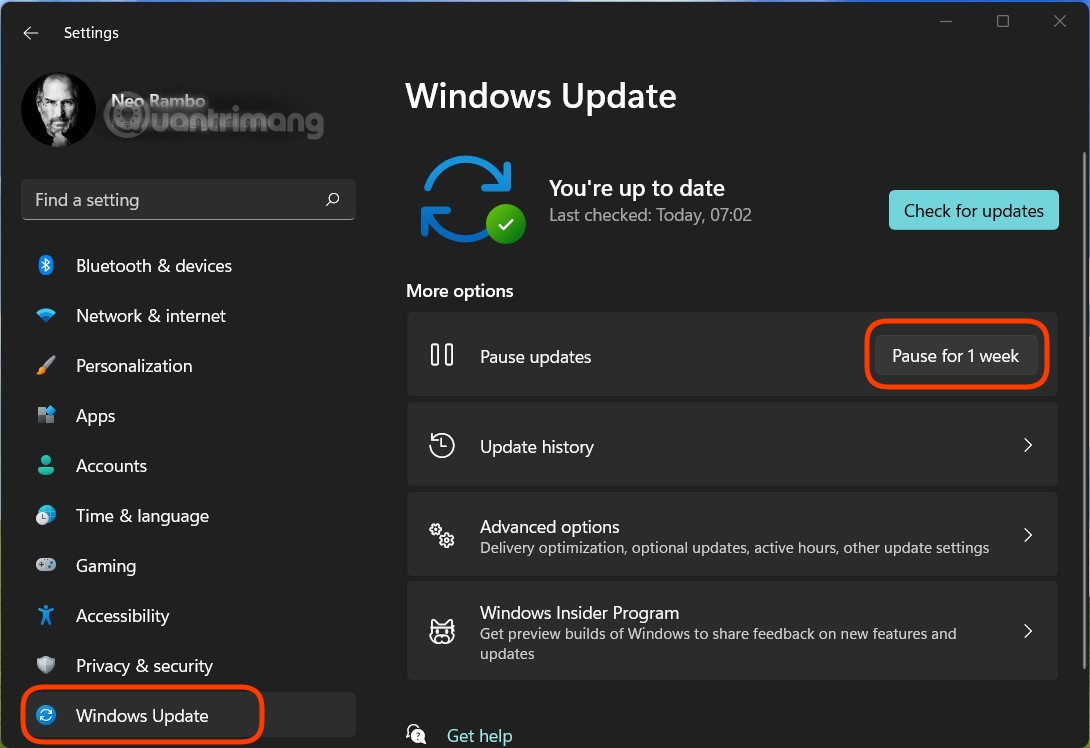
<p style="text-align: justify;"><strong>B2</strong>: Nhấn vào&nbsp;<strong>Windows Update</strong>. Trong cửa sổ&nbsp;<strong>Windows Update</strong>&nbsp;bạn có thể kiểm tra các thông tin như bản cập nhật mới nhất, lịch sử cập nhật...</p>

<p style="text-align: justify;"><img alt="Cách tắt Windows Update trên Windows 11" data-i="0" data-src="https://st.quantrimang.com/photos/image/2021/10/25/cach-tat-windows-update-tren-windows-11.jpg" data-was-processed="true" height="748" src="https://st.quantrimang.com/photos/image/2021/10/25/cach-tat-windows-update-tren-windows-11.jpg" width="1090" /></p>

<p style="text-align: justify;"><strong>B3</strong>: Bạn nhấn vào nút&nbsp;<strong>Pause for 1 week</strong>&nbsp;để tạm thời ngừng cập nhật Windows 11 trong vòng một tuần tới. Bạn cần lưu ý rằng sau thời hạn này, Windows Update sẽ tự động tải xuống và cài đặt các bản cập nhật đang bị tạm hoãn trước đó. Vì thế, nếu muốn vô hiệu hóa vĩnh viễn các bản cập nhật bạn sẽ cần thực hiện theo các phương pháp bên dưới.</p>

<h2 style="text-align: justify;">Cách tắt Windows Update bằng phương pháp vô hiệu hóa Service</h2>

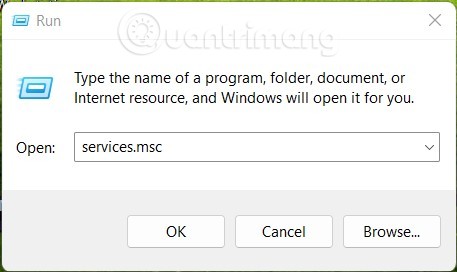
<p style="text-align: justify;"><strong>B1</strong>: Nhấn&nbsp;<strong>Windows + R</strong>&nbsp;để mở&nbsp;<strong>Run</strong>&nbsp;rồi gõ&nbsp;<strong>services.msc</strong>&nbsp;sau đó nhấn&nbsp;<strong>Enter.</strong></p>

<p style="text-align: justify;"><img alt="Cách tắt Windows Update trên Windows 11" data-i="1" data-src="https://st.quantrimang.com/photos/image/2021/10/25/cach-tat-windows-update-tren-windows-11-1.jpg" data-was-processed="true" height="272" src="https://st.quantrimang.com/photos/image/2021/10/25/cach-tat-windows-update-tren-windows-11-1.jpg" width="457" /></p>

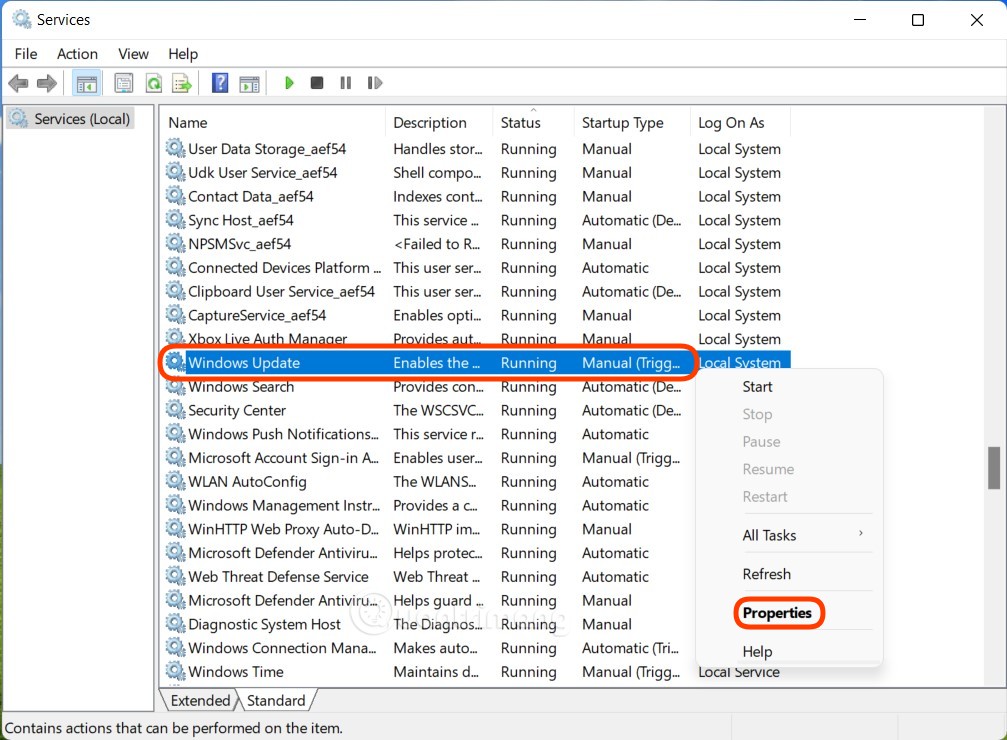
<p style="text-align: justify;"><strong>B2</strong>: Trong cửa sổ mới hiện ra, bạn tìm kiếm Service có tên&nbsp;<strong>Windows Update</strong>&nbsp;rồi nhấn chuột phải vào nó để chọn&nbsp;<strong>Properties.</strong></p>

<p style="text-align: justify;"><strong><img alt="Cách tắt Windows Update trên Windows 11" data-i="2" data-src="https://st.quantrimang.com/photos/image/2021/10/25/cach-tat-windows-update-tren-windows-11-2.jpg" data-was-processed="true" height="740" src="https://st.quantrimang.com/photos/image/2021/10/25/cach-tat-windows-update-tren-windows-11-2.jpg" width="1007" /></strong></p>

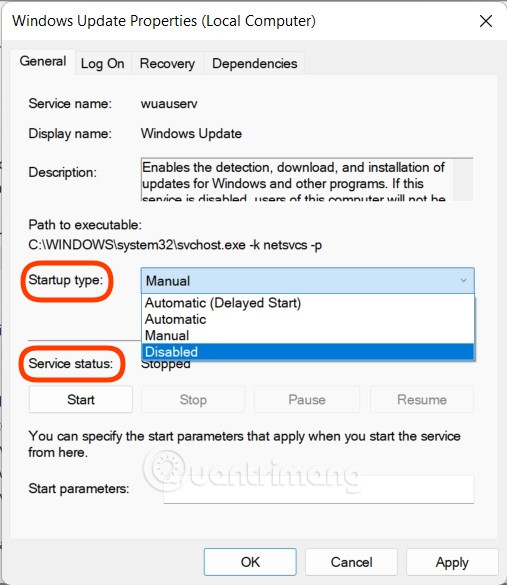
<p style="text-align: justify;"><strong>B3</strong>: Bạn cần kiểm tra và thay đổi 2 mục. Thứ nhất ở phần<strong>&nbsp;Service status&nbsp;</strong>nếu thấy trạng thái là&nbsp;<strong>Running</strong>&nbsp;thì bạn cần nhấn&nbsp;<strong>Stop</strong>&nbsp;để dừng&nbsp;<strong>Windows Update.</strong>&nbsp;Thứ hai, ở phần&nbsp;<strong>Startup type</strong>&nbsp;bạn hãy chọn mục&nbsp;<strong>Disabled.</strong>&nbsp;Sau khi chọn xong bạn nhấn&nbsp;<strong>Apply</strong>&nbsp;và&nbsp;<strong>OK</strong>&nbsp;để xác nhận thay đổi.</p>

<p style="text-align: justify;"><img alt="Cách tắt Windows Update trên Windows 11" data-i="3" data-src="https://st.quantrimang.com/photos/image/2021/10/25/cach-tat-windows-update-tren-windows-11-3.jpg" data-was-processed="true" height="585" src="https://st.quantrimang.com/photos/image/2021/10/25/cach-tat-windows-update-tren-windows-11-3.jpg" width="507" /></p>

<h2 style="text-align: justify;">Cách tắt Windows Update bằng Group Policy Editor</h2>

<p style="text-align: justify;">Trước khi thực hiện bạn cần lưu ý rằng Windows 11 Home sẽ không có Group Policy Editor. Vì thế, hướng dẫn này không dành cho các bạn dùng Windows 11 Home.</p>

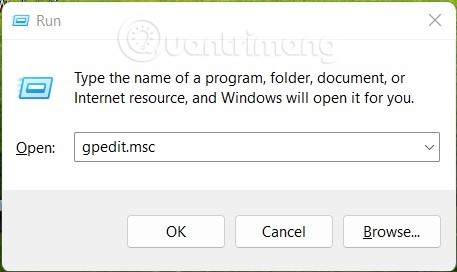
<p style="text-align: justify;"><strong>B1</strong>: Nhấn<strong>&nbsp;Win + R</strong>&nbsp;để mở&nbsp;<strong>Run</strong>&nbsp;sau đó gõ&nbsp;<strong>gpedit.msc</strong>&nbsp;và nhấn&nbsp;<strong>Enter</strong>&nbsp;để mở&nbsp;<strong>Group Policy Editor</strong>.</p>

<p style="text-align: justify;"><img alt="Cách tắt Windows Update trên Windows 11" data-i="4" data-src="https://st.quantrimang.com/photos/image/2021/10/25/cach-tat-windows-update-tren-windows-11-4.jpg" data-was-processed="true" height="272" src="https://st.quantrimang.com/photos/image/2021/10/25/cach-tat-windows-update-tren-windows-11-4.jpg" width="457" /></p>

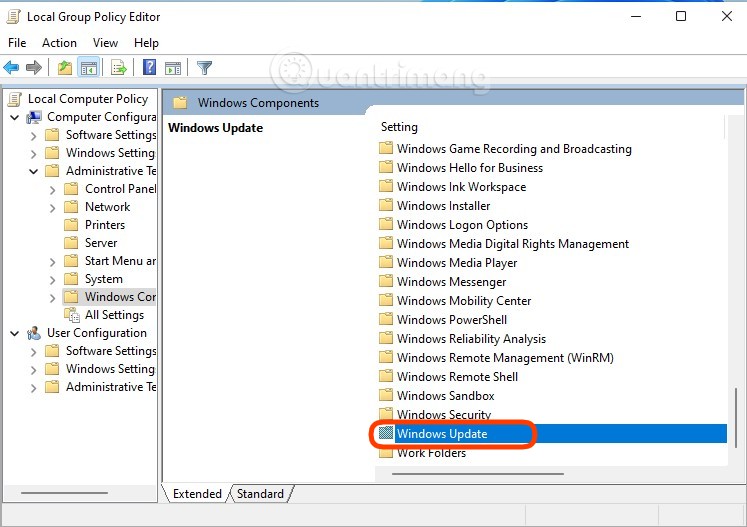
<p style="text-align: justify;"><strong>B2</strong>: Bạn tìm theo đường dẫn thư mục&nbsp;<strong>Local Computer Policy</strong>&nbsp;&gt;&nbsp;<strong>Computer Configuration</strong>&nbsp;&gt;&nbsp;<strong>Administrative Templates</strong>&nbsp;&gt;&nbsp;<strong>Windows Components</strong>&nbsp;sau đó chuyển sang ô bên phải để tìm mục&nbsp;<strong>Windows Update.</strong></p>

<p style="text-align: justify;"><strong><img alt="Cách tắt Windows Update trên Windows 11" data-i="5" data-src="https://st.quantrimang.com/photos/image/2021/10/25/cach-tat-windows-update-tren-windows-11-5.jpg" data-was-processed="true" height="527" src="https://st.quantrimang.com/photos/image/2021/10/25/cach-tat-windows-update-tren-windows-11-5.jpg" width="747" /></strong></p>

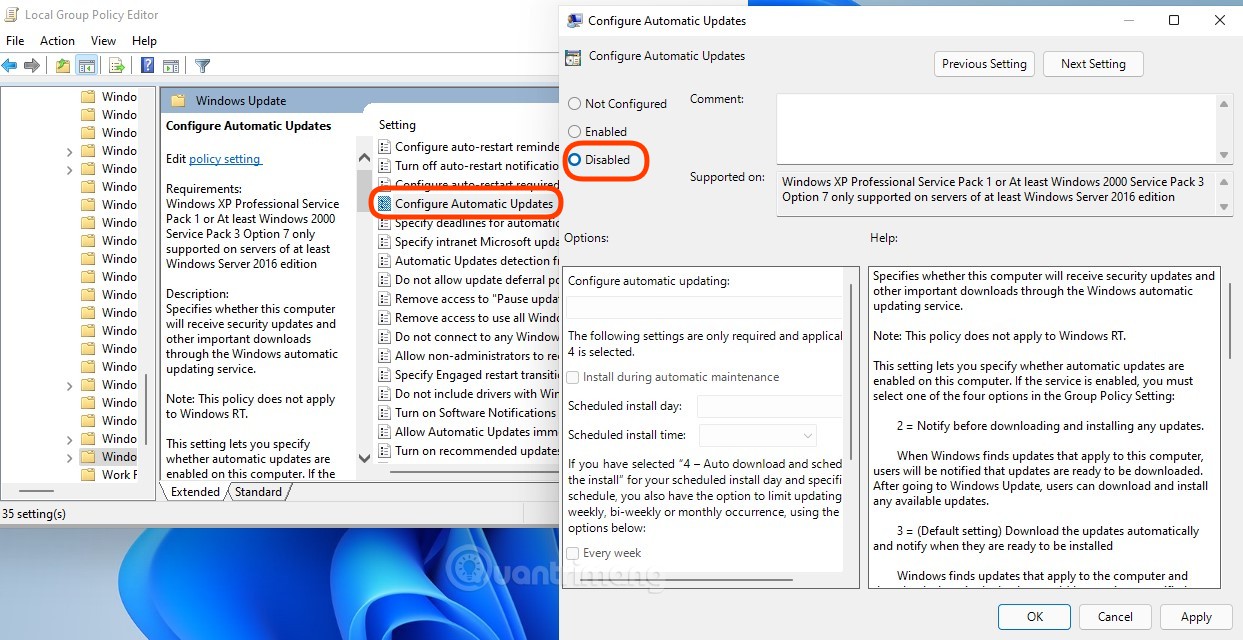
<p style="text-align: justify;"><strong>B3</strong>: Bạn mở thư mục&nbsp;<strong>Windows Update</strong>&nbsp;sau đó tìm kiếm và nhấn đúp vào&nbsp;<strong>Configure Automatic Updates</strong>&nbsp;rồi chọn&nbsp;<strong>Disabled</strong>&nbsp;để vô hiệu hóa&nbsp;<strong>Windows Update.</strong>&nbsp;Sau khi chọn xong bạn nhấn&nbsp;<strong>Apply</strong>&nbsp;và&nbsp;<strong>OK</strong>&nbsp;để xác nhận.</p>

<p style="text-align: justify;"><img alt="Cách tắt Windows Update trên Windows 11" data-i="6" data-src="https://st.quantrimang.com/photos/image/2021/10/25/cach-tat-windows-update-tren-windows-11-6.jpg" data-was-processed="true" height="640" src="https://st.quantrimang.com/photos/image/2021/10/25/cach-tat-windows-update-tren-windows-11-6.jpg" width="1243" /></p>

<h2 style="text-align: justify;">Cách tắt Windows Update bằng Registry Editor</h2>

<p style="text-align: justify;">Đương nhiên là bạn cũng có thể sửa Windows Registry để tắt cập nhật tự động trên Windows 11. Cách làm như sau:</p>

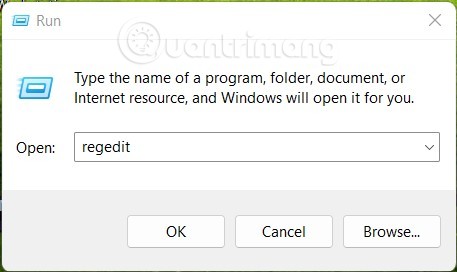
<p style="text-align: justify;"><strong>B1</strong>: Vẫn là nhấn&nbsp;<strong>Win</strong>&nbsp;<strong>+ R</strong>&nbsp;để mở&nbsp;<strong>Run</strong>&nbsp;sau đó gõ&nbsp;<strong>regedit</strong>&nbsp;rồi nhấn&nbsp;<strong>Enter</strong>&nbsp;để mở&nbsp;<strong>Registry Editor.</strong></p>

<p style="text-align: justify;"><strong><img alt="Cách tắt Windows Update trên Windows 11" data-i="7" data-src="https://st.quantrimang.com/photos/image/2021/10/25/cach-tat-windows-update-tren-windows-11-7.jpg" data-was-processed="true" height="272" src="https://st.quantrimang.com/photos/image/2021/10/25/cach-tat-windows-update-tren-windows-11-7.jpg" width="457" /></strong></p>

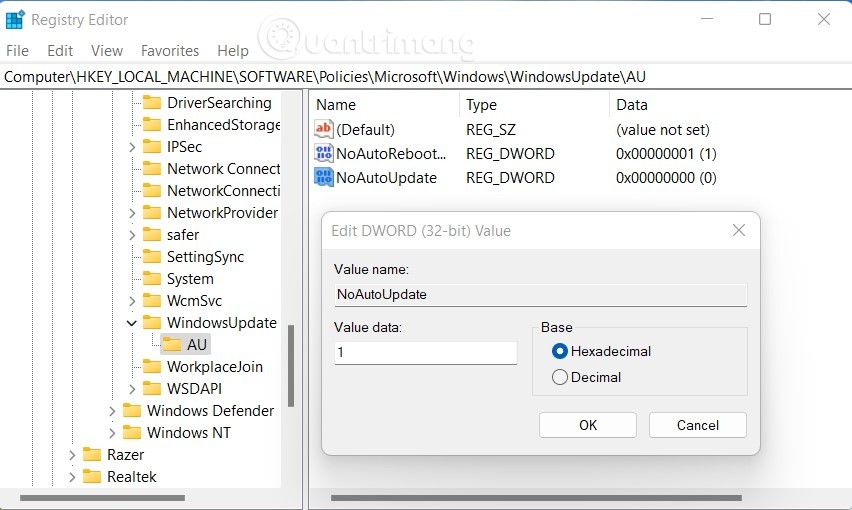
<p style="text-align: justify;"><strong>B2</strong>: Tìm tới key&nbsp;<strong>AU</strong>&nbsp;trong&nbsp;<strong>Windows Update</strong>&nbsp;theo đường dẫn sau:</p>

<pre id="pre0">
<code>HKEY_LOCAL_MACHINE\SOFTWARE\Policies\Microsoft\Windows\WindowsUpdate\AU</code></pre>

<p style="text-align: justify;"><strong>B3</strong>: Bạn mở key&nbsp;<strong>AU</strong>&nbsp;sau đó nhấp vào bất kỳ khoảng trống nào ở ô bên phải rồi chọn&nbsp;<strong>New &gt; DWORD (32-bit) Value</strong>. Bạn đặt tên cho giá trị này là&nbsp;<strong>NoAutoUpdate</strong>&nbsp;rồi đặt cho nó giá trị là 1 ở ô&nbsp;<strong>Value data</strong>. Bạn lưu thay đổi rồi khởi động lại máy.</p>

<p style="text-align: justify;"><img alt="Cách tắt Windows Update trên Windows 11" data-i="8" data-src="https://st.quantrimang.com/photos/image/2021/10/25/cach-tat-windows-update-tren-windows-11-8.jpg" data-was-processed="true" height="510" src="https://st.quantrimang.com/photos/image/2021/10/25/cach-tat-windows-update-tren-windows-11-8.jpg" width="852" /></p>

<p style="text-align: justify;">Chúc các bạn thành công!</p>
		</div>
				<div id="author">
						<p>
				<strong>Nguồn tin:</strong>
				Quantrimang.com
			</p>
		</div>
	</div>
	<div id="footer" class="clearfix">
		<div id="url">
			<strong>URL của bản tin này: </strong><a href="https://www.nguoicodonvn2008.info/vi/news/savefile/kien-thuc-may-tinh/cach-tat-update-windows-11-ngung-cap-nhat-win-11-4641.html" title="Cách tắt Update Windows 11, ngừng cập nhật Win 11">https://www.nguoicodonvn2008.info/vi/news/savefile/kien-thuc-may-tinh/cach-tat-update-windows-11-ngung-cap-nhat-win-11-4641.html</a>

		</div>
		<div class="clear"></div>
		<div class="copyright">
			&copy; .&#x3A; Nguoicodonvn2008.info - Cõi lòng người cô đơn &#x3A;.
		</div>
		<div id="contact">
			<a href="mailto:admin@nguoicodonvn2008.info">admin@nguoicodonvn2008.info</a>
		</div>
	</div>
</div>
        <div id="timeoutsess" class="chromeframe">
            Bạn đã không sử dụng Site, <a onclick="timeoutsesscancel();" href="https://www.nguoicodonvn2008.info/#">Bấm vào đây để duy trì trạng thái đăng nhập</a>. Thời gian chờ: <span id="secField"> 60 </span> giây
        </div>
        <div id="openidResult" class="nv-alert" style="display:none"></div>
        <div id="openidBt" data-result="" data-redirect=""></div>
		</script>
		<div class="car-top">
  <span><img src="https://www.nguoicodonvn2008.info/themes/default/images/car.png" alt=""></span>
</div>
<script src="https://www.nguoicodonvn2008.info/assets/js/jquery/jquery.min.js"></script>
<script>var nv_base_siteurl="/",nv_lang_data="vi",nv_lang_interface="vi",nv_name_variable="nv",nv_fc_variable="op",nv_lang_variable="language",nv_module_name="news",nv_func_name="savefile",nv_is_user=0, nv_my_ofs=-4,nv_my_abbr="EDT",nv_cookie_prefix="nv4c_e856T",nv_check_pass_mstime=1738000,nv_area_admin=0,nv_safemode=0,theme_responsive=0,nv_recaptcha_ver=2,nv_recaptcha_sitekey="",nv_recaptcha_type="image",XSSsanitize=1;</script>
<script src="https://www.nguoicodonvn2008.info/assets/js/language/vi.js"></script>
<script src="https://www.nguoicodonvn2008.info/assets/js/DOMPurify/purify3.js"></script>
<script src="https://www.nguoicodonvn2008.info/assets/js/global.js"></script>
<script src="https://www.nguoicodonvn2008.info/assets/js/site.js"></script>
<script src="https://www.nguoicodonvn2008.info/themes/default/js/news.js"></script>
<script src="https://www.nguoicodonvn2008.info/themes/default/js/main.js"></script>
<script src="https://www.nguoicodonvn2008.info/themes/default/js/custom.js"></script>
<script type="application/ld+json">
        {
            "@context": "https://schema.org",
            "@type": "Organization",
            "url": "https://www.nguoicodonvn2008.info",
            "logo": "https://www.nguoicodonvn2008.info/uploads/angel.gif"
        }
        </script>
<script src="https://www.nguoicodonvn2008.info/themes/default/js/bootstrap.min.js"></script>
<script type="text/javascript">
var $scrolltop = $('.car-top');
$scrolltop.on('click', function () {
    $('html,body').animate({
        scrollTop: 0
    }, 800);
    $(this).addClass("car-run");
    setTimeout(function(){ $scrolltop.removeClass('car-run');}, 1000);
    return false;
});
$(window).on('scroll', function ()
{ 
    if($(window).scrollTop() >= 200)
    {
        $scrolltop.addClass("show");
        $scrolltop.addClass("car-down");
    }
    else
    {
       $scrolltop.removeClass("show");
       setTimeout(function(){ $scrolltop.removeClass('car-down');}, 300);
    }
});
</script>
</body>
</html>