<!DOCTYPE html>
    <html lang="vi" xmlns="http://www.w3.org/1999/xhtml" prefix="og: http://ogp.me/ns#">
    <head>
<title>Cách tạo và quản lý Storage Spaces ngay trong Settings trên Windows 10</title>
<meta name="description" content="Cách tạo và quản lý Storage Spaces ngay trong Settings trên Windows 10 - Savefile - Tin Tức -...">
<meta name="author" content=".: Nguoicodonvn2008.info - Cõi lòng người cô đơn :.">
<meta name="copyright" content=".: Nguoicodonvn2008.info - Cõi lòng người cô đơn :. [admin@nguoicodonvn2008.info]">
<meta name="robots" content="index, archive, follow, noodp">
<meta name="googlebot" content="index,archive,follow,noodp">
<meta name="msnbot" content="all,index,follow">
<meta name="generator" content="NukeViet v4.5">
<meta http-equiv="Content-Type" content="text/html; charset=utf-8">
<meta property="og:title" content="Cách tạo và quản lý Storage Spaces ngay trong Settings trên Windows 10">
<meta property="og:type" content="website">
<meta property="og:description" content="Savefile - Tin Tức -...">
<meta property="og:site_name" content=".&#x3A; Nguoicodonvn2008.info - Cõi lòng người cô đơn &#x3A;.">
<meta property="og:url" content="https://www.nguoicodonvn2008.info/vi/news/savefile/kien-thuc-may-tinh/cach-tao-va-quan-ly-storage-spaces-ngay-trong-settings-tren-windows-10-3415.html">
<link rel="shortcut icon" href="https://www.nguoicodonvn2008.info/favicon.ico">
<link rel="canonical" href="https://www.nguoicodonvn2008.info/vi/news/savefile/kien-thuc-may-tinh/cach-tao-va-quan-ly-storage-spaces-ngay-trong-settings-tren-windows-10-3415.html">
<link rel="alternate" href="https://www.nguoicodonvn2008.info/vi/news/rss/" title="Tin Tức" type="application/rss+xml">
<link rel="alternate" href="https://www.nguoicodonvn2008.info/vi/news/rss/karaoke-dual/" title="Tin Tức - Karaoke Dual" type="application/rss+xml">
<link rel="alternate" href="https://www.nguoicodonvn2008.info/vi/news/rss/nhac-tre/" title="Tin Tức - Nhạc trẻ" type="application/rss+xml">
<link rel="alternate" href="https://www.nguoicodonvn2008.info/vi/news/rss/tru-tinh/" title="Tin Tức - Trữ tình" type="application/rss+xml">
<link rel="alternate" href="https://www.nguoicodonvn2008.info/vi/news/rss/nuoc-ngoai/" title="Tin Tức - Nước ngoài" type="application/rss+xml">
<link rel="alternate" href="https://www.nguoicodonvn2008.info/vi/news/rss/remix/" title="Tin Tức - Remix" type="application/rss+xml">
<link rel="alternate" href="https://www.nguoicodonvn2008.info/vi/news/rss/tam-su-tinh-yeu/" title="Tin Tức - Tâm sự tình yêu" type="application/rss+xml">
<link rel="alternate" href="https://www.nguoicodonvn2008.info/vi/news/rss/tho-suu-tam/" title="Tin Tức - Thơ sưu tầm" type="application/rss+xml">
<link rel="alternate" href="https://www.nguoicodonvn2008.info/vi/news/rss/cuoc-song/" title="Tin Tức - Cuộc sống" type="application/rss+xml">
<link rel="alternate" href="https://www.nguoicodonvn2008.info/vi/news/rss/phan-mem/" title="Tin Tức - Phần mềm" type="application/rss+xml">
<link rel="alternate" href="https://www.nguoicodonvn2008.info/vi/news/rss/kien-thuc-may-tinh/" title="Tin Tức - Kiến thức máy tính" type="application/rss+xml">
<link rel="alternate" href="https://www.nguoicodonvn2008.info/vi/news/rss/hoc-tap/" title="Tin Tức - Học tập" type="application/rss+xml">
<link rel="alternate" href="https://www.nguoicodonvn2008.info/vi/news/rss/tai-lieu/" title="Tin Tức - Tài liệu" type="application/rss+xml">
<link rel="alternate" href="https://www.nguoicodonvn2008.info/vi/news/rss/de-thi/" title="Tin Tức - Đề thi" type="application/rss+xml">
<link rel="preload" as="style" href="https://www.nguoicodonvn2008.info/assets/css/font-awesome.min.css" type="text/css">
<link rel="preload" as="style" href="https://www.nguoicodonvn2008.info/themes/default/css/bootstrap.non-responsive.css" type="text/css">
<link rel="preload" as="style" href="https://www.nguoicodonvn2008.info/themes/default/css/style.css" type="text/css">
<link rel="preload" as="style" href="https://www.nguoicodonvn2008.info/themes/default/css/style.non-responsive.css" type="text/css">
<link rel="preload" as="style" href="https://www.nguoicodonvn2008.info/themes/default/css/news.css" type="text/css">
<link rel="preload" as="style" href="https://www.nguoicodonvn2008.info/themes/default/css/custom.css" type="text/css">
<link rel="preload" as="script" href="https://www.nguoicodonvn2008.info/assets/js/jquery/jquery.min.js" type="text/javascript">
<link rel="preload" as="script" href="https://www.nguoicodonvn2008.info/assets/js/language/vi.js" type="text/javascript">
<link rel="preload" as="script" href="https://www.nguoicodonvn2008.info/assets/js/DOMPurify/purify3.js" type="text/javascript">
<link rel="preload" as="script" href="https://www.nguoicodonvn2008.info/assets/js/global.js" type="text/javascript">
<link rel="preload" as="script" href="https://www.nguoicodonvn2008.info/assets/js/site.js" type="text/javascript">
<link rel="preload" as="script" href="https://www.nguoicodonvn2008.info/themes/default/js/news.js" type="text/javascript">
<link rel="preload" as="script" href="https://www.nguoicodonvn2008.info/themes/default/js/main.js" type="text/javascript">
<link rel="preload" as="script" href="https://www.nguoicodonvn2008.info/themes/default/js/custom.js" type="text/javascript">
<link rel="preload" as="script" href="https://www.nguoicodonvn2008.info/themes/default/js/bootstrap.min.js" type="text/javascript">
<link rel="stylesheet" href="https://www.nguoicodonvn2008.info/assets/css/font-awesome.min.css">
<link rel="stylesheet" href="https://www.nguoicodonvn2008.info/themes/default/css/bootstrap.non-responsive.css">
<link rel="stylesheet" href="https://www.nguoicodonvn2008.info/themes/default/css/style.css">
<link rel="stylesheet" href="https://www.nguoicodonvn2008.info/themes/default/css/style.non-responsive.css">
<link rel="StyleSheet" href="https://www.nguoicodonvn2008.info/themes/default/css/news.css">
<link rel="stylesheet" href="https://www.nguoicodonvn2008.info/themes/default/css/custom.css">
<style type="text/css">
	body{background: #fff;}
</style>
    </head>
    <body>
<div id="print">
	<div id="hd_print">
		<h2 class="pull-left">.&#x3A; Nguoicodonvn2008.info - Cõi lòng người cô đơn &#x3A;.</h2>
		<p class="pull-right"><a title=".&#x3A; Nguoicodonvn2008.info - Cõi lòng người cô đơn &#x3A;." href="https://www.nguoicodonvn2008.info/">https://www.nguoicodonvn2008.info</a></p>
	</div>
	<div class="clear"></div>
	<hr />
	<div id="content">
		<h1>Cách tạo và quản lý Storage Spaces ngay trong Settings trên Windows 10</h1>
		<ul class="list-inline">
			<li>Thứ sáu - 08/01/2021 23:25</li>
			<li class="hidden-print txtrequired"><em class="fa fa-print">&nbsp;</em><a title="In ra" href="javascript:;" onclick="window.print()">In ra</a></li>
			<li class="hidden-print txtrequired"><em class="fa fa-power-off">&nbsp;</em><a title="Đóng cửa sổ này" href="javascript:;" onclick="window.close()">Đóng cửa sổ này</a></li>
		</ul>
		<div class="clear"></div>
		<div id="hometext">
		</div>
				<div class="imghome">
			<img alt="Cách tạo và quản lý Storage Spaces ngay trong Settings trên Windows 10" src="https://st.quantrimang.com/photos/image/2021/01/08/tao-va-quan-ly-storage-spaces-trong-settings-tren-windows-10-1.jpg" width="460" class="img-thumbnail" />
		</div>
		<div class="clear"></div>
		<div id="bodytext" class="clearfix">
			<p style="text-align: justify;">Microsoft đang cố gắng đưa các tính năng quản lý trên Control Panel lên ứng dụng Settings. Điều này sẽ giúp người dùng quản lý, sử dụng, điều khiển máy tính Windows 10 một cách thống nhất, hiệu quả hơn.</p>

<p style="text-align: justify;">Tạo và quản lý Storage Spaces là tính năng mới nhất mà Microsoft đưa vào Settings trên Windows 10. Trước đây, tính năng này yêu cầu người dùng mở Control Panel sau đó sử dụng giao diện quản lý cũ để thực hiện.</p>

<div style="text-align: justify;">&nbsp;</div>

<p style="text-align: justify;">Các bản Build thử nghiệm của Windows 10 đã được dùng thử tính năng tạo và quản lý Storage Spaces. Trong tương lai gần, Microsoft sẽ chính thức cập nhật tính năng này cho tất cả người dùng.&nbsp;</p>

<p style="text-align: justify;">Bài viết này Quantrimang sẽ hướng dẫn anh em cách tạo và quản lý Storage Spaces ngay trong Settings của Windows 10. Các bước thực hiện như sau:</p>

<ul>
	<li style="text-align: justify;">Mở ứng dụng&nbsp;<strong>Settings</strong>&nbsp;trên Windows 10</li>
	<li style="text-align: justify;">Truy cập vào phần&nbsp;<strong>Systems</strong>&nbsp;và chọn&nbsp;<strong>Storgae</strong></li>
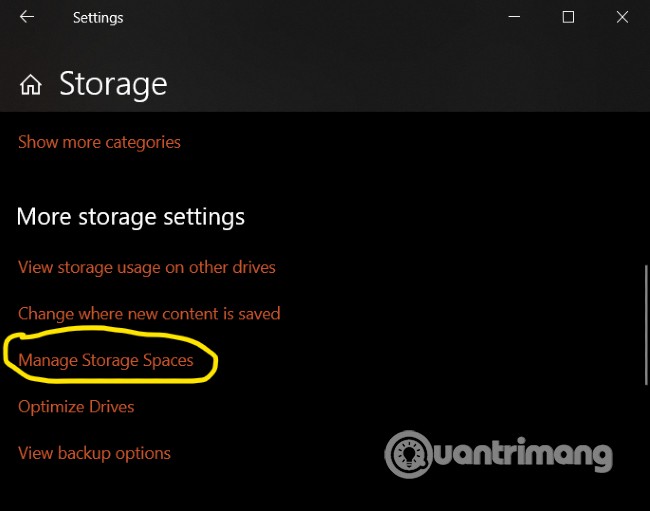
	<li style="text-align: justify;">Tiếp theo, cuộn xuống và chọn&nbsp;<strong>Manage Storare Spaces</strong></li>
	<li style="text-align: justify;">Ở đây, anh em có thể thấy các&nbsp;<strong>Storage Spaces</strong>&nbsp;trong máy của mình</li>
</ul>

<p style="text-align: justify;"><img alt="" data-i="0" data-src="https://st.quantrimang.com/photos/image/2021/01/08/tao-va-quan-ly-storage-spaces-trong-settings-tren-windows-10-1.jpg" data-was-processed="true" height="511" src="https://st.quantrimang.com/photos/image/2021/01/08/tao-va-quan-ly-storage-spaces-trong-settings-tren-windows-10-1.jpg" width="650" /></p>

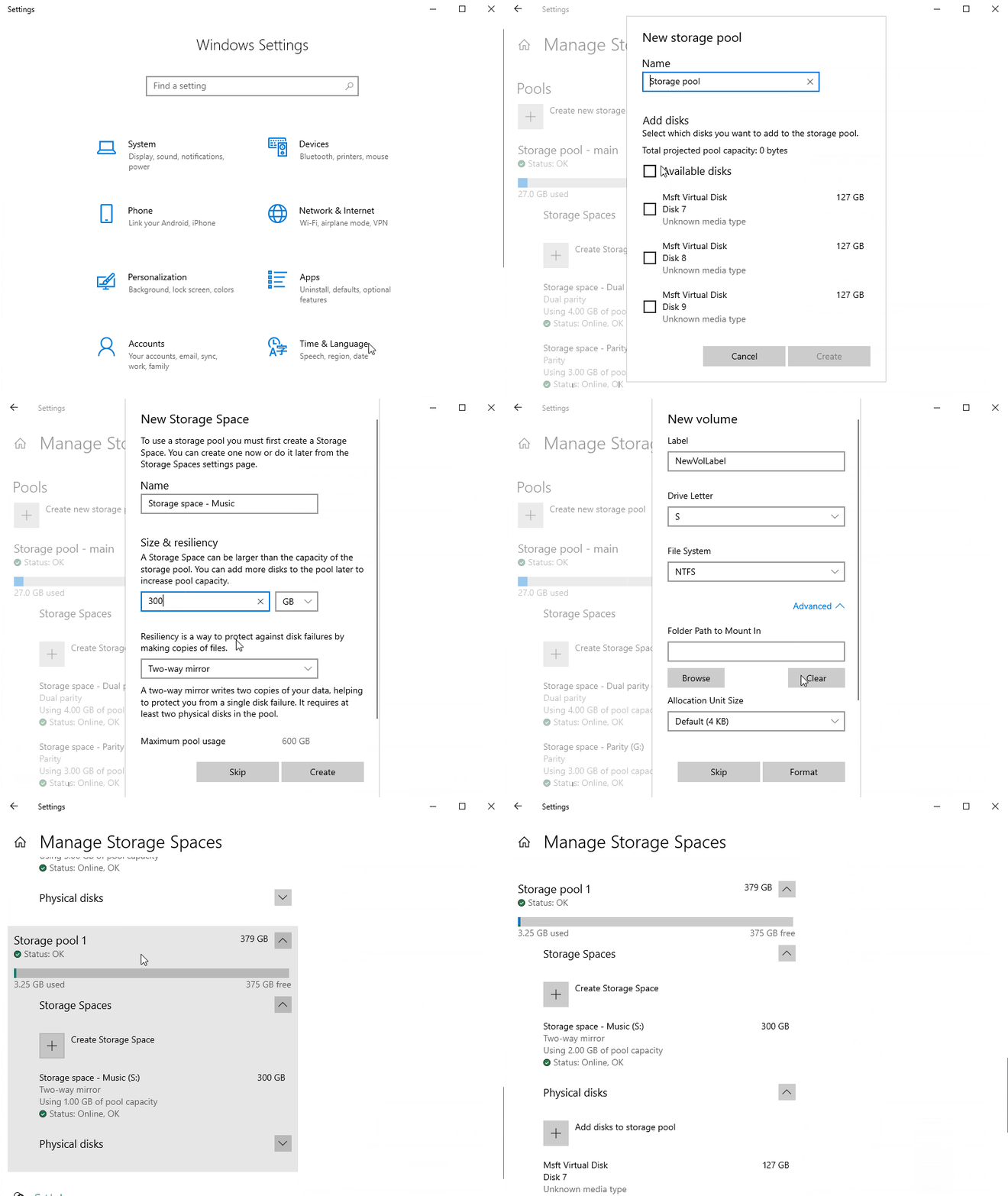
<p style="text-align: justify;">Với Storage Spaces mới, bạn có những tùy chọn tốt hơn khi cần phải quản lý bộ nhớ. Ví dụ, bạn có thể tạo một Storage Spaces đơn giản hoặc truy cập vào một Storage pool của các nguồn lưu trữ. Khi bạn tạo một Storage pool mới, bạn có thể thêm vào các Storage Spaces từ nhiều ổ đĩa.</p>

<p style="text-align: justify;">Chi tiết mời anh em xem ảnh GIF dưới đây:</p>

<figure>
<div style="text-align: justify;"><img alt="Cách tạo Storage Spaces trong Settings trên Windows 10" data-i="1" data-src="https://st.quantrimang.com/photos/image/2021/01/08/mods.gif" data-was-processed="true" height="629" src="https://st.quantrimang.com/photos/image/2021/01/08/mods.gif" width="795" /></div>

<figcaption>
<div style="text-align: justify;">Cách tạo Storage Spaces trong Settings trên Windows 10</div>
</figcaption>
</figure>

<h2 style="text-align: justify;">Storage Spaces là gì?</h2>

<p style="text-align: justify;">Storage Spaces giúp bảo vệ dữ liệu khỏi lỗi ổ cứng và mở rộng bộ nhớ theo thời gian, khi bạn thêm ổ vào PC. Bạn có thể sử dụng Storage Spaces để nhóm hai hoặc nhiều ổ lại với nhau trong một storage pool (vùng lưu trữ chung) và sau đó sử dụng dung lượng từ pool đó để tạo các ổ ảo được gọi là storage space (không gian lưu trữ).</p>

<p style="text-align: justify;">Các storage space này thường lưu trữ hai bản sao dữ liệu, vì vậy nếu một trong các ổ của bạn bị lỗi, bạn vẫn có một bản sao nguyên vẹn của dữ liệu. Nếu bạn hết dung lượng, chỉ cần thêm nhiều ổ đĩa vào storage pool.</p>
		</div>
				<div id="author">
						<p>
				<strong>Nguồn tin:</strong>
				Quantrimang.com
			</p>
		</div>
	</div>
	<div id="footer" class="clearfix">
		<div id="url">
			<strong>URL của bản tin này: </strong><a href="https://www.nguoicodonvn2008.info/vi/news/savefile/kien-thuc-may-tinh/cach-tao-va-quan-ly-storage-spaces-ngay-trong-settings-tren-windows-10-3415.html" title="Cách tạo và quản lý Storage Spaces ngay trong Settings trên Windows 10">https://www.nguoicodonvn2008.info/vi/news/savefile/kien-thuc-may-tinh/cach-tao-va-quan-ly-storage-spaces-ngay-trong-settings-tren-windows-10-3415.html</a>

		</div>
		<div class="clear"></div>
		<div class="copyright">
			&copy; .&#x3A; Nguoicodonvn2008.info - Cõi lòng người cô đơn &#x3A;.
		</div>
		<div id="contact">
			<a href="mailto:admin@nguoicodonvn2008.info">admin@nguoicodonvn2008.info</a>
		</div>
	</div>
</div>
        <div id="timeoutsess" class="chromeframe">
            Bạn đã không sử dụng Site, <a onclick="timeoutsesscancel();" href="https://www.nguoicodonvn2008.info/#">Bấm vào đây để duy trì trạng thái đăng nhập</a>. Thời gian chờ: <span id="secField"> 60 </span> giây
        </div>
        <div id="openidResult" class="nv-alert" style="display:none"></div>
        <div id="openidBt" data-result="" data-redirect=""></div>
		</script>
		<div class="car-top">
  <span><img src="https://www.nguoicodonvn2008.info/themes/default/images/car.png" alt=""></span>
</div>
<script src="https://www.nguoicodonvn2008.info/assets/js/jquery/jquery.min.js"></script>
<script>var nv_base_siteurl="/",nv_lang_data="vi",nv_lang_interface="vi",nv_name_variable="nv",nv_fc_variable="op",nv_lang_variable="language",nv_module_name="news",nv_func_name="savefile",nv_is_user=0, nv_my_ofs=-4,nv_my_abbr="EDT",nv_cookie_prefix="nv4c_e856T",nv_check_pass_mstime=1738000,nv_area_admin=0,nv_safemode=0,theme_responsive=0,nv_recaptcha_ver=2,nv_recaptcha_sitekey="",nv_recaptcha_type="image",XSSsanitize=1;</script>
<script src="https://www.nguoicodonvn2008.info/assets/js/language/vi.js"></script>
<script src="https://www.nguoicodonvn2008.info/assets/js/DOMPurify/purify3.js"></script>
<script src="https://www.nguoicodonvn2008.info/assets/js/global.js"></script>
<script src="https://www.nguoicodonvn2008.info/assets/js/site.js"></script>
<script src="https://www.nguoicodonvn2008.info/themes/default/js/news.js"></script>
<script src="https://www.nguoicodonvn2008.info/themes/default/js/main.js"></script>
<script src="https://www.nguoicodonvn2008.info/themes/default/js/custom.js"></script>
<script type="application/ld+json">
        {
            "@context": "https://schema.org",
            "@type": "Organization",
            "url": "https://www.nguoicodonvn2008.info",
            "logo": "https://www.nguoicodonvn2008.info/uploads/angel.gif"
        }
        </script>
<script src="https://www.nguoicodonvn2008.info/themes/default/js/bootstrap.min.js"></script>
<script type="text/javascript">
var $scrolltop = $('.car-top');
$scrolltop.on('click', function () {
    $('html,body').animate({
        scrollTop: 0
    }, 800);
    $(this).addClass("car-run");
    setTimeout(function(){ $scrolltop.removeClass('car-run');}, 1000);
    return false;
});
$(window).on('scroll', function ()
{ 
    if($(window).scrollTop() >= 200)
    {
        $scrolltop.addClass("show");
        $scrolltop.addClass("car-down");
    }
    else
    {
       $scrolltop.removeClass("show");
       setTimeout(function(){ $scrolltop.removeClass('car-down');}, 300);
    }
});
</script>
</body>
</html>