<!DOCTYPE html>
    <html lang="vi" xmlns="http://www.w3.org/1999/xhtml" prefix="og: http://ogp.me/ns#">
    <head>
<title>Cách tạo thư mục vô hình trên desktop Windows 10</title>
<meta name="description" content="Cách tạo thư mục vô hình trên desktop Windows 10 - Savefile - Tin Tức -...">
<meta name="author" content=".: Nguoicodonvn2008.info - Cõi lòng người cô đơn :.">
<meta name="copyright" content=".: Nguoicodonvn2008.info - Cõi lòng người cô đơn :. [admin@nguoicodonvn2008.info]">
<meta name="robots" content="index, archive, follow, noodp">
<meta name="googlebot" content="index,archive,follow,noodp">
<meta name="msnbot" content="all,index,follow">
<meta name="generator" content="NukeViet v4.5">
<meta http-equiv="Content-Type" content="text/html; charset=utf-8">
<meta property="og:title" content="Cách tạo thư mục vô hình trên desktop Windows 10">
<meta property="og:type" content="website">
<meta property="og:description" content="Savefile - Tin Tức - https&#x3A;&#x002F;&#x002F;www.nguoicodonvn2008.info&#x002F;vi&#x002F;news&#x002F;savefile&#x002F;kien-thuc-may-tinh&#x002F;cach-tao-thu-muc-vo-hinh-tren-desktop-windows-10-1900.html">
<meta property="og:site_name" content=".&#x3A; Nguoicodonvn2008.info - Cõi lòng người cô đơn &#x3A;.">
<meta property="og:url" content="https://www.nguoicodonvn2008.info/vi/news/savefile/kien-thuc-may-tinh/cach-tao-thu-muc-vo-hinh-tren-desktop-windows-10-1900.html">
<link rel="shortcut icon" href="https://www.nguoicodonvn2008.info/favicon.ico">
<link rel="canonical" href="https://www.nguoicodonvn2008.info/vi/news/savefile/kien-thuc-may-tinh/cach-tao-thu-muc-vo-hinh-tren-desktop-windows-10-1900.html">
<link rel="alternate" href="https://www.nguoicodonvn2008.info/vi/news/rss/" title="Tin Tức" type="application/rss+xml">
<link rel="alternate" href="https://www.nguoicodonvn2008.info/vi/news/rss/karaoke-dual/" title="Tin Tức - Karaoke Dual" type="application/rss+xml">
<link rel="alternate" href="https://www.nguoicodonvn2008.info/vi/news/rss/nhac-tre/" title="Tin Tức - Nhạc trẻ" type="application/rss+xml">
<link rel="alternate" href="https://www.nguoicodonvn2008.info/vi/news/rss/tru-tinh/" title="Tin Tức - Trữ tình" type="application/rss+xml">
<link rel="alternate" href="https://www.nguoicodonvn2008.info/vi/news/rss/nuoc-ngoai/" title="Tin Tức - Nước ngoài" type="application/rss+xml">
<link rel="alternate" href="https://www.nguoicodonvn2008.info/vi/news/rss/remix/" title="Tin Tức - Remix" type="application/rss+xml">
<link rel="alternate" href="https://www.nguoicodonvn2008.info/vi/news/rss/tam-su-tinh-yeu/" title="Tin Tức - Tâm sự tình yêu" type="application/rss+xml">
<link rel="alternate" href="https://www.nguoicodonvn2008.info/vi/news/rss/tho-suu-tam/" title="Tin Tức - Thơ sưu tầm" type="application/rss+xml">
<link rel="alternate" href="https://www.nguoicodonvn2008.info/vi/news/rss/cuoc-song/" title="Tin Tức - Cuộc sống" type="application/rss+xml">
<link rel="alternate" href="https://www.nguoicodonvn2008.info/vi/news/rss/phan-mem/" title="Tin Tức - Phần mềm" type="application/rss+xml">
<link rel="alternate" href="https://www.nguoicodonvn2008.info/vi/news/rss/kien-thuc-may-tinh/" title="Tin Tức - Kiến thức máy tính" type="application/rss+xml">
<link rel="alternate" href="https://www.nguoicodonvn2008.info/vi/news/rss/hoc-tap/" title="Tin Tức - Học tập" type="application/rss+xml">
<link rel="alternate" href="https://www.nguoicodonvn2008.info/vi/news/rss/tai-lieu/" title="Tin Tức - Tài liệu" type="application/rss+xml">
<link rel="alternate" href="https://www.nguoicodonvn2008.info/vi/news/rss/de-thi/" title="Tin Tức - Đề thi" type="application/rss+xml">
<link rel="preload" as="style" href="https://www.nguoicodonvn2008.info/assets/css/font-awesome.min.css" type="text/css">
<link rel="preload" as="style" href="https://www.nguoicodonvn2008.info/themes/default/css/bootstrap.non-responsive.css" type="text/css">
<link rel="preload" as="style" href="https://www.nguoicodonvn2008.info/themes/default/css/style.css" type="text/css">
<link rel="preload" as="style" href="https://www.nguoicodonvn2008.info/themes/default/css/style.non-responsive.css" type="text/css">
<link rel="preload" as="style" href="https://www.nguoicodonvn2008.info/themes/default/css/news.css" type="text/css">
<link rel="preload" as="style" href="https://www.nguoicodonvn2008.info/themes/default/css/custom.css" type="text/css">
<link rel="preload" as="script" href="https://www.nguoicodonvn2008.info/assets/js/jquery/jquery.min.js" type="text/javascript">
<link rel="preload" as="script" href="https://www.nguoicodonvn2008.info/assets/js/language/vi.js" type="text/javascript">
<link rel="preload" as="script" href="https://www.nguoicodonvn2008.info/assets/js/DOMPurify/purify3.js" type="text/javascript">
<link rel="preload" as="script" href="https://www.nguoicodonvn2008.info/assets/js/global.js" type="text/javascript">
<link rel="preload" as="script" href="https://www.nguoicodonvn2008.info/assets/js/site.js" type="text/javascript">
<link rel="preload" as="script" href="https://www.nguoicodonvn2008.info/themes/default/js/news.js" type="text/javascript">
<link rel="preload" as="script" href="https://www.nguoicodonvn2008.info/themes/default/js/main.js" type="text/javascript">
<link rel="preload" as="script" href="https://www.nguoicodonvn2008.info/themes/default/js/custom.js" type="text/javascript">
<link rel="preload" as="script" href="https://www.nguoicodonvn2008.info/themes/default/js/bootstrap.min.js" type="text/javascript">
<link rel="stylesheet" href="https://www.nguoicodonvn2008.info/assets/css/font-awesome.min.css">
<link rel="stylesheet" href="https://www.nguoicodonvn2008.info/themes/default/css/bootstrap.non-responsive.css">
<link rel="stylesheet" href="https://www.nguoicodonvn2008.info/themes/default/css/style.css">
<link rel="stylesheet" href="https://www.nguoicodonvn2008.info/themes/default/css/style.non-responsive.css">
<link rel="StyleSheet" href="https://www.nguoicodonvn2008.info/themes/default/css/news.css">
<link rel="stylesheet" href="https://www.nguoicodonvn2008.info/themes/default/css/custom.css">
<style type="text/css">
	body{background: #fff;}
</style>
    </head>
    <body>
<div id="print">
	<div id="hd_print">
		<h2 class="pull-left">.&#x3A; Nguoicodonvn2008.info - Cõi lòng người cô đơn &#x3A;.</h2>
		<p class="pull-right"><a title=".&#x3A; Nguoicodonvn2008.info - Cõi lòng người cô đơn &#x3A;." href="https://www.nguoicodonvn2008.info/">https://www.nguoicodonvn2008.info</a></p>
	</div>
	<div class="clear"></div>
	<hr />
	<div id="content">
		<h1>Cách tạo thư mục vô hình trên desktop Windows 10</h1>
		<ul class="list-inline">
			<li>Thứ sáu - 27/03/2020 01:42</li>
			<li class="hidden-print txtrequired"><em class="fa fa-print">&nbsp;</em><a title="In ra" href="javascript:;" onclick="window.print()">In ra</a></li>
			<li class="hidden-print txtrequired"><em class="fa fa-power-off">&nbsp;</em><a title="Đóng cửa sổ này" href="javascript:;" onclick="window.close()">Đóng cửa sổ này</a></li>
		</ul>
		<div class="clear"></div>
		<div id="hometext">
		</div>
				<div class="imghome">
			<img alt="Cách tạo thư mục vô hình trên desktop Windows 10" src="https://st.quantrimang.com/photos/image/2020/03/27/tao-thu-muc-vo-hinh-tren-desktop-4.jpg" width="460" class="img-thumbnail" />
		</div>
		<div class="clear"></div>
		<div id="bodytext" class="clearfix">
			<p style="text-align: justify;">Bạn đã bao giờ muốn ẩn các file ngay trước mắt ai đó chưa? Với thủ thuật này, bạn có thể ẩn một thư mục trong tầm nhìn ngay trên desktop&nbsp;Windows 10.</p>

<p style="text-align: justify;">Mặc dù chắc chắn có nhiều cách tốt (và an toàn hơn) để ẩn các file, nhưng mẹo nhanh này chắc chắn thú vị hơn nhiều.</p>

<h2 style="text-align: justify;">Cách tạo thư mục vô hình trên desktop Windows 10</h2>

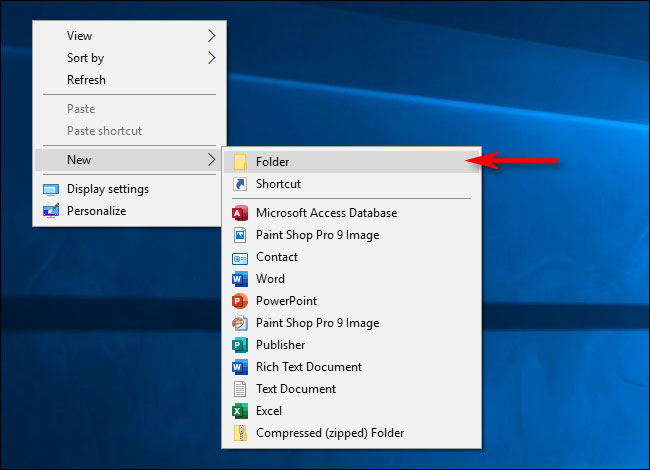
<p style="text-align: justify;">Để thực hiện thủ thuật này, bạn cần tạo một thư mục không có tên và biểu tượng. Để bắt đầu, nhấp chuột phải vào một vị trí trống trên desktop, nhấn&nbsp;<strong>New</strong>, sau đó chọn&nbsp;<strong>Folder</strong>.</p>

<figure>
<div style="text-align: justify;"><img alt="Tạo thư mục mới" data-i="0" data-src="https://st.quantrimang.com/photos/image/2020/03/27/tao-thu-muc-vo-hinh-tren-desktop-1.jpg" data-was-processed="true" height="470" src="https://st.quantrimang.com/photos/image/2020/03/27/tao-thu-muc-vo-hinh-tren-desktop-1.jpg" width="650" /></div>

<figcaption>
<div style="text-align: justify;">Tạo thư mục mới</div>
</figcaption>
</figure>

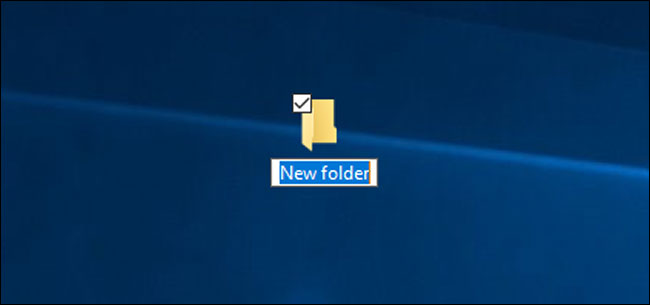
<p style="text-align: justify;">Thư mục xuất hiện trên màn hình với&nbsp;<strong>“New Folder”</strong>&nbsp;được highlight để bạn có thể đổi tên nó.</p>

<figure>
<div style="text-align: justify;"><img alt="Đổi tên thư mục" data-i="1" data-src="https://st.quantrimang.com/photos/image/2020/03/27/tao-thu-muc-vo-hinh-tren-desktop-2.jpg" data-was-processed="true" height="305" src="https://st.quantrimang.com/photos/image/2020/03/27/tao-thu-muc-vo-hinh-tren-desktop-2.jpg" width="650" /></div>

<figcaption>
<div style="text-align: justify;">Đổi tên thư mục</div>
</figcaption>
</figure>

<p style="text-align: justify;">Khi bạn đổi tên thư mục, hãy nhấn và giữ&nbsp;<code>Alt</code>&nbsp;khi bạn nhập&nbsp;<code>255</code>&nbsp;trên bàn phím số, sau đó nhấn&nbsp;<code>Enter</code>. Lưu ý rằng bạn phải nhập các số trên bàn phím số, chứ không phải các phím ở đầu bàn phím.</p>

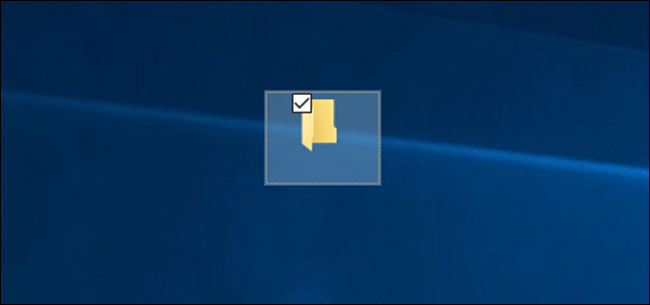
<p style="text-align: justify;">Những gì bạn làm đang làm là gõ một ký tự đặc biệt không nằm trên bàn phím với mã ký tự ASCII. Điều này đặt cho thư mục một cái tên vô hình (ký tự khoảng trắng không xuất hiện trong Windows Explorer).</p>

<figure>
<div style="text-align: justify;"><img alt="Tên thư mục đã vô hình" data-i="2" data-src="https://st.quantrimang.com/photos/image/2020/03/27/tao-thu-muc-vo-hinh-tren-desktop-3.jpg" data-was-processed="true" height="305" src="https://st.quantrimang.com/photos/image/2020/03/27/tao-thu-muc-vo-hinh-tren-desktop-3.jpg" width="650" /></div>

<figcaption>
<div style="text-align: justify;">Tên thư mục đã vô hình</div>
</figcaption>
</figure>

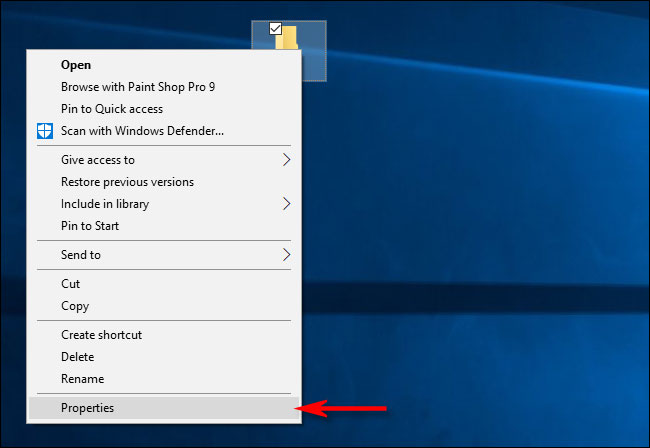
<p style="text-align: justify;">Bây giờ, phần tên đã vô hình. Tiếp theo hãy xử lý phần biểu tượng. Nhấp chuột phải vào thư mục và chọn&nbsp;<strong>Properties.</strong></p>

<figure>
<div style="text-align: justify;"><img alt="Chọn Properties" data-i="3" data-src="https://st.quantrimang.com/photos/image/2020/03/27/tao-thu-muc-vo-hinh-tren-desktop-4.jpg" data-was-processed="true" height="448" src="https://st.quantrimang.com/photos/image/2020/03/27/tao-thu-muc-vo-hinh-tren-desktop-4.jpg" width="650" /></div>

<figcaption>
<div style="text-align: justify;">Chọn Properties</div>
</figcaption>
</figure>

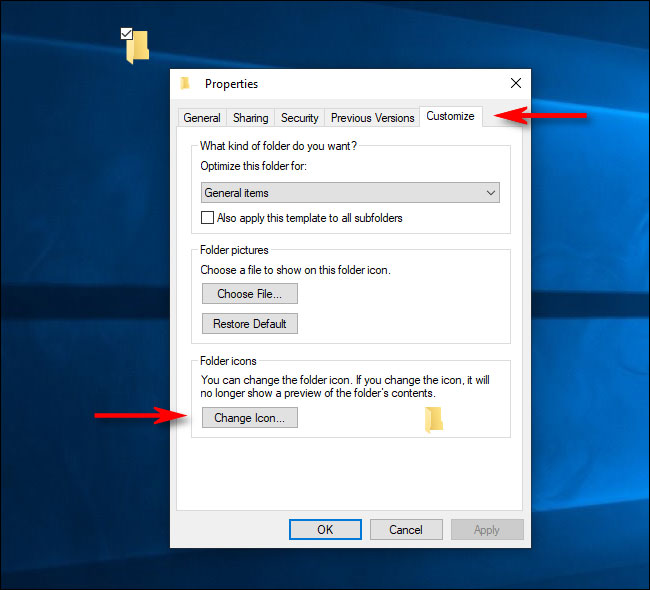
<p style="text-align: justify;">Nhấp vào tab&nbsp;<strong>Customize</strong>, sau đó chọn&nbsp;<strong>Change Icon</strong>&nbsp;trong phần&nbsp;<strong>Folder Icons.</strong></p>

<figure>
<div style="text-align: justify;"><img alt="Nhấp vào tab Customize" data-i="4" data-src="https://st.quantrimang.com/photos/image/2020/03/27/tao-thu-muc-vo-hinh-tren-desktop-5.jpg" data-was-processed="true" height="590" src="https://st.quantrimang.com/photos/image/2020/03/27/tao-thu-muc-vo-hinh-tren-desktop-5.jpg" width="650" /></div>

<figcaption>
<div style="text-align: justify;">Nhấp vào tab Customize</div>
</figcaption>
</figure>

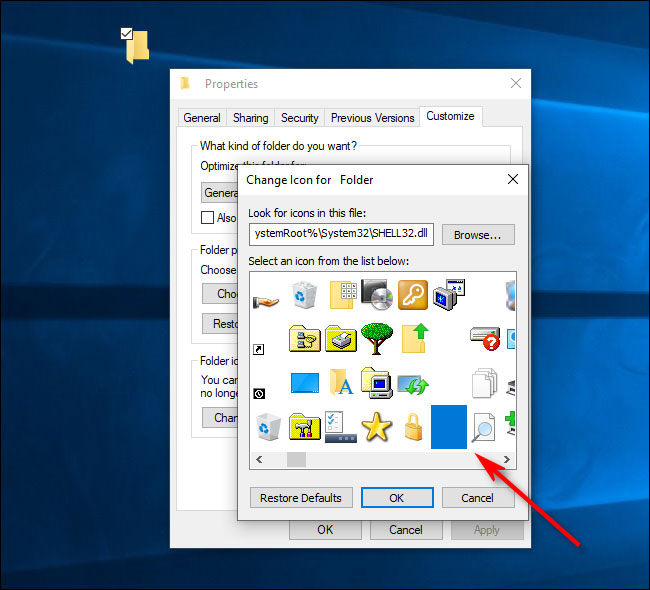
<p style="text-align: justify;">Trong cửa sổ&nbsp;<strong>Change Icon for Folder</strong>, hãy di chuyển sang phải, chọn biểu tượng vô hình, sau đó nhấn&nbsp;<strong>OK.</strong></p>

<figure>
<div style="text-align: justify;"><img alt="Chọn biểu tượng vô hình" data-i="5" data-src="https://st.quantrimang.com/photos/image/2020/03/27/tao-thu-muc-vo-hinh-tren-desktop-6.jpg" data-was-processed="true" height="590" src="https://st.quantrimang.com/photos/image/2020/03/27/tao-thu-muc-vo-hinh-tren-desktop-6.jpg" width="650" /></div>

<figcaption>
<div style="text-align: justify;">Chọn biểu tượng vô hình</div>
</figcaption>
</figure>

<p style="text-align: justify;">Nhấn&nbsp;<strong>OK</strong>&nbsp;lần nữa để đóng cửa sổ thuộc tính! Biểu tượng thư mục của bạn đã biến mất rồi đấy!</p>

<p style="text-align: justify;">Bạn vẫn có thể tìm thấy thư mục trên desktop nếu kéo con trỏ chuột trên một khu vực rộng để chọn nhiều biểu tượng. Nếu không, nó vẫn vô hình. Thư mục cũng sẽ ẩn đi trong File Explorer và ngay cả với nội dung bên trong nó cũng vậy.</p>

<p style="text-align: justify;">Nếu bạn muốn ẩn nhiều thư mục cùng một lúc trên desktop, hãy lặp lại quy trình trên, nhưng nhấn&nbsp;<code>Alt</code>+<code>255</code>&nbsp;nhiều lần để nhập nhiều ký tự vô hình. Hai thư mục không thể có cùng tên, vì vậy thư mục thứ hai sẽ cần hai khoảng trắng.</p>

<p style="text-align: justify;">Bạn có thể lặp lại quy trình với 3 hoặc nhiều thư mục, chỉ cần tăng số lượng khoảng trắng vô hình trong tên thư mục là được.</p>

<div style="text-align: justify;">&nbsp;</div>

<h2 style="text-align: justify;">Làm thế nào để thư mục hiển thị lại?</h2>

<p style="text-align: justify;">Để hoàn tác thủ thuật biến thư mục thành vô hình, nhấp chuột phải vào thư mục vô hình và chọn&nbsp;<strong>Properties</strong>. Nhấn vào tab&nbsp;<strong>Customize</strong>&nbsp;và sau đó chọn&nbsp;<strong>Change Icon.</strong>&nbsp;Lần này, chọn một biểu tượng thông thường cho thư mục thay vì biểu tượng vô hình.</p>

<p style="text-align: justify;">Để thay đổi tên, nhấp chuột phải vào thư mục và chọn&nbsp;<strong>Rename.</strong>&nbsp;Nhập những gì bạn muốn đặt tên cho thư mục, sau đó nhấn&nbsp;<code>Enter</code>.</p>
		</div>
				<div id="author">
						<p>
				<strong>Nguồn tin:</strong>
				Quantrimang.com
			</p>
		</div>
	</div>
	<div id="footer" class="clearfix">
		<div id="url">
			<strong>URL của bản tin này: </strong><a href="https://www.nguoicodonvn2008.info/vi/news/savefile/kien-thuc-may-tinh/cach-tao-thu-muc-vo-hinh-tren-desktop-windows-10-1900.html" title="Cách tạo thư mục vô hình trên desktop Windows 10">https://www.nguoicodonvn2008.info/vi/news/savefile/kien-thuc-may-tinh/cach-tao-thu-muc-vo-hinh-tren-desktop-windows-10-1900.html</a>

		</div>
		<div class="clear"></div>
		<div class="copyright">
			&copy; .&#x3A; Nguoicodonvn2008.info - Cõi lòng người cô đơn &#x3A;.
		</div>
		<div id="contact">
			<a href="mailto:admin@nguoicodonvn2008.info">admin@nguoicodonvn2008.info</a>
		</div>
	</div>
</div>
        <div id="timeoutsess" class="chromeframe">
            Bạn đã không sử dụng Site, <a onclick="timeoutsesscancel();" href="https://www.nguoicodonvn2008.info/#">Bấm vào đây để duy trì trạng thái đăng nhập</a>. Thời gian chờ: <span id="secField"> 60 </span> giây
        </div>
        <div id="openidResult" class="nv-alert" style="display:none"></div>
        <div id="openidBt" data-result="" data-redirect=""></div>
		</script>
		<div class="car-top">
  <span><img src="https://www.nguoicodonvn2008.info/themes/default/images/car.png" alt=""></span>
</div>
<script src="https://www.nguoicodonvn2008.info/assets/js/jquery/jquery.min.js"></script>
<script>var nv_base_siteurl="/",nv_lang_data="vi",nv_lang_interface="vi",nv_name_variable="nv",nv_fc_variable="op",nv_lang_variable="language",nv_module_name="news",nv_func_name="savefile",nv_is_user=0, nv_my_ofs=-4,nv_my_abbr="EDT",nv_cookie_prefix="nv4c_e856T",nv_check_pass_mstime=1738000,nv_area_admin=0,nv_safemode=0,theme_responsive=0,nv_recaptcha_ver=2,nv_recaptcha_sitekey="",nv_recaptcha_type="image",XSSsanitize=1;</script>
<script src="https://www.nguoicodonvn2008.info/assets/js/language/vi.js"></script>
<script src="https://www.nguoicodonvn2008.info/assets/js/DOMPurify/purify3.js"></script>
<script src="https://www.nguoicodonvn2008.info/assets/js/global.js"></script>
<script src="https://www.nguoicodonvn2008.info/assets/js/site.js"></script>
<script src="https://www.nguoicodonvn2008.info/themes/default/js/news.js"></script>
<script src="https://www.nguoicodonvn2008.info/themes/default/js/main.js"></script>
<script src="https://www.nguoicodonvn2008.info/themes/default/js/custom.js"></script>
<script type="application/ld+json">
        {
            "@context": "https://schema.org",
            "@type": "Organization",
            "url": "https://www.nguoicodonvn2008.info",
            "logo": "https://www.nguoicodonvn2008.info/uploads/angel.gif"
        }
        </script>
<script src="https://www.nguoicodonvn2008.info/themes/default/js/bootstrap.min.js"></script>
<script type="text/javascript">
var $scrolltop = $('.car-top');
$scrolltop.on('click', function () {
    $('html,body').animate({
        scrollTop: 0
    }, 800);
    $(this).addClass("car-run");
    setTimeout(function(){ $scrolltop.removeClass('car-run');}, 1000);
    return false;
});
$(window).on('scroll', function ()
{ 
    if($(window).scrollTop() >= 200)
    {
        $scrolltop.addClass("show");
        $scrolltop.addClass("car-down");
    }
    else
    {
       $scrolltop.removeClass("show");
       setTimeout(function(){ $scrolltop.removeClass('car-down');}, 300);
    }
});
</script>
</body>
</html>