<!DOCTYPE html>
    <html lang="vi" xmlns="http://www.w3.org/1999/xhtml" prefix="og: http://ogp.me/ns#">
    <head>
<title>Cách tạo thư mục mới trong Microsoft Outlook</title>
<meta name="description" content="Cách tạo thư mục mới trong Microsoft Outlook - Savefile - Tin Tức -...">
<meta name="author" content=".: Nguoicodonvn2008.info - Cõi lòng người cô đơn :.">
<meta name="copyright" content=".: Nguoicodonvn2008.info - Cõi lòng người cô đơn :. [admin@nguoicodonvn2008.info]">
<meta name="robots" content="index, archive, follow, noodp">
<meta name="googlebot" content="index,archive,follow,noodp">
<meta name="msnbot" content="all,index,follow">
<meta name="generator" content="NukeViet v4.5">
<meta http-equiv="Content-Type" content="text/html; charset=utf-8">
<meta property="og:title" content="Cách tạo thư mục mới trong Microsoft Outlook">
<meta property="og:type" content="website">
<meta property="og:description" content="Savefile - Tin Tức - https&#x3A;&#x002F;&#x002F;www.nguoicodonvn2008.info&#x002F;vi&#x002F;news&#x002F;savefile&#x002F;kien-thuc-may-tinh&#x002F;cach-tao-thu-muc-moi-trong-microsoft-outlook-4973.html">
<meta property="og:site_name" content=".&#x3A; Nguoicodonvn2008.info - Cõi lòng người cô đơn &#x3A;.">
<meta property="og:url" content="https://www.nguoicodonvn2008.info/vi/news/savefile/kien-thuc-may-tinh/cach-tao-thu-muc-moi-trong-microsoft-outlook-4973.html">
<link rel="shortcut icon" href="https://www.nguoicodonvn2008.info/favicon.ico">
<link rel="canonical" href="https://www.nguoicodonvn2008.info/vi/news/savefile/kien-thuc-may-tinh/cach-tao-thu-muc-moi-trong-microsoft-outlook-4973.html">
<link rel="alternate" href="https://www.nguoicodonvn2008.info/vi/news/rss/" title="Tin Tức" type="application/rss+xml">
<link rel="alternate" href="https://www.nguoicodonvn2008.info/vi/news/rss/karaoke-dual/" title="Tin Tức - Karaoke Dual" type="application/rss+xml">
<link rel="alternate" href="https://www.nguoicodonvn2008.info/vi/news/rss/nhac-tre/" title="Tin Tức - Nhạc trẻ" type="application/rss+xml">
<link rel="alternate" href="https://www.nguoicodonvn2008.info/vi/news/rss/tru-tinh/" title="Tin Tức - Trữ tình" type="application/rss+xml">
<link rel="alternate" href="https://www.nguoicodonvn2008.info/vi/news/rss/nuoc-ngoai/" title="Tin Tức - Nước ngoài" type="application/rss+xml">
<link rel="alternate" href="https://www.nguoicodonvn2008.info/vi/news/rss/remix/" title="Tin Tức - Remix" type="application/rss+xml">
<link rel="alternate" href="https://www.nguoicodonvn2008.info/vi/news/rss/tam-su-tinh-yeu/" title="Tin Tức - Tâm sự tình yêu" type="application/rss+xml">
<link rel="alternate" href="https://www.nguoicodonvn2008.info/vi/news/rss/tho-suu-tam/" title="Tin Tức - Thơ sưu tầm" type="application/rss+xml">
<link rel="alternate" href="https://www.nguoicodonvn2008.info/vi/news/rss/cuoc-song/" title="Tin Tức - Cuộc sống" type="application/rss+xml">
<link rel="alternate" href="https://www.nguoicodonvn2008.info/vi/news/rss/phan-mem/" title="Tin Tức - Phần mềm" type="application/rss+xml">
<link rel="alternate" href="https://www.nguoicodonvn2008.info/vi/news/rss/kien-thuc-may-tinh/" title="Tin Tức - Kiến thức máy tính" type="application/rss+xml">
<link rel="alternate" href="https://www.nguoicodonvn2008.info/vi/news/rss/hoc-tap/" title="Tin Tức - Học tập" type="application/rss+xml">
<link rel="alternate" href="https://www.nguoicodonvn2008.info/vi/news/rss/tai-lieu/" title="Tin Tức - Tài liệu" type="application/rss+xml">
<link rel="alternate" href="https://www.nguoicodonvn2008.info/vi/news/rss/de-thi/" title="Tin Tức - Đề thi" type="application/rss+xml">
<link rel="preload" as="style" href="https://www.nguoicodonvn2008.info/assets/css/font-awesome.min.css" type="text/css">
<link rel="preload" as="style" href="https://www.nguoicodonvn2008.info/themes/default/css/bootstrap.non-responsive.css" type="text/css">
<link rel="preload" as="style" href="https://www.nguoicodonvn2008.info/themes/default/css/style.css" type="text/css">
<link rel="preload" as="style" href="https://www.nguoicodonvn2008.info/themes/default/css/style.non-responsive.css" type="text/css">
<link rel="preload" as="style" href="https://www.nguoicodonvn2008.info/themes/default/css/news.css" type="text/css">
<link rel="preload" as="style" href="https://www.nguoicodonvn2008.info/themes/default/css/custom.css" type="text/css">
<link rel="preload" as="script" href="https://www.nguoicodonvn2008.info/assets/js/jquery/jquery.min.js" type="text/javascript">
<link rel="preload" as="script" href="https://www.nguoicodonvn2008.info/assets/js/language/vi.js" type="text/javascript">
<link rel="preload" as="script" href="https://www.nguoicodonvn2008.info/assets/js/DOMPurify/purify3.js" type="text/javascript">
<link rel="preload" as="script" href="https://www.nguoicodonvn2008.info/assets/js/global.js" type="text/javascript">
<link rel="preload" as="script" href="https://www.nguoicodonvn2008.info/assets/js/site.js" type="text/javascript">
<link rel="preload" as="script" href="https://www.nguoicodonvn2008.info/themes/default/js/news.js" type="text/javascript">
<link rel="preload" as="script" href="https://www.nguoicodonvn2008.info/themes/default/js/main.js" type="text/javascript">
<link rel="preload" as="script" href="https://www.nguoicodonvn2008.info/themes/default/js/custom.js" type="text/javascript">
<link rel="preload" as="script" href="https://www.nguoicodonvn2008.info/themes/default/js/bootstrap.min.js" type="text/javascript">
<link rel="stylesheet" href="https://www.nguoicodonvn2008.info/assets/css/font-awesome.min.css">
<link rel="stylesheet" href="https://www.nguoicodonvn2008.info/themes/default/css/bootstrap.non-responsive.css">
<link rel="stylesheet" href="https://www.nguoicodonvn2008.info/themes/default/css/style.css">
<link rel="stylesheet" href="https://www.nguoicodonvn2008.info/themes/default/css/style.non-responsive.css">
<link rel="StyleSheet" href="https://www.nguoicodonvn2008.info/themes/default/css/news.css">
<link rel="stylesheet" href="https://www.nguoicodonvn2008.info/themes/default/css/custom.css">
<style type="text/css">
	body{background: #fff;}
</style>
    </head>
    <body>
<div id="print">
	<div id="hd_print">
		<h2 class="pull-left">.&#x3A; Nguoicodonvn2008.info - Cõi lòng người cô đơn &#x3A;.</h2>
		<p class="pull-right"><a title=".&#x3A; Nguoicodonvn2008.info - Cõi lòng người cô đơn &#x3A;." href="https://www.nguoicodonvn2008.info/">https://www.nguoicodonvn2008.info</a></p>
	</div>
	<div class="clear"></div>
	<hr />
	<div id="content">
		<h1>Cách tạo thư mục mới trong Microsoft Outlook</h1>
		<ul class="list-inline">
			<li>Thứ tư - 05/01/2022 23:46</li>
			<li class="hidden-print txtrequired"><em class="fa fa-print">&nbsp;</em><a title="In ra" href="javascript:;" onclick="window.print()">In ra</a></li>
			<li class="hidden-print txtrequired"><em class="fa fa-power-off">&nbsp;</em><a title="Đóng cửa sổ này" href="javascript:;" onclick="window.close()">Đóng cửa sổ này</a></li>
		</ul>
		<div class="clear"></div>
		<div id="hometext">
		</div>
				<div class="imghome">
			<img alt="Cách tạo thư mục mới trong Microsoft Outlook" src="https://st.quantrimang.com/photos/image/2022/01/04/Outlook-tao-thu-muc-9.jpg" width="460" class="img-thumbnail" />
		</div>
		<div class="clear"></div>
		<div id="bodytext" class="clearfix">
			<p style="text-align: justify;">Khi tạo thư mục mới trong Microsoft Outlook thì người dùng có thể&nbsp;di chuyển và lưu trữ email Outlook tới thư mục khác&nbsp;dễ dàng, phục vụ cho yêu cầu phân rõ các email trong Outlook. Để tạo được thư mục trong Microsoft Outlook, người dùng chỉ cần dùng ngay tính năng có sẵn trong bài viết như hình dưới đây.</p>

<h2 style="text-align: justify;">Hướng dẫn tạo thư mục Outlook trên máy tính</h2>

<p style="text-align: justify;"><strong>Bước 1:</strong></p>

<p style="text-align: justify;">Trước hết chúng ta truy cập vào ứng dụng Microsoft Outlook trên máy tính Tại sao diện ở bên trái màn hình bạn nhìn xuống bên dưới và&nbsp;<strong>lựa chọn nơi muốn tạo thư mục</strong>.</p>

<p style="text-align: justify;"><img alt="Outlook trên máy tính" data-i="0" data-src="https://st.quantrimang.com/photos/image/2022/01/04/Outlook-tao-thu-muc-1.jpg" data-was-processed="true" height="500" src="https://st.quantrimang.com/photos/image/2022/01/04/Outlook-tao-thu-muc-1.jpg" width="267" /></p>

<p style="text-align: justify;"><strong>Bước 2:</strong></p>

<p style="text-align: justify;">Trong giao diện tiếp theo, chúng ta sẽ&nbsp;<strong>tìm nơi muốn đặt thư mục mới</strong>. Chúng ta có thể đặt thư mục mới trong tài khoản email của mình, rồi nhấn&nbsp;<strong>chuột phải chọn New Folder</strong>.</p>

<p style="text-align: justify;"><img alt="Tạo thư mục mới trên Outlook trên máy tính" data-i="1" data-src="https://st.quantrimang.com/photos/image/2022/01/04/Outlook-tao-thu-muc-2.jpg" data-was-processed="true" height="268" src="https://st.quantrimang.com/photos/image/2022/01/04/Outlook-tao-thu-muc-2.jpg" width="566" /></p>

<p style="text-align: justify;"><strong>Bước 3:</strong></p>

<p style="text-align: justify;">Lúc này hiển thị giao diện để chúng ta thiết lập tạo thư mục mới. Chúng ta&nbsp;<strong>nhập tên thư mục mới</strong>, bên dưới là lựa chọn để thay đổi lại vị trí đặt thư mục.&nbsp;<strong>Nhấn OK&nbsp;</strong>để lưu lại.</p>

<p style="text-align: justify;"><img alt="Giao diện tạo thư mục mới Outlook trên máy tính" data-i="2" data-src="https://st.quantrimang.com/photos/image/2022/01/04/Outlook-tao-thu-muc-3.jpg" data-was-processed="true" height="500" src="https://st.quantrimang.com/photos/image/2022/01/04/Outlook-tao-thu-muc-3.jpg" width="406" /></p>

<p style="text-align: justify;"><strong>Bước 4:</strong></p>

<p style="text-align: justify;">Ngay sau đó bạn sẽ nhìn thấy thư mục mới tạo trên Outlook. Nhấn chuột phải vào thư mục mới đó sẽ hiển thị các tùy chọn như hình.</p>

<p style="text-align: justify;"><img alt="Tùy chọn thư mục mới Outlook trên máy tính" data-i="3" data-src="https://st.quantrimang.com/photos/image/2022/01/04/Outlook-tao-thu-muc-4.jpg" data-was-processed="true" height="353" src="https://st.quantrimang.com/photos/image/2022/01/04/Outlook-tao-thu-muc-4.jpg" width="616" /></p>

<h2 style="text-align: justify;">Hướng dẫn tạo thư mục Outlook web</h2>

<p style="text-align: justify;"><strong>Bước 1:</strong></p>

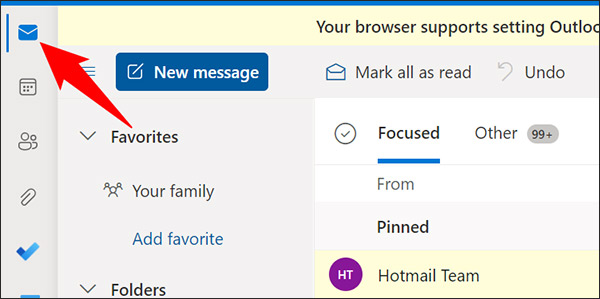
<p style="text-align: justify;">Tại giao diện Outlook web, chúng ta nhấn vào nơi muốn tạo thư mục mới.</p>

<p style="text-align: justify;"><img alt="Outlook trên web" data-i="4" data-src="https://st.quantrimang.com/photos/image/2022/01/04/Outlook-tao-thu-muc-5.jpg" data-was-processed="true" height="299" src="https://st.quantrimang.com/photos/image/2022/01/04/Outlook-tao-thu-muc-5.jpg" width="600" /></p>

<p style="text-align: justify;"><strong>Bước 2:</strong></p>

<p style="text-align: justify;">Chuyển sang giao diện mới người dùng sẽ nhìn thấy&nbsp;<strong>tùy chọn New Folder</strong>&nbsp;để tạo thư mục mới. Sau đó bạn điền tên cho thư mục mới đó.</p>

<p style="text-align: justify;"><img alt="Tạo thư mục Outlook trên web" data-i="5" data-src="https://st.quantrimang.com/photos/image/2022/01/04/Outlook-tao-thu-muc-6.jpg" data-was-processed="true" height="322" src="https://st.quantrimang.com/photos/image/2022/01/04/Outlook-tao-thu-muc-6.jpg" width="602" /></p>

<p style="text-align: justify;"><strong>Bước 3:</strong></p>

<p style="text-align: justify;">Để&nbsp;<strong>tạo 1 thư mục con&nbsp;</strong>trong thư mục mới tạo, chúng ta nhấn chuột phải rồi&nbsp;<strong>chọn Create New Subfolder</strong>. Thư mục đã tạo đều có thể xóa, đổi tên nhanh chóng bằng cách bạn nhấn chuột phải vào thư mục đó.</p>

<p style="text-align: justify;"><img alt="Tạo thư mục con trên Outlook trên web" data-i="6" data-src="https://st.quantrimang.com/photos/image/2022/01/04/Outlook-tao-thu-muc-7.jpg" data-was-processed="true" height="234" src="https://st.quantrimang.com/photos/image/2022/01/04/Outlook-tao-thu-muc-7.jpg" width="580" /></p>

<h2 style="text-align: justify;">Hướng dẫn tạo thư mục Outlook trên điện thoại</h2>

<p style="text-align: justify;"><strong>Bước 1:</strong></p>

<p style="text-align: justify;">Tại giao diện trên ứng dụng Outlook chúng ta&nbsp;<strong>nhấn vào email bất kỳ</strong>&nbsp;rồi nhấn tiếp vào&nbsp;<strong>biểu tượng 3 dấu chấm&nbsp;</strong>ở góc phải trên cùng.</p>

<p style="text-align: justify;"><img alt="Tùy chọn email Outlook trên điện thoại" data-i="7" data-src="https://st.quantrimang.com/photos/image/2022/01/04/Outlook-tao-thu-muc-8.jpg" data-was-processed="true" height="300" src="https://st.quantrimang.com/photos/image/2022/01/04/Outlook-tao-thu-muc-8.jpg" width="636" /></p>

<p style="text-align: justify;"><strong>Bước 2:</strong></p>

<p style="text-align: justify;">Lúc này hiển thị giao diện danh sách với những tùy chọn như dưới đây. Chúng ta sẽ nhấn vào&nbsp;<strong>Move to Folder để di chuyển email</strong>.</p>

<p style="text-align: justify;"><img alt="Di chuyển email Outlook trên điện thoại" data-i="8" data-src="https://st.quantrimang.com/photos/image/2022/01/04/Outlook-tao-thu-muc-11.jpg" data-was-processed="true" height="314" src="https://st.quantrimang.com/photos/image/2022/01/04/Outlook-tao-thu-muc-11.jpg" width="618" /></p>

<p style="text-align: justify;"><strong>Bước 3:</strong></p>

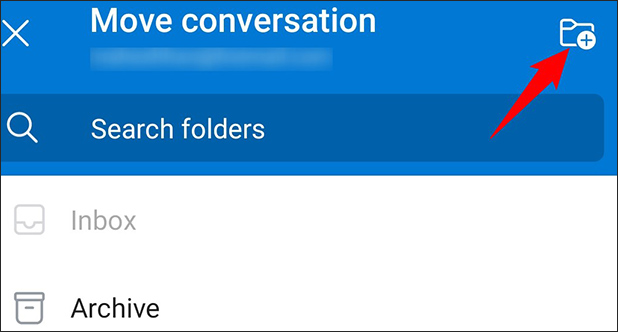
<p style="text-align: justify;">Trong giao diện chọn thư mục mới chuyển email bạn<strong>&nbsp;nhấn vào biểu tượng thư mục&nbsp;</strong>ở góc phải trên cùng để tạo.</p>

<p style="text-align: justify;"><img alt="Tạo thư mục mới Outlook trên điện thoại" data-i="9" data-src="https://st.quantrimang.com/photos/image/2022/01/04/Outlook-tao-thu-muc-9.jpg" data-was-processed="true" height="332" src="https://st.quantrimang.com/photos/image/2022/01/04/Outlook-tao-thu-muc-9.jpg" width="618" /></p>

<p style="text-align: justify;">Cuối cùng bạn<strong>&nbsp;đặt tên mới cho thư mục trên Outlook</strong>&nbsp;rồi&nbsp;<strong>nhấn vào Create &amp; Move&nbsp;</strong>để tiến hành tạo thư mục.</p>

<p style="text-align: justify;"><img alt="Đặt tên thư mục mới Outlook trên điện thoại" data-i="10" data-src="https://st.quantrimang.com/photos/image/2022/01/04/Outlook-tao-thu-muc-10.jpg" data-was-processed="true" height="335" src="https://st.quantrimang.com/photos/image/2022/01/04/Outlook-tao-thu-muc-10.jpg" width="600" /></p>

<p style="text-align: justify;">Như vậy việc tạo thư mục Outlook trên máy tính và web rất đơn giản với tùy chọn có sẵn. Riêng với bản Outlook trên điện thoại thì bạn sẽ phải thêm thao tác di chuyển email.</p>
		</div>
				<div id="author">
						<p>
				<strong>Nguồn tin:</strong>
				Quantrimang.com
			</p>
		</div>
	</div>
	<div id="footer" class="clearfix">
		<div id="url">
			<strong>URL của bản tin này: </strong><a href="https://www.nguoicodonvn2008.info/vi/news/savefile/kien-thuc-may-tinh/cach-tao-thu-muc-moi-trong-microsoft-outlook-4973.html" title="Cách tạo thư mục mới trong Microsoft Outlook">https://www.nguoicodonvn2008.info/vi/news/savefile/kien-thuc-may-tinh/cach-tao-thu-muc-moi-trong-microsoft-outlook-4973.html</a>

		</div>
		<div class="clear"></div>
		<div class="copyright">
			&copy; .&#x3A; Nguoicodonvn2008.info - Cõi lòng người cô đơn &#x3A;.
		</div>
		<div id="contact">
			<a href="mailto:admin@nguoicodonvn2008.info">admin@nguoicodonvn2008.info</a>
		</div>
	</div>
</div>
        <div id="timeoutsess" class="chromeframe">
            Bạn đã không sử dụng Site, <a onclick="timeoutsesscancel();" href="https://www.nguoicodonvn2008.info/#">Bấm vào đây để duy trì trạng thái đăng nhập</a>. Thời gian chờ: <span id="secField"> 60 </span> giây
        </div>
        <div id="openidResult" class="nv-alert" style="display:none"></div>
        <div id="openidBt" data-result="" data-redirect=""></div>
		</script>
		<div class="car-top">
  <span><img src="https://www.nguoicodonvn2008.info/themes/default/images/car.png" alt=""></span>
</div>
<script src="https://www.nguoicodonvn2008.info/assets/js/jquery/jquery.min.js"></script>
<script>var nv_base_siteurl="/",nv_lang_data="vi",nv_lang_interface="vi",nv_name_variable="nv",nv_fc_variable="op",nv_lang_variable="language",nv_module_name="news",nv_func_name="savefile",nv_is_user=0, nv_my_ofs=-4,nv_my_abbr="EDT",nv_cookie_prefix="nv4c_e856T",nv_check_pass_mstime=1738000,nv_area_admin=0,nv_safemode=0,theme_responsive=0,nv_recaptcha_ver=2,nv_recaptcha_sitekey="",nv_recaptcha_type="image",XSSsanitize=1;</script>
<script src="https://www.nguoicodonvn2008.info/assets/js/language/vi.js"></script>
<script src="https://www.nguoicodonvn2008.info/assets/js/DOMPurify/purify3.js"></script>
<script src="https://www.nguoicodonvn2008.info/assets/js/global.js"></script>
<script src="https://www.nguoicodonvn2008.info/assets/js/site.js"></script>
<script src="https://www.nguoicodonvn2008.info/themes/default/js/news.js"></script>
<script src="https://www.nguoicodonvn2008.info/themes/default/js/main.js"></script>
<script src="https://www.nguoicodonvn2008.info/themes/default/js/custom.js"></script>
<script type="application/ld+json">
        {
            "@context": "https://schema.org",
            "@type": "Organization",
            "url": "https://www.nguoicodonvn2008.info",
            "logo": "https://www.nguoicodonvn2008.info/uploads/angel.gif"
        }
        </script>
<script src="https://www.nguoicodonvn2008.info/themes/default/js/bootstrap.min.js"></script>
<script type="text/javascript">
var $scrolltop = $('.car-top');
$scrolltop.on('click', function () {
    $('html,body').animate({
        scrollTop: 0
    }, 800);
    $(this).addClass("car-run");
    setTimeout(function(){ $scrolltop.removeClass('car-run');}, 1000);
    return false;
});
$(window).on('scroll', function ()
{ 
    if($(window).scrollTop() >= 200)
    {
        $scrolltop.addClass("show");
        $scrolltop.addClass("car-down");
    }
    else
    {
       $scrolltop.removeClass("show");
       setTimeout(function(){ $scrolltop.removeClass('car-down');}, 300);
    }
});
</script>
</body>
</html>