<!DOCTYPE html>
    <html lang="vi" xmlns="http://www.w3.org/1999/xhtml" prefix="og: http://ogp.me/ns#">
    <head>
<title>Cách tạo shortcut máy in trên Windows 10</title>
<meta name="description" content="Cách tạo shortcut máy in trên Windows 10 - Savefile - Tin Tức -...">
<meta name="author" content=".: Nguoicodonvn2008.info - Cõi lòng người cô đơn :.">
<meta name="copyright" content=".: Nguoicodonvn2008.info - Cõi lòng người cô đơn :. [admin@nguoicodonvn2008.info]">
<meta name="robots" content="index, archive, follow, noodp">
<meta name="googlebot" content="index,archive,follow,noodp">
<meta name="msnbot" content="all,index,follow">
<meta name="generator" content="NukeViet v4.5">
<meta http-equiv="Content-Type" content="text/html; charset=utf-8">
<meta property="og:title" content="Cách tạo shortcut máy in trên Windows 10">
<meta property="og:type" content="website">
<meta property="og:description" content="Savefile - Tin Tức - https&#x3A;&#x002F;&#x002F;www.nguoicodonvn2008.info&#x002F;vi&#x002F;news&#x002F;savefile&#x002F;kien-thuc-may-tinh&#x002F;cach-tao-shortcut-may-in-tren-windows-10-5330.html">
<meta property="og:site_name" content=".&#x3A; Nguoicodonvn2008.info - Cõi lòng người cô đơn &#x3A;.">
<meta property="og:url" content="https://www.nguoicodonvn2008.info/vi/news/savefile/kien-thuc-may-tinh/cach-tao-shortcut-may-in-tren-windows-10-5330.html">
<link rel="shortcut icon" href="https://www.nguoicodonvn2008.info/favicon.ico">
<link rel="canonical" href="https://www.nguoicodonvn2008.info/vi/news/savefile/kien-thuc-may-tinh/cach-tao-shortcut-may-in-tren-windows-10-5330.html">
<link rel="alternate" href="https://www.nguoicodonvn2008.info/vi/news/rss/" title="Tin Tức" type="application/rss+xml">
<link rel="alternate" href="https://www.nguoicodonvn2008.info/vi/news/rss/karaoke-dual/" title="Tin Tức - Karaoke Dual" type="application/rss+xml">
<link rel="alternate" href="https://www.nguoicodonvn2008.info/vi/news/rss/nhac-tre/" title="Tin Tức - Nhạc trẻ" type="application/rss+xml">
<link rel="alternate" href="https://www.nguoicodonvn2008.info/vi/news/rss/tru-tinh/" title="Tin Tức - Trữ tình" type="application/rss+xml">
<link rel="alternate" href="https://www.nguoicodonvn2008.info/vi/news/rss/nuoc-ngoai/" title="Tin Tức - Nước ngoài" type="application/rss+xml">
<link rel="alternate" href="https://www.nguoicodonvn2008.info/vi/news/rss/remix/" title="Tin Tức - Remix" type="application/rss+xml">
<link rel="alternate" href="https://www.nguoicodonvn2008.info/vi/news/rss/tam-su-tinh-yeu/" title="Tin Tức - Tâm sự tình yêu" type="application/rss+xml">
<link rel="alternate" href="https://www.nguoicodonvn2008.info/vi/news/rss/tho-suu-tam/" title="Tin Tức - Thơ sưu tầm" type="application/rss+xml">
<link rel="alternate" href="https://www.nguoicodonvn2008.info/vi/news/rss/cuoc-song/" title="Tin Tức - Cuộc sống" type="application/rss+xml">
<link rel="alternate" href="https://www.nguoicodonvn2008.info/vi/news/rss/phan-mem/" title="Tin Tức - Phần mềm" type="application/rss+xml">
<link rel="alternate" href="https://www.nguoicodonvn2008.info/vi/news/rss/kien-thuc-may-tinh/" title="Tin Tức - Kiến thức máy tính" type="application/rss+xml">
<link rel="alternate" href="https://www.nguoicodonvn2008.info/vi/news/rss/hoc-tap/" title="Tin Tức - Học tập" type="application/rss+xml">
<link rel="alternate" href="https://www.nguoicodonvn2008.info/vi/news/rss/tai-lieu/" title="Tin Tức - Tài liệu" type="application/rss+xml">
<link rel="alternate" href="https://www.nguoicodonvn2008.info/vi/news/rss/de-thi/" title="Tin Tức - Đề thi" type="application/rss+xml">
<link rel="preload" as="style" href="https://www.nguoicodonvn2008.info/assets/css/font-awesome.min.css" type="text/css">
<link rel="preload" as="style" href="https://www.nguoicodonvn2008.info/themes/default/css/bootstrap.non-responsive.css" type="text/css">
<link rel="preload" as="style" href="https://www.nguoicodonvn2008.info/themes/default/css/style.css" type="text/css">
<link rel="preload" as="style" href="https://www.nguoicodonvn2008.info/themes/default/css/style.non-responsive.css" type="text/css">
<link rel="preload" as="style" href="https://www.nguoicodonvn2008.info/themes/default/css/news.css" type="text/css">
<link rel="preload" as="style" href="https://www.nguoicodonvn2008.info/themes/default/css/custom.css" type="text/css">
<link rel="preload" as="script" href="https://www.nguoicodonvn2008.info/assets/js/jquery/jquery.min.js" type="text/javascript">
<link rel="preload" as="script" href="https://www.nguoicodonvn2008.info/assets/js/language/vi.js" type="text/javascript">
<link rel="preload" as="script" href="https://www.nguoicodonvn2008.info/assets/js/DOMPurify/purify3.js" type="text/javascript">
<link rel="preload" as="script" href="https://www.nguoicodonvn2008.info/assets/js/global.js" type="text/javascript">
<link rel="preload" as="script" href="https://www.nguoicodonvn2008.info/assets/js/site.js" type="text/javascript">
<link rel="preload" as="script" href="https://www.nguoicodonvn2008.info/themes/default/js/news.js" type="text/javascript">
<link rel="preload" as="script" href="https://www.nguoicodonvn2008.info/themes/default/js/main.js" type="text/javascript">
<link rel="preload" as="script" href="https://www.nguoicodonvn2008.info/themes/default/js/custom.js" type="text/javascript">
<link rel="preload" as="script" href="https://www.nguoicodonvn2008.info/themes/default/js/bootstrap.min.js" type="text/javascript">
<link rel="stylesheet" href="https://www.nguoicodonvn2008.info/assets/css/font-awesome.min.css">
<link rel="stylesheet" href="https://www.nguoicodonvn2008.info/themes/default/css/bootstrap.non-responsive.css">
<link rel="stylesheet" href="https://www.nguoicodonvn2008.info/themes/default/css/style.css">
<link rel="stylesheet" href="https://www.nguoicodonvn2008.info/themes/default/css/style.non-responsive.css">
<link rel="StyleSheet" href="https://www.nguoicodonvn2008.info/themes/default/css/news.css">
<link rel="stylesheet" href="https://www.nguoicodonvn2008.info/themes/default/css/custom.css">
<style type="text/css">
	body{background: #fff;}
</style>
    </head>
    <body>
<div id="print">
	<div id="hd_print">
		<h2 class="pull-left">.&#x3A; Nguoicodonvn2008.info - Cõi lòng người cô đơn &#x3A;.</h2>
		<p class="pull-right"><a title=".&#x3A; Nguoicodonvn2008.info - Cõi lòng người cô đơn &#x3A;." href="https://www.nguoicodonvn2008.info/">https://www.nguoicodonvn2008.info</a></p>
	</div>
	<div class="clear"></div>
	<hr />
	<div id="content">
		<h1>Cách tạo shortcut máy in trên Windows 10</h1>
		<ul class="list-inline">
			<li>Thứ năm - 24/03/2022 00:42</li>
			<li class="hidden-print txtrequired"><em class="fa fa-print">&nbsp;</em><a title="In ra" href="javascript:;" onclick="window.print()">In ra</a></li>
			<li class="hidden-print txtrequired"><em class="fa fa-power-off">&nbsp;</em><a title="Đóng cửa sổ này" href="javascript:;" onclick="window.close()">Đóng cửa sổ này</a></li>
		</ul>
		<div class="clear"></div>
		<div id="hometext">
		</div>
				<div class="imghome">
			<img alt="Cách tạo shortcut máy in trên Windows 10" src="https://st.quantrimang.com/photos/image/2022/03/23/tao-shortcut-may-in-tren-windows-6.jpg" width="460" class="img-thumbnail" />
		</div>
		<div class="clear"></div>
		<div id="bodytext" class="clearfix">
			<p style="text-align: justify;">Bạn có bị mất biểu tượng shortcut máy in trên thanh tác vụ Windows 10 không? Trong các phiên bản Windows trước đó, biểu tượng nhỏ tiện dụng này giữ hàng đợi in, cho phép bạn xem nhanh các tác vụ đang chờ xử lý cho máy in của mình. Thật không may, với Windows 10 và các cách in mới - như qua&nbsp;WiFi&nbsp;và đám mây - sự dễ dàng đó dường như không còn gì. Nhưng trong một vài bước đơn giản, bạn có thể khôi phục khả năng truy cập đó.</p>

<p style="text-align: justify;">Bài viết sau đây sẽ hướng dẫn bạn cách tạo shortcut máy in trên Windows 10 và đặt biểu tượng trên thanh tác vụ.</p>

<h2 style="text-align: justify;">Trước khi thiết lập shortcut cho máy in</h2>

<p style="text-align: justify;">Đảm bảo rằng bạn đã cài đặt gói phần mềm hoàn chỉnh cho máy in bạn muốn sử dụng. Bạn thường có thể tìm thấy phần mềm driver này trên trang web của nhà sản xuất. Một số nhà sản xuất thậm chí còn có các ứng dụng chuyên dụng để trợ giúp bạn trong quá trình thiết lập này.</p>

<p style="text-align: justify;">Sau đó, hãy kết nối máy in với máy tính. Đối với máy in có dây, hãy bật nó lên và cắm vào PC. Ngoài ra, đây là cách kết nối máy in WiFi với máy tính để in không dây.</p>

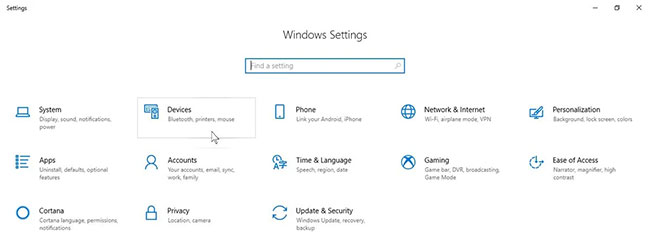
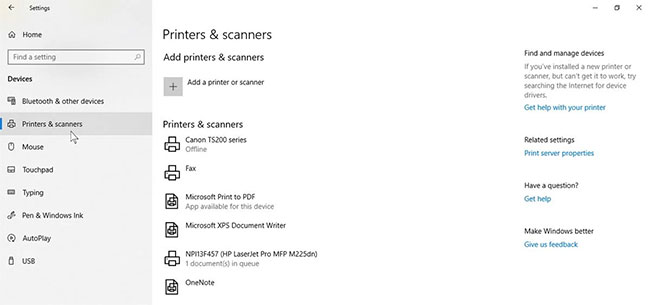
<p style="text-align: justify;">Mở menu&nbsp;<strong>Start</strong>, nhập&nbsp;<strong>Settings</strong>&nbsp;và chuyển đến ứng dụng&nbsp;<strong>Settings</strong>&nbsp;xuất hiện trong kết quả tìm kiếm. Tiếp theo, nhấp vào&nbsp;<strong>Devices</strong>&nbsp;và điều hướng đến&nbsp;<strong>Printers and Scanners</strong>&nbsp;ở bên trái.</p>

<figure>
<div style="text-align: justify;"><img alt="Nhấp vào Devices" data-i="0" data-src="https://st.quantrimang.com/photos/image/2022/03/23/tao-shortcut-may-in-tren-windows-1.jpg" data-was-processed="true" height="241" src="https://st.quantrimang.com/photos/image/2022/03/23/tao-shortcut-may-in-tren-windows-1.jpg" width="650" /></div>

<figcaption>
<div style="text-align: justify;">Nhấp vào Devices</div>
</figcaption>
</figure>

<p style="text-align: justify;">Từ đó, nhấp vào&nbsp;<strong>Add a printer or scanner&nbsp;</strong>và đợi máy tính quét các máy in có sẵn.</p>

<figure>
<div style="text-align: justify;"><img alt="Nhấp vào Add a printer or scanner" data-i="1" data-src="https://st.quantrimang.com/photos/image/2022/03/23/tao-shortcut-may-in-tren-windows-2.jpg" data-was-processed="true" height="305" src="https://st.quantrimang.com/photos/image/2022/03/23/tao-shortcut-may-in-tren-windows-2.jpg" width="650" /></div>

<figcaption>
<div style="text-align: justify;">Nhấp vào Add a printer or scanner</div>
</figcaption>
</figure>

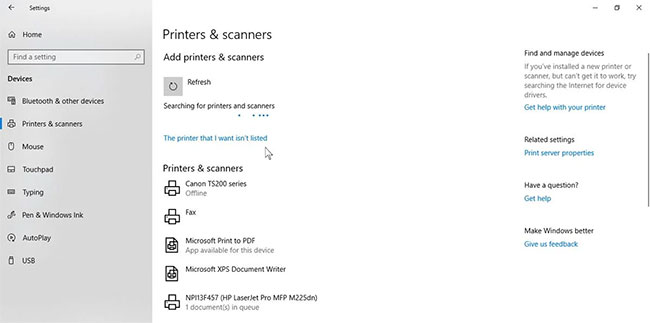
<p style="text-align: justify;">Nhấp vào liên kết&nbsp;<strong>The printer that I want isn&#039;t listed</strong>.</p>

<figure>
<div style="text-align: justify;"><img alt="Nhấp vào liên kết The printer that I want isn&#039;t listed" data-i="2" data-src="https://st.quantrimang.com/photos/image/2022/03/23/tao-shortcut-may-in-tren-windows-3.jpg" data-was-processed="true" height="323" src="https://st.quantrimang.com/photos/image/2022/03/23/tao-shortcut-may-in-tren-windows-3.jpg" width="650" /></div>

<figcaption>
<div style="text-align: justify;">Nhấp vào liên kết The printer that I want isn&#039;t listed</div>
</figcaption>
</figure>

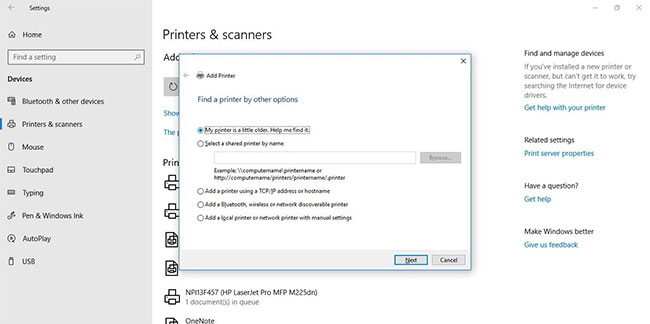
<p style="text-align: justify;">Chọn tùy chọn&nbsp;<strong>Add a printer using a TCP/IP address or hostname</strong>&nbsp;và nhấp vào&nbsp;<strong>Next.</strong></p>

<figure>
<div style="text-align: justify;"><img alt="Chọn tùy chọn Add a printer using a TCP/IP address or hostname" data-i="3" data-src="https://st.quantrimang.com/photos/image/2022/03/23/tao-shortcut-may-in-tren-windows-4.jpg" data-was-processed="true" height="324" src="https://st.quantrimang.com/photos/image/2022/03/23/tao-shortcut-may-in-tren-windows-4.jpg" width="650" /></div>

<figcaption>
<div style="text-align: justify;">Chọn tùy chọn Add a printer using a TCP/IP address or hostname</div>
</figcaption>
</figure>

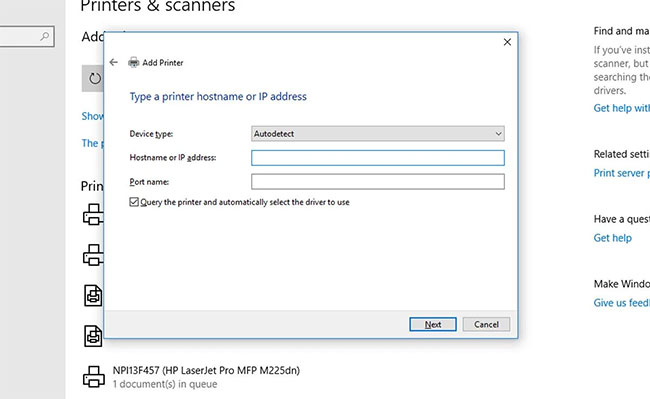
<p style="text-align: justify;">Nhập địa chỉ IP của máy in WiFi bạn muốn kết nối và nhấn nút&nbsp;<strong>Next.</strong></p>

<figure>
<div style="text-align: justify;"><img alt="Nhập địa chỉ IP của máy in WiFi" data-i="4" data-src="https://st.quantrimang.com/photos/image/2022/03/23/tao-shortcut-may-in-tren-windows-5.jpg" data-was-processed="true" height="399" src="https://st.quantrimang.com/photos/image/2022/03/23/tao-shortcut-may-in-tren-windows-5.jpg" width="650" /></div>

<figcaption>
<div style="text-align: justify;">Nhập địa chỉ IP của máy in WiFi</div>
</figcaption>
</figure>

<p style="text-align: justify;">Bạn có thể đặt máy in này làm máy in mặc định trong Windows 10 để tiết kiệm thời gian trong tương lai.</p>

<h2 style="text-align: justify;">Tạo shortcut máy in trên desktop</h2>

<p style="text-align: justify;">Đi tới phần cài đặt thiết bị để tìm tên máy in. Bạn sẽ cần biết chính xác tên của thiết bị ngoại vi để thiết lập shortcut cho máy in trên thanh tác vụ. Khi có được thông tin đó, bạn có thể bắt đầu thiết lập một shortcut cho hàng đợi in của mình.</p>

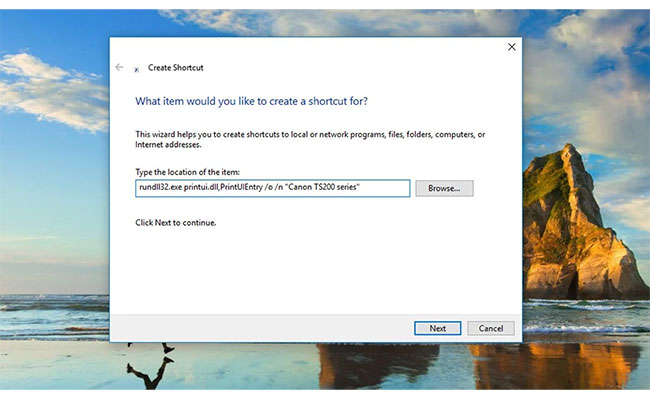
<p style="text-align: justify;">Nhấp chuột phải vào bất kỳ đâu trên không gian trống của desktop và di chuột qua tùy chọn&nbsp;<strong>New.</strong>&nbsp;Từ menu drop-down, chọn&nbsp;<strong>Shortcut</strong>&nbsp;để mở cửa sổ&nbsp;<strong>Create Shortcut.</strong></p>

<figure>
<div style="text-align: justify;"><img alt="Mở cửa sổ Create Shortcut" data-i="5" data-src="https://st.quantrimang.com/photos/image/2022/03/23/tao-shortcut-may-in-tren-windows-6.jpg" data-was-processed="true" height="399" src="https://st.quantrimang.com/photos/image/2022/03/23/tao-shortcut-may-in-tren-windows-6.jpg" width="650" /></div>

<figcaption>
<div style="text-align: justify;">Mở cửa sổ Create Shortcut</div>
</figcaption>
</figure>

<p style="text-align: justify;">Nhập thông tin sau vào thanh vị trí shortcut:</p>

<pre id="pre0">
<code>rundll32.exe printui.dll,PrintUIEntry /o /n &quot;&#91;Tên máy in&#93;&quot;</code></pre>

<p style="text-align: justify;">Đảm bảo thay thế&nbsp;<em>&#91;Tên máy in&#93;</em>&nbsp;bằng tên chính xác của máy in bạn sử dụng, nhưng vẫn giữ nguyên dấu ngoặc kép.</p>

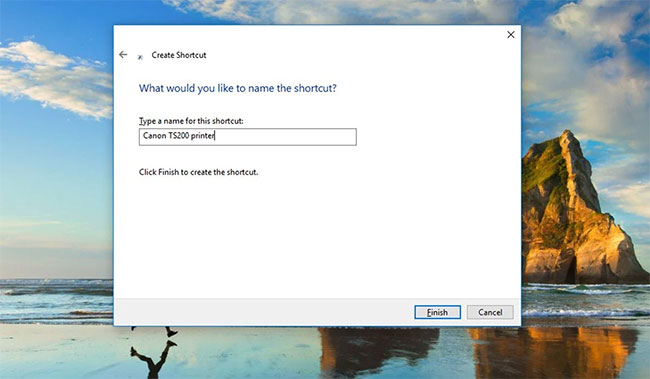
<p style="text-align: justify;">Khi bạn nhấn<strong>&nbsp;Next</strong>, Windows sẽ nhắc bạn đặt tên cho shortcut mới. Hãy đặt tên cho shortcut máy in ở đây.</p>

<figure>
<div style="text-align: justify;"><img alt="Đặt tên cho shortcut máy in" data-i="6" data-src="https://st.quantrimang.com/photos/image/2022/03/23/tao-shortcut-may-in-tren-windows-7.jpg" data-was-processed="true" height="379" src="https://st.quantrimang.com/photos/image/2022/03/23/tao-shortcut-may-in-tren-windows-7.jpg" width="650" /></div>

<figcaption>
<div style="text-align: justify;">Đặt tên cho shortcut máy in</div>
</figcaption>
</figure>

<p style="text-align: justify;">Mọi thứ đã hoàn tất! Bạn đã tạo thành công một shortcut máy in trên desktop. Thử nhấp đúp vào shortcut để đảm bảo nó hoạt động bình thường. Bạn sẽ thấy cửa sổ hàng đợi máy in mở ra với bất kỳ tác vụ nào đang hoạt động hoặc chưa hoàn thành trong danh sách.</p>

<h2 style="text-align: justify;">Thêm biểu tượng cho máy in</h2>

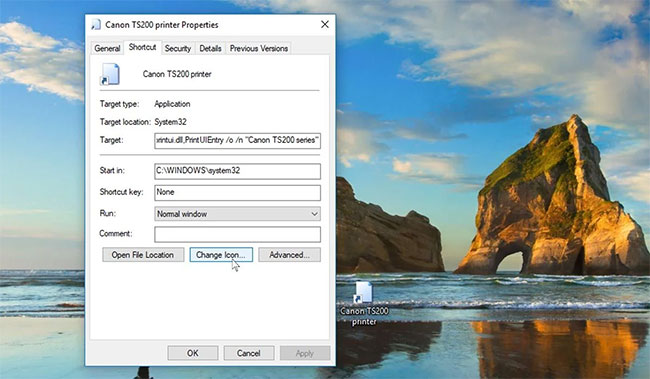
<p style="text-align: justify;">Bạn có thể để nguyên shortcut máy in hoặc thiết lập cho nó một biểu tượng để dễ nhận diện hơn. Để tạo biểu tượng tùy chỉnh, hãy nhấp chuột phải vào biểu tượng đó và chọn&nbsp;<strong>Properties.</strong></p>

<p style="text-align: justify;">Sau đó nhấp vào ô&nbsp;<strong>Change Icon</strong>. Nếu bạn muốn sử dụng các biểu tượng tích hợp sẵn của Windows, hãy duyệt đến&nbsp;<strong>shell32.dll</strong>&nbsp;và chọn một biểu tượng máy in nào bạn thích. Nếu muốn có thứ gì đó khác, bạn thậm chí có thể&nbsp;tải gói icon cho Windows 10:<span style="color:rgb(192, 57, 43);"><strong>&nbsp;quantrimang.com/trang-tai-bieu-tuong-desktop-mien-phi-180280</strong></span>&nbsp;và đặt icon đã tải xuống làm biểu tượng mặc định cho shortcut máy in.</p>

<figure>
<div style="text-align: justify;"><img alt="Thêm biểu tượng cho máy in" data-i="7" data-src="https://st.quantrimang.com/photos/image/2022/03/23/tao-shortcut-may-in-tren-windows-8.jpg" data-was-processed="true" height="379" src="https://st.quantrimang.com/photos/image/2022/03/23/tao-shortcut-may-in-tren-windows-8.jpg" width="650" /></div>

<figcaption>
<div style="text-align: justify;">Thêm biểu tượng cho máy in</div>
</figcaption>
</figure>

<p style="text-align: justify;">Từ đây, thật dễ dàng để thiết lập shortcut máy in trên thanh tác vụ Windows 10: Nhấp chuột phải vào desktop shortcut và chọn&nbsp;<strong>Pin to taskbar</strong>. shortcut máy in cũng nằm trong thanh tác vụ Windows 10 và bạn có thể loại bỏ (hoặc di chuyển) shortcut trên màn hình nếu muốn.</p>
		</div>
				<div id="author">
						<p>
				<strong>Nguồn tin:</strong>
				Quantrimang.com
			</p>
		</div>
	</div>
	<div id="footer" class="clearfix">
		<div id="url">
			<strong>URL của bản tin này: </strong><a href="https://www.nguoicodonvn2008.info/vi/news/savefile/kien-thuc-may-tinh/cach-tao-shortcut-may-in-tren-windows-10-5330.html" title="Cách tạo shortcut máy in trên Windows 10">https://www.nguoicodonvn2008.info/vi/news/savefile/kien-thuc-may-tinh/cach-tao-shortcut-may-in-tren-windows-10-5330.html</a>

		</div>
		<div class="clear"></div>
		<div class="copyright">
			&copy; .&#x3A; Nguoicodonvn2008.info - Cõi lòng người cô đơn &#x3A;.
		</div>
		<div id="contact">
			<a href="mailto:admin@nguoicodonvn2008.info">admin@nguoicodonvn2008.info</a>
		</div>
	</div>
</div>
        <div id="timeoutsess" class="chromeframe">
            Bạn đã không sử dụng Site, <a onclick="timeoutsesscancel();" href="https://www.nguoicodonvn2008.info/#">Bấm vào đây để duy trì trạng thái đăng nhập</a>. Thời gian chờ: <span id="secField"> 60 </span> giây
        </div>
        <div id="openidResult" class="nv-alert" style="display:none"></div>
        <div id="openidBt" data-result="" data-redirect=""></div>
		</script>
		<div class="car-top">
  <span><img src="https://www.nguoicodonvn2008.info/themes/default/images/car.png" alt=""></span>
</div>
<div id="run_cronjobs" style="visibility:hidden;display:none;"><img alt="cron" src="/index.php?second=cronjobs&amp;p=x8c5F8h7" width="1" height="1" /></div>
<script src="https://www.nguoicodonvn2008.info/assets/js/jquery/jquery.min.js"></script>
<script>var nv_base_siteurl="/",nv_lang_data="vi",nv_lang_interface="vi",nv_name_variable="nv",nv_fc_variable="op",nv_lang_variable="language",nv_module_name="news",nv_func_name="savefile",nv_is_user=0, nv_my_ofs=-4,nv_my_abbr="EDT",nv_cookie_prefix="nv4c_e856T",nv_check_pass_mstime=1738000,nv_area_admin=0,nv_safemode=0,theme_responsive=0,nv_recaptcha_ver=2,nv_recaptcha_sitekey="",nv_recaptcha_type="image",XSSsanitize=1;</script>
<script src="https://www.nguoicodonvn2008.info/assets/js/language/vi.js"></script>
<script src="https://www.nguoicodonvn2008.info/assets/js/DOMPurify/purify3.js"></script>
<script src="https://www.nguoicodonvn2008.info/assets/js/global.js"></script>
<script src="https://www.nguoicodonvn2008.info/assets/js/site.js"></script>
<script src="https://www.nguoicodonvn2008.info/themes/default/js/news.js"></script>
<script src="https://www.nguoicodonvn2008.info/themes/default/js/main.js"></script>
<script src="https://www.nguoicodonvn2008.info/themes/default/js/custom.js"></script>
<script type="application/ld+json">
        {
            "@context": "https://schema.org",
            "@type": "Organization",
            "url": "https://www.nguoicodonvn2008.info",
            "logo": "https://www.nguoicodonvn2008.info/uploads/angel.gif"
        }
        </script>
<script src="https://www.nguoicodonvn2008.info/themes/default/js/bootstrap.min.js"></script>
<script type="text/javascript">
var $scrolltop = $('.car-top');
$scrolltop.on('click', function () {
    $('html,body').animate({
        scrollTop: 0
    }, 800);
    $(this).addClass("car-run");
    setTimeout(function(){ $scrolltop.removeClass('car-run');}, 1000);
    return false;
});
$(window).on('scroll', function ()
{ 
    if($(window).scrollTop() >= 200)
    {
        $scrolltop.addClass("show");
        $scrolltop.addClass("car-down");
    }
    else
    {
       $scrolltop.removeClass("show");
       setTimeout(function(){ $scrolltop.removeClass('car-down');}, 300);
    }
});
</script>
</body>
</html>