<!DOCTYPE html>
    <html lang="vi" xmlns="http://www.w3.org/1999/xhtml" prefix="og: http://ogp.me/ns#">
    <head>
<title>Cách tạo shortcut Event Viewer trên desktop Windows 10</title>
<meta name="description" content="Cách tạo shortcut Event Viewer trên desktop Windows 10 - Savefile - Tin Tức -...">
<meta name="author" content=".: Nguoicodonvn2008.info - Cõi lòng người cô đơn :.">
<meta name="copyright" content=".: Nguoicodonvn2008.info - Cõi lòng người cô đơn :. [admin@nguoicodonvn2008.info]">
<meta name="robots" content="index, archive, follow, noodp">
<meta name="googlebot" content="index,archive,follow,noodp">
<meta name="msnbot" content="all,index,follow">
<meta name="generator" content="NukeViet v4.5">
<meta http-equiv="Content-Type" content="text/html; charset=utf-8">
<meta property="og:title" content="Cách tạo shortcut Event Viewer trên desktop Windows 10">
<meta property="og:type" content="website">
<meta property="og:description" content="Savefile - Tin Tức - https&#x3A;&#x002F;&#x002F;www.nguoicodonvn2008.info&#x002F;vi&#x002F;news&#x002F;savefile&#x002F;kien-thuc-may-tinh&#x002F;cach-tao-shortcut-event-viewer-tren-desktop-windows-10-2800.html">
<meta property="og:site_name" content=".&#x3A; Nguoicodonvn2008.info - Cõi lòng người cô đơn &#x3A;.">
<meta property="og:url" content="https://www.nguoicodonvn2008.info/vi/news/savefile/kien-thuc-may-tinh/cach-tao-shortcut-event-viewer-tren-desktop-windows-10-2800.html">
<link rel="shortcut icon" href="https://www.nguoicodonvn2008.info/favicon.ico">
<link rel="canonical" href="https://www.nguoicodonvn2008.info/vi/news/savefile/kien-thuc-may-tinh/cach-tao-shortcut-event-viewer-tren-desktop-windows-10-2800.html">
<link rel="alternate" href="https://www.nguoicodonvn2008.info/vi/news/rss/" title="Tin Tức" type="application/rss+xml">
<link rel="alternate" href="https://www.nguoicodonvn2008.info/vi/news/rss/karaoke-dual/" title="Tin Tức - Karaoke Dual" type="application/rss+xml">
<link rel="alternate" href="https://www.nguoicodonvn2008.info/vi/news/rss/nhac-tre/" title="Tin Tức - Nhạc trẻ" type="application/rss+xml">
<link rel="alternate" href="https://www.nguoicodonvn2008.info/vi/news/rss/tru-tinh/" title="Tin Tức - Trữ tình" type="application/rss+xml">
<link rel="alternate" href="https://www.nguoicodonvn2008.info/vi/news/rss/nuoc-ngoai/" title="Tin Tức - Nước ngoài" type="application/rss+xml">
<link rel="alternate" href="https://www.nguoicodonvn2008.info/vi/news/rss/remix/" title="Tin Tức - Remix" type="application/rss+xml">
<link rel="alternate" href="https://www.nguoicodonvn2008.info/vi/news/rss/tam-su-tinh-yeu/" title="Tin Tức - Tâm sự tình yêu" type="application/rss+xml">
<link rel="alternate" href="https://www.nguoicodonvn2008.info/vi/news/rss/tho-suu-tam/" title="Tin Tức - Thơ sưu tầm" type="application/rss+xml">
<link rel="alternate" href="https://www.nguoicodonvn2008.info/vi/news/rss/cuoc-song/" title="Tin Tức - Cuộc sống" type="application/rss+xml">
<link rel="alternate" href="https://www.nguoicodonvn2008.info/vi/news/rss/phan-mem/" title="Tin Tức - Phần mềm" type="application/rss+xml">
<link rel="alternate" href="https://www.nguoicodonvn2008.info/vi/news/rss/kien-thuc-may-tinh/" title="Tin Tức - Kiến thức máy tính" type="application/rss+xml">
<link rel="alternate" href="https://www.nguoicodonvn2008.info/vi/news/rss/hoc-tap/" title="Tin Tức - Học tập" type="application/rss+xml">
<link rel="alternate" href="https://www.nguoicodonvn2008.info/vi/news/rss/tai-lieu/" title="Tin Tức - Tài liệu" type="application/rss+xml">
<link rel="alternate" href="https://www.nguoicodonvn2008.info/vi/news/rss/de-thi/" title="Tin Tức - Đề thi" type="application/rss+xml">
<link rel="preload" as="style" href="https://www.nguoicodonvn2008.info/assets/css/font-awesome.min.css" type="text/css">
<link rel="preload" as="style" href="https://www.nguoicodonvn2008.info/themes/default/css/bootstrap.non-responsive.css" type="text/css">
<link rel="preload" as="style" href="https://www.nguoicodonvn2008.info/themes/default/css/style.css" type="text/css">
<link rel="preload" as="style" href="https://www.nguoicodonvn2008.info/themes/default/css/style.non-responsive.css" type="text/css">
<link rel="preload" as="style" href="https://www.nguoicodonvn2008.info/themes/default/css/news.css" type="text/css">
<link rel="preload" as="style" href="https://www.nguoicodonvn2008.info/themes/default/css/custom.css" type="text/css">
<link rel="preload" as="script" href="https://www.nguoicodonvn2008.info/assets/js/jquery/jquery.min.js" type="text/javascript">
<link rel="preload" as="script" href="https://www.nguoicodonvn2008.info/assets/js/language/vi.js" type="text/javascript">
<link rel="preload" as="script" href="https://www.nguoicodonvn2008.info/assets/js/DOMPurify/purify3.js" type="text/javascript">
<link rel="preload" as="script" href="https://www.nguoicodonvn2008.info/assets/js/global.js" type="text/javascript">
<link rel="preload" as="script" href="https://www.nguoicodonvn2008.info/assets/js/site.js" type="text/javascript">
<link rel="preload" as="script" href="https://www.nguoicodonvn2008.info/themes/default/js/news.js" type="text/javascript">
<link rel="preload" as="script" href="https://www.nguoicodonvn2008.info/themes/default/js/main.js" type="text/javascript">
<link rel="preload" as="script" href="https://www.nguoicodonvn2008.info/themes/default/js/custom.js" type="text/javascript">
<link rel="preload" as="script" href="https://www.nguoicodonvn2008.info/themes/default/js/bootstrap.min.js" type="text/javascript">
<link rel="stylesheet" href="https://www.nguoicodonvn2008.info/assets/css/font-awesome.min.css">
<link rel="stylesheet" href="https://www.nguoicodonvn2008.info/themes/default/css/bootstrap.non-responsive.css">
<link rel="stylesheet" href="https://www.nguoicodonvn2008.info/themes/default/css/style.css">
<link rel="stylesheet" href="https://www.nguoicodonvn2008.info/themes/default/css/style.non-responsive.css">
<link rel="StyleSheet" href="https://www.nguoicodonvn2008.info/themes/default/css/news.css">
<link rel="stylesheet" href="https://www.nguoicodonvn2008.info/themes/default/css/custom.css">
<style type="text/css">
	body{background: #fff;}
</style>
    </head>
    <body>
<div id="print">
	<div id="hd_print">
		<h2 class="pull-left">.&#x3A; Nguoicodonvn2008.info - Cõi lòng người cô đơn &#x3A;.</h2>
		<p class="pull-right"><a title=".&#x3A; Nguoicodonvn2008.info - Cõi lòng người cô đơn &#x3A;." href="https://www.nguoicodonvn2008.info/">https://www.nguoicodonvn2008.info</a></p>
	</div>
	<div class="clear"></div>
	<hr />
	<div id="content">
		<h1>Cách tạo shortcut Event Viewer trên desktop Windows 10</h1>
		<ul class="list-inline">
			<li>Thứ hai - 28/09/2020 00:56</li>
			<li class="hidden-print txtrequired"><em class="fa fa-print">&nbsp;</em><a title="In ra" href="javascript:;" onclick="window.print()">In ra</a></li>
			<li class="hidden-print txtrequired"><em class="fa fa-power-off">&nbsp;</em><a title="Đóng cửa sổ này" href="javascript:;" onclick="window.close()">Đóng cửa sổ này</a></li>
		</ul>
		<div class="clear"></div>
		<div id="hometext">
		</div>
				<div class="imghome">
			<img alt="Cách tạo shortcut Event Viewer trên desktop Windows 10" src="https://st.quantrimang.com/photos/image/2020/09/21/tao-shortcut-event-viewer-2.png" width="460" class="img-thumbnail" />
		</div>
		<div class="clear"></div>
		<div id="bodytext" class="clearfix">
			<p style="text-align: justify;">Windows Event Viewer là một công cụ hữu ích để giải quyết các vấn đề Windows khác nhau. Nếu bạn mở và sử dụng nó thường xuyên tại nơi làm việc để loại bỏ tất cả các cảnh báo và lỗi Windows, bạn nên tạo shortcut Event Viewer trên desktop Windows 10, để cho phép bạn nhanh chóng truy cập Event Viewer mà không cần trải qua nhiều bước.</p>

<p style="text-align: justify;">Trong bài viết này,&nbsp;<strong>Quantrimang.com</strong>&nbsp;sẽ chỉ cho bạn 3 cách để tạo shortcut Event Viewer tren desktop Windows 10.</p>

<h2 style="text-align: justify;">Cách 1: Tạo shortcut mới có tên là Event Viewer trên desktop Windows 10</h2>

<p style="text-align: justify;"><strong>Bước 1</strong>:&nbsp;Chuyển đến desktop Windows 10.</p>

<p style="text-align: justify;"><strong>Bước 2</strong>: Nhấp chuột phải vào bất kỳ vùng trống nào trên desktop và chọn&nbsp;<strong>New &gt; Shortcut</strong>&nbsp;từ danh sách pop-up.</p>

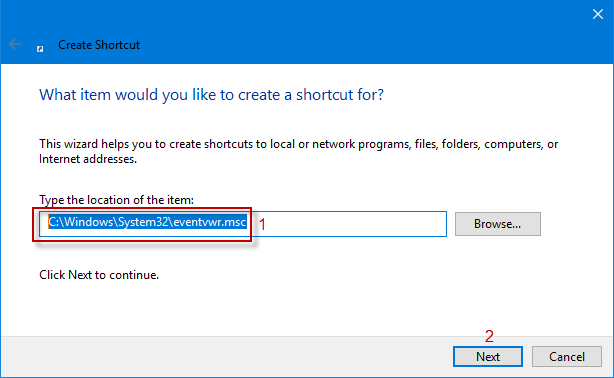
<p style="text-align: justify;"><strong>Bước 3</strong>: Khi trình hướng dẫn&nbsp;<strong>Create Shortcut</strong>&nbsp;được khởi chạy, hãy nhập&nbsp;<strong>C:\Windows\System32\eventvwr.msc</strong>&nbsp;vào hộp vị trí và nhấp vào&nbsp;<strong>Next.</strong></p>

<figure>
<div style="text-align: justify;"><img alt="Nhập C:\Windows\System32\eventvwr.msc vào hộp vị trí" data-i="0" data-src="https://st.quantrimang.com/photos/image/2020/09/21/tao-shortcut-event-viewer-1.png" data-was-processed="true" height="378" src="https://st.quantrimang.com/photos/image/2020/09/21/tao-shortcut-event-viewer-1.png" width="614" /></div>

<figcaption>
<div style="text-align: justify;">Nhập C:\Windows\System32\eventvwr.msc vào hộp vị trí</div>
</figcaption>
</figure>

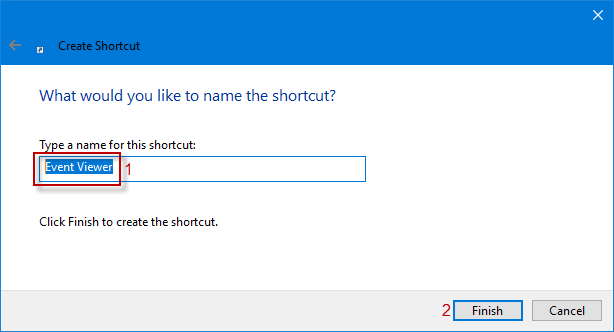
<p style="text-align: justify;"><strong>Bước 4</strong>: Tại thời điểm này, một shortcut có tên&nbsp;<strong>eventvwr</strong>&nbsp;được hiển thị trong hộp tên. Bạn có thể đổi tên nó thành&nbsp;<strong>Event Viewer</strong>&nbsp;và nhấp vào&nbsp;<strong>Finish</strong>&nbsp;để tạo shortcut Event Viewer trên desktop Windows 10.</p>

<figure>
<div style="text-align: justify;"><img alt="Đổi tên thành Event Viewer" data-i="1" data-src="https://st.quantrimang.com/photos/image/2020/09/21/tao-shortcut-event-viewer-2.png" data-was-processed="true" height="332" src="https://st.quantrimang.com/photos/image/2020/09/21/tao-shortcut-event-viewer-2.png" width="614" /></div>

<figcaption>
<div style="text-align: justify;">Đổi tên thành Event Viewer</div>
</figcaption>
</figure>

<div style="text-align: justify;">&nbsp;</div>

<h2 style="text-align: justify;">Cách 2: Gửi shortcut Event Viewer tới desktop Windows 10</h2>

<p style="text-align: justify;"><strong>Bước 1</strong>: Nhập&nbsp;<strong>Administrative Tools</strong>&nbsp;vào hộp&nbsp;<strong>Search</strong>&nbsp;trên Taskbar và nhấp vào nó từ kết quả tìm kiếm để tiếp tục.</p>

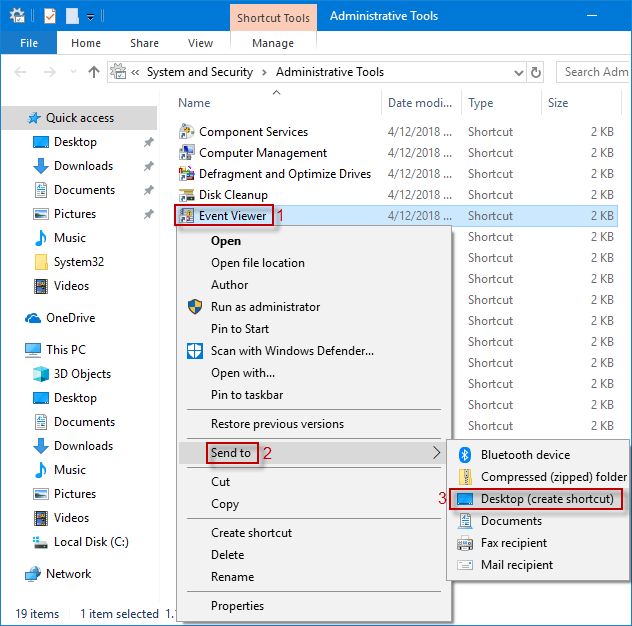
<p style="text-align: justify;"><strong>Bước 2</strong>: Trong&nbsp;<strong>Administrative Tools</strong>, nhấp chuột phải vào Event Viewer để chọn&nbsp;<strong>Send to &gt; Desktop (create shortcut)</strong>&nbsp;từ menu drop-down. Shortcut Event Viewer sẽ hiển thị trên desktop Windows 10.</p>

<figure>
<div style="text-align: justify;"><img alt="Nhấp chuột phải vào Event Viewer và chọn Send to &gt; Desktop (create shortcut) " data-i="2" data-src="https://st.quantrimang.com/photos/image/2020/09/21/tao-shortcut-event-viewer-3.png" data-was-processed="true" height="626" src="https://st.quantrimang.com/photos/image/2020/09/21/tao-shortcut-event-viewer-3.png" width="632" /></div>

<figcaption>
<div style="text-align: justify;">Nhấp chuột phải vào Event Viewer và chọn Send to &gt; Desktop (create shortcut)</div>
</figcaption>
</figure>

<h2 style="text-align: justify;">Cách 3: Tạo file BAT cho Event Viewer trên desktop Windows 10</h2>

<p style="text-align: justify;"><strong>Bước 1</strong>: Mở hộp thoại&nbsp;<strong>Run</strong>&nbsp;bằng cách nhấn phím tắt&nbsp;<strong>Win + R</strong>, nhập&nbsp;<strong>notepad</strong>&nbsp;vào hộp và nhấn&nbsp;<strong>Enter</strong>&nbsp;để mở cửa sổ Notepad.</p>

<div style="text-align: justify;">&nbsp;</div>

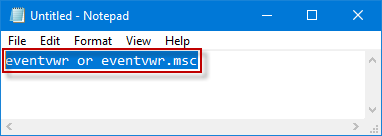
<p style="text-align: justify;"><strong>Bước 2</strong>: Trong cửa sổ&nbsp;<strong>Notepad</strong>, nhập&nbsp;<strong>eventvwr</strong>&nbsp;hoặc&nbsp;<strong>eventvwr.msc.</strong></p>

<figure>
<div style="text-align: justify;"><img alt="Nhập eventvwr hoặc eventvwr.msc" data-i="3" data-src="https://st.quantrimang.com/photos/image/2020/09/21/tao-shortcut-event-viewer-4.png" data-was-processed="true" height="136" src="https://st.quantrimang.com/photos/image/2020/09/21/tao-shortcut-event-viewer-4.png" width="382" /></div>

<figcaption>
<div style="text-align: justify;">Nhập eventvwr hoặc eventvwr.msc</div>
</figcaption>
</figure>

<p style="text-align: justify;"><strong>Bước 3</strong>: Tiếp theo, nhấp vào&nbsp;<strong>File &gt; Save as</strong>&nbsp;hoặc nhấn phím tắt&nbsp;<strong>Ctrl + S</strong>&nbsp;để mở cửa sổ&nbsp;<strong>Save As.</strong></p>

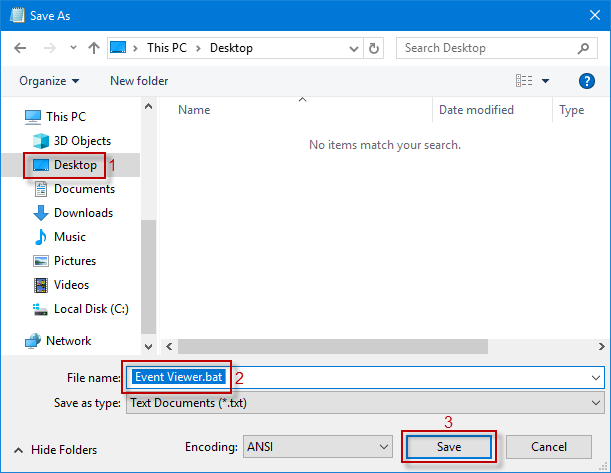
<p style="text-align: justify;"><strong>Bước 4</strong>: Trong cửa sổ&nbsp;<strong>Save As</strong>, chọn&nbsp;<strong>Desktop</strong>&nbsp;ở khung bên trái, nhập&nbsp;<strong>Event Viewer.bat</strong>&nbsp;vào hộp&nbsp;<strong>File name</strong>&nbsp;và nhấp vào&nbsp;<strong>Save</strong>&nbsp;để thêm shortcut Event Viewer vào desktop Windows 10.</p>

<figure>
<div style="text-align: justify;"><img alt="Chọn Desktop ở khung bên trái, nhập Event Viewer.bat vào hộp File name" data-i="4" data-src="https://st.quantrimang.com/photos/image/2020/09/21/tao-shortcut-event-viewer-5.png" data-was-processed="true" height="473" src="https://st.quantrimang.com/photos/image/2020/09/21/tao-shortcut-event-viewer-5.png" width="611" /></div>

<figcaption>
<div style="text-align: justify;">Chọn Desktop ở khung bên trái, nhập Event Viewer.bat vào hộp File name</div>
</figcaption>
</figure>
		</div>
				<div id="author">
						<p>
				<strong>Nguồn tin:</strong>
				Quantrimang.com
			</p>
		</div>
	</div>
	<div id="footer" class="clearfix">
		<div id="url">
			<strong>URL của bản tin này: </strong><a href="https://www.nguoicodonvn2008.info/vi/news/savefile/kien-thuc-may-tinh/cach-tao-shortcut-event-viewer-tren-desktop-windows-10-2800.html" title="Cách tạo shortcut Event Viewer trên desktop Windows 10">https://www.nguoicodonvn2008.info/vi/news/savefile/kien-thuc-may-tinh/cach-tao-shortcut-event-viewer-tren-desktop-windows-10-2800.html</a>

		</div>
		<div class="clear"></div>
		<div class="copyright">
			&copy; .&#x3A; Nguoicodonvn2008.info - Cõi lòng người cô đơn &#x3A;.
		</div>
		<div id="contact">
			<a href="mailto:admin@nguoicodonvn2008.info">admin@nguoicodonvn2008.info</a>
		</div>
	</div>
</div>
        <div id="timeoutsess" class="chromeframe">
            Bạn đã không sử dụng Site, <a onclick="timeoutsesscancel();" href="https://www.nguoicodonvn2008.info/#">Bấm vào đây để duy trì trạng thái đăng nhập</a>. Thời gian chờ: <span id="secField"> 60 </span> giây
        </div>
        <div id="openidResult" class="nv-alert" style="display:none"></div>
        <div id="openidBt" data-result="" data-redirect=""></div>
		</script>
		<div class="car-top">
  <span><img src="https://www.nguoicodonvn2008.info/themes/default/images/car.png" alt=""></span>
</div>
<div id="run_cronjobs" style="visibility:hidden;display:none;"><img alt="cron" src="/index.php?second=cronjobs&amp;p=o8eUi2B6" width="1" height="1" /></div>
<script src="https://www.nguoicodonvn2008.info/assets/js/jquery/jquery.min.js"></script>
<script>var nv_base_siteurl="/",nv_lang_data="vi",nv_lang_interface="vi",nv_name_variable="nv",nv_fc_variable="op",nv_lang_variable="language",nv_module_name="news",nv_func_name="savefile",nv_is_user=0, nv_my_ofs=-4,nv_my_abbr="EDT",nv_cookie_prefix="nv4c_e856T",nv_check_pass_mstime=1738000,nv_area_admin=0,nv_safemode=0,theme_responsive=0,nv_recaptcha_ver=2,nv_recaptcha_sitekey="",nv_recaptcha_type="image",XSSsanitize=1;</script>
<script src="https://www.nguoicodonvn2008.info/assets/js/language/vi.js"></script>
<script src="https://www.nguoicodonvn2008.info/assets/js/DOMPurify/purify3.js"></script>
<script src="https://www.nguoicodonvn2008.info/assets/js/global.js"></script>
<script src="https://www.nguoicodonvn2008.info/assets/js/site.js"></script>
<script src="https://www.nguoicodonvn2008.info/themes/default/js/news.js"></script>
<script src="https://www.nguoicodonvn2008.info/themes/default/js/main.js"></script>
<script src="https://www.nguoicodonvn2008.info/themes/default/js/custom.js"></script>
<script type="application/ld+json">
        {
            "@context": "https://schema.org",
            "@type": "Organization",
            "url": "https://www.nguoicodonvn2008.info",
            "logo": "https://www.nguoicodonvn2008.info/uploads/angel.gif"
        }
        </script>
<script src="https://www.nguoicodonvn2008.info/themes/default/js/bootstrap.min.js"></script>
<script type="text/javascript">
var $scrolltop = $('.car-top');
$scrolltop.on('click', function () {
    $('html,body').animate({
        scrollTop: 0
    }, 800);
    $(this).addClass("car-run");
    setTimeout(function(){ $scrolltop.removeClass('car-run');}, 1000);
    return false;
});
$(window).on('scroll', function ()
{ 
    if($(window).scrollTop() >= 200)
    {
        $scrolltop.addClass("show");
        $scrolltop.addClass("car-down");
    }
    else
    {
       $scrolltop.removeClass("show");
       setTimeout(function(){ $scrolltop.removeClass('car-down');}, 300);
    }
});
</script>
</body>
</html>