<!DOCTYPE html>
    <html lang="vi" xmlns="http://www.w3.org/1999/xhtml" prefix="og: http://ogp.me/ns#">
    <head>
<title>Cách tạo P2P Mesh VPN với Tinc</title>
<meta name="description" content="Cách tạo P2P Mesh VPN với Tinc - Savefile - Tin Tức - https&#x3A;&#x002F;&#x002F;www.nguoicodonvn2008.info&#x002F;vi&#x002F;news&#x002F;savefile&#x002F;kien-thuc-may-tinh&#x002F;cach-tao-p2p-mesh-vpn-voi-tinc-9691.html">
<meta name="author" content=".: Nguoicodonvn2008.info - Cõi lòng người cô đơn :.">
<meta name="copyright" content=".: Nguoicodonvn2008.info - Cõi lòng người cô đơn :. [admin@nguoicodonvn2008.info]">
<meta name="robots" content="index, archive, follow, noodp">
<meta name="googlebot" content="index,archive,follow,noodp">
<meta name="msnbot" content="all,index,follow">
<meta name="generator" content="NukeViet v4.5">
<meta http-equiv="Content-Type" content="text/html; charset=utf-8">
<meta property="og:title" content="Cách tạo P2P Mesh VPN với Tinc">
<meta property="og:type" content="website">
<meta property="og:description" content="Savefile - Tin Tức - https&#x3A;&#x002F;&#x002F;www.nguoicodonvn2008.info&#x002F;vi&#x002F;news&#x002F;savefile&#x002F;kien-thuc-may-tinh&#x002F;cach-tao-p2p-mesh-vpn-voi-tinc-9691.html">
<meta property="og:site_name" content=".&#x3A; Nguoicodonvn2008.info - Cõi lòng người cô đơn &#x3A;.">
<meta property="og:url" content="https://www.nguoicodonvn2008.info/vi/news/savefile/kien-thuc-may-tinh/cach-tao-p2p-mesh-vpn-voi-tinc-9691.html">
<link rel="shortcut icon" href="https://www.nguoicodonvn2008.info/favicon.ico">
<link rel="canonical" href="https://www.nguoicodonvn2008.info/vi/news/savefile/kien-thuc-may-tinh/cach-tao-p2p-mesh-vpn-voi-tinc-9691.html">
<link rel="alternate" href="https://www.nguoicodonvn2008.info/vi/news/rss/" title="Tin Tức" type="application/rss+xml">
<link rel="alternate" href="https://www.nguoicodonvn2008.info/vi/news/rss/karaoke-dual/" title="Tin Tức - Karaoke Dual" type="application/rss+xml">
<link rel="alternate" href="https://www.nguoicodonvn2008.info/vi/news/rss/nhac-tre/" title="Tin Tức - Nhạc trẻ" type="application/rss+xml">
<link rel="alternate" href="https://www.nguoicodonvn2008.info/vi/news/rss/tru-tinh/" title="Tin Tức - Trữ tình" type="application/rss+xml">
<link rel="alternate" href="https://www.nguoicodonvn2008.info/vi/news/rss/nuoc-ngoai/" title="Tin Tức - Nước ngoài" type="application/rss+xml">
<link rel="alternate" href="https://www.nguoicodonvn2008.info/vi/news/rss/remix/" title="Tin Tức - Remix" type="application/rss+xml">
<link rel="alternate" href="https://www.nguoicodonvn2008.info/vi/news/rss/tam-su-tinh-yeu/" title="Tin Tức - Tâm sự tình yêu" type="application/rss+xml">
<link rel="alternate" href="https://www.nguoicodonvn2008.info/vi/news/rss/tho-suu-tam/" title="Tin Tức - Thơ sưu tầm" type="application/rss+xml">
<link rel="alternate" href="https://www.nguoicodonvn2008.info/vi/news/rss/cuoc-song/" title="Tin Tức - Cuộc sống" type="application/rss+xml">
<link rel="alternate" href="https://www.nguoicodonvn2008.info/vi/news/rss/phan-mem/" title="Tin Tức - Phần mềm" type="application/rss+xml">
<link rel="alternate" href="https://www.nguoicodonvn2008.info/vi/news/rss/kien-thuc-may-tinh/" title="Tin Tức - Kiến thức máy tính" type="application/rss+xml">
<link rel="alternate" href="https://www.nguoicodonvn2008.info/vi/news/rss/hoc-tap/" title="Tin Tức - Học tập" type="application/rss+xml">
<link rel="alternate" href="https://www.nguoicodonvn2008.info/vi/news/rss/tai-lieu/" title="Tin Tức - Tài liệu" type="application/rss+xml">
<link rel="alternate" href="https://www.nguoicodonvn2008.info/vi/news/rss/de-thi/" title="Tin Tức - Đề thi" type="application/rss+xml">
<link rel="preload" as="style" href="https://www.nguoicodonvn2008.info/assets/css/font-awesome.min.css" type="text/css">
<link rel="preload" as="style" href="https://www.nguoicodonvn2008.info/themes/default/css/bootstrap.non-responsive.css" type="text/css">
<link rel="preload" as="style" href="https://www.nguoicodonvn2008.info/themes/default/css/style.css" type="text/css">
<link rel="preload" as="style" href="https://www.nguoicodonvn2008.info/themes/default/css/style.non-responsive.css" type="text/css">
<link rel="preload" as="style" href="https://www.nguoicodonvn2008.info/themes/default/css/news.css" type="text/css">
<link rel="preload" as="style" href="https://www.nguoicodonvn2008.info/themes/default/css/custom.css" type="text/css">
<link rel="preload" as="script" href="https://www.nguoicodonvn2008.info/assets/js/jquery/jquery.min.js" type="text/javascript">
<link rel="preload" as="script" href="https://www.nguoicodonvn2008.info/assets/js/language/vi.js" type="text/javascript">
<link rel="preload" as="script" href="https://www.nguoicodonvn2008.info/assets/js/DOMPurify/purify3.js" type="text/javascript">
<link rel="preload" as="script" href="https://www.nguoicodonvn2008.info/assets/js/global.js" type="text/javascript">
<link rel="preload" as="script" href="https://www.nguoicodonvn2008.info/assets/js/site.js" type="text/javascript">
<link rel="preload" as="script" href="https://www.nguoicodonvn2008.info/themes/default/js/news.js" type="text/javascript">
<link rel="preload" as="script" href="https://www.nguoicodonvn2008.info/themes/default/js/main.js" type="text/javascript">
<link rel="preload" as="script" href="https://www.nguoicodonvn2008.info/themes/default/js/custom.js" type="text/javascript">
<link rel="preload" as="script" href="https://www.nguoicodonvn2008.info/themes/default/js/bootstrap.min.js" type="text/javascript">
<link rel="stylesheet" href="https://www.nguoicodonvn2008.info/assets/css/font-awesome.min.css">
<link rel="stylesheet" href="https://www.nguoicodonvn2008.info/themes/default/css/bootstrap.non-responsive.css">
<link rel="stylesheet" href="https://www.nguoicodonvn2008.info/themes/default/css/style.css">
<link rel="stylesheet" href="https://www.nguoicodonvn2008.info/themes/default/css/style.non-responsive.css">
<link rel="StyleSheet" href="https://www.nguoicodonvn2008.info/themes/default/css/news.css">
<link rel="stylesheet" href="https://www.nguoicodonvn2008.info/themes/default/css/custom.css">
<style type="text/css">
	body{background: #fff;}
</style>
    </head>
    <body>
<div id="print">
	<div id="hd_print">
		<h2 class="pull-left">.&#x3A; Nguoicodonvn2008.info - Cõi lòng người cô đơn &#x3A;.</h2>
		<p class="pull-right"><a title=".&#x3A; Nguoicodonvn2008.info - Cõi lòng người cô đơn &#x3A;." href="https://www.nguoicodonvn2008.info/">https://www.nguoicodonvn2008.info</a></p>
	</div>
	<div class="clear"></div>
	<hr />
	<div id="content">
		<h1>Cách tạo P2P Mesh VPN với Tinc</h1>
		<ul class="list-inline">
			<li>Thứ sáu - 17/01/2025 22:05</li>
			<li class="hidden-print txtrequired"><em class="fa fa-print">&nbsp;</em><a title="In ra" href="javascript:;" onclick="window.print()">In ra</a></li>
			<li class="hidden-print txtrequired"><em class="fa fa-power-off">&nbsp;</em><a title="Đóng cửa sổ này" href="javascript:;" onclick="window.close()">Đóng cửa sổ này</a></li>
		</ul>
		<div class="clear"></div>
		<div id="hometext">
		</div>
				<div class="imghome">
			<img alt="Cách tạo P2P Mesh VPN với Tinc" src="https://st.quantrimang.com/photos/image/2025/01/17/tao-p2p-mesh-vpn-voi-tinc-14.jpg" width="460" class="img-thumbnail" />
		</div>
		<div class="clear"></div>
		<div id="bodytext" class="clearfix">
			<p style="text-align: justify;">Tinc là một adapter&nbsp;mạng riêng ảo (VPN)&nbsp;mã nguồn mở cung cấp một cách đơn giản để tạo mạng ngang hàng (P2P) riêng tư trong Linux, Windows và macOS. Tương tự như&nbsp;OpenVPN&nbsp;và&nbsp;Wireguard, nó có thể liên kết nhiều máy tính trên nhiều cấu trúc mạng khác nhau thành một&nbsp;mạng LAN ảo&nbsp;duy nhất. Bài viết hôm nay sẽ chỉ cho bạn những lợi ích khi sử dụng Tinc và cách cài đặt và tạo mạng mesh đơn giản dựa trên Tinc.</p>

<h2 style="text-align: justify;">Cài đặt Tinc trên Linux</h2>

<p style="text-align: justify;">Bước đầu tiên trong quá trình cài đặt Tinc là đảm bảo hệ thống của bạn được cập nhật. Trong&nbsp;Ubuntu, hãy chạy lệnh sau:</p>

<pre id="pre0">
<code>sudo apt update &amp;&amp; sudo apt upgrade -y</code></pre>

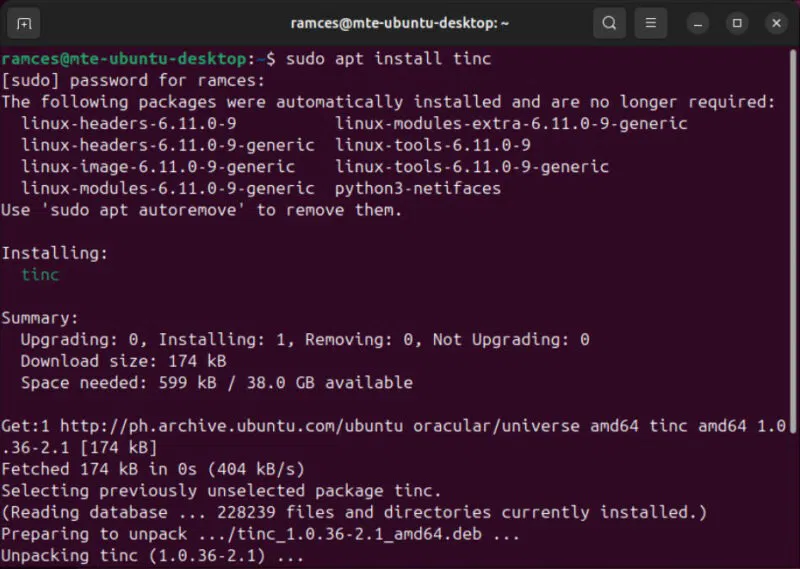
<p style="text-align: justify;">Tải xuống và cài đặt Tinc trực tiếp từ kho lưu trữ gói của Ubuntu:</p>

<pre id="pre1">
<code>sudo apt install tinc</code></pre>

<figure>
<div style="text-align: justify;"><img alt="Quy trình cài đặt gói cho Tinc trong Ubuntu." data-i="0" data-src="https://st.quantrimang.com/photos/image/2025/01/17/tao-p2p-mesh-vpn-voi-tinc-1.jpg" data-was-processed="true" height="569" src="https://st.quantrimang.com/photos/image/2025/01/17/tao-p2p-mesh-vpn-voi-tinc-1.jpg" width="800" /></div>

<figcaption>
<div style="text-align: justify;">Quy trình cài đặt gói cho Tinc trong Ubuntu.</div>
</figcaption>
</figure>

<div style="text-align: justify;">&nbsp;</div>

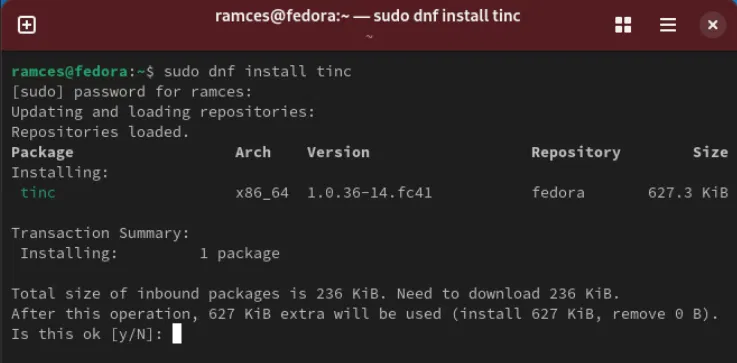
<p style="text-align: justify;">Để cài đặt Tinc trên các bản phân phối Linux khác, hãy sử dụng trình quản lý gói phù hợp cho hệ thống đó. Ví dụ, bạn cần chạy&nbsp;<em>sudo dnf install tinc</em>&nbsp;để tải chương trình trong Fedora.</p>

<figure>
<div style="text-align: justify;"><img alt="Quy trình cài đặt trong Fedora Linux." data-adbro-processed="true" data-i="1" data-src="https://st.quantrimang.com/photos/image/2025/01/17/tao-p2p-mesh-vpn-voi-tinc-2.jpg" data-was-processed="true" height="363" src="https://st.quantrimang.com/photos/image/2025/01/17/tao-p2p-mesh-vpn-voi-tinc-2.jpg" width="737" /></div>

<figcaption>
<div style="text-align: justify;">Quy trình cài đặt trong Fedora Linux.</div>
</figcaption>
</figure>

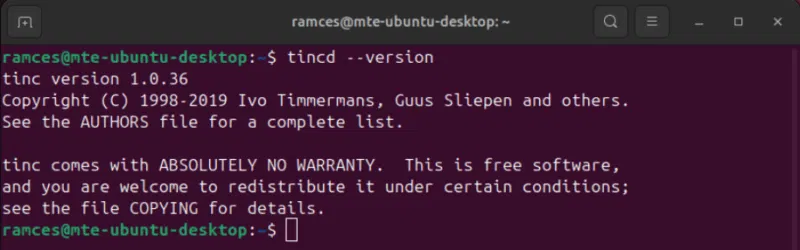
<p style="text-align: justify;">Xác nhận rằng bạn đã cài đặt Tinc đúng cách bằng cách mở phiên bản Terminal và chạy<em>&nbsp;tincd --version</em>.</p>

<figure>
<div style="text-align: justify;"><img alt="Phiên bản Tinc hiện tại đang chạy trên Ubuntu." data-i="2" data-src="https://st.quantrimang.com/photos/image/2025/01/17/tao-p2p-mesh-vpn-voi-tinc-3.jpg" data-was-processed="true" height="250" src="https://st.quantrimang.com/photos/image/2025/01/17/tao-p2p-mesh-vpn-voi-tinc-3.jpg" width="800" /></div>

<figcaption>
<div style="text-align: justify;">Phiên bản Tinc hiện tại đang chạy trên Ubuntu.</div>
</figcaption>
</figure>

<h2 style="text-align: justify;">Tạo mạng mesh cơ bản với Tinc</h2>

<p style="text-align: justify;">Với Tinc trên máy, giờ đây bạn có thể cấu hình mạng đầu tiên dựa trên Tinc. Tạo một thư mục mới bên trong “/etc/tinc”. Lệnh này sẽ chứa tất cả các file liên quan đến node Tinc của bạn:</p>

<pre id="pre2">
<code>sudo mkdir -p /etc/tinc/mynetwork/hosts</code></pre>

<p style="text-align: justify;">Tạo file cấu hình mới bằng trình soạn thảo văn bản yêu thích:</p>

<pre id="pre3">
<code>sudo nano /etc/tinc/mynetwork/tinc.conf</code></pre>

<p style="text-align: justify;">Dán block code sau vào file cấu hình mới:</p>

<pre id="pre4">
<code>Name = mynode
Device = /dev/net/tun</code></pre>

<figure>
<div style="text-align: justify;"><img alt="Cấu hình cài đặt Tinc trong Ubuntu." data-i="3" data-src="https://st.quantrimang.com/photos/image/2025/01/17/tao-p2p-mesh-vpn-voi-tinc-4.jpg" data-was-processed="true" height="142" src="https://st.quantrimang.com/photos/image/2025/01/17/tao-p2p-mesh-vpn-voi-tinc-4.jpg" width="800" /></div>

<figcaption>
<div style="text-align: justify;">Cấu hình cài đặt Tinc trong Ubuntu.</div>
</figcaption>
</figure>

<div style="text-align: justify;">&nbsp;</div>

<p style="text-align: justify;"><strong>Lưu ý</strong>: Một số bản phân phối Linux có thể thay đổi vị trí của adapter tun bên trong “/dev”. Để tìm đường dẫn chính xác của nó trong hệ thống của bạn, hãy chạy:</p>

<pre id="pre5">
<code>find /dev -name *tun* -type c</code></pre>

<p style="text-align: justify;">Tạo file văn bản trong thư mục “hosts” với tên node Tinc của bạn và dán nội dung sau vào bên trong:</p>

<pre id="pre6">
<code>Subnet = 192.168.11.1/32
Address = ĐỊA-CHỈ-IP-MÁY-CỦA-BẠN
Port = 655</code></pre>

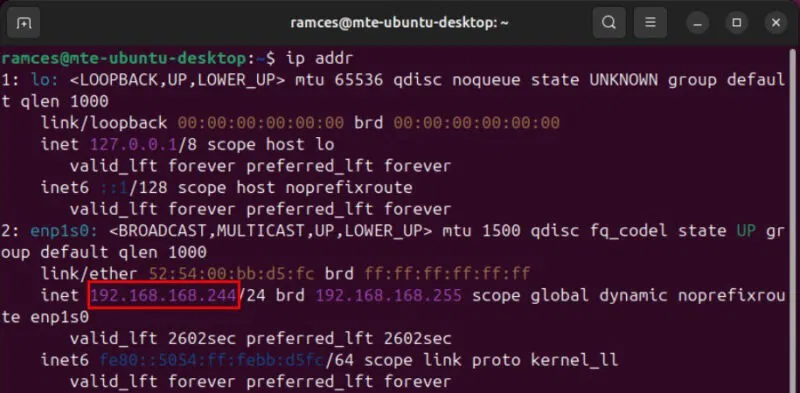
<p style="text-align: justify;">Thay thế giá trị của biến&nbsp;<strong>“Address”</strong>&nbsp;bằng địa chỉ IP của máy bạn. Bạn có thể tìm thấy điều này bằng cách chạy<strong>&nbsp;ip addr</strong>.</p>

<figure>
<div style="text-align: justify;"><img alt="Địa chỉ IP riêng của máy Ubuntu." data-i="4" data-src="https://st.quantrimang.com/photos/image/2025/01/17/tao-p2p-mesh-vpn-voi-tinc-5.jpg" data-was-processed="true" height="393" src="https://st.quantrimang.com/photos/image/2025/01/17/tao-p2p-mesh-vpn-voi-tinc-5.jpg" width="800" /></div>

<figcaption>
<div style="text-align: justify;">Địa chỉ IP riêng của máy Ubuntu.</div>
</figcaption>
</figure>

<p style="text-align: justify;"><strong>Lưu ý</strong>: Bạn cần cung cấp địa chỉ IP công khai của máy nếu bạn muốn tạo VPN có thể truy cập công khai.</p>

<p style="text-align: justify;">Lưu file hosts của máy bạn, sau đó tạo hai file trong&nbsp;<strong>“/etc/tinc/mynetwork”</strong>:</p>

<pre id="pre7">
<code>sudo touch /etc/tinc/mynetwork/tinc-{up,down}
sudo chmod +x /etc/tinc/mynetwork/tinc-(up,down}</code></pre>

<p style="text-align: justify;">Mở file “tinc-up”, sau đó dán code Bash sau vào bên trong file. Thao tác này tạo interface mạng ảo cho Tinc và gán địa chỉ IP cho interface đó:</p>

<pre id="pre8">
<code>#!/bin/sh

ip link set $INTERFACE up
ip addr add 192.168.11.1/32 dev $INTERFACE
ip route add 192.168.11.0/24 dev $INTERFACE</code></pre>

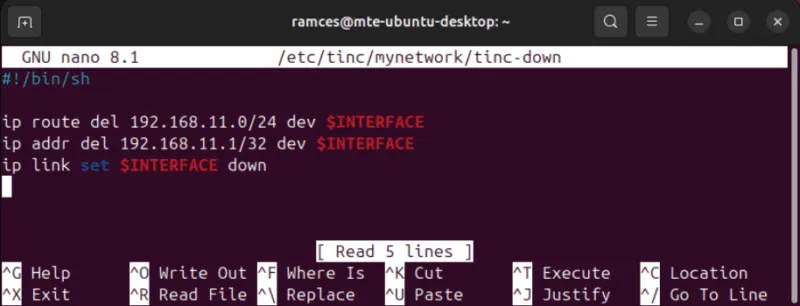
<p style="text-align: justify;">Lưu file, sau đó mở file “tinc-down” và dán nội dung sau vào bên trong file. Thao tác này thực hiện ngược lại với “tinc-up:” nó sẽ hủy gán địa chỉ IP khỏi interface Tinc của bạn và xóa interface đó khỏi máy:</p>

<pre id="pre9">
<code>#!/bin/sh

ip route del 192.168.11.0/24 dev $INTERFACE
ip addr del 192.168.11.1/32 dev $INTERFACE
ip link set $INTERFACE down</code></pre>

<figure>
<div style="text-align: justify;"><img alt="Nội dung của scrript tinc-down trong Ubuntu." data-i="5" data-src="https://st.quantrimang.com/photos/image/2025/01/17/tao-p2p-mesh-vpn-voi-tinc-6.jpg" data-was-processed="true" height="306" src="https://st.quantrimang.com/photos/image/2025/01/17/tao-p2p-mesh-vpn-voi-tinc-6.jpg" width="800" /></div>

<figcaption>
<div style="text-align: justify;">Nội dung của scrript tinc-down trong Ubuntu.</div>
</figcaption>
</figure>

<p style="text-align: justify;">Tạo cặp key cho node Tinc của bạn bằng cách chạy tincd:</p>

<pre id="pre10">
<code>sudo tincd -n mynetwork --generate-keys=4096</code></pre>

<div style="text-align: justify;">&nbsp;</div>

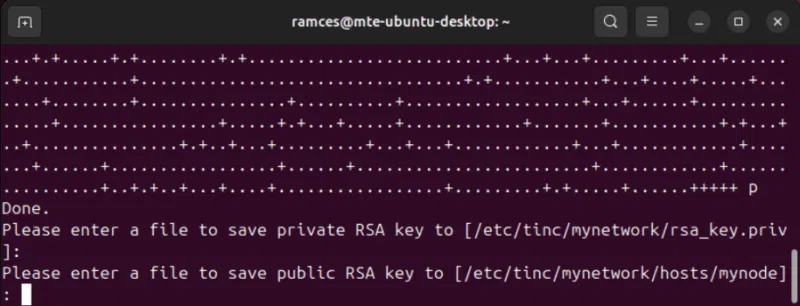
<p style="text-align: justify;">Nhấn&nbsp;<strong>Enter</strong>&nbsp;2 lần để chấp nhận vị trí lưu mặc định cho cả private và public key trên node Tinc của bạn.</p>

<figure>
<div style="text-align: justify;"><img alt="Tạo cặp key cho Tinc trong Ubuntu." data-i="6" data-src="https://st.quantrimang.com/photos/image/2025/01/17/tao-p2p-mesh-vpn-voi-tinc-7.jpg" data-was-processed="true" height="306" src="https://st.quantrimang.com/photos/image/2025/01/17/tao-p2p-mesh-vpn-voi-tinc-7.jpg" width="800" /></div>

<figcaption>
<div style="text-align: justify;">Tạo cặp key cho Tinc trong Ubuntu.</div>
</figcaption>
</figure>

<h3 style="text-align: justify;">Thêm Tinc client đầu tiên</h3>

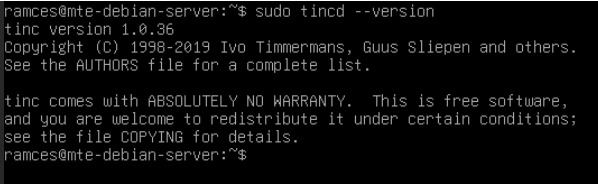
<p style="text-align: justify;">Để thêm Tinc client mới, trước tiên hãy đảm bảo rằng bạn đã cài đặt Tinc đúng cách trên máy thứ hai của mình.</p>

<figure>
<div style="text-align: justify;"><img alt="Phiên bản Tinc trên Debian." data-i="7" data-src="https://st.quantrimang.com/photos/image/2025/01/17/tao-p2p-mesh-vpn-voi-tinc-8.jpg" data-was-processed="true" height="184" src="https://st.quantrimang.com/photos/image/2025/01/17/tao-p2p-mesh-vpn-voi-tinc-8.jpg" width="598" /></div>

<figcaption>
<div style="text-align: justify;">Phiên bản Tinc trên Debian.</div>
</figcaption>
</figure>

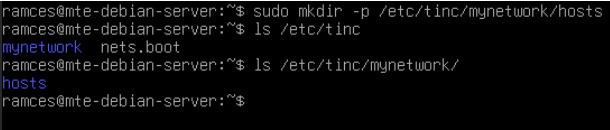
<p style="text-align: justify;">Tạo cấu trúc thư mục cho cấu hình Tinc của bạn bằng cách sử dụng mkdir -p.</p>

<figure>
<div style="text-align: justify;"><img alt="Cấu trúc thư mục của cấu hình Tinc client." data-i="8" data-src="https://st.quantrimang.com/photos/image/2025/01/17/tao-p2p-mesh-vpn-voi-tinc-9.jpg" data-was-processed="true" height="130" src="https://st.quantrimang.com/photos/image/2025/01/17/tao-p2p-mesh-vpn-voi-tinc-9.jpg" width="610" /></div>

<figcaption>
<div style="text-align: justify;">Cấu trúc thư mục của cấu hình Tinc client.</div>
</figcaption>
</figure>

<p style="text-align: justify;">Sử dụng trình soạn thảo văn bản yêu thích để tạo file cấu hình cho Tinc client:</p>

<pre id="pre11">
<code>sudo nano /etc/tinc/mynetwork/tinc.conf</code></pre>

<p style="text-align: justify;">Dán các dòng code sau vào file cấu hình của máy thứ hai:</p>

<pre id="pre12">
<code>Name = myclient
Device = /dev/net/tun
ConnectTo = mynode</code></pre>

<p style="text-align: justify;">Tạo file có tên máy Tinc của bạn trong “/etc/tinc/mynetwork/hosts”. Trong trường hợp này, ví dụ đặt tên máy thứ hai của mình là &quot;myclient&quot;, vì vậy file có tên &quot;myclient&quot; sẽ được tạo</p>

<pre id="pre13">
<code>sudo nano /etc/tinc/mynetwork/hosts/myclient</code></pre>

<p style="text-align: justify;">Dán block code sau vào file hosts mới. Tương tự như node đầu tiên, điều này quyết định cấu hình mạng của daemon Tinc:</p>

<pre id="pre14">
<code>Subnet = 192.168.11.2/32
Port = 655</code></pre>

<p style="text-align: justify;">Lưu file hosts mới, sau đó tạo script &quot;tinc-up&quot; và &quot;tinc-down&quot; trên máy thứ hai:</p>

<pre id="pre15">
<code>sudo touch /etc/tinc/mynetwork/tinc-{up,down}
sudo chmod +x /etc/tinc/mynetwork/tinc-{up,down}</code></pre>

<figure>
<div style="text-align: justify;"><img alt="Các file script tinc-up và tinc-down với những bit quyền chính xác trong máy Tinc thứ hai." data-i="9" data-src="https://st.quantrimang.com/photos/image/2025/01/17/tao-p2p-mesh-vpn-voi-tinc-10.jpg" data-was-processed="true" height="123" src="https://st.quantrimang.com/photos/image/2025/01/17/tao-p2p-mesh-vpn-voi-tinc-10.jpg" width="696" /></div>

<figcaption>
<div style="text-align: justify;">Các file script tinc-up và tinc-down với những bit quyền chính xác trong máy Tinc thứ hai.</div>
</figcaption>
</figure>

<p style="text-align: justify;">Mở file tinc-up bằng trình soạn thảo văn bản yêu thích, sau đó dán block code sau vào bên trong:</p>

<pre id="pre16">
<code>#!/bin/sh
ip link set $INTERFACE up
ip addr add 192.168.11.2/32 dev $INTERFACE
ip route add 192.168.11.0/24 dev $INTERFACE</code></pre>

<p style="text-align: justify;">Lưu file tinc-up của bạn, sau đó mở tinc-down và dán các dòng code sau vào bên trong:</p>

<pre id="pre17">
<code>#!/bin/sh

ip route del 192.168.11.0/24 dev $INTERFACE
ip addr del 192.168.11.2/32 dev $INTERFACE
ip link set $INTERFACE down</code></pre>

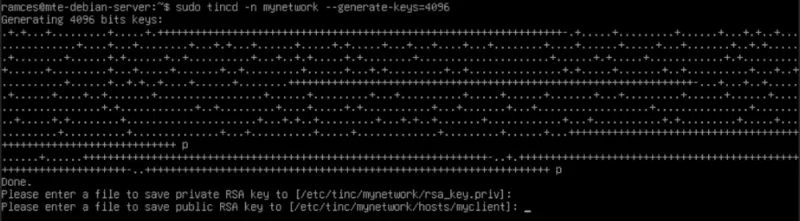
<p style="text-align: justify;">Hoàn tất cấu hình Tinc client bằng cách tạo cặp key của nó:</p>

<pre id="pre18">
<code>sudo tincd -n mynetwork --generate-keys=4096</code></pre>

<figure>
<div style="text-align: justify;"><img alt="Quy trình tạo cặp key trong máy Tinc." data-i="10" data-src="https://st.quantrimang.com/photos/image/2025/01/17/tao-p2p-mesh-vpn-voi-tinc-11.jpg" data-was-processed="true" height="221" src="https://st.quantrimang.com/photos/image/2025/01/17/tao-p2p-mesh-vpn-voi-tinc-11.jpg" width="800" /></div>

<figcaption>
<div style="text-align: justify;">Quy trình tạo cặp key trong máy Tinc.</div>
</figcaption>
</figure>

<div style="text-align: justify;">&nbsp;</div>

<h2 style="text-align: justify;">Chạy mạng mesh</h2>

<p style="text-align: justify;">Lúc này, bạn đã có hai daemon Tinc được cấu hình đúng. Tuy nhiên, bạn vẫn cần liên kết hai daemon Tinc này để tạo VPN P2P trong Linux. Để làm được điều đó, bạn cần sao chép file cấu hình máy chủ từ node Tinc của mình sang client và ngược lại.</p>

<p style="text-align: justify;">Bắt đầu bằng cách mở Terminal của node và điều hướng đến thư mục&nbsp;<strong>“/etc/tinc/mynetwork/hosts”</strong>&nbsp;của nó:</p>

<pre id="pre19">
<code>cd /etc/tinc/mynetwork/hosts</code></pre>

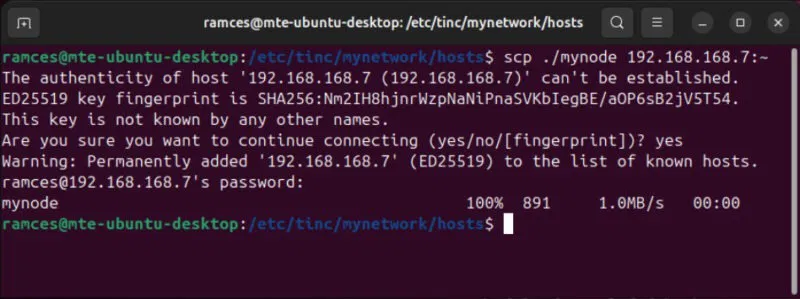
<p style="text-align: justify;">Sao chép file cấu hình bên trong thư mục này và chuyển file đó đến client. Trong trường hợp này, ví dụ sẽ sử dụng scp để gửi file này qua ssh:</p>

<pre id="pre20">
<code>scp ./mynode YOUR-CLIENT-IP-ADDRESS:~</code></pre>

<figure>
<div style="text-align: justify;"><img alt="Chuyển cấu hình Tinc client từ hệ thống này sang hệ thống khác." data-i="11" data-src="https://st.quantrimang.com/photos/image/2025/01/17/tao-p2p-mesh-vpn-voi-tinc-12.jpg" data-was-processed="true" height="299" src="https://st.quantrimang.com/photos/image/2025/01/17/tao-p2p-mesh-vpn-voi-tinc-12.jpg" width="800" /></div>

<figcaption>
<div style="text-align: justify;">Chuyển cấu hình Tinc client từ hệ thống này sang hệ thống khác.</div>
</figcaption>
</figure>

<p style="text-align: justify;"><strong>Lưu ý</strong>: Mặc dù ví dụ này đã sử dụng scp, nhưng bạn cũng có thể chuyển chúng theo cách thủ công bằng ổ flash.</p>

<p style="text-align: justify;">Hãy đến client và sao chép file hosts mà bạn vừa chuyển đến thư mục&nbsp;<strong>“/etc/tinc/mynetwork/hosts”</strong>&nbsp;của client:</p>

<pre id="pre21">
<code>sudo cp -v ~/mynode /etc/tinc/mynetwork/hosts/</code></pre>

<p style="text-align: justify;">Sau đó, chạy scp trên phía client để chuyển file hosts của client trở lại node:</p>

<pre id="pre22">
<code>scp /etc/tinc/mynetwork/hosts/myclient YOUR-NODE-IP-ADDRESS:~</code></pre>

<figure>
<div style="text-align: justify;"><img alt="Chuyển file cấu hình Tinc client sang một peer trong mạng." data-i="12" data-src="https://st.quantrimang.com/photos/image/2025/01/17/tao-p2p-mesh-vpn-voi-tinc-13.jpg" data-was-processed="true" height="122" src="https://st.quantrimang.com/photos/image/2025/01/17/tao-p2p-mesh-vpn-voi-tinc-13.jpg" width="800" /></div>

<figcaption>
<div style="text-align: justify;">Chuyển file cấu hình Tinc client sang một peer trong mạng.</div>
</figcaption>
</figure>

<p style="text-align: justify;">Sao chép file hosts của client vào thư mục hosts của node:</p>

<pre id="pre23">
<code>sudo cp ~/myclient /etc/tinc/mynetwork/hosts/</code></pre>

<h3 style="text-align: justify;">Bắt đầu mạng mesh Tinc</h3>

<p style="text-align: justify;">Bắt đầu mạng Tinc được cấu hình đầy đủ của bạn bằng cách chạy lệnh sau trên mỗi host:</p>

<pre id="pre24">
<code>sudo tincd -n mynetwork</code></pre>

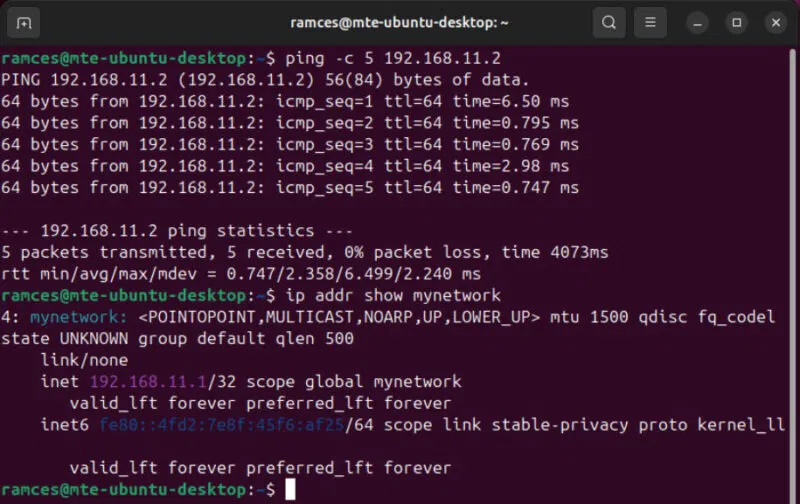
<p style="text-align: justify;">Xác nhận rằng bạn có thể giao tiếp với các node của mình thông qua interface Tinc bằng cách thực hiện lệnh ping đơn giản:</p>

<pre id="pre25">
<code>ping -c 5 192.168.11.2</code></pre>

<figure>
<div style="text-align: justify;"><img alt="Độ trễ của VPN Tinc cũng như thiết bị mạng đang chạy trên Ubuntu." data-i="13" data-src="https://st.quantrimang.com/photos/image/2025/01/17/tao-p2p-mesh-vpn-voi-tinc-14.jpg" data-was-processed="true" height="504" src="https://st.quantrimang.com/photos/image/2025/01/17/tao-p2p-mesh-vpn-voi-tinc-14.jpg" width="800" /></div>

<figcaption>
<div style="text-align: justify;">Độ trễ của VPN Tinc cũng như thiết bị mạng đang chạy trên Ubuntu.</div>
</figcaption>
</figure>

<p style="text-align: justify;">Cuối cùng, hãy bật service Tinc để đảm bảo rằng VPN của bạn sẽ hoạt động khi khởi động hệ thống:</p>

<pre id="pre26">
<code>sudo systemctl enable --now tinc@mynetwork.service</code></pre>

<figure>
<div style="text-align: justify;"><img alt="Bật tiến trình Tinc khi khởi động." data-i="14" data-src="https://st.quantrimang.com/photos/image/2025/01/17/tao-p2p-mesh-vpn-voi-tinc-15.jpg" data-was-processed="true" height="142" src="https://st.quantrimang.com/photos/image/2025/01/17/tao-p2p-mesh-vpn-voi-tinc-15.jpg" width="800" /></div>

<figcaption>
<div style="text-align: justify;">Bật tiến trình Tinc khi khởi động.</div>
</figcaption>
</figure>

<p style="text-align: justify;">Học cách tạo P2P Mesh VPN của riêng bạn trong Linux bằng Tinc chỉ là bước đầu tiên để khám phá thế giới mạng máy tính tuyệt vời này. Chúc bạn thực hiện thành công!</p>
		</div>
				<div id="author">
						<p>
				<strong>Nguồn tin:</strong>
				Quantrimang.com:
			</p>
		</div>
	</div>
	<div id="footer" class="clearfix">
		<div id="url">
			<strong>URL của bản tin này: </strong><a href="https://www.nguoicodonvn2008.info/vi/news/savefile/kien-thuc-may-tinh/cach-tao-p2p-mesh-vpn-voi-tinc-9691.html" title="Cách tạo P2P Mesh VPN với Tinc">https://www.nguoicodonvn2008.info/vi/news/savefile/kien-thuc-may-tinh/cach-tao-p2p-mesh-vpn-voi-tinc-9691.html</a>

		</div>
		<div class="clear"></div>
		<div class="copyright">
			&copy; .&#x3A; Nguoicodonvn2008.info - Cõi lòng người cô đơn &#x3A;.
		</div>
		<div id="contact">
			<a href="mailto:admin@nguoicodonvn2008.info">admin@nguoicodonvn2008.info</a>
		</div>
	</div>
</div>
        <div id="timeoutsess" class="chromeframe">
            Bạn đã không sử dụng Site, <a onclick="timeoutsesscancel();" href="https://www.nguoicodonvn2008.info/#">Bấm vào đây để duy trì trạng thái đăng nhập</a>. Thời gian chờ: <span id="secField"> 60 </span> giây
        </div>
        <div id="openidResult" class="nv-alert" style="display:none"></div>
        <div id="openidBt" data-result="" data-redirect=""></div>
		</script>
		<div class="car-top">
  <span><img src="https://www.nguoicodonvn2008.info/themes/default/images/car.png" alt=""></span>
</div>
<script src="https://www.nguoicodonvn2008.info/assets/js/jquery/jquery.min.js"></script>
<script>var nv_base_siteurl="/",nv_lang_data="vi",nv_lang_interface="vi",nv_name_variable="nv",nv_fc_variable="op",nv_lang_variable="language",nv_module_name="news",nv_func_name="savefile",nv_is_user=0, nv_my_ofs=-4,nv_my_abbr="EDT",nv_cookie_prefix="nv4c_e856T",nv_check_pass_mstime=1738000,nv_area_admin=0,nv_safemode=0,theme_responsive=0,nv_recaptcha_ver=2,nv_recaptcha_sitekey="",nv_recaptcha_type="image",XSSsanitize=1;</script>
<script src="https://www.nguoicodonvn2008.info/assets/js/language/vi.js"></script>
<script src="https://www.nguoicodonvn2008.info/assets/js/DOMPurify/purify3.js"></script>
<script src="https://www.nguoicodonvn2008.info/assets/js/global.js"></script>
<script src="https://www.nguoicodonvn2008.info/assets/js/site.js"></script>
<script src="https://www.nguoicodonvn2008.info/themes/default/js/news.js"></script>
<script src="https://www.nguoicodonvn2008.info/themes/default/js/main.js"></script>
<script src="https://www.nguoicodonvn2008.info/themes/default/js/custom.js"></script>
<script type="application/ld+json">
        {
            "@context": "https://schema.org",
            "@type": "Organization",
            "url": "https://www.nguoicodonvn2008.info",
            "logo": "https://www.nguoicodonvn2008.info/uploads/angel.gif"
        }
        </script>
<script src="https://www.nguoicodonvn2008.info/themes/default/js/bootstrap.min.js"></script>
<script type="text/javascript">
var $scrolltop = $('.car-top');
$scrolltop.on('click', function () {
    $('html,body').animate({
        scrollTop: 0
    }, 800);
    $(this).addClass("car-run");
    setTimeout(function(){ $scrolltop.removeClass('car-run');}, 1000);
    return false;
});
$(window).on('scroll', function ()
{ 
    if($(window).scrollTop() >= 200)
    {
        $scrolltop.addClass("show");
        $scrolltop.addClass("car-down");
    }
    else
    {
       $scrolltop.removeClass("show");
       setTimeout(function(){ $scrolltop.removeClass('car-down');}, 300);
    }
});
</script>
</body>
</html>