<!DOCTYPE html>
    <html lang="vi" xmlns="http://www.w3.org/1999/xhtml" prefix="og: http://ogp.me/ns#">
    <head>
<title>Cách tạo ISO Ubuntu tùy chỉnh với Cubic</title>
<meta name="description" content="Cách tạo ISO Ubuntu tùy chỉnh với Cubic - Savefile - Tin Tức -...">
<meta name="author" content=".: Nguoicodonvn2008.info - Cõi lòng người cô đơn :.">
<meta name="copyright" content=".: Nguoicodonvn2008.info - Cõi lòng người cô đơn :. [admin@nguoicodonvn2008.info]">
<meta name="robots" content="index, archive, follow, noodp">
<meta name="googlebot" content="index,archive,follow,noodp">
<meta name="msnbot" content="all,index,follow">
<meta name="generator" content="NukeViet v4.5">
<meta http-equiv="Content-Type" content="text/html; charset=utf-8">
<meta property="og:title" content="Cách tạo ISO Ubuntu tùy chỉnh với Cubic">
<meta property="og:type" content="website">
<meta property="og:description" content="Savefile - Tin Tức - https&#x3A;&#x002F;&#x002F;www.nguoicodonvn2008.info&#x002F;vi&#x002F;news&#x002F;savefile&#x002F;kien-thuc-may-tinh&#x002F;cach-tao-iso-ubuntu-tuy-chinh-voi-cubic-6317.html">
<meta property="og:site_name" content=".&#x3A; Nguoicodonvn2008.info - Cõi lòng người cô đơn &#x3A;.">
<meta property="og:url" content="https://www.nguoicodonvn2008.info/vi/news/savefile/kien-thuc-may-tinh/cach-tao-iso-ubuntu-tuy-chinh-voi-cubic-6317.html">
<link rel="shortcut icon" href="https://www.nguoicodonvn2008.info/favicon.ico">
<link rel="canonical" href="https://www.nguoicodonvn2008.info/vi/news/savefile/kien-thuc-may-tinh/cach-tao-iso-ubuntu-tuy-chinh-voi-cubic-6317.html">
<link rel="alternate" href="https://www.nguoicodonvn2008.info/vi/news/rss/" title="Tin Tức" type="application/rss+xml">
<link rel="alternate" href="https://www.nguoicodonvn2008.info/vi/news/rss/karaoke-dual/" title="Tin Tức - Karaoke Dual" type="application/rss+xml">
<link rel="alternate" href="https://www.nguoicodonvn2008.info/vi/news/rss/nhac-tre/" title="Tin Tức - Nhạc trẻ" type="application/rss+xml">
<link rel="alternate" href="https://www.nguoicodonvn2008.info/vi/news/rss/tru-tinh/" title="Tin Tức - Trữ tình" type="application/rss+xml">
<link rel="alternate" href="https://www.nguoicodonvn2008.info/vi/news/rss/nuoc-ngoai/" title="Tin Tức - Nước ngoài" type="application/rss+xml">
<link rel="alternate" href="https://www.nguoicodonvn2008.info/vi/news/rss/remix/" title="Tin Tức - Remix" type="application/rss+xml">
<link rel="alternate" href="https://www.nguoicodonvn2008.info/vi/news/rss/tam-su-tinh-yeu/" title="Tin Tức - Tâm sự tình yêu" type="application/rss+xml">
<link rel="alternate" href="https://www.nguoicodonvn2008.info/vi/news/rss/tho-suu-tam/" title="Tin Tức - Thơ sưu tầm" type="application/rss+xml">
<link rel="alternate" href="https://www.nguoicodonvn2008.info/vi/news/rss/cuoc-song/" title="Tin Tức - Cuộc sống" type="application/rss+xml">
<link rel="alternate" href="https://www.nguoicodonvn2008.info/vi/news/rss/phan-mem/" title="Tin Tức - Phần mềm" type="application/rss+xml">
<link rel="alternate" href="https://www.nguoicodonvn2008.info/vi/news/rss/kien-thuc-may-tinh/" title="Tin Tức - Kiến thức máy tính" type="application/rss+xml">
<link rel="alternate" href="https://www.nguoicodonvn2008.info/vi/news/rss/hoc-tap/" title="Tin Tức - Học tập" type="application/rss+xml">
<link rel="alternate" href="https://www.nguoicodonvn2008.info/vi/news/rss/tai-lieu/" title="Tin Tức - Tài liệu" type="application/rss+xml">
<link rel="alternate" href="https://www.nguoicodonvn2008.info/vi/news/rss/de-thi/" title="Tin Tức - Đề thi" type="application/rss+xml">
<link rel="preload" as="style" href="https://www.nguoicodonvn2008.info/assets/css/font-awesome.min.css" type="text/css">
<link rel="preload" as="style" href="https://www.nguoicodonvn2008.info/themes/default/css/bootstrap.non-responsive.css" type="text/css">
<link rel="preload" as="style" href="https://www.nguoicodonvn2008.info/themes/default/css/style.css" type="text/css">
<link rel="preload" as="style" href="https://www.nguoicodonvn2008.info/themes/default/css/style.non-responsive.css" type="text/css">
<link rel="preload" as="style" href="https://www.nguoicodonvn2008.info/themes/default/css/news.css" type="text/css">
<link rel="preload" as="style" href="https://www.nguoicodonvn2008.info/themes/default/css/custom.css" type="text/css">
<link rel="preload" as="script" href="https://www.nguoicodonvn2008.info/assets/js/jquery/jquery.min.js" type="text/javascript">
<link rel="preload" as="script" href="https://www.nguoicodonvn2008.info/assets/js/language/vi.js" type="text/javascript">
<link rel="preload" as="script" href="https://www.nguoicodonvn2008.info/assets/js/DOMPurify/purify3.js" type="text/javascript">
<link rel="preload" as="script" href="https://www.nguoicodonvn2008.info/assets/js/global.js" type="text/javascript">
<link rel="preload" as="script" href="https://www.nguoicodonvn2008.info/assets/js/site.js" type="text/javascript">
<link rel="preload" as="script" href="https://www.nguoicodonvn2008.info/themes/default/js/news.js" type="text/javascript">
<link rel="preload" as="script" href="https://www.nguoicodonvn2008.info/themes/default/js/main.js" type="text/javascript">
<link rel="preload" as="script" href="https://www.nguoicodonvn2008.info/themes/default/js/custom.js" type="text/javascript">
<link rel="preload" as="script" href="https://www.nguoicodonvn2008.info/themes/default/js/bootstrap.min.js" type="text/javascript">
<link rel="stylesheet" href="https://www.nguoicodonvn2008.info/assets/css/font-awesome.min.css">
<link rel="stylesheet" href="https://www.nguoicodonvn2008.info/themes/default/css/bootstrap.non-responsive.css">
<link rel="stylesheet" href="https://www.nguoicodonvn2008.info/themes/default/css/style.css">
<link rel="stylesheet" href="https://www.nguoicodonvn2008.info/themes/default/css/style.non-responsive.css">
<link rel="StyleSheet" href="https://www.nguoicodonvn2008.info/themes/default/css/news.css">
<link rel="stylesheet" href="https://www.nguoicodonvn2008.info/themes/default/css/custom.css">
<style type="text/css">
	body{background: #fff;}
</style>
    </head>
    <body>
<div id="print">
	<div id="hd_print">
		<h2 class="pull-left">.&#x3A; Nguoicodonvn2008.info - Cõi lòng người cô đơn &#x3A;.</h2>
		<p class="pull-right"><a title=".&#x3A; Nguoicodonvn2008.info - Cõi lòng người cô đơn &#x3A;." href="https://www.nguoicodonvn2008.info/">https://www.nguoicodonvn2008.info</a></p>
	</div>
	<div class="clear"></div>
	<hr />
	<div id="content">
		<h1>Cách tạo ISO Ubuntu tùy chỉnh với Cubic</h1>
		<ul class="list-inline">
			<li>Chủ nhật - 13/11/2022 23:50</li>
			<li class="hidden-print txtrequired"><em class="fa fa-print">&nbsp;</em><a title="In ra" href="javascript:;" onclick="window.print()">In ra</a></li>
			<li class="hidden-print txtrequired"><em class="fa fa-power-off">&nbsp;</em><a title="Đóng cửa sổ này" href="javascript:;" onclick="window.close()">Đóng cửa sổ này</a></li>
		</ul>
		<div class="clear"></div>
		<div id="hometext">
		</div>
				<div class="imghome">
			<img alt="Cách tạo ISO Ubuntu tùy chỉnh với Cubic" src="https://st.quantrimang.com/photos/image/2022/11/14/tao-iso-ubuntu-tuy-chinh-voi-cubic-1.jpg" width="460" class="img-thumbnail" />
		</div>
		<div class="clear"></div>
		<div id="bodytext" class="clearfix">
			<p style="text-align: justify;">Một trong những điều tốt nhất về&nbsp;Linux&nbsp;là nó cho phép bạn tùy chỉnh hệ thống của mình theo cách bạn muốn. Không giống như người dùng của các hệ điều hành khác, bạn không bị giới hạn trong môi trường desktop, trình quản lý file hoặc bộ công cụ Office được công ty ủy quyền cụ thể.</p>

<p style="text-align: justify;">Thông thường, bạn thực hiện các thay đổi đối với bản phân phối sau khi cài đặt nó vào phần cứng của mình, nhưng với Cubic, bạn có thể tạo ISO tùy chỉnh hoàn hảo cho nhu cầu của mình trước đó.</p>

<h2 style="text-align: justify;">Tại sao phải tạo một ISO Ubuntu tùy chỉnh?</h2>

<p style="text-align: justify;">Với bối cảnh bản phân phối Linux đa dạng, có những bản phân phối có thể phù hợp với hầu hết mọi trường hợp sử dụng có sẵn. Bạn có thể dễ dàng cài đặt một bản phân phối Linux dựa trên Debian, Arch, Ubuntu, Slackware hoặc Fedora; bạn có thể đứng về một phe trong cuộc đại chiến giữa systemd và anti-systemd; chọn một bản phân phối Wayland hoặc giữ cho ngăn xếp đồ họa của mình truyền thống hơn với X.org. Không thiếu các lựa chọn.</p>

<p style="text-align: justify;">Đây là những lựa chọn quyết định và sẽ tạo nền tảng cho toàn bộ trải nghiệm Linux của bạn, nhưng điều gì sẽ xảy ra nếu có một bản phân phối gần như hoàn hảo cho bạn, chỉ cần một vài chỉnh sửa?</p>

<p style="text-align: justify;">Có thể bản phân phối yêu thích của bạn đi kèm với một trình duyệt mà bạn không thích hoặc thiếu một công cụ chỉnh sửa cụ thể mà bạn cho là cần thiết. Có lẽ bạn có một bộ sưu tập hình nền khổng lồ mà bạn muốn có ngay khi bật laptop mới lần đầu tiên.</p>

<p style="text-align: justify;">Chắc chắn, bạn có thể thực hiện các thay đổi khá dễ dàng sau khi cài đặt bản phân phối trên máy tính của mình, nhưng nếu bạn có nhiều máy tính và thích trải nghiệm nhất quán hoặc nếu bạn quản lý nhiều PC cần có bộ phần mềm tiêu chuẩn, chẳng hạn như trong một trường học hoặc doanh nghiệp, thật tốt khi có thể tạo ISO tùy chỉnh của riêng bạn, ISO này sẽ cài đặt chính xác những gì bạn muốn mà không có gì rắc rối.</p>

<h2 style="text-align: justify;">Cubic là gì?</h2>

<p style="text-align: justify;">Giống như tất cả các dự án mã nguồn mở khác, Cubic là từ viết tắt - trong trường hợp này là viết tắt của Custom UBuntu ISO Creator, và như tên gọi cho thấy, nó là một công cụ giúp bạn tạo live ISO image tùy chỉnh cho&nbsp;các bản phân phối dựa trên Ubuntu.</p>

<p style="text-align: justify;">Ubuntu&nbsp;là một bản phân phối cực kỳ phổ biến và ngoài bản tải xuống Ubuntu chính, và các phiên bản đã được tùy chỉnh cao của nó, bao gồm Kubuntu, Lubuntu, Xubuntu, Ubuntu Studio, Budgie và MATE, nó cũng làm nền tảng cho các bản phân phối như elementary OS, Linux Mint và KDE Neon. Bất kỳ thứ nào trong số này đều có thể là những gì bạn đang tìm kiếm.</p>

<p style="text-align: justify;">Cubic chạy như một trình hướng dẫn GUI giúp &quot;điều hướng dễ dàng thông qua các bước tùy chỉnh ISO và có môi trường dòng lệnh ảo tích hợp&quot;. Chỉ cần chọn bản phân phối dựa trên Ubuntu yêu thích của bạn và làm theo hướng dẫn từng bước để có được chính xác những gì bạn cần.</p>

<h2 style="text-align: justify;">Cách cài đặt Cubic trên Linux</h2>

<figure>
<div style="text-align: justify;"><img alt="Đầu ra Teminal với neato ASCII art khi thêm Cubic PPA" data-i="0" data-src="https://st.quantrimang.com/photos/image/2022/11/14/tao-iso-ubuntu-tuy-chinh-voi-cubic-1.jpg" data-was-processed="true" height="254" src="https://st.quantrimang.com/photos/image/2022/11/14/tao-iso-ubuntu-tuy-chinh-voi-cubic-1.jpg" width="650" /></div>

<figcaption>
<div style="text-align: justify;">Đầu ra Teminal với neato ASCII art khi thêm Cubic PPA</div>
</figcaption>
</figure>

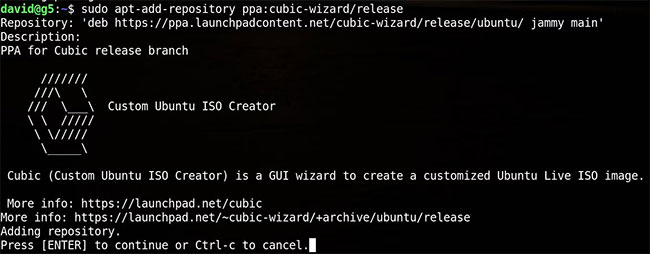
<p style="text-align: justify;">Cubic chạy trên các bản phân phối dựa trên Ubuntu 18.04.5 Bionic trở lên và mặc dù có thể chạy Cubic trong môi trường ảo, nhưng nó không được khuyến khích. Để bắt đầu, trước tiên hãy bật kho lưu trữ Universe và Cubic PPA:</p>

<pre id="pre0">
<code>sudo apt-add-repository universe
sudo apt-add-repository ppa:cubic-wizard/release</code></pre>

<p style="text-align: justify;">Bây giờ, hãy cập nhật hệ thống của bạn và cài đặt Cubic:</p>

<pre id="pre1">
<code>sudo apt update
sudo apt install --no-install-recommends cubic</code></pre>

<p style="text-align: justify;">Giờ đây, bạn có thể truy cập Cubic thông qua hệ thống menu của mình hoặc bằng cách nhập:</p>

<pre id="pre2">
<code>cubic</code></pre>

<p style="text-align: justify;">... vào Terminal.</p>

<h2 style="text-align: justify;">Tạo một ISO Ubuntu tùy chỉnh với Cubic</h2>

<figure>
<div style="text-align: justify;"><img alt="Các trường dành cho nguồn và ISO tùy chỉnh trong Cubic" data-i="1" data-src="https://st.quantrimang.com/photos/image/2022/11/14/tao-iso-ubuntu-tuy-chinh-voi-cubic-2.jpg" data-was-processed="true" height="374" src="https://st.quantrimang.com/photos/image/2022/11/14/tao-iso-ubuntu-tuy-chinh-voi-cubic-2.jpg" width="650" /></div>

<figcaption>
<div style="text-align: justify;">Các trường dành cho nguồn và ISO tùy chỉnh trong Cubic</div>
</figcaption>
</figure>

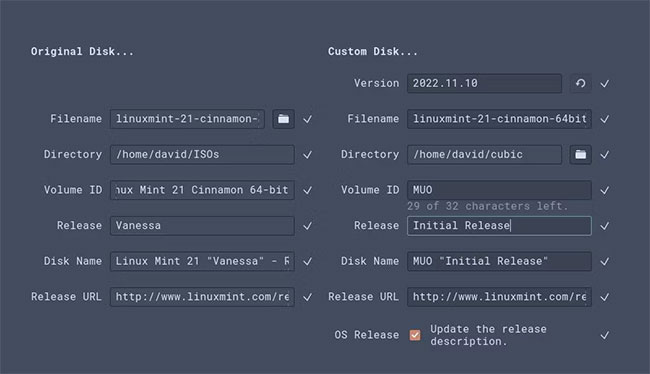
<p style="text-align: justify;">Khi khởi động Cubic lần đầu tiên, bạn sẽ được yêu cầu chọn một thư mục dự án. Thực hiện việc này, sau đó nhấp vào&nbsp;<strong>Next</strong>&nbsp;để chọn ISO nguồn và các chi tiết của ISO mà bạn sẽ tạo. Chọn file ISO và các trường sẽ được tự động điền.</p>

<p style="text-align: justify;">Bạn có thể thay đổi các giá trị cho ISO tùy chỉnh của mình để phản ánh mục đích của ISO hoặc chỉ vì bạn muốn đặt cho nó một cái tên thú vị. Đối với ISO nguồn, ví dụ đã chọn bản phát hành Vanessa của Linux Mint Cinnamon. Tên tùy chỉnh là&nbsp;<em>&quot;MUO Linux Initial release&quot;</em>.</p>

<p style="text-align: justify;">Nhấp vào&nbsp;<strong>Next</strong>&nbsp;và Cubic sẽ trích xuất ISO vào thư mục làm việc mà bạn đã chỉ định trước đó và cung cấp cho bạn một chroot - một loại terminal - nơi bạn có thể thực thi các lệnh.</p>

<p style="text-align: justify;">Ví dụ, nếu bạn muốn ISO tùy chỉnh của mình chỉ có phần mềm mới nhất, thì lệnh đầu tiên bạn nên chạy là:</p>

<pre id="pre3">
<code>sudo apt update &amp;&amp; sudo apt upgrade</code></pre>

<p style="text-align: justify;">Mint đi kèm với rất nhiều phần mềm hữu ích được cài đặt sẵn và trong khi hầu hết phần mềm hữu ích, bạn có thể thích các công cụ khác nhau.</p>

<p style="text-align: justify;">Một ví dụ là IRC client HexChat. Nếu bạn ghét HexChat vì GUI của nó, và muốn có IRSSI trong terminal, trước tiên bạn nên xóa HexChat:</p>

<pre id="pre4">
<code>apt purge hexchat</code></pre>

<p style="text-align: justify;">... và sau đó cài đặt IRSSI:</p>

<pre id="pre5">
<code>apt install irssi</code></pre>

<p style="text-align: justify;">Nó giống như việc sử dụng terminal trên máy tính để bàn, ngoại trừ những thay đổi bạn thực hiện sẽ được phản ánh trong ISO do Cubic tạo ra.</p>

<p style="text-align: justify;">Bạn có thể làm điều này với bất kỳ phần mềm nào bạn thích - hoặc không thích. Hãy hoán đổi Transmission thành qBittorrent, Pix thành Ristretto hoặc Firefox thành Falkon!</p>

<p style="text-align: justify;">Bạn cũng nên loại bỏ sự cồng kềnh dưới dạng ứng dụng mà bạn sẽ không bao giờ sử dụng hoặc không muốn các user của mình sử dụng:</p>

<pre id="pre6">
<code>apt purge rhythmbox timeshift celluloid notes thunderbird</code></pre>

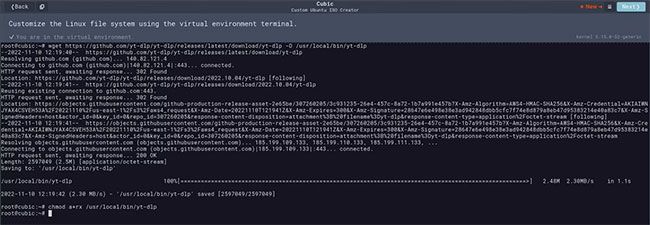
<p style="text-align: justify;">Bạn không cần sử dụng trình quản lý gói để cài đặt phần mềm. Bạn có thể kéo các gói từ Internet, thêm chúng vào đường dẫn và làm cho chúng có thể thực thi được. Để đảm bảo rằng bạn có thể dễ dàng tải xuống video YouTube trên các máy đã cài đặt ISO tùy chỉnh:</p>

<pre id="pre7">
<code>wget https://github.com/yt-dlp/yt-dlp/releases/latest/download/yt-dlp -O /usr/local/bin/yt-dlp
chmod a+rx /usr/local/bin/yt-dlp</code></pre>

<figure>
<div style="text-align: justify;"><img alt="Tùy chỉnh hệ thống file Linux bằng " data-i="2" data-src="https://st.quantrimang.com/photos/image/2022/11/14/tao-iso-ubuntu-tuy-chinh-voi-cubic-3.jpg" data-was-processed="true" height="225" src="https://st.quantrimang.com/photos/image/2022/11/14/tao-iso-ubuntu-tuy-chinh-voi-cubic-3.jpg" width="650" /></div>

<figcaption>
<div style="text-align: justify;">Tùy chỉnh hệ thống file Linux bằng terminal môi trường ảo</div>
</figcaption>
</figure>

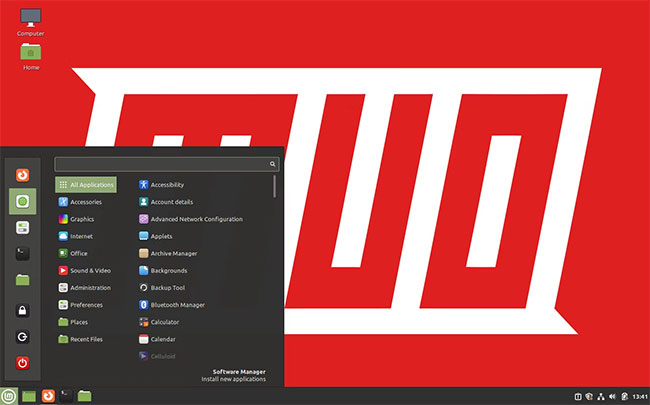
<p style="text-align: justify;">Bài viết muốn có một desktop theo chủ đề MUO ấn tượng và có hình nền mặc định được thiết lập trước. Di chuyển đến thư mục hình nền với:</p>

<pre id="pre8">
<code>cd /usr/share/backgrounds</code></pre>

<p style="text-align: justify;">... và nhấp vào biểu tượng copy, bên cạnh nút&nbsp;<strong>Back</strong>&nbsp;ở trên cùng bên trái của giao diện Cubic. Chọn các file bạn muốn sao chép vào thư mục này và nhấp vào&nbsp;<strong>Copy</strong>&nbsp;trên màn hình tiếp theo.</p>

<p style="text-align: justify;">Sau khi sao chép các file hình nền của mình, hãy thiết lập hình nền bạn muốn bằng cách nhập:</p>

<pre id="pre9">
<code>gsettings set org.cinnamon.desktop.background picture-uri file:///usr/share/backgrounds/muo_wallpaper.jpg</code></pre>

<p style="text-align: justify;">Nếu bạn đang sử dụng một máy tính khác, chẳng hạn như GNOME, bạn sẽ cần sửa đổi lệnh:</p>

<pre id="pre10">
<code>gsettings set org.gnome.desktop.background picture-uri file:///usr/share/backgrounds/muo_wallpaper.jpg</code></pre>

<h2 style="text-align: justify;">Hoàn thiện ISO Ubuntu tùy chỉnh của bạn</h2>

<p style="text-align: justify;">Khi bạn đã hoàn tất việc thay đổi hình nền và hài lòng với các gói bạn đã thêm hoặc xóa, hãy nhấp vào&nbsp;<strong>Next</strong>&nbsp;một lần nữa.</p>

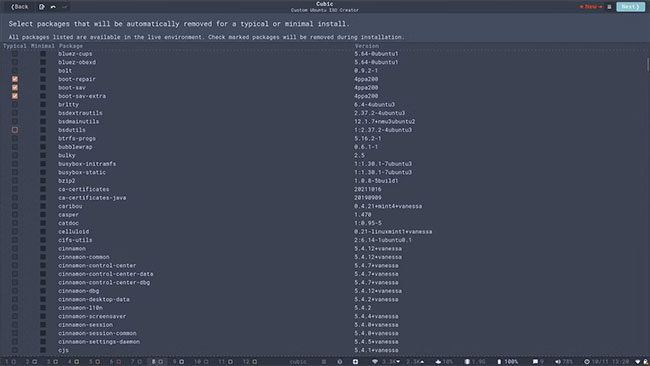
<p style="text-align: justify;">Bạn sẽ thấy danh sách tất cả các gói sẽ có trên live ISO, bạn có thể thêm dấu kiểm bên cạnh mỗi gói để xóa nó trong quá trình cài đặt thông thường hoặc tối thiểu.</p>

<figure>
<div style="text-align: justify;"><img alt="Danh sách tất cả các gói sẽ có trên live ISO" data-i="3" data-src="https://st.quantrimang.com/photos/image/2022/11/14/tao-iso-ubuntu-tuy-chinh-voi-cubic-4.jpg" data-was-processed="true" height="366" src="https://st.quantrimang.com/photos/image/2022/11/14/tao-iso-ubuntu-tuy-chinh-voi-cubic-4.jpg" width="650" /></div>

<figcaption>
<div style="text-align: justify;">Danh sách tất cả các gói sẽ có trên live ISO</div>
</figcaption>
</figure>

<p style="text-align: justify;">Khi bạn hài lòng với danh sách, hãy nhấn&nbsp;<strong>Next</strong>&nbsp;một lần nữa và chọn kernel bạn muốn sử dụng.</p>

<p style="text-align: justify;">Lựa chọn cuối cùng bạn cần thực hiện là loại nén mình muốn sử dụng. Phạm vi này trải dài từ XZ, sẽ tạo ra ISO nhỏ hơn, nhưng mất nhiều thời gian hơn để đóng gói và giải nén, đến LZ4, sẽ cung cấp cho bạn ISO lớn hơn nhiều nhưng mất thời gian tối thiểu. GZIP là một sự cân bằng tốt giữa 2 yếu tố này.</p>

<p style="text-align: justify;">Tại thời điểm này, bạn sẽ nhận thấy rằng nút&nbsp;<strong>Next</strong>&nbsp;hiện tại đã được thay thế bằng nút&nbsp;<strong>Generate.</strong>&nbsp;Hãy nhấn nút này và chờ trong khi Cubic tạo ISO của bạn!</p>

<p style="text-align: justify;">Sau một vài phút, ISO của bạn sẽ xuất hiện trong thư mục Cubic đã sẵn sàng để cài đặt.</p>

<figure>
<div style="text-align: justify;"><img alt="ISO xuất hiện trong thư mục Cubic" data-i="4" data-src="https://st.quantrimang.com/photos/image/2022/11/14/tao-iso-ubuntu-tuy-chinh-voi-cubic-5.jpg" data-was-processed="true" height="405" src="https://st.quantrimang.com/photos/image/2022/11/14/tao-iso-ubuntu-tuy-chinh-voi-cubic-5.jpg" width="650" /></div>

<figcaption>
<div style="text-align: justify;">ISO xuất hiện trong thư mục Cubic</div>
</figcaption>
</figure>
		</div>
				<div id="author">
						<p>
				<strong>Nguồn tin:</strong>
				Quantrimang.com
			</p>
		</div>
	</div>
	<div id="footer" class="clearfix">
		<div id="url">
			<strong>URL của bản tin này: </strong><a href="https://www.nguoicodonvn2008.info/vi/news/savefile/kien-thuc-may-tinh/cach-tao-iso-ubuntu-tuy-chinh-voi-cubic-6317.html" title="Cách tạo ISO Ubuntu tùy chỉnh với Cubic">https://www.nguoicodonvn2008.info/vi/news/savefile/kien-thuc-may-tinh/cach-tao-iso-ubuntu-tuy-chinh-voi-cubic-6317.html</a>

		</div>
		<div class="clear"></div>
		<div class="copyright">
			&copy; .&#x3A; Nguoicodonvn2008.info - Cõi lòng người cô đơn &#x3A;.
		</div>
		<div id="contact">
			<a href="mailto:admin@nguoicodonvn2008.info">admin@nguoicodonvn2008.info</a>
		</div>
	</div>
</div>
        <div id="timeoutsess" class="chromeframe">
            Bạn đã không sử dụng Site, <a onclick="timeoutsesscancel();" href="https://www.nguoicodonvn2008.info/#">Bấm vào đây để duy trì trạng thái đăng nhập</a>. Thời gian chờ: <span id="secField"> 60 </span> giây
        </div>
        <div id="openidResult" class="nv-alert" style="display:none"></div>
        <div id="openidBt" data-result="" data-redirect=""></div>
		</script>
		<div class="car-top">
  <span><img src="https://www.nguoicodonvn2008.info/themes/default/images/car.png" alt=""></span>
</div>
<script src="https://www.nguoicodonvn2008.info/assets/js/jquery/jquery.min.js"></script>
<script>var nv_base_siteurl="/",nv_lang_data="vi",nv_lang_interface="vi",nv_name_variable="nv",nv_fc_variable="op",nv_lang_variable="language",nv_module_name="news",nv_func_name="savefile",nv_is_user=0, nv_my_ofs=-4,nv_my_abbr="EDT",nv_cookie_prefix="nv4c_e856T",nv_check_pass_mstime=1738000,nv_area_admin=0,nv_safemode=0,theme_responsive=0,nv_recaptcha_ver=2,nv_recaptcha_sitekey="",nv_recaptcha_type="image",XSSsanitize=1;</script>
<script src="https://www.nguoicodonvn2008.info/assets/js/language/vi.js"></script>
<script src="https://www.nguoicodonvn2008.info/assets/js/DOMPurify/purify3.js"></script>
<script src="https://www.nguoicodonvn2008.info/assets/js/global.js"></script>
<script src="https://www.nguoicodonvn2008.info/assets/js/site.js"></script>
<script src="https://www.nguoicodonvn2008.info/themes/default/js/news.js"></script>
<script src="https://www.nguoicodonvn2008.info/themes/default/js/main.js"></script>
<script src="https://www.nguoicodonvn2008.info/themes/default/js/custom.js"></script>
<script type="application/ld+json">
        {
            "@context": "https://schema.org",
            "@type": "Organization",
            "url": "https://www.nguoicodonvn2008.info",
            "logo": "https://www.nguoicodonvn2008.info/uploads/angel.gif"
        }
        </script>
<script src="https://www.nguoicodonvn2008.info/themes/default/js/bootstrap.min.js"></script>
<script type="text/javascript">
var $scrolltop = $('.car-top');
$scrolltop.on('click', function () {
    $('html,body').animate({
        scrollTop: 0
    }, 800);
    $(this).addClass("car-run");
    setTimeout(function(){ $scrolltop.removeClass('car-run');}, 1000);
    return false;
});
$(window).on('scroll', function ()
{ 
    if($(window).scrollTop() >= 200)
    {
        $scrolltop.addClass("show");
        $scrolltop.addClass("car-down");
    }
    else
    {
       $scrolltop.removeClass("show");
       setTimeout(function(){ $scrolltop.removeClass('car-down');}, 300);
    }
});
</script>
</body>
</html>