<!DOCTYPE html>
    <html lang="vi" xmlns="http://www.w3.org/1999/xhtml" prefix="og: http://ogp.me/ns#">
    <head>
<title>Cách tạo hiệu ứng cho mô hình 3D trong PowerPoint</title>
<meta name="description" content="Cách tạo hiệu ứng cho mô hình 3D trong PowerPoint - Savefile - Tin Tức -...">
<meta name="author" content=".: Nguoicodonvn2008.info - Cõi lòng người cô đơn :.">
<meta name="copyright" content=".: Nguoicodonvn2008.info - Cõi lòng người cô đơn :. [admin@nguoicodonvn2008.info]">
<meta name="robots" content="index, archive, follow, noodp">
<meta name="googlebot" content="index,archive,follow,noodp">
<meta name="msnbot" content="all,index,follow">
<meta name="generator" content="NukeViet v4.5">
<meta http-equiv="Content-Type" content="text/html; charset=utf-8">
<meta property="og:title" content="Cách tạo hiệu ứng cho mô hình 3D trong PowerPoint">
<meta property="og:type" content="website">
<meta property="og:description" content="Savefile - Tin Tức - https&#x3A;&#x002F;&#x002F;www.nguoicodonvn2008.info&#x002F;vi&#x002F;news&#x002F;savefile&#x002F;kien-thuc-may-tinh&#x002F;cach-tao-hieu-ung-cho-mo-hinh-3d-trong-powerpoint-4229.html">
<meta property="og:site_name" content=".&#x3A; Nguoicodonvn2008.info - Cõi lòng người cô đơn &#x3A;.">
<meta property="og:url" content="https://www.nguoicodonvn2008.info/vi/news/savefile/kien-thuc-may-tinh/cach-tao-hieu-ung-cho-mo-hinh-3d-trong-powerpoint-4229.html">
<link rel="shortcut icon" href="https://www.nguoicodonvn2008.info/favicon.ico">
<link rel="canonical" href="https://www.nguoicodonvn2008.info/vi/news/savefile/kien-thuc-may-tinh/cach-tao-hieu-ung-cho-mo-hinh-3d-trong-powerpoint-4229.html">
<link rel="alternate" href="https://www.nguoicodonvn2008.info/vi/news/rss/" title="Tin Tức" type="application/rss+xml">
<link rel="alternate" href="https://www.nguoicodonvn2008.info/vi/news/rss/karaoke-dual/" title="Tin Tức - Karaoke Dual" type="application/rss+xml">
<link rel="alternate" href="https://www.nguoicodonvn2008.info/vi/news/rss/nhac-tre/" title="Tin Tức - Nhạc trẻ" type="application/rss+xml">
<link rel="alternate" href="https://www.nguoicodonvn2008.info/vi/news/rss/tru-tinh/" title="Tin Tức - Trữ tình" type="application/rss+xml">
<link rel="alternate" href="https://www.nguoicodonvn2008.info/vi/news/rss/nuoc-ngoai/" title="Tin Tức - Nước ngoài" type="application/rss+xml">
<link rel="alternate" href="https://www.nguoicodonvn2008.info/vi/news/rss/remix/" title="Tin Tức - Remix" type="application/rss+xml">
<link rel="alternate" href="https://www.nguoicodonvn2008.info/vi/news/rss/tam-su-tinh-yeu/" title="Tin Tức - Tâm sự tình yêu" type="application/rss+xml">
<link rel="alternate" href="https://www.nguoicodonvn2008.info/vi/news/rss/tho-suu-tam/" title="Tin Tức - Thơ sưu tầm" type="application/rss+xml">
<link rel="alternate" href="https://www.nguoicodonvn2008.info/vi/news/rss/cuoc-song/" title="Tin Tức - Cuộc sống" type="application/rss+xml">
<link rel="alternate" href="https://www.nguoicodonvn2008.info/vi/news/rss/phan-mem/" title="Tin Tức - Phần mềm" type="application/rss+xml">
<link rel="alternate" href="https://www.nguoicodonvn2008.info/vi/news/rss/kien-thuc-may-tinh/" title="Tin Tức - Kiến thức máy tính" type="application/rss+xml">
<link rel="alternate" href="https://www.nguoicodonvn2008.info/vi/news/rss/hoc-tap/" title="Tin Tức - Học tập" type="application/rss+xml">
<link rel="alternate" href="https://www.nguoicodonvn2008.info/vi/news/rss/tai-lieu/" title="Tin Tức - Tài liệu" type="application/rss+xml">
<link rel="alternate" href="https://www.nguoicodonvn2008.info/vi/news/rss/de-thi/" title="Tin Tức - Đề thi" type="application/rss+xml">
<link rel="preload" as="style" href="https://www.nguoicodonvn2008.info/assets/css/font-awesome.min.css" type="text/css">
<link rel="preload" as="style" href="https://www.nguoicodonvn2008.info/themes/default/css/bootstrap.non-responsive.css" type="text/css">
<link rel="preload" as="style" href="https://www.nguoicodonvn2008.info/themes/default/css/style.css" type="text/css">
<link rel="preload" as="style" href="https://www.nguoicodonvn2008.info/themes/default/css/style.non-responsive.css" type="text/css">
<link rel="preload" as="style" href="https://www.nguoicodonvn2008.info/themes/default/css/news.css" type="text/css">
<link rel="preload" as="style" href="https://www.nguoicodonvn2008.info/themes/default/css/custom.css" type="text/css">
<link rel="preload" as="script" href="https://www.nguoicodonvn2008.info/assets/js/jquery/jquery.min.js" type="text/javascript">
<link rel="preload" as="script" href="https://www.nguoicodonvn2008.info/assets/js/language/vi.js" type="text/javascript">
<link rel="preload" as="script" href="https://www.nguoicodonvn2008.info/assets/js/DOMPurify/purify3.js" type="text/javascript">
<link rel="preload" as="script" href="https://www.nguoicodonvn2008.info/assets/js/global.js" type="text/javascript">
<link rel="preload" as="script" href="https://www.nguoicodonvn2008.info/assets/js/site.js" type="text/javascript">
<link rel="preload" as="script" href="https://www.nguoicodonvn2008.info/themes/default/js/news.js" type="text/javascript">
<link rel="preload" as="script" href="https://www.nguoicodonvn2008.info/themes/default/js/main.js" type="text/javascript">
<link rel="preload" as="script" href="https://www.nguoicodonvn2008.info/themes/default/js/custom.js" type="text/javascript">
<link rel="preload" as="script" href="https://www.nguoicodonvn2008.info/themes/default/js/bootstrap.min.js" type="text/javascript">
<link rel="stylesheet" href="https://www.nguoicodonvn2008.info/assets/css/font-awesome.min.css">
<link rel="stylesheet" href="https://www.nguoicodonvn2008.info/themes/default/css/bootstrap.non-responsive.css">
<link rel="stylesheet" href="https://www.nguoicodonvn2008.info/themes/default/css/style.css">
<link rel="stylesheet" href="https://www.nguoicodonvn2008.info/themes/default/css/style.non-responsive.css">
<link rel="StyleSheet" href="https://www.nguoicodonvn2008.info/themes/default/css/news.css">
<link rel="stylesheet" href="https://www.nguoicodonvn2008.info/themes/default/css/custom.css">
<style type="text/css">
	body{background: #fff;}
</style>
    </head>
    <body>
<div id="print">
	<div id="hd_print">
		<h2 class="pull-left">.&#x3A; Nguoicodonvn2008.info - Cõi lòng người cô đơn &#x3A;.</h2>
		<p class="pull-right"><a title=".&#x3A; Nguoicodonvn2008.info - Cõi lòng người cô đơn &#x3A;." href="https://www.nguoicodonvn2008.info/">https://www.nguoicodonvn2008.info</a></p>
	</div>
	<div class="clear"></div>
	<hr />
	<div id="content">
		<h1>Cách tạo hiệu ứng cho mô hình 3D trong PowerPoint</h1>
		<ul class="list-inline">
			<li>Thứ sáu - 11/06/2021 00:25</li>
			<li class="hidden-print txtrequired"><em class="fa fa-print">&nbsp;</em><a title="In ra" href="javascript:;" onclick="window.print()">In ra</a></li>
			<li class="hidden-print txtrequired"><em class="fa fa-power-off">&nbsp;</em><a title="Đóng cửa sổ này" href="javascript:;" onclick="window.close()">Đóng cửa sổ này</a></li>
		</ul>
		<div class="clear"></div>
		<div id="hometext">
		</div>
				<div class="imghome">
			<img alt="Cách tạo hiệu ứng cho mô hình 3D trong PowerPoint" src="https://st.quantrimang.com/photos/image/2021/06/09/PowerPoint-chen-mo-hinh-3D-3.jpg" width="460" class="img-thumbnail" />
		</div>
		<div class="clear"></div>
		<div id="bodytext" class="clearfix">
			<p style="text-align: justify;">Tính năng 3D Model trong PowerPoint mang tới người dùng thêm nhiều lựa chọn khi cần chèn các mô hình vào trong tài liệu, giúp tài liệu sinh động hơn bên cạnh việc chèn hình ảnh trong PowerPoint, hoặc&nbsp;chèn video trong PowerPoint. Sau khi chèn đối tượng trong PowerPoint, bạn có thể thêm hiệu ứng cho các đối tượng 3D như bình thường. Bài viết dưới đây sẽ hướng dẫn bạn đọc cách chèn và tạo hiệu ứng cho mô hình 3D trong PowerPoint.</p>

<h2 style="text-align: justify;">Hướng dẫn tạo hiệu ứng cho mô hình 3D PowerPoint</h2>

<p style="text-align: justify;"><strong>Bước 1:</strong></p>

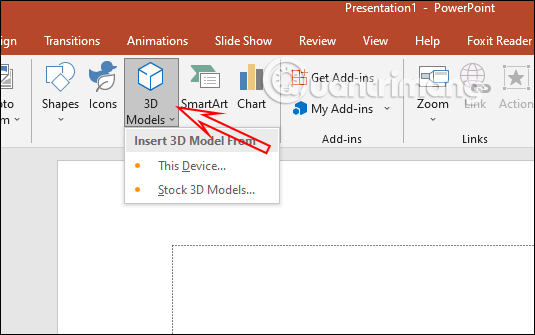
<p style="text-align: justify;">Tại giao diện PowerPoint bạn nhấn vào<strong>&nbsp;mục Insert</strong>&nbsp;rồi nhấn tiếp vào&nbsp;<strong>3D Model</strong>. Lúc này bạn có thể chọn sử dụng mô hình 3D có sẵn trong máy tính, hoặc sử dụng mô hình có trên mạng. Nếu chọn tập tin 3D thì chúng ta sẽ lựa chọn các tập tin có định dạng *.fbx, *.obj, *.3mf, *.ply, *.stl,...</p>

<p style="text-align: justify;"><img alt="Chèn mô hình" data-i="0" data-src="https://st.quantrimang.com/photos/image/2021/06/09/PowerPoint-chen-mo-hinh-3D.jpg" data-was-processed="true" height="335" src="https://st.quantrimang.com/photos/image/2021/06/09/PowerPoint-chen-mo-hinh-3D.jpg" width="535" /></p>

<div style="text-align: justify;">&nbsp;</div>

<p style="text-align: justify;"><strong>Bước 2:</strong></p>

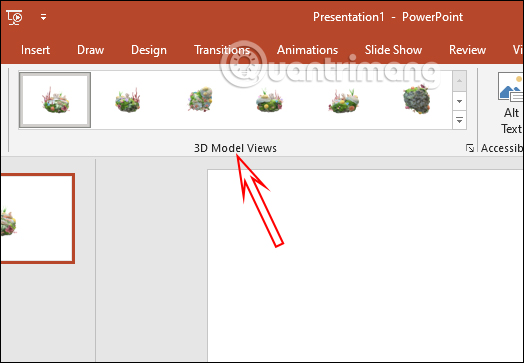
<p style="text-align: justify;">Sau khi chèn vào slide nội dung, chúng ta có thể&nbsp;<strong>tùy chỉnh góc nhìn cho mô hình</strong>&nbsp;này. Chúng ta có thể thực hiện theo 2 cách khác nhau. Đầu tiên bạn nhấn vào mô hình rồi nhìn lên&nbsp;<strong>thanh Ribbon tại tab Format</strong>,&nbsp;nhìn xuống&nbsp;<strong>phần 3D Model Views</strong>&nbsp;sẽ thấy có nhiều lựa chọn thay đổi góc nhìn cho đối tượng 3D này.</p>

<p style="text-align: justify;"><img alt="Đổi góc nhìn mô hình" data-i="1" data-src="https://st.quantrimang.com/photos/image/2021/06/09/PowerPoint-chen-mo-hinh-3D-2.jpg" data-was-processed="true" height="363" src="https://st.quantrimang.com/photos/image/2021/06/09/PowerPoint-chen-mo-hinh-3D-2.jpg" width="524" /></p>

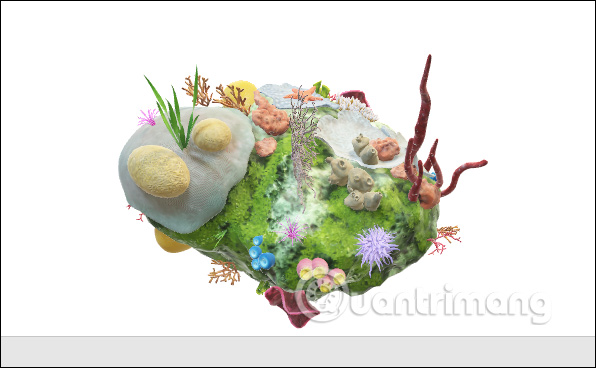
<p style="text-align: justify;">Hoặc bạn có thể&nbsp;<strong>nhấn ngay vào mô hình và xoay ảnh</strong>&nbsp;theo nhiều góc độ khác nhau.</p>

<p style="text-align: justify;"><img alt="Xoay mô hình " data-i="2" data-src="https://st.quantrimang.com/photos/image/2021/06/09/PowerPoint-chen-mo-hinh-3D-3.jpg" data-was-processed="true" height="368" src="https://st.quantrimang.com/photos/image/2021/06/09/PowerPoint-chen-mo-hinh-3D-3.jpg" width="596" /></p>

<p style="text-align: justify;"><strong>Bước 3:</strong></p>

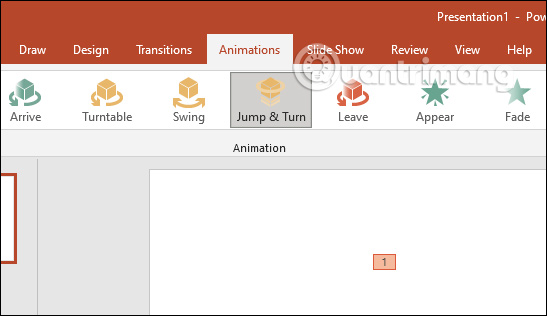
<p style="text-align: justify;">Nhấn tiếp vào&nbsp;<strong>tab Animations</strong>&nbsp;để lựa chọn hiệu ứng cho mô hình. Chúng ta sẽ thấy với mô hình 3D này có thêm một vài hiệu ứng mới Arrive, Turntable, Swing, Jump &amp; Turn và Leave bên cạnh những hiệu ứng cũ.</p>

<p style="text-align: justify;"><img alt="Hiệu ứng cho mô hình " data-i="3" data-src="https://st.quantrimang.com/photos/image/2021/06/09/PowerPoint-chen-mo-hinh-3D-4.jpg" data-was-processed="true" height="316" src="https://st.quantrimang.com/photos/image/2021/06/09/PowerPoint-chen-mo-hinh-3D-4.jpg" width="547" /></p>

<p style="text-align: justify;"><strong>Bước 4:</strong></p>

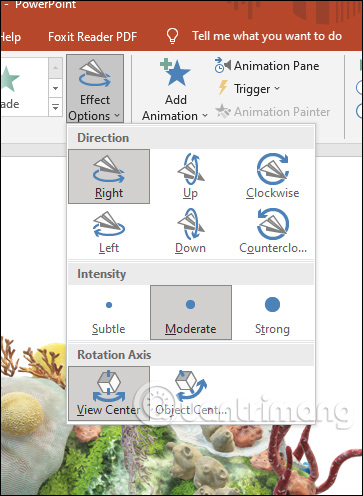
<p style="text-align: justify;">Khi chúng ta nhấn vào một hiệu ứng thì tại&nbsp;<strong>phần Effect Options</strong>&nbsp;sẽ có những tùy chọn khác nhau để chúng ta điều chỉnh hướng hiển thị cho mô hình 3D.</p>

<ul>
	<li style="text-align: justify;">Direction dùng để điều chỉnh hướng hiển thị,</li>
	<li style="text-align: justify;">Intensity dùng để thiết lập cường độ hiển thị.</li>
	<li style="text-align: justify;">Rotation Axis thể hiện cho trục xoay của mô hình.</li>
</ul>

<p style="text-align: justify;">Về cơ bản thì việc chỉnh và thêm các hiệu ứng cho mô hình 3D trong PowerPoint cũng tương tự như khi bạn thêm các hiệu ứng cho những nội dung khác.</p>

<p style="text-align: justify;"><img alt="Tùy chỉnh hiệu ứng " data-i="4" data-src="https://st.quantrimang.com/photos/image/2021/06/09/PowerPoint-chen-mo-hinh-3D-5.jpg" data-was-processed="true" height="496" src="https://st.quantrimang.com/photos/image/2021/06/09/PowerPoint-chen-mo-hinh-3D-5.jpg" width="363" /></p>

<ul>
	<li style="text-align: justify;"><a href="https://quantrimang.com/microsoft-ai-chuyen-word-thanh-slide-powerpoint-180077">Microsoft giới thiệu tính năng AI mới, hỗ trợ chuyển đổi tài liệu Word thành slide PowerPoint</a></li>
</ul>
		</div>
				<div id="author">
						<p>
				<strong>Nguồn tin:</strong>
				Quantrimang.com
			</p>
		</div>
	</div>
	<div id="footer" class="clearfix">
		<div id="url">
			<strong>URL của bản tin này: </strong><a href="https://www.nguoicodonvn2008.info/vi/news/savefile/kien-thuc-may-tinh/cach-tao-hieu-ung-cho-mo-hinh-3d-trong-powerpoint-4229.html" title="Cách tạo hiệu ứng cho mô hình 3D trong PowerPoint">https://www.nguoicodonvn2008.info/vi/news/savefile/kien-thuc-may-tinh/cach-tao-hieu-ung-cho-mo-hinh-3d-trong-powerpoint-4229.html</a>

		</div>
		<div class="clear"></div>
		<div class="copyright">
			&copy; .&#x3A; Nguoicodonvn2008.info - Cõi lòng người cô đơn &#x3A;.
		</div>
		<div id="contact">
			<a href="mailto:admin@nguoicodonvn2008.info">admin@nguoicodonvn2008.info</a>
		</div>
	</div>
</div>
        <div id="timeoutsess" class="chromeframe">
            Bạn đã không sử dụng Site, <a onclick="timeoutsesscancel();" href="https://www.nguoicodonvn2008.info/#">Bấm vào đây để duy trì trạng thái đăng nhập</a>. Thời gian chờ: <span id="secField"> 60 </span> giây
        </div>
        <div id="openidResult" class="nv-alert" style="display:none"></div>
        <div id="openidBt" data-result="" data-redirect=""></div>
		</script>
		<div class="car-top">
  <span><img src="https://www.nguoicodonvn2008.info/themes/default/images/car.png" alt=""></span>
</div>
<script src="https://www.nguoicodonvn2008.info/assets/js/jquery/jquery.min.js"></script>
<script>var nv_base_siteurl="/",nv_lang_data="vi",nv_lang_interface="vi",nv_name_variable="nv",nv_fc_variable="op",nv_lang_variable="language",nv_module_name="news",nv_func_name="savefile",nv_is_user=0, nv_my_ofs=-4,nv_my_abbr="EDT",nv_cookie_prefix="nv4c_e856T",nv_check_pass_mstime=1738000,nv_area_admin=0,nv_safemode=0,theme_responsive=0,nv_recaptcha_ver=2,nv_recaptcha_sitekey="",nv_recaptcha_type="image",XSSsanitize=1;</script>
<script src="https://www.nguoicodonvn2008.info/assets/js/language/vi.js"></script>
<script src="https://www.nguoicodonvn2008.info/assets/js/DOMPurify/purify3.js"></script>
<script src="https://www.nguoicodonvn2008.info/assets/js/global.js"></script>
<script src="https://www.nguoicodonvn2008.info/assets/js/site.js"></script>
<script src="https://www.nguoicodonvn2008.info/themes/default/js/news.js"></script>
<script src="https://www.nguoicodonvn2008.info/themes/default/js/main.js"></script>
<script src="https://www.nguoicodonvn2008.info/themes/default/js/custom.js"></script>
<script type="application/ld+json">
        {
            "@context": "https://schema.org",
            "@type": "Organization",
            "url": "https://www.nguoicodonvn2008.info",
            "logo": "https://www.nguoicodonvn2008.info/uploads/angel.gif"
        }
        </script>
<script src="https://www.nguoicodonvn2008.info/themes/default/js/bootstrap.min.js"></script>
<script type="text/javascript">
var $scrolltop = $('.car-top');
$scrolltop.on('click', function () {
    $('html,body').animate({
        scrollTop: 0
    }, 800);
    $(this).addClass("car-run");
    setTimeout(function(){ $scrolltop.removeClass('car-run');}, 1000);
    return false;
});
$(window).on('scroll', function ()
{ 
    if($(window).scrollTop() >= 200)
    {
        $scrolltop.addClass("show");
        $scrolltop.addClass("car-down");
    }
    else
    {
       $scrolltop.removeClass("show");
       setTimeout(function(){ $scrolltop.removeClass('car-down');}, 300);
    }
});
</script>
</body>
</html>