<!DOCTYPE html>
    <html lang="vi" xmlns="http://www.w3.org/1999/xhtml" prefix="og: http://ogp.me/ns#">
    <head>
<title>Cách tạo chữ ký trong Outlook để email của bạn trông chuyên nghiệp hơn</title>
<meta name="description" content="Cách tạo chữ ký trong Outlook để email của bạn trông chuyên nghiệp hơn - Savefile - Tin Tức -...">
<meta name="author" content=".: Nguoicodonvn2008.info - Cõi lòng người cô đơn :.">
<meta name="copyright" content=".: Nguoicodonvn2008.info - Cõi lòng người cô đơn :. [admin@nguoicodonvn2008.info]">
<meta name="robots" content="index, archive, follow, noodp">
<meta name="googlebot" content="index,archive,follow,noodp">
<meta name="msnbot" content="all,index,follow">
<meta name="generator" content="NukeViet v4.5">
<meta http-equiv="Content-Type" content="text/html; charset=utf-8">
<meta property="og:title" content="Cách tạo chữ ký trong Outlook để email của bạn trông chuyên nghiệp hơn">
<meta property="og:type" content="website">
<meta property="og:description" content="Savefile - Tin Tức -...">
<meta property="og:site_name" content=".&#x3A; Nguoicodonvn2008.info - Cõi lòng người cô đơn &#x3A;.">
<meta property="og:url" content="https://www.nguoicodonvn2008.info/vi/news/savefile/kien-thuc-may-tinh/cach-tao-chu-ky-trong-outlook-de-email-cua-ban-trong-chuyen-nghiep-hon-11248.html">
<link rel="shortcut icon" href="https://www.nguoicodonvn2008.info/favicon.ico">
<link rel="canonical" href="https://www.nguoicodonvn2008.info/vi/news/savefile/kien-thuc-may-tinh/cach-tao-chu-ky-trong-outlook-de-email-cua-ban-trong-chuyen-nghiep-hon-11248.html">
<link rel="alternate" href="https://www.nguoicodonvn2008.info/vi/news/rss/" title="Tin Tức" type="application/rss+xml">
<link rel="alternate" href="https://www.nguoicodonvn2008.info/vi/news/rss/karaoke-dual/" title="Tin Tức - Karaoke Dual" type="application/rss+xml">
<link rel="alternate" href="https://www.nguoicodonvn2008.info/vi/news/rss/nhac-tre/" title="Tin Tức - Nhạc trẻ" type="application/rss+xml">
<link rel="alternate" href="https://www.nguoicodonvn2008.info/vi/news/rss/tru-tinh/" title="Tin Tức - Trữ tình" type="application/rss+xml">
<link rel="alternate" href="https://www.nguoicodonvn2008.info/vi/news/rss/nuoc-ngoai/" title="Tin Tức - Nước ngoài" type="application/rss+xml">
<link rel="alternate" href="https://www.nguoicodonvn2008.info/vi/news/rss/remix/" title="Tin Tức - Remix" type="application/rss+xml">
<link rel="alternate" href="https://www.nguoicodonvn2008.info/vi/news/rss/tam-su-tinh-yeu/" title="Tin Tức - Tâm sự tình yêu" type="application/rss+xml">
<link rel="alternate" href="https://www.nguoicodonvn2008.info/vi/news/rss/tho-suu-tam/" title="Tin Tức - Thơ sưu tầm" type="application/rss+xml">
<link rel="alternate" href="https://www.nguoicodonvn2008.info/vi/news/rss/cuoc-song/" title="Tin Tức - Cuộc sống" type="application/rss+xml">
<link rel="alternate" href="https://www.nguoicodonvn2008.info/vi/news/rss/phan-mem/" title="Tin Tức - Phần mềm" type="application/rss+xml">
<link rel="alternate" href="https://www.nguoicodonvn2008.info/vi/news/rss/kien-thuc-may-tinh/" title="Tin Tức - Kiến thức máy tính" type="application/rss+xml">
<link rel="alternate" href="https://www.nguoicodonvn2008.info/vi/news/rss/hoc-tap/" title="Tin Tức - Học tập" type="application/rss+xml">
<link rel="alternate" href="https://www.nguoicodonvn2008.info/vi/news/rss/tai-lieu/" title="Tin Tức - Tài liệu" type="application/rss+xml">
<link rel="alternate" href="https://www.nguoicodonvn2008.info/vi/news/rss/de-thi/" title="Tin Tức - Đề thi" type="application/rss+xml">
<link rel="preload" as="style" href="https://www.nguoicodonvn2008.info/assets/css/font-awesome.min.css" type="text/css">
<link rel="preload" as="style" href="https://www.nguoicodonvn2008.info/themes/default/css/bootstrap.non-responsive.css" type="text/css">
<link rel="preload" as="style" href="https://www.nguoicodonvn2008.info/themes/default/css/style.css" type="text/css">
<link rel="preload" as="style" href="https://www.nguoicodonvn2008.info/themes/default/css/style.non-responsive.css" type="text/css">
<link rel="preload" as="style" href="https://www.nguoicodonvn2008.info/themes/default/css/news.css" type="text/css">
<link rel="preload" as="style" href="https://www.nguoicodonvn2008.info/themes/default/css/custom.css" type="text/css">
<link rel="preload" as="script" href="https://www.nguoicodonvn2008.info/assets/js/jquery/jquery.min.js" type="text/javascript">
<link rel="preload" as="script" href="https://www.nguoicodonvn2008.info/assets/js/language/vi.js" type="text/javascript">
<link rel="preload" as="script" href="https://www.nguoicodonvn2008.info/assets/js/DOMPurify/purify3.js" type="text/javascript">
<link rel="preload" as="script" href="https://www.nguoicodonvn2008.info/assets/js/global.js" type="text/javascript">
<link rel="preload" as="script" href="https://www.nguoicodonvn2008.info/assets/js/site.js" type="text/javascript">
<link rel="preload" as="script" href="https://www.nguoicodonvn2008.info/themes/default/js/news.js" type="text/javascript">
<link rel="preload" as="script" href="https://www.nguoicodonvn2008.info/themes/default/js/main.js" type="text/javascript">
<link rel="preload" as="script" href="https://www.nguoicodonvn2008.info/themes/default/js/custom.js" type="text/javascript">
<link rel="preload" as="script" href="https://www.nguoicodonvn2008.info/themes/default/js/bootstrap.min.js" type="text/javascript">
<link rel="stylesheet" href="https://www.nguoicodonvn2008.info/assets/css/font-awesome.min.css">
<link rel="stylesheet" href="https://www.nguoicodonvn2008.info/themes/default/css/bootstrap.non-responsive.css">
<link rel="stylesheet" href="https://www.nguoicodonvn2008.info/themes/default/css/style.css">
<link rel="stylesheet" href="https://www.nguoicodonvn2008.info/themes/default/css/style.non-responsive.css">
<link rel="StyleSheet" href="https://www.nguoicodonvn2008.info/themes/default/css/news.css">
<link rel="stylesheet" href="https://www.nguoicodonvn2008.info/themes/default/css/custom.css">
<style type="text/css">
	body{background: #fff;}
</style>
    </head>
    <body>
<div id="print">
	<div id="hd_print">
		<h2 class="pull-left">.&#x3A; Nguoicodonvn2008.info - Cõi lòng người cô đơn &#x3A;.</h2>
		<p class="pull-right"><a title=".&#x3A; Nguoicodonvn2008.info - Cõi lòng người cô đơn &#x3A;." href="https://www.nguoicodonvn2008.info/">https://www.nguoicodonvn2008.info</a></p>
	</div>
	<div class="clear"></div>
	<hr />
	<div id="content">
		<h1>Cách tạo chữ ký trong Outlook để email của bạn trông chuyên nghiệp hơn</h1>
		<ul class="list-inline">
			<li>Thứ bảy - 27/09/2025 00:36</li>
			<li class="hidden-print txtrequired"><em class="fa fa-print">&nbsp;</em><a title="In ra" href="javascript:;" onclick="window.print()">In ra</a></li>
			<li class="hidden-print txtrequired"><em class="fa fa-power-off">&nbsp;</em><a title="Đóng cửa sổ này" href="javascript:;" onclick="window.close()">Đóng cửa sổ này</a></li>
		</ul>
		<div class="clear"></div>
		<div id="hometext">
		</div>
				<div class="imghome">
			<img alt="Cách tạo chữ ký trong Outlook để email của bạn trông chuyên nghiệp hơn" src="https://st.quantrimang.com/photos/image/2023/02/21/tao-chu-ky-trong-outlook-2.jpg" width="460" class="img-thumbnail" />
		</div>
		<div class="clear"></div>
		<div id="bodytext" class="clearfix">
			<p style="text-align: justify;">Bạn cần thêm chữ ký trong Outlook? Bạn chưa biết cách tạo chữ ký Outlook như thế nào? Thực tế, chúng ta hoàn toàn dễ dàng thêm chữ ký mail tùy chọn với các hình ảnh liên kết cũng như logo công ty trong Outlook dành cho Windows. Bạn có thể lựa chọn font, màu và tạo kiểu tùy ý bằng các bước hướng dẫn chi tiết dưới đây.</p>

<p style="text-align: justify;">&nbsp;</p>

<h2 style="text-align: justify;">Tạo và thêm chữ ký email trong Outlook 2007</h2>

<p style="text-align: justify;">Sử dụng tính năng Signature của Outlook sẽ thêm chữ ký cá nhân vào tất cả các mail để bạn không phải nhập lại cùng một thông tin trong tất cả các email của mình. Các bước sau đây sẽ giúp bạn thực hiện việc này.</p>

<h3 style="text-align: justify;">Tạo chữ ký</h3>

<p style="text-align: justify;">1. Từ menu&nbsp;<strong>Tools</strong>, chọn&nbsp;<strong>Options...</strong>&nbsp;Hộp thoại&nbsp;<strong>Options</strong>&nbsp;sẽ xuất hiện.</p>

<p style="text-align: justify;">2. Chọn tab&nbsp;<strong>Mail Format</strong>.</p>

<p style="text-align: justify;">3. Trong phần&nbsp;<strong>Signatures</strong>, nhấp vào&nbsp;<strong>SIGNATURES...&nbsp;</strong>Hộp thoại&nbsp;<strong>Signatures and Stationery</strong>&nbsp;sẽ xuất hiện.</p>

<figure>
<div style="text-align: justify;"><img alt="hấp vào SIGNATURES..." data-i="0" data-src="https://st.quantrimang.com/photos/image/2023/02/21/tao-chu-ky-trong-outlook-1.jpg" data-was-processed="true" height="227" src="https://st.quantrimang.com/photos/image/2023/02/21/tao-chu-ky-trong-outlook-1.jpg" width="356" /></div>

<figcaption>
<div style="text-align: justify;">hấp vào SIGNATURES...</div>
</figcaption>
</figure>

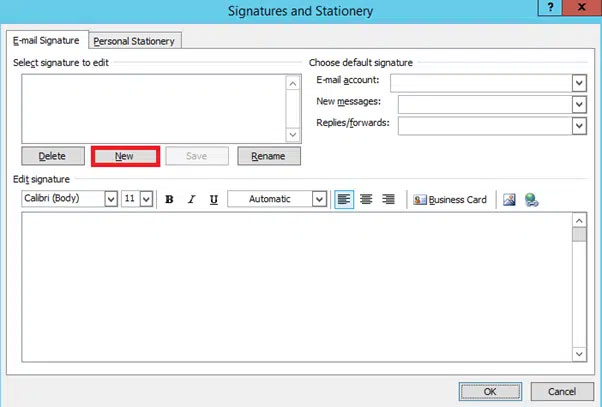
<p style="text-align: justify;">4. Để tạo chữ ký mới, nhấp vào&nbsp;<strong>NEW.</strong>&nbsp;Hộp thoại&nbsp;<strong>New Signature</strong>&nbsp;sẽ xuất hiện.</p>

<figure>
<div style="text-align: justify;"><img alt="Tạo chữ ký mới" data-adbro-processed="true" data-i="1" data-src="https://st.quantrimang.com/photos/image/2023/02/21/tao-chu-ky-trong-outlook-2.jpg" data-was-processed="true" height="407" src="https://st.quantrimang.com/photos/image/2023/02/21/tao-chu-ky-trong-outlook-2.jpg" width="602" /></div>

<figcaption>
<div style="text-align: justify;">Tạo chữ ký mới</div>
</figcaption>
</figure>

<p style="text-align: justify;">5. Trong hộp văn bản&nbsp;<strong>Type a name for this signature</strong>, hãy nhập tên mô tả ngắn cho chữ ký.</p>

<p style="text-align: justify;">6. Nhấp vào&nbsp;<strong>OK.</strong></p>

<p style="text-align: justify;">7. Trong phần&nbsp;<strong>Edit signature,</strong>&nbsp;hãy nhập chữ ký của bạn.</p>

<p style="text-align: justify;">8. (Tùy chọn) Để định dạng văn bản trong&nbsp;<strong>Signature</strong>, từ menu kéo xuống, hãy thực hiện bất kỳ thay đổi mong muốn nào</p>

<p style="text-align: justify;"><strong>LƯU Ý</strong>: Bạn có thể thêm ảnh và liên kết vào chữ ký của mình bằng cách nhấp vào nút&nbsp;<strong>ADD PICTURE</strong>&nbsp;hoặc&nbsp;<strong>ADD HYPERLINK</strong>&nbsp;nằm ở ngoài cùng bên phải của phần&nbsp;<strong>Edit signatures</strong>.</p>

<p style="text-align: justify;">9. Nhấp vào&nbsp;<strong>Save</strong>&nbsp;để lưu. Chữ ký của bạn sẽ được lưu.</p>

<p style="text-align: justify;"><strong>LƯU Ý</strong>: Nếu chỉ có một chữ ký, nso sẽ trở thành chữ ký mặc định cho email mới.</p>

<p style="text-align: justify;">10. Nhấp vào&nbsp;<strong>OK.</strong>&nbsp;Bạn được đưa trở lại hộp thoại&nbsp;<strong>Options.</strong></p>

<p style="text-align: justify;">11. Nhấp vào&nbsp;<strong>OK.</strong>&nbsp;Hộp thoại&nbsp;<strong>Options</strong>&nbsp;sẽ đóng lại.</p>

<h3 style="text-align: justify;">Gán một chữ ký mặc định</h3>

<p style="text-align: justify;">Nếu bạn đã sử dụng tính năng Signature để tạo nhiều chữ ký, hãy sử dụng các hướng dẫn sau để đặt chữ ký mặc định. Chữ ký mặc định được thêm vào tất cả các thư gửi đi mới của bạn. Chữ ký được đặt trong danh sách drop-down&nbsp;<strong>Replies/forwards</strong>&nbsp;sẽ được thêm vào các mail gửi đi và chuyển tiếp của bạn thay vì chữ ký mặc định. Bạn cũng có thể áp dụng bất kỳ chữ ký nào mình đã tạo cho chỉ một thư.</p>

<p style="text-align: justify;">1. Từ menu&nbsp;<strong>Tools</strong>, chọn&nbsp;<strong>Options...</strong>&nbsp;Hộp thoại&nbsp;<strong>Options</strong>&nbsp;sẽ xuất hiện.</p>

<p style="text-align: justify;">2. Chọn tab&nbsp;<strong>Mail Format.</strong></p>

<p style="text-align: justify;">3. Trong phần&nbsp;<strong>Signatures</strong>, nhấp vào&nbsp;<strong>Signatures...</strong>&nbsp;Hộp thoại&nbsp;<strong>Signatures and Stationery</strong>&nbsp;sẽ xuất hiện.</p>

<p style="text-align: justify;">4. Trong phần&nbsp;<strong>Choose default signature</strong>, từ danh sách drop-down&nbsp;<strong>New messages</strong>, chọn chữ ký bạn muốn đặt trên các mail mới gửi đi của mình</p>

<p style="text-align: justify;">5. Từ danh sách drop-down&nbsp;<strong>Replies/forwards</strong>, chọn chữ ký bạn muốn đặt trên các thư trả lời gửi đi và chuyển tiếp của mình</p>

<p style="text-align: justify;"><strong>LƯU Ý</strong>: Nếu bạn không chọn chữ ký từ danh sách drop-down&nbsp;<strong>Replies/forwards</strong>, nó sẽ không tự động thêm bất kỳ chữ ký nào vào thư trả lời gửi đi hoặc chuyển tiếp của bạn.</p>

<p style="text-align: justify;">6. Nhấp vào&nbsp;<strong>OK.</strong>&nbsp;Hộp thoại&nbsp;<strong>Signatures and Stationery</strong>&nbsp;sẽ đóng lại.</p>

<p style="text-align: justify;">7. Nhấp vào&nbsp;<strong>OK.</strong>&nbsp;Hộp thoại&nbsp;<strong>Options</strong>&nbsp;sẽ đóng lại.</p>

<h3 style="text-align: justify;">Thêm chữ ký vào một email cụ thể</h3>

<p style="text-align: justify;">Mặc dù chữ ký mặc định có thể được sử dụng, nhưng cũng khá đơn giản để thêm một chữ ký cụ thể vào một email cụ thể mà không cần thay đổi chữ ký mặc định. Bạn có thể muốn làm điều này nếu chữ ký chỉ được yêu cầu trong những trường hợp hiếm hoi.</p>

<div style="text-align: justify;">&nbsp;</div>

<p style="text-align: justify;">1. Tạo email.</p>

<p style="text-align: justify;">2. Nếu cần xóa chữ ký hiện có:</p>

<ul>
	<li style="text-align: justify;">Chọn văn bản&nbsp;<strong>Signature.</strong></li>
	<li style="text-align: justify;">Nhấn&nbsp;<strong>&#91;Delete&#93;</strong></li>
</ul>

<p style="text-align: justify;">3. Đặt điểm chèn ở nơi bạn muốn chữ ký mới xuất hiện</p>

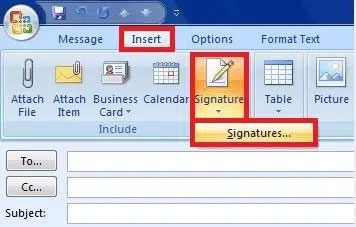
<p style="text-align: justify;">4. Trên tab&nbsp;<strong>Insert</strong>, chọn&nbsp;<strong>Signature</strong>, rồi chọn chữ ký mong muốn</p>

<p style="text-align: justify;">HOẶC</p>

<p style="text-align: justify;">Trên tab&nbsp;<strong>Message</strong>, trong nhóm&nbsp;<strong>Include</strong>, nhấp vào&nbsp;<strong>Signature</strong>&nbsp;và chọn chữ ký mong muốn<br />
Chữ ký sẽ được chèn vào.</p>

<p style="text-align: justify;">5. Khi đã sẵn sàng gửi mail, hãy nhấp vào&nbsp;<strong>SEND.</strong>&nbsp;Email của bạn sẽ được gửi đi.</p>

<h2 id="mcetoc_1g608k3g71q7" style="text-align: justify;">Tạo và thêm chữ ký email trong Outlook 2010 - 2019</h2>

<p style="text-align: justify;">Cách tạo chữ ký trong Outlook dưới đây có thể áp dụng được với các phiên bản Outlook 2010, 2013, 2016, 2019.</p>

<p style="text-align: justify;">Để thêm chữ ký cho email trong Outlook bạn thực hiện theo các bước sau:</p>

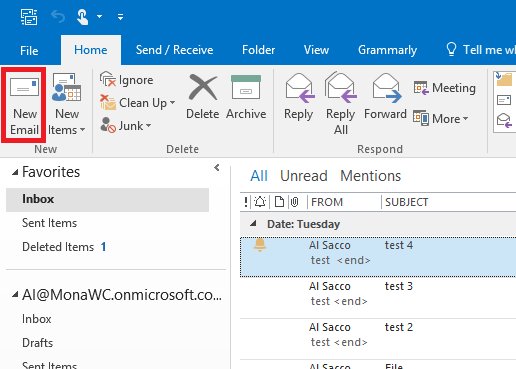
<p style="text-align: justify;"><strong>Bước 1:</strong>&nbsp;Click&nbsp;<strong>Home</strong>&nbsp;trên thanh công cụ.</p>

<p style="text-align: justify;"><strong>Bước 2:</strong>&nbsp;Click&nbsp;<strong>New Email</strong>&nbsp;ở góc trên cùng bên trái của màn hình.</p>

<p style="text-align: justify;"><img alt="Tạo chữ ký trong thư mới" data-i="2" data-src="https://st.quantrimang.com/photos/image/2017/02/22/Outlook-01.jpg" data-was-processed="true" height="369" src="https://st.quantrimang.com/photos/image/2017/02/22/Outlook-01.jpg" title="Tạo chữ ký trong thư mới" width="516" /></p>

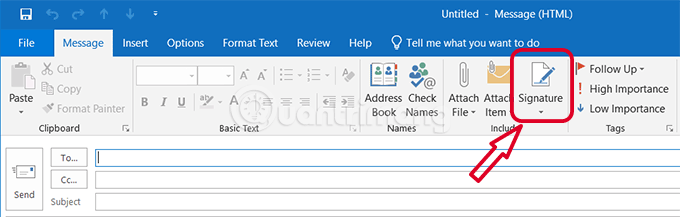
<p style="text-align: justify;"><strong>Bước 3:</strong>&nbsp;Hộp thư mới xuất hiện, nhấp vào&nbsp;<strong>Message</strong>&nbsp;và chọn&nbsp;<strong>Signature</strong>&nbsp;trong phần&nbsp;<strong>Include</strong>.</p>

<p style="text-align: justify;"><img alt="Chọn Signature để thêm chữ ký cho email" data-i="3" data-src="https://st.quantrimang.com/photos/image/2021/02/18/tao-chu-ky-trong-outlook.png" data-was-processed="true" height="217" src="https://st.quantrimang.com/photos/image/2021/02/18/tao-chu-ky-trong-outlook.png" width="680" /></p>

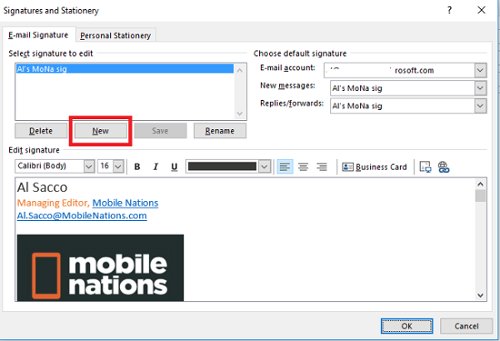
<p style="text-align: justify;"><strong>Bước 4:</strong>&nbsp;Ở&nbsp;<strong>Email signature</strong>, click&nbsp;<strong>New</strong>.</p>

<p style="text-align: justify;"><img alt="Chữ ký Email" data-i="4" data-src="https://st.quantrimang.com/photos/image/2017/02/22/Outlook-02.jpg" data-was-processed="true" height="341" src="https://st.quantrimang.com/photos/image/2017/02/22/Outlook-02.jpg" title="Chữ ký Email" width="500" /></p>

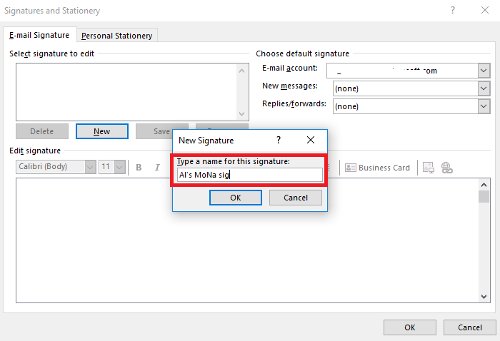
<p style="text-align: justify;"><strong>Bước 5:</strong>&nbsp;Ở phần&nbsp;<strong>Type a name for this signature</strong>, điền tên của chữ ký.</p>

<p style="text-align: justify;"><img alt="Nhập tên chữ ký trong Outlook" data-i="5" data-src="https://st.quantrimang.com/photos/image/2017/02/22/Outlook-03.jpg" data-was-processed="true" height="341" src="https://st.quantrimang.com/photos/image/2017/02/22/Outlook-03.jpg" title="Nhập tên chữ ký trong Outlook" width="500" /></p>

<p style="text-align: justify;"><strong>Bước 6:</strong>&nbsp;Ấn&nbsp;<strong>OK</strong></p>

<p style="text-align: justify;"><strong>Bước 7:</strong>&nbsp;Trên màn hình tiếp theo, đánh dấu tên chữ ký trong mục&nbsp;<strong>Select Signature to Edit</strong>.</p>

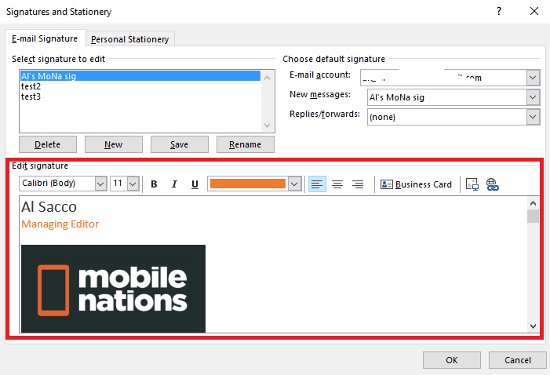
<p style="text-align: justify;"><strong>Bước 8:</strong>&nbsp;Hộp trống lớn phía dưới Edit Signaute, nhập tên, chức danh, tên công ty, địa chỉ email, thông tin mạng xã hội hoặc những thông tin cá nhân khác mà bạn muốn xuất hiện trong chữ ký mới.</p>

<ul>
	<li style="text-align: justify;">Phía dưới Edit signature, có các lựa chọn font chữ khác nhau và tùy chỉnh định dạng. Bạn có thể tạo các kiểu đáng và đường viền phong phú để tạo sự độc đáo.</li>
</ul>

<p style="text-align: justify;"><img alt="Chọn font chữ trong Outlook" data-i="6" data-src="https://st.quantrimang.com/photos/image/2017/02/22/Outlook-04.jpg" data-was-processed="true" height="375" src="https://st.quantrimang.com/photos/image/2017/02/22/Outlook-04.jpg" title="Chọn font chữ trong Outlook" width="550" /></p>

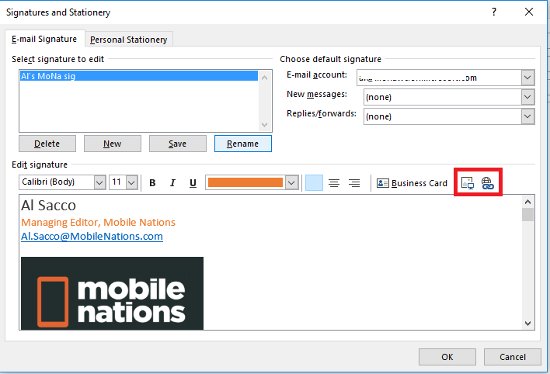
<p style="text-align: justify;"><strong>Bước 9:</strong>&nbsp;Thêm hình ảnh tùy chỉnh như logo công ty, hãy xác định vị trí muốn chèn ảnh và kích vào biểu tượng&nbsp;<strong>Insert picture</strong>.</p>

<p style="text-align: justify;"><strong>Bước 10:</strong>&nbsp;Lựa chọn hình ảnh trong trình duyệt file của máy tính và chọn&nbsp;<strong>Insert</strong>.</p>

<div style="text-align: justify;">Điện thoại thông minh</div>

<p style="text-align: justify;"><img alt="Chọn hình ảnh chèn cho Outlook" data-i="7" data-src="https://st.quantrimang.com/photos/image/2017/02/22/Outlook-05.jpg" data-was-processed="true" height="374" src="https://st.quantrimang.com/photos/image/2017/02/22/Outlook-05.jpg" title="Chọn hình ảnh chèn cho Outlook" width="550" /><br />
<br />
<strong>Bước 11:</strong>&nbsp;Để chèn link website vào ảnh hoặc logo, hoặc bất cứ chữ nào trong chữ ký của bạn. Đầu tiên, hãy làm nổi bật hình ảnh hoặc chữ muốn chèn.</p>

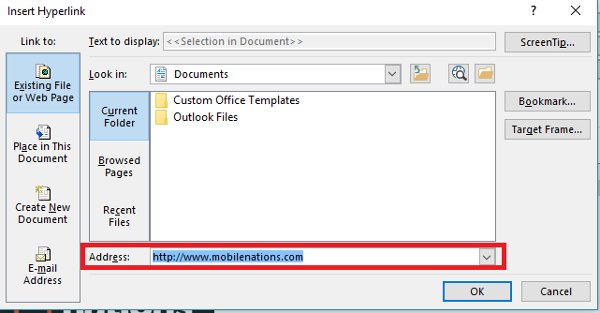
<p style="text-align: justify;"><strong>Bước 12:</strong>&nbsp;Với hình ảnh được chọn, click biểu tượng&nbsp;<strong>Insert Hyperlink</strong>.</p>

<p style="text-align: justify;"><strong>Bước 13:</strong>&nbsp;Cửa sổ mới xuất hiện, nhập đầy đủ URL của website vào ô cuối cùng. Rồi ấn&nbsp;<strong>OK</strong>.</p>

<p style="text-align: justify;"><img alt="Nhập URL liên kết cho Outlook" data-i="8" data-src="https://st.quantrimang.com/photos/image/2017/02/22/Outlook-06.jpg" data-was-processed="true" height="313" src="https://st.quantrimang.com/photos/image/2017/02/22/Outlook-06.jpg" title="Nhập URL liên kết cho Outlook" width="600" /></p>

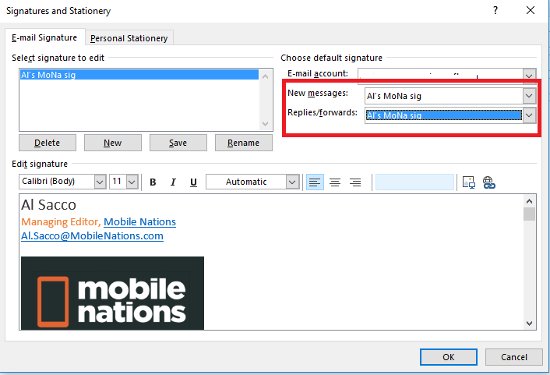
<p style="text-align: justify;"><strong>Bước 14:</strong>&nbsp;Đặt tùy chỉnh cho&nbsp;<strong>New messages</strong>&nbsp;và&nbsp;<strong>Replies/Forward</strong>.</p>

<ul>
	<li style="text-align: justify;">Nếu muốn áp dụng chữ ký cho tất cả các tin nhắn mới, chọn tên chữ ký từ menu thả xuống của&nbsp;<strong>New messages</strong>.</li>
	<li style="text-align: justify;">Còn nếu muốn sử dụng cho những tin nhắn trả lời hoặc chuyển tiếp, ở menu thả xuống chọn tên chữ ký của&nbsp;<strong>Replies/Forward</strong>.</li>
	<li style="text-align: justify;">Hơn nữa, bạn không muốn áp dụng chữ ký cho tin nhắn mới, tin nhắn trả lời hoặc chuyển tiếp, thì chọn&nbsp;<strong>(none)</strong>&nbsp;cho menu thích hợp.</li>
</ul>

<p style="text-align: justify;"><img alt="Chọn hộp tin Outlook" data-i="9" data-src="https://st.quantrimang.com/photos/image/2017/02/22/Outlook-08.jpg" data-was-processed="true" height="375" src="https://st.quantrimang.com/photos/image/2017/02/22/Outlook-08.jpg" title="Chọn hộp tin Outlook" width="550" /></p>

<p style="text-align: justify;"><strong>Bước 15:</strong>&nbsp;Sau khi thiết lập xong, ấn nút&nbsp;<strong>Save</strong>&nbsp;phía dưới.</p>

<p style="text-align: justify;"><strong>Bước 16:</strong>&nbsp;Cuối cùng, chọn&nbsp;<strong>OK</strong>&nbsp;ở hộp&nbsp;<strong>Signatures and Stationary</strong>&nbsp;để lưu những thay đổi.</p>

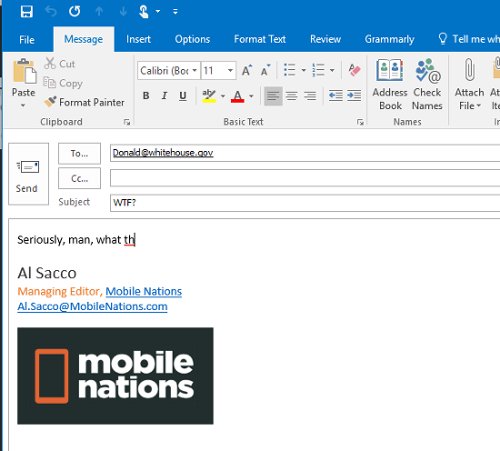
<p style="text-align: justify;">Khi mở hộp thư mới, thư trả lời hoặc chuyển tiếp khác, chữ ký tự động xuất hiện ở cuối trang.</p>

<p style="text-align: justify;"><img alt="Chữ ký Outlook 2016" data-i="10" data-src="https://st.quantrimang.com/photos/image/2017/02/22/Outlook-07.jpg" data-was-processed="true" height="451" src="https://st.quantrimang.com/photos/image/2017/02/22/Outlook-07.jpg" title="Chữ ký Outlook 2016" width="500" /></p>

<h2 id="mcetoc_1g608k3g71q8" style="text-align: justify;">Cách thêm chữ ký trong ứng dụng web Outlook 365</h2>

<p style="text-align: justify;">1. Nhấp vào biểu tượng bánh răng ở góc trên cùng bên phải của Outlook 365.</p>

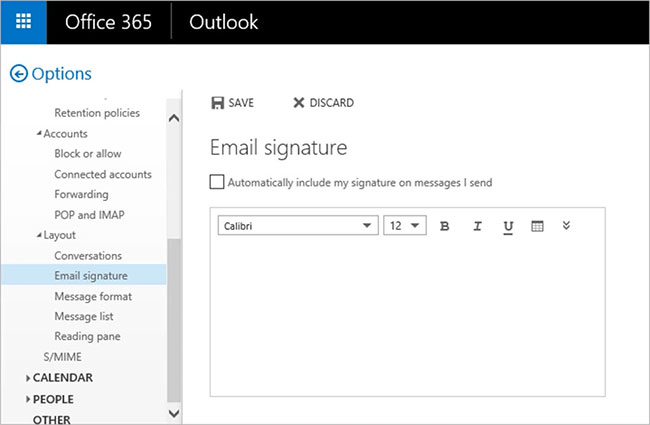
<p style="text-align: justify;">2. Nhập&nbsp;<strong>“signature”</strong>&nbsp;vào hộp tìm kiếm ở đầu bảng Settings.</p>

<p style="text-align: justify;">3. Chọn kết quả&nbsp;<strong>&quot;Email signature&quot;.</strong></p>

<p style="text-align: justify;">4. Tạo chữ ký mới bằng trình chỉnh sửa chữ ký trong ứng dụng.</p>

<figure>
<div style="text-align: justify;"><img alt="Thêm chữ ký trong ứng dụng web Outlook 365" data-i="11" data-src="https://st.quantrimang.com/photos/image/2022/06/20/cach-tao-chu-ky-trong-outlook-1.jpg" data-was-processed="true" height="425" src="https://st.quantrimang.com/photos/image/2022/06/20/cach-tao-chu-ky-trong-outlook-1.jpg" width="650" /></div>

<figcaption>
<div style="text-align: justify;">Thêm chữ ký trong ứng dụng web Outlook 365</div>
</figcaption>
</figure>

<p style="text-align: justify;">5. Nhấp vào&nbsp;<strong>“Save”</strong>&nbsp;khi bạn hoàn tất.</p>

<h2 id="mcetoc_1g608k3g71q9" style="text-align: justify;">Cách thêm chữ ký trên ứng dụng Outlook mobile</h2>

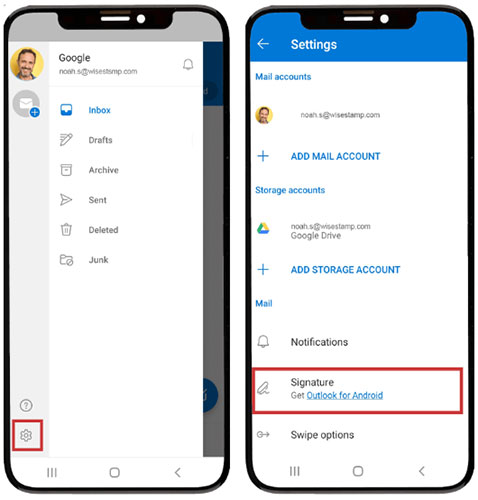
<p style="text-align: justify;">1. Khởi động ứng dụng Outlook dành cho thiết bị di động của bạn trên Android hoặc iOS.</p>

<p style="text-align: justify;">2. Nhấn vào hình ảnh tài khoản của bạn ở góc trên cùng bên trái.</p>

<p style="text-align: justify;">3. Nhấn vào biểu tượng bánh răng ở dưới cùng bên trái để mở cài đặt Outlook.</p>

<p style="text-align: justify;">4. Nhấn vào&nbsp;<strong>Signature</strong>&nbsp;để mở cài đặt chữ ký.</p>

<figure>
<div style="text-align: justify;"><img alt="Thêm chữ ký trên ứng dụng Outlook mobile" data-i="12" data-src="https://st.quantrimang.com/photos/image/2022/06/20/cach-tao-chu-ky-trong-outlook-2.jpg" data-was-processed="true" height="500" src="https://st.quantrimang.com/photos/image/2022/06/20/cach-tao-chu-ky-trong-outlook-2.jpg" width="478" /></div>

<figcaption>
<div style="text-align: justify;">Thêm chữ ký trên ứng dụng Outlook mobile</div>
</figcaption>
</figure>

<p style="text-align: justify;">5. Nhập thông tin của bạn một cách có tổ chức.</p>

<p style="text-align: justify;">6. Nhấn vào dấu kiểm ở trên cùng bên phải để hoàn tất thiết lập.</p>

<p style="text-align: justify;">Vậy là bạn đã hoàn tất việc tạo chữ ký trong Outlook rồi. Bạn có thể thêm nhiều chữ ký khác nhau để sử dụng cho những đối tác khác nhau với các thao tác tương tự như trên nhé.</p>

<h2 style="text-align: justify;">Cách chỉnh sửa chữ ký trong Outlook</h2>

<p style="text-align: justify;">Cho dù bạn đang sử dụng phiên bản máy tính của Outlook hay Outlook.com, thật dễ dàng để cập nhật chữ ký của bạn. Đây là cách thay đổi chữ ký trong Outlook:</p>

<div style="text-align: justify;">Điện thoại thông minh</div>

<h3 style="text-align: justify;">Thay đổi chữ ký email trong Outlook cho Windows</h3>

<p style="text-align: justify;">Nếu bạn đang sử dụng Outlook cho Windows:</p>

<ol>
	<li style="text-align: justify;">Mở Outlook và nhấp vào tab&nbsp;<strong>File.</strong></li>
	<li style="text-align: justify;">Bấm vào&nbsp;<strong>Options</strong>&nbsp;rồi chọn&nbsp;<strong>Mail.</strong></li>
	<li style="text-align: justify;">Cuộn xuống phần&nbsp;<strong>Signatures</strong>&nbsp;và nhấp vào nút&nbsp;<strong>Edit.</strong></li>
	<li style="text-align: justify;">Thực hiện các thay đổi của bạn trong Signature Editor rồi bấm&nbsp;<strong>OK.</strong></li>
	<li style="text-align: justify;">Các thay đổi của bạn sẽ được lưu tự động.</li>
</ol>

<h3 style="text-align: justify;">Cập nhật chữ ký trong Outlook cho Mac</h3>

<p style="text-align: justify;">Nếu bạn đang sử dụng Outlook cho Mac:</p>

<p style="text-align: justify;">1. Mở Outlook và chuyển đến menu&nbsp;<strong>Preferences.</strong></p>

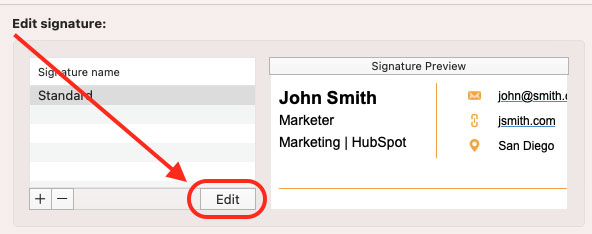
<p style="text-align: justify;">2. Nhấp vào tab&nbsp;<strong>Signatures</strong>&nbsp;và sau đó chọn chữ ký bạn muốn chỉnh sửa bên dưới&nbsp;<strong>signature name.</strong></p>

<p style="text-align: justify;">3. Nhấp vào&nbsp;<strong>Edit</strong>&nbsp;và thực hiện các thay đổi của bạn</p>

<figure>
<div style="text-align: justify;"><img alt="Nhấp vào Edit" data-i="13" data-src="https://st.quantrimang.com/photos/image/2023/06/29/tao-chu-ky-trong-outlook-1.jpg" data-was-processed="true" height="234" src="https://st.quantrimang.com/photos/image/2023/06/29/tao-chu-ky-trong-outlook-1.jpg" width="592" /></div>

<figcaption>
<div style="text-align: justify;">Nhấp vào Edit</div>
</figcaption>
</figure>

<div style="text-align: justify;">Khám phá thêm<br />
Trong<br />
Trống<br />
web Outlook<br />
trống<br />
trong<br />
Email<br />
Outlook<br />
Outlook trên web<br />
trông<br />
Mail</div>

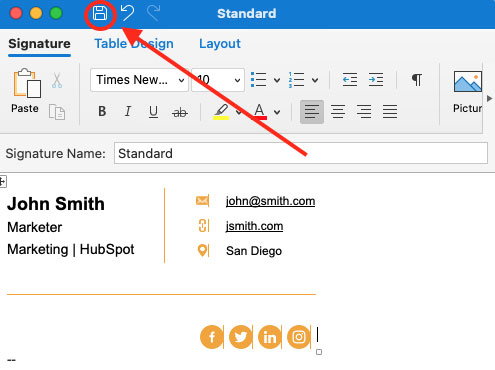
<p style="text-align: justify;">4. Nhấp vào biểu tượng&nbsp;<strong>Save</strong>&nbsp;để lưu các thay đổi của bạn rồi đóng cửa sổ.</p>

<figure>
<div style="text-align: justify;"><img alt="Lưu thay đổi" data-i="14" data-src="https://st.quantrimang.com/photos/image/2023/06/29/tao-chu-ky-trong-outlook-2.jpg" data-was-processed="true" height="370" src="https://st.quantrimang.com/photos/image/2023/06/29/tao-chu-ky-trong-outlook-2.jpg" width="495" /></div>

<figcaption>
<div style="text-align: justify;">Lưu thay đổi</div>
</figcaption>
</figure>

<h3 style="text-align: justify;">Thay đổi chữ ký của bạn trong Outlook 365</h3>

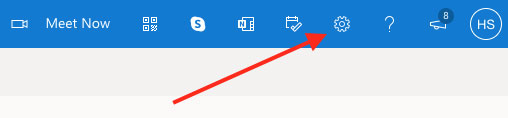
<p style="text-align: justify;">1. Đăng nhập vào tài khoản Outlook của bạn và nhấp vào biểu tượng bánh răng ở góc trên bên phải.</p>

<figure>
<div style="text-align: justify;"><img alt="Vào cài đặt Outlook" data-i="15" data-src="https://st.quantrimang.com/photos/image/2023/06/29/tao-chu-ky-trong-outlook-3.jpg" data-was-processed="true" height="118" src="https://st.quantrimang.com/photos/image/2023/06/29/tao-chu-ky-trong-outlook-3.jpg" width="508" /></div>

<figcaption>
<div style="text-align: justify;">Vào cài đặt Outlook</div>
</figcaption>
</figure>

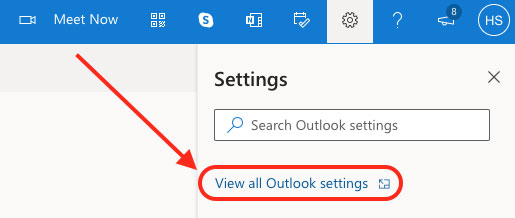
<p style="text-align: justify;">2. Chọn<strong>&nbsp;View all Outlook settings</strong>&nbsp;từ menu drop-down.</p>

<figure>
<div style="text-align: justify;"><img alt="Chọn View all Outlook settings" data-i="16" data-src="https://st.quantrimang.com/photos/image/2023/06/29/tao-chu-ky-trong-outlook-4.jpg" data-was-processed="true" height="218" src="https://st.quantrimang.com/photos/image/2023/06/29/tao-chu-ky-trong-outlook-4.jpg" width="515" /></div>

<figcaption>
<div style="text-align: justify;">Chọn View all Outlook settings</div>
</figcaption>
</figure>

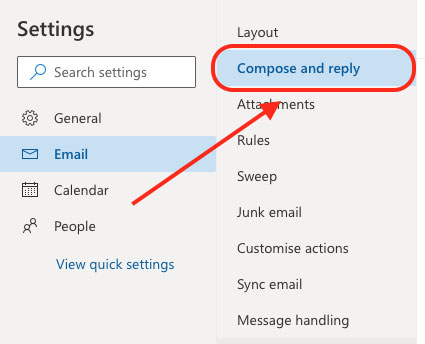
<p style="text-align: justify;">3. Nhấp vào&nbsp;<strong>Email</strong>&nbsp;ở thanh bên trái, sau đó nhấp vào&nbsp;<strong>Compose and Reply</strong>.</p>

<figure>
<div style="text-align: justify;"><img alt="Nhấp vào Compose and Reply" data-i="17" data-src="https://st.quantrimang.com/photos/image/2023/06/29/tao-chu-ky-trong-outlook-5.jpg" data-was-processed="true" height="344" src="https://st.quantrimang.com/photos/image/2023/06/29/tao-chu-ky-trong-outlook-5.jpg" width="425" /></div>

<figcaption>
<div style="text-align: justify;">Nhấp vào Compose and Reply</div>
</figcaption>
</figure>

<p style="text-align: justify;">4. Bên dưới&nbsp;<strong>Signature</strong>, hãy nhập các thay đổi đối với chữ ký của bạn vào hộp văn bản được cung cấp.</p>

<p style="text-align: justify;">5. Cuộn xuống cuối trang và nhấp vào&nbsp;<strong>Save</strong>&nbsp;để lưu các thay đổi của bạn.</p>

<p style="text-align: justify;">Cập nhật chữ ký của bạn trong Outlook là một quy trình nhanh chóng và dễ dàng, chỉ mất vài phút để hoàn thành. Cho dù bạn đang sử dụng phiên bản trên máy tính, Outlook.com hay Outlook trên web, bạn có thể dễ dàng cập nhật chữ ký của mình để phản ánh mọi thay đổi.</p>

<div style="text-align: justify;">&nbsp;</div>
		</div>
				<div id="author">
						<p>
				<strong>Nguồn tin:</strong>
				Quantrimang.com:
			</p>
		</div>
	</div>
	<div id="footer" class="clearfix">
		<div id="url">
			<strong>URL của bản tin này: </strong><a href="https://www.nguoicodonvn2008.info/vi/news/savefile/kien-thuc-may-tinh/cach-tao-chu-ky-trong-outlook-de-email-cua-ban-trong-chuyen-nghiep-hon-11248.html" title="Cách tạo chữ ký trong Outlook để email của bạn trông chuyên nghiệp hơn">https://www.nguoicodonvn2008.info/vi/news/savefile/kien-thuc-may-tinh/cach-tao-chu-ky-trong-outlook-de-email-cua-ban-trong-chuyen-nghiep-hon-11248.html</a>

		</div>
		<div class="clear"></div>
		<div class="copyright">
			&copy; .&#x3A; Nguoicodonvn2008.info - Cõi lòng người cô đơn &#x3A;.
		</div>
		<div id="contact">
			<a href="mailto:admin@nguoicodonvn2008.info">admin@nguoicodonvn2008.info</a>
		</div>
	</div>
</div>
        <div id="timeoutsess" class="chromeframe">
            Bạn đã không sử dụng Site, <a onclick="timeoutsesscancel();" href="https://www.nguoicodonvn2008.info/#">Bấm vào đây để duy trì trạng thái đăng nhập</a>. Thời gian chờ: <span id="secField"> 60 </span> giây
        </div>
        <div id="openidResult" class="nv-alert" style="display:none"></div>
        <div id="openidBt" data-result="" data-redirect=""></div>
		</script>
		<div class="car-top">
  <span><img src="https://www.nguoicodonvn2008.info/themes/default/images/car.png" alt=""></span>
</div>
<script src="https://www.nguoicodonvn2008.info/assets/js/jquery/jquery.min.js"></script>
<script>var nv_base_siteurl="/",nv_lang_data="vi",nv_lang_interface="vi",nv_name_variable="nv",nv_fc_variable="op",nv_lang_variable="language",nv_module_name="news",nv_func_name="savefile",nv_is_user=0, nv_my_ofs=-4,nv_my_abbr="EDT",nv_cookie_prefix="nv4c_e856T",nv_check_pass_mstime=1738000,nv_area_admin=0,nv_safemode=0,theme_responsive=0,nv_recaptcha_ver=2,nv_recaptcha_sitekey="",nv_recaptcha_type="image",XSSsanitize=1;</script>
<script src="https://www.nguoicodonvn2008.info/assets/js/language/vi.js"></script>
<script src="https://www.nguoicodonvn2008.info/assets/js/DOMPurify/purify3.js"></script>
<script src="https://www.nguoicodonvn2008.info/assets/js/global.js"></script>
<script src="https://www.nguoicodonvn2008.info/assets/js/site.js"></script>
<script src="https://www.nguoicodonvn2008.info/themes/default/js/news.js"></script>
<script src="https://www.nguoicodonvn2008.info/themes/default/js/main.js"></script>
<script src="https://www.nguoicodonvn2008.info/themes/default/js/custom.js"></script>
<script type="application/ld+json">
        {
            "@context": "https://schema.org",
            "@type": "Organization",
            "url": "https://www.nguoicodonvn2008.info",
            "logo": "https://www.nguoicodonvn2008.info/uploads/angel.gif"
        }
        </script>
<script src="https://www.nguoicodonvn2008.info/themes/default/js/bootstrap.min.js"></script>
<script type="text/javascript">
var $scrolltop = $('.car-top');
$scrolltop.on('click', function () {
    $('html,body').animate({
        scrollTop: 0
    }, 800);
    $(this).addClass("car-run");
    setTimeout(function(){ $scrolltop.removeClass('car-run');}, 1000);
    return false;
});
$(window).on('scroll', function ()
{ 
    if($(window).scrollTop() >= 200)
    {
        $scrolltop.addClass("show");
        $scrolltop.addClass("car-down");
    }
    else
    {
       $scrolltop.removeClass("show");
       setTimeout(function(){ $scrolltop.removeClass('car-down');}, 300);
    }
});
</script>
</body>
</html>