<!DOCTYPE html>
    <html lang="vi" xmlns="http://www.w3.org/1999/xhtml" prefix="og: http://ogp.me/ns#">
    <head>
<title>Cách tạo biểu đồ Waterfall, biểu đồ thác nước trong Excel</title>
<meta name="description" content="Cách tạo biểu đồ Waterfall, biểu đồ thác nước trong Excel - Savefile - Tin Tức -...">
<meta name="author" content=".: Nguoicodonvn2008.info - Cõi lòng người cô đơn :.">
<meta name="copyright" content=".: Nguoicodonvn2008.info - Cõi lòng người cô đơn :. [admin@nguoicodonvn2008.info]">
<meta name="robots" content="index, archive, follow, noodp">
<meta name="googlebot" content="index,archive,follow,noodp">
<meta name="msnbot" content="all,index,follow">
<meta name="generator" content="NukeViet v4.5">
<meta http-equiv="Content-Type" content="text/html; charset=utf-8">
<meta property="og:title" content="Cách tạo biểu đồ Waterfall, biểu đồ thác nước trong Excel">
<meta property="og:type" content="website">
<meta property="og:description" content="Savefile - Tin Tức - https&#x3A;&#x002F;&#x002F;www.nguoicodonvn2008.info&#x002F;vi&#x002F;news&#x002F;savefile&#x002F;kien-thuc-may-tinh&#x002F;cach-tao-bieu-do-waterfall-bieu-do-thac-nuoc-trong-excel-5260.html">
<meta property="og:site_name" content=".&#x3A; Nguoicodonvn2008.info - Cõi lòng người cô đơn &#x3A;.">
<meta property="og:url" content="https://www.nguoicodonvn2008.info/vi/news/savefile/kien-thuc-may-tinh/cach-tao-bieu-do-waterfall-bieu-do-thac-nuoc-trong-excel-5260.html">
<link rel="shortcut icon" href="https://www.nguoicodonvn2008.info/favicon.ico">
<link rel="canonical" href="https://www.nguoicodonvn2008.info/vi/news/savefile/kien-thuc-may-tinh/cach-tao-bieu-do-waterfall-bieu-do-thac-nuoc-trong-excel-5260.html">
<link rel="alternate" href="https://www.nguoicodonvn2008.info/vi/news/rss/" title="Tin Tức" type="application/rss+xml">
<link rel="alternate" href="https://www.nguoicodonvn2008.info/vi/news/rss/karaoke-dual/" title="Tin Tức - Karaoke Dual" type="application/rss+xml">
<link rel="alternate" href="https://www.nguoicodonvn2008.info/vi/news/rss/nhac-tre/" title="Tin Tức - Nhạc trẻ" type="application/rss+xml">
<link rel="alternate" href="https://www.nguoicodonvn2008.info/vi/news/rss/tru-tinh/" title="Tin Tức - Trữ tình" type="application/rss+xml">
<link rel="alternate" href="https://www.nguoicodonvn2008.info/vi/news/rss/nuoc-ngoai/" title="Tin Tức - Nước ngoài" type="application/rss+xml">
<link rel="alternate" href="https://www.nguoicodonvn2008.info/vi/news/rss/remix/" title="Tin Tức - Remix" type="application/rss+xml">
<link rel="alternate" href="https://www.nguoicodonvn2008.info/vi/news/rss/tam-su-tinh-yeu/" title="Tin Tức - Tâm sự tình yêu" type="application/rss+xml">
<link rel="alternate" href="https://www.nguoicodonvn2008.info/vi/news/rss/tho-suu-tam/" title="Tin Tức - Thơ sưu tầm" type="application/rss+xml">
<link rel="alternate" href="https://www.nguoicodonvn2008.info/vi/news/rss/cuoc-song/" title="Tin Tức - Cuộc sống" type="application/rss+xml">
<link rel="alternate" href="https://www.nguoicodonvn2008.info/vi/news/rss/phan-mem/" title="Tin Tức - Phần mềm" type="application/rss+xml">
<link rel="alternate" href="https://www.nguoicodonvn2008.info/vi/news/rss/kien-thuc-may-tinh/" title="Tin Tức - Kiến thức máy tính" type="application/rss+xml">
<link rel="alternate" href="https://www.nguoicodonvn2008.info/vi/news/rss/hoc-tap/" title="Tin Tức - Học tập" type="application/rss+xml">
<link rel="alternate" href="https://www.nguoicodonvn2008.info/vi/news/rss/tai-lieu/" title="Tin Tức - Tài liệu" type="application/rss+xml">
<link rel="alternate" href="https://www.nguoicodonvn2008.info/vi/news/rss/de-thi/" title="Tin Tức - Đề thi" type="application/rss+xml">
<link rel="preload" as="style" href="https://www.nguoicodonvn2008.info/assets/css/font-awesome.min.css" type="text/css">
<link rel="preload" as="style" href="https://www.nguoicodonvn2008.info/themes/default/css/bootstrap.non-responsive.css" type="text/css">
<link rel="preload" as="style" href="https://www.nguoicodonvn2008.info/themes/default/css/style.css" type="text/css">
<link rel="preload" as="style" href="https://www.nguoicodonvn2008.info/themes/default/css/style.non-responsive.css" type="text/css">
<link rel="preload" as="style" href="https://www.nguoicodonvn2008.info/themes/default/css/news.css" type="text/css">
<link rel="preload" as="style" href="https://www.nguoicodonvn2008.info/themes/default/css/custom.css" type="text/css">
<link rel="preload" as="script" href="https://www.nguoicodonvn2008.info/assets/js/jquery/jquery.min.js" type="text/javascript">
<link rel="preload" as="script" href="https://www.nguoicodonvn2008.info/assets/js/language/vi.js" type="text/javascript">
<link rel="preload" as="script" href="https://www.nguoicodonvn2008.info/assets/js/DOMPurify/purify3.js" type="text/javascript">
<link rel="preload" as="script" href="https://www.nguoicodonvn2008.info/assets/js/global.js" type="text/javascript">
<link rel="preload" as="script" href="https://www.nguoicodonvn2008.info/assets/js/site.js" type="text/javascript">
<link rel="preload" as="script" href="https://www.nguoicodonvn2008.info/themes/default/js/news.js" type="text/javascript">
<link rel="preload" as="script" href="https://www.nguoicodonvn2008.info/themes/default/js/main.js" type="text/javascript">
<link rel="preload" as="script" href="https://www.nguoicodonvn2008.info/themes/default/js/custom.js" type="text/javascript">
<link rel="preload" as="script" href="https://www.nguoicodonvn2008.info/themes/default/js/bootstrap.min.js" type="text/javascript">
<link rel="stylesheet" href="https://www.nguoicodonvn2008.info/assets/css/font-awesome.min.css">
<link rel="stylesheet" href="https://www.nguoicodonvn2008.info/themes/default/css/bootstrap.non-responsive.css">
<link rel="stylesheet" href="https://www.nguoicodonvn2008.info/themes/default/css/style.css">
<link rel="stylesheet" href="https://www.nguoicodonvn2008.info/themes/default/css/style.non-responsive.css">
<link rel="StyleSheet" href="https://www.nguoicodonvn2008.info/themes/default/css/news.css">
<link rel="stylesheet" href="https://www.nguoicodonvn2008.info/themes/default/css/custom.css">
<style type="text/css">
	body{background: #fff;}
</style>
    </head>
    <body>
<div id="print">
	<div id="hd_print">
		<h2 class="pull-left">.&#x3A; Nguoicodonvn2008.info - Cõi lòng người cô đơn &#x3A;.</h2>
		<p class="pull-right"><a title=".&#x3A; Nguoicodonvn2008.info - Cõi lòng người cô đơn &#x3A;." href="https://www.nguoicodonvn2008.info/">https://www.nguoicodonvn2008.info</a></p>
	</div>
	<div class="clear"></div>
	<hr />
	<div id="content">
		<h1>Cách tạo biểu đồ Waterfall, biểu đồ thác nước trong Excel</h1>
		<ul class="list-inline">
			<li>Thứ năm - 10/03/2022 21:34</li>
			<li class="hidden-print txtrequired"><em class="fa fa-print">&nbsp;</em><a title="In ra" href="javascript:;" onclick="window.print()">In ra</a></li>
			<li class="hidden-print txtrequired"><em class="fa fa-power-off">&nbsp;</em><a title="Đóng cửa sổ này" href="javascript:;" onclick="window.close()">Đóng cửa sổ này</a></li>
		</ul>
		<div class="clear"></div>
		<div id="hometext">
		</div>
				<div class="imghome">
			<img alt="Cách tạo biểu đồ Waterfall, biểu đồ thác nước trong Excel" src="https://st.quantrimang.com/photos/image/2022/03/10/tao-bieu-do-waterfall-bieu-do-thac-nuoc-trong-excel-3.jpg" width="460" class="img-thumbnail" />
		</div>
		<div class="clear"></div>
		<div id="bodytext" class="clearfix">
			<p style="text-align: justify;">Biểu đồ thác nước (Waterfall) là một trong những loại biểu đồ Excel ít được biết đến hơn cả. Tuy nhiên, đó lại là một lựa chọn phổ biến trong lĩnh vực tài chính. Biểu đồ thác nước tương tự như biểu đồ cột về ngoại hình, nhưng có một chức năng hoàn toàn khác.</p>

<p style="text-align: justify;">Các loại biểu đồ bộc lộ hết tiềm năng của chúng khi được sử dụng trong ngữ cảnh phù hợp. Bước đầu tiên trong việc sử dụng biểu đồ thác nước là biết khi nào sử dụng nó. Hãy đọc bài viết sau để tìm hiểu khi nào bạn nên sử dụng biểu đồ thác nước và cách bạn có thể sử dụng biểu đồ này trong&nbsp;Excel.</p>

<h2 style="text-align: justify;">Biểu đồ thác nước là gì?</h2>

<p style="text-align: justify;">Biểu đồ thác nước là biểu đồ hiển thị các giá trị được cộng hoặc trừ vào giá trị ban đầu và tổng cuối cùng dưới dạng hình chữ nhật dọc. Excel hiển thị các giá trị âm và dương bằng những màu sắc khác nhau. Kích thước của hình chữ nhật đại diện cho các giá trị này tỷ lệ với quy mô của chúng.</p>

<p style="text-align: justify;">Biểu đồ thác nước thường được sử dụng trong tài chính, nhưng bạn có thể sử dụng chúng trong bất kỳ lĩnh vực nào mà giá trị ban đầu trải qua các thay đổi. Những thay đổi này có thể là tiêu cực hoặc tích cực.</p>

<p style="text-align: justify;">Biểu đồ thác nước bắt đầu bằng giá trị ban đầu và kết thúc bằng giá trị cuối cùng, cũng như bao gồm những thay đổi được hiển thị giữa hai giá trị này. Nếu bạn tò mò về các loại biểu đồ khác trong Excel và khi nào sử dụng chúng, bạn có thể đọc bài viết của Quantrimang.com về&nbsp;các loại biểu đồ trong Excel và khi nào sử dụng chúng.</p>

<h2 style="text-align: justify;">Cách tạo biểu đồ thác nước trong Excel</h2>

<figure>
<div style="text-align: justify;"><img alt="Một bảng tính mẫu cho biểu đồ thác nước trong Excel" data-i="0" data-src="https://st.quantrimang.com/photos/image/2022/03/10/tao-bieu-do-waterfall-bieu-do-thac-nuoc-trong-excel-1.jpg" data-was-processed="true" height="319" src="https://st.quantrimang.com/photos/image/2022/03/10/tao-bieu-do-waterfall-bieu-do-thac-nuoc-trong-excel-1.jpg" width="650" /></div>

<figcaption>
<div style="text-align: justify;">Một bảng tính mẫu cho biểu đồ thác nước trong Excel</div>
</figcaption>
</figure>

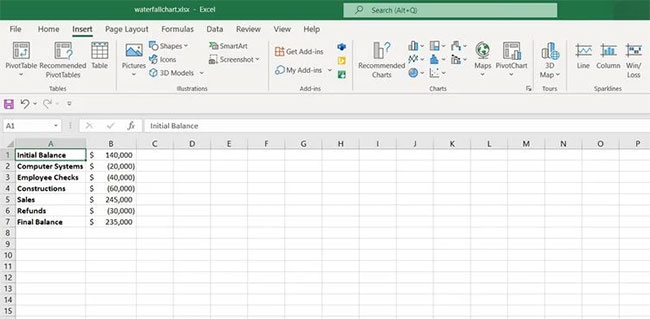
<p style="text-align: justify;">Biểu đồ thác nước là một loại biểu đồ tiêu chuẩn được hỗ trợ bởi Excel. Bạn có thể tạo biểu đồ thác nước từ phần Charts của Excel. Ví dụ trong bảng tính này, ta có số dư ban đầu của một công ty, chi phí và lợi nhuận mà nó đã duy trì trong năm đầu tiên. Hãy hình dung bảng này bằng cách sử dụng biểu đồ thác nước.</p>

<p style="text-align: justify;">1. Chọn bảng. Đó sẽ là các ô&nbsp;<strong>A1:B7</strong>&nbsp;trong ví dụ này.</p>

<p style="text-align: justify;">2. Đi tới&nbsp;<strong>Insert.</strong></p>

<p style="text-align: justify;">3. Từ phần&nbsp;<strong>Charts</strong>, nhấp vào biểu tượng&nbsp;<strong>Insert Waterfall Chart&nbsp;</strong>rồi chọn&nbsp;<strong>Waterfall.</strong></p>

<figure>
<div style="text-align: justify;"><img alt="Biểu đồ thác nước trong Excel" data-i="1" data-src="https://st.quantrimang.com/photos/image/2022/03/10/tao-bieu-do-waterfall-bieu-do-thac-nuoc-trong-excel-2.jpg" data-was-processed="true" height="342" src="https://st.quantrimang.com/photos/image/2022/03/10/tao-bieu-do-waterfall-bieu-do-thac-nuoc-trong-excel-2.jpg" width="650" /></div>

<figcaption>
<div style="text-align: justify;">Biểu đồ thác nước trong Excel</div>
</figcaption>
</figure>

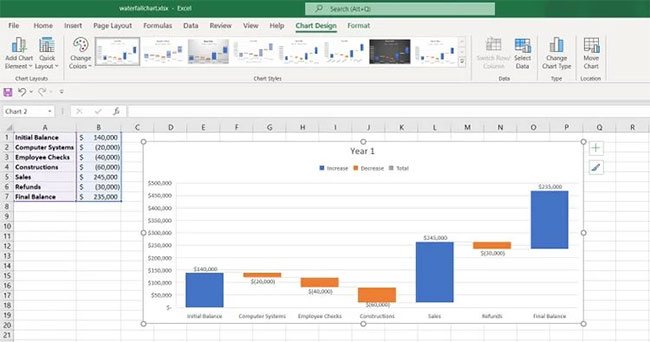
<p style="text-align: justify;">Bây giờ, bạn có một biểu đồ thác nước, nhưng có một vấn đề nhỏ. Giá trị ban đầu và giá trị cuối cùng được đánh dấu là số lượng tăng, không phải là giá trị tổng. Hãy sửa lỗi này.</p>

<p style="text-align: justify;">1. Nhấp đúp vào hình chữ nhật đại diện cho giá trị ban đầu trong biểu đồ. Cài đặt&nbsp;<strong>Format Data Point</strong>&nbsp;sẽ xuất hiện ở bên phải.</p>

<p style="text-align: justify;">2. Trong&nbsp;<strong>Series Options</strong>, chọn&nbsp;<strong>Set as total</strong>.</p>

<p style="text-align: justify;">3. Nhấp đúp vào giá trị cuối cùng trong biểu đồ.</p>

<p style="text-align: justify;">4. Chọn&nbsp;<strong>Set as total</strong>.</p>

<figure>
<div style="text-align: justify;"><img alt="Biểu đồ thác nước mẫu sau khi đã sửa lỗi trong Excel" data-i="2" data-src="https://st.quantrimang.com/photos/image/2022/03/10/tao-bieu-do-waterfall-bieu-do-thac-nuoc-trong-excel-3.jpg" data-was-processed="true" height="350" src="https://st.quantrimang.com/photos/image/2022/03/10/tao-bieu-do-waterfall-bieu-do-thac-nuoc-trong-excel-3.jpg" width="650" /></div>

<figcaption>
<div style="text-align: justify;">Biểu đồ thác nước mẫu sau khi đã sửa lỗi trong Excel</div>
</figcaption>
</figure>

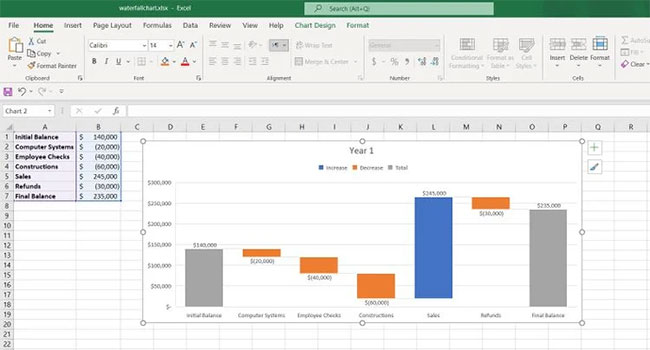
<p style="text-align: justify;">Bây giờ, bạn đã hiển thị đúng dữ liệu của mình trong biểu đồ thác nước. Biểu đồ thác nước cung cấp cho bạn một lượng thông tin lớn chỉ trong nháy mắt.</p>

<p style="text-align: justify;">Ví dụ, bằng cách nhìn vào biểu đồ này, bạn có thể thấy rằng công ty sẽ có số dư cuối cùng là $265,000 nếu không có bất kỳ khoản hoàn trả nào. Bạn có thể định dạng thêm biểu đồ này (hoặc tạo một biểu đồ mới trong Excel) để dễ nhìn hơn và cung cấp cho nó một cái nhìn đầy đủ thông tin hơn.</p>

<p style="text-align: justify;">Có nhiều loại biểu đồ trong Excel, nhưng mỗi loại được sử dụng tốt nhất trong các trường hợp cụ thể. Biểu đồ thác nước được sử dụng tốt nhất khi bạn muốn hiển thị những thay đổi mà giá trị ban đầu đã trải qua và giá trị cuối cùng mà những thay đổi này đã dẫn đến.</p>

<p style="text-align: justify;">Bây giờ, bạn đã biết cách tạo biểu đồ thác nước và khi nào sử dụng nó, đây là thời điểm tốt để mở rộng kiến ​​thức Excel của bạn bằng cách thành thạo nhiều loại biểu đồ khác nhau.</p>
		</div>
				<div id="author">
						<p>
				<strong>Nguồn tin:</strong>
				Quantrimang.com
			</p>
		</div>
	</div>
	<div id="footer" class="clearfix">
		<div id="url">
			<strong>URL của bản tin này: </strong><a href="https://www.nguoicodonvn2008.info/vi/news/savefile/kien-thuc-may-tinh/cach-tao-bieu-do-waterfall-bieu-do-thac-nuoc-trong-excel-5260.html" title="Cách tạo biểu đồ Waterfall, biểu đồ thác nước trong Excel">https://www.nguoicodonvn2008.info/vi/news/savefile/kien-thuc-may-tinh/cach-tao-bieu-do-waterfall-bieu-do-thac-nuoc-trong-excel-5260.html</a>

		</div>
		<div class="clear"></div>
		<div class="copyright">
			&copy; .&#x3A; Nguoicodonvn2008.info - Cõi lòng người cô đơn &#x3A;.
		</div>
		<div id="contact">
			<a href="mailto:admin@nguoicodonvn2008.info">admin@nguoicodonvn2008.info</a>
		</div>
	</div>
</div>
        <div id="timeoutsess" class="chromeframe">
            Bạn đã không sử dụng Site, <a onclick="timeoutsesscancel();" href="https://www.nguoicodonvn2008.info/#">Bấm vào đây để duy trì trạng thái đăng nhập</a>. Thời gian chờ: <span id="secField"> 60 </span> giây
        </div>
        <div id="openidResult" class="nv-alert" style="display:none"></div>
        <div id="openidBt" data-result="" data-redirect=""></div>
		</script>
		<div class="car-top">
  <span><img src="https://www.nguoicodonvn2008.info/themes/default/images/car.png" alt=""></span>
</div>
<div id="run_cronjobs" style="visibility:hidden;display:none;"><img alt="cron" src="/index.php?second=cronjobs&amp;p=g51d98Uq" width="1" height="1" /></div>
<script src="https://www.nguoicodonvn2008.info/assets/js/jquery/jquery.min.js"></script>
<script>var nv_base_siteurl="/",nv_lang_data="vi",nv_lang_interface="vi",nv_name_variable="nv",nv_fc_variable="op",nv_lang_variable="language",nv_module_name="news",nv_func_name="savefile",nv_is_user=0, nv_my_ofs=-4,nv_my_abbr="EDT",nv_cookie_prefix="nv4c_e856T",nv_check_pass_mstime=1738000,nv_area_admin=0,nv_safemode=0,theme_responsive=0,nv_recaptcha_ver=2,nv_recaptcha_sitekey="",nv_recaptcha_type="image",XSSsanitize=1;</script>
<script src="https://www.nguoicodonvn2008.info/assets/js/language/vi.js"></script>
<script src="https://www.nguoicodonvn2008.info/assets/js/DOMPurify/purify3.js"></script>
<script src="https://www.nguoicodonvn2008.info/assets/js/global.js"></script>
<script src="https://www.nguoicodonvn2008.info/assets/js/site.js"></script>
<script src="https://www.nguoicodonvn2008.info/themes/default/js/news.js"></script>
<script src="https://www.nguoicodonvn2008.info/themes/default/js/main.js"></script>
<script src="https://www.nguoicodonvn2008.info/themes/default/js/custom.js"></script>
<script type="application/ld+json">
        {
            "@context": "https://schema.org",
            "@type": "Organization",
            "url": "https://www.nguoicodonvn2008.info",
            "logo": "https://www.nguoicodonvn2008.info/uploads/angel.gif"
        }
        </script>
<script src="https://www.nguoicodonvn2008.info/themes/default/js/bootstrap.min.js"></script>
<script type="text/javascript">
var $scrolltop = $('.car-top');
$scrolltop.on('click', function () {
    $('html,body').animate({
        scrollTop: 0
    }, 800);
    $(this).addClass("car-run");
    setTimeout(function(){ $scrolltop.removeClass('car-run');}, 1000);
    return false;
});
$(window).on('scroll', function ()
{ 
    if($(window).scrollTop() >= 200)
    {
        $scrolltop.addClass("show");
        $scrolltop.addClass("car-down");
    }
    else
    {
       $scrolltop.removeClass("show");
       setTimeout(function(){ $scrolltop.removeClass('car-down');}, 300);
    }
});
</script>
</body>
</html>