<!DOCTYPE html>
    <html lang="vi" xmlns="http://www.w3.org/1999/xhtml" prefix="og: http://ogp.me/ns#">
    <head>
<title>Cách tạo biểu đồ Timeline trong PowerPoint</title>
<meta name="description" content="Cách tạo biểu đồ Timeline trong PowerPoint - Savefile - Tin Tức -...">
<meta name="author" content=".: Nguoicodonvn2008.info - Cõi lòng người cô đơn :.">
<meta name="copyright" content=".: Nguoicodonvn2008.info - Cõi lòng người cô đơn :. [admin@nguoicodonvn2008.info]">
<meta name="robots" content="index, archive, follow, noodp">
<meta name="googlebot" content="index,archive,follow,noodp">
<meta name="msnbot" content="all,index,follow">
<meta name="generator" content="NukeViet v4.5">
<meta http-equiv="Content-Type" content="text/html; charset=utf-8">
<meta property="og:title" content="Cách tạo biểu đồ Timeline trong PowerPoint">
<meta property="og:type" content="website">
<meta property="og:description" content="Savefile - Tin Tức - https&#x3A;&#x002F;&#x002F;www.nguoicodonvn2008.info&#x002F;vi&#x002F;news&#x002F;savefile&#x002F;kien-thuc-may-tinh&#x002F;cach-tao-bieu-do-timeline-trong-powerpoint-2261.html">
<meta property="og:site_name" content=".&#x3A; Nguoicodonvn2008.info - Cõi lòng người cô đơn &#x3A;.">
<meta property="og:url" content="https://www.nguoicodonvn2008.info/vi/news/savefile/kien-thuc-may-tinh/cach-tao-bieu-do-timeline-trong-powerpoint-2261.html">
<link rel="shortcut icon" href="https://www.nguoicodonvn2008.info/favicon.ico">
<link rel="canonical" href="https://www.nguoicodonvn2008.info/vi/news/savefile/kien-thuc-may-tinh/cach-tao-bieu-do-timeline-trong-powerpoint-2261.html">
<link rel="alternate" href="https://www.nguoicodonvn2008.info/vi/news/rss/" title="Tin Tức" type="application/rss+xml">
<link rel="alternate" href="https://www.nguoicodonvn2008.info/vi/news/rss/karaoke-dual/" title="Tin Tức - Karaoke Dual" type="application/rss+xml">
<link rel="alternate" href="https://www.nguoicodonvn2008.info/vi/news/rss/nhac-tre/" title="Tin Tức - Nhạc trẻ" type="application/rss+xml">
<link rel="alternate" href="https://www.nguoicodonvn2008.info/vi/news/rss/tru-tinh/" title="Tin Tức - Trữ tình" type="application/rss+xml">
<link rel="alternate" href="https://www.nguoicodonvn2008.info/vi/news/rss/nuoc-ngoai/" title="Tin Tức - Nước ngoài" type="application/rss+xml">
<link rel="alternate" href="https://www.nguoicodonvn2008.info/vi/news/rss/remix/" title="Tin Tức - Remix" type="application/rss+xml">
<link rel="alternate" href="https://www.nguoicodonvn2008.info/vi/news/rss/tam-su-tinh-yeu/" title="Tin Tức - Tâm sự tình yêu" type="application/rss+xml">
<link rel="alternate" href="https://www.nguoicodonvn2008.info/vi/news/rss/tho-suu-tam/" title="Tin Tức - Thơ sưu tầm" type="application/rss+xml">
<link rel="alternate" href="https://www.nguoicodonvn2008.info/vi/news/rss/cuoc-song/" title="Tin Tức - Cuộc sống" type="application/rss+xml">
<link rel="alternate" href="https://www.nguoicodonvn2008.info/vi/news/rss/phan-mem/" title="Tin Tức - Phần mềm" type="application/rss+xml">
<link rel="alternate" href="https://www.nguoicodonvn2008.info/vi/news/rss/kien-thuc-may-tinh/" title="Tin Tức - Kiến thức máy tính" type="application/rss+xml">
<link rel="alternate" href="https://www.nguoicodonvn2008.info/vi/news/rss/hoc-tap/" title="Tin Tức - Học tập" type="application/rss+xml">
<link rel="alternate" href="https://www.nguoicodonvn2008.info/vi/news/rss/tai-lieu/" title="Tin Tức - Tài liệu" type="application/rss+xml">
<link rel="alternate" href="https://www.nguoicodonvn2008.info/vi/news/rss/de-thi/" title="Tin Tức - Đề thi" type="application/rss+xml">
<link rel="preload" as="style" href="https://www.nguoicodonvn2008.info/assets/css/font-awesome.min.css" type="text/css">
<link rel="preload" as="style" href="https://www.nguoicodonvn2008.info/themes/default/css/bootstrap.non-responsive.css" type="text/css">
<link rel="preload" as="style" href="https://www.nguoicodonvn2008.info/themes/default/css/style.css" type="text/css">
<link rel="preload" as="style" href="https://www.nguoicodonvn2008.info/themes/default/css/style.non-responsive.css" type="text/css">
<link rel="preload" as="style" href="https://www.nguoicodonvn2008.info/themes/default/css/news.css" type="text/css">
<link rel="preload" as="style" href="https://www.nguoicodonvn2008.info/themes/default/css/custom.css" type="text/css">
<link rel="preload" as="script" href="https://www.nguoicodonvn2008.info/assets/js/jquery/jquery.min.js" type="text/javascript">
<link rel="preload" as="script" href="https://www.nguoicodonvn2008.info/assets/js/language/vi.js" type="text/javascript">
<link rel="preload" as="script" href="https://www.nguoicodonvn2008.info/assets/js/DOMPurify/purify3.js" type="text/javascript">
<link rel="preload" as="script" href="https://www.nguoicodonvn2008.info/assets/js/global.js" type="text/javascript">
<link rel="preload" as="script" href="https://www.nguoicodonvn2008.info/assets/js/site.js" type="text/javascript">
<link rel="preload" as="script" href="https://www.nguoicodonvn2008.info/themes/default/js/news.js" type="text/javascript">
<link rel="preload" as="script" href="https://www.nguoicodonvn2008.info/themes/default/js/main.js" type="text/javascript">
<link rel="preload" as="script" href="https://www.nguoicodonvn2008.info/themes/default/js/custom.js" type="text/javascript">
<link rel="preload" as="script" href="https://www.nguoicodonvn2008.info/themes/default/js/bootstrap.min.js" type="text/javascript">
<link rel="stylesheet" href="https://www.nguoicodonvn2008.info/assets/css/font-awesome.min.css">
<link rel="stylesheet" href="https://www.nguoicodonvn2008.info/themes/default/css/bootstrap.non-responsive.css">
<link rel="stylesheet" href="https://www.nguoicodonvn2008.info/themes/default/css/style.css">
<link rel="stylesheet" href="https://www.nguoicodonvn2008.info/themes/default/css/style.non-responsive.css">
<link rel="StyleSheet" href="https://www.nguoicodonvn2008.info/themes/default/css/news.css">
<link rel="stylesheet" href="https://www.nguoicodonvn2008.info/themes/default/css/custom.css">
<style type="text/css">
	body{background: #fff;}
</style>
    </head>
    <body>
<div id="print">
	<div id="hd_print">
		<h2 class="pull-left">.&#x3A; Nguoicodonvn2008.info - Cõi lòng người cô đơn &#x3A;.</h2>
		<p class="pull-right"><a title=".&#x3A; Nguoicodonvn2008.info - Cõi lòng người cô đơn &#x3A;." href="https://www.nguoicodonvn2008.info/">https://www.nguoicodonvn2008.info</a></p>
	</div>
	<div class="clear"></div>
	<hr />
	<div id="content">
		<h1>Cách tạo biểu đồ Timeline trong PowerPoint</h1>
		<ul class="list-inline">
			<li>Thứ tư - 24/06/2020 00:58</li>
			<li class="hidden-print txtrequired"><em class="fa fa-print">&nbsp;</em><a title="In ra" href="javascript:;" onclick="window.print()">In ra</a></li>
			<li class="hidden-print txtrequired"><em class="fa fa-power-off">&nbsp;</em><a title="Đóng cửa sổ này" href="javascript:;" onclick="window.close()">Đóng cửa sổ này</a></li>
		</ul>
		<div class="clear"></div>
		<div id="hometext">
		</div>
				<div class="imghome">
			<img alt="Cách tạo biểu đồ Timeline trong PowerPoint" src="https://st.quantrimang.com/photos/image/2020/06/23/PowerPoint-tao-bieu-do-timeline-2.jpg" width="460" class="img-thumbnail" />
		</div>
		<div class="clear"></div>
		<div id="bodytext" class="clearfix">
			<p style="text-align: justify;">Timeline trong PowerPoint hay còn gọi là biểu đồ thời gian trong slide giúp chúng ta thể hiện rõ các mốc thời gian hay các giai đoạn trong một tiến trình nào đó. Qua biểu đồ timeline này mà mọi người sẽ có cái nhìn khái quát, rõ ràng và khoa học hơn về từng mốc thời gian. Điều này cũng giúp cho người thuyết trình slide PowerPoint tạo nên một biểu đồ chuyên nghiệp thay vì phải vẽ hình làm từng bước. Bài viết dưới đây sẽ hướng dẫn bạn đọc cách tạo biểu đồ timeline trong PowerPoint.</p>

<h2 style="text-align: justify;">Hướng dẫn tạo biểu đồ Timeline trong PowerPoint</h2>

<p style="text-align: justify;"><strong>Bước 1:</strong></p>

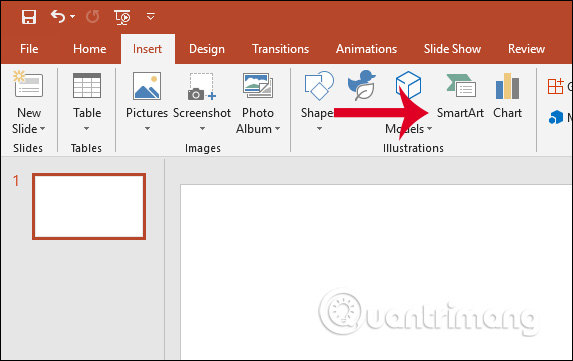
<p style="text-align: justify;">Tại slide muốn tạo biểu đồ, chúng ta nhấn vào<strong>&nbsp;mục Insert</strong>&nbsp;trên thanh công cụ rồi chọn tiếp&nbsp;<strong>SmartArt</strong>&nbsp;nằm trong nhóm Illustrations.</p>

<p style="text-align: justify;"><img alt="SmartArt" data-i="0" data-src="https://st.quantrimang.com/photos/image/2020/06/23/PowerPoint-tao-bieu-do-timeline-1.jpg" data-was-processed="true" height="361" src="https://st.quantrimang.com/photos/image/2020/06/23/PowerPoint-tao-bieu-do-timeline-1.jpg" width="573" /></p>

<p style="text-align: justify;"><strong>Bước 2:</strong></p>

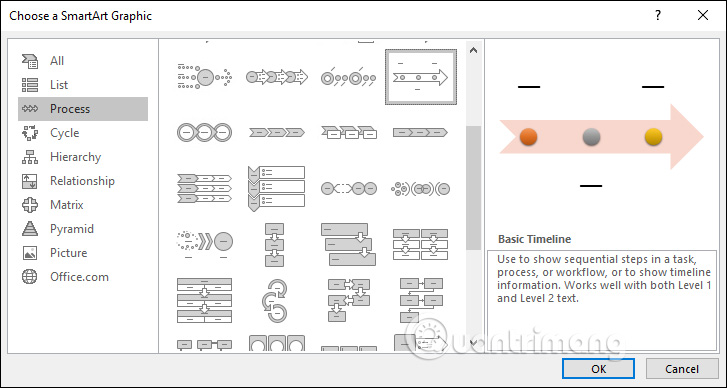
<p style="text-align: justify;">Hiển thị giao diện mới chúng ta tìm tới<strong>&nbsp;nhóm biểu đồ Process</strong>. Sau đó nhìn sang bên phải sẽ thấy có rất nhiều kiểu biểu đồ dạng tiến trình để bạn chọn lựa. Nếu bạn muốn làm quen với dạng biểu đồ này thì trước hết chọn kiểu biểu đồ đơn giản, nhấn&nbsp;<strong>kiểu Basic Timeline</strong>. Nhấn Ok để chọn kiểu biểu đồ.</p>

<p style="text-align: justify;"><img alt="Kiểu biểu đồ cơ bản" data-i="1" data-src="https://st.quantrimang.com/photos/image/2020/06/23/PowerPoint-tao-bieu-do-timeline-2.jpg" data-was-processed="true" height="342" src="https://st.quantrimang.com/photos/image/2020/06/23/PowerPoint-tao-bieu-do-timeline-2.jpg" width="640" /></p>

<p style="text-align: justify;"><strong>Bước 3:</strong></p>

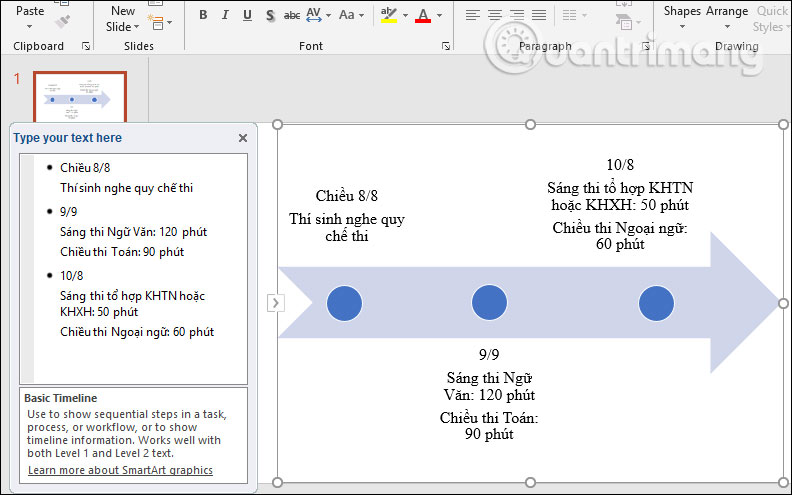
<p style="text-align: justify;">Sau khi khung biểu đồ được chèn vào trong slide, bạn thêm dữ liệu bằng cách&nbsp;<strong>click vào &#91;Text&#93; và nhập chữ</strong>. Chúng ta cũng có thể điều chỉnh định dạng chữ trong biểu đồ.</p>

<p style="text-align: justify;"><img alt="Nhập chữ " data-i="2" data-src="https://st.quantrimang.com/photos/image/2020/06/23/PowerPoint-tao-bieu-do-timeline-5.jpg" data-was-processed="true" height="400" src="https://st.quantrimang.com/photos/image/2020/06/23/PowerPoint-tao-bieu-do-timeline-5.jpg" width="640" /></p>

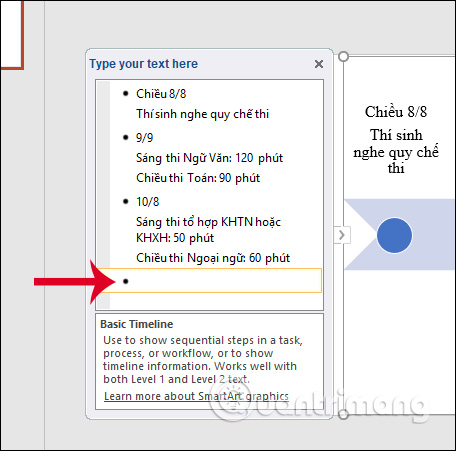
<p style="text-align: justify;">Để&nbsp;<strong>thêm các mốc khác</strong>, bạn thực hiện tại&nbsp;<strong>khung Type your text here</strong>&nbsp;ngay bên cạnh. Click vào dòng thông tin đăng trước trước vị trí muốn chèn rồi Enter là có thể tạo ra một mốc mới.</p>

<p style="text-align: justify;">Để xuống dòng ghi thông tin sử dụng tổ hợp phím Ctrl Enter. Các mốc thời gian đều có thể điều chỉnh bằng cách di chuyển thủ công để phù hợp.</p>

<p style="text-align: justify;"><img alt="Nhập chữ " data-i="3" data-src="https://st.quantrimang.com/photos/image/2020/06/23/PowerPoint-tao-bieu-do-timeline-3.jpg" data-was-processed="true" height="451" src="https://st.quantrimang.com/photos/image/2020/06/23/PowerPoint-tao-bieu-do-timeline-3.jpg" width="456" /></p>

<p style="text-align: justify;"><strong>Bước 4:</strong></p>

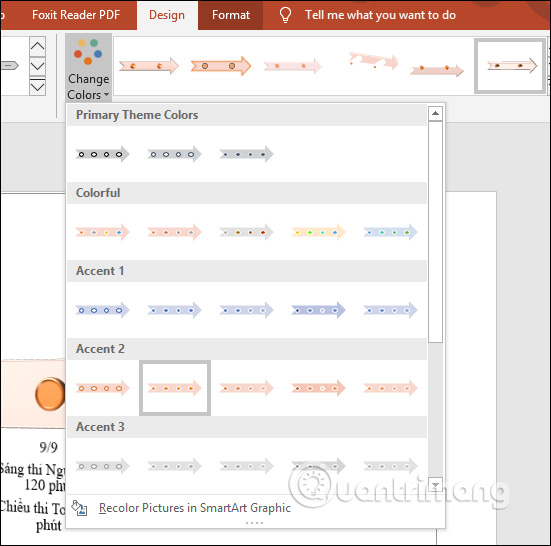
<p style="text-align: justify;">Để thiết kế lại biểu đồ thời gian, nhấn vào tab Design rồi chọn kiểu dáng tại phần SmartArt Styles. Hoặc có thể nhấn vào Change Colors để thay đổi màu.</p>

<p style="text-align: justify;"><img alt="Chỉnh biểu đồ" data-i="4" data-src="https://st.quantrimang.com/photos/image/2020/06/23/PowerPoint-tao-bieu-do-timeline-4.jpg" data-was-processed="true" height="546" src="https://st.quantrimang.com/photos/image/2020/06/23/PowerPoint-tao-bieu-do-timeline-4.jpg" width="551" /></p>

<p style="text-align: justify;">&nbsp;</p>
		</div>
				<div id="author">
						<p>
				<strong>Nguồn tin:</strong>
				Quantrimang.com
			</p>
		</div>
	</div>
	<div id="footer" class="clearfix">
		<div id="url">
			<strong>URL của bản tin này: </strong><a href="https://www.nguoicodonvn2008.info/vi/news/savefile/kien-thuc-may-tinh/cach-tao-bieu-do-timeline-trong-powerpoint-2261.html" title="Cách tạo biểu đồ Timeline trong PowerPoint">https://www.nguoicodonvn2008.info/vi/news/savefile/kien-thuc-may-tinh/cach-tao-bieu-do-timeline-trong-powerpoint-2261.html</a>

		</div>
		<div class="clear"></div>
		<div class="copyright">
			&copy; .&#x3A; Nguoicodonvn2008.info - Cõi lòng người cô đơn &#x3A;.
		</div>
		<div id="contact">
			<a href="mailto:admin@nguoicodonvn2008.info">admin@nguoicodonvn2008.info</a>
		</div>
	</div>
</div>
        <div id="timeoutsess" class="chromeframe">
            Bạn đã không sử dụng Site, <a onclick="timeoutsesscancel();" href="https://www.nguoicodonvn2008.info/#">Bấm vào đây để duy trì trạng thái đăng nhập</a>. Thời gian chờ: <span id="secField"> 60 </span> giây
        </div>
        <div id="openidResult" class="nv-alert" style="display:none"></div>
        <div id="openidBt" data-result="" data-redirect=""></div>
		</script>
		<div class="car-top">
  <span><img src="https://www.nguoicodonvn2008.info/themes/default/images/car.png" alt=""></span>
</div>
<script src="https://www.nguoicodonvn2008.info/assets/js/jquery/jquery.min.js"></script>
<script>var nv_base_siteurl="/",nv_lang_data="vi",nv_lang_interface="vi",nv_name_variable="nv",nv_fc_variable="op",nv_lang_variable="language",nv_module_name="news",nv_func_name="savefile",nv_is_user=0, nv_my_ofs=-4,nv_my_abbr="EDT",nv_cookie_prefix="nv4c_e856T",nv_check_pass_mstime=1738000,nv_area_admin=0,nv_safemode=0,theme_responsive=0,nv_recaptcha_ver=2,nv_recaptcha_sitekey="",nv_recaptcha_type="image",XSSsanitize=1;</script>
<script src="https://www.nguoicodonvn2008.info/assets/js/language/vi.js"></script>
<script src="https://www.nguoicodonvn2008.info/assets/js/DOMPurify/purify3.js"></script>
<script src="https://www.nguoicodonvn2008.info/assets/js/global.js"></script>
<script src="https://www.nguoicodonvn2008.info/assets/js/site.js"></script>
<script src="https://www.nguoicodonvn2008.info/themes/default/js/news.js"></script>
<script src="https://www.nguoicodonvn2008.info/themes/default/js/main.js"></script>
<script src="https://www.nguoicodonvn2008.info/themes/default/js/custom.js"></script>
<script type="application/ld+json">
        {
            "@context": "https://schema.org",
            "@type": "Organization",
            "url": "https://www.nguoicodonvn2008.info",
            "logo": "https://www.nguoicodonvn2008.info/uploads/angel.gif"
        }
        </script>
<script src="https://www.nguoicodonvn2008.info/themes/default/js/bootstrap.min.js"></script>
<script type="text/javascript">
var $scrolltop = $('.car-top');
$scrolltop.on('click', function () {
    $('html,body').animate({
        scrollTop: 0
    }, 800);
    $(this).addClass("car-run");
    setTimeout(function(){ $scrolltop.removeClass('car-run');}, 1000);
    return false;
});
$(window).on('scroll', function ()
{ 
    if($(window).scrollTop() >= 200)
    {
        $scrolltop.addClass("show");
        $scrolltop.addClass("car-down");
    }
    else
    {
       $scrolltop.removeClass("show");
       setTimeout(function(){ $scrolltop.removeClass('car-down');}, 300);
    }
});
</script>
</body>
</html>