<!DOCTYPE html>
    <html lang="vi" xmlns="http://www.w3.org/1999/xhtml" prefix="og: http://ogp.me/ns#">
    <head>
<title>Cách sửa lỗi Word Count không hiển thị trong Microsoft Word</title>
<meta name="description" content="Cách sửa lỗi Word Count không hiển thị trong Microsoft Word - Savefile - Tin Tức -...">
<meta name="author" content=".: Nguoicodonvn2008.info - Cõi lòng người cô đơn :.">
<meta name="copyright" content=".: Nguoicodonvn2008.info - Cõi lòng người cô đơn :. [admin@nguoicodonvn2008.info]">
<meta name="robots" content="index, archive, follow, noodp">
<meta name="googlebot" content="index,archive,follow,noodp">
<meta name="msnbot" content="all,index,follow">
<meta name="generator" content="NukeViet v4.5">
<meta http-equiv="Content-Type" content="text/html; charset=utf-8">
<meta property="og:title" content="Cách sửa lỗi Word Count không hiển thị trong Microsoft Word">
<meta property="og:type" content="website">
<meta property="og:description" content="Savefile - Tin Tức - https&#x3A;&#x002F;&#x002F;www.nguoicodonvn2008.info&#x002F;vi&#x002F;news&#x002F;savefile&#x002F;kien-thuc-may-tinh&#x002F;cach-sua-loi-word-count-khong-hien-thi-trong-microsoft-word-5204.html">
<meta property="og:site_name" content=".&#x3A; Nguoicodonvn2008.info - Cõi lòng người cô đơn &#x3A;.">
<meta property="og:url" content="https://www.nguoicodonvn2008.info/vi/news/savefile/kien-thuc-may-tinh/cach-sua-loi-word-count-khong-hien-thi-trong-microsoft-word-5204.html">
<link rel="shortcut icon" href="https://www.nguoicodonvn2008.info/favicon.ico">
<link rel="canonical" href="https://www.nguoicodonvn2008.info/vi/news/savefile/kien-thuc-may-tinh/cach-sua-loi-word-count-khong-hien-thi-trong-microsoft-word-5204.html">
<link rel="alternate" href="https://www.nguoicodonvn2008.info/vi/news/rss/" title="Tin Tức" type="application/rss+xml">
<link rel="alternate" href="https://www.nguoicodonvn2008.info/vi/news/rss/karaoke-dual/" title="Tin Tức - Karaoke Dual" type="application/rss+xml">
<link rel="alternate" href="https://www.nguoicodonvn2008.info/vi/news/rss/nhac-tre/" title="Tin Tức - Nhạc trẻ" type="application/rss+xml">
<link rel="alternate" href="https://www.nguoicodonvn2008.info/vi/news/rss/tru-tinh/" title="Tin Tức - Trữ tình" type="application/rss+xml">
<link rel="alternate" href="https://www.nguoicodonvn2008.info/vi/news/rss/nuoc-ngoai/" title="Tin Tức - Nước ngoài" type="application/rss+xml">
<link rel="alternate" href="https://www.nguoicodonvn2008.info/vi/news/rss/remix/" title="Tin Tức - Remix" type="application/rss+xml">
<link rel="alternate" href="https://www.nguoicodonvn2008.info/vi/news/rss/tam-su-tinh-yeu/" title="Tin Tức - Tâm sự tình yêu" type="application/rss+xml">
<link rel="alternate" href="https://www.nguoicodonvn2008.info/vi/news/rss/tho-suu-tam/" title="Tin Tức - Thơ sưu tầm" type="application/rss+xml">
<link rel="alternate" href="https://www.nguoicodonvn2008.info/vi/news/rss/cuoc-song/" title="Tin Tức - Cuộc sống" type="application/rss+xml">
<link rel="alternate" href="https://www.nguoicodonvn2008.info/vi/news/rss/phan-mem/" title="Tin Tức - Phần mềm" type="application/rss+xml">
<link rel="alternate" href="https://www.nguoicodonvn2008.info/vi/news/rss/kien-thuc-may-tinh/" title="Tin Tức - Kiến thức máy tính" type="application/rss+xml">
<link rel="alternate" href="https://www.nguoicodonvn2008.info/vi/news/rss/hoc-tap/" title="Tin Tức - Học tập" type="application/rss+xml">
<link rel="alternate" href="https://www.nguoicodonvn2008.info/vi/news/rss/tai-lieu/" title="Tin Tức - Tài liệu" type="application/rss+xml">
<link rel="alternate" href="https://www.nguoicodonvn2008.info/vi/news/rss/de-thi/" title="Tin Tức - Đề thi" type="application/rss+xml">
<link rel="preload" as="style" href="https://www.nguoicodonvn2008.info/assets/css/font-awesome.min.css" type="text/css">
<link rel="preload" as="style" href="https://www.nguoicodonvn2008.info/themes/default/css/bootstrap.non-responsive.css" type="text/css">
<link rel="preload" as="style" href="https://www.nguoicodonvn2008.info/themes/default/css/style.css" type="text/css">
<link rel="preload" as="style" href="https://www.nguoicodonvn2008.info/themes/default/css/style.non-responsive.css" type="text/css">
<link rel="preload" as="style" href="https://www.nguoicodonvn2008.info/themes/default/css/news.css" type="text/css">
<link rel="preload" as="style" href="https://www.nguoicodonvn2008.info/themes/default/css/custom.css" type="text/css">
<link rel="preload" as="script" href="https://www.nguoicodonvn2008.info/assets/js/jquery/jquery.min.js" type="text/javascript">
<link rel="preload" as="script" href="https://www.nguoicodonvn2008.info/assets/js/language/vi.js" type="text/javascript">
<link rel="preload" as="script" href="https://www.nguoicodonvn2008.info/assets/js/DOMPurify/purify3.js" type="text/javascript">
<link rel="preload" as="script" href="https://www.nguoicodonvn2008.info/assets/js/global.js" type="text/javascript">
<link rel="preload" as="script" href="https://www.nguoicodonvn2008.info/assets/js/site.js" type="text/javascript">
<link rel="preload" as="script" href="https://www.nguoicodonvn2008.info/themes/default/js/news.js" type="text/javascript">
<link rel="preload" as="script" href="https://www.nguoicodonvn2008.info/themes/default/js/main.js" type="text/javascript">
<link rel="preload" as="script" href="https://www.nguoicodonvn2008.info/themes/default/js/custom.js" type="text/javascript">
<link rel="preload" as="script" href="https://www.nguoicodonvn2008.info/themes/default/js/bootstrap.min.js" type="text/javascript">
<link rel="stylesheet" href="https://www.nguoicodonvn2008.info/assets/css/font-awesome.min.css">
<link rel="stylesheet" href="https://www.nguoicodonvn2008.info/themes/default/css/bootstrap.non-responsive.css">
<link rel="stylesheet" href="https://www.nguoicodonvn2008.info/themes/default/css/style.css">
<link rel="stylesheet" href="https://www.nguoicodonvn2008.info/themes/default/css/style.non-responsive.css">
<link rel="StyleSheet" href="https://www.nguoicodonvn2008.info/themes/default/css/news.css">
<link rel="stylesheet" href="https://www.nguoicodonvn2008.info/themes/default/css/custom.css">
<style type="text/css">
	body{background: #fff;}
</style>
    </head>
    <body>
<div id="print">
	<div id="hd_print">
		<h2 class="pull-left">.&#x3A; Nguoicodonvn2008.info - Cõi lòng người cô đơn &#x3A;.</h2>
		<p class="pull-right"><a title=".&#x3A; Nguoicodonvn2008.info - Cõi lòng người cô đơn &#x3A;." href="https://www.nguoicodonvn2008.info/">https://www.nguoicodonvn2008.info</a></p>
	</div>
	<div class="clear"></div>
	<hr />
	<div id="content">
		<h1>Cách sửa lỗi Word Count không hiển thị trong Microsoft Word</h1>
		<ul class="list-inline">
			<li>Thứ ba - 01/03/2022 23:51</li>
			<li class="hidden-print txtrequired"><em class="fa fa-print">&nbsp;</em><a title="In ra" href="javascript:;" onclick="window.print()">In ra</a></li>
			<li class="hidden-print txtrequired"><em class="fa fa-power-off">&nbsp;</em><a title="Đóng cửa sổ này" href="javascript:;" onclick="window.close()">Đóng cửa sổ này</a></li>
		</ul>
		<div class="clear"></div>
		<div id="hometext">
		</div>
				<div class="imghome">
			<img alt="Cách sửa lỗi Word Count không hiển thị trong Microsoft Word" src="https://st.quantrimang.com/photos/image/2022/03/01/word-count-khong-hien-thi-trong-word-6.jpg" width="460" class="img-thumbnail" />
		</div>
		<div class="clear"></div>
		<div id="bodytext" class="clearfix">
			<p style="text-align: justify;">Thanh trạng thái của&nbsp;Microsoft Word&nbsp;hiển thị số lượng từ để người dùng xem nhanh. Khi bạn nhập vào tài liệu, công cụ sẽ tự động cập nhật số từ. Tính năng này tỏ ra cực kỳ hữu ích khi bạn cần khống chế để nội dung của mình không vượt quá số từ cụ thể.</p>

<p style="text-align: justify;">Tuy nhiên, có những lúc thanh trạng thái không hiển thị số lượng từ, thông tin bị trễ quá lâu hoặc không cập nhật. Khi điều này xảy ra, bạn nên thực hiện một số kiểm tra nhanh để tính năng Word Count trên thanh trạng thái hoạt động trở lại.</p>

<h2 style="text-align: justify;">Đảm bảo tùy chọn Word Count đã được kích hoạt</h2>

<p style="text-align: justify;">Trước tiên, bạn nên đảm bảo rằng tùy chọn Word Count được bật trong các tùy chỉnh trên thanh trạng thái. Nó có thể đã bị vô hiệu hóa do vô tình trong quá trình tùy chỉnh, vì vậy điều này cần phải được loại trừ.</p>

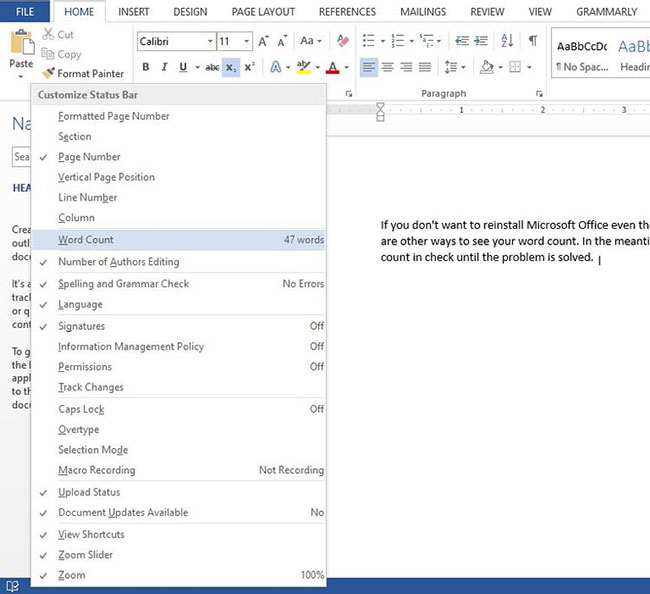
<p style="text-align: justify;">Mở tài liệu Microsoft Word mà số từ không xuất hiện trên thanh trạng thái. Nhấp chuột phải vào thanh trạng thái và tìm dấu tích bên cạnh&nbsp;<strong>Word Count</strong>. Dấu kiểm trước Word Count cho biết nó đang hoạt động. Khi tính năng này bị vô hiệu hóa, việc kích hoạt nó rất đơn giản, chỉ cần nhấp vào tùy chọn Word Count là xong.</p>

<figure>
<div style="text-align: justify;"><img alt="Kich hoạt tùy chọn Word Count" data-i="0" data-src="https://st.quantrimang.com/photos/image/2022/03/01/word-count-khong-hien-thi-trong-word-1.jpg" data-was-processed="true" height="594" src="https://st.quantrimang.com/photos/image/2022/03/01/word-count-khong-hien-thi-trong-word-1.jpg" width="650" /></div>

<figcaption>
<div style="text-align: justify;">Kich hoạt tùy chọn Word Count</div>
</figcaption>
</figure>

<p style="text-align: justify;">Xác minh rằng Word Count đã được kích hoạt trong phần tùy chỉnh sẽ trả lại tùy chọn đếm từ cho thanh trạng thái. Nếu nó đã được kích hoạt mà vẫn không hiển thị trên thanh trạng thái, thì vấn đề có thể nghiêm trọng hơn và cần được tìm hiểu thêm.</p>

<h2 style="text-align: justify;">Đăng nhập/Khởi động lại tài liệu Microsoft Word</h2>

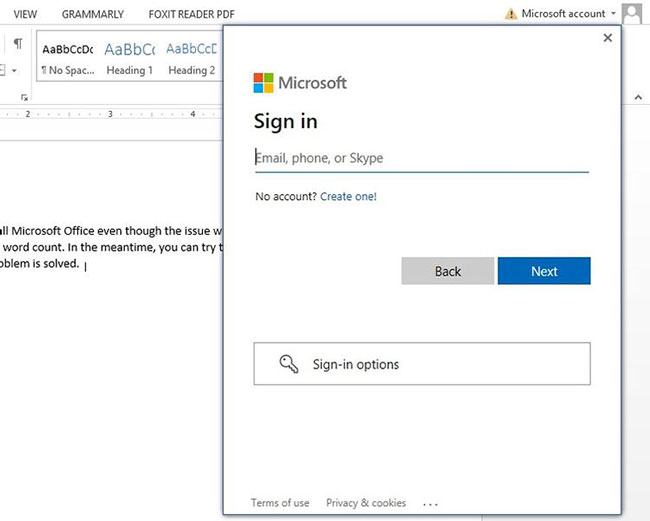
<p style="text-align: justify;">Giải pháp chung để khắc phục sự cố thứ gì không hoạt động cũng có thể áp dụng ở đây. Đó là khởi động lại. Hãy lưu tài liệu, đóng nó và bắt đầu lại. Bên cạnh việc khởi động lại tài liệu Microsoft Word, hãy cân nhắc đăng xuất và đăng nhập lại vào tài khoản của bạn để khắc phục sự cố.</p>

<figure>
<div style="text-align: justify;"><img alt="Đăng nhập lại tài khoản" data-i="1" data-src="https://st.quantrimang.com/photos/image/2022/03/01/word-count-khong-hien-thi-trong-word-2.jpg" data-was-processed="true" height="521" src="https://st.quantrimang.com/photos/image/2022/03/01/word-count-khong-hien-thi-trong-word-2.jpg" width="650" /></div>

<figcaption>
<div style="text-align: justify;">Đăng nhập lại tài khoản</div>
</figcaption>
</figure>

<p style="text-align: justify;">Nếu khởi động và đăng nhập lại không có tác dụng, hãy thử truy cập tài liệu bằng quyền admin.</p>

<h2 style="text-align: justify;">Truy cập tài liệu với quyền admin</h2>

<p style="text-align: justify;">Khả năng truy cập tài liệu với quyền admin loại trừ khả năng xảy ra bất kỳ hạn chế nào từ phía hệ điều hành. Chạy tài liệu với quyền admin cấp cho chương trình quyền truy cập vào tất cả các file Windows bị hạn chế.</p>

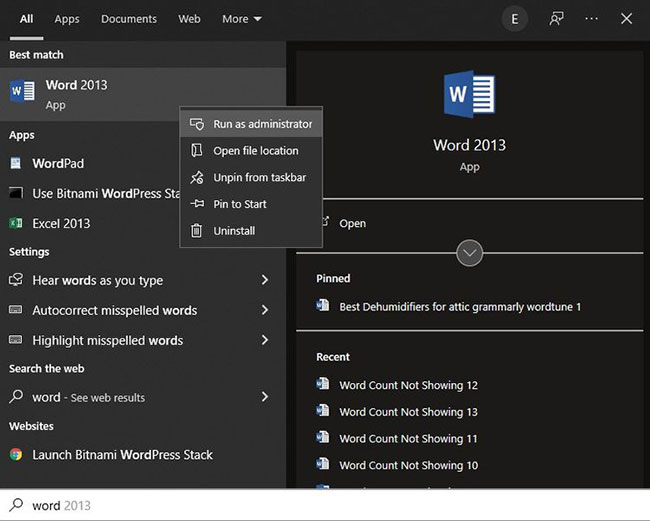
<p style="text-align: justify;">Để chạy Microsoft Word với quyền admin, hãy nhấp chuột phải vào shortcut Word và chọn&nbsp;<strong>Run as administrator</strong>.</p>

<figure>
<div style="text-align: justify;"><img alt="Truy cập tài liệu với quyền admin" data-i="2" data-src="https://st.quantrimang.com/photos/image/2022/03/01/word-count-khong-hien-thi-trong-word-3.jpg" data-was-processed="true" height="521" src="https://st.quantrimang.com/photos/image/2022/03/01/word-count-khong-hien-thi-trong-word-3.jpg" width="650" /></div>

<figcaption>
<div style="text-align: justify;">Truy cập tài liệu với quyền admin</div>
</figcaption>
</figure>

<p style="text-align: justify;">Nếu việc cấp quyền truy cập với quyền admin không có tác dụng, hãy thử khởi chạy tài liệu Microsoft Word ở Safe Mode.</p>

<h2 style="text-align: justify;">Khởi chạy Microsoft Word ở Safe Mode</h2>

<p style="text-align: justify;">Microsoft Word chạy với các file cần thiết ở Safe Mode mà không cần load bất kỳ add-in nào. Điều này giúp loại bỏ sự can thiệp từ tất cả những add-in mà bạn hiện đang sử dụng. Do đó, nó có thể giải quyết hầu hết các sự cố Microsoft Word.</p>

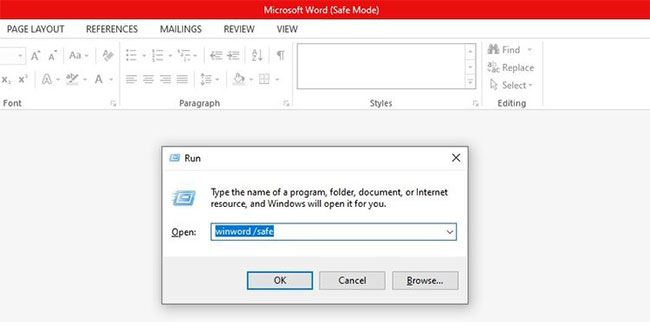
<p style="text-align: justify;">Để chạy tài liệu Microsoft Word ở Safe Mode, hãy làm theo các bước sau:</p>

<p style="text-align: justify;">1. Nhập&nbsp;<strong>&quot;Run&quot;</strong>&nbsp;vào thanh tìm kiếm của Windows và&nbsp;<a href="https://quantrimang.com/cach-mo-hop-thoai-run-trong-windows-187019" title="7 cách mở hộp thoại Run trong Windows">mở ứng dụng Run</a>.</p>

<p style="text-align: justify;">2. Nhập&nbsp;<strong>winword /safe</strong>&nbsp;vào ứng dụng&nbsp;<strong>Run</strong>&nbsp;và nhấn&nbsp;<strong>OK.</strong></p>

<figure>
<div style="text-align: justify;"><img alt="Khởi chạy Microsoft Word ở Safe Mode" data-i="3" data-src="https://st.quantrimang.com/photos/image/2022/03/01/word-count-khong-hien-thi-trong-word-4.jpg" data-was-processed="true" height="322" src="https://st.quantrimang.com/photos/image/2022/03/01/word-count-khong-hien-thi-trong-word-4.jpg" width="650" /></div>

<figcaption>
<div style="text-align: justify;">Khởi chạy Microsoft Word ở Safe Mode</div>
</figcaption>
</figure>

<p style="text-align: justify;">3. Mở cùng một tài liệu mà số từ không hiển thị.</p>

<p style="text-align: justify;">Bằng cách đó, tài liệu sẽ mở trực tiếp ở Safe Mode, có thể khôi phục số lượng từ trên thanh trạng thái. Nếu điều này dẫn đến số lượng từ hiển thị trở lại trên thanh trạng thái, thì đã đến lúc vô hiệu hóa các add-in, vì vấn đề nằm ở chúng.</p>

<p style="text-align: justify;">Nếu thanh trạng thái không hiển thị số từ ngay cả ở Safe Mode, hãy gỡ cài đặt các bản cập nhật Microsoft Office mới nhất mà bạn đã cài đặt gần đây.</p>

<h2 style="text-align: justify;">Gỡ cài đặt các bản cập nhật Office</h2>

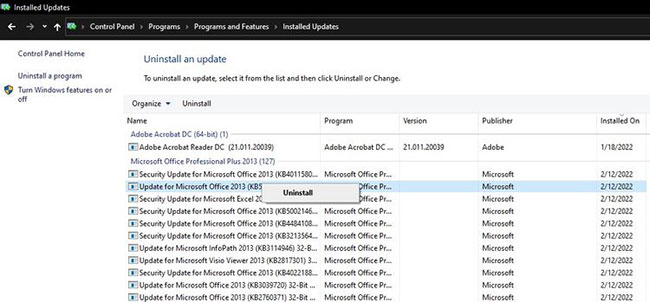
<p style="text-align: justify;">Làm theo những bước sau để gỡ cài đặt các bản cập nhật Office:</p>

<p style="text-align: justify;">1.&nbsp;<a href="https://quantrimang.com/cach-mo-control-panel-tren-windows-10-8-7-vista-va-xp-152771" title="Cách mở Control Panel trên Windows 10, 8.1, 7">Mở Control Panel</a>.</p>

<p style="text-align: justify;">2. Chuyển đến phần&nbsp;<strong>Programs and Features</strong>.</p>

<p style="text-align: justify;">3. Trong thanh bên trái, nhấp vào&nbsp;<strong>View installed updates</strong>.</p>

<p style="text-align: justify;">4. Nhấp chuột phải vào các bản cập nhật gần đây nhất và chọn&nbsp;<strong>Uninstall.</strong></p>

<figure>
<div style="text-align: justify;"><img alt="Gỡ cài đặt các bản cập nhật Office" data-i="4" data-src="https://st.quantrimang.com/photos/image/2022/03/01/word-count-khong-hien-thi-trong-word-5.jpg" data-was-processed="true" height="302" src="https://st.quantrimang.com/photos/image/2022/03/01/word-count-khong-hien-thi-trong-word-5.jpg" width="650" /></div>

<figcaption>
<div style="text-align: justify;">Gỡ cài đặt các bản cập nhật Office</div>
</figcaption>
</figure>

<p style="text-align: justify;">Khi hoàn nguyên các bản cập nhật Office không giải quyết được sự cố, hãy gỡ cài đặt Microsoft Word hoàn toàn và cài đặt lại.</p>

<h2 style="text-align: justify;">Cài đặt lại Microsoft Office</h2>

<p style="text-align: justify;">Bạn nên gỡ cài đặt Microsoft Office trước khi cài đặt lại. Để gỡ cài đặt Microsoft Office, hãy làm theo các bước sau:</p>

<p style="text-align: justify;">1. Mở&nbsp;<strong>Control Panel.</strong></p>

<p style="text-align: justify;">2. Đi tới&nbsp;<strong>Programs and Features</strong>.</p>

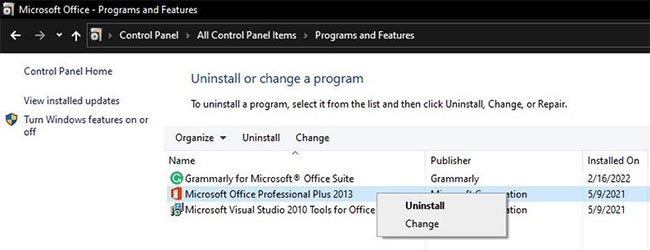
<p style="text-align: justify;">3. Trong trường tìm kiếm nằm ở góc trên cùng bên phải, hãy nhập&nbsp;<strong>&quot;Microsoft Office&quot;.</strong></p>

<p style="text-align: justify;">4. Nhấp chuột phải vào ứng dụng Office và chọn&nbsp;<strong>Uninstall.</strong></p>

<figure>
<div style="text-align: justify;"><img alt="Gỡ và cài đặt lại Microsoft Office" data-i="5" data-src="https://st.quantrimang.com/photos/image/2022/03/01/word-count-khong-hien-thi-trong-word-6.jpg" data-was-processed="true" height="250" src="https://st.quantrimang.com/photos/image/2022/03/01/word-count-khong-hien-thi-trong-word-6.jpg" width="650" /></div>

<figcaption>
<div style="text-align: justify;">Gỡ và cài đặt lại Microsoft Office</div>
</figcaption>
</figure>

<p style="text-align: justify;">Sau khi gỡ cài đặt, hãy tải một bản sao Microsoft Word mới và cài đặt nó trên máy tính của bạn. Hy vọng rằng cách này sẽ giải quyết vấn đề thanh trạng thái không hiển thị số từ. Tuy nhiên, hãy nhớ rằng mọi tùy chỉnh bạn đã thực hiện cho ứng dụng Office của mình sẽ bị mất nếu áp dụng cách này.</p>
		</div>
				<div id="author">
						<p>
				<strong>Nguồn tin:</strong>
				Quantrimang.com
			</p>
		</div>
	</div>
	<div id="footer" class="clearfix">
		<div id="url">
			<strong>URL của bản tin này: </strong><a href="https://www.nguoicodonvn2008.info/vi/news/savefile/kien-thuc-may-tinh/cach-sua-loi-word-count-khong-hien-thi-trong-microsoft-word-5204.html" title="Cách sửa lỗi Word Count không hiển thị trong Microsoft Word">https://www.nguoicodonvn2008.info/vi/news/savefile/kien-thuc-may-tinh/cach-sua-loi-word-count-khong-hien-thi-trong-microsoft-word-5204.html</a>

		</div>
		<div class="clear"></div>
		<div class="copyright">
			&copy; .&#x3A; Nguoicodonvn2008.info - Cõi lòng người cô đơn &#x3A;.
		</div>
		<div id="contact">
			<a href="mailto:admin@nguoicodonvn2008.info">admin@nguoicodonvn2008.info</a>
		</div>
	</div>
</div>
        <div id="timeoutsess" class="chromeframe">
            Bạn đã không sử dụng Site, <a onclick="timeoutsesscancel();" href="https://www.nguoicodonvn2008.info/#">Bấm vào đây để duy trì trạng thái đăng nhập</a>. Thời gian chờ: <span id="secField"> 60 </span> giây
        </div>
        <div id="openidResult" class="nv-alert" style="display:none"></div>
        <div id="openidBt" data-result="" data-redirect=""></div>
		</script>
		<div class="car-top">
  <span><img src="https://www.nguoicodonvn2008.info/themes/default/images/car.png" alt=""></span>
</div>
<script src="https://www.nguoicodonvn2008.info/assets/js/jquery/jquery.min.js"></script>
<script>var nv_base_siteurl="/",nv_lang_data="vi",nv_lang_interface="vi",nv_name_variable="nv",nv_fc_variable="op",nv_lang_variable="language",nv_module_name="news",nv_func_name="savefile",nv_is_user=0, nv_my_ofs=-4,nv_my_abbr="EDT",nv_cookie_prefix="nv4c_e856T",nv_check_pass_mstime=1738000,nv_area_admin=0,nv_safemode=0,theme_responsive=0,nv_recaptcha_ver=2,nv_recaptcha_sitekey="",nv_recaptcha_type="image",XSSsanitize=1;</script>
<script src="https://www.nguoicodonvn2008.info/assets/js/language/vi.js"></script>
<script src="https://www.nguoicodonvn2008.info/assets/js/DOMPurify/purify3.js"></script>
<script src="https://www.nguoicodonvn2008.info/assets/js/global.js"></script>
<script src="https://www.nguoicodonvn2008.info/assets/js/site.js"></script>
<script src="https://www.nguoicodonvn2008.info/themes/default/js/news.js"></script>
<script src="https://www.nguoicodonvn2008.info/themes/default/js/main.js"></script>
<script src="https://www.nguoicodonvn2008.info/themes/default/js/custom.js"></script>
<script type="application/ld+json">
        {
            "@context": "https://schema.org",
            "@type": "Organization",
            "url": "https://www.nguoicodonvn2008.info",
            "logo": "https://www.nguoicodonvn2008.info/uploads/angel.gif"
        }
        </script>
<script src="https://www.nguoicodonvn2008.info/themes/default/js/bootstrap.min.js"></script>
<script type="text/javascript">
var $scrolltop = $('.car-top');
$scrolltop.on('click', function () {
    $('html,body').animate({
        scrollTop: 0
    }, 800);
    $(this).addClass("car-run");
    setTimeout(function(){ $scrolltop.removeClass('car-run');}, 1000);
    return false;
});
$(window).on('scroll', function ()
{ 
    if($(window).scrollTop() >= 200)
    {
        $scrolltop.addClass("show");
        $scrolltop.addClass("car-down");
    }
    else
    {
       $scrolltop.removeClass("show");
       setTimeout(function(){ $scrolltop.removeClass('car-down');}, 300);
    }
});
</script>
</body>
</html>