<!DOCTYPE html>
    <html lang="vi" xmlns="http://www.w3.org/1999/xhtml" prefix="og: http://ogp.me/ns#">
    <head>
<title>Cách sửa lỗi &quot;The Installer Has Encountered an Unexpected Error 2203&quot; trên Windows</title>
<meta name="description" content="Cách sửa lỗi &quot;The Installer Has Encountered an Unexpected Error 2203&quot; trên Windows - Savefile - Tin Tức -...">
<meta name="author" content=".: Nguoicodonvn2008.info - Cõi lòng người cô đơn :.">
<meta name="copyright" content=".: Nguoicodonvn2008.info - Cõi lòng người cô đơn :. [admin@nguoicodonvn2008.info]">
<meta name="robots" content="index, archive, follow, noodp">
<meta name="googlebot" content="index,archive,follow,noodp">
<meta name="msnbot" content="all,index,follow">
<meta name="generator" content="NukeViet v4.5">
<meta http-equiv="Content-Type" content="text/html; charset=utf-8">
<meta property="og:title" content="Cách sửa lỗi &quot;The Installer Has Encountered an Unexpected Error 2203&quot; trên Windows">
<meta property="og:type" content="website">
<meta property="og:description" content="Savefile - Tin Tức -...">
<meta property="og:site_name" content=".&#x3A; Nguoicodonvn2008.info - Cõi lòng người cô đơn &#x3A;.">
<meta property="og:url" content="https://www.nguoicodonvn2008.info/vi/news/savefile/kien-thuc-may-tinh/cach-sua-loi-the-installer-has-encountered-an-unexpected-error-2203-tren-windows-5005.html">
<link rel="shortcut icon" href="https://www.nguoicodonvn2008.info/favicon.ico">
<link rel="canonical" href="https://www.nguoicodonvn2008.info/vi/news/savefile/kien-thuc-may-tinh/cach-sua-loi-the-installer-has-encountered-an-unexpected-error-2203-tren-windows-5005.html">
<link rel="alternate" href="https://www.nguoicodonvn2008.info/vi/news/rss/" title="Tin Tức" type="application/rss+xml">
<link rel="alternate" href="https://www.nguoicodonvn2008.info/vi/news/rss/karaoke-dual/" title="Tin Tức - Karaoke Dual" type="application/rss+xml">
<link rel="alternate" href="https://www.nguoicodonvn2008.info/vi/news/rss/nhac-tre/" title="Tin Tức - Nhạc trẻ" type="application/rss+xml">
<link rel="alternate" href="https://www.nguoicodonvn2008.info/vi/news/rss/tru-tinh/" title="Tin Tức - Trữ tình" type="application/rss+xml">
<link rel="alternate" href="https://www.nguoicodonvn2008.info/vi/news/rss/nuoc-ngoai/" title="Tin Tức - Nước ngoài" type="application/rss+xml">
<link rel="alternate" href="https://www.nguoicodonvn2008.info/vi/news/rss/remix/" title="Tin Tức - Remix" type="application/rss+xml">
<link rel="alternate" href="https://www.nguoicodonvn2008.info/vi/news/rss/tam-su-tinh-yeu/" title="Tin Tức - Tâm sự tình yêu" type="application/rss+xml">
<link rel="alternate" href="https://www.nguoicodonvn2008.info/vi/news/rss/tho-suu-tam/" title="Tin Tức - Thơ sưu tầm" type="application/rss+xml">
<link rel="alternate" href="https://www.nguoicodonvn2008.info/vi/news/rss/cuoc-song/" title="Tin Tức - Cuộc sống" type="application/rss+xml">
<link rel="alternate" href="https://www.nguoicodonvn2008.info/vi/news/rss/phan-mem/" title="Tin Tức - Phần mềm" type="application/rss+xml">
<link rel="alternate" href="https://www.nguoicodonvn2008.info/vi/news/rss/kien-thuc-may-tinh/" title="Tin Tức - Kiến thức máy tính" type="application/rss+xml">
<link rel="alternate" href="https://www.nguoicodonvn2008.info/vi/news/rss/hoc-tap/" title="Tin Tức - Học tập" type="application/rss+xml">
<link rel="alternate" href="https://www.nguoicodonvn2008.info/vi/news/rss/tai-lieu/" title="Tin Tức - Tài liệu" type="application/rss+xml">
<link rel="alternate" href="https://www.nguoicodonvn2008.info/vi/news/rss/de-thi/" title="Tin Tức - Đề thi" type="application/rss+xml">
<link rel="preload" as="style" href="https://www.nguoicodonvn2008.info/assets/css/font-awesome.min.css" type="text/css">
<link rel="preload" as="style" href="https://www.nguoicodonvn2008.info/themes/default/css/bootstrap.non-responsive.css" type="text/css">
<link rel="preload" as="style" href="https://www.nguoicodonvn2008.info/themes/default/css/style.css" type="text/css">
<link rel="preload" as="style" href="https://www.nguoicodonvn2008.info/themes/default/css/style.non-responsive.css" type="text/css">
<link rel="preload" as="style" href="https://www.nguoicodonvn2008.info/themes/default/css/news.css" type="text/css">
<link rel="preload" as="style" href="https://www.nguoicodonvn2008.info/themes/default/css/custom.css" type="text/css">
<link rel="preload" as="script" href="https://www.nguoicodonvn2008.info/assets/js/jquery/jquery.min.js" type="text/javascript">
<link rel="preload" as="script" href="https://www.nguoicodonvn2008.info/assets/js/language/vi.js" type="text/javascript">
<link rel="preload" as="script" href="https://www.nguoicodonvn2008.info/assets/js/DOMPurify/purify3.js" type="text/javascript">
<link rel="preload" as="script" href="https://www.nguoicodonvn2008.info/assets/js/global.js" type="text/javascript">
<link rel="preload" as="script" href="https://www.nguoicodonvn2008.info/assets/js/site.js" type="text/javascript">
<link rel="preload" as="script" href="https://www.nguoicodonvn2008.info/themes/default/js/news.js" type="text/javascript">
<link rel="preload" as="script" href="https://www.nguoicodonvn2008.info/themes/default/js/main.js" type="text/javascript">
<link rel="preload" as="script" href="https://www.nguoicodonvn2008.info/themes/default/js/custom.js" type="text/javascript">
<link rel="preload" as="script" href="https://www.nguoicodonvn2008.info/themes/default/js/bootstrap.min.js" type="text/javascript">
<link rel="stylesheet" href="https://www.nguoicodonvn2008.info/assets/css/font-awesome.min.css">
<link rel="stylesheet" href="https://www.nguoicodonvn2008.info/themes/default/css/bootstrap.non-responsive.css">
<link rel="stylesheet" href="https://www.nguoicodonvn2008.info/themes/default/css/style.css">
<link rel="stylesheet" href="https://www.nguoicodonvn2008.info/themes/default/css/style.non-responsive.css">
<link rel="StyleSheet" href="https://www.nguoicodonvn2008.info/themes/default/css/news.css">
<link rel="stylesheet" href="https://www.nguoicodonvn2008.info/themes/default/css/custom.css">
<style type="text/css">
	body{background: #fff;}
</style>
    </head>
    <body>
<div id="print">
	<div id="hd_print">
		<h2 class="pull-left">.&#x3A; Nguoicodonvn2008.info - Cõi lòng người cô đơn &#x3A;.</h2>
		<p class="pull-right"><a title=".&#x3A; Nguoicodonvn2008.info - Cõi lòng người cô đơn &#x3A;." href="https://www.nguoicodonvn2008.info/">https://www.nguoicodonvn2008.info</a></p>
	</div>
	<div class="clear"></div>
	<hr />
	<div id="content">
		<h1>Cách sửa lỗi &quot;The Installer Has Encountered an Unexpected Error 2203&quot; trên Windows</h1>
		<ul class="list-inline">
			<li>Thứ ba - 11/01/2022 23:49</li>
			<li class="hidden-print txtrequired"><em class="fa fa-print">&nbsp;</em><a title="In ra" href="javascript:;" onclick="window.print()">In ra</a></li>
			<li class="hidden-print txtrequired"><em class="fa fa-power-off">&nbsp;</em><a title="Đóng cửa sổ này" href="javascript:;" onclick="window.close()">Đóng cửa sổ này</a></li>
		</ul>
		<div class="clear"></div>
		<div id="hometext">
		</div>
				<div class="imghome">
			<img alt="Cách sửa lỗi &quot;The Installer Has Encountered an Unexpected Error 2203&quot; trên Windows" src="https://st.quantrimang.com/photos/image/2022/01/03/sua-loi-the-installer-has-encountered-an-unexpected-error-2203-2.jpg" width="460" class="img-thumbnail" />
		</div>
		<div class="clear"></div>
		<div id="bodytext" class="clearfix">
			<p style="text-align: justify;">Đôi khi, bạn sẽ gặp phải lỗi trình cài đặt trong Windows khi bạn cố gắng cài đặt một chương trình. Có nhiều loại lỗi trình cài đặt khác nhau, nhưng nếu lỗi của bạn mang mã 2203, điều đó có nghĩa là tài khoản người dùng không có đủ quyền để cài đặt phần mềm. Một lý do phổ biến khác là phần mềm diệt virus của bạn đang hoạt động và chặn trình cài đặt.</p>

<p style="text-align: justify;">Trong bài viết này, Quantrimang.com xem xét một số bước khắc phục sự cố mà bạn có thể thử để khắc phục sự cố này trên hệ thống Windows của mình.</p>

<h2 style="text-align: justify;">Nguyên nhân nào gây ra mã lỗi trình cài đặt Windows 2203?</h2>

<p style="text-align: justify;">Giống như bài viết đã đề cập ở trên, mã lỗi trình cài đặt 2202 cho biết rằng bạn không có đủ quyền để chạy trình cài đặt. Toàn bộ thông báo lỗi sẽ như sau:</p>

<p style="text-align: justify;"><em>The installer has encountered an unexpected error installing this package. This may indicate a problem with this package. The error code is 2203</em></p>

<p style="text-align: justify;">Trong nhiều trường hợp, bạn có thể chỉ cần chạy trình cài đặt với quyền admin để khắc phục sự cố.</p>

<p style="text-align: justify;">Nếu điều đó không hiệu quả, hãy cố gắng giành quyền sở hữu thư mục Temp. Ngoài ra, tạm thời vô hiệu hóa phần mềm bảo mật cũng có thể hữu ích.</p>

<h2 style="text-align: justify;">Cách sửa lỗi &quot;The Installer Has Encountered an Unexpected Error 2203&quot; trên Windows</h2>

<h3 style="text-align: justify;">1. Chạy trình cài đặt với quyền admin</h3>

<figure>
<div style="text-align: justify;"><img alt="Chạy trình cài đặt với quyền admin" data-i="0" data-src="https://st.quantrimang.com/photos/image/2022/01/03/sua-loi-the-installer-has-encountered-an-unexpected-error-2203-1.jpg" data-was-processed="true" height="288" src="https://st.quantrimang.com/photos/image/2022/01/03/sua-loi-the-installer-has-encountered-an-unexpected-error-2203-1.jpg" width="650" /></div>

<figcaption>
<div style="text-align: justify;">Chạy trình cài đặt với quyền admin</div>
</figcaption>
</figure>

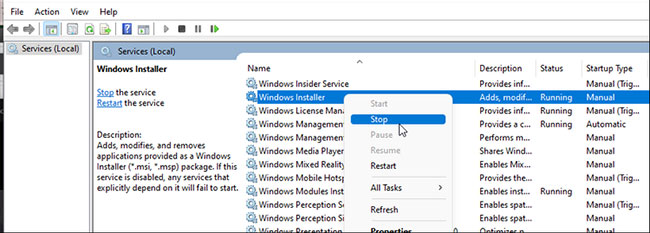
<p style="text-align: justify;">Một số chương trình yêu cầu quyền rõ ràng để chạy trình cài đặt hoặc các chương trình có thể sửa đổi file hệ thống. Vì vậy, hãy thử chạy trình cài đặt với quyền admin để cung cấp đặc quyền cần thiết. Trong hầu hết các trường hợp, cách này sẽ có tác dụng và cho phép bạn hoàn tất quá trình cài đặt.</p>

<p style="text-align: justify;">Để chạy trình cài đặt với quyền admin:</p>

<ul>
	<li style="text-align: justify;">Xác định vị trí và nhấp chuột phải vào trình cài đặt bạn muốn chạy.</li>
	<li style="text-align: justify;">Nhấp vào tùy chọn&nbsp;<strong>Run as administrator</strong>&nbsp;từ menu ngữ cảnh.</li>
	<li style="text-align: justify;">Nhấp vào&nbsp;<strong>Yes</strong>&nbsp;khi được&nbsp;UAC (User Account Control)&nbsp;nhắc.</li>
</ul>

<h3 style="text-align: justify;">2. Có quyền sở hữu thư mục Temp</h3>

<p style="text-align: justify;">Các vấn đề với service Windows Installer và thiếu quyền đối với thư mục Temp cũng có thể gây ra lỗi trình cài đặt 2203.</p>

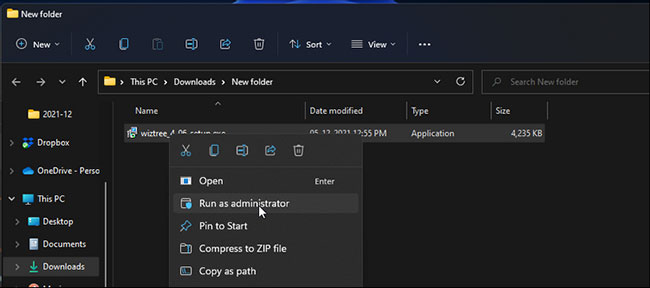
<p style="text-align: justify;">Bạn có thể kết thúc service Windows Installer, sau đó có quyền sở hữu thư mục Temp để khắc phục sự cố này. Đây là cách thực hiện.</p>

<p style="text-align: justify;">Trước khi bạn tiếp tục bước dưới đây, hãy tạo một điểm khôi phục.&nbsp;System Restore&nbsp;cho phép bạn hoàn tác bất kỳ thay đổi nào nếu bạn xóa hoặc sửa đổi file cần thiết một cách không chính xác.</p>

<p style="text-align: justify;"><strong>2.1. Kết thúc service Windows Installer</strong></p>

<figure>
<div style="text-align: justify;"><img alt="Kết thúc service Windows Installer" data-i="1" data-src="https://st.quantrimang.com/photos/image/2022/01/03/sua-loi-the-installer-has-encountered-an-unexpected-error-2203-2.jpg" data-was-processed="true" height="233" src="https://st.quantrimang.com/photos/image/2022/01/03/sua-loi-the-installer-has-encountered-an-unexpected-error-2203-2.jpg" width="650" /></div>

<figcaption>
<div style="text-align: justify;">Kết thúc service Windows Installer</div>
</figcaption>
</figure>

<ul>
	<li style="text-align: justify;">Nhấn&nbsp;<strong>Win + R&nbsp;</strong>để mở&nbsp;<strong>Run.</strong></li>
	<li style="text-align: justify;">Nhập&nbsp;<strong>services.msc</strong>&nbsp;và nhấp vào&nbsp;<strong>OK</strong>&nbsp;để mở&nbsp;<strong>Services Snap-in</strong>.</li>
	<li style="text-align: justify;">Định vị và nhấp chuột phải vào service Windows Installer.</li>
	<li style="text-align: justify;">Chọn&nbsp;<strong>Stop</strong>&nbsp;để kết thúc service.</li>
	<li style="text-align: justify;">Tiếp theo,&nbsp;mở File Explorer&nbsp;và điều hướng đến vị trí sau:</li>
</ul>

<pre id="pre0">
<code>C:\Windows\Temp</code></pre>

<ul>
	<li style="text-align: justify;">Nhấp vào&nbsp;<strong>Yes</strong>&nbsp;nếu được UAC nhắc.</li>
	<li style="text-align: justify;">Nhấn&nbsp;<strong>Ctrl + A</strong>&nbsp;để chọn và xóa tất cả nội dung của thư mục. Bỏ qua bất kỳ file nào không thể xóa được vì bất kỳ lý do gì.</li>
</ul>

<p style="text-align: justify;">Tiếp theo, hãy làm theo các bước dưới đây để có quyền sở hữu thư mục Temp.</p>

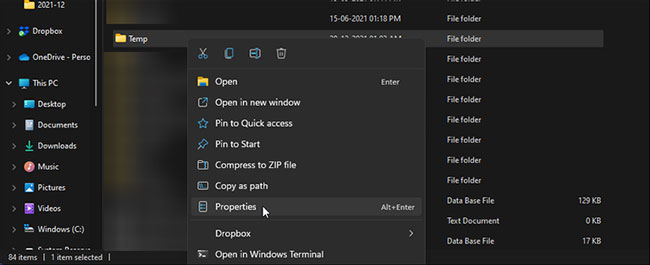
<p style="text-align: justify;"><strong>2.2. Giành quyền sở hữu thư mục Temp</strong></p>

<figure>
<div style="text-align: justify;"><img alt="Giành quyền sở hữu thư mục Temp" data-i="2" data-src="https://st.quantrimang.com/photos/image/2022/01/03/sua-loi-the-installer-has-encountered-an-unexpected-error-2203-3.jpg" data-was-processed="true" height="265" src="https://st.quantrimang.com/photos/image/2022/01/03/sua-loi-the-installer-has-encountered-an-unexpected-error-2203-3.jpg" width="650" /></div>

<figcaption>
<div style="text-align: justify;">Giành quyền sở hữu thư mục Temp</div>
</figcaption>
</figure>

<ul>
	<li style="text-align: justify;">Mở File Explorer và điều hướng đến vị trí sau:</li>
</ul>

<pre id="pre1">
<code>C:\Users\Username\AppData\Local</code></pre>

<ul>
	<li style="text-align: justify;">Trong đường dẫn trên, thay thế&nbsp;<strong>Username</strong>&nbsp;bằng tên tài khoản người dùng của bạn.</li>
	<li style="text-align: justify;">Nhấp chuột phải vào thư mục&nbsp;<strong>Temp</strong>&nbsp;và chọn&nbsp;<strong>Properties.</strong></li>
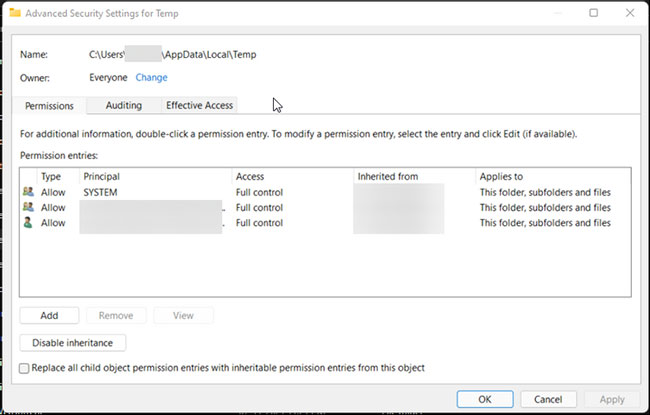
	<li style="text-align: justify;">Trong cửa sổ&nbsp;<strong>Temp Properties</strong>, mở tab&nbsp;<strong>Security.</strong></li>
	<li style="text-align: justify;">Nhấp vào nút&nbsp;<strong>Advanced</strong>&nbsp;trong phần&nbsp;<strong>Permissions for System</strong>.</li>
</ul>

<figure>
<div style="text-align: justify;"><img alt="Nhấp vào Change" data-i="3" data-src="https://st.quantrimang.com/photos/image/2022/01/03/sua-loi-the-installer-has-encountered-an-unexpected-error-2203-4.jpg" data-was-processed="true" height="415" src="https://st.quantrimang.com/photos/image/2022/01/03/sua-loi-the-installer-has-encountered-an-unexpected-error-2203-4.jpg" width="650" /></div>

<figcaption>
<div style="text-align: justify;">Nhấp vào Change</div>
</figcaption>
</figure>

<ul>
	<li style="text-align: justify;">Trong cửa sổ&nbsp;<strong>Advanced Security Settings for Temp</strong>, hãy nhấp vào liên kết&nbsp;<strong>Change&nbsp;</strong>cho&nbsp;<strong>Owner.</strong>&nbsp;Nhấp vào&nbsp;<strong>Yes</strong>&nbsp;nếu được UAC nhắc.</li>
</ul>

<figure>
<div style="text-align: justify;"><img alt="Nhập Everyone vào hộp Enter the object names to select" data-i="4" data-src="https://st.quantrimang.com/photos/image/2022/01/03/sua-loi-the-installer-has-encountered-an-unexpected-error-2203-5.jpg" data-was-processed="true" height="415" src="https://st.quantrimang.com/photos/image/2022/01/03/sua-loi-the-installer-has-encountered-an-unexpected-error-2203-5.jpg" width="650" /></div>

<figcaption>
<div style="text-align: justify;">Nhập Everyone vào hộp Enter the object names to select</div>
</figcaption>
</figure>

<ul>
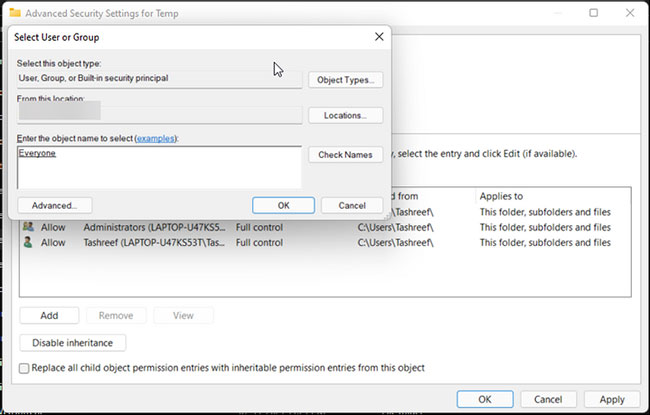
	<li style="text-align: justify;">Tiếp theo, nhập&nbsp;<strong>Everyone</strong>&nbsp;vào hộp&nbsp;<strong>Enter the object names to select</strong>&nbsp;và nhấp vào&nbsp;<strong>Check Names</strong>.</li>
	<li style="text-align: justify;">Nếu một gạch dưới xuất hiện bên dưới&nbsp;<strong>Everyone</strong>, hãy bấm&nbsp;<strong>OK.</strong>&nbsp;Sau đó, nhấp vào&nbsp;<strong>Apply</strong>&nbsp;để lưu các thay đổi.</li>
	<li style="text-align: justify;">Trong cửa sổ&nbsp;<strong>Temp Properties</strong>, nhấp vào nút&nbsp;<strong>Edit.</strong></li>
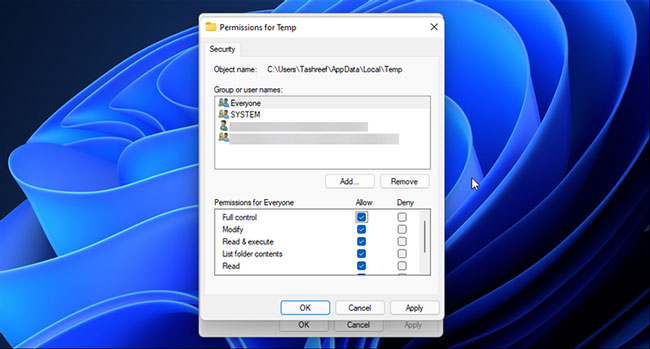
	<li style="text-align: justify;">Trong cửa sổ&nbsp;<strong>Permission for Temp</strong>, nhấp vào nút&nbsp;<strong>Add.</strong></li>
	<li style="text-align: justify;">Tiếp theo, nhập&nbsp;<strong>Everyone</strong>&nbsp;vào hộp&nbsp;<strong>Enter the object names to select</strong>&nbsp;và nhấp vào&nbsp;<strong>Check Names</strong>.</li>
	<li style="text-align: justify;">Bấm&nbsp;<strong>OK</strong>&nbsp;để lưu các thay đổi.</li>
	<li style="text-align: justify;">Tiếp theo, trong&nbsp;<strong>Permissions for Everyone</strong>, hãy chọn hộp&nbsp;<strong>Allow</strong>&nbsp;cho&nbsp;<strong>Full Control</strong>.</li>
</ul>

<figure>
<div style="text-align: justify;"><img alt="Chọn hộp Allow cho Full Control" data-i="5" data-src="https://st.quantrimang.com/photos/image/2022/01/03/sua-loi-the-installer-has-encountered-an-unexpected-error-2203-6.jpg" data-was-processed="true" height="349" src="https://st.quantrimang.com/photos/image/2022/01/03/sua-loi-the-installer-has-encountered-an-unexpected-error-2203-6.jpg" width="650" /></div>

<figcaption>
<div style="text-align: justify;">Chọn hộp Allow cho Full Control</div>
</figcaption>
</figure>

<ul>
	<li style="text-align: justify;">Nhấp vào&nbsp;<strong>Apply</strong>&nbsp;và&nbsp;<strong>OK</strong>&nbsp;để lưu các thay đổi. Khi được UAC nhắc, hãy nhấp vào&nbsp;<strong>Yes</strong>&nbsp;để xác nhận hành động.</li>
	<li style="text-align: justify;">Tiếp theo, nhấn phím&nbsp;<strong>Windows + R</strong>&nbsp;để mở&nbsp;<strong>Run.</strong></li>
	<li style="text-align: justify;">Nhập&nbsp;<strong>services.msc</strong>&nbsp;và nhấp vào&nbsp;<strong>OK.</strong></li>
	<li style="text-align: justify;">Nhấp chuột phải vào&nbsp;<strong>Windows Installer</strong>&nbsp;và chọn&nbsp;<strong>Start.</strong></li>
	<li style="text-align: justify;">Đóng cửa sổ&nbsp;<strong>Services snap-in</strong>&nbsp;và&nbsp;khởi động lại PC. Sau khi khởi động lại, hãy chạy trình cài đặt và kiểm tra xem lỗi đã được giải quyết chưa.</li>
</ul>

<p style="text-align: justify;">Nếu bạn vẫn gặp sự cố khi chiếm quyền sở hữu, hãy thử các công cụ của bên thứ ba này để giành quyền sở hữu file và thư mục trên Windows.</p>

<h3 style="text-align: justify;">3. Tạm thời vô hiệu hóa chương trình diệt virus và tường lửa</h3>

<figure>
<div style="text-align: justify;"><img alt="Tạm thời vô hiệu hóa chương trình diệt virus và tường lửa" data-i="6" data-src="https://st.quantrimang.com/photos/image/2022/01/03/sua-loi-the-installer-has-encountered-an-unexpected-error-2203-7.jpg" data-was-processed="true" height="338" src="https://st.quantrimang.com/photos/image/2022/01/03/sua-loi-the-installer-has-encountered-an-unexpected-error-2203-7.jpg" width="650" /></div>

<figcaption>
<div style="text-align: justify;">Tạm thời vô hiệu hóa chương trình diệt virus và tường lửa</div>
</figcaption>
</figure>

<p style="text-align: justify;">Đôi khi, chương trình bảo mật có thể gắn cờ một chương trình vô hại là phần mềm độc hại và chặn chương trình đó hoạt động hoặc kết nối với Internet. Để xác định xem giải pháp bảo mật của bạn có phải là nguyên nhân gây ra lỗi hay không, hãy tạm thời vô hiệu hóa giải pháp diệt virus và tường lửa, sau đó chạy trình cài đặt.</p>

<p style="text-align: justify;">Nếu bạn đang sử dụng&nbsp;phần mềm diệt virus&nbsp;của bên thứ ba, các bước để tắt công cụ này có thể khác nhau. Ví dụ, nếu bạn sử dụng phần mềm diệt virus Avast, hãy nhấp vào biểu tượng khay hệ thống và nhấp chuột phải vào biểu tượng Avast. Sau đó, chuyển đến&nbsp;<strong>Avast shields control &gt; Disable until computer is restarted</strong>.</p>

<p style="text-align: justify;">Đối với bất kỳ phần mềm diệt virus nào khác, hãy kiểm tra cơ sở dữ liệu trên trang web của nhà phát triển để vô hiệu hóa chương trình diệt virus. Sau khi bị vô hiệu hóa, hãy chạy trình cài đặt và kiểm tra xem nó có chạy mà không gặp bất kỳ lỗi nào hay không. Đừng quên bật lại phần mềm diệt virus sau khi hoàn thành công việc.</p>

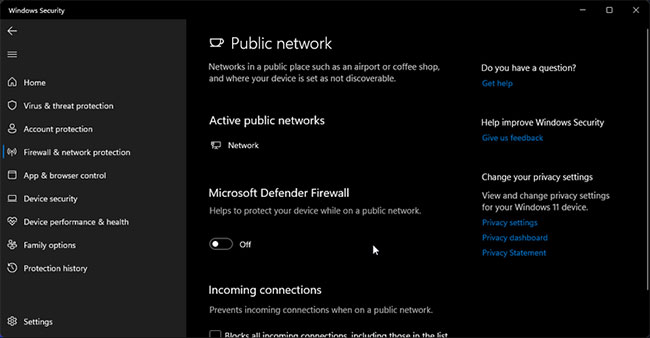
<p style="text-align: justify;">Nếu bạn sử dụng&nbsp;Windows Security, hãy làm theo các bước sau để tắt&nbsp;<strong>Real-Time Threat Protection</strong>&nbsp;và&nbsp;<strong>Windows Defender Firewall</strong>.</p>

<ul>
	<li style="text-align: justify;">Nhấn&nbsp;<strong>Win + I</strong>&nbsp;để&nbsp;mở Settings.</li>
	<li style="text-align: justify;">Trong ngăn bên trái, mở tab&nbsp;<strong>Privacy and Security.</strong></li>
	<li style="text-align: justify;">Nhấp vào&nbsp;<strong>Windows Security</strong>&nbsp;trong ngăn bên phải.</li>
	<li style="text-align: justify;">Tiếp theo, nhấp vào&nbsp;<strong>Virus &amp; threat protection</strong>.</li>
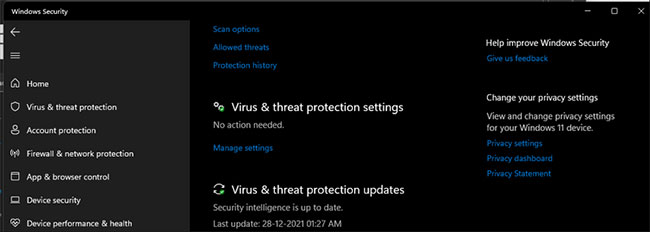
	<li style="text-align: justify;">Trong cửa sổ&nbsp;<strong>Windows Security</strong>, cuộn xuống&nbsp;<strong>Virus &amp; threat protection</strong>. Sau đó, nhấp vào&nbsp;<strong>Manage Settings</strong>.</li>
</ul>

<figure>
<div style="text-align: justify;"><img alt="Nhấp vào Manage Settings" data-i="7" data-src="https://st.quantrimang.com/photos/image/2022/01/03/sua-loi-the-installer-has-encountered-an-unexpected-error-2203-8.jpg" data-was-processed="true" height="232" src="https://st.quantrimang.com/photos/image/2022/01/03/sua-loi-the-installer-has-encountered-an-unexpected-error-2203-8.jpg" width="650" /></div>

<figcaption>
<div style="text-align: justify;">Nhấp vào Manage Settings</div>
</figcaption>
</figure>

<ul>
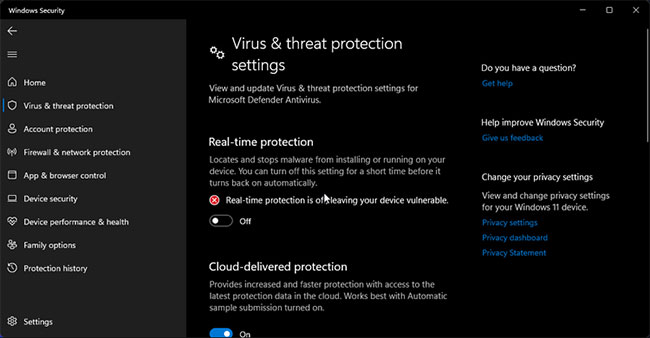
	<li style="text-align: justify;">Tắt công tắc chuyển đổi bên cạnh&nbsp;<strong>Real-time protection</strong>. Nhấp vào&nbsp;<strong>Yes</strong>&nbsp;nếu được UAC nhắc.</li>
	<li style="text-align: justify;">Tiếp theo, trong cửa sổ&nbsp;<strong>Windows Security</strong>, nhấp vào&nbsp;<strong>Firewall and network protection</strong>&nbsp;(bên trái).</li>
	<li style="text-align: justify;">Nhấp vào&nbsp;<strong>Public Network</strong>. Sau đó, tắt công tắc chuyển đổi bên cạnh&nbsp;<strong>Microsoft Defender Firewall</strong>.</li>
</ul>

<figure>
<div style="text-align: justify;"><img alt="Tắt Microsoft Defender Firewall" data-i="8" data-src="https://st.quantrimang.com/photos/image/2022/01/03/sua-loi-the-installer-has-encountered-an-unexpected-error-2203-9.jpg" data-was-processed="true" height="338" src="https://st.quantrimang.com/photos/image/2022/01/03/sua-loi-the-installer-has-encountered-an-unexpected-error-2203-9.jpg" width="650" /></div>

<figcaption>
<div style="text-align: justify;">Tắt Microsoft Defender Firewall</div>
</figcaption>
</figure>

<p style="text-align: justify;">Thực hiện tương tự đối với bất kỳ cấu hình tường lửa bảo vệ Windows đang hoạt động nào khác.</p>

<p style="text-align: justify;">Bây giờ bạn đã tắt bảo mật trên máy tính của mình, hãy khởi động lại PC để áp dụng các thay đổi. Tiếp theo, chạy trình cài đặt và sẽ không có bất kỳ lỗi nào xảy ra.</p>

<p style="text-align: justify;">Lưu ý rằng việc chạy trình cài đặt từ các nguồn không đáng tin cậy có thể gây hại. Sau khi cài đặt thành công, hãy bật lại&nbsp;<strong>Real-Time Protection</strong>&nbsp;và&nbsp;<strong>Windows Defender Firewall&nbsp;</strong>để bảo vệ dữ liệu và thiết bị của bạn.</p>
		</div>
				<div id="author">
						<p>
				<strong>Nguồn tin:</strong>
				Quantrimang.com
			</p>
		</div>
	</div>
	<div id="footer" class="clearfix">
		<div id="url">
			<strong>URL của bản tin này: </strong><a href="https://www.nguoicodonvn2008.info/vi/news/savefile/kien-thuc-may-tinh/cach-sua-loi-the-installer-has-encountered-an-unexpected-error-2203-tren-windows-5005.html" title="Cách sửa lỗi &quot;The Installer Has Encountered an Unexpected Error 2203&quot; trên Windows">https://www.nguoicodonvn2008.info/vi/news/savefile/kien-thuc-may-tinh/cach-sua-loi-the-installer-has-encountered-an-unexpected-error-2203-tren-windows-5005.html</a>

		</div>
		<div class="clear"></div>
		<div class="copyright">
			&copy; .&#x3A; Nguoicodonvn2008.info - Cõi lòng người cô đơn &#x3A;.
		</div>
		<div id="contact">
			<a href="mailto:admin@nguoicodonvn2008.info">admin@nguoicodonvn2008.info</a>
		</div>
	</div>
</div>
        <div id="timeoutsess" class="chromeframe">
            Bạn đã không sử dụng Site, <a onclick="timeoutsesscancel();" href="https://www.nguoicodonvn2008.info/#">Bấm vào đây để duy trì trạng thái đăng nhập</a>. Thời gian chờ: <span id="secField"> 60 </span> giây
        </div>
        <div id="openidResult" class="nv-alert" style="display:none"></div>
        <div id="openidBt" data-result="" data-redirect=""></div>
		</script>
		<div class="car-top">
  <span><img src="https://www.nguoicodonvn2008.info/themes/default/images/car.png" alt=""></span>
</div>
<script src="https://www.nguoicodonvn2008.info/assets/js/jquery/jquery.min.js"></script>
<script>var nv_base_siteurl="/",nv_lang_data="vi",nv_lang_interface="vi",nv_name_variable="nv",nv_fc_variable="op",nv_lang_variable="language",nv_module_name="news",nv_func_name="savefile",nv_is_user=0, nv_my_ofs=-4,nv_my_abbr="EDT",nv_cookie_prefix="nv4c_e856T",nv_check_pass_mstime=1738000,nv_area_admin=0,nv_safemode=0,theme_responsive=0,nv_recaptcha_ver=2,nv_recaptcha_sitekey="",nv_recaptcha_type="image",XSSsanitize=1;</script>
<script src="https://www.nguoicodonvn2008.info/assets/js/language/vi.js"></script>
<script src="https://www.nguoicodonvn2008.info/assets/js/DOMPurify/purify3.js"></script>
<script src="https://www.nguoicodonvn2008.info/assets/js/global.js"></script>
<script src="https://www.nguoicodonvn2008.info/assets/js/site.js"></script>
<script src="https://www.nguoicodonvn2008.info/themes/default/js/news.js"></script>
<script src="https://www.nguoicodonvn2008.info/themes/default/js/main.js"></script>
<script src="https://www.nguoicodonvn2008.info/themes/default/js/custom.js"></script>
<script type="application/ld+json">
        {
            "@context": "https://schema.org",
            "@type": "Organization",
            "url": "https://www.nguoicodonvn2008.info",
            "logo": "https://www.nguoicodonvn2008.info/uploads/angel.gif"
        }
        </script>
<script src="https://www.nguoicodonvn2008.info/themes/default/js/bootstrap.min.js"></script>
<script type="text/javascript">
var $scrolltop = $('.car-top');
$scrolltop.on('click', function () {
    $('html,body').animate({
        scrollTop: 0
    }, 800);
    $(this).addClass("car-run");
    setTimeout(function(){ $scrolltop.removeClass('car-run');}, 1000);
    return false;
});
$(window).on('scroll', function ()
{ 
    if($(window).scrollTop() >= 200)
    {
        $scrolltop.addClass("show");
        $scrolltop.addClass("car-down");
    }
    else
    {
       $scrolltop.removeClass("show");
       setTimeout(function(){ $scrolltop.removeClass('car-down');}, 300);
    }
});
</script>
</body>
</html>