<!DOCTYPE html>
    <html lang="vi" xmlns="http://www.w3.org/1999/xhtml" prefix="og: http://ogp.me/ns#">
    <head>
<title>Cách sửa lỗi NVIDIA Control Panel biến mất trong Windows 11&#x002F;10</title>
<meta name="description" content="Cách sửa lỗi NVIDIA Control Panel biến mất trong Windows 11&#x002F;10 - Savefile - Tin Tức -...">
<meta name="author" content=".: Nguoicodonvn2008.info - Cõi lòng người cô đơn :.">
<meta name="copyright" content=".: Nguoicodonvn2008.info - Cõi lòng người cô đơn :. [admin@nguoicodonvn2008.info]">
<meta name="robots" content="index, archive, follow, noodp">
<meta name="googlebot" content="index,archive,follow,noodp">
<meta name="msnbot" content="all,index,follow">
<meta name="generator" content="NukeViet v4.5">
<meta http-equiv="Content-Type" content="text/html; charset=utf-8">
<meta property="og:title" content="Cách sửa lỗi NVIDIA Control Panel biến mất trong Windows 11&#x002F;10">
<meta property="og:type" content="website">
<meta property="og:description" content="Savefile - Tin Tức - https&#x3A;&#x002F;&#x002F;www.nguoicodonvn2008.info&#x002F;vi&#x002F;news&#x002F;savefile&#x002F;kien-thuc-may-tinh&#x002F;cach-sua-loi-nvidia-control-panel-bien-mat-trong-windows-11-10-8844.html">
<meta property="og:site_name" content=".&#x3A; Nguoicodonvn2008.info - Cõi lòng người cô đơn &#x3A;.">
<meta property="og:url" content="https://www.nguoicodonvn2008.info/vi/news/savefile/kien-thuc-may-tinh/cach-sua-loi-nvidia-control-panel-bien-mat-trong-windows-11-10-8844.html">
<link rel="shortcut icon" href="https://www.nguoicodonvn2008.info/favicon.ico">
<link rel="canonical" href="https://www.nguoicodonvn2008.info/vi/news/savefile/kien-thuc-may-tinh/cach-sua-loi-nvidia-control-panel-bien-mat-trong-windows-11-10-8844.html">
<link rel="alternate" href="https://www.nguoicodonvn2008.info/vi/news/rss/" title="Tin Tức" type="application/rss+xml">
<link rel="alternate" href="https://www.nguoicodonvn2008.info/vi/news/rss/karaoke-dual/" title="Tin Tức - Karaoke Dual" type="application/rss+xml">
<link rel="alternate" href="https://www.nguoicodonvn2008.info/vi/news/rss/nhac-tre/" title="Tin Tức - Nhạc trẻ" type="application/rss+xml">
<link rel="alternate" href="https://www.nguoicodonvn2008.info/vi/news/rss/tru-tinh/" title="Tin Tức - Trữ tình" type="application/rss+xml">
<link rel="alternate" href="https://www.nguoicodonvn2008.info/vi/news/rss/nuoc-ngoai/" title="Tin Tức - Nước ngoài" type="application/rss+xml">
<link rel="alternate" href="https://www.nguoicodonvn2008.info/vi/news/rss/remix/" title="Tin Tức - Remix" type="application/rss+xml">
<link rel="alternate" href="https://www.nguoicodonvn2008.info/vi/news/rss/tam-su-tinh-yeu/" title="Tin Tức - Tâm sự tình yêu" type="application/rss+xml">
<link rel="alternate" href="https://www.nguoicodonvn2008.info/vi/news/rss/tho-suu-tam/" title="Tin Tức - Thơ sưu tầm" type="application/rss+xml">
<link rel="alternate" href="https://www.nguoicodonvn2008.info/vi/news/rss/cuoc-song/" title="Tin Tức - Cuộc sống" type="application/rss+xml">
<link rel="alternate" href="https://www.nguoicodonvn2008.info/vi/news/rss/phan-mem/" title="Tin Tức - Phần mềm" type="application/rss+xml">
<link rel="alternate" href="https://www.nguoicodonvn2008.info/vi/news/rss/kien-thuc-may-tinh/" title="Tin Tức - Kiến thức máy tính" type="application/rss+xml">
<link rel="alternate" href="https://www.nguoicodonvn2008.info/vi/news/rss/hoc-tap/" title="Tin Tức - Học tập" type="application/rss+xml">
<link rel="alternate" href="https://www.nguoicodonvn2008.info/vi/news/rss/tai-lieu/" title="Tin Tức - Tài liệu" type="application/rss+xml">
<link rel="alternate" href="https://www.nguoicodonvn2008.info/vi/news/rss/de-thi/" title="Tin Tức - Đề thi" type="application/rss+xml">
<link rel="preload" as="style" href="https://www.nguoicodonvn2008.info/assets/css/font-awesome.min.css" type="text/css">
<link rel="preload" as="style" href="https://www.nguoicodonvn2008.info/themes/default/css/bootstrap.non-responsive.css" type="text/css">
<link rel="preload" as="style" href="https://www.nguoicodonvn2008.info/themes/default/css/style.css" type="text/css">
<link rel="preload" as="style" href="https://www.nguoicodonvn2008.info/themes/default/css/style.non-responsive.css" type="text/css">
<link rel="preload" as="style" href="https://www.nguoicodonvn2008.info/themes/default/css/news.css" type="text/css">
<link rel="preload" as="style" href="https://www.nguoicodonvn2008.info/themes/default/css/custom.css" type="text/css">
<link rel="preload" as="script" href="https://www.nguoicodonvn2008.info/assets/js/jquery/jquery.min.js" type="text/javascript">
<link rel="preload" as="script" href="https://www.nguoicodonvn2008.info/assets/js/language/vi.js" type="text/javascript">
<link rel="preload" as="script" href="https://www.nguoicodonvn2008.info/assets/js/DOMPurify/purify3.js" type="text/javascript">
<link rel="preload" as="script" href="https://www.nguoicodonvn2008.info/assets/js/global.js" type="text/javascript">
<link rel="preload" as="script" href="https://www.nguoicodonvn2008.info/assets/js/site.js" type="text/javascript">
<link rel="preload" as="script" href="https://www.nguoicodonvn2008.info/themes/default/js/news.js" type="text/javascript">
<link rel="preload" as="script" href="https://www.nguoicodonvn2008.info/themes/default/js/main.js" type="text/javascript">
<link rel="preload" as="script" href="https://www.nguoicodonvn2008.info/themes/default/js/custom.js" type="text/javascript">
<link rel="preload" as="script" href="https://www.nguoicodonvn2008.info/themes/default/js/bootstrap.min.js" type="text/javascript">
<link rel="stylesheet" href="https://www.nguoicodonvn2008.info/assets/css/font-awesome.min.css">
<link rel="stylesheet" href="https://www.nguoicodonvn2008.info/themes/default/css/bootstrap.non-responsive.css">
<link rel="stylesheet" href="https://www.nguoicodonvn2008.info/themes/default/css/style.css">
<link rel="stylesheet" href="https://www.nguoicodonvn2008.info/themes/default/css/style.non-responsive.css">
<link rel="StyleSheet" href="https://www.nguoicodonvn2008.info/themes/default/css/news.css">
<link rel="stylesheet" href="https://www.nguoicodonvn2008.info/themes/default/css/custom.css">
<style type="text/css">
	body{background: #fff;}
</style>
    </head>
    <body>
<div id="print">
	<div id="hd_print">
		<h2 class="pull-left">.&#x3A; Nguoicodonvn2008.info - Cõi lòng người cô đơn &#x3A;.</h2>
		<p class="pull-right"><a title=".&#x3A; Nguoicodonvn2008.info - Cõi lòng người cô đơn &#x3A;." href="https://www.nguoicodonvn2008.info/">https://www.nguoicodonvn2008.info</a></p>
	</div>
	<div class="clear"></div>
	<hr />
	<div id="content">
		<h1>Cách sửa lỗi NVIDIA Control Panel biến mất trong Windows 11&#x002F;10</h1>
		<ul class="list-inline">
			<li>Thứ hai - 12/08/2024 04:06</li>
			<li class="hidden-print txtrequired"><em class="fa fa-print">&nbsp;</em><a title="In ra" href="javascript:;" onclick="window.print()">In ra</a></li>
			<li class="hidden-print txtrequired"><em class="fa fa-power-off">&nbsp;</em><a title="Đóng cửa sổ này" href="javascript:;" onclick="window.close()">Đóng cửa sổ này</a></li>
		</ul>
		<div class="clear"></div>
		<div id="hometext">
		</div>
				<div class="imghome">
			<img alt="Cách sửa lỗi NVIDIA Control Panel biến mất trong Windows 11&#x002F;10" src="https://st.quantrimang.com/photos/image/2024/08/12/sua-loi-nvidia-control-panel-bien-mat.jpg" width="460" class="img-thumbnail" />
		</div>
		<div class="clear"></div>
		<div id="bodytext" class="clearfix">
			<p style="text-align: justify;">NVIDIA Control Panel bao gồm một loạt cài đặt cho card đồ họa NVIDIA. Người dùng có thể cấu hình cài đặt đồ họa cho game và phần mềm từ đó. Vì vậy, đây là một ứng dụng khá quan trọng đối với người dùng PC có GPU NVIDIA.</p>

<p style="text-align: justify;">Một số người dùng đã báo cáo vấn đề NVIDIA Control Panel biến mất trong Windows 11/10. Người dùng không thể tìm thấy ứng dụng đó trên menu ngữ cảnh desktop, trong khay hệ thống hoặc trong&nbsp;Windows Control Panel. Do đó, họ không thể truy cập ứng dụng. Đây là cách bạn có thể sửa lỗi NVIDIA Control Panel biến mất trong Windows 11/10.</p>

<h2 style="text-align: justify;">Nguyên nhân nào gây ra lỗi NVIDIA Control Panel biến mất?</h2>

<p style="text-align: justify;">Sự cố &quot;NVIDIA Control Panel Not Showing&quot; có thể xảy ra vì nhiều lý do và sau đây là một số nguyên nhân phổ biến:</p>

<ul>
	<li style="text-align: justify;"><strong>Phần mềm và driver card đồ họa NVIDIA chưa được cài đặt</strong>: Đây là nguyên nhân phổ biến nhất gây ra sự cố NVIDIA Control Panel Missing. Trong trường hợp như vậy, cài đặt trình điều khiển NVIDIA sẽ giải quyết được sự cố.</li>
	<li style="text-align: justify;"><strong>Card đồ họa NVIDIA không được nhận dạng trong Device Manager</strong>: Nếu máy tính của bạn không nhận dạng được card đồ họa NVIDIA trong Device Manager hoặc nếu nhận dạng được nhưng có lỗi thì điều này có thể gây ra sự cố NVIDIA Control Panel không hiển thị.</li>
	<li style="text-align: justify;"><strong>Sự cố driver card đồ họa NVIDIA</strong>: Driver card đồ họa lỗi thời hoặc bị hỏng có thể gây ra sự cố tùy chọn &quot;NVIDIA Control Panel&quot; bị thiếu.</li>
	<li style="text-align: justify;"><strong>Bản cập nhật Windows</strong>: Đôi khi sau khi cài đặt bản cập nhật Windows, NVIDIA Control Panel không xuất hiện.</li>
</ul>

<div style="text-align: justify;">&nbsp;</div>

<h2 id="mcetoc_1i525hbpm10r" style="text-align: justify;">1. Kiểm tra kết nối màn hình</h2>

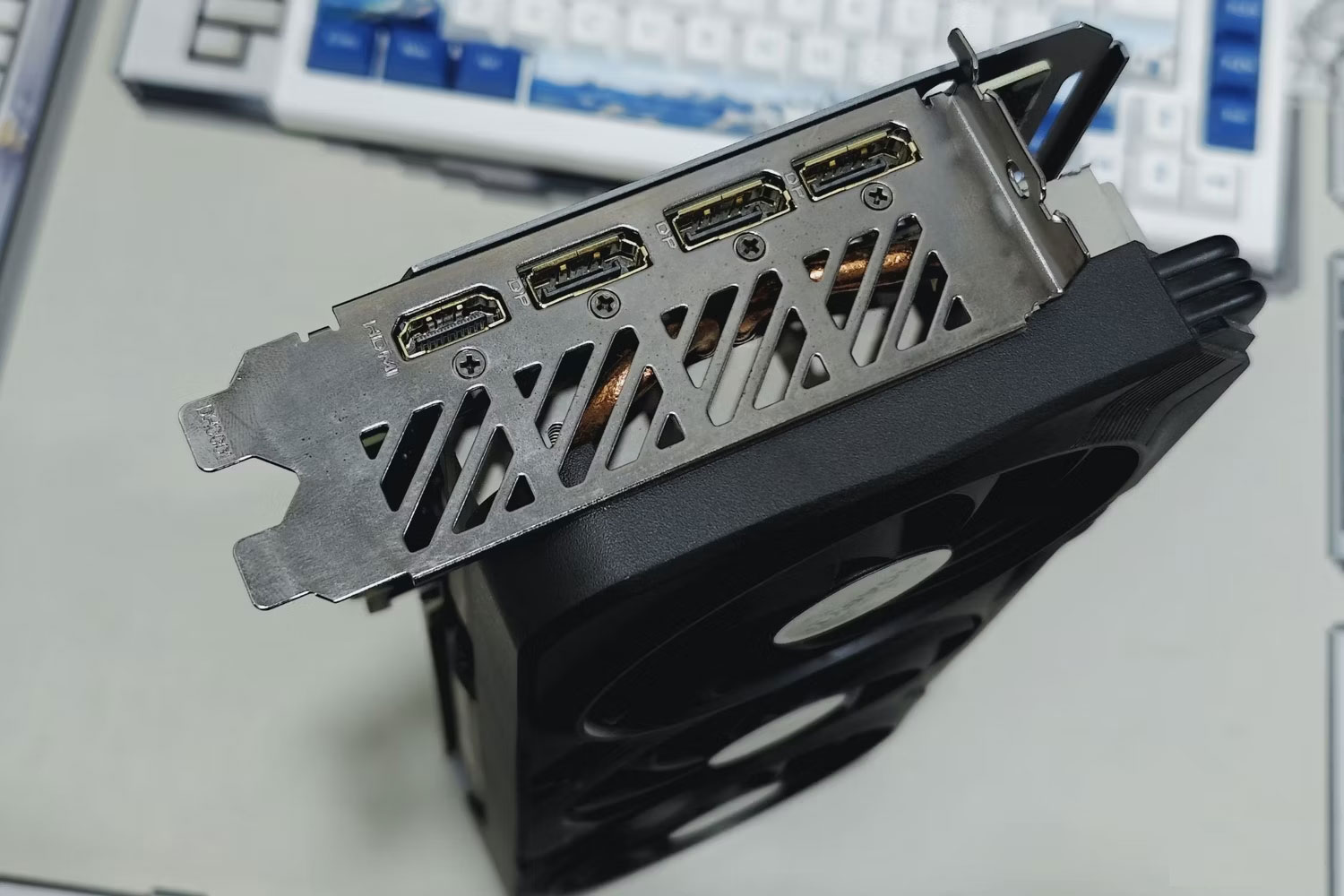
<p style="text-align: justify;">Hãy thử cách này trước khi chuyển sang các phương pháp khắc phục sự cố khác.</p>

<figure>
<div style="text-align: justify;"><img alt="Các cổng trên GPU Gigabyte GeForce RTX 4070 Ti Gaming OC." data-i="0" data-src="https://st.quantrimang.com/photos/image/2024/08/12/sua-loi-nvidia-control-panel-bien-mat.jpg" data-was-processed="true" height="1000" src="https://st.quantrimang.com/photos/image/2024/08/12/sua-loi-nvidia-control-panel-bien-mat.jpg" width="1500" /></div>

<figcaption>
<div style="text-align: justify;">Các cổng trên GPU Gigabyte GeForce RTX 4070 Ti Gaming OC.</div>
</figcaption>
</figure>

<p style="text-align: justify;">Điều đầu tiên bạn cần đảm bảo là màn hình của bạn được cắm đúng cách vào card đồ họa Nvidia. Điều này rất quan trọng vì Nvidia Control Panel sẽ không nhận dạng được màn hình của bạn nếu không được cắm đúng cách, dẫn đến nhiều lỗi khác nhau, bao gồm lỗi mà chúng ta đang cố gắng giải quyết ở đây.</p>

<div style="text-align: justify;">&nbsp;</div>

<p style="text-align: justify;">Trong trường hợp bạn thắc mắc, PC có một số cổng hiển thị và bạn phải đảm bảo rằng mình đã kết nối display adapter với cổng (riêng) của card đồ họa Nvidia. Khởi động lại PC sau khi bạn đã thiết lập đúng kết nối để xem liệu nó có khắc phục được lỗi không. Ngoài ra, bạn cũng có thể thử sử dụng một cổng khác trên card đồ họa của mình để xem liệu điều đó có khắc phục được lỗi không. Làm như vậy sẽ đảm bảo rằng bạn không sử dụng cổng không tốt gây ra lỗi này ngay từ đầu.</p>

<h2 id="mcetoc_1i525hbpm10s" style="text-align: justify;">2. Kiểm tra và kích hoạt tất cả các service NVIDIA</h2>

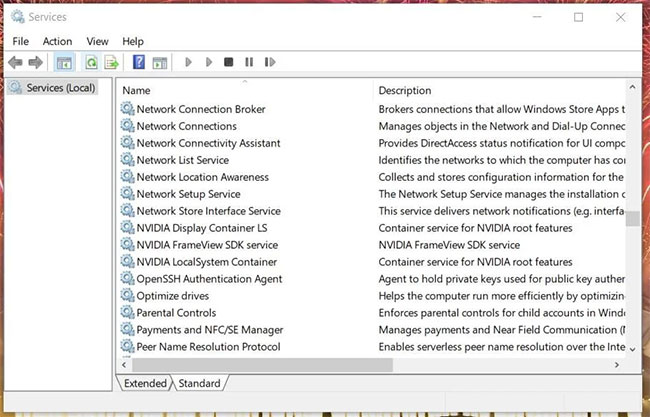
<p style="text-align: justify;">Sự cố NVIDIA Control Panel biến mất có thể phát sinh do một số service NVIDIA bị vô hiệu hóa. Do đó, bật và khởi động tất cả các service NVIDIA là một cách bạn có thể khôi phục bảng điều khiển đồ họa bị thiếu trong Windows 11/10.</p>

<p style="text-align: justify;">Đây là cách kích hoạt các service của NVIDIA:</p>

<p style="text-align: justify;"><strong>B1:</strong>&nbsp;Bấm chuột phải vào nút menu Start để mở&nbsp;menu Power User&nbsp;và chọn shortcut&nbsp;<strong>Run</strong>&nbsp;ở đó.</p>

<p style="text-align: justify;"><strong>B2:</strong>&nbsp;Nhập&nbsp;<strong>services.msc</strong>&nbsp;vào hộp&nbsp;<strong>Open</strong>&nbsp;và nhấp vào&nbsp;<strong>OK</strong>&nbsp;để hiển thị cửa sổ&nbsp;<strong>Services.</strong></p>

<p style="text-align: justify;"><strong>B3:</strong>&nbsp;Cuộn xuống đến các service NVIDIA như trong ảnh chụp nhanh bên dưới.</p>

<figure>
<div style="text-align: justify;"><img alt="Cửa sổ Services" data-adbro-processed="true" data-i="1" data-src="https://st.quantrimang.com/photos/image/2022/04/01/sua-loi-nvidia-control-panel-bien-mat-1.jpg" data-was-processed="true" height="417" src="https://st.quantrimang.com/photos/image/2022/04/01/sua-loi-nvidia-control-panel-bien-mat-1.jpg" width="650" /><br />
&nbsp;&nbsp;&nbsp;&nbsp;&nbsp;&nbsp;&nbsp;</div>

<figcaption>
<div style="text-align: justify;">Cửa sổ Services</div>
</figcaption>
</figure>

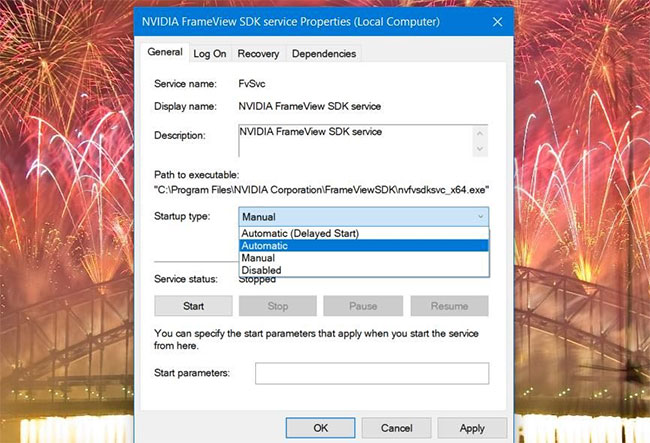
<p style="text-align: justify;"><strong>B4:</strong>&nbsp;Sau đó bấm đúp vào bất kỳ service NVIDIA nào được liệt kê ở đó.</p>

<p style="text-align: justify;"><strong>B5:</strong>&nbsp;Chọn tùy chọn&nbsp;<strong>Automatic</strong>&nbsp;trên menu drop-down&nbsp;<strong>Startup type</strong>&nbsp;cho service đó.</p>

<figure>
<div style="text-align: justify;"><img alt="Tùy chọn Automatic" data-i="2" data-src="https://st.quantrimang.com/photos/image/2022/04/01/sua-loi-nvidia-control-panel-bien-mat-2.jpg" data-was-processed="true" height="443" src="https://st.quantrimang.com/photos/image/2022/04/01/sua-loi-nvidia-control-panel-bien-mat-2.jpg" width="650" /></div>

<figcaption>
<div style="text-align: justify;">Tùy chọn Automatic</div>
</figcaption>
</figure>

<p style="text-align: justify;"><strong>B6:</strong>&nbsp;Nếu service không chạy, hãy nhấp vào nút&nbsp;<strong>Start.</strong></p>

<div style="text-align: justify;">&nbsp;</div>

<p style="text-align: justify;"><strong>B7:</strong>&nbsp;Chọn tùy chọn&nbsp;<strong>Apply</strong>&nbsp;để lưu cài đặt service NVIDIA.</p>

<p style="text-align: justify;"><strong>B8:</strong>&nbsp;Bấm&nbsp;<strong>OK</strong>&nbsp;để đóng cửa sổ thuộc tính service.</p>

<p style="text-align: justify;"><strong>B9:</strong>&nbsp;Lặp lại các bước từ 4 đến 8 cho tất cả các service NVIDIA được liệt kê.</p>

<p style="text-align: justify;"><strong>B10:</strong>&nbsp;Khởi động lại PC&nbsp;sau khi thay đổi cài đặt service NVIDIA.</p>

<h2 id="mcetoc_1i525hbpm10t" style="text-align: justify;">3. Cập nhật driver card đồ họa NVIDIA</h2>

<p style="text-align: justify;">Vì NVIDIA Control Panel được liên kết mật thiết với card đồ họa, nên nó có thể biến mất do driver NVIDIA lỗi thời hoặc không tương thích. Do đó, bạn nên&nbsp;<a href="https://quantrimang.com/cong-nghe/cach-cap-nhat-driver-cho-card-do-hoa-nvidia-138068" title="Cách cập nhật driver cho card màn hình NVIDIA">cập nhật driver card đồ họa NVIDIA</a>, nếu nó đã lỗi thời. Bạn có thể làm điều đó theo cách thủ công hoặc bằng phần mềm cập nhật driver của bên thứ ba.</p>

<h2 id="mcetoc_1i525hbpm10u" style="text-align: justify;">4. Cài đặt lại driver card đồ họa NVIDIA</h2>

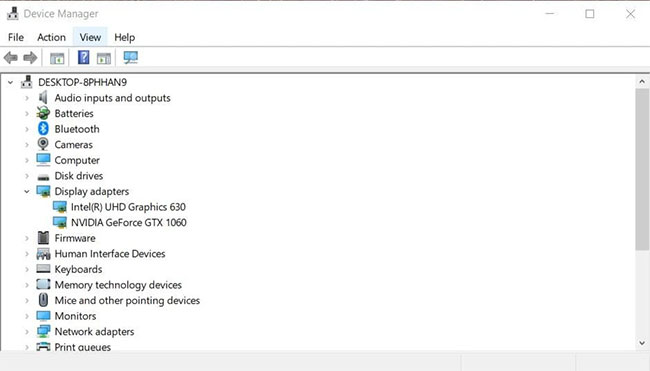
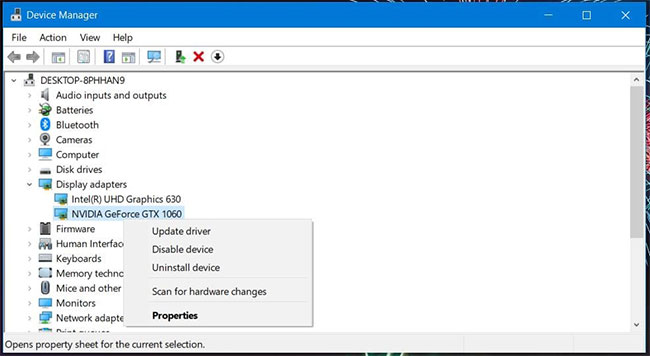
<p style="text-align: justify;">Nếu card đồ họa NVIDIA của bạn đã có driver mới nhất, hãy thử cài đặt lại driver của nó. Đây là cách bạn có thể cài đặt lại driver cho GPU NVIDIA.</p>

<p style="text-align: justify;"><strong>B1:</strong>&nbsp;Mở menu&nbsp;<strong>Power User&nbsp;</strong>và chọn tùy chọn&nbsp;<strong>Device Manager</strong>&nbsp;trên đó.</p>

<p style="text-align: justify;"><strong>B2:</strong>&nbsp;Nhấp đúp vào danh mục&nbsp;<strong>Display adapters</strong>&nbsp;để xem các thiết bị của nó.</p>

<figure>
<div style="text-align: justify;"><img alt="Danh mục Display adapters" data-i="3" data-src="https://st.quantrimang.com/photos/image/2022/04/01/sua-loi-nvidia-control-panel-bien-mat-3.jpg" data-was-processed="true" height="371" src="https://st.quantrimang.com/photos/image/2022/04/01/sua-loi-nvidia-control-panel-bien-mat-3.jpg" width="650" /></div>

<figcaption>
<div style="text-align: justify;">Danh mục Display adapters</div>
</figcaption>
</figure>

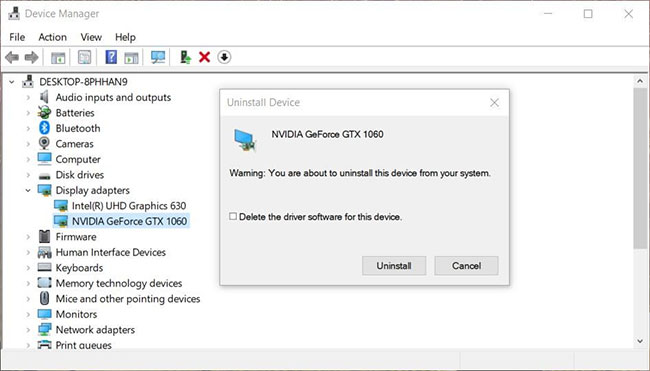
<p style="text-align: justify;"><strong>B3:</strong>&nbsp;Nhấp chuột phải vào card đồ họa NVIDIA của bạn để chọn tùy chọn&nbsp;<strong>Uninstall device.</strong></p>

<figure>
<div style="text-align: justify;"><img alt="Tùy chọn menu ngữ cảnh Uninstall device" data-i="4" data-src="https://st.quantrimang.com/photos/image/2022/04/01/sua-loi-nvidia-control-panel-bien-mat-4.jpg" data-was-processed="true" height="356" src="https://st.quantrimang.com/photos/image/2022/04/01/sua-loi-nvidia-control-panel-bien-mat-4.jpg" width="650" /></div>

<figcaption>
<div style="text-align: justify;">Tùy chọn menu ngữ cảnh Uninstall device</div>
</figcaption>
</figure>

<p style="text-align: justify;"><strong>B4:</strong>&nbsp;Chọn tùy chọn&nbsp;<strong>Delete the driver software for this device</strong>&nbsp;trên lời nhắc xác nhận xuất hiện.</p>

<figure>
<div style="text-align: justify;"><img alt="Hộp kiểm Delete the driver software for this device" data-i="5" data-src="https://st.quantrimang.com/photos/image/2022/04/01/sua-loi-nvidia-control-panel-bien-mat-5.jpg" data-was-processed="true" height="371" src="https://st.quantrimang.com/photos/image/2022/04/01/sua-loi-nvidia-control-panel-bien-mat-5.jpg" width="650" /></div>

<figcaption>
<div style="text-align: justify;">Hộp kiểm Delete the driver software for this device</div>
</figcaption>
</figure>

<p style="text-align: justify;"><strong>B5:</strong>&nbsp;Nhấp vào nút&nbsp;<strong>Uninstall</strong>&nbsp;ở đó để xác nhận.</p>

<p style="text-align: justify;"><strong>B6:</strong>&nbsp;Khởi động lại PC.</p>

<p style="text-align: justify;"><strong>B7:</strong>&nbsp;Tải xuống và cài đặt gói driver NVIDIA mới nhất cho card đồ họa của bạn.</p>

<h2 id="mcetoc_1i525hbpm10v" style="text-align: justify;">5. Thử mở NVIDIA Control Panel từ File Explorer</h2>

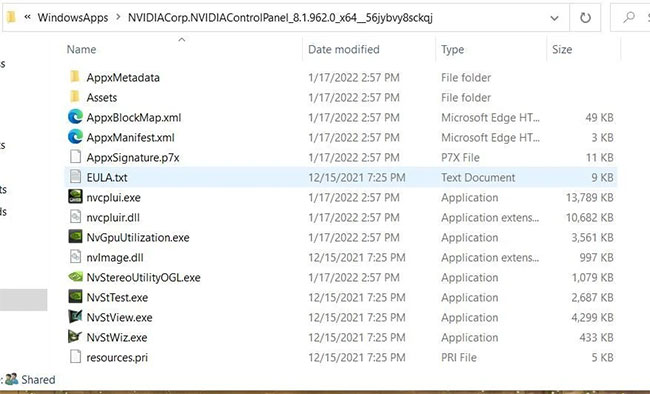
<p style="text-align: justify;">Hãy thử tìm kiếm NVIDIA Control Panel trong File Explorer. File cụ thể để mở Control Panel cần tìm là&nbsp;<strong>nvcplui.exe.</strong>&nbsp;Nếu bạn có thể tìm thấy nvcplui.exe trong Explorer, thì bạn có thể thử mở nó từ đó. Đây là các đường dẫn thư mục khác nhau mà bạn sẽ cần để tìm file nvcplui.exe trong:</p>

<div style="text-align: justify;"><iframe allow="autoplay" allowtransparency="true" aria-label="Advertisement" data-google-container-id="a!5" data-google-query-id="CJLYhMv_7ocDFeKBuQUdj8YELw" data-load-complete="true" frameborder="0" height="0" hspace="0" id="aswift_4" marginheight="0" marginwidth="0" name="aswift_4" sandbox="allow-scripts allow-same-origin allow-forms allow-presentation allow-popups" scrolling="no" tabindex="0" title="Advertisement" vspace="0" width="694"></iframe></div>

<ul>
	<li style="text-align: justify;">C:\Program Files\NVIDIA Corporation\Control Panel Client</li>
	<li style="text-align: justify;">C:\Program Files\WindowsApps\NVIDIACorp.NVIDIAControlPanel_8.1.962.0_x64__56jybvy8sckqj</li>
</ul>

<p style="text-align: justify;">Nếu bạn không thể tìm thấy thư mục Control Panel Client, thì nvcplui.exe có thể nằm trong đường dẫn thư mục WindowsApps được chỉ định ở trên. Tuy nhiên, WindowsApps không phải là một thư mục dễ truy cập. Bạn sẽ cần có quyền sở hữu thư mục đó để mở nó.</p>

<figure>
<div style="text-align: justify;"><img alt="Tìm nvcplui.exe" data-i="6" data-src="https://st.quantrimang.com/photos/image/2022/04/01/sua-loi-nvidia-control-panel-bien-mat-6.jpg" data-was-processed="true" height="394" src="https://st.quantrimang.com/photos/image/2022/04/01/sua-loi-nvidia-control-panel-bien-mat-6.jpg" width="650" /></div>

<figcaption>
<div style="text-align: justify;">Tìm nvcplui.exe</div>
</figcaption>
</figure>

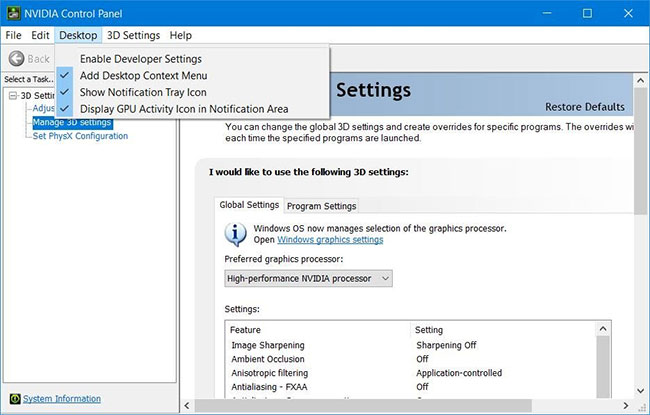
<p style="text-align: justify;">Nếu bạn tìm thấy file nvcplui.exe trong Explorer, hãy nhấp chuột phải vào file đó và chọn Run as administrator để mở NVIDIA Control Panel. Sau đó nhấp vào&nbsp;<strong>Desktop</strong>&nbsp;ở đầu cửa sổ. Chọn tùy chọn&nbsp;<strong>Add Desktop Context Menu</strong>&nbsp;và&nbsp;<strong>Show Notification Tray Icons</strong>&nbsp;để khôi phục nó trên khay hệ thống và menu ngữ cảnh desktop.</p>

<figure>
<div style="text-align: justify;"><img alt="Khôi phục NVIDIA Control Panel" data-i="7" data-src="https://st.quantrimang.com/photos/image/2022/04/01/sua-loi-nvidia-control-panel-bien-mat-7.jpg" data-was-processed="true" height="415" src="https://st.quantrimang.com/photos/image/2022/04/01/sua-loi-nvidia-control-panel-bien-mat-7.jpg" width="650" /></div>

<figcaption>
<div style="text-align: justify;">Khôi phục NVIDIA Control Panel</div>
</figcaption>
</figure>

<h2 id="mcetoc_1i525hbpm110" style="text-align: justify;">6. Sao chép file NVDisplay.Container vào thư mục Startup</h2>

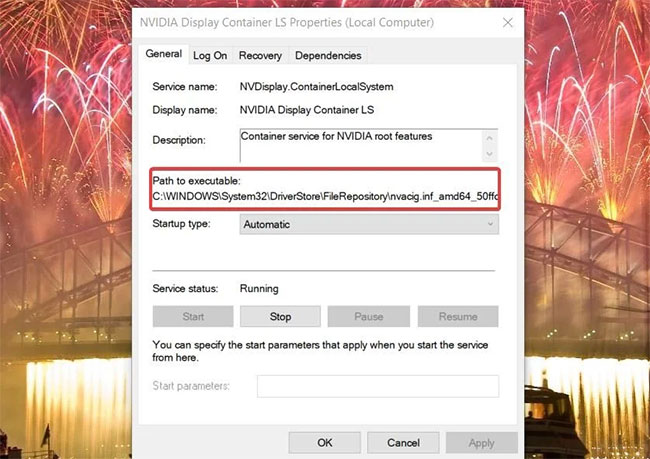
<p style="text-align: justify;">&quot;NVDisplay.Container&quot; là file của service NVIDIA Display Container LS. Thêm file đó vào thư mục&nbsp;<strong>Windows Startup</strong>&nbsp;cũng có thể khắc phục lỗi NVIDIA Control Panel biến mất. Đây là cách bạn có thể sao chép file đó vào thư mục Startup:</p>

<p style="text-align: justify;"><strong>B1:</strong>&nbsp;Mở cửa sổ&nbsp;<strong>Services</strong>&nbsp;như đã nêu trong bước một và bước hai của giải pháp đầu tiên.</p>

<p style="text-align: justify;"><strong>B2:</strong>&nbsp;Nhấp đúp vào service&nbsp;<strong>NVIDIA Display Container LS</strong>&nbsp;để mở cửa sổ của nó.</p>

<p style="text-align: justify;"><strong>B3:</strong>&nbsp;Sao chép đường dẫn đến file thực thi được chỉ định trong cửa sổ đó bằng hotkey&nbsp;<strong>Ctrl + C</strong>.</p>

<figure>
<div style="text-align: justify;"><img alt=" Sao chép đường dẫn đến file thực thi " data-i="8" data-src="https://st.quantrimang.com/photos/image/2022/04/01/sua-loi-nvidia-control-panel-bien-mat-8.jpg" data-was-processed="true" height="459" src="https://st.quantrimang.com/photos/image/2022/04/01/sua-loi-nvidia-control-panel-bien-mat-8.jpg" width="650" /></div>

<figcaption>
<div style="text-align: justify;">Sao chép đường dẫn đến file thực thi</div>
</figcaption>
</figure>

<p style="text-align: justify;"><strong>B4:</strong>&nbsp;Nhấp vào&nbsp;<strong>OK</strong>&nbsp;để thoát khỏi cửa sổ thuộc tính và đóng ứng dụng Services.</p>

<p style="text-align: justify;"><strong>B5:</strong>&nbsp;Mở File Explorer&nbsp;và chọn ổ&nbsp;<strong>C:.</strong></p>

<p style="text-align: justify;"><strong>B6:</strong>&nbsp;Dán đường dẫn đã sao chép vào thanh địa chỉ thư mục bằng phím nóng&nbsp;<strong>Ctrl + V</strong>&nbsp;và nhấn phím&nbsp;<strong>Enter.</strong></p>

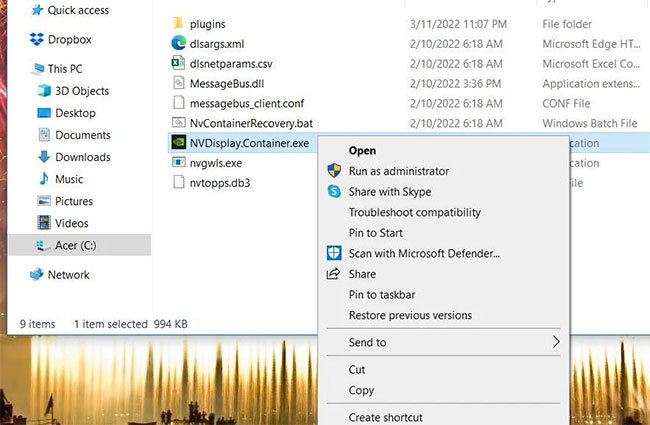
<p style="text-align: justify;"><strong>B7:</strong>&nbsp;Sau đó nhấp chuột phải vào file&nbsp;<strong>Display.NvContainer</strong>&nbsp;để chọn tùy chọn&nbsp;<strong>Copy</strong>&nbsp;trên menu ngữ cảnh.</p>

<figure>
<div style="text-align: justify;"><img alt="Chọn Copy" data-i="9" data-src="https://st.quantrimang.com/photos/image/2022/04/01/sua-loi-nvidia-control-panel-bien-mat-9.jpg" data-was-processed="true" height="425" src="https://st.quantrimang.com/photos/image/2022/04/01/sua-loi-nvidia-control-panel-bien-mat-9.jpg" width="650" /></div>

<figcaption>
<div style="text-align: justify;">Chọn Copy</div>
</figcaption>
</figure>

<p style="text-align: justify;"><strong>B8:</strong>&nbsp;Mở&nbsp;<strong>Run</strong>&nbsp;và nhập&nbsp;<strong>shell:startup</strong>&nbsp;vào hộp&nbsp;<strong>Open.</strong></p>

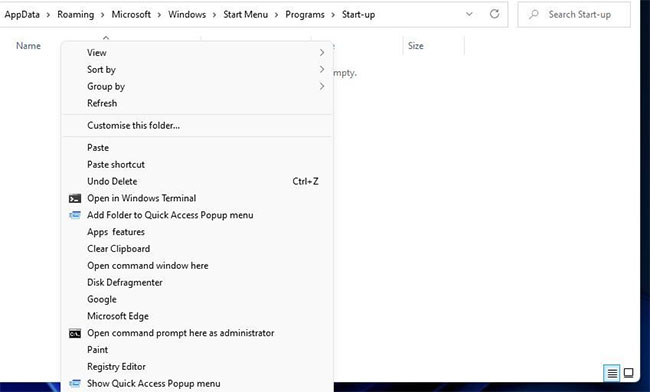
<p style="text-align: justify;"><strong>B9:</strong>&nbsp;Nhấp chuột phải vào bên trong thư mục&nbsp;<strong>Startup</strong>&nbsp;để chọn tùy chọn shortcut&nbsp;<strong>Paste.</strong></p>

<div style="text-align: justify;"><iframe allow="autoplay" allowtransparency="true" aria-label="Advertisement" data-google-container-id="a!6" data-google-query-id="CPiA08v_7ocDFabOTAIdit81Tg" data-load-complete="true" frameborder="0" height="0" hspace="0" id="aswift_5" marginheight="0" marginwidth="0" name="aswift_5" sandbox="allow-scripts allow-same-origin allow-forms allow-presentation allow-popups" scrolling="no" tabindex="0" title="Advertisement" vspace="0" width="694"></iframe></div>

<figure>
<div style="text-align: justify;"><img alt="Chọn Paste " data-i="10" data-src="https://st.quantrimang.com/photos/image/2022/04/01/sua-loi-nvidia-control-panel-bien-mat-10.jpg" data-was-processed="true" height="392" src="https://st.quantrimang.com/photos/image/2022/04/01/sua-loi-nvidia-control-panel-bien-mat-10.jpg" width="650" /></div>

<figcaption>
<div style="text-align: justify;">Chọn Paste</div>
</figcaption>
</figure>

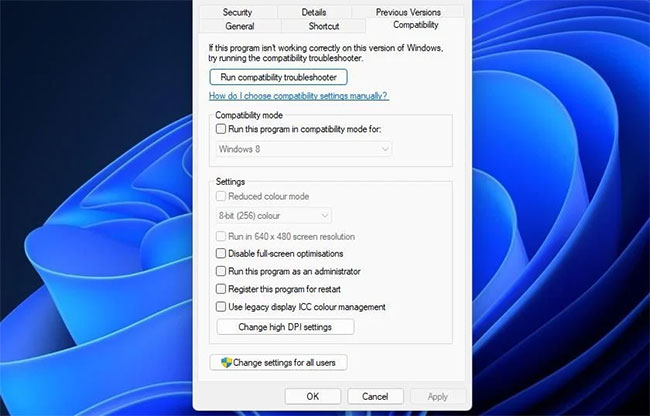
<p style="text-align: justify;"><strong>B10:</strong>&nbsp;Tiếp theo, nhấp chuột phải vào file&nbsp;<strong>Display.NvContainer</strong>&nbsp;và chọn&nbsp;<strong>Properties.</strong></p>

<p style="text-align: justify;"><strong>B11:</strong>&nbsp;Chọn&nbsp;<strong>Run as administrator&nbsp;</strong>trên tab&nbsp;<strong>Compatibility</strong>&nbsp;được hiển thị ngay bên dưới và nhấp vào nút&nbsp;<strong>Apply.</strong></p>

<figure>
<div style="text-align: justify;"><img alt="Chọn Run as administrator" data-i="11" data-src="https://st.quantrimang.com/photos/image/2022/04/01/sua-loi-nvidia-control-panel-bien-mat-11.jpg" data-was-processed="true" height="416" src="https://st.quantrimang.com/photos/image/2022/04/01/sua-loi-nvidia-control-panel-bien-mat-11.jpg" width="650" /></div>

<figcaption>
<div style="text-align: justify;">Chọn Run as administrator</div>
</figcaption>
</figure>

<p style="text-align: justify;"><strong>B12:</strong>&nbsp;Cuối cùng, hãy khởi động lại máy tính.</p>

<h2 id="mcetoc_1i525hbpm111" style="text-align: justify;">7. Cài đặt lại NVIDIA Control Panel</h2>

<p style="text-align: justify;">Phương án cuối cùng, hãy thử cài đặt lại NVIDIA Control Panel. Bạn có thể cài đặt lại NVIDIA Control Panel bằng cách gỡ cài đặt qua Settings như sau.</p>

<p style="text-align: justify;"><strong>B1:</strong>&nbsp;<a href="https://quantrimang.com/cong-nghe/6-cach-truy-cap-nhanh-settings-tren-windows-10-130106" title="Tổng hợp 12 cách truy cập nhanh ứng dụng Settings trên Windows 10">Mở Settings</a>&nbsp;trong Windows.</p>

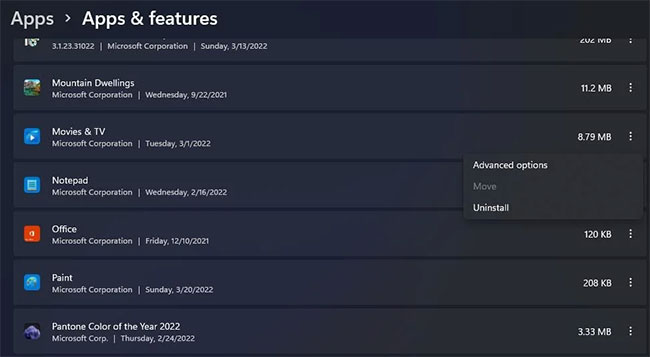
<p style="text-align: justify;"><strong>B2:</strong>&nbsp;Sau đó, chọn&nbsp;<strong>Apps &gt; Apps &amp; features</strong>&nbsp;để hiển thị danh sách phần mềm đã cài đặt.</p>

<p style="text-align: justify;"><strong>B3:</strong>&nbsp;Tìm ứng dụng NVIDIA Control Panel được liệt kê ở đó và nhấp vào nút ba chấm.</p>

<p style="text-align: justify;"><strong>B4:</strong>&nbsp;Chọn tùy chọn&nbsp;<strong>Uninstall</strong>&nbsp;cho NVIDIA Control Panel.</p>

<figure>
<div style="text-align: justify;"><img alt="Chọn Uninstall" data-i="12" data-src="https://st.quantrimang.com/photos/image/2022/04/01/sua-loi-nvidia-control-panel-bien-mat-12.jpg" data-was-processed="true" height="357" src="https://st.quantrimang.com/photos/image/2022/04/01/sua-loi-nvidia-control-panel-bien-mat-12.jpg" width="650" /></div>

<figcaption>
<div style="text-align: justify;">Chọn Uninstall</div>
</figcaption>
</figure>

<p style="text-align: justify;"><strong>B5:</strong>&nbsp;Khởi động lại PC sau khi gỡ cài đặt ứng dụng NVIDIA Control Panel.</p>

<p style="text-align: justify;"><strong>B6:</strong>&nbsp;Nhấp vào shortcut ứng dụng Microsoft Store đã ghim từ menu Start.</p>

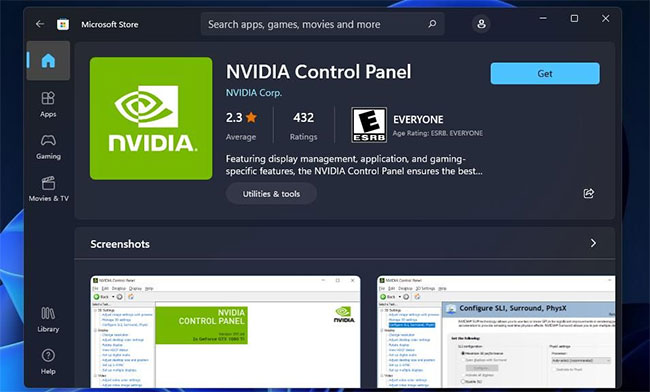
<p style="text-align: justify;"><strong>B7:</strong>&nbsp;Nhập&nbsp;<strong>NVIDIA Control Panel&nbsp;</strong>vào hộp tìm kiếm của MS Store.</p>

<p style="text-align: justify;"><strong>B8:</strong>&nbsp;Chọn NVIDIA Control Panel trong kết quả tìm kiếm.</p>

<figure>
<div style="text-align: justify;"><img alt="Chọn NVIDIA Control Panel" data-i="13" data-src="https://st.quantrimang.com/photos/image/2022/04/01/sua-loi-nvidia-control-panel-bien-mat-13.jpg" data-was-processed="true" height="392" src="https://st.quantrimang.com/photos/image/2022/04/01/sua-loi-nvidia-control-panel-bien-mat-13.jpg" width="650" /></div>

<figcaption>
<div style="text-align: justify;">Chọn NVIDIA Control Panel</div>
</figcaption>
</figure>

<p style="text-align: justify;"><strong>B9:</strong>&nbsp;Nhấn nút&nbsp;<strong>Get</strong>&nbsp;để cài đặt lại ứng dụng.</p>

<p style="text-align: justify;">Mặc dù bạn có thể cấu hình các tùy chọn đồ họa trong game, nhưng tốt hơn hết bạn nên áp dụng cài đặt chung thông qua NVIDIA Control Panel. Bạn có thể khôi phục NVIDIA Control Panel bị thiếu của mình trong Windows 11 và 10 bằng cách áp dụng các bản sửa lỗi tiềm năng ở trên. Sau đó, bạn sẽ có thể truy cập và thay đổi cài đặt đồ họa ở đó theo nhu cầu một lần nữa.</p>
		</div>
				<div id="author">
						<p>
				<strong>Nguồn tin:</strong>
				Quantrimang.com:
			</p>
		</div>
	</div>
	<div id="footer" class="clearfix">
		<div id="url">
			<strong>URL của bản tin này: </strong><a href="https://www.nguoicodonvn2008.info/vi/news/savefile/kien-thuc-may-tinh/cach-sua-loi-nvidia-control-panel-bien-mat-trong-windows-11-10-8844.html" title="Cách sửa lỗi NVIDIA Control Panel biến mất trong Windows 11&#x002F;10">https://www.nguoicodonvn2008.info/vi/news/savefile/kien-thuc-may-tinh/cach-sua-loi-nvidia-control-panel-bien-mat-trong-windows-11-10-8844.html</a>

		</div>
		<div class="clear"></div>
		<div class="copyright">
			&copy; .&#x3A; Nguoicodonvn2008.info - Cõi lòng người cô đơn &#x3A;.
		</div>
		<div id="contact">
			<a href="mailto:admin@nguoicodonvn2008.info">admin@nguoicodonvn2008.info</a>
		</div>
	</div>
</div>
        <div id="timeoutsess" class="chromeframe">
            Bạn đã không sử dụng Site, <a onclick="timeoutsesscancel();" href="https://www.nguoicodonvn2008.info/#">Bấm vào đây để duy trì trạng thái đăng nhập</a>. Thời gian chờ: <span id="secField"> 60 </span> giây
        </div>
        <div id="openidResult" class="nv-alert" style="display:none"></div>
        <div id="openidBt" data-result="" data-redirect=""></div>
		</script>
		<div class="car-top">
  <span><img src="https://www.nguoicodonvn2008.info/themes/default/images/car.png" alt=""></span>
</div>
<div id="run_cronjobs" style="visibility:hidden;display:none;"><img alt="cron" src="/index.php?second=cronjobs&amp;p=l516L8j7" width="1" height="1" /></div>
<script src="https://www.nguoicodonvn2008.info/assets/js/jquery/jquery.min.js"></script>
<script>var nv_base_siteurl="/",nv_lang_data="vi",nv_lang_interface="vi",nv_name_variable="nv",nv_fc_variable="op",nv_lang_variable="language",nv_module_name="news",nv_func_name="savefile",nv_is_user=0, nv_my_ofs=-4,nv_my_abbr="EDT",nv_cookie_prefix="nv4c_e856T",nv_check_pass_mstime=1738000,nv_area_admin=0,nv_safemode=0,theme_responsive=0,nv_recaptcha_ver=2,nv_recaptcha_sitekey="",nv_recaptcha_type="image",XSSsanitize=1;</script>
<script src="https://www.nguoicodonvn2008.info/assets/js/language/vi.js"></script>
<script src="https://www.nguoicodonvn2008.info/assets/js/DOMPurify/purify3.js"></script>
<script src="https://www.nguoicodonvn2008.info/assets/js/global.js"></script>
<script src="https://www.nguoicodonvn2008.info/assets/js/site.js"></script>
<script src="https://www.nguoicodonvn2008.info/themes/default/js/news.js"></script>
<script src="https://www.nguoicodonvn2008.info/themes/default/js/main.js"></script>
<script src="https://www.nguoicodonvn2008.info/themes/default/js/custom.js"></script>
<script type="application/ld+json">
        {
            "@context": "https://schema.org",
            "@type": "Organization",
            "url": "https://www.nguoicodonvn2008.info",
            "logo": "https://www.nguoicodonvn2008.info/uploads/angel.gif"
        }
        </script>
<script src="https://www.nguoicodonvn2008.info/themes/default/js/bootstrap.min.js"></script>
<script type="text/javascript">
var $scrolltop = $('.car-top');
$scrolltop.on('click', function () {
    $('html,body').animate({
        scrollTop: 0
    }, 800);
    $(this).addClass("car-run");
    setTimeout(function(){ $scrolltop.removeClass('car-run');}, 1000);
    return false;
});
$(window).on('scroll', function ()
{ 
    if($(window).scrollTop() >= 200)
    {
        $scrolltop.addClass("show");
        $scrolltop.addClass("car-down");
    }
    else
    {
       $scrolltop.removeClass("show");
       setTimeout(function(){ $scrolltop.removeClass('car-down');}, 300);
    }
});
</script>
</body>
</html>