<!DOCTYPE html>
    <html lang="vi" xmlns="http://www.w3.org/1999/xhtml" prefix="og: http://ogp.me/ns#">
    <head>
<title>Cách sửa lỗi &quot;No Speaker or Headphones are Plugged In&quot; trên Windows</title>
<meta name="description" content="Cách sửa lỗi &quot;No Speaker or Headphones are Plugged In&quot; trên Windows - Savefile - Tin Tức -...">
<meta name="author" content=".: Nguoicodonvn2008.info - Cõi lòng người cô đơn :.">
<meta name="copyright" content=".: Nguoicodonvn2008.info - Cõi lòng người cô đơn :. [admin@nguoicodonvn2008.info]">
<meta name="robots" content="index, archive, follow, noodp">
<meta name="googlebot" content="index,archive,follow,noodp">
<meta name="msnbot" content="all,index,follow">
<meta name="generator" content="NukeViet v4.5">
<meta http-equiv="Content-Type" content="text/html; charset=utf-8">
<meta property="og:title" content="Cách sửa lỗi &quot;No Speaker or Headphones are Plugged In&quot; trên Windows">
<meta property="og:type" content="website">
<meta property="og:description" content="Savefile - Tin Tức - https&#x3A;&#x002F;&#x002F;www.nguoicodonvn2008.info&#x002F;vi&#x002F;news&#x002F;savefile&#x002F;kien-thuc-may-tinh&#x002F;cach-sua-loi-no-speaker-or-headphones-are-plugged-in-tren-windows-6878.html">
<meta property="og:site_name" content=".&#x3A; Nguoicodonvn2008.info - Cõi lòng người cô đơn &#x3A;.">
<meta property="og:url" content="https://www.nguoicodonvn2008.info/vi/news/savefile/kien-thuc-may-tinh/cach-sua-loi-no-speaker-or-headphones-are-plugged-in-tren-windows-6878.html">
<link rel="shortcut icon" href="https://www.nguoicodonvn2008.info/favicon.ico">
<link rel="canonical" href="https://www.nguoicodonvn2008.info/vi/news/savefile/kien-thuc-may-tinh/cach-sua-loi-no-speaker-or-headphones-are-plugged-in-tren-windows-6878.html">
<link rel="alternate" href="https://www.nguoicodonvn2008.info/vi/news/rss/" title="Tin Tức" type="application/rss+xml">
<link rel="alternate" href="https://www.nguoicodonvn2008.info/vi/news/rss/karaoke-dual/" title="Tin Tức - Karaoke Dual" type="application/rss+xml">
<link rel="alternate" href="https://www.nguoicodonvn2008.info/vi/news/rss/nhac-tre/" title="Tin Tức - Nhạc trẻ" type="application/rss+xml">
<link rel="alternate" href="https://www.nguoicodonvn2008.info/vi/news/rss/tru-tinh/" title="Tin Tức - Trữ tình" type="application/rss+xml">
<link rel="alternate" href="https://www.nguoicodonvn2008.info/vi/news/rss/nuoc-ngoai/" title="Tin Tức - Nước ngoài" type="application/rss+xml">
<link rel="alternate" href="https://www.nguoicodonvn2008.info/vi/news/rss/remix/" title="Tin Tức - Remix" type="application/rss+xml">
<link rel="alternate" href="https://www.nguoicodonvn2008.info/vi/news/rss/tam-su-tinh-yeu/" title="Tin Tức - Tâm sự tình yêu" type="application/rss+xml">
<link rel="alternate" href="https://www.nguoicodonvn2008.info/vi/news/rss/tho-suu-tam/" title="Tin Tức - Thơ sưu tầm" type="application/rss+xml">
<link rel="alternate" href="https://www.nguoicodonvn2008.info/vi/news/rss/cuoc-song/" title="Tin Tức - Cuộc sống" type="application/rss+xml">
<link rel="alternate" href="https://www.nguoicodonvn2008.info/vi/news/rss/phan-mem/" title="Tin Tức - Phần mềm" type="application/rss+xml">
<link rel="alternate" href="https://www.nguoicodonvn2008.info/vi/news/rss/kien-thuc-may-tinh/" title="Tin Tức - Kiến thức máy tính" type="application/rss+xml">
<link rel="alternate" href="https://www.nguoicodonvn2008.info/vi/news/rss/hoc-tap/" title="Tin Tức - Học tập" type="application/rss+xml">
<link rel="alternate" href="https://www.nguoicodonvn2008.info/vi/news/rss/tai-lieu/" title="Tin Tức - Tài liệu" type="application/rss+xml">
<link rel="alternate" href="https://www.nguoicodonvn2008.info/vi/news/rss/de-thi/" title="Tin Tức - Đề thi" type="application/rss+xml">
<link rel="preload" as="style" href="https://www.nguoicodonvn2008.info/assets/css/font-awesome.min.css" type="text/css">
<link rel="preload" as="style" href="https://www.nguoicodonvn2008.info/themes/default/css/bootstrap.non-responsive.css" type="text/css">
<link rel="preload" as="style" href="https://www.nguoicodonvn2008.info/themes/default/css/style.css" type="text/css">
<link rel="preload" as="style" href="https://www.nguoicodonvn2008.info/themes/default/css/style.non-responsive.css" type="text/css">
<link rel="preload" as="style" href="https://www.nguoicodonvn2008.info/themes/default/css/news.css" type="text/css">
<link rel="preload" as="style" href="https://www.nguoicodonvn2008.info/themes/default/css/custom.css" type="text/css">
<link rel="preload" as="script" href="https://www.nguoicodonvn2008.info/assets/js/jquery/jquery.min.js" type="text/javascript">
<link rel="preload" as="script" href="https://www.nguoicodonvn2008.info/assets/js/language/vi.js" type="text/javascript">
<link rel="preload" as="script" href="https://www.nguoicodonvn2008.info/assets/js/DOMPurify/purify3.js" type="text/javascript">
<link rel="preload" as="script" href="https://www.nguoicodonvn2008.info/assets/js/global.js" type="text/javascript">
<link rel="preload" as="script" href="https://www.nguoicodonvn2008.info/assets/js/site.js" type="text/javascript">
<link rel="preload" as="script" href="https://www.nguoicodonvn2008.info/themes/default/js/news.js" type="text/javascript">
<link rel="preload" as="script" href="https://www.nguoicodonvn2008.info/themes/default/js/main.js" type="text/javascript">
<link rel="preload" as="script" href="https://www.nguoicodonvn2008.info/themes/default/js/custom.js" type="text/javascript">
<link rel="preload" as="script" href="https://www.nguoicodonvn2008.info/themes/default/js/bootstrap.min.js" type="text/javascript">
<link rel="stylesheet" href="https://www.nguoicodonvn2008.info/assets/css/font-awesome.min.css">
<link rel="stylesheet" href="https://www.nguoicodonvn2008.info/themes/default/css/bootstrap.non-responsive.css">
<link rel="stylesheet" href="https://www.nguoicodonvn2008.info/themes/default/css/style.css">
<link rel="stylesheet" href="https://www.nguoicodonvn2008.info/themes/default/css/style.non-responsive.css">
<link rel="StyleSheet" href="https://www.nguoicodonvn2008.info/themes/default/css/news.css">
<link rel="stylesheet" href="https://www.nguoicodonvn2008.info/themes/default/css/custom.css">
<style type="text/css">
	body{background: #fff;}
</style>
    </head>
    <body>
<div id="print">
	<div id="hd_print">
		<h2 class="pull-left">.&#x3A; Nguoicodonvn2008.info - Cõi lòng người cô đơn &#x3A;.</h2>
		<p class="pull-right"><a title=".&#x3A; Nguoicodonvn2008.info - Cõi lòng người cô đơn &#x3A;." href="https://www.nguoicodonvn2008.info/">https://www.nguoicodonvn2008.info</a></p>
	</div>
	<div class="clear"></div>
	<hr />
	<div id="content">
		<h1>Cách sửa lỗi &quot;No Speaker or Headphones are Plugged In&quot; trên Windows</h1>
		<ul class="list-inline">
			<li>Thứ ba - 14/03/2023 00:53</li>
			<li class="hidden-print txtrequired"><em class="fa fa-print">&nbsp;</em><a title="In ra" href="javascript:;" onclick="window.print()">In ra</a></li>
			<li class="hidden-print txtrequired"><em class="fa fa-power-off">&nbsp;</em><a title="Đóng cửa sổ này" href="javascript:;" onclick="window.close()">Đóng cửa sổ này</a></li>
		</ul>
		<div class="clear"></div>
		<div id="hometext">
		</div>
				<div class="imghome">
			<img alt="Cách sửa lỗi &quot;No Speaker or Headphones are Plugged In&quot; trên Windows" src="https://st.quantrimang.com/photos/image/2023/03/13/sua-loi-no-speaker-or-headphones-are-plugged-in-tren-windows-2.jpg" width="460" class="img-thumbnail" />
		</div>
		<div class="clear"></div>
		<div id="bodytext" class="clearfix">
			<p style="text-align: justify;">Đôi khi, bạn có thể nhận thấy có dấu X màu đỏ xuất hiện ở biểu tượng âm thanh trên thanh tác vụ Windows. Nếu bạn di chuột qua đó, nó sẽ báo lỗi không có loa hoặc cắm tai nghe được cắm. Lỗi này có thể xảy ra do sự cố với driver âm thanh hoặc service âm thanh của Windows.</p>

<p style="text-align: justify;">Để khắc phục lỗi, hãy chạy trình khắc phục sự cố âm thanh tích hợp để tìm và khắc phục các sự cố phổ biến với thiết bị âm thanh. Nếu không, bạn có thể thực hiện khôi phục driver âm thanh hoặc cài đặt lại driver âm thanh theo cách thủ công để khôi phục âm thanh cho hệ thống.</p>

<p style="text-align: justify;">Dưới đây là một số bước giúp bạn khắc phục lỗi &quot;No Speaker or Headphones are Plugged In&quot; trên Windows.</p>

<h2 style="text-align: justify;">1. Chạy trình khắc phục sự cố âm thanh của Windows</h2>

<p style="text-align: justify;">Bạn có thể khắc phục sự cố âm thanh trên Windows bằng trình khắc phục sự cố âm thanh tích hợp sẵn. Nó quét hệ thống Windows của bạn để tìm các sự cố âm thanh phổ biến và cố gắng tự động khắc phục chúng.</p>

<p style="text-align: justify;">Để chạy trình khắc phục sự cố, hãy làm như sau:</p>

<p style="text-align: justify;">1. Nhấn&nbsp;<strong>Win + I</strong>&nbsp;để&nbsp;mở Settings.</p>

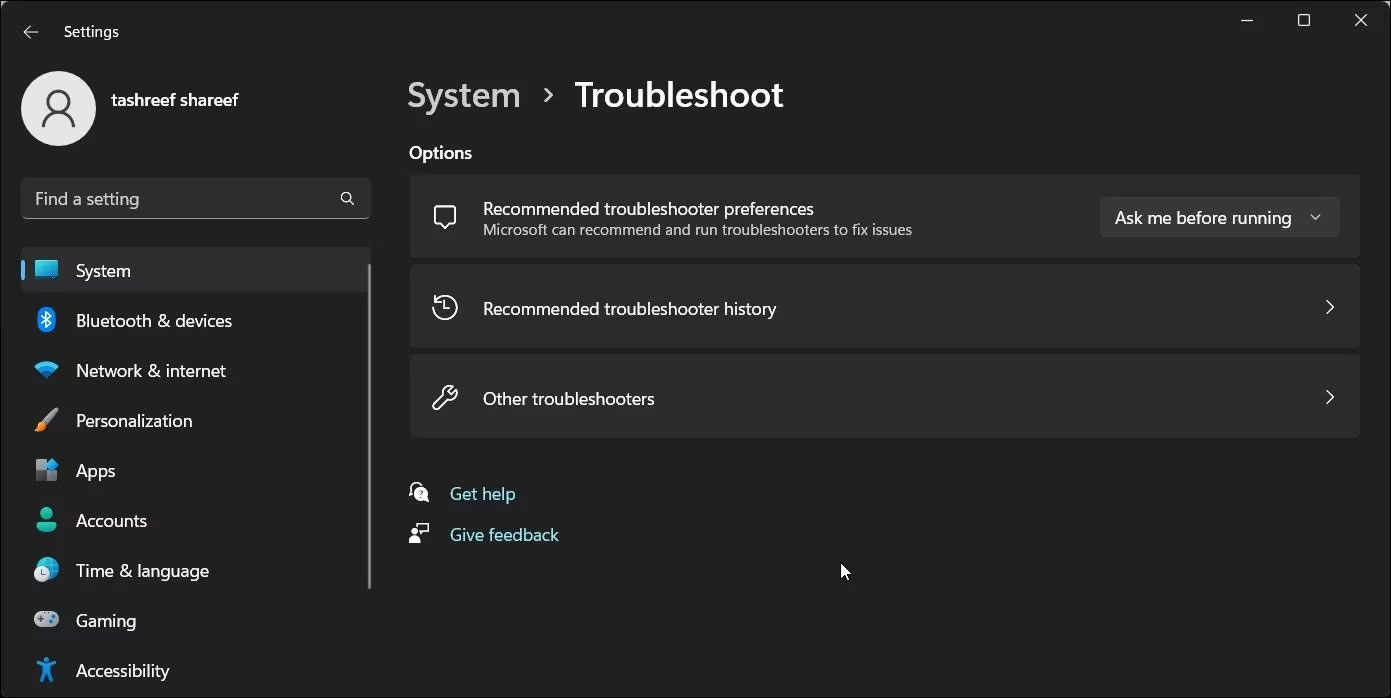
<p style="text-align: justify;">2. Trong tab&nbsp;<strong>System</strong>, cuộn xuống và nhấp vào&nbsp;<strong>Troubleshoot</strong>.</p>

<p style="text-align: justify;">3. Tiếp theo, nhấp vào&nbsp;<strong>Other</strong>&nbsp;<strong>troubleshooters</strong>.</p>

<figure>
<div style="text-align: justify;"><img alt="Khắc phục sự cố Windows 11 trình khắc phục sự cố khác" data-i="0" data-src="https://st.quantrimang.com/photos/image/2023/03/13/sua-loi-no-speaker-or-headphones-are-plugged-in-tren-windows-1.jpg" data-was-processed="true" height="698" src="https://st.quantrimang.com/photos/image/2023/03/13/sua-loi-no-speaker-or-headphones-are-plugged-in-tren-windows-1.jpg" width="1391" /></div>

<figcaption>
<div style="text-align: justify;">Khắc phục sự cố Windows 11 trình khắc phục sự cố khác</div>
</figcaption>
</figure>

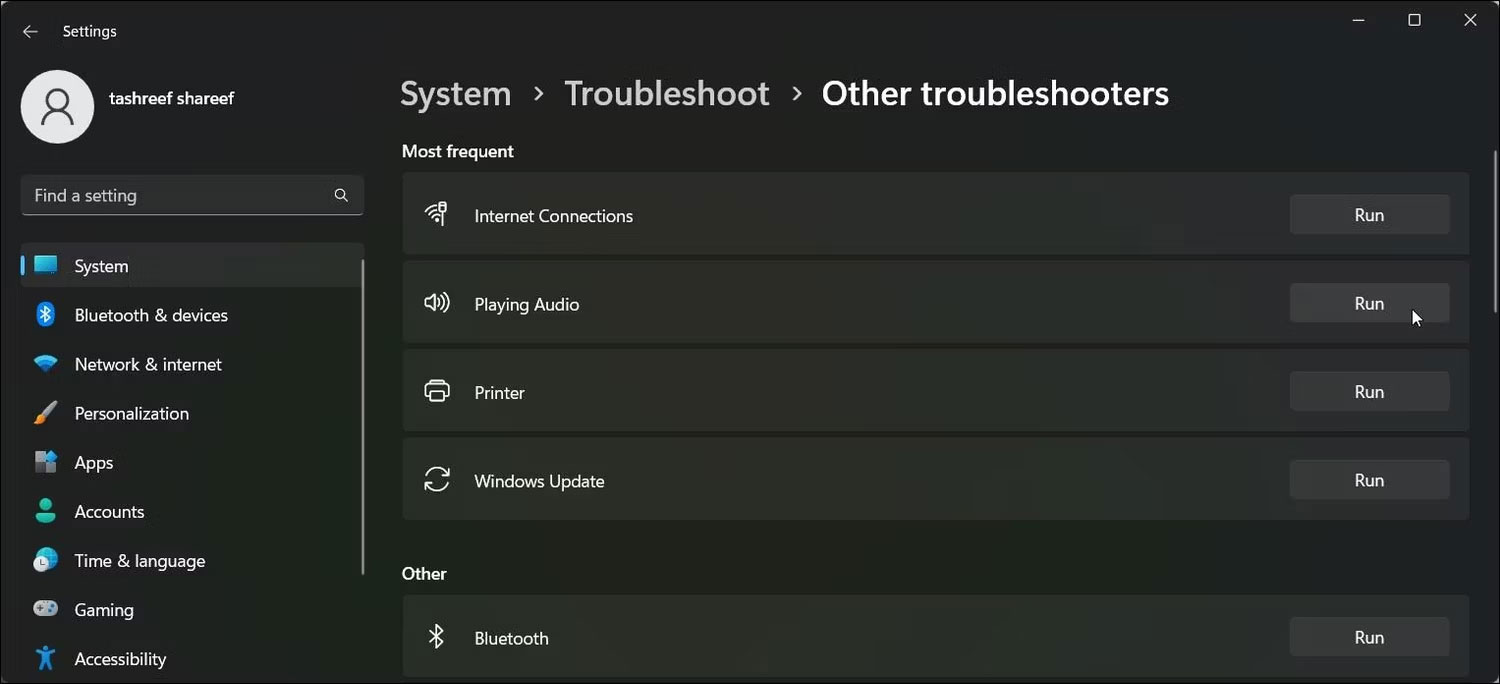
<p style="text-align: justify;">4. Nhấp vào nút&nbsp;<strong>Run</strong>&nbsp;cho&nbsp;<strong>Playing Audio</strong>. Nó sẽ kiểm tra trạng thái service âm thanh và nhắc bạn chọn thiết bị âm thanh của mình.</p>

<figure>
<div style="text-align: justify;"><img alt="Nhấp vào nút Run cho Playing Audio" data-i="1" data-src="https://st.quantrimang.com/photos/image/2023/03/13/sua-loi-no-speaker-or-headphones-are-plugged-in-tren-windows-2.jpg" data-was-processed="true" height="684" src="https://st.quantrimang.com/photos/image/2023/03/13/sua-loi-no-speaker-or-headphones-are-plugged-in-tren-windows-2.jpg" width="1500" /></div>

<figcaption>
<div style="text-align: justify;">Nhấp vào nút Run cho Playing Audio</div>
</figcaption>
</figure>

<p style="text-align: justify;">5. Chọn loa thiết bị của bạn và nhấp vào&nbsp;<strong>Next</strong>.</p>

<p style="text-align: justify;">6. Nhấp vào&nbsp;<strong>NO</strong>&nbsp;,&nbsp;<strong>Do not open Audio Enhancements</strong>&nbsp;trong hộp thoại&nbsp;<strong>Turn off Sound Effects and Enhancements</strong>.</p>

<p style="text-align: justify;">7. Áp dụng mọi bản sửa lỗi được đề xuất và kiểm tra kết quả.</p>

<h2 style="text-align: justify;">2. Thực hiện khôi phục driver thiết bị âm thanh</h2>

<p style="text-align: justify;">Nếu bản cập nhật Windows hoặc driver đã làm hỏng thiết bị âm thanh của bạn, bạn có thể thực hiện khôi phục driver để sử dụng lại driver hoạt động tốt gần đây nhất. Bạn có thể&nbsp;sử dụng&nbsp;Device Manager&nbsp;để khôi phục driver trong Windows.</p>

<p style="text-align: justify;">Để khôi phục driver thiết bị âm thanh, hãy làm theo hướng dẫn của Quantrimang.com về&nbsp;cách khôi phục driver trong Windows. Bạn có thể sẽ tìm thấy driver âm thanh của mình trong phần&nbsp;<strong>Sound, video, and game controllers</strong>&nbsp;của Device Manager.</p>

<h2 style="text-align: justify;">3. Thêm Network Service và Local Service vào Local Administrator Group</h2>

<p style="text-align: justify;">Một cách khác để khắc phục lỗi này là thêm Network Service và Local Service vào Local Administrator Group. Network Service và Local Service là một phần tài khoản được xác định trước của trình quản lý kiểm soát service. Việc thêm các tài khoản này vào Local Administrator Group sẽ giúp bạn khắc phục sự cố âm thanh trên PC Windows của mình.</p>

<p style="text-align: justify;">Lưu ý rằng Local Users and Groups không khả dụng trên phiên bản Windows Home. Tuy nhiên, người dùng Home có thể thêm Network Service và Local Service vào Local Administrator Group bằng Command Prompt.</p>

<p style="text-align: justify;">Để thêm Network Service và Local Service vào Local Administrator Group bằng Local Users and Groups:</p>

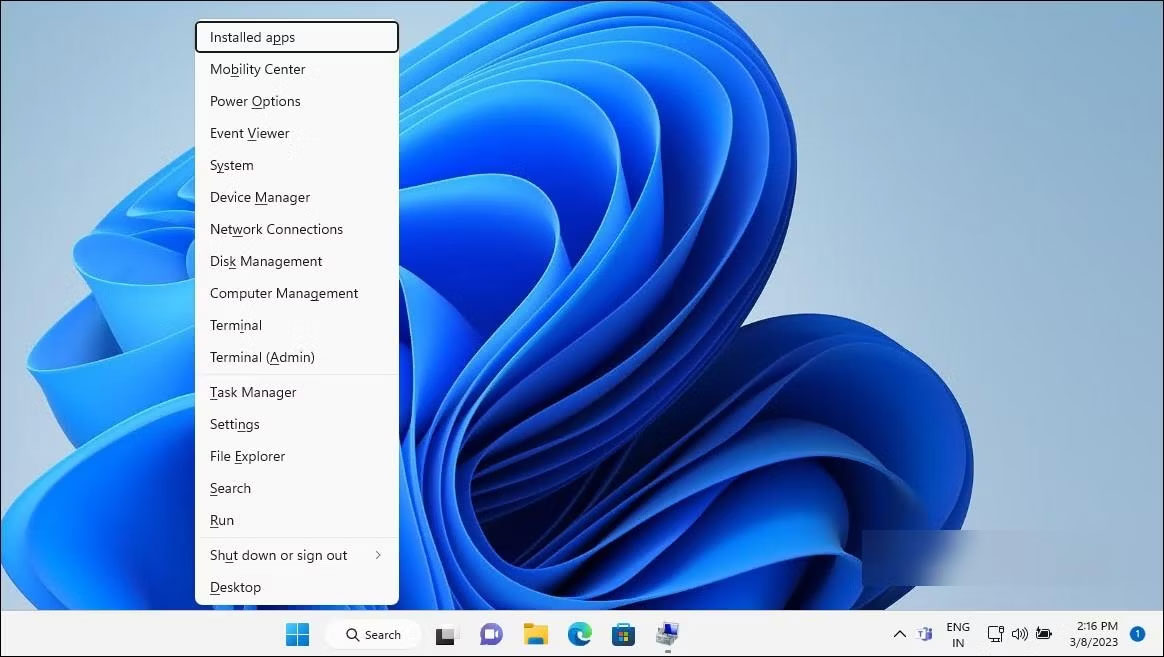
<p style="text-align: justify;">1. Nhấn&nbsp;<strong>Win + X</strong>&nbsp;để mở menu WinX.</p>

<p style="text-align: justify;">2. Nhấp vào&nbsp;<strong>Computer Management</strong>.</p>

<p style="text-align: justify;">3. Trong&nbsp;<strong>Computer Management</strong>, nhấp vào&nbsp;<strong>Local User and Groups</strong>.</p>

<figure>
<div style="text-align: justify;"><img alt="Computer Management trên Windows 11" data-i="2" data-src="https://st.quantrimang.com/photos/image/2023/03/13/sua-loi-no-speaker-or-headphones-are-plugged-in-tren-windows-3.jpg" data-was-processed="true" height="657" src="https://st.quantrimang.com/photos/image/2023/03/13/sua-loi-no-speaker-or-headphones-are-plugged-in-tren-windows-3.jpg" width="1164" /></div>

<figcaption>
<div style="text-align: justify;">Computer Management trên Windows 11</div>
</figcaption>
</figure>

<p style="text-align: justify;">4. Trong ngăn bên phải, nhấp đúp vào&nbsp;<strong>Groups</strong>&nbsp;để xem tất cả các tài khoản cục bộ.</p>

<figure>
<div style="text-align: justify;"><img alt="Thuộc tính Local User and Groups" data-i="3" data-src="https://st.quantrimang.com/photos/image/2023/03/13/sua-loi-no-speaker-or-headphones-are-plugged-in-tren-windows-4.jpg" data-was-processed="true" height="637" src="https://st.quantrimang.com/photos/image/2023/03/13/sua-loi-no-speaker-or-headphones-are-plugged-in-tren-windows-4.jpg" width="1243" /></div>

<figcaption>
<div style="text-align: justify;">Thuộc tính Local User and Groups</div>
</figcaption>
</figure>

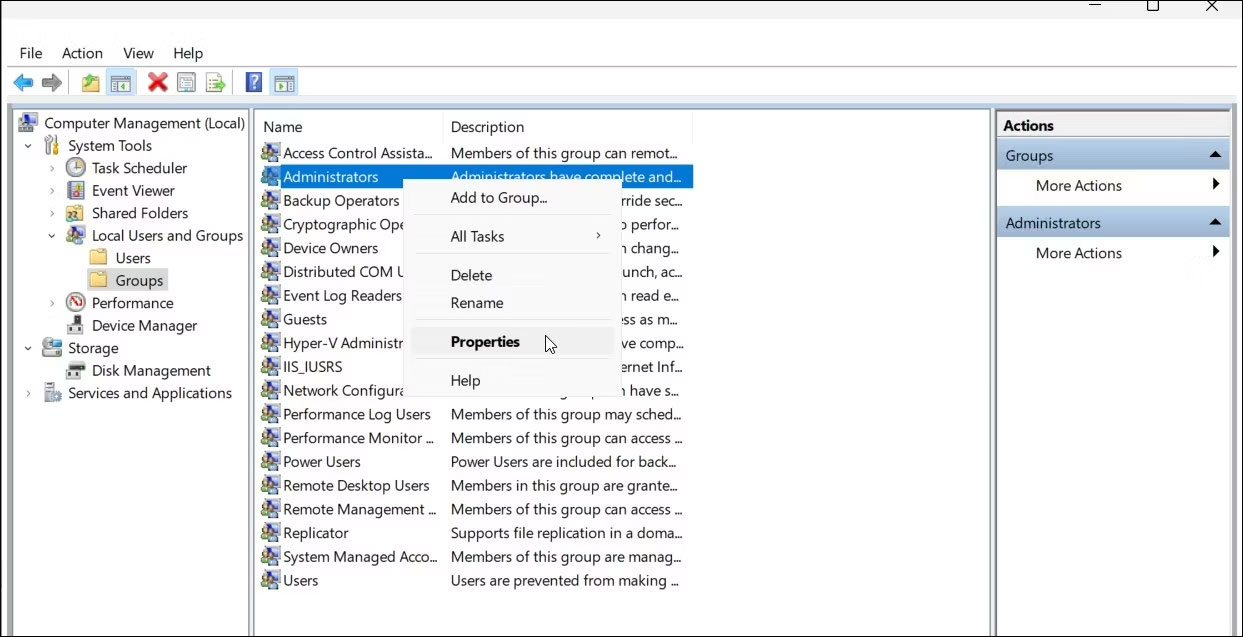
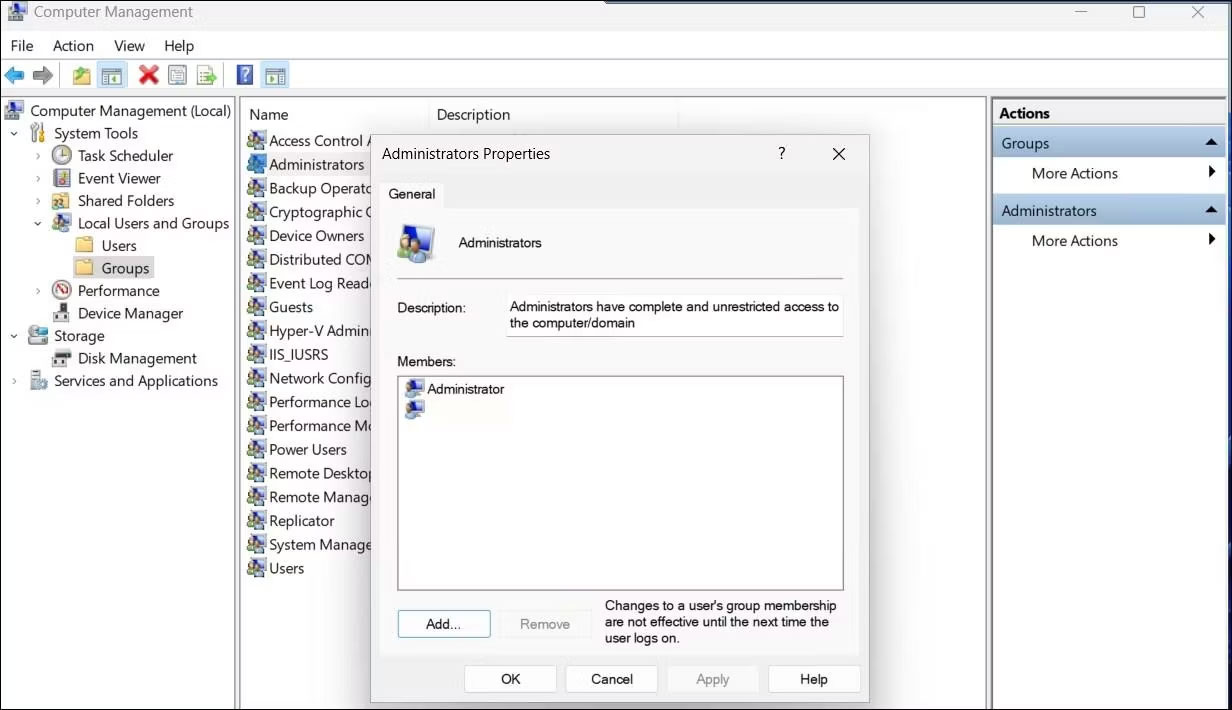
<p style="text-align: justify;">5. Chọn và nhấp chuột phải vào tài khoản&nbsp;<strong>Administrators</strong>&nbsp;và chọn&nbsp;<strong>Properties</strong>.</p>

<figure>
<div style="text-align: justify;"><img alt="Nhấp chuột phải vào tài khoản Administrators và chọn Properties" data-i="4" data-src="https://st.quantrimang.com/photos/image/2023/03/13/sua-loi-no-speaker-or-headphones-are-plugged-in-tren-windows-5.jpg" data-was-processed="true" height="710" src="https://st.quantrimang.com/photos/image/2023/03/13/sua-loi-no-speaker-or-headphones-are-plugged-in-tren-windows-5.jpg" width="1232" /></div>

<figcaption>
<div style="text-align: justify;">Nhấp chuột phải vào tài khoản Administrators và chọn Properties</div>
</figcaption>
</figure>

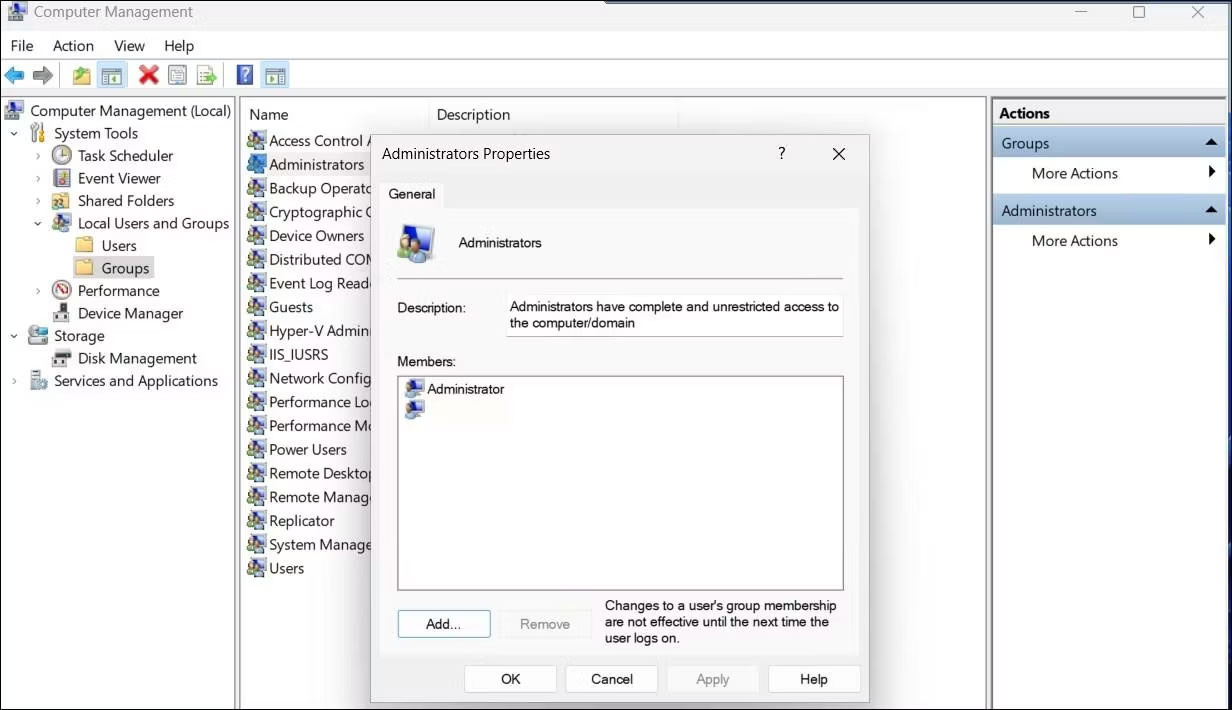
<p style="text-align: justify;">6. Nhấp vào nút&nbsp;<strong>Add</strong>&nbsp;trong hộp thoại&nbsp;<strong>Administrator Properties</strong>.</p>

<figure>
<div style="text-align: justify;"><img alt="Nhấp vào nút Add trong hộp thoại Administrator Properties" data-i="5" data-src="https://st.quantrimang.com/photos/image/2023/03/13/sua-loi-no-speaker-or-headphones-are-plugged-in-tren-windows-6.jpg" data-was-processed="true" height="710" src="https://st.quantrimang.com/photos/image/2023/03/13/sua-loi-no-speaker-or-headphones-are-plugged-in-tren-windows-6.jpg" width="1232" /></div>

<figcaption>
<div style="text-align: justify;">Nhấp vào nút Add trong hộp thoại Administrator Properties</div>
</figcaption>
</figure>

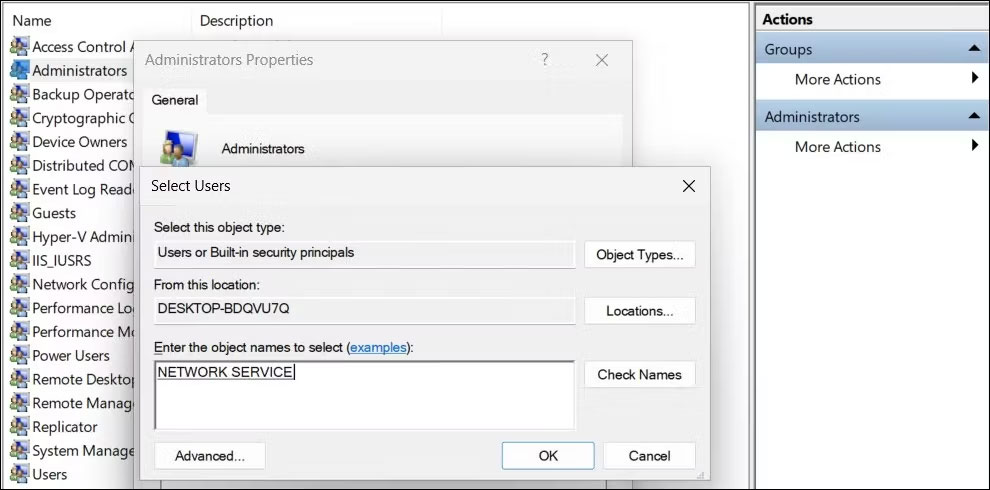
<p style="text-align: justify;">7. Tiếp theo, nhập&nbsp;<strong>network service</strong>&nbsp;và nhấp vào&nbsp;<strong>Check Names</strong>. Nó sẽ thay đổi tên đối tượng thành&nbsp;<strong>NETWORK SERVICE</strong>.</p>

<figure>
<div style="text-align: justify;"><img alt="Tên đối tượng được đổi thành NETWORK SERVICE" data-i="6" data-src="https://st.quantrimang.com/photos/image/2023/03/13/sua-loi-no-speaker-or-headphones-are-plugged-in-tren-windows-7.jpg" data-was-processed="true" height="490" src="https://st.quantrimang.com/photos/image/2023/03/13/sua-loi-no-speaker-or-headphones-are-plugged-in-tren-windows-7.jpg" width="990" /></div>

<figcaption>
<div style="text-align: justify;">Tên đối tượng được đổi thành NETWORK SERVICE</div>
</figcaption>
</figure>

<p style="text-align: justify;">8. Bấm&nbsp;<strong>OK</strong>&nbsp;để thêm service mạng vào nhóm người dùng cục bộ.</p>

<p style="text-align: justify;">9. Trong hộp thoại&nbsp;<strong>Administrator Properties</strong>, bạn sẽ thấy&nbsp;<strong>NT Authority\Network Service added as the member</strong>.</p>

<p style="text-align: justify;">10. Nhấp lại vào nút&nbsp;<strong>Add</strong>&nbsp;và lặp lại các bước để thêm&nbsp;<strong>Local Services</strong>&nbsp;vào nhóm.</p>

<p style="text-align: justify;">11. Sau khi hoàn tất, nhấp vào&nbsp;<strong>Apply &gt; OK</strong>&nbsp;để lưu các thay đổi.</p>

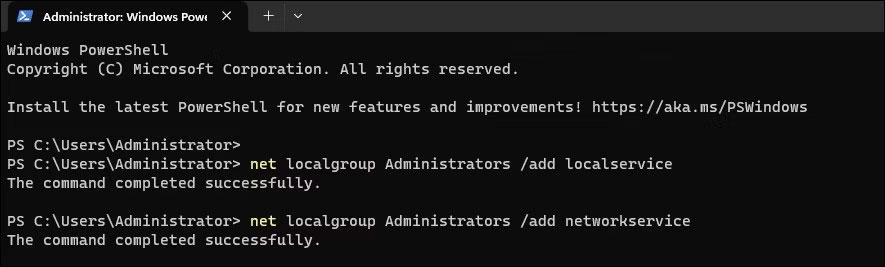
<p style="text-align: justify;">Nếu sử dụng phiên bản Windows Home, bạn có thể sử dụng Command Prompt để thêm&nbsp;<strong>Local Network</strong>&nbsp;và&nbsp;<strong>Local Service</strong>&nbsp;vào nhóm quản trị viên cục bộ. Đây là cách để làm điều đó.</p>

<figure>
<div style="text-align: justify;"><img alt="Thêm Local Network và Local Service vào nhóm quản trị viên cục bộ" data-i="7" data-src="https://st.quantrimang.com/photos/image/2023/03/13/sua-loi-no-speaker-or-headphones-are-plugged-in-tren-windows-8.jpg" data-was-processed="true" height="267" src="https://st.quantrimang.com/photos/image/2023/03/13/sua-loi-no-speaker-or-headphones-are-plugged-in-tren-windows-8.jpg" width="885" /></div>

<figcaption>
<div style="text-align: justify;">Thêm Local Network và Local Service vào nhóm quản trị viên cục bộ</div>
</figcaption>
</figure>

<p style="text-align: justify;">1. Nhấn phím&nbsp;<strong>Win</strong>&nbsp;và gõ&nbsp;<strong>cmd.</strong></p>

<p style="text-align: justify;">2.&nbsp;Mở Command Prompt với quyền admin.</p>

<p style="text-align: justify;">3. Trong cửa sổ Command Prompt, hãy nhập nội dung sau để thêm &quot;local service&quot; vào Local Group Administrator:</p>

<pre id="pre0">
<code>net localgroup Administrators /add localservice</code></pre>

<p style="text-align: justify;">4. Tiếp theo, gõ lệnh sau để thêm &quot;network service&quot; vào tài khoản Local Group Administrator:</p>

<pre id="pre1">
<code>net localgroup Administrators /add networkservice</code></pre>

<p style="text-align: justify;">5. Nếu cả hai lệnh được thực thi thành công, hãy nhập exit và nhấn&nbsp;<strong>Enter</strong>&nbsp;để đóng Command Prompt.</p>

<p style="text-align: justify;">6.&nbsp;Khởi động lại PC&nbsp;và kiểm tra xem lỗi đã được khắc phục chưa.</p>

<h2 style="text-align: justify;">4. Gỡ cài đặt driver và thiết bị âm thanh</h2>

<p style="text-align: justify;">Sự cố tạm thời với driver thiết bị âm thanh có thể gây ra lỗi này trên Windows. Để khắc phục sự cố, hãy gỡ cài đặt thiết bị âm thanh và driver được liên kết khỏi Device Manager. Sau khi khởi động lại, Windows sẽ tự động cài đặt lại driver để giải quyết vấn đề.</p>

<p style="text-align: justify;">Để gỡ cài đặt thiết bị âm thanh:</p>

<p style="text-align: justify;">1. Nhấn&nbsp;<strong>Win + X</strong>&nbsp;để mở menu WinX.</p>

<p style="text-align: justify;">2. Nhấp vào&nbsp;<strong>Device Manager</strong>&nbsp;từ menu ngữ cảnh.</p>

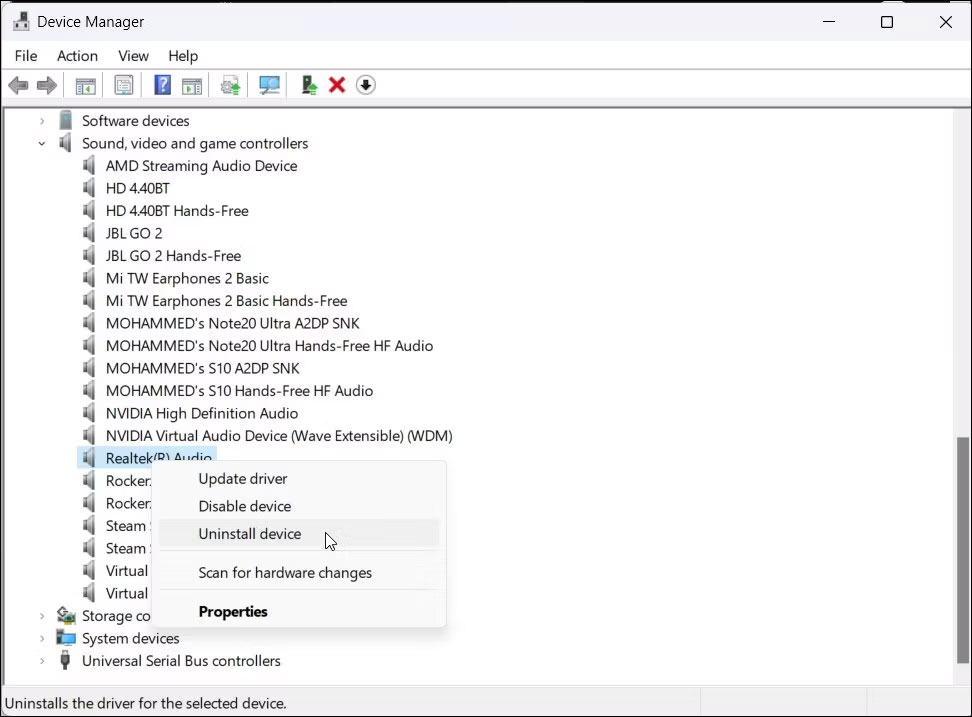
<p style="text-align: justify;">3. Trong&nbsp;<strong>Device Manager</strong>, hãy mở rộng phần&nbsp;<strong>Sound, video, and game controllers</strong>.</p>

<p style="text-align: justify;">4. Nhấp chuột phải vào thiết bị âm thanh của bạn, chẳng hạn như&nbsp;<strong>Realtek Audio.</strong></p>

<figure>
<div style="text-align: justify;"><img alt="Gỡ cài đặt driver thiết bị âm thanh " data-i="8" data-src="https://st.quantrimang.com/photos/image/2023/03/13/sua-loi-no-speaker-or-headphones-are-plugged-in-tren-windows-9.jpg" data-was-processed="true" height="717" src="https://st.quantrimang.com/photos/image/2023/03/13/sua-loi-no-speaker-or-headphones-are-plugged-in-tren-windows-9.jpg" width="972" /></div>

<figcaption>
<div style="text-align: justify;">Gỡ cài đặt driver thiết bị âm thanh</div>
</figcaption>
</figure>

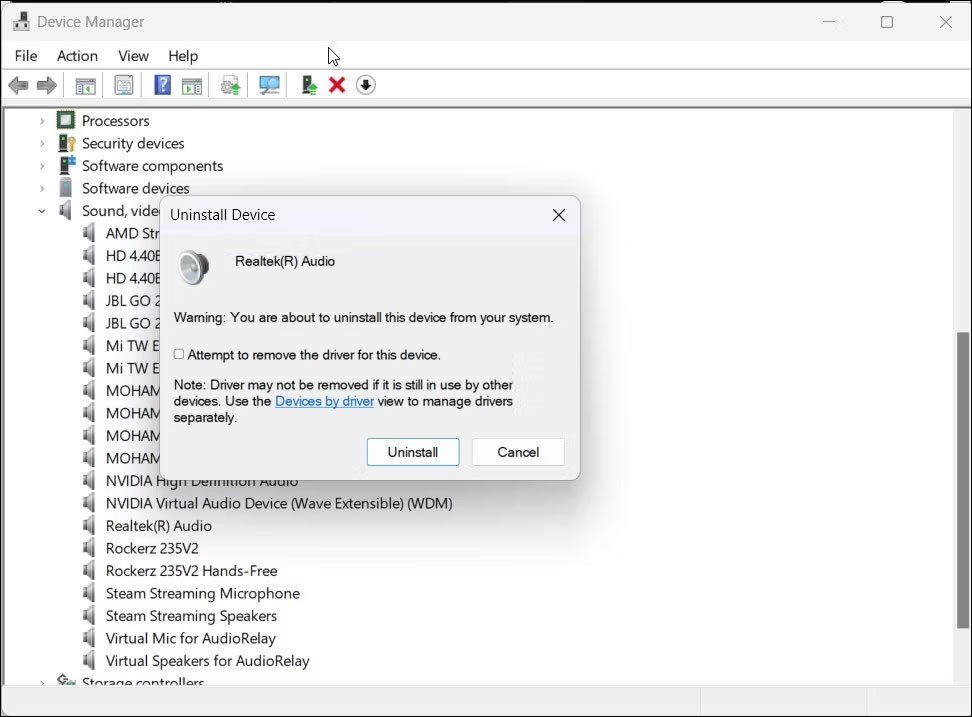
<p style="text-align: justify;">5. Chọn tùy chọn&nbsp;<strong>Attempt to remove the driver for this device</strong>&nbsp;trong hộp thoại&nbsp;<strong>Uninstall Device</strong>.</p>

<figure>
<div style="text-align: justify;"><img alt="Chọn tùy chọn Attempt to remove the driver for this device" data-i="9" data-src="https://st.quantrimang.com/photos/image/2023/03/13/sua-loi-no-speaker-or-headphones-are-plugged-in-tren-windows-10.jpg" data-was-processed="true" height="717" src="https://st.quantrimang.com/photos/image/2023/03/13/sua-loi-no-speaker-or-headphones-are-plugged-in-tren-windows-10.jpg" width="972" /></div>

<figcaption>
<div style="text-align: justify;">Chọn tùy chọn Attempt to remove the driver for this device</div>
</figcaption>
</figure>

<p style="text-align: justify;">6. Nhấn&nbsp;<strong>Uninstall</strong>&nbsp;để gỡ bỏ thiết bị.</p>

<p style="text-align: justify;">7. Sau khi gỡ cài đặt, hãy khởi động lại PC. Windows sẽ tự động cài đặt driver cần thiết cho thiết bị âm thanh của bạn.</p>

<p style="text-align: justify;">Nếu sự cố vẫn tiếp diễn, hãy cài đặt lại thủ công driver thiết bị âm thanh từ nhà sản xuất.</p>

<h2 style="text-align: justify;">5. Cài đặt lại driver thiết bị âm thanh theo cách thủ công</h2>

<p style="text-align: justify;">Nếu tính năng cài đặt lại tự động không hoạt động, hãy kiểm tra xem nhà sản xuất máy tính của bạn hoặc OEM thiết bị âm thanh có sẵn phiên bản driver ổn định hay không. Trên laptop, hãy truy cập trang web của nhà sản xuất máy tính của bạn và tải xuống driver âm thanh mới nhất từ đó. Trên máy tính để bàn, bạn có thể tải xuống driver mới nhất cho card âm thanh của mình từ trang web của nhà sản xuất. Ngoài ra, bạn cũng có thể cài đặt lại driver hiện có cho thiết bị âm thanh của mình theo cách thủ công.</p>

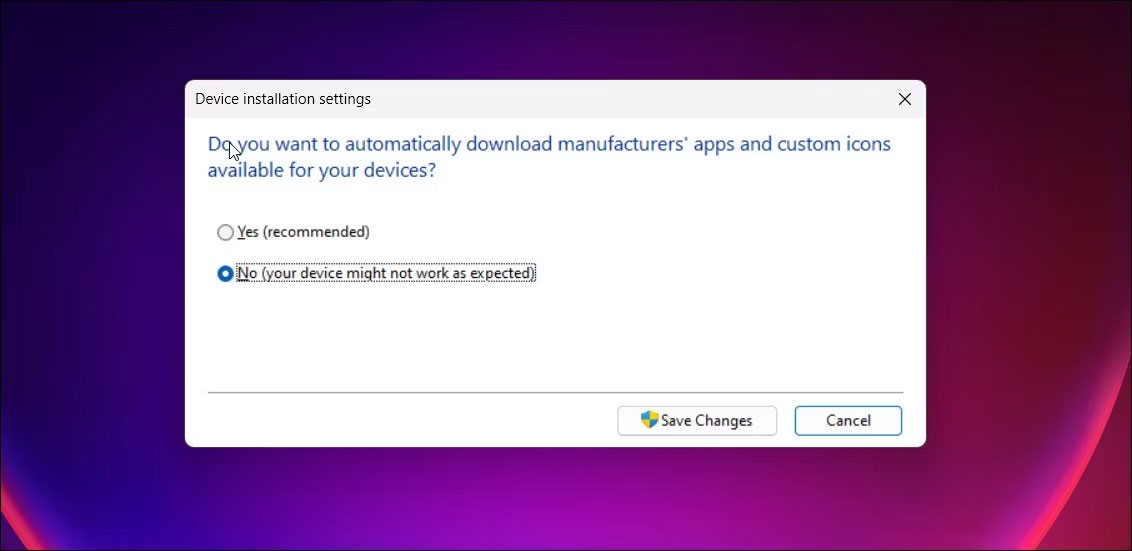
<p style="text-align: justify;">Nếu sự cố vẫn tiếp diễn, hãy thay đổi thiết lập cài đặt thiết bị rồi cài đặt lại driver. Để thay đổi thiết lập cài đặt thiết bị:</p>

<figure>
<div style="text-align: justify;"><img alt="Cửa sổ thiết lập cài đặt thiết bị" data-i="10" data-src="https://st.quantrimang.com/photos/image/2023/03/13/sua-loi-no-speaker-or-headphones-are-plugged-in-tren-windows-11.jpg" data-was-processed="true" height="551" src="https://st.quantrimang.com/photos/image/2023/03/13/sua-loi-no-speaker-or-headphones-are-plugged-in-tren-windows-11.jpg" width="1132" /></div>

<figcaption>
<div style="text-align: justify;">Cửa sổ thiết lập cài đặt thiết bị</div>
</figcaption>
</figure>

<ol>
	<li style="text-align: justify;">Nhấn phím&nbsp;<strong>Win</strong>&nbsp;và nhập&nbsp;<strong>device installation settings</strong>.</li>
	<li style="text-align: justify;">Tiếp theo, nhấp vào&nbsp;<strong>Change device installation settings</strong>&nbsp;từ kết quả tìm kiếm.</li>
	<li style="text-align: justify;">Chọn tùy chọn&nbsp;<strong>No (your device might not work as expected)</strong>&nbsp;trong hộp thoại&nbsp;<strong>Device installation settings</strong>.</li>
	<li style="text-align: justify;">Nhấp vào&nbsp;<strong>Save Changes</strong>. Nhấn&nbsp;<strong>Yes</strong>&nbsp;nếu được nhắc bởi&nbsp;User Account Control.</li>
</ol>

<p style="text-align: justify;">Với tính năng tải xuống driver tự động bị tắt, hãy cài đặt lại driver hiện có để khắc phục sự cố không có âm thanh.</p>

<div style="text-align: justify;">&nbsp;</div>
		</div>
				<div id="author">
						<p>
				<strong>Nguồn tin:</strong>
				Quantrimang.com
			</p>
		</div>
	</div>
	<div id="footer" class="clearfix">
		<div id="url">
			<strong>URL của bản tin này: </strong><a href="https://www.nguoicodonvn2008.info/vi/news/savefile/kien-thuc-may-tinh/cach-sua-loi-no-speaker-or-headphones-are-plugged-in-tren-windows-6878.html" title="Cách sửa lỗi &quot;No Speaker or Headphones are Plugged In&quot; trên Windows">https://www.nguoicodonvn2008.info/vi/news/savefile/kien-thuc-may-tinh/cach-sua-loi-no-speaker-or-headphones-are-plugged-in-tren-windows-6878.html</a>

		</div>
		<div class="clear"></div>
		<div class="copyright">
			&copy; .&#x3A; Nguoicodonvn2008.info - Cõi lòng người cô đơn &#x3A;.
		</div>
		<div id="contact">
			<a href="mailto:admin@nguoicodonvn2008.info">admin@nguoicodonvn2008.info</a>
		</div>
	</div>
</div>
        <div id="timeoutsess" class="chromeframe">
            Bạn đã không sử dụng Site, <a onclick="timeoutsesscancel();" href="https://www.nguoicodonvn2008.info/#">Bấm vào đây để duy trì trạng thái đăng nhập</a>. Thời gian chờ: <span id="secField"> 60 </span> giây
        </div>
        <div id="openidResult" class="nv-alert" style="display:none"></div>
        <div id="openidBt" data-result="" data-redirect=""></div>
		</script>
		<div class="car-top">
  <span><img src="https://www.nguoicodonvn2008.info/themes/default/images/car.png" alt=""></span>
</div>
<div id="run_cronjobs" style="visibility:hidden;display:none;"><img alt="cron" src="/index.php?second=cronjobs&amp;p=e9y71F5S" width="1" height="1" /></div>
<script src="https://www.nguoicodonvn2008.info/assets/js/jquery/jquery.min.js"></script>
<script>var nv_base_siteurl="/",nv_lang_data="vi",nv_lang_interface="vi",nv_name_variable="nv",nv_fc_variable="op",nv_lang_variable="language",nv_module_name="news",nv_func_name="savefile",nv_is_user=0, nv_my_ofs=-4,nv_my_abbr="EDT",nv_cookie_prefix="nv4c_e856T",nv_check_pass_mstime=1738000,nv_area_admin=0,nv_safemode=0,theme_responsive=0,nv_recaptcha_ver=2,nv_recaptcha_sitekey="",nv_recaptcha_type="image",XSSsanitize=1;</script>
<script src="https://www.nguoicodonvn2008.info/assets/js/language/vi.js"></script>
<script src="https://www.nguoicodonvn2008.info/assets/js/DOMPurify/purify3.js"></script>
<script src="https://www.nguoicodonvn2008.info/assets/js/global.js"></script>
<script src="https://www.nguoicodonvn2008.info/assets/js/site.js"></script>
<script src="https://www.nguoicodonvn2008.info/themes/default/js/news.js"></script>
<script src="https://www.nguoicodonvn2008.info/themes/default/js/main.js"></script>
<script src="https://www.nguoicodonvn2008.info/themes/default/js/custom.js"></script>
<script type="application/ld+json">
        {
            "@context": "https://schema.org",
            "@type": "Organization",
            "url": "https://www.nguoicodonvn2008.info",
            "logo": "https://www.nguoicodonvn2008.info/uploads/angel.gif"
        }
        </script>
<script src="https://www.nguoicodonvn2008.info/themes/default/js/bootstrap.min.js"></script>
<script type="text/javascript">
var $scrolltop = $('.car-top');
$scrolltop.on('click', function () {
    $('html,body').animate({
        scrollTop: 0
    }, 800);
    $(this).addClass("car-run");
    setTimeout(function(){ $scrolltop.removeClass('car-run');}, 1000);
    return false;
});
$(window).on('scroll', function ()
{ 
    if($(window).scrollTop() >= 200)
    {
        $scrolltop.addClass("show");
        $scrolltop.addClass("car-down");
    }
    else
    {
       $scrolltop.removeClass("show");
       setTimeout(function(){ $scrolltop.removeClass('car-down');}, 300);
    }
});
</script>
</body>
</html>