<!DOCTYPE html>
    <html lang="vi" xmlns="http://www.w3.org/1999/xhtml" prefix="og: http://ogp.me/ns#">
    <head>
<title>Cách sửa lỗi Can’t Establish Secure Connection trên Safari</title>
<meta name="description" content="Cách sửa lỗi Can’t Establish Secure Connection trên Safari - Savefile - Tin Tức -...">
<meta name="author" content=".: Nguoicodonvn2008.info - Cõi lòng người cô đơn :.">
<meta name="copyright" content=".: Nguoicodonvn2008.info - Cõi lòng người cô đơn :. [admin@nguoicodonvn2008.info]">
<meta name="robots" content="index, archive, follow, noodp">
<meta name="googlebot" content="index,archive,follow,noodp">
<meta name="msnbot" content="all,index,follow">
<meta name="generator" content="NukeViet v4.5">
<meta http-equiv="Content-Type" content="text/html; charset=utf-8">
<meta property="og:title" content="Cách sửa lỗi Can’t Establish Secure Connection trên Safari">
<meta property="og:type" content="website">
<meta property="og:description" content="Savefile - Tin Tức - https&#x3A;&#x002F;&#x002F;www.nguoicodonvn2008.info&#x002F;vi&#x002F;news&#x002F;savefile&#x002F;kien-thuc-may-tinh&#x002F;cach-sua-loi-can-t-establish-secure-connection-tren-safari-471.html">
<meta property="og:site_name" content=".&#x3A; Nguoicodonvn2008.info - Cõi lòng người cô đơn &#x3A;.">
<meta property="og:url" content="https://www.nguoicodonvn2008.info/vi/news/savefile/kien-thuc-may-tinh/cach-sua-loi-can-t-establish-secure-connection-tren-safari-471.html">
<link rel="shortcut icon" href="https://www.nguoicodonvn2008.info/favicon.ico">
<link rel="canonical" href="https://www.nguoicodonvn2008.info/vi/news/savefile/kien-thuc-may-tinh/cach-sua-loi-can-t-establish-secure-connection-tren-safari-471.html">
<link rel="alternate" href="https://www.nguoicodonvn2008.info/vi/news/rss/" title="Tin Tức" type="application/rss+xml">
<link rel="alternate" href="https://www.nguoicodonvn2008.info/vi/news/rss/karaoke-dual/" title="Tin Tức - Karaoke Dual" type="application/rss+xml">
<link rel="alternate" href="https://www.nguoicodonvn2008.info/vi/news/rss/nhac-tre/" title="Tin Tức - Nhạc trẻ" type="application/rss+xml">
<link rel="alternate" href="https://www.nguoicodonvn2008.info/vi/news/rss/tru-tinh/" title="Tin Tức - Trữ tình" type="application/rss+xml">
<link rel="alternate" href="https://www.nguoicodonvn2008.info/vi/news/rss/nuoc-ngoai/" title="Tin Tức - Nước ngoài" type="application/rss+xml">
<link rel="alternate" href="https://www.nguoicodonvn2008.info/vi/news/rss/remix/" title="Tin Tức - Remix" type="application/rss+xml">
<link rel="alternate" href="https://www.nguoicodonvn2008.info/vi/news/rss/tam-su-tinh-yeu/" title="Tin Tức - Tâm sự tình yêu" type="application/rss+xml">
<link rel="alternate" href="https://www.nguoicodonvn2008.info/vi/news/rss/tho-suu-tam/" title="Tin Tức - Thơ sưu tầm" type="application/rss+xml">
<link rel="alternate" href="https://www.nguoicodonvn2008.info/vi/news/rss/cuoc-song/" title="Tin Tức - Cuộc sống" type="application/rss+xml">
<link rel="alternate" href="https://www.nguoicodonvn2008.info/vi/news/rss/phan-mem/" title="Tin Tức - Phần mềm" type="application/rss+xml">
<link rel="alternate" href="https://www.nguoicodonvn2008.info/vi/news/rss/kien-thuc-may-tinh/" title="Tin Tức - Kiến thức máy tính" type="application/rss+xml">
<link rel="alternate" href="https://www.nguoicodonvn2008.info/vi/news/rss/hoc-tap/" title="Tin Tức - Học tập" type="application/rss+xml">
<link rel="alternate" href="https://www.nguoicodonvn2008.info/vi/news/rss/tai-lieu/" title="Tin Tức - Tài liệu" type="application/rss+xml">
<link rel="alternate" href="https://www.nguoicodonvn2008.info/vi/news/rss/de-thi/" title="Tin Tức - Đề thi" type="application/rss+xml">
<link rel="preload" as="style" href="https://www.nguoicodonvn2008.info/assets/css/font-awesome.min.css" type="text/css">
<link rel="preload" as="style" href="https://www.nguoicodonvn2008.info/themes/default/css/bootstrap.non-responsive.css" type="text/css">
<link rel="preload" as="style" href="https://www.nguoicodonvn2008.info/themes/default/css/style.css" type="text/css">
<link rel="preload" as="style" href="https://www.nguoicodonvn2008.info/themes/default/css/style.non-responsive.css" type="text/css">
<link rel="preload" as="style" href="https://www.nguoicodonvn2008.info/themes/default/css/news.css" type="text/css">
<link rel="preload" as="style" href="https://www.nguoicodonvn2008.info/themes/default/css/custom.css" type="text/css">
<link rel="preload" as="script" href="https://www.nguoicodonvn2008.info/assets/js/jquery/jquery.min.js" type="text/javascript">
<link rel="preload" as="script" href="https://www.nguoicodonvn2008.info/assets/js/language/vi.js" type="text/javascript">
<link rel="preload" as="script" href="https://www.nguoicodonvn2008.info/assets/js/DOMPurify/purify3.js" type="text/javascript">
<link rel="preload" as="script" href="https://www.nguoicodonvn2008.info/assets/js/global.js" type="text/javascript">
<link rel="preload" as="script" href="https://www.nguoicodonvn2008.info/assets/js/site.js" type="text/javascript">
<link rel="preload" as="script" href="https://www.nguoicodonvn2008.info/themes/default/js/news.js" type="text/javascript">
<link rel="preload" as="script" href="https://www.nguoicodonvn2008.info/themes/default/js/main.js" type="text/javascript">
<link rel="preload" as="script" href="https://www.nguoicodonvn2008.info/themes/default/js/custom.js" type="text/javascript">
<link rel="preload" as="script" href="https://www.nguoicodonvn2008.info/themes/default/js/bootstrap.min.js" type="text/javascript">
<link rel="stylesheet" href="https://www.nguoicodonvn2008.info/assets/css/font-awesome.min.css">
<link rel="stylesheet" href="https://www.nguoicodonvn2008.info/themes/default/css/bootstrap.non-responsive.css">
<link rel="stylesheet" href="https://www.nguoicodonvn2008.info/themes/default/css/style.css">
<link rel="stylesheet" href="https://www.nguoicodonvn2008.info/themes/default/css/style.non-responsive.css">
<link rel="StyleSheet" href="https://www.nguoicodonvn2008.info/themes/default/css/news.css">
<link rel="stylesheet" href="https://www.nguoicodonvn2008.info/themes/default/css/custom.css">
<style type="text/css">
	body{background: #fff;}
</style>
    </head>
    <body>
<div id="print">
	<div id="hd_print">
		<h2 class="pull-left">.&#x3A; Nguoicodonvn2008.info - Cõi lòng người cô đơn &#x3A;.</h2>
		<p class="pull-right"><a title=".&#x3A; Nguoicodonvn2008.info - Cõi lòng người cô đơn &#x3A;." href="https://www.nguoicodonvn2008.info/">https://www.nguoicodonvn2008.info</a></p>
	</div>
	<div class="clear"></div>
	<hr />
	<div id="content">
		<h1>Cách sửa lỗi Can’t Establish Secure Connection trên Safari</h1>
		<ul class="list-inline">
			<li>Thứ ba - 16/07/2019 01:53</li>
			<li class="hidden-print txtrequired"><em class="fa fa-print">&nbsp;</em><a title="In ra" href="javascript:;" onclick="window.print()">In ra</a></li>
			<li class="hidden-print txtrequired"><em class="fa fa-power-off">&nbsp;</em><a title="Đóng cửa sổ này" href="javascript:;" onclick="window.close()">Đóng cửa sổ này</a></li>
		</ul>
		<div class="clear"></div>
		<div id="hometext">
		</div>
				<div class="imghome">
			<img alt="Cách sửa lỗi Can’t Establish Secure Connection trên Safari" src="https://st.quantrimang.com/photos/image/2019/07/15/sua-loi-cant-establish-secure-connection-tren-safari-16.png" width="460" class="img-thumbnail" />
		</div>
		<div class="clear"></div>
		<div id="bodytext" class="clearfix">
			<p style="text-align: justify;">Thật khó chịu khi các trình theo dõi quảng cáo theo dõi các hoạt động và nội dung duyệt web của bạn.&nbsp;May thay, Apple đang kiểm tra các trang web theo dõi hành vi dù bạn có click vào trang hay không. Bên cạnh đó, phiên bản Safari mới nhất được tích hợp tính năng Intelligent Tracking Protection 2.0 giúp kiểm tra và loại bỏ cookie của bên thứ ba theo dõi hành vi duyệt web của bạn.</p>

<p style="text-align: justify;">Đó là lý do tại sao người dùng sử dụng Safari thấy thông báo lỗi trong khi mở các trang web đáng ngờ. Nếu gặp lỗi Can&#039;t Establish Secure Connection với những trang web thường xuyên truy cập, hãy đọc bài viết sau để biết cách khắc phục nhé.</p>

<h2 id="mcetoc_1dfqfls220" style="text-align: justify;">1. Kiểm tra chứng chỉ hợp lệ</h2>

<p style="text-align: justify;">Để đảm bảo bạn đang truy cập đúng trang web, click vào thanh địa chỉ để xem xét kỹ&nbsp;<a href="https://quantrimang.com/url-la-gi-158090" title="Tìm hiểu về URL">URL</a>&nbsp;và tìm kiếm biểu tượng khóa màu xanh lá cây trước địa chỉ trang web. Nếu nó biến thành màu xám, thì đây có thể là trang web lừa đảo được tạo thủ công thông minh với logo và bố cục như trang web bạn thường truy cập.</p>

<h2 id="mcetoc_1dfqfls231" style="text-align: justify;">2. Xóa lịch sử trình duyệt</h2>

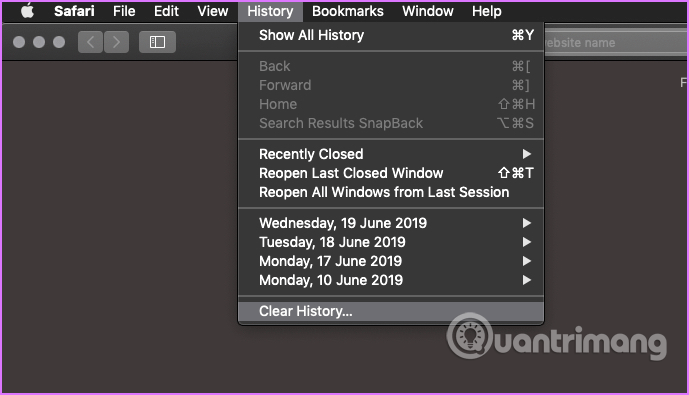
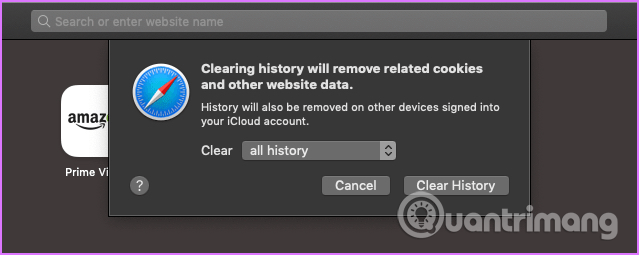
<p style="text-align: justify;">Thông thường, tùy chọn&nbsp;<strong>Clear Browser History</strong>&nbsp;sẽ xóa danh sách trang web bạn truy cập. Tuy nhiên, phiên bản mới nhất của Safari xóa các dữ liệu liên quan như cookie và nội dung trang web tương ứng. Vì vậy bạn cần cân nhắc trước khi thực hiện thao tác này.</p>

<p style="text-align: justify;"><strong>Bước 1</strong>. Trong Safari, click vào&nbsp;<strong>History</strong>&nbsp;từ tùy chọn menu ở đầu cửa sổ.</p>

<p style="text-align: justify;"><img alt="Click vào History" data-i="0" height="367" src="https://st.quantrimang.com/photos/image/2019/07/15/sua-loi-cant-establish-secure-connection-tren-safari-1.png" width="640" /></p>

<p style="text-align: justify;"><strong>Bước 2</strong>. Từ menu thả xuống cạnh&nbsp;<strong>Clear</strong>, chọn&nbsp;<strong>All History</strong>, sau đó click vào&nbsp;<strong>Clear History</strong>.</p>

<p style="text-align: justify;"><img alt="Click vào Clear History" data-i="1" height="255" src="https://st.quantrimang.com/photos/image/2019/07/15/sua-loi-cant-establish-secure-connection-tren-safari-2.png" width="639" /></p>

<h2 id="mcetoc_1dfqfls232" style="text-align: justify;">3. Gỡ cài đặt extension và plugin đáng ngờ</h2>

<p style="text-align: justify;">Extension, plugin và add-on giúp tăng tốc quá trình thực hiện các tác vụ cụ thể chỉ bằng một hoặc hai cú click chuột. Tuy nhiên việc cài đặt quá nhiều tiện ích có thể ảnh hưởng đến hiệu suất của Safari. Do đó, bạn nên xóa các plugin hoặc extension không mong muốn và không sử dụng đến.</p>

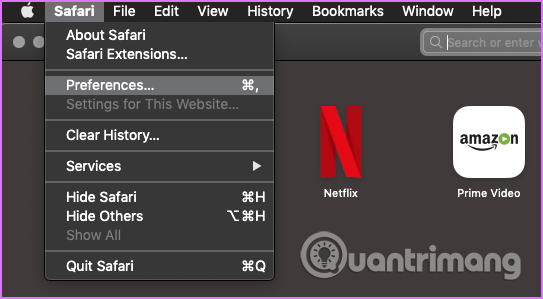
<p style="text-align: justify;"><strong>Bước 1</strong>. Click vào menu Safari và chọn&nbsp;<strong>Preferences</strong>.</p>

<p style="text-align: justify;"><img alt="Chọn Preferences" data-i="2" height="299" src="https://st.quantrimang.com/photos/image/2019/07/15/sua-loi-cant-establish-secure-connection-tren-safari-3.png" width="543" /></p>

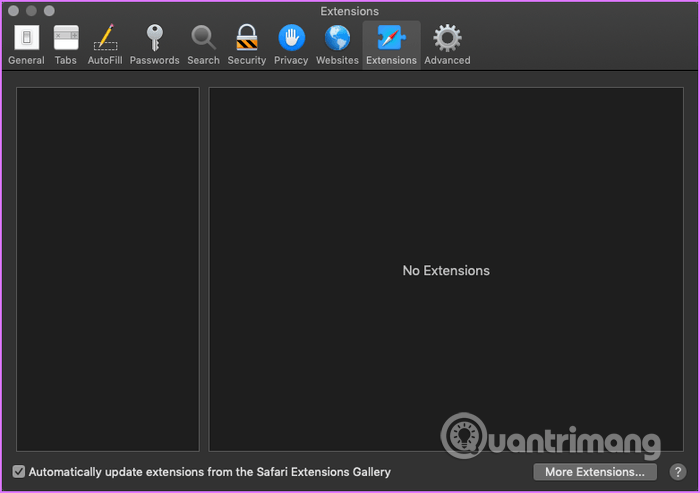
<p style="text-align: justify;"><strong>Bước 2</strong>. Từ cửa sổ hiện ra, click vào&nbsp;<strong>Extensions</strong>&nbsp;để xem danh sách tiện ích mở rộng đã cài đặt trên Safari. Chọn extension muốn gỡ cài đặt và xóa nó.</p>

<p style="text-align: justify;"><img alt="Chọn extension muốn gỡ cài đặt và xóa nó" data-i="3" height="451" src="https://st.quantrimang.com/photos/image/2019/07/15/sua-loi-cant-establish-secure-connection-tren-safari-4.png" width="640" /></p>

<h2 id="mcetoc_1dfqfls233" style="text-align: justify;">4. Bỏ chặn tất cả cookie</h2>

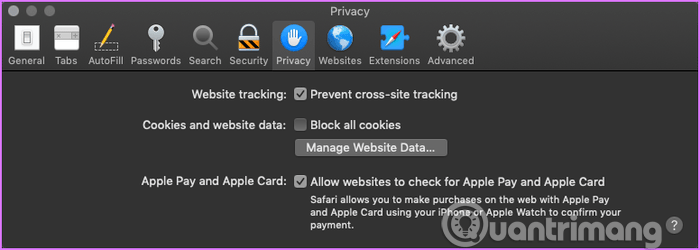
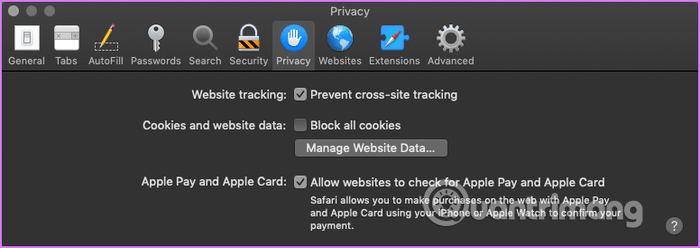
<p style="text-align: justify;">Nhiều người dùng có thể vô tình click vào hộp xuất hiện ngay bên dưới&nbsp;<strong>Prevent cross-site tracking</strong>. Nếu vậy, tất cả các cookies sẽ bị chặn.</p>

<p style="text-align: justify;"><strong>Bước 1</strong>. Mở&nbsp;<strong>Preferences</strong>&nbsp;của Safari và click vào&nbsp;<strong>Privacy</strong>.</p>

<p style="text-align: justify;"><img alt="Click vào Privacy" data-i="4" height="229" src="https://st.quantrimang.com/photos/image/2019/07/15/sua-loi-cant-establish-secure-connection-tren-safari-5.png" width="640" /></p>

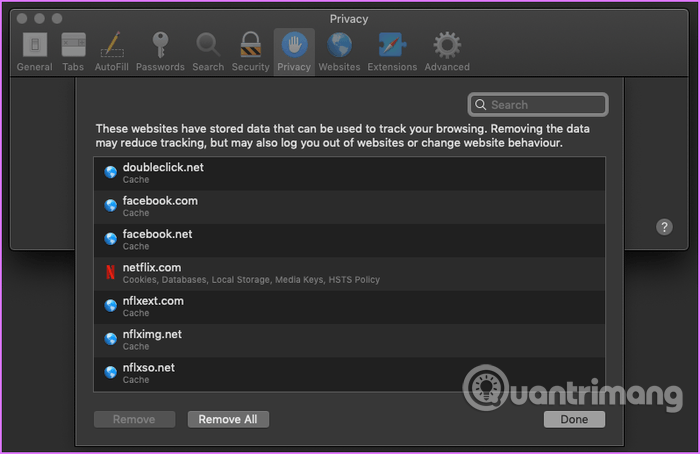
<p style="text-align: justify;"><strong>Bước 2</strong>. Click vào&nbsp;<strong>Manage Website Data</strong>&nbsp;để mở cửa sổ mới. Từ đây, bạn có thể chọn và xóa cookie trang web bạn không cần nữa.</p>

<p style="text-align: justify;"><img alt="Xóa cookie trang web " data-i="5" height="415" src="https://st.quantrimang.com/photos/image/2019/07/15/sua-loi-cant-establish-secure-connection-tren-safari-6.png" width="640" /></p>

<h2 id="mcetoc_1dfqfls234" style="text-align: justify;">5. Kiểm tra quyền</h2>

<p style="text-align: justify;">Một số plugin thực hiện chặn nội dung của một số trang web hiện cửa sổ bật lên không được yêu cầu và quảng cáo gây hiểu lầm với một số code trên đó. Nếu tin đây là lỗi xác thực (false-positive), bạn nên kiểm tra lại quyền đối với Content Blocker và các yếu tố khác như Location.</p>

<p style="text-align: justify;"><strong>Bước 1</strong>. Click vào menu Safari và chọn&nbsp;<strong>Preferences</strong>. Từ cửa sổ bật lên, click vào tab&nbsp;<strong>Websites</strong>.</p>

<div style="text-align: justify;">&nbsp;</div>

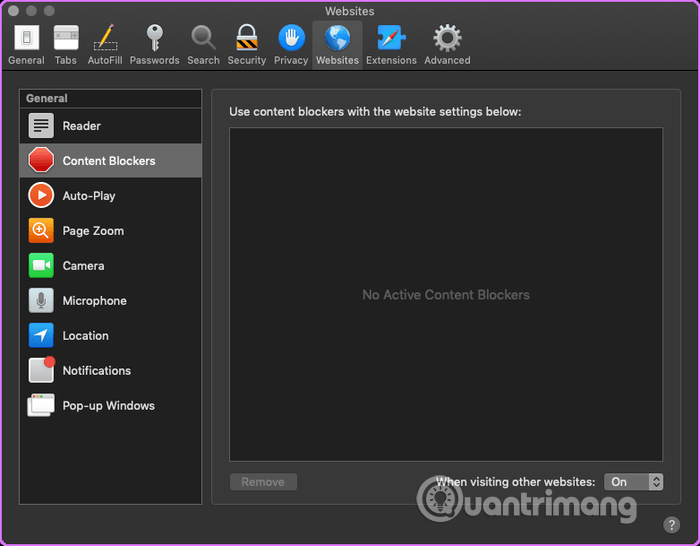
<p style="text-align: justify;"><strong>Bước 2</strong>. Click vào&nbsp;<strong>Content Blockers</strong>&nbsp;trong khung bên trái và xem yếu tố cụ thể của trang bạn đang truy cập có bị chặn không.</p>

<p style="text-align: justify;"><img alt="Click vào Content Blockers" data-i="6" height="499" src="https://st.quantrimang.com/photos/image/2019/07/15/sua-loi-cant-establish-secure-connection-tren-safari-8.png" width="640" /></p>

<h2 id="mcetoc_1dfqfls235" style="text-align: justify;">6. Xóa bộ nhớ cache DNS</h2>

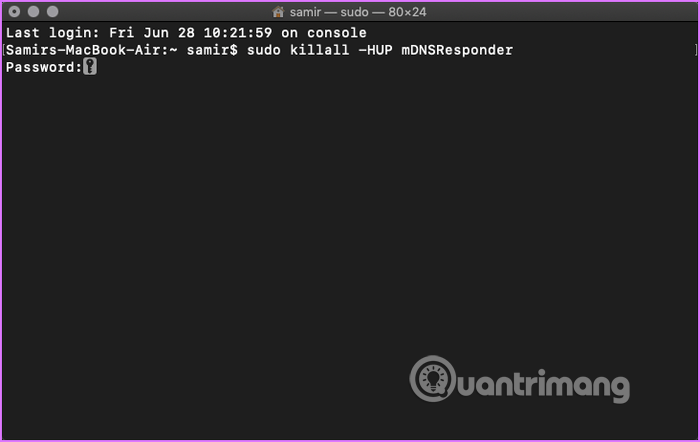
<p style="text-align: justify;">Đôi khi, xóa bộ nhớ cache DNS có thể khắc phục nhiều vấn đề kết nối và tốc độ trang web. Giải pháp này khá đơn giản, bạn chỉ cần viết lệnh chính xác.</p>

<p style="text-align: justify;"><img alt="Xóa bộ nhớ cache DNS" data-i="7" height="404" src="https://st.quantrimang.com/photos/image/2019/07/15/sua-loi-cant-establish-secure-connection-tren-safari-9.png" width="640" /></p>

<p style="text-align: justify;">Bạn cần thoát khỏi Safari trước, sau đó khởi chạy ứng dụng Terminal trên Mac và gõ lệnh sau:</p>

<pre id="pre0" style="text-align: justify;">
sudo killall -HUP mDNSResponder</pre>

<p style="text-align: justify;">Bạn cần phải nhập mật khẩu admin và nhấn&nbsp;<strong>Enter</strong>. Bây giờ khởi chạy lại Safari để kiểm tra xem vấn đề đã được khắc phục chưa.</p>

<h2 id="mcetoc_1dfqfls236" style="text-align: justify;">7. Cài đặt tường lửa</h2>

<p style="text-align: justify;"><a href="https://quantrimang.com/tong-quan-ve-firewall-84474" title="Tường lửa (Firewall) là gì? Những kiến thức tổng quan về Firewall">Tường lửa</a>&nbsp;bảo vệ bạn khỏi các yêu cầu không chính đáng nhằm mục đích ăn cắp dữ liệu và tài nguyên của bạn. Có khả năng một số phần mềm thực hiện chính sách tường lửa nghiêm ngặt và ngăn Safari kết nối Internet. Bạn có thể kiểm tra xem tường lửa có chặn Safari không bằng cách thực hiện theo các bước dưới đây.</p>

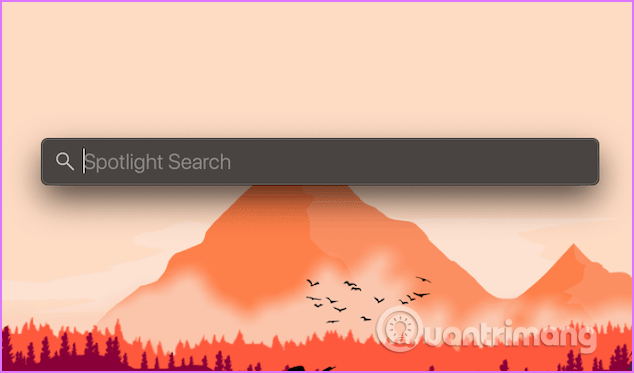
<p style="text-align: justify;"><strong>Bước 1</strong>. Nhấn phím&nbsp;<code>Command</code>+<code>Space</code>&nbsp;để khởi chạy thanh tìm kiếm Spotlight Search.</p>

<p style="text-align: justify;"><img alt="Bật thanh tìm kiếm Spotlight Search" data-i="8" height="373" src="https://st.quantrimang.com/photos/image/2019/07/15/sua-loi-cant-establish-secure-connection-tren-safari-10.png" width="634" /></p>

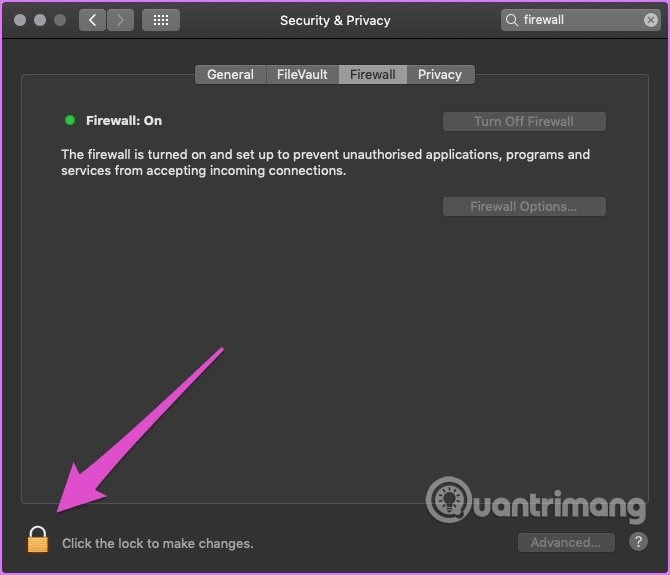
<p style="text-align: justify;"><strong>Bước 2</strong>. Gõ&nbsp;<strong>firewall</strong>&nbsp;trong Spotlight Search và nhấn&nbsp;<strong>Enter</strong>.</p>

<p style="text-align: justify;"><strong>Bước 3</strong>. Click vào khóa ở góc dưới bên trái, nhập mật khẩu hệ thống và chạm vào nút&nbsp;<strong>Unclock</strong>&nbsp;để thực hiện thay đổi cài đặt tường lửa, sau đó click vào nút&nbsp;<strong>Firewall Options</strong>.</p>

<p style="text-align: justify;"><img alt="Click vào nút Firewall Options" data-i="9" height="549" src="https://st.quantrimang.com/photos/image/2019/07/15/sua-loi-cant-establish-secure-connection-tren-safari-11.png" width="640" /></p>

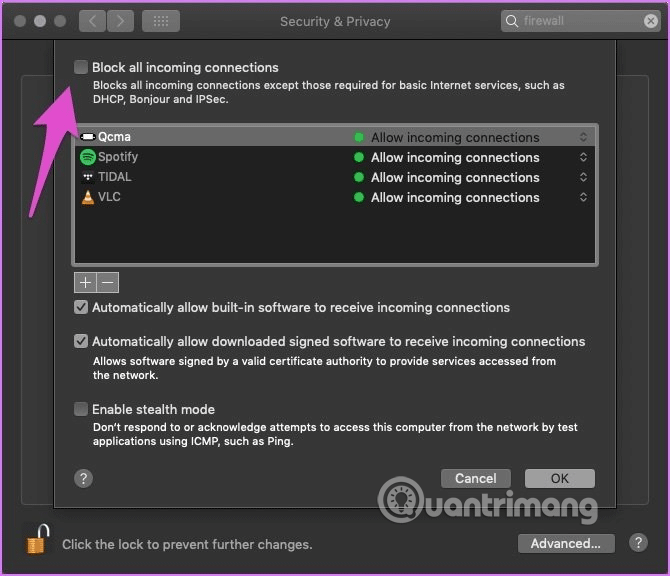
<p style="text-align: justify;"><strong>Bước 4</strong>. Trong cửa sổ Firewall Options, đảm bảo bỏ chọn&nbsp;<strong>Block all incoming connections</strong>.</p>

<p style="text-align: justify;"><img alt="Bỏ chọn Block all incoming connections" data-i="10" height="550" src="https://st.quantrimang.com/photos/image/2019/07/15/sua-loi-cant-establish-secure-connection-tren-safari-12.png" width="640" /></p>

<p style="text-align: justify;">Ngoài ra, bạn nên kiểm tra xem Safari có xuất hiện trong danh sách ngoại lệ không và&nbsp;<strong>Allow incoming connections</strong>&nbsp;có được bật không.</p>

<h2 id="mcetoc_1dfqfls237" style="text-align: justify;">8. Đồng bộ thời gian hệ thống</h2>

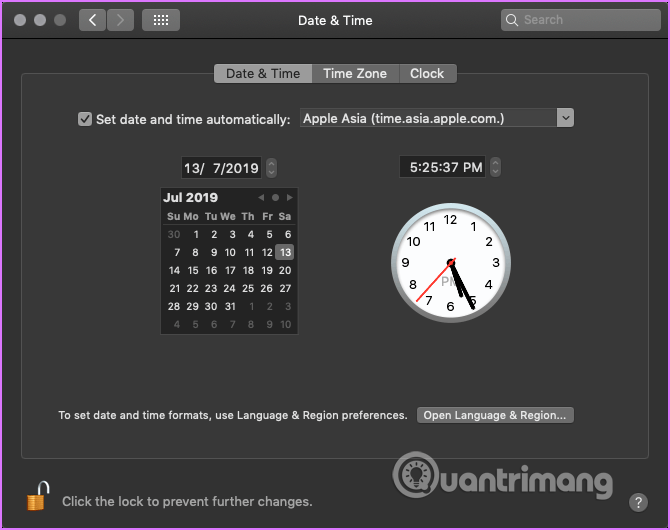
<p style="text-align: justify;">Mặc dù ít có trường hợp thời gian hệ thống trên máy Mac hiển thị sai, nhưng để đảm bảo chắc chắn, bạn nên thử kiểm tra.</p>

<p style="text-align: justify;"><img alt="Đồng bộ thời gian hệ thống" data-i="11" height="506" src="https://st.quantrimang.com/photos/image/2019/07/15/sua-loi-cant-establish-secure-connection-tren-safari-13.png" width="640" /></p>

<p style="text-align: justify;">Click vào menu Apple và chọn&nbsp;<strong>System Preferences</strong>. Trên cửa sổ hiện ra, click vào&nbsp;<strong>Date &amp; Time</strong>, sau đó click vào Time Zone để kiểm tra xem thời gian đã đúng chưa. Nếu muốn thực hiện thay đổi, bạn phải click vào icon khóa ở góc dưới bên trái và nhập mật khẩu tài khoản macOS của bạn.</p>

<h2 id="mcetoc_1dfqfls238" style="text-align: justify;">9. Xóa tất cả dữ liệu trang web</h2>

<p style="text-align: justify;">Apple bỏ nút&nbsp;<strong>Reset Safari</strong>&nbsp;từ bản cập nhật Yosemite. Tuy nhiên, chúng ta vẫn có cách dễ dàng để đạt được mục đích như khi nhấn nút trên.</p>

<p style="text-align: justify;"><strong>Bước 1</strong>. Khởi chạy Safari, click vào menu Safari và chọn&nbsp;<strong>Preferences</strong>.</p>

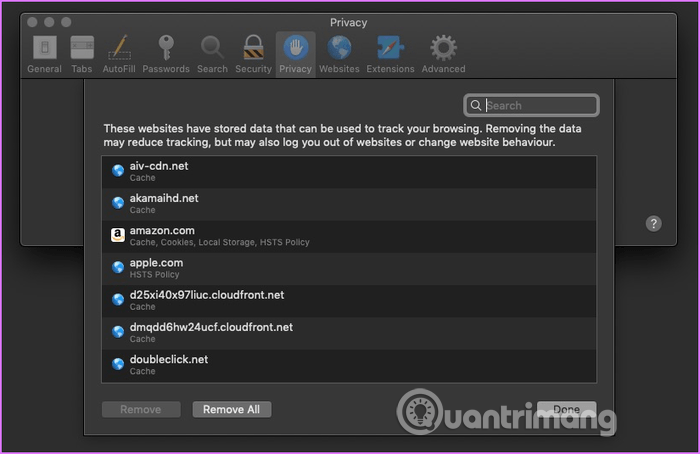
<p style="text-align: justify;"><strong>Bước 2</strong>. Click vào tab&nbsp;<strong>Privacy</strong>&nbsp;từ cửa sổ hiện ra và sau đó nhấn nút&nbsp;<strong>Manage Website Data</strong>.</p>

<p style="text-align: justify;"><img alt="Nhấn nút Manage Website Data" data-i="12" height="227" src="https://st.quantrimang.com/photos/image/2019/07/15/sua-loi-cant-establish-secure-connection-tren-safari-15.png" width="640" /></p>

<p style="text-align: justify;"><strong>Bước 3.</strong>&nbsp;Đợi cửa sổ bật lên hiện danh sách các trang web. Bây giờ, bạn có thể xóa dữ liệu của trang web được chọn hoặc tất cả các trang web. Bạn có thể nhấn nút<strong>&nbsp;Remove All</strong>&nbsp;và xóa sạch dữ liệu.</p>

<p style="text-align: justify;"><img alt="Nhấn nút Remove All" data-i="13" height="415" src="https://st.quantrimang.com/photos/image/2019/07/15/sua-loi-cant-establish-secure-connection-tren-safari-16.png" width="640" /></p>

<p style="text-align: justify;">Thực hiện biện pháp này cùng với giải pháp đầu tiên để Safari về trạng thái ban đầu. Bạn có thể thoát Safari và khởi chạy lại nó xem vấn đề đã được giải quyết hay chưa.</p>

<h2 id="mcetoc_1dfqfls239" style="text-align: justify;">10. Sử dụng trình duyệt khác</h2>

<p style="text-align: justify;">Nếu những cách trên không khắc phục được vấn đề, bạn có thể xem xét một số&nbsp;<a href="https://quantrimang.com/7-trinh-duyet-thay-the-safari-tren-iphone-79337" title="9 trình duyệt thay thế Safari trên iPhone">trình duyệt thay thế Safari</a>&nbsp;như Chrome và Firefox.&nbsp;</p>

<p style="text-align: justify;">Nếu không có giải pháp nào được đề cập ở trên hoạt động, cài đặt lại macOS là giải pháp cuối cùng.</p>

<p style="text-align: justify;">Chúc các bạn thực hiện thành công!</p>
		</div>
				<div id="author">
						<p>
				<strong>Nguồn tin:</strong>
				Quantrimang.com
			</p>
		</div>
	</div>
	<div id="footer" class="clearfix">
		<div id="url">
			<strong>URL của bản tin này: </strong><a href="https://www.nguoicodonvn2008.info/vi/news/savefile/kien-thuc-may-tinh/cach-sua-loi-can-t-establish-secure-connection-tren-safari-471.html" title="Cách sửa lỗi Can’t Establish Secure Connection trên Safari">https://www.nguoicodonvn2008.info/vi/news/savefile/kien-thuc-may-tinh/cach-sua-loi-can-t-establish-secure-connection-tren-safari-471.html</a>

		</div>
		<div class="clear"></div>
		<div class="copyright">
			&copy; .&#x3A; Nguoicodonvn2008.info - Cõi lòng người cô đơn &#x3A;.
		</div>
		<div id="contact">
			<a href="mailto:admin@nguoicodonvn2008.info">admin@nguoicodonvn2008.info</a>
		</div>
	</div>
</div>
        <div id="timeoutsess" class="chromeframe">
            Bạn đã không sử dụng Site, <a onclick="timeoutsesscancel();" href="https://www.nguoicodonvn2008.info/#">Bấm vào đây để duy trì trạng thái đăng nhập</a>. Thời gian chờ: <span id="secField"> 60 </span> giây
        </div>
        <div id="openidResult" class="nv-alert" style="display:none"></div>
        <div id="openidBt" data-result="" data-redirect=""></div>
		</script>
		<div class="car-top">
  <span><img src="https://www.nguoicodonvn2008.info/themes/default/images/car.png" alt=""></span>
</div>
<script src="https://www.nguoicodonvn2008.info/assets/js/jquery/jquery.min.js"></script>
<script>var nv_base_siteurl="/",nv_lang_data="vi",nv_lang_interface="vi",nv_name_variable="nv",nv_fc_variable="op",nv_lang_variable="language",nv_module_name="news",nv_func_name="savefile",nv_is_user=0, nv_my_ofs=-4,nv_my_abbr="EDT",nv_cookie_prefix="nv4c_e856T",nv_check_pass_mstime=1738000,nv_area_admin=0,nv_safemode=0,theme_responsive=0,nv_recaptcha_ver=2,nv_recaptcha_sitekey="",nv_recaptcha_type="image",XSSsanitize=1;</script>
<script src="https://www.nguoicodonvn2008.info/assets/js/language/vi.js"></script>
<script src="https://www.nguoicodonvn2008.info/assets/js/DOMPurify/purify3.js"></script>
<script src="https://www.nguoicodonvn2008.info/assets/js/global.js"></script>
<script src="https://www.nguoicodonvn2008.info/assets/js/site.js"></script>
<script src="https://www.nguoicodonvn2008.info/themes/default/js/news.js"></script>
<script src="https://www.nguoicodonvn2008.info/themes/default/js/main.js"></script>
<script src="https://www.nguoicodonvn2008.info/themes/default/js/custom.js"></script>
<script type="application/ld+json">
        {
            "@context": "https://schema.org",
            "@type": "Organization",
            "url": "https://www.nguoicodonvn2008.info",
            "logo": "https://www.nguoicodonvn2008.info/uploads/angel.gif"
        }
        </script>
<script src="https://www.nguoicodonvn2008.info/themes/default/js/bootstrap.min.js"></script>
<script type="text/javascript">
var $scrolltop = $('.car-top');
$scrolltop.on('click', function () {
    $('html,body').animate({
        scrollTop: 0
    }, 800);
    $(this).addClass("car-run");
    setTimeout(function(){ $scrolltop.removeClass('car-run');}, 1000);
    return false;
});
$(window).on('scroll', function ()
{ 
    if($(window).scrollTop() >= 200)
    {
        $scrolltop.addClass("show");
        $scrolltop.addClass("car-down");
    }
    else
    {
       $scrolltop.removeClass("show");
       setTimeout(function(){ $scrolltop.removeClass('car-down');}, 300);
    }
});
</script>
</body>
</html>