<!DOCTYPE html>
    <html lang="vi" xmlns="http://www.w3.org/1999/xhtml" prefix="og: http://ogp.me/ns#">
    <head>
<title>Cách sử dụng Scrcpy để điều khiển Android trên Linux</title>
<meta name="description" content="Cách sử dụng Scrcpy để điều khiển Android trên Linux - Savefile - Tin Tức -...">
<meta name="author" content=".: Nguoicodonvn2008.info - Cõi lòng người cô đơn :.">
<meta name="copyright" content=".: Nguoicodonvn2008.info - Cõi lòng người cô đơn :. [admin@nguoicodonvn2008.info]">
<meta name="robots" content="index, archive, follow, noodp">
<meta name="googlebot" content="index,archive,follow,noodp">
<meta name="msnbot" content="all,index,follow">
<meta name="generator" content="NukeViet v4.5">
<meta http-equiv="Content-Type" content="text/html; charset=utf-8">
<meta property="og:title" content="Cách sử dụng Scrcpy để điều khiển Android trên Linux">
<meta property="og:type" content="website">
<meta property="og:description" content="Savefile - Tin Tức - https&#x3A;&#x002F;&#x002F;www.nguoicodonvn2008.info&#x002F;vi&#x002F;news&#x002F;savefile&#x002F;kien-thuc-may-tinh&#x002F;cach-su-dung-scrcpy-de-dieu-khien-android-tren-linux-8433.html">
<meta property="og:site_name" content=".&#x3A; Nguoicodonvn2008.info - Cõi lòng người cô đơn &#x3A;.">
<meta property="og:url" content="https://www.nguoicodonvn2008.info/vi/news/savefile/kien-thuc-may-tinh/cach-su-dung-scrcpy-de-dieu-khien-android-tren-linux-8433.html">
<link rel="shortcut icon" href="https://www.nguoicodonvn2008.info/favicon.ico">
<link rel="canonical" href="https://www.nguoicodonvn2008.info/vi/news/savefile/kien-thuc-may-tinh/cach-su-dung-scrcpy-de-dieu-khien-android-tren-linux-8433.html">
<link rel="alternate" href="https://www.nguoicodonvn2008.info/vi/news/rss/" title="Tin Tức" type="application/rss+xml">
<link rel="alternate" href="https://www.nguoicodonvn2008.info/vi/news/rss/karaoke-dual/" title="Tin Tức - Karaoke Dual" type="application/rss+xml">
<link rel="alternate" href="https://www.nguoicodonvn2008.info/vi/news/rss/nhac-tre/" title="Tin Tức - Nhạc trẻ" type="application/rss+xml">
<link rel="alternate" href="https://www.nguoicodonvn2008.info/vi/news/rss/tru-tinh/" title="Tin Tức - Trữ tình" type="application/rss+xml">
<link rel="alternate" href="https://www.nguoicodonvn2008.info/vi/news/rss/nuoc-ngoai/" title="Tin Tức - Nước ngoài" type="application/rss+xml">
<link rel="alternate" href="https://www.nguoicodonvn2008.info/vi/news/rss/remix/" title="Tin Tức - Remix" type="application/rss+xml">
<link rel="alternate" href="https://www.nguoicodonvn2008.info/vi/news/rss/tam-su-tinh-yeu/" title="Tin Tức - Tâm sự tình yêu" type="application/rss+xml">
<link rel="alternate" href="https://www.nguoicodonvn2008.info/vi/news/rss/tho-suu-tam/" title="Tin Tức - Thơ sưu tầm" type="application/rss+xml">
<link rel="alternate" href="https://www.nguoicodonvn2008.info/vi/news/rss/cuoc-song/" title="Tin Tức - Cuộc sống" type="application/rss+xml">
<link rel="alternate" href="https://www.nguoicodonvn2008.info/vi/news/rss/phan-mem/" title="Tin Tức - Phần mềm" type="application/rss+xml">
<link rel="alternate" href="https://www.nguoicodonvn2008.info/vi/news/rss/kien-thuc-may-tinh/" title="Tin Tức - Kiến thức máy tính" type="application/rss+xml">
<link rel="alternate" href="https://www.nguoicodonvn2008.info/vi/news/rss/hoc-tap/" title="Tin Tức - Học tập" type="application/rss+xml">
<link rel="alternate" href="https://www.nguoicodonvn2008.info/vi/news/rss/tai-lieu/" title="Tin Tức - Tài liệu" type="application/rss+xml">
<link rel="alternate" href="https://www.nguoicodonvn2008.info/vi/news/rss/de-thi/" title="Tin Tức - Đề thi" type="application/rss+xml">
<link rel="preload" as="style" href="https://www.nguoicodonvn2008.info/assets/css/font-awesome.min.css" type="text/css">
<link rel="preload" as="style" href="https://www.nguoicodonvn2008.info/themes/default/css/bootstrap.non-responsive.css" type="text/css">
<link rel="preload" as="style" href="https://www.nguoicodonvn2008.info/themes/default/css/style.css" type="text/css">
<link rel="preload" as="style" href="https://www.nguoicodonvn2008.info/themes/default/css/style.non-responsive.css" type="text/css">
<link rel="preload" as="style" href="https://www.nguoicodonvn2008.info/themes/default/css/news.css" type="text/css">
<link rel="preload" as="style" href="https://www.nguoicodonvn2008.info/themes/default/css/custom.css" type="text/css">
<link rel="preload" as="script" href="https://www.nguoicodonvn2008.info/assets/js/jquery/jquery.min.js" type="text/javascript">
<link rel="preload" as="script" href="https://www.nguoicodonvn2008.info/assets/js/language/vi.js" type="text/javascript">
<link rel="preload" as="script" href="https://www.nguoicodonvn2008.info/assets/js/DOMPurify/purify3.js" type="text/javascript">
<link rel="preload" as="script" href="https://www.nguoicodonvn2008.info/assets/js/global.js" type="text/javascript">
<link rel="preload" as="script" href="https://www.nguoicodonvn2008.info/assets/js/site.js" type="text/javascript">
<link rel="preload" as="script" href="https://www.nguoicodonvn2008.info/themes/default/js/news.js" type="text/javascript">
<link rel="preload" as="script" href="https://www.nguoicodonvn2008.info/themes/default/js/main.js" type="text/javascript">
<link rel="preload" as="script" href="https://www.nguoicodonvn2008.info/themes/default/js/custom.js" type="text/javascript">
<link rel="preload" as="script" href="https://www.nguoicodonvn2008.info/themes/default/js/bootstrap.min.js" type="text/javascript">
<link rel="stylesheet" href="https://www.nguoicodonvn2008.info/assets/css/font-awesome.min.css">
<link rel="stylesheet" href="https://www.nguoicodonvn2008.info/themes/default/css/bootstrap.non-responsive.css">
<link rel="stylesheet" href="https://www.nguoicodonvn2008.info/themes/default/css/style.css">
<link rel="stylesheet" href="https://www.nguoicodonvn2008.info/themes/default/css/style.non-responsive.css">
<link rel="StyleSheet" href="https://www.nguoicodonvn2008.info/themes/default/css/news.css">
<link rel="stylesheet" href="https://www.nguoicodonvn2008.info/themes/default/css/custom.css">
<style type="text/css">
	body{background: #fff;}
</style>
    </head>
    <body>
<div id="print">
	<div id="hd_print">
		<h2 class="pull-left">.&#x3A; Nguoicodonvn2008.info - Cõi lòng người cô đơn &#x3A;.</h2>
		<p class="pull-right"><a title=".&#x3A; Nguoicodonvn2008.info - Cõi lòng người cô đơn &#x3A;." href="https://www.nguoicodonvn2008.info/">https://www.nguoicodonvn2008.info</a></p>
	</div>
	<div class="clear"></div>
	<hr />
	<div id="content">
		<h1>Cách sử dụng Scrcpy để điều khiển Android trên Linux</h1>
		<ul class="list-inline">
			<li>Thứ ba - 04/06/2024 23:59</li>
			<li class="hidden-print txtrequired"><em class="fa fa-print">&nbsp;</em><a title="In ra" href="javascript:;" onclick="window.print()">In ra</a></li>
			<li class="hidden-print txtrequired"><em class="fa fa-power-off">&nbsp;</em><a title="Đóng cửa sổ này" href="javascript:;" onclick="window.close()">Đóng cửa sổ này</a></li>
		</ul>
		<div class="clear"></div>
		<div id="hometext">
		</div>
				<div class="imghome">
			<img alt="Cách sử dụng Scrcpy để điều khiển Android trên Linux" src="https://st.quantrimang.com/photos/image/2024/06/04/dung-scrcpy-dieu-khien-android-tren-linux-16.jpg" width="460" class="img-thumbnail" />
		</div>
		<div class="clear"></div>
		<div id="bodytext" class="clearfix">
			<p style="text-align: justify;">Scrcpy (phát âm là Screen Copy) là một ứng dụng mã nguồn mở có thể sử dụng để điều khiển và chiếu liền mạch thiết bị Android của mình trên&nbsp;<a data-type="internal" href="https://quantrimang.com/cong-nghe/linux-os" title="Linux">Linux</a>. Bạn có thể kết nối với thiết bị Android của mình qua cáp USB hoặc không dây và điều khiển thiết bị bằng bàn phím và chuột. Đây là cách điều khiển thiết bị Android trên Linux bằng Scrcpy.</p>

<h2 style="text-align: justify;">Cài đặt Scrcpy trong Linux</h2>

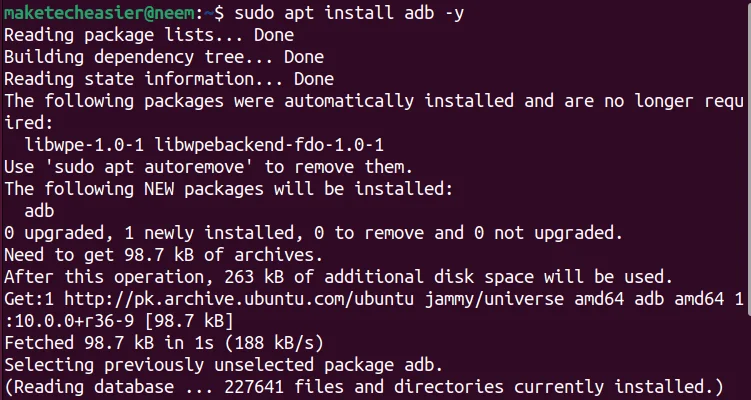
<p style="text-align: justify;">Trước khi cài đặt Scrcpy, nên cài đặt adb (Android Debug Bridge) trong hệ thống của mình. Với mục đích này, hãy thực thi một trong các lệnh sau, tùy thuộc vào bản phân phối của bạn:</p>

<pre id="pre0">
<code># Hệ thống dựa trên Debian
sudo apt install adb
# Hệ thống dựa trên Fedora
sudo yum install adb
# Hệ thống dựa trên Arch
sudo pacman -S android-tools</code></pre>

<figure>
<div style="text-align: justify;"><img alt="Cài đặt ADB" data-i="0" data-src="https://st.quantrimang.com/photos/image/2024/06/04/dung-scrcpy-dieu-khien-android-tren-linux-1.jpg" data-was-processed="true" height="400" src="https://st.quantrimang.com/photos/image/2024/06/04/dung-scrcpy-dieu-khien-android-tren-linux-1.jpg" width="751" /></div>

<figcaption>
<div style="text-align: justify;">Cài đặt ADB</div>
</figcaption>
</figure>

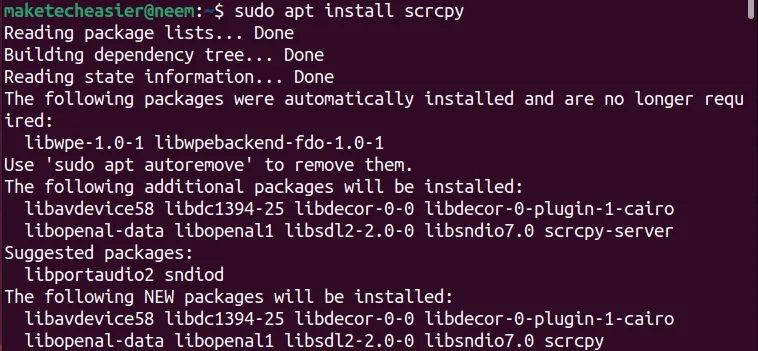
<p style="text-align: justify;">Sau khi cài đặt adb, hãy cài đặt phiên bản ổn định của Scrcpy:</p>

<pre id="pre1">
<code># Hệ thống dựa trên Debian
sudo apt install scrcpy
# Hệ thống dựa trên Fedora
sudo dnf copr enable zeno/scrcpy &amp;&amp; dnf install scrcpy
# Hệ thống dựa trên Arch
sudo pacman -S scrcpy</code></pre>

<div style="text-align: justify;">&nbsp;</div>

<figure>
<div style="text-align: justify;"><br />
<img alt="Cài đặt Scrpy" data-adbro-processed="true" data-i="1" data-src="https://st.quantrimang.com/photos/image/2024/06/04/dung-scrcpy-dieu-khien-android-tren-linux-2.jpg" data-was-processed="true" height="351" src="https://st.quantrimang.com/photos/image/2024/06/04/dung-scrcpy-dieu-khien-android-tren-linux-2.jpg" width="758" /></div>

<figcaption>
<div style="text-align: justify;">Cài đặt Scrpy</div>
</figcaption>
</figure>

<p style="text-align: justify;">Cũng có thể cài đặt phiên bản ổn định của Scrcy bằng snap:</p>

<pre id="pre2">
<code>sudo snap install scrcpy</code></pre>

<figure>
<div style="text-align: justify;"><img alt="Cài đặt Scrcpy bằng Snap" data-i="2" data-src="https://st.quantrimang.com/photos/image/2024/06/04/dung-scrcpy-dieu-khien-android-tren-linux-3.jpg" data-was-processed="true" height="101" src="https://st.quantrimang.com/photos/image/2024/06/04/dung-scrcpy-dieu-khien-android-tren-linux-3.jpg" width="752" /></div>

<figcaption>
<div style="text-align: justify;">Cài đặt Scrcpy bằng Snap</div>
</figcaption>
</figure>

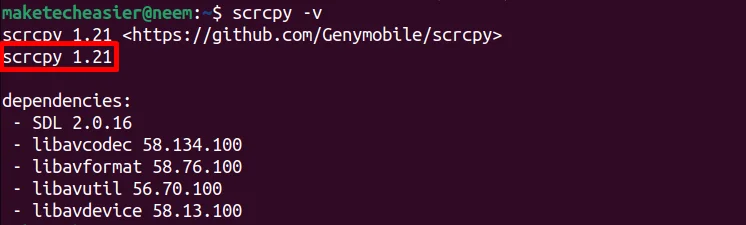
<p style="text-align: justify;">Sau khi cài đặt thành công, bạn có thể xác minh phiên bản của nó bằng lệnh scrcpy -v:</p>

<pre id="pre3">
<code>scrcpy -v</code></pre>

<figure>
<div style="text-align: justify;"><img alt="Phiên bản Scrcpy" data-i="3" data-src="https://st.quantrimang.com/photos/image/2024/06/04/dung-scrcpy-dieu-khien-android-tren-linux-4.jpg" data-was-processed="true" height="225" src="https://st.quantrimang.com/photos/image/2024/06/04/dung-scrcpy-dieu-khien-android-tren-linux-4.jpg" width="746" /></div>

<figcaption>
<div style="text-align: justify;">Phiên bản Scrcpy</div>
</figcaption>
</figure>

<h3 style="text-align: justify;">Cài đặt phiên bản Scrcpy mới nhất để có nhiều tính năng hơn</h3>

<p style="text-align: justify;">Nếu muốn có các tính năng như&nbsp;<strong>audio forwarding</strong>&nbsp;và&nbsp;<strong>camera mirroring</strong>, cần cài đặt phiên bản Scrcpy mới nhất (hiện tại là phiên bản 2.4).</p>

<p style="text-align: justify;">Với mục đích này, cần cài đặt nó thông qua&nbsp;<a href="https://quantrimang.com/url?q=aHR0cHM6Ly9naXRodWIuY29tL0dlbnltb2JpbGUvc2NyY3B5" rel="nofollow noopener" target="_blank">mã nguồn</a>.</p>

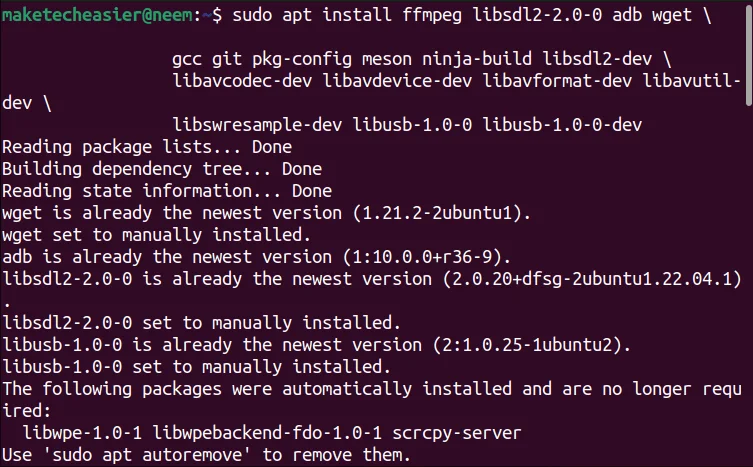
<p style="text-align: justify;">Trước tiên, hãy đảm bảo rằng hệ thống của bạn có tất cả các dependency cần thiết:</p>

<pre id="pre4">
<code># Hệ thống dựa trên Debian
sudo apt install ffmpeg libsdl2-2.0-0 adb wget \
                 gcc git pkg-config meson ninja-build libsdl2-dev \
                 libavcodec-dev libavdevice-dev libavformat-dev libavutil-dev \
                 libswresample-dev libusb-1.0-0 libusb-1.0-0-dev</code></pre>

<figure>
<div style="text-align: justify;"><img alt="" data-i="4" data-src="https://st.quantrimang.com/photos/image/2024/06/04/dung-scrcpy-dieu-khien-android-tren-linux-5.jpg" data-was-processed="true" height="467" src="https://st.quantrimang.com/photos/image/2024/06/04/dung-scrcpy-dieu-khien-android-tren-linux-5.jpg" width="753" /></div>
</figure>

<div style="text-align: justify;"><iframe allow="autoplay" allowtransparency="true" aria-label="Advertisement" data-google-container-id="a!3" data-google-query-id="CKqUurXJw4YDFRbnFgUd8GsaLQ" data-load-complete="true" frameborder="0" height="174" hspace="0" id="aswift_2" marginheight="0" marginwidth="0" name="aswift_2" sandbox="allow-scripts allow-same-origin allow-forms allow-presentation" scrolling="no" tabindex="0" title="Advertisement" vspace="0" width="694"></iframe></div>

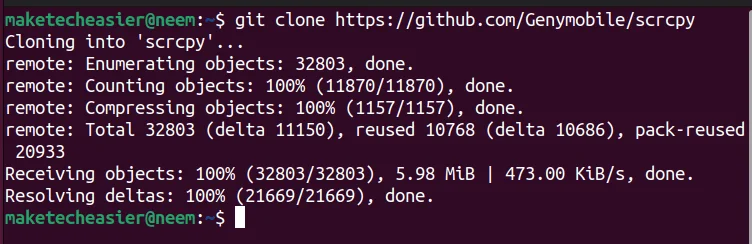
<p style="text-align: justify;">Sau đó, sao chép kho lưu trữ Scrcpy bằng lệnh git clone:</p>

<pre id="pre5">
<code>git clone https://github.com/Genymobile/scrcpy</code></pre>

<figure>
<div style="text-align: justify;"><img alt="Sao chép kho lưu trữ Scrcpy" data-i="5" data-src="https://st.quantrimang.com/photos/image/2024/06/04/dung-scrcpy-dieu-khien-android-tren-linux-6.jpg" data-was-processed="true" height="244" src="https://st.quantrimang.com/photos/image/2024/06/04/dung-scrcpy-dieu-khien-android-tren-linux-6.jpg" width="752" /></div>

<figcaption>
<div style="text-align: justify;">Sao chép kho lưu trữ Scrcpy</div>
</figcaption>
</figure>

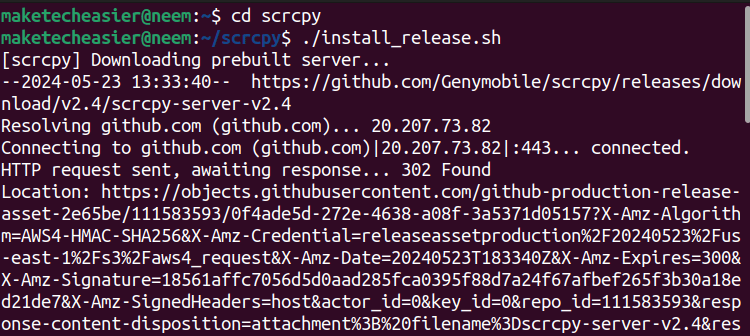
<p style="text-align: justify;">Tiếp theo, điều hướng đến thư mục của nó và chạy script cài đặt Scrcpy:</p>

<pre id="pre6">
<code>cd scrcpy
./install_release.sh</code></pre>

<figure>
<div style="text-align: justify;"><img alt="Cài đặt Scrcpy mới nhất" data-i="6" data-src="https://st.quantrimang.com/photos/image/2024/06/04/dung-scrcpy-dieu-khien-android-tren-linux-7.jpg" data-was-processed="true" height="336" src="https://st.quantrimang.com/photos/image/2024/06/04/dung-scrcpy-dieu-khien-android-tren-linux-7.jpg" width="750" /></div>

<figcaption>
<div style="text-align: justify;">Cài đặt Scrcpy mới nhất</div>
</figcaption>
</figure>

<p style="text-align: justify;">Bằng cách này, phiên bản Scrcpy mới nhất sẽ được cài đặt trong hệ thống Linux của bạn. Để xác minh nó, hãy thực thi lệnh sau:</p>

<pre id="pre7">
<code>scrcpy -v</code></pre>

<p style="text-align: justify;">Bây giờ, bạn đã sẵn sàng kết nối với thiết bị Android qua USB hoặc không dây.</p>

<h2 style="text-align: justify;">Kết nối với Android qua cáp USB</h2>

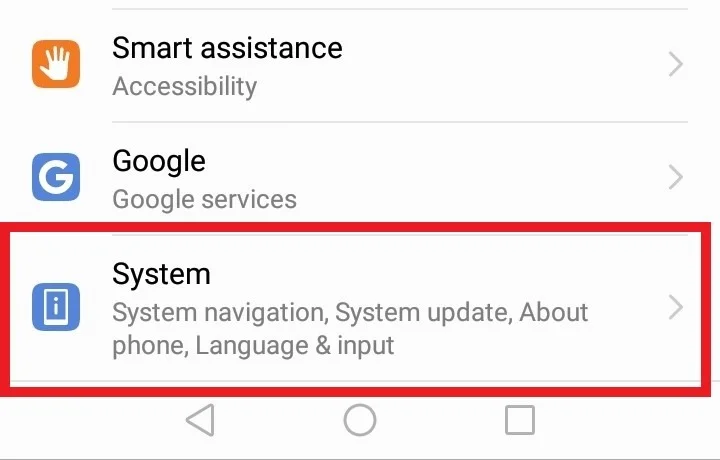
<p style="text-align: justify;">Để kết nối với thiết bị Android, bạn cần bật&nbsp;<strong>Developer options</strong>&nbsp;và&nbsp;<strong>USB debugging</strong>.</p>

<p style="text-align: justify;">Để thực hiện việc này, hãy đi tới&nbsp;<strong>Settings</strong>&nbsp;-&gt;&nbsp;<strong>System</strong>:</p>

<figure>
<div style="text-align: justify;"><img alt="Cài đặt Android" data-i="7" data-src="https://st.quantrimang.com/photos/image/2024/06/04/dung-scrcpy-dieu-khien-android-tren-linux-8.jpg" data-was-processed="true" height="460" src="https://st.quantrimang.com/photos/image/2024/06/04/dung-scrcpy-dieu-khien-android-tren-linux-8.jpg" width="720" /></div>

<figcaption>
<div style="text-align: justify;">Cài đặt Android</div>
</figcaption>
</figure>

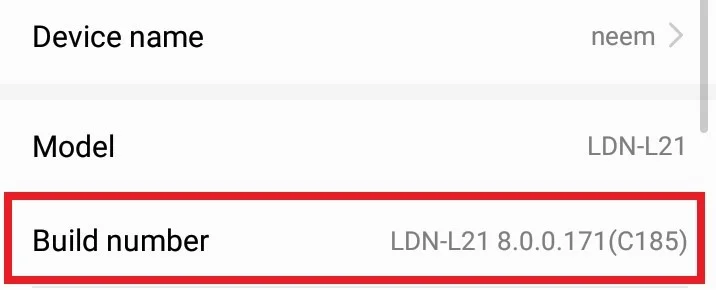
<p style="text-align: justify;">Mở tùy chọn&nbsp;<strong>About phone</strong>&nbsp;và nhấp vào&nbsp;<strong>Build number</strong>&nbsp;nhiều lần cho đến khi bạn nhận được thông báo có nội dung “<strong>You are a developer</strong>“:</p>

<figure>
<div style="text-align: justify;"><img alt="Nhấn vào Build number 7 lần" data-i="8" data-src="https://st.quantrimang.com/photos/image/2024/06/04/dung-scrcpy-dieu-khien-android-tren-linux-9.jpg" data-was-processed="true" height="290" src="https://st.quantrimang.com/photos/image/2024/06/04/dung-scrcpy-dieu-khien-android-tren-linux-9.jpg" width="716" /></div>

<figcaption>
<div style="text-align: justify;">Nhấn vào Build number 7 lần</div>
</figcaption>
</figure>

<div style="text-align: justify;"><iframe allow="autoplay" allowtransparency="true" aria-label="Advertisement" data-google-container-id="a!4" data-google-query-id="CPD0xr3Jw4YDFXzRFgUdrwYMag" data-load-complete="true" frameborder="0" height="0" hspace="0" id="aswift_3" marginheight="0" marginwidth="0" name="aswift_3" sandbox="allow-scripts allow-same-origin allow-forms allow-presentation" scrolling="no" tabindex="0" title="Advertisement" vspace="0" width="694"></iframe></div>

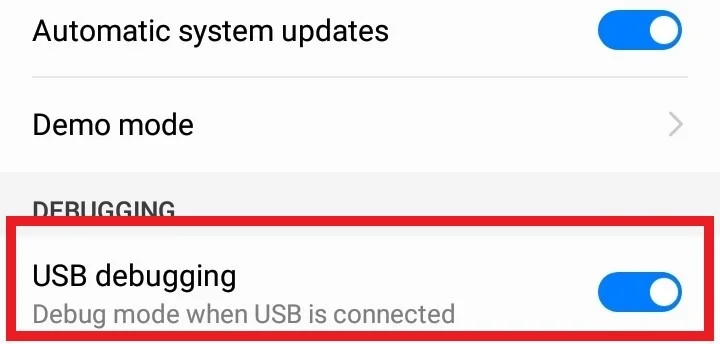
<p style="text-align: justify;">Tiếp theo, quay lại&nbsp;<strong>System settings</strong>&nbsp;và tại đây bạn sẽ thấy&nbsp;<strong>Developer options</strong>. Trong&nbsp;<strong>Developer options</strong>, bật tùy chọn&nbsp;<strong>USB debugging</strong>:</p>

<figure>
<div style="text-align: justify;"><img alt="Bật Developer options và USB debugging" data-i="9" data-src="https://st.quantrimang.com/photos/image/2024/06/04/dung-scrcpy-dieu-khien-android-tren-linux-10.jpg" data-was-processed="true" height="344" src="https://st.quantrimang.com/photos/image/2024/06/04/dung-scrcpy-dieu-khien-android-tren-linux-10.jpg" width="720" /></div>

<figcaption>
<div style="text-align: justify;">Bật Developer options và USB debugging</div>
</figcaption>
</figure>

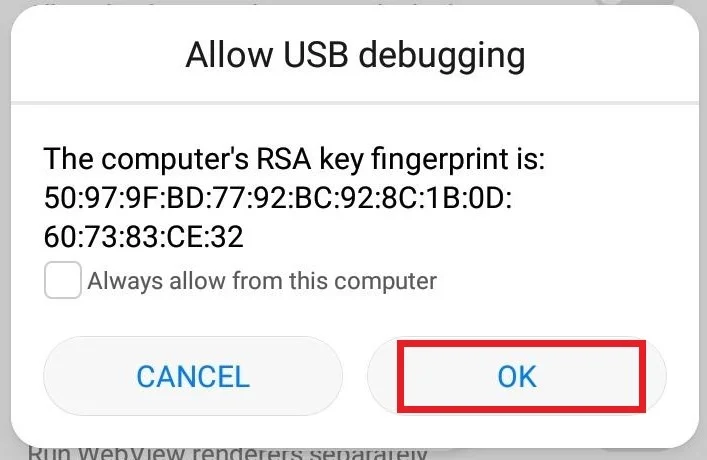
<p style="text-align: justify;">Sau khi bật tùy chọn USB debugging, bạn sẽ nhận được lời nhắc xác nhận lựa chọn của mình. Tại đây, nhấn nút&nbsp;<strong>OK</strong>:</p>

<figure>
<div style="text-align: justify;"><img alt="Cho phép USB debugging" data-i="10" data-src="https://st.quantrimang.com/photos/image/2024/06/04/dung-scrcpy-dieu-khien-android-tren-linux-11.jpg" data-was-processed="true" height="460" src="https://st.quantrimang.com/photos/image/2024/06/04/dung-scrcpy-dieu-khien-android-tren-linux-11.jpg" width="707" /></div>

<figcaption>
<div style="text-align: justify;">Cho phép USB debugging</div>
</figcaption>
</figure>

<p style="text-align: justify;">Bây giờ, hãy kết nối điện thoại với hệ thống Linux bằng cáp USB. Sau khi thực hiện việc này, bạn sẽ thấy thông báo chế độ USB debugging trên Android.</p>

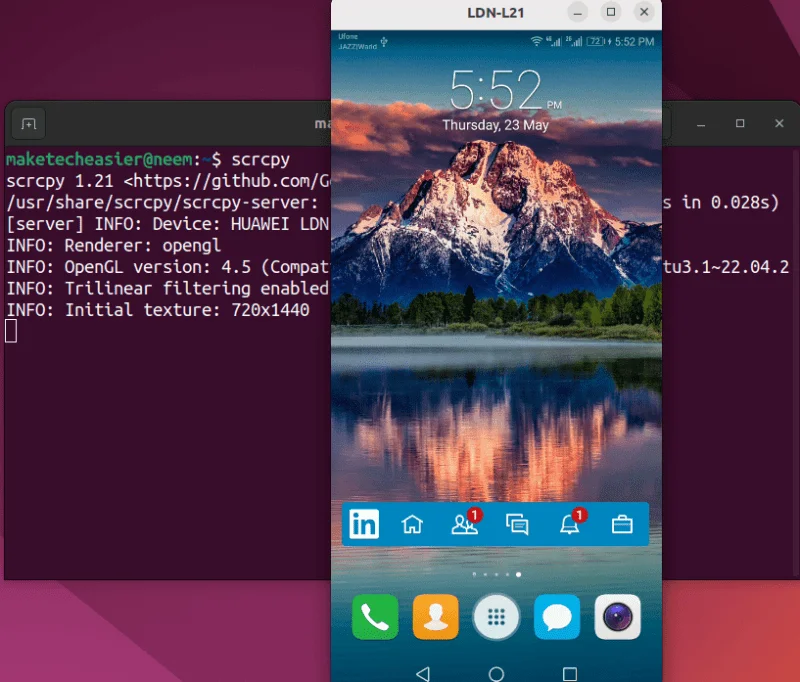
<p style="text-align: justify;">Tiếp theo,&nbsp;<a data-type="internal" href="https://quantrimang.com/cong-nghe/4-cach-truy-cap-nhanh-toi-mot-terminal-trong-linux-69438" title="5 cách truy cập nhanh tới một Terminal trong Linux">mở Terminal</a>&nbsp;trong hệ thống Linux và thực thi lệnh scrcpy để chiếu thiết bị:</p>

<pre id="pre8">
<code>scrcpy</code></pre>

<figure>
<div style="text-align: justify;"><img alt="Kết nối Scrcpy qua cáp USB" data-i="11" data-src="https://st.quantrimang.com/photos/image/2024/06/04/dung-scrcpy-dieu-khien-android-tren-linux-12.jpg" data-was-processed="true" height="682" src="https://st.quantrimang.com/photos/image/2024/06/04/dung-scrcpy-dieu-khien-android-tren-linux-12.jpg" width="800" /></div>

<figcaption>
<div style="text-align: justify;">Kết nối Scrcpy qua cáp USB</div>
</figcaption>
</figure>

<p style="text-align: justify;">Bạn có thể thấy Android phản chiếu trên hệ thống của mình.</p>

<p style="text-align: justify;">Để ngắt kết nối điện thoại, chỉ cần nhấn phím&nbsp;<strong>Ctrl + C</strong>.</p>

<h2 style="text-align: justify;">Kết nối với Android thông qua kết nối không dây</h2>

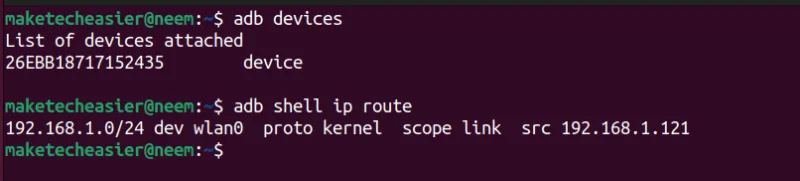
<p style="text-align: justify;">Bạn cũng có thể kết nối không dây thiết bị Android của mình. Trước tiên, hãy kết nối điện thoại với Linux qua cáp USB và thực hiện lệnh adb sau để Linux nhận dạng thiết bị Android:</p>

<pre id="pre9">
<code>adb devices</code></pre>

<p style="text-align: justify;">Tìm địa chỉ IP của thiết bị Android:</p>

<pre id="pre10">
<code>adb shell ip route</code></pre>

<figure>
<div style="text-align: justify;"><img alt="" data-i="12" data-src="https://st.quantrimang.com/photos/image/2024/06/04/dung-scrcpy-dieu-khien-android-tren-linux-13.jpg" data-was-processed="true" height="181" src="https://st.quantrimang.com/photos/image/2024/06/04/dung-scrcpy-dieu-khien-android-tren-linux-13.jpg" width="800" /></div>
</figure>

<p style="text-align: justify;"><strong>Hãy ghi nhớ</strong>: Linux và Android phải được kết nối với cùng một mạng Wi-Fi.</p>

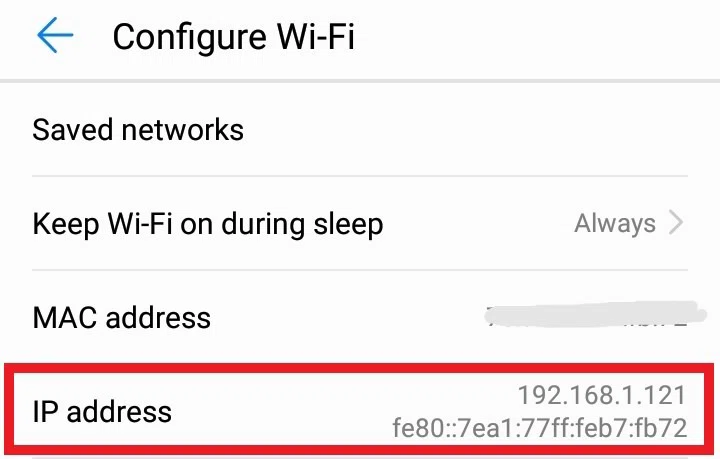
<p style="text-align: justify;">Bạn cũng có thể kiểm tra địa chỉ IP của điện thoại bằng cách đi tới&nbsp;<strong>Settings</strong>&nbsp;-&gt;&nbsp;<strong>Wireless &amp; network</strong>&nbsp;-&gt;&nbsp;<strong>Wi-Fi</strong>&nbsp;và nhấn nút&nbsp;<strong>Configure</strong>:</p>

<figure>
<div style="text-align: justify;"><img alt="Tìm địa chỉ IP trong cài đặt Wi-Fi của Android" data-i="13" data-src="https://st.quantrimang.com/photos/image/2024/06/04/dung-scrcpy-dieu-khien-android-tren-linux-14.jpg" data-was-processed="true" height="459" src="https://st.quantrimang.com/photos/image/2024/06/04/dung-scrcpy-dieu-khien-android-tren-linux-14.jpg" width="720" /></div>

<figcaption>
<div style="text-align: justify;">Tìm địa chỉ IP trong cài đặt Wi-Fi của Android</div>
</figcaption>
</figure>

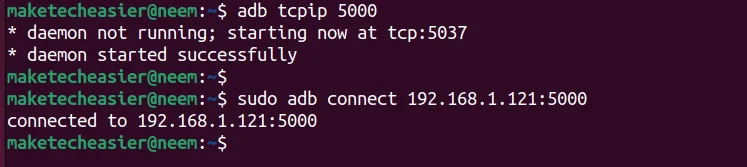
<p style="text-align: justify;">Sau khi biết địa chỉ IP của điện thoại, bạn phải cấu hình một cổng cho kết nối TCP/IP của mình. Chẳng hạn, ví dụ đặt nó thành 5000:</p>

<pre id="pre11">
<code>adb tcpip 5000</code></pre>

<p style="text-align: justify;"><strong>Lưu ý</strong>: Có thể cấu hình bất kỳ cổng nào chưa được chỉ định.</p>

<p style="text-align: justify;">Bây giờ, hãy ngắt kết nối điện thoại khỏi cáp USB. Sau đó, kết nối điện thoại với hệ thống Linux bằng địa chỉ IP của điện thoại và cổng TCP/IP được chỉ định qua mạng:</p>

<pre id="pre12">
<code>sudo adb connect 192.168.1.121:5000</code></pre>

<figure>
<div style="text-align: justify;"><img alt="Kết nối ADB" data-i="14" data-src="https://st.quantrimang.com/photos/image/2024/06/04/dung-scrcpy-dieu-khien-android-tren-linux-15.jpg" data-was-processed="true" height="167" src="https://st.quantrimang.com/photos/image/2024/06/04/dung-scrcpy-dieu-khien-android-tren-linux-15.jpg" width="747" /></div>

<figcaption>
<div style="text-align: justify;">Kết nối ADB</div>
</figcaption>
</figure>

<p style="text-align: justify;">Trong trường hợp có nhiều thiết bị, bạn có thể sử dụng số sê-ri của Android để kết nối với thiết bị qua mạng:</p>

<pre id="pre13">
<code>scrcpy -S &lt;số-sê-ri&gt;</code></pre>

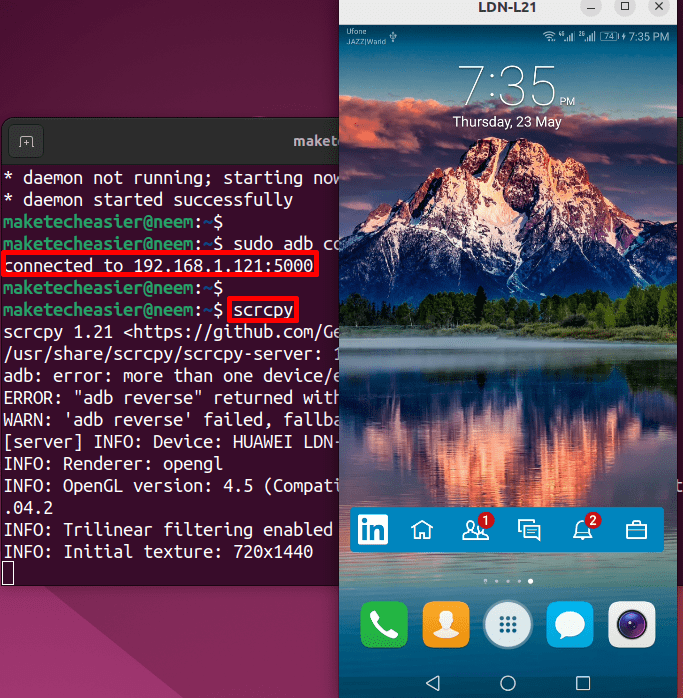
<p style="text-align: justify;">Cuối cùng, thực thi lệnh scrcpy để điều khiển và chiếu màn hình Android:</p>

<pre id="pre14">
<code>scrcpy</code></pre>

<figure>
<div style="text-align: justify;"><img alt="Kết nối với điện thoại qua TCP/IP" data-i="15" data-src="https://st.quantrimang.com/photos/image/2024/06/04/dung-scrcpy-dieu-khien-android-tren-linux-16.jpg" data-was-processed="true" height="698" src="https://st.quantrimang.com/photos/image/2024/06/04/dung-scrcpy-dieu-khien-android-tren-linux-16.jpg" width="683" /></div>

<figcaption>
<div style="text-align: justify;">Kết nối với điện thoại qua TCP/IP</div>
</figcaption>
</figure>

<p style="text-align: justify;">Như đã đề cập trước đó, bạn có thể ngắt kết nối này bằng cách nhấn phím&nbsp;<strong>Ctrl + C</strong>.</p>

<div style="text-align: justify;">&nbsp;</div>
		</div>
				<div id="author">
						<p>
				<strong>Nguồn tin:</strong>
				Quantrimang.com
			</p>
		</div>
	</div>
	<div id="footer" class="clearfix">
		<div id="url">
			<strong>URL của bản tin này: </strong><a href="https://www.nguoicodonvn2008.info/vi/news/savefile/kien-thuc-may-tinh/cach-su-dung-scrcpy-de-dieu-khien-android-tren-linux-8433.html" title="Cách sử dụng Scrcpy để điều khiển Android trên Linux">https://www.nguoicodonvn2008.info/vi/news/savefile/kien-thuc-may-tinh/cach-su-dung-scrcpy-de-dieu-khien-android-tren-linux-8433.html</a>

		</div>
		<div class="clear"></div>
		<div class="copyright">
			&copy; .&#x3A; Nguoicodonvn2008.info - Cõi lòng người cô đơn &#x3A;.
		</div>
		<div id="contact">
			<a href="mailto:admin@nguoicodonvn2008.info">admin@nguoicodonvn2008.info</a>
		</div>
	</div>
</div>
        <div id="timeoutsess" class="chromeframe">
            Bạn đã không sử dụng Site, <a onclick="timeoutsesscancel();" href="https://www.nguoicodonvn2008.info/#">Bấm vào đây để duy trì trạng thái đăng nhập</a>. Thời gian chờ: <span id="secField"> 60 </span> giây
        </div>
        <div id="openidResult" class="nv-alert" style="display:none"></div>
        <div id="openidBt" data-result="" data-redirect=""></div>
		</script>
		<div class="car-top">
  <span><img src="https://www.nguoicodonvn2008.info/themes/default/images/car.png" alt=""></span>
</div>
<script src="https://www.nguoicodonvn2008.info/assets/js/jquery/jquery.min.js"></script>
<script>var nv_base_siteurl="/",nv_lang_data="vi",nv_lang_interface="vi",nv_name_variable="nv",nv_fc_variable="op",nv_lang_variable="language",nv_module_name="news",nv_func_name="savefile",nv_is_user=0, nv_my_ofs=-4,nv_my_abbr="EDT",nv_cookie_prefix="nv4c_e856T",nv_check_pass_mstime=1738000,nv_area_admin=0,nv_safemode=0,theme_responsive=0,nv_recaptcha_ver=2,nv_recaptcha_sitekey="",nv_recaptcha_type="image",XSSsanitize=1;</script>
<script src="https://www.nguoicodonvn2008.info/assets/js/language/vi.js"></script>
<script src="https://www.nguoicodonvn2008.info/assets/js/DOMPurify/purify3.js"></script>
<script src="https://www.nguoicodonvn2008.info/assets/js/global.js"></script>
<script src="https://www.nguoicodonvn2008.info/assets/js/site.js"></script>
<script src="https://www.nguoicodonvn2008.info/themes/default/js/news.js"></script>
<script src="https://www.nguoicodonvn2008.info/themes/default/js/main.js"></script>
<script src="https://www.nguoicodonvn2008.info/themes/default/js/custom.js"></script>
<script type="application/ld+json">
        {
            "@context": "https://schema.org",
            "@type": "Organization",
            "url": "https://www.nguoicodonvn2008.info",
            "logo": "https://www.nguoicodonvn2008.info/uploads/angel.gif"
        }
        </script>
<script src="https://www.nguoicodonvn2008.info/themes/default/js/bootstrap.min.js"></script>
<script type="text/javascript">
var $scrolltop = $('.car-top');
$scrolltop.on('click', function () {
    $('html,body').animate({
        scrollTop: 0
    }, 800);
    $(this).addClass("car-run");
    setTimeout(function(){ $scrolltop.removeClass('car-run');}, 1000);
    return false;
});
$(window).on('scroll', function ()
{ 
    if($(window).scrollTop() >= 200)
    {
        $scrolltop.addClass("show");
        $scrolltop.addClass("car-down");
    }
    else
    {
       $scrolltop.removeClass("show");
       setTimeout(function(){ $scrolltop.removeClass('car-down');}, 300);
    }
});
</script>
</body>
</html>