<!DOCTYPE html>
    <html lang="vi" xmlns="http://www.w3.org/1999/xhtml" prefix="og: http://ogp.me/ns#">
    <head>
<title>Cách sử dụng Rufus để bỏ qua yêu cầu TPM và Secure Boot trong Windows 11</title>
<meta name="description" content="Cách sử dụng Rufus để bỏ qua yêu cầu TPM và Secure Boot trong Windows 11 - Savefile - Tin Tức -...">
<meta name="author" content=".: Nguoicodonvn2008.info - Cõi lòng người cô đơn :.">
<meta name="copyright" content=".: Nguoicodonvn2008.info - Cõi lòng người cô đơn :. [admin@nguoicodonvn2008.info]">
<meta name="robots" content="index, archive, follow, noodp">
<meta name="googlebot" content="index,archive,follow,noodp">
<meta name="msnbot" content="all,index,follow">
<meta name="generator" content="NukeViet v4.5">
<meta http-equiv="Content-Type" content="text/html; charset=utf-8">
<meta property="og:title" content="Cách sử dụng Rufus để bỏ qua yêu cầu TPM và Secure Boot trong Windows 11">
<meta property="og:type" content="website">
<meta property="og:description" content="Savefile - Tin Tức -...">
<meta property="og:site_name" content=".&#x3A; Nguoicodonvn2008.info - Cõi lòng người cô đơn &#x3A;.">
<meta property="og:url" content="https://www.nguoicodonvn2008.info/vi/news/savefile/kien-thuc-may-tinh/cach-su-dung-rufus-de-bo-qua-yeu-cau-tpm-va-secure-boot-trong-windows-11-9451.html">
<link rel="shortcut icon" href="https://www.nguoicodonvn2008.info/favicon.ico">
<link rel="canonical" href="https://www.nguoicodonvn2008.info/vi/news/savefile/kien-thuc-may-tinh/cach-su-dung-rufus-de-bo-qua-yeu-cau-tpm-va-secure-boot-trong-windows-11-9451.html">
<link rel="alternate" href="https://www.nguoicodonvn2008.info/vi/news/rss/" title="Tin Tức" type="application/rss+xml">
<link rel="alternate" href="https://www.nguoicodonvn2008.info/vi/news/rss/karaoke-dual/" title="Tin Tức - Karaoke Dual" type="application/rss+xml">
<link rel="alternate" href="https://www.nguoicodonvn2008.info/vi/news/rss/nhac-tre/" title="Tin Tức - Nhạc trẻ" type="application/rss+xml">
<link rel="alternate" href="https://www.nguoicodonvn2008.info/vi/news/rss/tru-tinh/" title="Tin Tức - Trữ tình" type="application/rss+xml">
<link rel="alternate" href="https://www.nguoicodonvn2008.info/vi/news/rss/nuoc-ngoai/" title="Tin Tức - Nước ngoài" type="application/rss+xml">
<link rel="alternate" href="https://www.nguoicodonvn2008.info/vi/news/rss/remix/" title="Tin Tức - Remix" type="application/rss+xml">
<link rel="alternate" href="https://www.nguoicodonvn2008.info/vi/news/rss/tam-su-tinh-yeu/" title="Tin Tức - Tâm sự tình yêu" type="application/rss+xml">
<link rel="alternate" href="https://www.nguoicodonvn2008.info/vi/news/rss/tho-suu-tam/" title="Tin Tức - Thơ sưu tầm" type="application/rss+xml">
<link rel="alternate" href="https://www.nguoicodonvn2008.info/vi/news/rss/cuoc-song/" title="Tin Tức - Cuộc sống" type="application/rss+xml">
<link rel="alternate" href="https://www.nguoicodonvn2008.info/vi/news/rss/phan-mem/" title="Tin Tức - Phần mềm" type="application/rss+xml">
<link rel="alternate" href="https://www.nguoicodonvn2008.info/vi/news/rss/kien-thuc-may-tinh/" title="Tin Tức - Kiến thức máy tính" type="application/rss+xml">
<link rel="alternate" href="https://www.nguoicodonvn2008.info/vi/news/rss/hoc-tap/" title="Tin Tức - Học tập" type="application/rss+xml">
<link rel="alternate" href="https://www.nguoicodonvn2008.info/vi/news/rss/tai-lieu/" title="Tin Tức - Tài liệu" type="application/rss+xml">
<link rel="alternate" href="https://www.nguoicodonvn2008.info/vi/news/rss/de-thi/" title="Tin Tức - Đề thi" type="application/rss+xml">
<link rel="preload" as="style" href="https://www.nguoicodonvn2008.info/assets/css/font-awesome.min.css" type="text/css">
<link rel="preload" as="style" href="https://www.nguoicodonvn2008.info/themes/default/css/bootstrap.non-responsive.css" type="text/css">
<link rel="preload" as="style" href="https://www.nguoicodonvn2008.info/themes/default/css/style.css" type="text/css">
<link rel="preload" as="style" href="https://www.nguoicodonvn2008.info/themes/default/css/style.non-responsive.css" type="text/css">
<link rel="preload" as="style" href="https://www.nguoicodonvn2008.info/themes/default/css/news.css" type="text/css">
<link rel="preload" as="style" href="https://www.nguoicodonvn2008.info/themes/default/css/custom.css" type="text/css">
<link rel="preload" as="script" href="https://www.nguoicodonvn2008.info/assets/js/jquery/jquery.min.js" type="text/javascript">
<link rel="preload" as="script" href="https://www.nguoicodonvn2008.info/assets/js/language/vi.js" type="text/javascript">
<link rel="preload" as="script" href="https://www.nguoicodonvn2008.info/assets/js/DOMPurify/purify3.js" type="text/javascript">
<link rel="preload" as="script" href="https://www.nguoicodonvn2008.info/assets/js/global.js" type="text/javascript">
<link rel="preload" as="script" href="https://www.nguoicodonvn2008.info/assets/js/site.js" type="text/javascript">
<link rel="preload" as="script" href="https://www.nguoicodonvn2008.info/themes/default/js/news.js" type="text/javascript">
<link rel="preload" as="script" href="https://www.nguoicodonvn2008.info/themes/default/js/main.js" type="text/javascript">
<link rel="preload" as="script" href="https://www.nguoicodonvn2008.info/themes/default/js/custom.js" type="text/javascript">
<link rel="preload" as="script" href="https://www.nguoicodonvn2008.info/themes/default/js/bootstrap.min.js" type="text/javascript">
<link rel="stylesheet" href="https://www.nguoicodonvn2008.info/assets/css/font-awesome.min.css">
<link rel="stylesheet" href="https://www.nguoicodonvn2008.info/themes/default/css/bootstrap.non-responsive.css">
<link rel="stylesheet" href="https://www.nguoicodonvn2008.info/themes/default/css/style.css">
<link rel="stylesheet" href="https://www.nguoicodonvn2008.info/themes/default/css/style.non-responsive.css">
<link rel="StyleSheet" href="https://www.nguoicodonvn2008.info/themes/default/css/news.css">
<link rel="stylesheet" href="https://www.nguoicodonvn2008.info/themes/default/css/custom.css">
<style type="text/css">
	body{background: #fff;}
</style>
    </head>
    <body>
<div id="print">
	<div id="hd_print">
		<h2 class="pull-left">.&#x3A; Nguoicodonvn2008.info - Cõi lòng người cô đơn &#x3A;.</h2>
		<p class="pull-right"><a title=".&#x3A; Nguoicodonvn2008.info - Cõi lòng người cô đơn &#x3A;." href="https://www.nguoicodonvn2008.info/">https://www.nguoicodonvn2008.info</a></p>
	</div>
	<div class="clear"></div>
	<hr />
	<div id="content">
		<h1>Cách sử dụng Rufus để bỏ qua yêu cầu TPM và Secure Boot trong Windows 11</h1>
		<ul class="list-inline">
			<li>Thứ năm - 28/11/2024 23:17</li>
			<li class="hidden-print txtrequired"><em class="fa fa-print">&nbsp;</em><a title="In ra" href="javascript:;" onclick="window.print()">In ra</a></li>
			<li class="hidden-print txtrequired"><em class="fa fa-power-off">&nbsp;</em><a title="Đóng cửa sổ này" href="javascript:;" onclick="window.close()">Đóng cửa sổ này</a></li>
		</ul>
		<div class="clear"></div>
		<div id="hometext">
		</div>
				<div class="imghome">
			<img alt="Cách sử dụng Rufus để bỏ qua yêu cầu TPM và Secure Boot trong Windows 11" src="https://st.quantrimang.com/photos/image/2024/11/29/dung-rufus-bo-qua-yeu-cau-tpm-secure-boot-windows-11-1.jpg" width="460" class="img-thumbnail" />
		</div>
		<div class="clear"></div>
		<div id="bodytext" class="clearfix">
			<p style="text-align: justify;">Bạn có thể sử dụng các bản hack registry và những&nbsp;file ISO&nbsp;đã chỉnh sửa để bỏ qua các yêu cầu&nbsp;TPM 2.0&nbsp;và Secure Boot của&nbsp;Windows 11. Tuy nhiên, bạn nên sử dụng Rufus thay thế. Đây là lý do!</p>

<h2 style="text-align: justify;">Cách tạo USB boot bỏ qua các yêu cầu của Windows 11 bằng Rufus</h2>

<p style="text-align: justify;">Đầu tiên, bạn cần tải xuống phiên bản&nbsp;Rufus&nbsp;mới nhất từ ​​Microsoft Store, GitHub hoặc trang web chính thức. Bạn nên tải xuống phiên bản Rufus portable để tránh hoàn toàn quá trình cài đặt.<br />
<span style="color:rgb(192, 57, 43);"><strong>quantrimang.com/download/rufus-179712</strong></span></p>

<p style="text-align: justify;">Ngoài ra, hãy tải xuống phiên bản mới nhất của&nbsp;file image ISO Windows 11&nbsp;từ trang chính thức của Microsoft.<br />
<span style="color:rgb(192, 57, 43);"><strong>quantrimang.com/cong-nghe/tai-windows-11-download-iso-win-11-182407</strong></span></p>

<p style="text-align: justify;">Sau khi tải xuống phiên bản Rufus portable, hãy làm theo các bước sau:</p>

<ul>
	<li style="text-align: justify;">Vào thư mục tải xuống và nhấp đúp vào Rufus để chạy công cụ.</li>
	<li style="text-align: justify;">UAC&nbsp;sẽ xuất hiện. Nhấp vào nút&nbsp;<strong>Yes</strong>&nbsp;để tiếp tục.</li>
	<li style="text-align: justify;">Cắm USB vào hệ thống Windows 11. Đảm bảo rằng USB có dung lượng từ 8GB trở lên. Rufus sẽ tự động nhận dạng USB.</li>
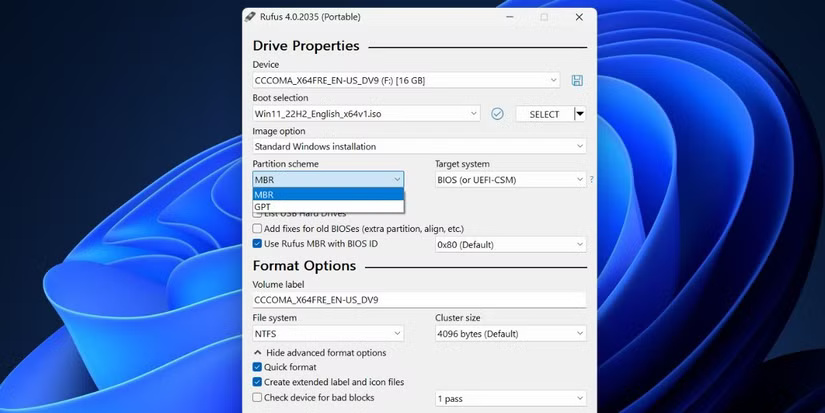
	<li style="text-align: justify;">Nhấp vào nút&nbsp;<strong>Select</strong>&nbsp;trong phần&nbsp;<strong>Boot selection</strong>. Duyệt máy tính của bạn để tìm file ISO và chọn file đó.</li>
	<li style="text-align: justify;">Tiếp theo, nhấp vào tùy chọn&nbsp;<strong>Partition scheme</strong>. Chọn&nbsp;<strong>MBR</strong>&nbsp;nếu bạn muốn sử dụng USB này trên hệ thống có&nbsp;<a data-type="internal" href="https://quantrimang.com/cong-nghe/bios-thong-tin-co-ban-cho-nguoi-moi-bat-dau-11430" title="BIOS - Thông tin cơ bản cho người mới bắt đầu">BIOS</a>&nbsp;hoặc UEFI. Không thay đổi&nbsp;<strong>Target system</strong>&nbsp;và&nbsp;<strong>Partition scheme</strong>&nbsp;nếu bạn định sử dụng USB boot này trên hệ thống UEFI.</li>
</ul>

<figure>
<div style="text-align: justify;"><img alt="Tạo USB boot bằng Rufus" data-i="0" data-src="https://st.quantrimang.com/photos/image/2024/11/29/dung-rufus-bo-qua-yeu-cau-tpm-secure-boot-windows-11-1.jpg" data-was-processed="true" height="413" src="https://st.quantrimang.com/photos/image/2024/11/29/dung-rufus-bo-qua-yeu-cau-tpm-secure-boot-windows-11-1.jpg" width="825" /></div>

<figcaption>
<div style="text-align: justify;">Tạo USB boot bằng Rufus</div>
</figcaption>
</figure>

<div style="text-align: justify;">&nbsp;</div>

<ul>
	<li style="text-align: justify;">Điều hướng đến cuối cửa sổ Rufus và nhấp vào nút<strong>&nbsp;Start</strong>.</li>
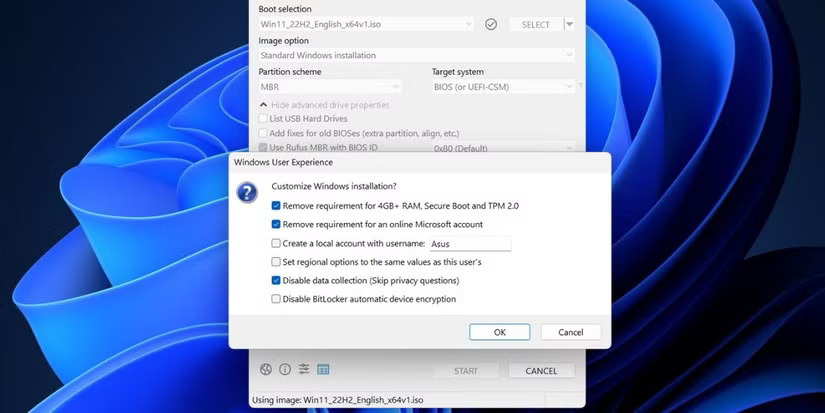
	<li style="text-align: justify;">Hộp&nbsp;<strong>Windows User Experience</strong>&nbsp;sẽ mở ra. Tại đây, bạn có thể áp dụng mọi tùy chỉnh mình muốn cho USB boot Windows 11. Nhấp vào hộp kiểm trước tùy chọn&nbsp;<strong>Remove requirement for 4GB+ RAM, Secure Boot, and TPM 2.0</strong>.</li>
	<li style="text-align: justify;">Tương tự, chọn hộp kiểm&nbsp;<strong>Remove requirement for an online Microsoft account&nbsp;</strong>và<strong>&nbsp;Disable data collection (Skip privacy questions)</strong>.</li>
</ul>

<figure>
<div style="text-align: justify;"><img alt="Tùy chỉnh cài đặt Windows của bạn bằng Rufus" data-adbro-processed="true" data-i="1" data-src="https://st.quantrimang.com/photos/image/2024/11/29/dung-rufus-bo-qua-yeu-cau-tpm-secure-boot-windows-11-2.jpg" data-was-processed="true" height="413" src="https://st.quantrimang.com/photos/image/2024/11/29/dung-rufus-bo-qua-yeu-cau-tpm-secure-boot-windows-11-2.jpg" width="825" /></div>

<figcaption>
<div style="text-align: justify;">Tùy chỉnh cài đặt Windows của bạn bằng Rufus</div>
</figcaption>
</figure>

<ul>
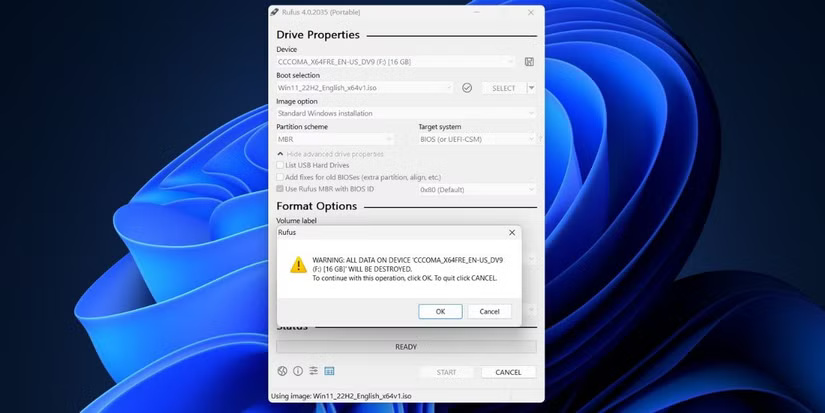
	<li style="text-align: justify;">Nhấp vào nút&nbsp;<strong>OK</strong>. Rufus sẽ tạo cảnh báo về việc xóa mọi dữ liệu trên USB.</li>
</ul>

<figure>
<div style="text-align: justify;"><img alt="Xác nhận tùy chỉnh cài đặt Windows của bạn bằng Rufus" data-i="2" data-src="https://st.quantrimang.com/photos/image/2024/11/29/dung-rufus-bo-qua-yeu-cau-tpm-secure-boot-windows-11-3.jpg" data-was-processed="true" height="413" src="https://st.quantrimang.com/photos/image/2024/11/29/dung-rufus-bo-qua-yeu-cau-tpm-secure-boot-windows-11-3.jpg" width="825" /></div>

<figcaption>
<div style="text-align: justify;">Xác nhận tùy chỉnh cài đặt Windows của bạn bằng Rufus</div>
</figcaption>
</figure>

<ul>
	<li style="text-align: justify;">Cuối cùng, nhấp vào nút&nbsp;<strong>OK</strong>&nbsp;và đợi Rufus tạo USB boot Windows 11. Tháo ổ sau khi bạn thấy thông báo&nbsp;<strong>“Ready”</strong>.</li>
</ul>

<h2 style="text-align: justify;">Cách cài đặt Windows 11 đã sửa đổi trên hệ thống</h2>

<div style="text-align: justify;">&nbsp;</div>

<p style="text-align: justify;">Lặp lại các bước sau để cài đặt Windows 11 trong khi bỏ qua các yêu cầu hệ thống của nó:</p>

<ul>
	<li style="text-align: justify;">Cắm USB boot mà bạn đã tạo bằng Rufus vào hệ thống đích. Nhấn phím&nbsp;<strong>F</strong>&nbsp;được chỉ định nhiều lần (<strong>F10, F12, F2</strong>&nbsp;hoặc&nbsp;<strong>Esc</strong>) để vào menu thiết bị khởi động.</li>
	<li style="text-align: justify;">Chọn USB từ danh sách bằng các phím mũi tên và nhấn phím&nbsp;<strong>Enter</strong>&nbsp;để khởi động.</li>
	<li style="text-align: justify;">Chọn ngôn ngữ và khu vực rồi nhấp vào nút&nbsp;<strong>Next</strong>. Sau đó, nhấp vào&nbsp;<strong>Next</strong>&nbsp;một lần nữa.</li>
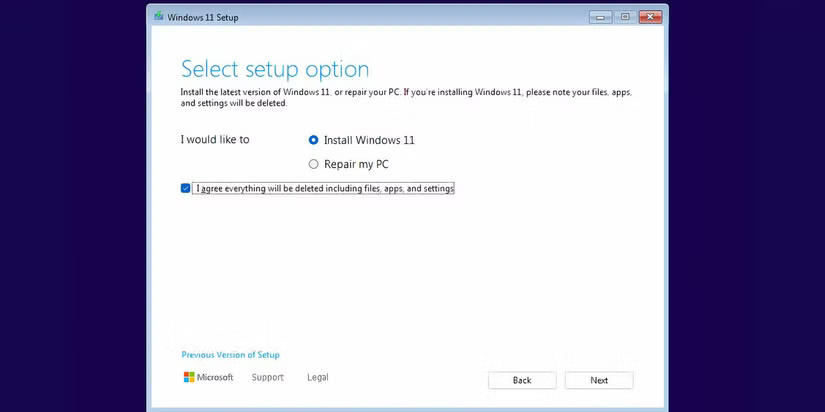
	<li style="text-align: justify;">Chọn tùy chọn&nbsp;<strong>Install Windows 11</strong>&nbsp;và nhấp vào hộp kiểm bên dưới. Nhấp vào&nbsp;<strong>Next</strong>.</li>
</ul>

<figure>
<div style="text-align: justify;"><img alt="Trang lựa chọn thiết lập trong quá trình cài đặt Windows 11" data-i="3" data-src="https://st.quantrimang.com/photos/image/2024/11/29/dung-rufus-bo-qua-yeu-cau-tpm-secure-boot-windows-11-4.jpg" data-was-processed="true" height="412" src="https://st.quantrimang.com/photos/image/2024/11/29/dung-rufus-bo-qua-yeu-cau-tpm-secure-boot-windows-11-4.jpg" width="825" /></div>

<figcaption>
<div style="text-align: justify;">Trang lựa chọn thiết lập trong quá trình cài đặt Windows 11</div>
</figcaption>
</figure>

<ul>
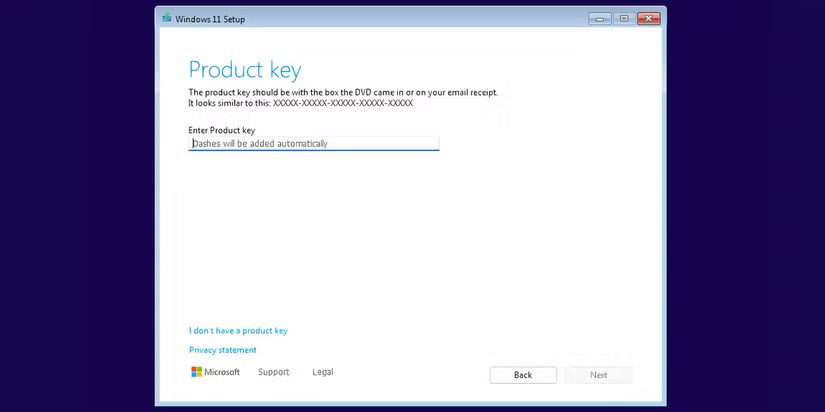
	<li style="text-align: justify;">Nhấp vào tùy chọn&nbsp;<strong>I don’t have the product key</strong>.</li>
	<li style="text-align: justify;">Chọn phiên bản Windows 11 bạn muốn cài đặt (Home, Pro, Enterprise hoặc Education) rồi nhấp vào&nbsp;<strong>Next</strong>.</li>
</ul>

<figure>
<div style="text-align: justify;"><img alt="Trang product key trong quá trình cài đặt Windows 11" data-i="4" data-src="https://st.quantrimang.com/photos/image/2024/11/29/dung-rufus-bo-qua-yeu-cau-tpm-secure-boot-windows-11-5.jpg" data-was-processed="true" height="412" src="https://st.quantrimang.com/photos/image/2024/11/29/dung-rufus-bo-qua-yeu-cau-tpm-secure-boot-windows-11-5.jpg" width="825" /></div>

<figcaption>
<div style="text-align: justify;">Trang product key trong quá trình cài đặt Windows 11</div>
</figcaption>
</figure>

<ul>
	<li style="text-align: justify;">Chấp nhận EULA và nhấp vào nút&nbsp;<strong>Next</strong>. Sau đó, nhấp vào tùy chọn&nbsp;<strong>Custom</strong>.</li>
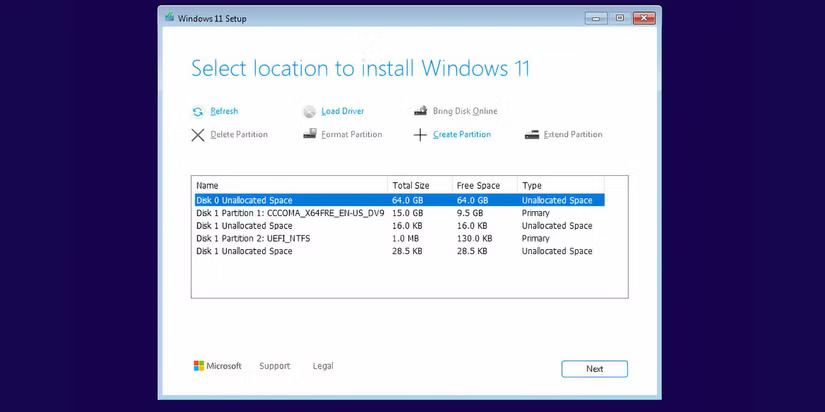
	<li style="text-align: justify;">Chọn ổ mà bạn muốn cài đặt Windows 11. Nhấp vào nút&nbsp;<strong>Format</strong>&nbsp;để định dạng ổ và nhấp vào&nbsp;<strong>Next</strong>.</li>
</ul>

<figure>
<div style="text-align: justify;"><img alt="Trang lựa chọn ổ trong quá trình cài đặt Windows 11" data-i="5" data-src="https://st.quantrimang.com/photos/image/2024/11/29/dung-rufus-bo-qua-yeu-cau-tpm-secure-boot-windows-11-6.jpg" data-was-processed="true" height="412" src="https://st.quantrimang.com/photos/image/2024/11/29/dung-rufus-bo-qua-yeu-cau-tpm-secure-boot-windows-11-6.jpg" width="825" /></div>

<figcaption>
<div style="text-align: justify;">Trang lựa chọn ổ trong quá trình cài đặt Windows 11</div>
</figcaption>
</figure>

<div style="text-align: justify;">&nbsp;</div>

<ul>
	<li style="text-align: justify;">Xem lại các quyết định của bạn và nhấp vào&nbsp;<strong>Install</strong>.</li>
	<li style="text-align: justify;">Quá trình thiết lập sẽ bắt đầu cài đặt Windows 11 tự động. Tuy nhiên, nếu TPM và Secure Boot bypass không được áp dụng, bạn sẽ không bao giờ vượt qua được trang&nbsp;<strong>Enter product key</strong>.</li>
	<li style="text-align: justify;">Hệ thống của bạn sẽ khởi động lại một vài lần rồi khởi động đến trang thiết lập Windows 11. Ngắt kết nối hệ thống khỏi Internet. Nếu không, hệ thống sẽ cố gắng kiểm tra và tải xuống các bản cập nhật, có thể mất nhiều thời gian.</li>
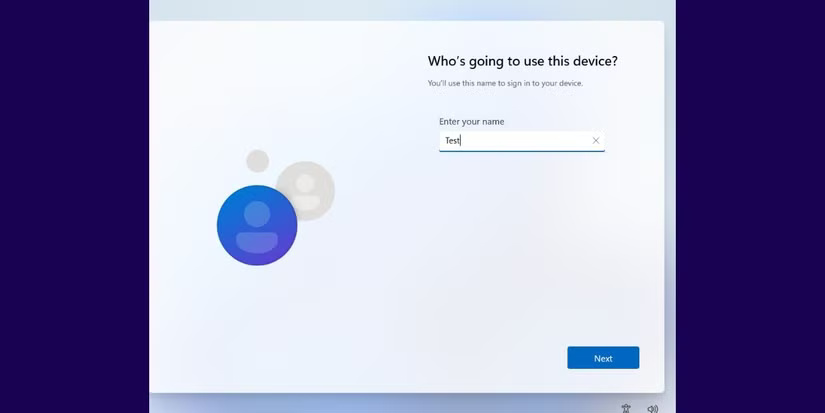
	<li style="text-align: justify;">Nhập&nbsp;<strong>Name</strong>&nbsp;và chọn 3 câu hỏi bảo mật cùng với câu trả lời của chúng. Nhấp vào&nbsp;<strong>Next</strong>.</li>
</ul>

<figure>
<div style="text-align: justify;"><img alt="Trang thiết lập OOBE của Windows 11 với tùy chọn tạo tên người dùng" data-i="6" data-src="https://st.quantrimang.com/photos/image/2024/11/29/dung-rufus-bo-qua-yeu-cau-tpm-secure-boot-windows-11-7.jpg" data-was-processed="true" height="413" src="https://st.quantrimang.com/photos/image/2024/11/29/dung-rufus-bo-qua-yeu-cau-tpm-secure-boot-windows-11-7.jpg" width="825" /></div>

<figcaption>
<div style="text-align: justify;">Trang thiết lập OOBE của Windows 11 với tùy chọn tạo tên người dùng</div>
</figcaption>
</figure>

<ul>
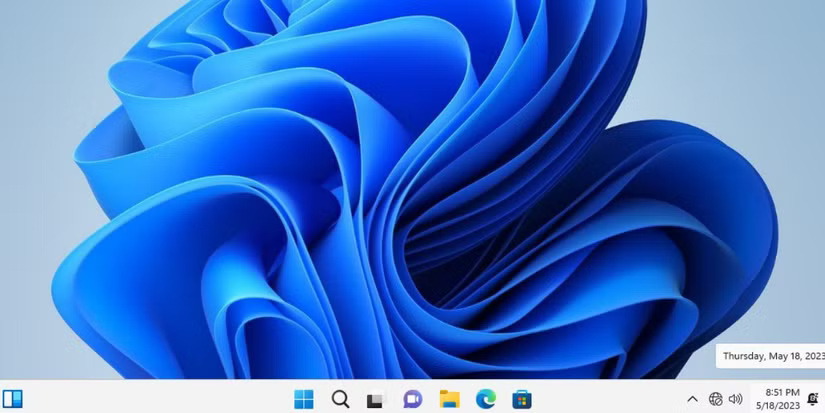
	<li style="text-align: justify;">Windows sẽ chuẩn bị hệ thống của bạn và khởi động vào desktop sau một thời gian.</li>
</ul>

<figure>
<div style="text-align: justify;"><img alt="Desktop Windows 11 đang hoạt động trên hệ thống không được hỗ trợ" data-i="7" data-src="https://st.quantrimang.com/photos/image/2024/11/29/dung-rufus-bo-qua-yeu-cau-tpm-secure-boot-windows-11-8.jpg" data-was-processed="true" height="413" src="https://st.quantrimang.com/photos/image/2024/11/29/dung-rufus-bo-qua-yeu-cau-tpm-secure-boot-windows-11-8.jpg" width="825" /></div>

<figcaption>
<div style="text-align: justify;">Desktop Windows 11 đang hoạt động trên hệ thống không được hỗ trợ</div>
</figcaption>
</figure>

<div style="text-align: justify;">&nbsp;</div>
		</div>
				<div id="author">
						<p>
				<strong>Nguồn tin:</strong>
				Quantrimang.com:
			</p>
		</div>
	</div>
	<div id="footer" class="clearfix">
		<div id="url">
			<strong>URL của bản tin này: </strong><a href="https://www.nguoicodonvn2008.info/vi/news/savefile/kien-thuc-may-tinh/cach-su-dung-rufus-de-bo-qua-yeu-cau-tpm-va-secure-boot-trong-windows-11-9451.html" title="Cách sử dụng Rufus để bỏ qua yêu cầu TPM và Secure Boot trong Windows 11">https://www.nguoicodonvn2008.info/vi/news/savefile/kien-thuc-may-tinh/cach-su-dung-rufus-de-bo-qua-yeu-cau-tpm-va-secure-boot-trong-windows-11-9451.html</a>

		</div>
		<div class="clear"></div>
		<div class="copyright">
			&copy; .&#x3A; Nguoicodonvn2008.info - Cõi lòng người cô đơn &#x3A;.
		</div>
		<div id="contact">
			<a href="mailto:admin@nguoicodonvn2008.info">admin@nguoicodonvn2008.info</a>
		</div>
	</div>
</div>
        <div id="timeoutsess" class="chromeframe">
            Bạn đã không sử dụng Site, <a onclick="timeoutsesscancel();" href="https://www.nguoicodonvn2008.info/#">Bấm vào đây để duy trì trạng thái đăng nhập</a>. Thời gian chờ: <span id="secField"> 60 </span> giây
        </div>
        <div id="openidResult" class="nv-alert" style="display:none"></div>
        <div id="openidBt" data-result="" data-redirect=""></div>
		</script>
		<div class="car-top">
  <span><img src="https://www.nguoicodonvn2008.info/themes/default/images/car.png" alt=""></span>
</div>
<script src="https://www.nguoicodonvn2008.info/assets/js/jquery/jquery.min.js"></script>
<script>var nv_base_siteurl="/",nv_lang_data="vi",nv_lang_interface="vi",nv_name_variable="nv",nv_fc_variable="op",nv_lang_variable="language",nv_module_name="news",nv_func_name="savefile",nv_is_user=0, nv_my_ofs=-4,nv_my_abbr="EDT",nv_cookie_prefix="nv4c_e856T",nv_check_pass_mstime=1738000,nv_area_admin=0,nv_safemode=0,theme_responsive=0,nv_recaptcha_ver=2,nv_recaptcha_sitekey="",nv_recaptcha_type="image",XSSsanitize=1;</script>
<script src="https://www.nguoicodonvn2008.info/assets/js/language/vi.js"></script>
<script src="https://www.nguoicodonvn2008.info/assets/js/DOMPurify/purify3.js"></script>
<script src="https://www.nguoicodonvn2008.info/assets/js/global.js"></script>
<script src="https://www.nguoicodonvn2008.info/assets/js/site.js"></script>
<script src="https://www.nguoicodonvn2008.info/themes/default/js/news.js"></script>
<script src="https://www.nguoicodonvn2008.info/themes/default/js/main.js"></script>
<script src="https://www.nguoicodonvn2008.info/themes/default/js/custom.js"></script>
<script type="application/ld+json">
        {
            "@context": "https://schema.org",
            "@type": "Organization",
            "url": "https://www.nguoicodonvn2008.info",
            "logo": "https://www.nguoicodonvn2008.info/uploads/angel.gif"
        }
        </script>
<script src="https://www.nguoicodonvn2008.info/themes/default/js/bootstrap.min.js"></script>
<script type="text/javascript">
var $scrolltop = $('.car-top');
$scrolltop.on('click', function () {
    $('html,body').animate({
        scrollTop: 0
    }, 800);
    $(this).addClass("car-run");
    setTimeout(function(){ $scrolltop.removeClass('car-run');}, 1000);
    return false;
});
$(window).on('scroll', function ()
{ 
    if($(window).scrollTop() >= 200)
    {
        $scrolltop.addClass("show");
        $scrolltop.addClass("car-down");
    }
    else
    {
       $scrolltop.removeClass("show");
       setTimeout(function(){ $scrolltop.removeClass('car-down');}, 300);
    }
});
</script>
</body>
</html>