<!DOCTYPE html>
    <html lang="vi" xmlns="http://www.w3.org/1999/xhtml" prefix="og: http://ogp.me/ns#">
    <head>
<title>Cách reset trạng thái mở rộng ngăn điều hướng File Explorer trên Windows 10</title>
<meta name="description" content="Cách reset trạng thái mở rộng ngăn điều hướng File Explorer trên Windows 10 - Savefile - Tin Tức -...">
<meta name="author" content=".: Nguoicodonvn2008.info - Cõi lòng người cô đơn :.">
<meta name="copyright" content=".: Nguoicodonvn2008.info - Cõi lòng người cô đơn :. [admin@nguoicodonvn2008.info]">
<meta name="robots" content="index, archive, follow, noodp">
<meta name="googlebot" content="index,archive,follow,noodp">
<meta name="msnbot" content="all,index,follow">
<meta name="generator" content="NukeViet v4.5">
<meta http-equiv="Content-Type" content="text/html; charset=utf-8">
<meta property="og:title" content="Cách reset trạng thái mở rộng ngăn điều hướng File Explorer trên Windows 10">
<meta property="og:type" content="website">
<meta property="og:description" content="Savefile - Tin Tức -...">
<meta property="og:site_name" content=".&#x3A; Nguoicodonvn2008.info - Cõi lòng người cô đơn &#x3A;.">
<meta property="og:url" content="https://www.nguoicodonvn2008.info/vi/news/savefile/kien-thuc-may-tinh/cach-reset-trang-thai-mo-rong-ngan-dieu-huong-file-explorer-tren-windows-10-602.html">
<link rel="shortcut icon" href="https://www.nguoicodonvn2008.info/favicon.ico">
<link rel="canonical" href="https://www.nguoicodonvn2008.info/vi/news/savefile/kien-thuc-may-tinh/cach-reset-trang-thai-mo-rong-ngan-dieu-huong-file-explorer-tren-windows-10-602.html">
<link rel="alternate" href="https://www.nguoicodonvn2008.info/vi/news/rss/" title="Tin Tức" type="application/rss+xml">
<link rel="alternate" href="https://www.nguoicodonvn2008.info/vi/news/rss/karaoke-dual/" title="Tin Tức - Karaoke Dual" type="application/rss+xml">
<link rel="alternate" href="https://www.nguoicodonvn2008.info/vi/news/rss/nhac-tre/" title="Tin Tức - Nhạc trẻ" type="application/rss+xml">
<link rel="alternate" href="https://www.nguoicodonvn2008.info/vi/news/rss/tru-tinh/" title="Tin Tức - Trữ tình" type="application/rss+xml">
<link rel="alternate" href="https://www.nguoicodonvn2008.info/vi/news/rss/nuoc-ngoai/" title="Tin Tức - Nước ngoài" type="application/rss+xml">
<link rel="alternate" href="https://www.nguoicodonvn2008.info/vi/news/rss/remix/" title="Tin Tức - Remix" type="application/rss+xml">
<link rel="alternate" href="https://www.nguoicodonvn2008.info/vi/news/rss/tam-su-tinh-yeu/" title="Tin Tức - Tâm sự tình yêu" type="application/rss+xml">
<link rel="alternate" href="https://www.nguoicodonvn2008.info/vi/news/rss/tho-suu-tam/" title="Tin Tức - Thơ sưu tầm" type="application/rss+xml">
<link rel="alternate" href="https://www.nguoicodonvn2008.info/vi/news/rss/cuoc-song/" title="Tin Tức - Cuộc sống" type="application/rss+xml">
<link rel="alternate" href="https://www.nguoicodonvn2008.info/vi/news/rss/phan-mem/" title="Tin Tức - Phần mềm" type="application/rss+xml">
<link rel="alternate" href="https://www.nguoicodonvn2008.info/vi/news/rss/kien-thuc-may-tinh/" title="Tin Tức - Kiến thức máy tính" type="application/rss+xml">
<link rel="alternate" href="https://www.nguoicodonvn2008.info/vi/news/rss/hoc-tap/" title="Tin Tức - Học tập" type="application/rss+xml">
<link rel="alternate" href="https://www.nguoicodonvn2008.info/vi/news/rss/tai-lieu/" title="Tin Tức - Tài liệu" type="application/rss+xml">
<link rel="alternate" href="https://www.nguoicodonvn2008.info/vi/news/rss/de-thi/" title="Tin Tức - Đề thi" type="application/rss+xml">
<link rel="preload" as="style" href="https://www.nguoicodonvn2008.info/assets/css/font-awesome.min.css" type="text/css">
<link rel="preload" as="style" href="https://www.nguoicodonvn2008.info/themes/default/css/bootstrap.non-responsive.css" type="text/css">
<link rel="preload" as="style" href="https://www.nguoicodonvn2008.info/themes/default/css/style.css" type="text/css">
<link rel="preload" as="style" href="https://www.nguoicodonvn2008.info/themes/default/css/style.non-responsive.css" type="text/css">
<link rel="preload" as="style" href="https://www.nguoicodonvn2008.info/themes/default/css/news.css" type="text/css">
<link rel="preload" as="style" href="https://www.nguoicodonvn2008.info/themes/default/css/custom.css" type="text/css">
<link rel="preload" as="script" href="https://www.nguoicodonvn2008.info/assets/js/jquery/jquery.min.js" type="text/javascript">
<link rel="preload" as="script" href="https://www.nguoicodonvn2008.info/assets/js/language/vi.js" type="text/javascript">
<link rel="preload" as="script" href="https://www.nguoicodonvn2008.info/assets/js/DOMPurify/purify3.js" type="text/javascript">
<link rel="preload" as="script" href="https://www.nguoicodonvn2008.info/assets/js/global.js" type="text/javascript">
<link rel="preload" as="script" href="https://www.nguoicodonvn2008.info/assets/js/site.js" type="text/javascript">
<link rel="preload" as="script" href="https://www.nguoicodonvn2008.info/themes/default/js/news.js" type="text/javascript">
<link rel="preload" as="script" href="https://www.nguoicodonvn2008.info/themes/default/js/main.js" type="text/javascript">
<link rel="preload" as="script" href="https://www.nguoicodonvn2008.info/themes/default/js/custom.js" type="text/javascript">
<link rel="preload" as="script" href="https://www.nguoicodonvn2008.info/themes/default/js/bootstrap.min.js" type="text/javascript">
<link rel="stylesheet" href="https://www.nguoicodonvn2008.info/assets/css/font-awesome.min.css">
<link rel="stylesheet" href="https://www.nguoicodonvn2008.info/themes/default/css/bootstrap.non-responsive.css">
<link rel="stylesheet" href="https://www.nguoicodonvn2008.info/themes/default/css/style.css">
<link rel="stylesheet" href="https://www.nguoicodonvn2008.info/themes/default/css/style.non-responsive.css">
<link rel="StyleSheet" href="https://www.nguoicodonvn2008.info/themes/default/css/news.css">
<link rel="stylesheet" href="https://www.nguoicodonvn2008.info/themes/default/css/custom.css">
<style type="text/css">
	body{background: #fff;}
</style>
    </head>
    <body>
<div id="print">
	<div id="hd_print">
		<h2 class="pull-left">.&#x3A; Nguoicodonvn2008.info - Cõi lòng người cô đơn &#x3A;.</h2>
		<p class="pull-right"><a title=".&#x3A; Nguoicodonvn2008.info - Cõi lòng người cô đơn &#x3A;." href="https://www.nguoicodonvn2008.info/">https://www.nguoicodonvn2008.info</a></p>
	</div>
	<div class="clear"></div>
	<hr />
	<div id="content">
		<h1>Cách reset trạng thái mở rộng ngăn điều hướng File Explorer trên Windows 10</h1>
		<ul class="list-inline">
			<li>Thứ hai - 29/07/2019 01:52</li>
			<li class="hidden-print txtrequired"><em class="fa fa-print">&nbsp;</em><a title="In ra" href="javascript:;" onclick="window.print()">In ra</a></li>
			<li class="hidden-print txtrequired"><em class="fa fa-power-off">&nbsp;</em><a title="Đóng cửa sổ này" href="javascript:;" onclick="window.close()">Đóng cửa sổ này</a></li>
		</ul>
		<div class="clear"></div>
		<div id="hometext">
		</div>
				<div class="imghome">
			<img alt="Cách reset trạng thái mở rộng ngăn điều hướng File Explorer trên Windows 10" src="https://st.quantrimang.com/photos/image/2019/07/27/ngan-dieu-huong-file-explorer-5.png" width="460" class="img-thumbnail" />
		</div>
		<div class="clear"></div>
		<div id="bodytext" class="clearfix">
			<p style="text-align: justify;">Bạn có thể sử dụng ngăn điều hướng trong File Explorer để truy cập vào vị trí như Quick access, OneDrive, Libraries, This PC, Network và Homegroup. Bạn cũng có thể di chuyển hoặc sao chép các mục trực tiếp đến vị trí khác trong ngăn điều hướng.</p>

<p style="text-align: justify;">Khi mở các thư mục trong ngăn bên phải của File Explorer, ngăn điều hướng sẽ không tự động mở rộng rộng thư mục mở hiện tại theo mặc định.</p>

<p style="text-align: justify;">Khi mở rộng một thư mục trong ngăn điều hướng của File Explorer, cài đặt trạng thái mở rộng này được lưu vào registry. Lần sau khi mở File Explore, bạn sẽ thấy trạng thái mở rộng ngăn điều hướng cuối cùng.</p>

<p style="text-align: justify;">Mặc dù bạn có thể đặt trạng thái mở rộng ngăn điều hướng này thủ công nhưng bạn cũng có thể reset nó về trạng thái mặc định.&nbsp;Bài viết này sẽ hướng dẫn các bạn cách reset trạng thái mở rộng của ngăn điều hướng trong File Explorer về trạng thái mặc định trên Windows 10.</p>

<div style="text-align: justify;">&nbsp;</div>

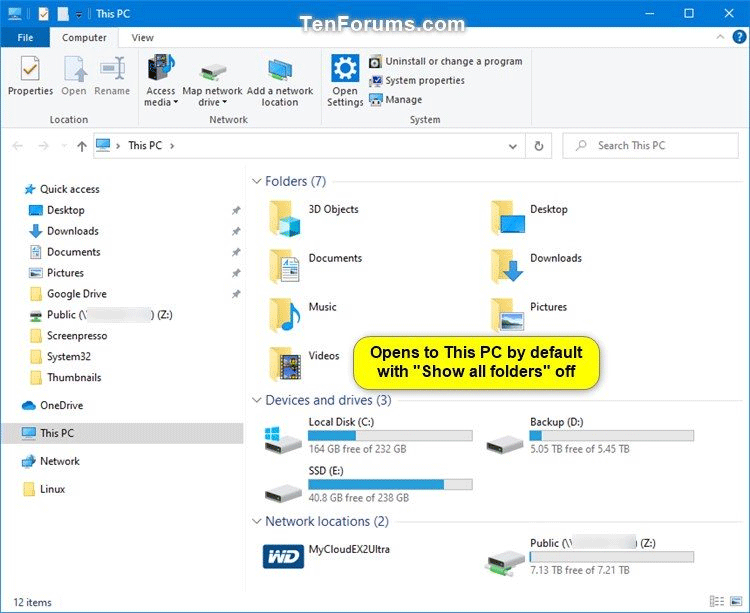
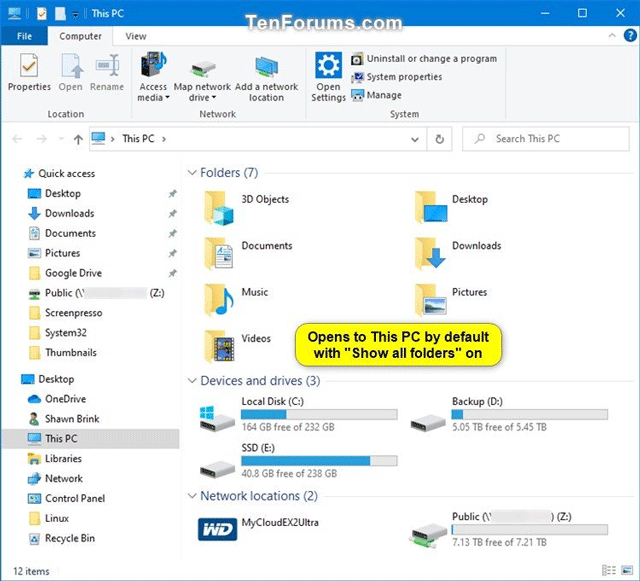
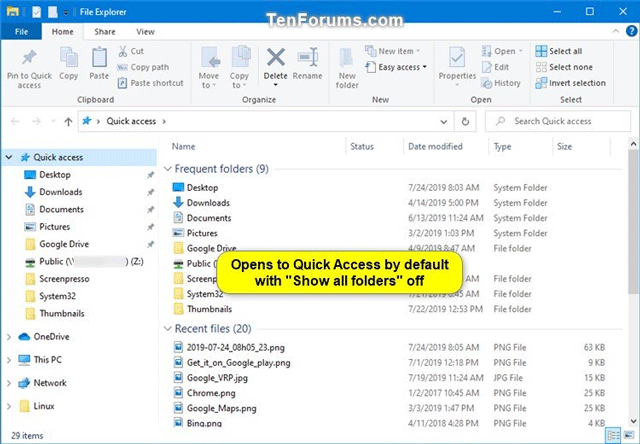
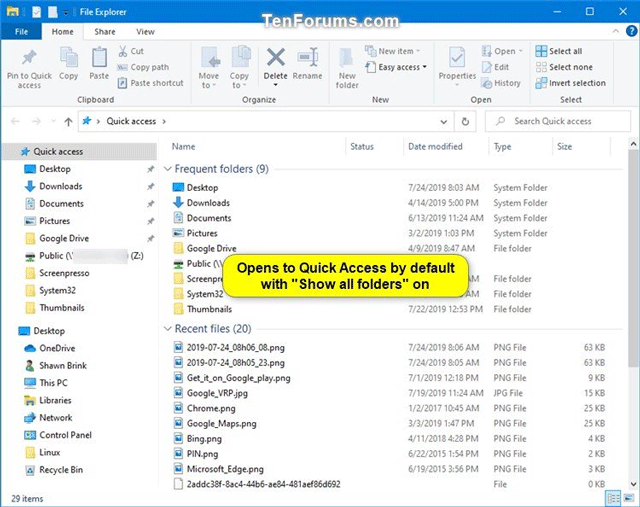
<p style="text-align: justify;">Dưới đây là ví dụ về trạng thái mở rộng ngăn điều hướng.&nbsp;</p>

<figure>
<div style="text-align: justify;"><img alt="Mở This PC không mở rộng thư mục" data-i="0" data-src="https://st.quantrimang.com/photos/image/2019/07/27/ngan-dieu-huong-file-explorer-1.png" data-was-processed="true" height="613" src="https://st.quantrimang.com/photos/image/2019/07/27/ngan-dieu-huong-file-explorer-1.png" width="750" /></div>
</figure>

<figure>
<div style="text-align: justify;"><img alt="Mở This PC mở rộng thư mục" data-i="1" data-src="https://st.quantrimang.com/photos/image/2019/07/27/ngan-dieu-huong-file-explorer-2.png" data-was-processed="true" height="581" src="https://st.quantrimang.com/photos/image/2019/07/27/ngan-dieu-huong-file-explorer-2.png" width="640" /></div>
</figure>

<figure>
<div style="text-align: justify;"><img alt="Mở Quick Access với thư mục không mở rộng" data-i="2" data-src="https://st.quantrimang.com/photos/image/2019/07/27/ngan-dieu-huong-file-explorer-3.png" data-was-processed="true" height="444" src="https://st.quantrimang.com/photos/image/2019/07/27/ngan-dieu-huong-file-explorer-3.png" width="640" /></div>
</figure>

<figure>
<div style="text-align: justify;"><img alt="Mở Quick Access với thư mục mở rộng" data-i="3" data-src="https://st.quantrimang.com/photos/image/2019/07/27/ngan-dieu-huong-file-explorer-4.png" data-was-processed="true" height="507" src="https://st.quantrimang.com/photos/image/2019/07/27/ngan-dieu-huong-file-explorer-4.png" width="640" /></div>
</figure>

<h2 style="text-align: justify;">1. Reset trạng thái mở rộng ngăn điều hướng trong File Explorer bằng file REG</h2>

<p style="text-align: justify;"><strong>Bước 1</strong>. Tải file theo liên kết bên dưới.&nbsp;</p>

<pre id="pre0">
<code>https://www.tenforums.com/attachments/tutorials/241199d1564001273-reset-navigation-pane-expanded-state-windows-10-file-explorer-reset_file_explorer_navigation_pane_expanded_state.reg</code></pre>

<p style="text-align: justify;">Code:</p>

<pre id="pre1">
<code>Windows Registry Editor Version 5.00
 &#91;HKEY_CURRENT_USER\SOFTWARE\Microsoft\Windows\CurrentVersion\Explorer\Modules\NavPane&#93;
 &quot;ExpandedState&quot;=-</code></pre>

<p style="text-align: justify;"><strong>Bước 2</strong>. Lưu&nbsp;file .reg&nbsp;trên desktop.</p>

<p style="text-align: justify;"><strong>Bước 3</strong>. Đóng tất cả các phiên bản của cửa sổ File Explorer đã mở.</p>

<p style="text-align: justify;"><strong>Bước 4</strong>. Click đúp chuột vào file .reg đã tải xuống để hợp nhất nó.</p>

<p style="text-align: justify;"><strong>Bước 5</strong>. Khi được nhắc, click vào&nbsp;<strong>Run, Yes (UAC), Yes</strong>&nbsp;và&nbsp;<strong>OK</strong>&nbsp;để đồng ý hợp nhất.</p>

<p style="text-align: justify;"><strong>Bước 6</strong>. Bây giờ bạn có thể xóa file .reg đã tải xuống nếu muốn.</p>

<p style="text-align: justify;">Lần sau khi&nbsp;mở File Explorer&nbsp;(<code>Win</code>+<code>E</code>), trạng thái mở rộng của ngăn điều hướng sẽ được đặt lại về chế độ xem mặc định.</p>

<div style="text-align: justify;">&nbsp;</div>

<h2 style="text-align: justify;">2. Reset trạng thái mở rộng ngăn điều hướng trong File Explorer bằng cách sử dụng Command Prompt</h2>

<p style="text-align: justify;"><strong>Bước 1</strong>. Đóng tất cả các phiên bản của cửa sổ File Explorer đã mở.</p>

<p style="text-align: justify;"><strong>Bước 2</strong>.&nbsp;Mở Command Prompt&nbsp;hoặc&nbsp;PowerShell.</p>

<p style="text-align: justify;"><strong>Bước 3</strong>. Sao chép và dán lệnh sau vào cửa sổ dòng lệnh và nhấn&nbsp;<strong>Enter</strong>.</p>

<pre id="pre2">
<code>REG DELETE HKCU\SOFTWARE\Microsoft\Windows\CurrentVersion\Explorer\Modules\NavPane /V ExpandedState /F</code></pre>

<p style="text-align: justify;"><img alt="Reset trạng thái ngăn điều hướng bằng Command Prompt" data-i="4" data-src="https://st.quantrimang.com/photos/image/2019/07/27/ngan-dieu-huong-file-explorer-5.png" data-was-processed="true" height="112" src="https://st.quantrimang.com/photos/image/2019/07/27/ngan-dieu-huong-file-explorer-5.png" width="640" /></p>

<p style="text-align: justify;"><strong>Bước 4</strong>. Bây giờ bạn có thể đóng Command Prompt hoặc cửa sổ PowerShell.</p>

<p style="text-align: justify;">Khi mở File Explorer, trạng thái mở rộng của ngăn điều hướng sẽ được đặt lại về chế độ xem mặc định.</p>

<p style="text-align: justify;">Chúc các bạn thực hiện thành công!</p>
		</div>
				<div id="author">
						<p>
				<strong>Nguồn tin:</strong>
				Quantrimang.com
			</p>
		</div>
	</div>
	<div id="footer" class="clearfix">
		<div id="url">
			<strong>URL của bản tin này: </strong><a href="https://www.nguoicodonvn2008.info/vi/news/savefile/kien-thuc-may-tinh/cach-reset-trang-thai-mo-rong-ngan-dieu-huong-file-explorer-tren-windows-10-602.html" title="Cách reset trạng thái mở rộng ngăn điều hướng File Explorer trên Windows 10">https://www.nguoicodonvn2008.info/vi/news/savefile/kien-thuc-may-tinh/cach-reset-trang-thai-mo-rong-ngan-dieu-huong-file-explorer-tren-windows-10-602.html</a>

		</div>
		<div class="clear"></div>
		<div class="copyright">
			&copy; .&#x3A; Nguoicodonvn2008.info - Cõi lòng người cô đơn &#x3A;.
		</div>
		<div id="contact">
			<a href="mailto:admin@nguoicodonvn2008.info">admin@nguoicodonvn2008.info</a>
		</div>
	</div>
</div>
        <div id="timeoutsess" class="chromeframe">
            Bạn đã không sử dụng Site, <a onclick="timeoutsesscancel();" href="https://www.nguoicodonvn2008.info/#">Bấm vào đây để duy trì trạng thái đăng nhập</a>. Thời gian chờ: <span id="secField"> 60 </span> giây
        </div>
        <div id="openidResult" class="nv-alert" style="display:none"></div>
        <div id="openidBt" data-result="" data-redirect=""></div>
		</script>
		<div class="car-top">
  <span><img src="https://www.nguoicodonvn2008.info/themes/default/images/car.png" alt=""></span>
</div>
<script src="https://www.nguoicodonvn2008.info/assets/js/jquery/jquery.min.js"></script>
<script>var nv_base_siteurl="/",nv_lang_data="vi",nv_lang_interface="vi",nv_name_variable="nv",nv_fc_variable="op",nv_lang_variable="language",nv_module_name="news",nv_func_name="savefile",nv_is_user=0, nv_my_ofs=-4,nv_my_abbr="EDT",nv_cookie_prefix="nv4c_e856T",nv_check_pass_mstime=1738000,nv_area_admin=0,nv_safemode=0,theme_responsive=0,nv_recaptcha_ver=2,nv_recaptcha_sitekey="",nv_recaptcha_type="image",XSSsanitize=1;</script>
<script src="https://www.nguoicodonvn2008.info/assets/js/language/vi.js"></script>
<script src="https://www.nguoicodonvn2008.info/assets/js/DOMPurify/purify3.js"></script>
<script src="https://www.nguoicodonvn2008.info/assets/js/global.js"></script>
<script src="https://www.nguoicodonvn2008.info/assets/js/site.js"></script>
<script src="https://www.nguoicodonvn2008.info/themes/default/js/news.js"></script>
<script src="https://www.nguoicodonvn2008.info/themes/default/js/main.js"></script>
<script src="https://www.nguoicodonvn2008.info/themes/default/js/custom.js"></script>
<script type="application/ld+json">
        {
            "@context": "https://schema.org",
            "@type": "Organization",
            "url": "https://www.nguoicodonvn2008.info",
            "logo": "https://www.nguoicodonvn2008.info/uploads/angel.gif"
        }
        </script>
<script src="https://www.nguoicodonvn2008.info/themes/default/js/bootstrap.min.js"></script>
<script type="text/javascript">
var $scrolltop = $('.car-top');
$scrolltop.on('click', function () {
    $('html,body').animate({
        scrollTop: 0
    }, 800);
    $(this).addClass("car-run");
    setTimeout(function(){ $scrolltop.removeClass('car-run');}, 1000);
    return false;
});
$(window).on('scroll', function ()
{ 
    if($(window).scrollTop() >= 200)
    {
        $scrolltop.addClass("show");
        $scrolltop.addClass("car-down");
    }
    else
    {
       $scrolltop.removeClass("show");
       setTimeout(function(){ $scrolltop.removeClass('car-down');}, 300);
    }
});
</script>
</body>
</html>