<!DOCTYPE html>
    <html lang="vi" xmlns="http://www.w3.org/1999/xhtml" prefix="og: http://ogp.me/ns#">
    <head>
<title>Cách quản lý quy tắc định dạng có điều kiện trong Excel</title>
<meta name="description" content="Cách quản lý quy tắc định dạng có điều kiện trong Excel - Savefile - Tin Tức -...">
<meta name="author" content=".: Nguoicodonvn2008.info - Cõi lòng người cô đơn :.">
<meta name="copyright" content=".: Nguoicodonvn2008.info - Cõi lòng người cô đơn :. [admin@nguoicodonvn2008.info]">
<meta name="robots" content="index, archive, follow, noodp">
<meta name="googlebot" content="index,archive,follow,noodp">
<meta name="msnbot" content="all,index,follow">
<meta name="generator" content="NukeViet v4.5">
<meta http-equiv="Content-Type" content="text/html; charset=utf-8">
<meta property="og:title" content="Cách quản lý quy tắc định dạng có điều kiện trong Excel">
<meta property="og:type" content="website">
<meta property="og:description" content="Savefile - Tin Tức - https&#x3A;&#x002F;&#x002F;www.nguoicodonvn2008.info&#x002F;vi&#x002F;news&#x002F;savefile&#x002F;kien-thuc-may-tinh&#x002F;cach-quan-ly-quy-tac-dinh-dang-co-dieu-kien-trong-excel-5032.html">
<meta property="og:site_name" content=".&#x3A; Nguoicodonvn2008.info - Cõi lòng người cô đơn &#x3A;.">
<meta property="og:url" content="https://www.nguoicodonvn2008.info/vi/news/savefile/kien-thuc-may-tinh/cach-quan-ly-quy-tac-dinh-dang-co-dieu-kien-trong-excel-5032.html">
<link rel="shortcut icon" href="https://www.nguoicodonvn2008.info/favicon.ico">
<link rel="canonical" href="https://www.nguoicodonvn2008.info/vi/news/savefile/kien-thuc-may-tinh/cach-quan-ly-quy-tac-dinh-dang-co-dieu-kien-trong-excel-5032.html">
<link rel="alternate" href="https://www.nguoicodonvn2008.info/vi/news/rss/" title="Tin Tức" type="application/rss+xml">
<link rel="alternate" href="https://www.nguoicodonvn2008.info/vi/news/rss/karaoke-dual/" title="Tin Tức - Karaoke Dual" type="application/rss+xml">
<link rel="alternate" href="https://www.nguoicodonvn2008.info/vi/news/rss/nhac-tre/" title="Tin Tức - Nhạc trẻ" type="application/rss+xml">
<link rel="alternate" href="https://www.nguoicodonvn2008.info/vi/news/rss/tru-tinh/" title="Tin Tức - Trữ tình" type="application/rss+xml">
<link rel="alternate" href="https://www.nguoicodonvn2008.info/vi/news/rss/nuoc-ngoai/" title="Tin Tức - Nước ngoài" type="application/rss+xml">
<link rel="alternate" href="https://www.nguoicodonvn2008.info/vi/news/rss/remix/" title="Tin Tức - Remix" type="application/rss+xml">
<link rel="alternate" href="https://www.nguoicodonvn2008.info/vi/news/rss/tam-su-tinh-yeu/" title="Tin Tức - Tâm sự tình yêu" type="application/rss+xml">
<link rel="alternate" href="https://www.nguoicodonvn2008.info/vi/news/rss/tho-suu-tam/" title="Tin Tức - Thơ sưu tầm" type="application/rss+xml">
<link rel="alternate" href="https://www.nguoicodonvn2008.info/vi/news/rss/cuoc-song/" title="Tin Tức - Cuộc sống" type="application/rss+xml">
<link rel="alternate" href="https://www.nguoicodonvn2008.info/vi/news/rss/phan-mem/" title="Tin Tức - Phần mềm" type="application/rss+xml">
<link rel="alternate" href="https://www.nguoicodonvn2008.info/vi/news/rss/kien-thuc-may-tinh/" title="Tin Tức - Kiến thức máy tính" type="application/rss+xml">
<link rel="alternate" href="https://www.nguoicodonvn2008.info/vi/news/rss/hoc-tap/" title="Tin Tức - Học tập" type="application/rss+xml">
<link rel="alternate" href="https://www.nguoicodonvn2008.info/vi/news/rss/tai-lieu/" title="Tin Tức - Tài liệu" type="application/rss+xml">
<link rel="alternate" href="https://www.nguoicodonvn2008.info/vi/news/rss/de-thi/" title="Tin Tức - Đề thi" type="application/rss+xml">
<link rel="preload" as="style" href="https://www.nguoicodonvn2008.info/assets/css/font-awesome.min.css" type="text/css">
<link rel="preload" as="style" href="https://www.nguoicodonvn2008.info/themes/default/css/bootstrap.non-responsive.css" type="text/css">
<link rel="preload" as="style" href="https://www.nguoicodonvn2008.info/themes/default/css/style.css" type="text/css">
<link rel="preload" as="style" href="https://www.nguoicodonvn2008.info/themes/default/css/style.non-responsive.css" type="text/css">
<link rel="preload" as="style" href="https://www.nguoicodonvn2008.info/themes/default/css/news.css" type="text/css">
<link rel="preload" as="style" href="https://www.nguoicodonvn2008.info/themes/default/css/custom.css" type="text/css">
<link rel="preload" as="script" href="https://www.nguoicodonvn2008.info/assets/js/jquery/jquery.min.js" type="text/javascript">
<link rel="preload" as="script" href="https://www.nguoicodonvn2008.info/assets/js/language/vi.js" type="text/javascript">
<link rel="preload" as="script" href="https://www.nguoicodonvn2008.info/assets/js/DOMPurify/purify3.js" type="text/javascript">
<link rel="preload" as="script" href="https://www.nguoicodonvn2008.info/assets/js/global.js" type="text/javascript">
<link rel="preload" as="script" href="https://www.nguoicodonvn2008.info/assets/js/site.js" type="text/javascript">
<link rel="preload" as="script" href="https://www.nguoicodonvn2008.info/themes/default/js/news.js" type="text/javascript">
<link rel="preload" as="script" href="https://www.nguoicodonvn2008.info/themes/default/js/main.js" type="text/javascript">
<link rel="preload" as="script" href="https://www.nguoicodonvn2008.info/themes/default/js/custom.js" type="text/javascript">
<link rel="preload" as="script" href="https://www.nguoicodonvn2008.info/themes/default/js/bootstrap.min.js" type="text/javascript">
<link rel="stylesheet" href="https://www.nguoicodonvn2008.info/assets/css/font-awesome.min.css">
<link rel="stylesheet" href="https://www.nguoicodonvn2008.info/themes/default/css/bootstrap.non-responsive.css">
<link rel="stylesheet" href="https://www.nguoicodonvn2008.info/themes/default/css/style.css">
<link rel="stylesheet" href="https://www.nguoicodonvn2008.info/themes/default/css/style.non-responsive.css">
<link rel="StyleSheet" href="https://www.nguoicodonvn2008.info/themes/default/css/news.css">
<link rel="stylesheet" href="https://www.nguoicodonvn2008.info/themes/default/css/custom.css">
<style type="text/css">
	body{background: #fff;}
</style>
    </head>
    <body>
<div id="print">
	<div id="hd_print">
		<h2 class="pull-left">.&#x3A; Nguoicodonvn2008.info - Cõi lòng người cô đơn &#x3A;.</h2>
		<p class="pull-right"><a title=".&#x3A; Nguoicodonvn2008.info - Cõi lòng người cô đơn &#x3A;." href="https://www.nguoicodonvn2008.info/">https://www.nguoicodonvn2008.info</a></p>
	</div>
	<div class="clear"></div>
	<hr />
	<div id="content">
		<h1>Cách quản lý quy tắc định dạng có điều kiện trong Excel</h1>
		<ul class="list-inline">
			<li>Chủ nhật - 16/01/2022 23:50</li>
			<li class="hidden-print txtrequired"><em class="fa fa-print">&nbsp;</em><a title="In ra" href="javascript:;" onclick="window.print()">In ra</a></li>
			<li class="hidden-print txtrequired"><em class="fa fa-power-off">&nbsp;</em><a title="Đóng cửa sổ này" href="javascript:;" onclick="window.close()">Đóng cửa sổ này</a></li>
		</ul>
		<div class="clear"></div>
		<div id="hometext">
		</div>
				<div class="imghome">
			<img alt="Cách quản lý quy tắc định dạng có điều kiện trong Excel" src="https://st.quantrimang.com/photos/image/2022/01/07/Excel-quan-ly-quy-tac-dinh-dang-2.jpg" width="460" class="img-thumbnail" />
		</div>
		<div class="clear"></div>
		<div id="bodytext" class="clearfix">
			<p style="text-align: justify;">Định dạng có điều kiện trong Excel&nbsp;sẽ giúp thay đổi giao diện 1 ô với những quy tắc mà người dùng thiết lập. Chúng ta có thể sử dụng nhiều quy tắc định dạng cùng một lúc trong một bảng dữ liệu. Và những quy tắc đó có thể chỉnh sửa, xóa hoặc sao chép thông qua trình quản lý quy tắc riêng biệt. Bài viết dưới đây sẽ hướng dẫn bạn dùng trình quản lý định dạng có điều kiện Excel.</p>

<h2 style="text-align: justify;">Hướng dẫn quản lý quy tắc định dạng Excel</h2>

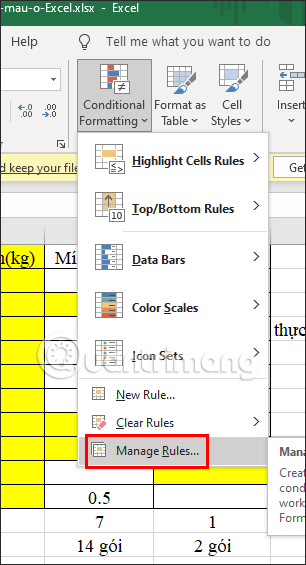
<p style="text-align: justify;"><strong>Bước 1:</strong></p>

<p style="text-align: justify;">Tại giao diện bảng Excel đã được áp dụng quy tắc định dạng có điều kiện, bạn nhấn vào&nbsp;<strong>Conditional Formatting rồi chọn Manage Rules</strong>.</p>

<p style="text-align: justify;"><img alt="Manage Rules Excel" data-i="0" data-src="https://st.quantrimang.com/photos/image/2022/01/07/Excel-quan-ly-quy-tac-dinh-dang-1.jpg" data-was-processed="true" height="565" src="https://st.quantrimang.com/photos/image/2022/01/07/Excel-quan-ly-quy-tac-dinh-dang-1.jpg" width="306" /></p>

<p style="text-align: justify;"><strong>Bước 2:</strong></p>

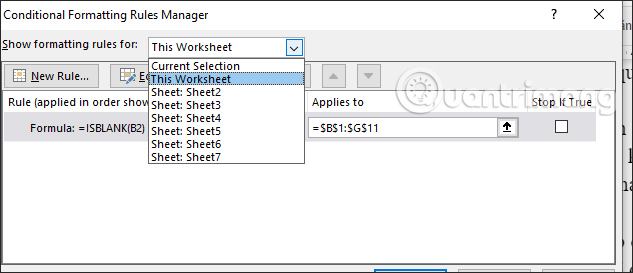
<p style="text-align: justify;">Hiển thị giao diện để chúng ta xem nhanh những quy tắc định dạng đã được áp dụng trong file Excel này. Bạn&nbsp;<strong>nhấn vào mũi tên tại Show formatting rules</strong>&nbsp;for rồi&nbsp;<strong>chọn bảng dữ liệu</strong>&nbsp;để hiển thị quy tắc định dạng đã sử dụng.</p>

<p style="text-align: justify;"><img alt="Danh sách bảng dữ liệu Excel" data-i="1" data-src="https://st.quantrimang.com/photos/image/2022/01/07/Excel-quan-ly-quy-tac-dinh-dang-2.jpg" data-was-processed="true" height="273" src="https://st.quantrimang.com/photos/image/2022/01/07/Excel-quan-ly-quy-tac-dinh-dang-2.jpg" width="633" /></p>

<p style="text-align: justify;"><strong>Bước 3:</strong></p>

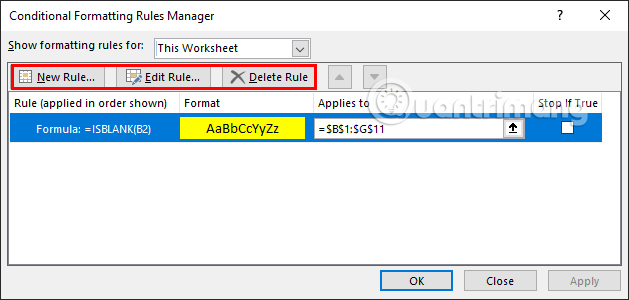
<p style="text-align: justify;">Tại giao diện này chúng ta có thể thay đổi lại quy tắc định dạng bằng cách nhấn vào Edit Rule, hoặc có thể xóa ngay định dạng bằng cách nhấn vào Delete Rule. Hay thậm chí chúng ta có thể nhấn New Rule để tạo 1 quy tắc mới.</p>

<p style="text-align: justify;"><img alt="Các tùy chọn quy tắc định dạng Excel" data-i="2" data-src="https://st.quantrimang.com/photos/image/2022/01/07/Excel-quan-ly-quy-tac-dinh-dang-3.jpg" data-was-processed="true" height="300" src="https://st.quantrimang.com/photos/image/2022/01/07/Excel-quan-ly-quy-tac-dinh-dang-3.jpg" width="629" /></p>

<p style="text-align: justify;"><strong>Bước 4:</strong></p>

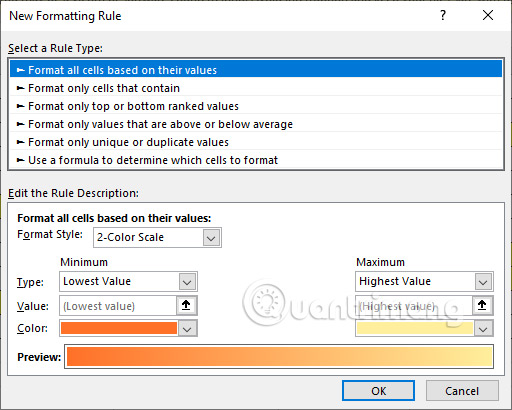
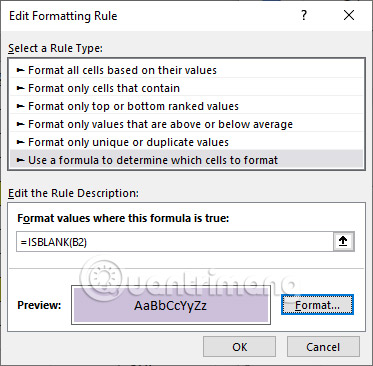
<p style="text-align: justify;">Chẳng hạn&nbsp;<strong>nhấn New Rule&nbsp;</strong>để tạo quy tắc mới. Chúng ta sẽ nhấn vào quy tắc mới mà mình muốn áp dụng cho bảng tính hiện tại.</p>

<p style="text-align: justify;">Dùng quy tắc định dạng mới thì nhấn OK để áp dụng cho bảng dữ liệu.</p>

<p style="text-align: justify;"><img alt="Chọn quy tắc định dạng Excel mới" data-i="3" data-src="https://st.quantrimang.com/photos/image/2022/01/07/Excel-quan-ly-quy-tac-dinh-dang-4.jpg" data-was-processed="true" height="410" src="https://st.quantrimang.com/photos/image/2022/01/07/Excel-quan-ly-quy-tac-dinh-dang-4.jpg" width="512" /></p>

<p style="text-align: justify;"><strong>Bước 5:</strong></p>

<p style="text-align: justify;">Nếu nhấn chọn&nbsp;<strong>Edit Rule</strong>&nbsp;thì người dùng sẽ tiến hành chỉnh sửa lại quy tắc định dạng đang áp dụng cho bảng dữ liệu. Thay đổi xong thì cũng nhấn Ok để áp dụng điều chỉnh mới cho bảng dữ liệu.</p>

<p style="text-align: justify;"><img alt="Chỉnh sửa quy tắc định dạng Excel" data-i="4" data-src="https://st.quantrimang.com/photos/image/2022/01/07/Excel-quan-ly-quy-tac-dinh-dang-5.jpg" data-was-processed="true" height="366" src="https://st.quantrimang.com/photos/image/2022/01/07/Excel-quan-ly-quy-tac-dinh-dang-5.jpg" width="373" /></p>

<p style="text-align: justify;"><strong>Bước 6:</strong></p>

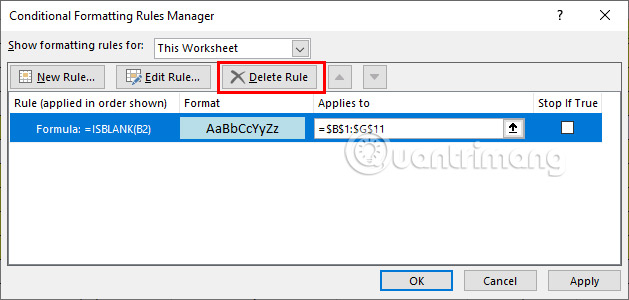
<p style="text-align: justify;">Trong trường hợp muốn<strong>&nbsp;loại bỏ quy tắc định dạng</strong>&nbsp;đang sử dụng thì chúng ta nhấn vào&nbsp;<strong>Delete Rule</strong>. Nhấn Ok để lưu lại thì ngay lập tức bảng dữ liệu sẽ không còn dùng định dạng đó nữa.</p>

<p style="text-align: justify;"><img alt="Xóa quy tắc định dạng Excel" data-i="5" data-src="https://st.quantrimang.com/photos/image/2022/01/07/Excel-quan-ly-quy-tac-dinh-dang-6.jpg" data-was-processed="true" height="300" src="https://st.quantrimang.com/photos/image/2022/01/07/Excel-quan-ly-quy-tac-dinh-dang-6.jpg" width="629" /></p>

<p style="text-align: justify;">Như vậy với tính năng quản lý quy tắc định dạng có điều kiện trong Excel sẽ giúp chúng ta thay đổi lại quy tắc định dạng nhanh chóng hơn, chính xác hơn.</p>

<h2 style="text-align: justify;">Video hướng dẫn quản lý quy tắc có điều kiện trong Excel</h2>

<div style="text-align: justify;"><iframe allowfullscreen="" data-src="https://xem.video/embed/25984" data-was-processed="true" frameborder="0" height="360" scrolling="no" width="480"></iframe></div>
		</div>
				<div id="author">
						<p>
				<strong>Nguồn tin:</strong>
				Quantrimang.com
			</p>
		</div>
	</div>
	<div id="footer" class="clearfix">
		<div id="url">
			<strong>URL của bản tin này: </strong><a href="https://www.nguoicodonvn2008.info/vi/news/savefile/kien-thuc-may-tinh/cach-quan-ly-quy-tac-dinh-dang-co-dieu-kien-trong-excel-5032.html" title="Cách quản lý quy tắc định dạng có điều kiện trong Excel">https://www.nguoicodonvn2008.info/vi/news/savefile/kien-thuc-may-tinh/cach-quan-ly-quy-tac-dinh-dang-co-dieu-kien-trong-excel-5032.html</a>

		</div>
		<div class="clear"></div>
		<div class="copyright">
			&copy; .&#x3A; Nguoicodonvn2008.info - Cõi lòng người cô đơn &#x3A;.
		</div>
		<div id="contact">
			<a href="mailto:admin@nguoicodonvn2008.info">admin@nguoicodonvn2008.info</a>
		</div>
	</div>
</div>
        <div id="timeoutsess" class="chromeframe">
            Bạn đã không sử dụng Site, <a onclick="timeoutsesscancel();" href="https://www.nguoicodonvn2008.info/#">Bấm vào đây để duy trì trạng thái đăng nhập</a>. Thời gian chờ: <span id="secField"> 60 </span> giây
        </div>
        <div id="openidResult" class="nv-alert" style="display:none"></div>
        <div id="openidBt" data-result="" data-redirect=""></div>
		</script>
		<div class="car-top">
  <span><img src="https://www.nguoicodonvn2008.info/themes/default/images/car.png" alt=""></span>
</div>
<script src="https://www.nguoicodonvn2008.info/assets/js/jquery/jquery.min.js"></script>
<script>var nv_base_siteurl="/",nv_lang_data="vi",nv_lang_interface="vi",nv_name_variable="nv",nv_fc_variable="op",nv_lang_variable="language",nv_module_name="news",nv_func_name="savefile",nv_is_user=0, nv_my_ofs=-4,nv_my_abbr="EDT",nv_cookie_prefix="nv4c_e856T",nv_check_pass_mstime=1738000,nv_area_admin=0,nv_safemode=0,theme_responsive=0,nv_recaptcha_ver=2,nv_recaptcha_sitekey="",nv_recaptcha_type="image",XSSsanitize=1;</script>
<script src="https://www.nguoicodonvn2008.info/assets/js/language/vi.js"></script>
<script src="https://www.nguoicodonvn2008.info/assets/js/DOMPurify/purify3.js"></script>
<script src="https://www.nguoicodonvn2008.info/assets/js/global.js"></script>
<script src="https://www.nguoicodonvn2008.info/assets/js/site.js"></script>
<script src="https://www.nguoicodonvn2008.info/themes/default/js/news.js"></script>
<script src="https://www.nguoicodonvn2008.info/themes/default/js/main.js"></script>
<script src="https://www.nguoicodonvn2008.info/themes/default/js/custom.js"></script>
<script type="application/ld+json">
        {
            "@context": "https://schema.org",
            "@type": "Organization",
            "url": "https://www.nguoicodonvn2008.info",
            "logo": "https://www.nguoicodonvn2008.info/uploads/angel.gif"
        }
        </script>
<script src="https://www.nguoicodonvn2008.info/themes/default/js/bootstrap.min.js"></script>
<script type="text/javascript">
var $scrolltop = $('.car-top');
$scrolltop.on('click', function () {
    $('html,body').animate({
        scrollTop: 0
    }, 800);
    $(this).addClass("car-run");
    setTimeout(function(){ $scrolltop.removeClass('car-run');}, 1000);
    return false;
});
$(window).on('scroll', function ()
{ 
    if($(window).scrollTop() >= 200)
    {
        $scrolltop.addClass("show");
        $scrolltop.addClass("car-down");
    }
    else
    {
       $scrolltop.removeClass("show");
       setTimeout(function(){ $scrolltop.removeClass('car-down');}, 300);
    }
});
</script>
</body>
</html>