<!DOCTYPE html>
    <html lang="vi" xmlns="http://www.w3.org/1999/xhtml" prefix="og: http://ogp.me/ns#">
    <head>
<title>Cách ngăn Windows tự động khóa</title>
<meta name="description" content="Cách ngăn Windows tự động khóa - Savefile - Tin Tức - https&#x3A;&#x002F;&#x002F;www.nguoicodonvn2008.info&#x002F;vi&#x002F;news&#x002F;savefile&#x002F;kien-thuc-may-tinh&#x002F;cach-ngan-windows-tu-dong-khoa-8766.html">
<meta name="author" content=".: Nguoicodonvn2008.info - Cõi lòng người cô đơn :.">
<meta name="copyright" content=".: Nguoicodonvn2008.info - Cõi lòng người cô đơn :. [admin@nguoicodonvn2008.info]">
<meta name="robots" content="index, archive, follow, noodp">
<meta name="googlebot" content="index,archive,follow,noodp">
<meta name="msnbot" content="all,index,follow">
<meta name="generator" content="NukeViet v4.5">
<meta http-equiv="Content-Type" content="text/html; charset=utf-8">
<meta property="og:title" content="Cách ngăn Windows tự động khóa">
<meta property="og:type" content="website">
<meta property="og:description" content="Savefile - Tin Tức - https&#x3A;&#x002F;&#x002F;www.nguoicodonvn2008.info&#x002F;vi&#x002F;news&#x002F;savefile&#x002F;kien-thuc-may-tinh&#x002F;cach-ngan-windows-tu-dong-khoa-8766.html">
<meta property="og:site_name" content=".&#x3A; Nguoicodonvn2008.info - Cõi lòng người cô đơn &#x3A;.">
<meta property="og:url" content="https://www.nguoicodonvn2008.info/vi/news/savefile/kien-thuc-may-tinh/cach-ngan-windows-tu-dong-khoa-8766.html">
<link rel="shortcut icon" href="https://www.nguoicodonvn2008.info/favicon.ico">
<link rel="canonical" href="https://www.nguoicodonvn2008.info/vi/news/savefile/kien-thuc-may-tinh/cach-ngan-windows-tu-dong-khoa-8766.html">
<link rel="alternate" href="https://www.nguoicodonvn2008.info/vi/news/rss/" title="Tin Tức" type="application/rss+xml">
<link rel="alternate" href="https://www.nguoicodonvn2008.info/vi/news/rss/karaoke-dual/" title="Tin Tức - Karaoke Dual" type="application/rss+xml">
<link rel="alternate" href="https://www.nguoicodonvn2008.info/vi/news/rss/nhac-tre/" title="Tin Tức - Nhạc trẻ" type="application/rss+xml">
<link rel="alternate" href="https://www.nguoicodonvn2008.info/vi/news/rss/tru-tinh/" title="Tin Tức - Trữ tình" type="application/rss+xml">
<link rel="alternate" href="https://www.nguoicodonvn2008.info/vi/news/rss/nuoc-ngoai/" title="Tin Tức - Nước ngoài" type="application/rss+xml">
<link rel="alternate" href="https://www.nguoicodonvn2008.info/vi/news/rss/remix/" title="Tin Tức - Remix" type="application/rss+xml">
<link rel="alternate" href="https://www.nguoicodonvn2008.info/vi/news/rss/tam-su-tinh-yeu/" title="Tin Tức - Tâm sự tình yêu" type="application/rss+xml">
<link rel="alternate" href="https://www.nguoicodonvn2008.info/vi/news/rss/tho-suu-tam/" title="Tin Tức - Thơ sưu tầm" type="application/rss+xml">
<link rel="alternate" href="https://www.nguoicodonvn2008.info/vi/news/rss/cuoc-song/" title="Tin Tức - Cuộc sống" type="application/rss+xml">
<link rel="alternate" href="https://www.nguoicodonvn2008.info/vi/news/rss/phan-mem/" title="Tin Tức - Phần mềm" type="application/rss+xml">
<link rel="alternate" href="https://www.nguoicodonvn2008.info/vi/news/rss/kien-thuc-may-tinh/" title="Tin Tức - Kiến thức máy tính" type="application/rss+xml">
<link rel="alternate" href="https://www.nguoicodonvn2008.info/vi/news/rss/hoc-tap/" title="Tin Tức - Học tập" type="application/rss+xml">
<link rel="alternate" href="https://www.nguoicodonvn2008.info/vi/news/rss/tai-lieu/" title="Tin Tức - Tài liệu" type="application/rss+xml">
<link rel="alternate" href="https://www.nguoicodonvn2008.info/vi/news/rss/de-thi/" title="Tin Tức - Đề thi" type="application/rss+xml">
<link rel="preload" as="style" href="https://www.nguoicodonvn2008.info/assets/css/font-awesome.min.css" type="text/css">
<link rel="preload" as="style" href="https://www.nguoicodonvn2008.info/themes/default/css/bootstrap.non-responsive.css" type="text/css">
<link rel="preload" as="style" href="https://www.nguoicodonvn2008.info/themes/default/css/style.css" type="text/css">
<link rel="preload" as="style" href="https://www.nguoicodonvn2008.info/themes/default/css/style.non-responsive.css" type="text/css">
<link rel="preload" as="style" href="https://www.nguoicodonvn2008.info/themes/default/css/news.css" type="text/css">
<link rel="preload" as="style" href="https://www.nguoicodonvn2008.info/themes/default/css/custom.css" type="text/css">
<link rel="preload" as="script" href="https://www.nguoicodonvn2008.info/assets/js/jquery/jquery.min.js" type="text/javascript">
<link rel="preload" as="script" href="https://www.nguoicodonvn2008.info/assets/js/language/vi.js" type="text/javascript">
<link rel="preload" as="script" href="https://www.nguoicodonvn2008.info/assets/js/DOMPurify/purify3.js" type="text/javascript">
<link rel="preload" as="script" href="https://www.nguoicodonvn2008.info/assets/js/global.js" type="text/javascript">
<link rel="preload" as="script" href="https://www.nguoicodonvn2008.info/assets/js/site.js" type="text/javascript">
<link rel="preload" as="script" href="https://www.nguoicodonvn2008.info/themes/default/js/news.js" type="text/javascript">
<link rel="preload" as="script" href="https://www.nguoicodonvn2008.info/themes/default/js/main.js" type="text/javascript">
<link rel="preload" as="script" href="https://www.nguoicodonvn2008.info/themes/default/js/custom.js" type="text/javascript">
<link rel="preload" as="script" href="https://www.nguoicodonvn2008.info/themes/default/js/bootstrap.min.js" type="text/javascript">
<link rel="stylesheet" href="https://www.nguoicodonvn2008.info/assets/css/font-awesome.min.css">
<link rel="stylesheet" href="https://www.nguoicodonvn2008.info/themes/default/css/bootstrap.non-responsive.css">
<link rel="stylesheet" href="https://www.nguoicodonvn2008.info/themes/default/css/style.css">
<link rel="stylesheet" href="https://www.nguoicodonvn2008.info/themes/default/css/style.non-responsive.css">
<link rel="StyleSheet" href="https://www.nguoicodonvn2008.info/themes/default/css/news.css">
<link rel="stylesheet" href="https://www.nguoicodonvn2008.info/themes/default/css/custom.css">
<style type="text/css">
	body{background: #fff;}
</style>
    </head>
    <body>
<div id="print">
	<div id="hd_print">
		<h2 class="pull-left">.&#x3A; Nguoicodonvn2008.info - Cõi lòng người cô đơn &#x3A;.</h2>
		<p class="pull-right"><a title=".&#x3A; Nguoicodonvn2008.info - Cõi lòng người cô đơn &#x3A;." href="https://www.nguoicodonvn2008.info/">https://www.nguoicodonvn2008.info</a></p>
	</div>
	<div class="clear"></div>
	<hr />
	<div id="content">
		<h1>Cách ngăn Windows tự động khóa</h1>
		<ul class="list-inline">
			<li>Thứ sáu - 26/07/2024 23:12</li>
			<li class="hidden-print txtrequired"><em class="fa fa-print">&nbsp;</em><a title="In ra" href="javascript:;" onclick="window.print()">In ra</a></li>
			<li class="hidden-print txtrequired"><em class="fa fa-power-off">&nbsp;</em><a title="Đóng cửa sổ này" href="javascript:;" onclick="window.close()">Đóng cửa sổ này</a></li>
		</ul>
		<div class="clear"></div>
		<div id="hometext">
		</div>
				<div class="imghome">
			<img alt="Cách ngăn Windows tự động khóa" src="https://st.quantrimang.com/photos/image/2024/07/26/vo-hieu-hoa-man-hinh-khoa-windows-4.jpg" width="460" class="img-thumbnail" />
		</div>
		<div class="clear"></div>
		<div id="bodytext" class="clearfix">
			<p style="text-align: justify;">Cả Windows 10 và 11 đều tự động khóa màn hình sau một thời gian không hoạt động để bảo vệ dữ liệu của người dùng và ngăn chặn truy cập trái phép. Tuy nhiên, nếu muốn giữ cho PC của mình có thể truy cập được mà không cần đăng nhập liên tục, thì có những cách để tắt tính năng khóa tự động trên Windows.</p>

<h2 style="text-align: justify;">1. Sửa đổi các tùy chọn đăng nhập</h2>

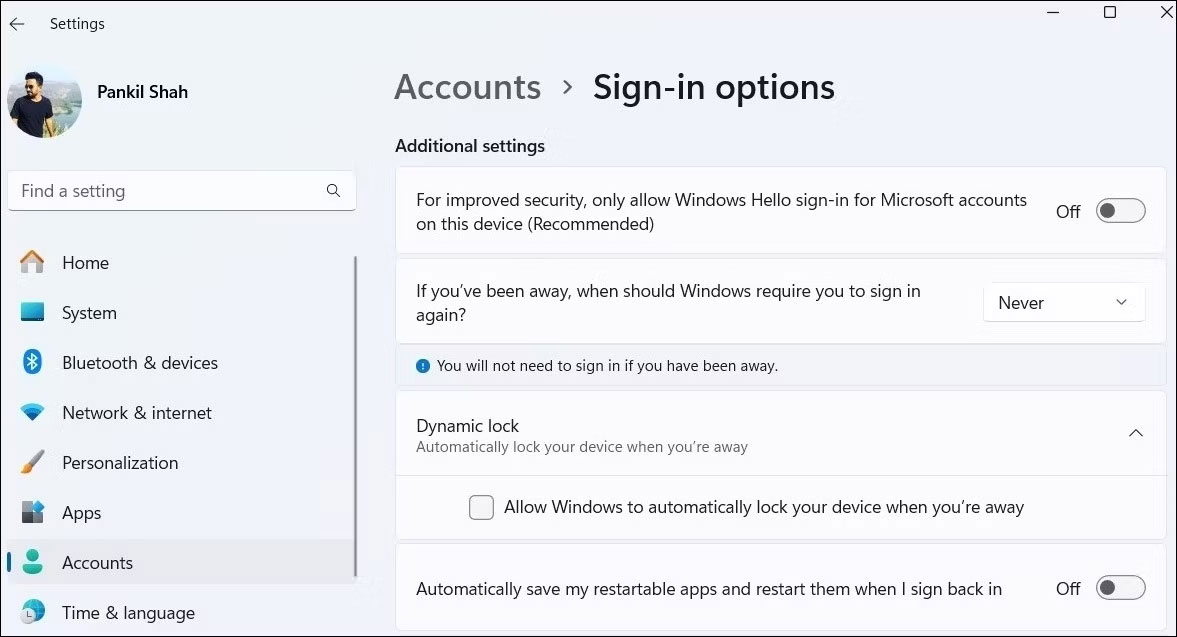
<p style="text-align: justify;">Tắt yêu cầu đăng nhập của Windows là một cách hiệu quả để ngăn Windows tự khóa khi không hoạt động. Ngoài ra, bạn cũng cần tắt tính năng Dynamic Lock, tính năng này tự động khóa PC khi thiết bị&nbsp;<a data-type="internal" href="https://quantrimang.com/cong-nghe/tim-hieu-ve-cong-nghe-bluetooth-35105" title="Bluetooth là gì? Những thông tin hữu ích về công nghệ Bluetooth">Bluetooth</a>&nbsp;được kết nối, chẳng hạn như điện thoại thông minh, nằm ngoài phạm vi. Sau đây là cách thực hiện cả hai:</p>

<ul>
	<li style="text-align: justify;">Nhấn&nbsp;<strong>Win + I&nbsp;</strong>để&nbsp;mở ứng dụng Settings&nbsp;và đi tới&nbsp;<strong>Accounts &gt; Sign-in options</strong>.</li>
	<li style="text-align: justify;">Trong phần&nbsp;<strong>Additional settings</strong>, hãy chọn&nbsp;<strong>Never</strong>&nbsp;từ menu drop-down.</li>
	<li style="text-align: justify;">Trong cùng một menu, hãy tắt tính năng Dynamic Lock bằng cách bỏ chọn tùy chọn&nbsp;<strong>Allow Windows to automatically lock your device when you&#039;re away</strong>.</li>
</ul>

<figure>
<div style="text-align: justify;"><img alt="Tùy chọn đăng nhập trong ứng dụng Settings Windows 11" data-i="0" data-src="https://st.quantrimang.com/photos/image/2024/07/26/vo-hieu-hoa-man-hinh-khoa-windows-1.jpg" data-was-processed="true" height="637" src="https://st.quantrimang.com/photos/image/2024/07/26/vo-hieu-hoa-man-hinh-khoa-windows-1.jpg" width="1177" /></div>

<figcaption>
<div style="text-align: justify;">Tùy chọn đăng nhập trong ứng dụng Settings Windows 11</div>
</figcaption>
</figure>

<div style="text-align: justify;"><iframe allow="autoplay" allowtransparency="true" aria-label="Advertisement" data-google-container-id="a!2" data-google-query-id="CMeZp4OgxocDFYBUwgUde3UAyg" data-load-complete="true" frameborder="0" height="0" hspace="0" id="aswift_1" marginheight="0" marginwidth="0" name="aswift_1" sandbox="allow-scripts allow-same-origin allow-forms allow-presentation" scrolling="no" tabindex="0" title="Advertisement" vspace="0" width="694"></iframe></div>

<h2 style="text-align: justify;">2. Tắt chế độ Sleep và screensaver</h2>

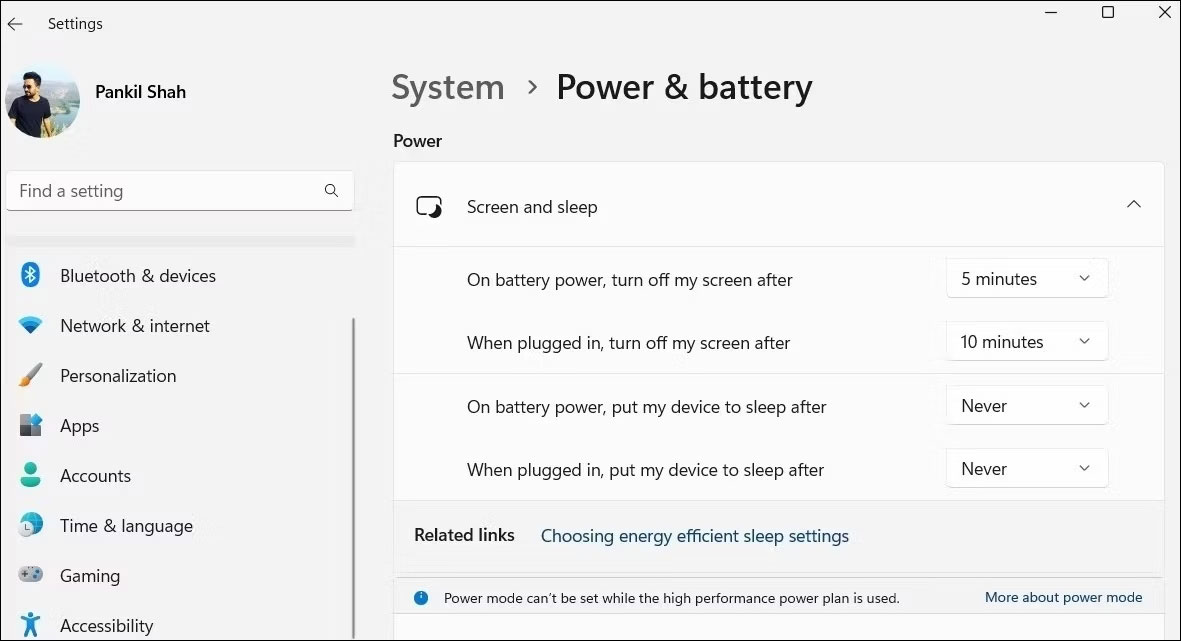
<p style="text-align: justify;">Theo mặc định, Windows tự động khóa khi vào chế độ Sleep. Để ngăn chặn điều này, bạn có thể ngăn Windows tự động chuyển sang chế độ Sleep khi không hoạt động. Theo cách này, nó sẽ không tự khóa.</p>

<p style="text-align: justify;">Để tắt chế độ Sleep trên Windows, hãy làm theo các bước sau:</p>

<ul>
	<li style="text-align: justify;">Mở ứng dụng Settings và đi tới&nbsp;<strong>System &gt; Power &amp; battery</strong>.</li>
	<li style="text-align: justify;">Nhấp vào&nbsp;<strong>Screen and sleep</strong>&nbsp;để mở rộng.</li>
	<li style="text-align: justify;">Nhấp vào menu drop-down bên cạnh&nbsp;<strong>&quot;On battery power, put my device to sleep after&quot;&nbsp;</strong>và&nbsp;<strong>&quot;When plug in, put my device to sleep after&quot;</strong>&nbsp;và chọn&nbsp;<strong>Never</strong>.</li>
</ul>

<figure>
<div style="text-align: justify;"><img alt="Cài đặt chế độ Sleep trong Windows 11" data-adbro-processed="true" data-i="1" data-src="https://st.quantrimang.com/photos/image/2024/07/26/vo-hieu-hoa-man-hinh-khoa-windows-2.jpg" data-was-processed="true" height="641" src="https://st.quantrimang.com/photos/image/2024/07/26/vo-hieu-hoa-man-hinh-khoa-windows-2.jpg" width="1181" /></div>

<figcaption>
<div style="text-align: justify;">Cài đặt chế độ Sleep trong Windows 11</div>
</figcaption>
</figure>

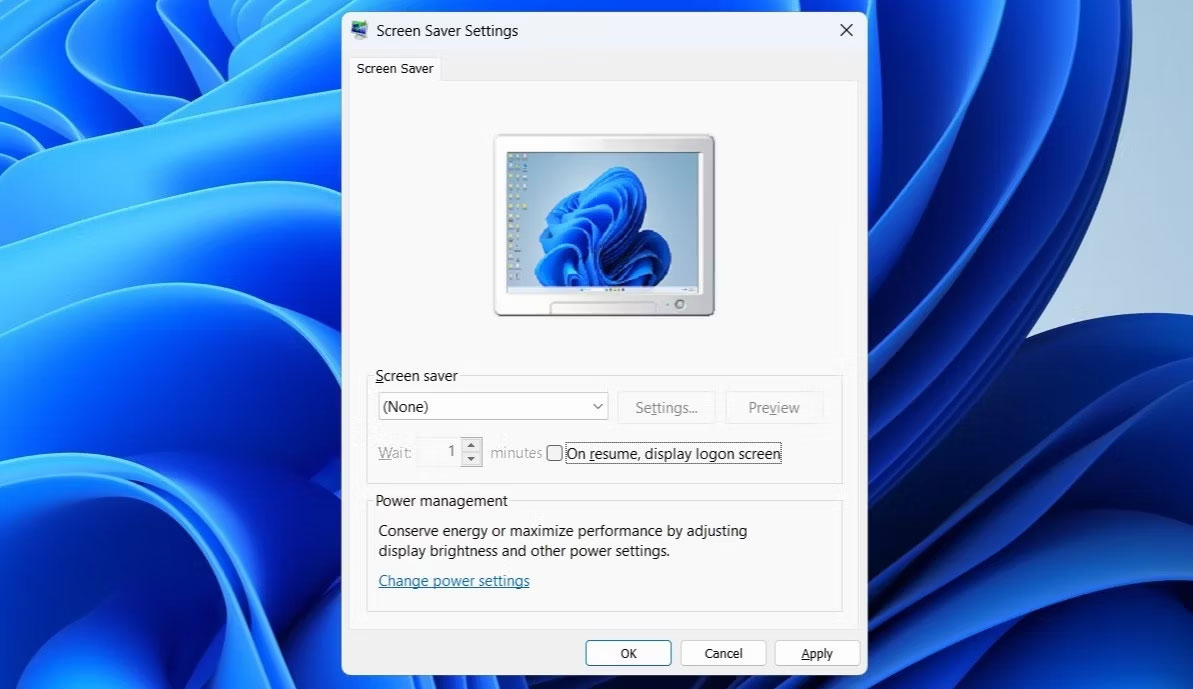
<p style="text-align: justify;">Bạn cũng nên tắt chế độ screensaver vì đôi khi nó có thể khiến Windows tự động khóa. Sau đây là cách thực hiện:</p>

<ul>
	<li style="text-align: justify;">Nhấn&nbsp;<strong>Win + S&nbsp;</strong>để mở Windows Search.</li>
	<li style="text-align: justify;">Nhập&nbsp;<strong>Turn screen saver on or off</strong>&nbsp;và chọn kết quả đầu tiên xuất hiện.</li>
	<li style="text-align: justify;">Trong cửa sổ Screen Saver Settings, đặt&nbsp;<strong>Screen saver</strong>&nbsp;thành&nbsp;<strong>None</strong>&nbsp;và bỏ chọn&nbsp;<strong>On resume, display the logon screen</strong>.</li>
</ul>

<figure>
<div style="text-align: justify;"><img alt="Cài đặt screensaver trong Windows" data-i="2" data-src="https://st.quantrimang.com/photos/image/2024/07/26/vo-hieu-hoa-man-hinh-khoa-windows-3.jpg" data-was-processed="true" height="689" src="https://st.quantrimang.com/photos/image/2024/07/26/vo-hieu-hoa-man-hinh-khoa-windows-3.jpg" width="1193" /></div>

<figcaption>
<div style="text-align: justify;">Cài đặt screensaver trong Windows</div>
</figcaption>
</figure>

<div style="text-align: justify;"><iframe allow="autoplay" allowtransparency="true" aria-label="Advertisement" data-google-container-id="a!3" data-google-query-id="CKvpqIOgxocDFU1RwgUdvfQyyw" data-load-complete="true" frameborder="0" height="0" hspace="0" id="aswift_2" marginheight="0" marginwidth="0" name="aswift_2" sandbox="allow-scripts allow-same-origin allow-forms allow-presentation" scrolling="no" tabindex="0" title="Advertisement" vspace="0" width="694"></iframe></div>

<h2 style="text-align: justify;">3. Chỉnh sửa Windows Registry</h2>

<p style="text-align: justify;">Một cách khác để ngăn Windows tự động khóa là chỉnh sửa một số file registry. Tuy nhiên, điều quan trọng là phải hiểu rằng việc chỉnh sửa Windows Registry có thể nguy hiểm. Vì vậy, chỉ sử dụng phương pháp này nếu các phương pháp khác không hiệu quả.</p>

<p style="text-align: justify;">Ngay cả khi bạn quen với việc chỉnh sửa các file registry, hãy đảm bảo rằng bạn đã sao lưu tất cả các file registry hoặc tạo điểm khôi phục trước, đề phòng có sự cố xảy ra.</p>

<ul>
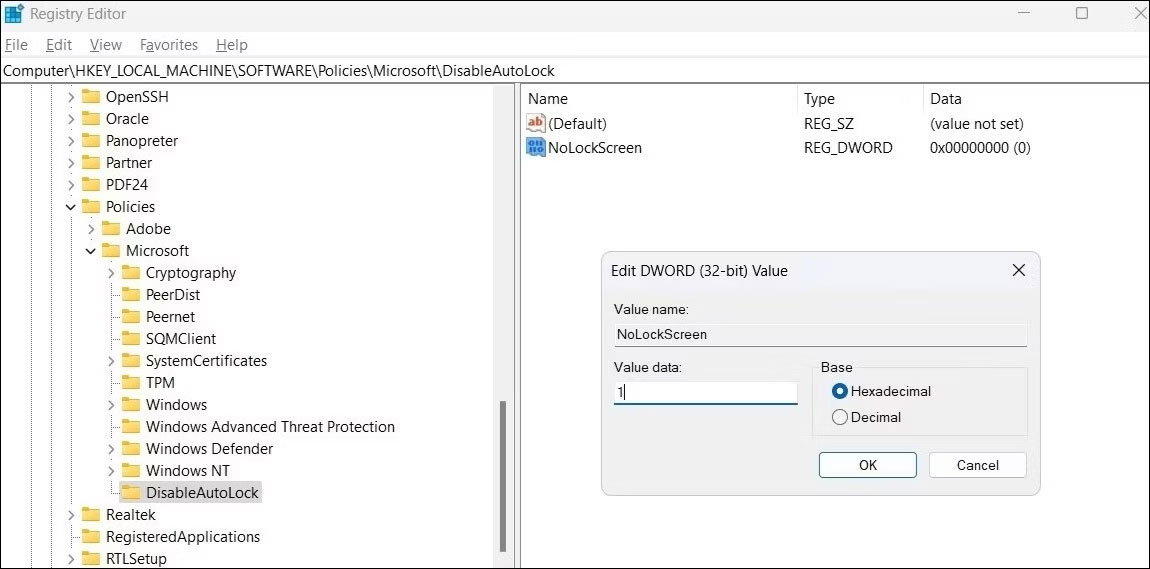
	<li style="text-align: justify;">Nhấp vào biểu tượng tìm kiếm trên thanh tác vụ, nhập&nbsp;<strong>registry editor</strong>&nbsp;và chọn&nbsp;<strong>Run as administrator</strong>.</li>
	<li style="text-align: justify;">Trong cửa sổ Registry Editor, điều hướng đến&nbsp;<strong>HKEY_LOCAL_MACHINE &gt; Software &gt; Policies &gt; Microsoft</strong>&nbsp;từ ngăn bên trái.</li>
	<li style="text-align: justify;">Nhấp chuột phải vào&nbsp;<strong>Windows</strong>&nbsp;và chọn&nbsp;<strong>New &gt; Key</strong>. Đặt tên cho key mới là&nbsp;<strong>&quot;DisableAutoLock&quot;.</strong></li>
	<li style="text-align: justify;">Nhấp chuột phải vào key vừa tạo, đi tới&nbsp;<strong>New</strong>&nbsp;và chọn&nbsp;<strong>DWORD (32-bit) Value</strong>. Đổi tên DWORD mới này thành &quot;NoLockScreen&quot;.</li>
	<li style="text-align: justify;">Mở&nbsp;<strong>NoLockScreen</strong>&nbsp;và đặt Value data thành&nbsp;<strong>1</strong>. Nhấp vào&nbsp;<strong>OK</strong>&nbsp;và&nbsp;khởi động lại máy tính&nbsp;để áp dụng các thay đổi.</li>
</ul>

<figure>
<div style="text-align: justify;"><img alt="Sửa đổi DWORD trong Registry" data-i="3" data-src="https://st.quantrimang.com/photos/image/2024/07/26/vo-hieu-hoa-man-hinh-khoa-windows-4.jpg" data-was-processed="true" height="569" src="https://st.quantrimang.com/photos/image/2024/07/26/vo-hieu-hoa-man-hinh-khoa-windows-4.jpg" width="1150" /></div>

<figcaption>
<div style="text-align: justify;">Sửa đổi DWORD trong Registry</div>
</figcaption>
</figure>

<p style="text-align: justify;">Việc mở khóa PC cực kỳ tiện lợi nếu nó hỗ trợ&nbsp;Windows Hello, cho dù đó là thông qua nhận dạng khuôn mặt hay quét dấu vân tay. Tuy nhiên, nếu máy tính thiếu những tính năng này, bạn có thể ngăn máy tính chạy Windows 10 hoặc 11 tự động khóa bằng bất kỳ phương pháp nào nêu trên.</p>

<p style="text-align: justify;">Chúc các bạn thành công!</p>

<div style="text-align: justify;">&nbsp;</div>
		</div>
				<div id="author">
						<p>
				<strong>Nguồn tin:</strong>
				Quantrimang.com:
			</p>
		</div>
	</div>
	<div id="footer" class="clearfix">
		<div id="url">
			<strong>URL của bản tin này: </strong><a href="https://www.nguoicodonvn2008.info/vi/news/savefile/kien-thuc-may-tinh/cach-ngan-windows-tu-dong-khoa-8766.html" title="Cách ngăn Windows tự động khóa">https://www.nguoicodonvn2008.info/vi/news/savefile/kien-thuc-may-tinh/cach-ngan-windows-tu-dong-khoa-8766.html</a>

		</div>
		<div class="clear"></div>
		<div class="copyright">
			&copy; .&#x3A; Nguoicodonvn2008.info - Cõi lòng người cô đơn &#x3A;.
		</div>
		<div id="contact">
			<a href="mailto:admin@nguoicodonvn2008.info">admin@nguoicodonvn2008.info</a>
		</div>
	</div>
</div>
        <div id="timeoutsess" class="chromeframe">
            Bạn đã không sử dụng Site, <a onclick="timeoutsesscancel();" href="https://www.nguoicodonvn2008.info/#">Bấm vào đây để duy trì trạng thái đăng nhập</a>. Thời gian chờ: <span id="secField"> 60 </span> giây
        </div>
        <div id="openidResult" class="nv-alert" style="display:none"></div>
        <div id="openidBt" data-result="" data-redirect=""></div>
		</script>
		<div class="car-top">
  <span><img src="https://www.nguoicodonvn2008.info/themes/default/images/car.png" alt=""></span>
</div>
<script src="https://www.nguoicodonvn2008.info/assets/js/jquery/jquery.min.js"></script>
<script>var nv_base_siteurl="/",nv_lang_data="vi",nv_lang_interface="vi",nv_name_variable="nv",nv_fc_variable="op",nv_lang_variable="language",nv_module_name="news",nv_func_name="savefile",nv_is_user=0, nv_my_ofs=-4,nv_my_abbr="EDT",nv_cookie_prefix="nv4c_e856T",nv_check_pass_mstime=1738000,nv_area_admin=0,nv_safemode=0,theme_responsive=0,nv_recaptcha_ver=2,nv_recaptcha_sitekey="",nv_recaptcha_type="image",XSSsanitize=1;</script>
<script src="https://www.nguoicodonvn2008.info/assets/js/language/vi.js"></script>
<script src="https://www.nguoicodonvn2008.info/assets/js/DOMPurify/purify3.js"></script>
<script src="https://www.nguoicodonvn2008.info/assets/js/global.js"></script>
<script src="https://www.nguoicodonvn2008.info/assets/js/site.js"></script>
<script src="https://www.nguoicodonvn2008.info/themes/default/js/news.js"></script>
<script src="https://www.nguoicodonvn2008.info/themes/default/js/main.js"></script>
<script src="https://www.nguoicodonvn2008.info/themes/default/js/custom.js"></script>
<script type="application/ld+json">
        {
            "@context": "https://schema.org",
            "@type": "Organization",
            "url": "https://www.nguoicodonvn2008.info",
            "logo": "https://www.nguoicodonvn2008.info/uploads/angel.gif"
        }
        </script>
<script src="https://www.nguoicodonvn2008.info/themes/default/js/bootstrap.min.js"></script>
<script type="text/javascript">
var $scrolltop = $('.car-top');
$scrolltop.on('click', function () {
    $('html,body').animate({
        scrollTop: 0
    }, 800);
    $(this).addClass("car-run");
    setTimeout(function(){ $scrolltop.removeClass('car-run');}, 1000);
    return false;
});
$(window).on('scroll', function ()
{ 
    if($(window).scrollTop() >= 200)
    {
        $scrolltop.addClass("show");
        $scrolltop.addClass("car-down");
    }
    else
    {
       $scrolltop.removeClass("show");
       setTimeout(function(){ $scrolltop.removeClass('car-down');}, 300);
    }
});
</script>
</body>
</html>