<!DOCTYPE html>
    <html lang="vi" xmlns="http://www.w3.org/1999/xhtml" prefix="og: http://ogp.me/ns#">
    <head>
<title>Cách ngăn Windows lưu file vào OneDrive</title>
<meta name="description" content="Cách ngăn Windows lưu file vào OneDrive - Savefile - Tin Tức -...">
<meta name="author" content=".: Nguoicodonvn2008.info - Cõi lòng người cô đơn :.">
<meta name="copyright" content=".: Nguoicodonvn2008.info - Cõi lòng người cô đơn :. [admin@nguoicodonvn2008.info]">
<meta name="robots" content="index, archive, follow, noodp">
<meta name="googlebot" content="index,archive,follow,noodp">
<meta name="msnbot" content="all,index,follow">
<meta name="generator" content="NukeViet v4.5">
<meta http-equiv="Content-Type" content="text/html; charset=utf-8">
<meta property="og:title" content="Cách ngăn Windows lưu file vào OneDrive">
<meta property="og:type" content="website">
<meta property="og:description" content="Savefile - Tin Tức - https&#x3A;&#x002F;&#x002F;www.nguoicodonvn2008.info&#x002F;vi&#x002F;news&#x002F;savefile&#x002F;kien-thuc-may-tinh&#x002F;cach-ngan-windows-luu-file-vao-onedrive-6533.html">
<meta property="og:site_name" content=".&#x3A; Nguoicodonvn2008.info - Cõi lòng người cô đơn &#x3A;.">
<meta property="og:url" content="https://www.nguoicodonvn2008.info/vi/news/savefile/kien-thuc-may-tinh/cach-ngan-windows-luu-file-vao-onedrive-6533.html">
<link rel="shortcut icon" href="https://www.nguoicodonvn2008.info/favicon.ico">
<link rel="canonical" href="https://www.nguoicodonvn2008.info/vi/news/savefile/kien-thuc-may-tinh/cach-ngan-windows-luu-file-vao-onedrive-6533.html">
<link rel="alternate" href="https://www.nguoicodonvn2008.info/vi/news/rss/" title="Tin Tức" type="application/rss+xml">
<link rel="alternate" href="https://www.nguoicodonvn2008.info/vi/news/rss/karaoke-dual/" title="Tin Tức - Karaoke Dual" type="application/rss+xml">
<link rel="alternate" href="https://www.nguoicodonvn2008.info/vi/news/rss/nhac-tre/" title="Tin Tức - Nhạc trẻ" type="application/rss+xml">
<link rel="alternate" href="https://www.nguoicodonvn2008.info/vi/news/rss/tru-tinh/" title="Tin Tức - Trữ tình" type="application/rss+xml">
<link rel="alternate" href="https://www.nguoicodonvn2008.info/vi/news/rss/nuoc-ngoai/" title="Tin Tức - Nước ngoài" type="application/rss+xml">
<link rel="alternate" href="https://www.nguoicodonvn2008.info/vi/news/rss/remix/" title="Tin Tức - Remix" type="application/rss+xml">
<link rel="alternate" href="https://www.nguoicodonvn2008.info/vi/news/rss/tam-su-tinh-yeu/" title="Tin Tức - Tâm sự tình yêu" type="application/rss+xml">
<link rel="alternate" href="https://www.nguoicodonvn2008.info/vi/news/rss/tho-suu-tam/" title="Tin Tức - Thơ sưu tầm" type="application/rss+xml">
<link rel="alternate" href="https://www.nguoicodonvn2008.info/vi/news/rss/cuoc-song/" title="Tin Tức - Cuộc sống" type="application/rss+xml">
<link rel="alternate" href="https://www.nguoicodonvn2008.info/vi/news/rss/phan-mem/" title="Tin Tức - Phần mềm" type="application/rss+xml">
<link rel="alternate" href="https://www.nguoicodonvn2008.info/vi/news/rss/kien-thuc-may-tinh/" title="Tin Tức - Kiến thức máy tính" type="application/rss+xml">
<link rel="alternate" href="https://www.nguoicodonvn2008.info/vi/news/rss/hoc-tap/" title="Tin Tức - Học tập" type="application/rss+xml">
<link rel="alternate" href="https://www.nguoicodonvn2008.info/vi/news/rss/tai-lieu/" title="Tin Tức - Tài liệu" type="application/rss+xml">
<link rel="alternate" href="https://www.nguoicodonvn2008.info/vi/news/rss/de-thi/" title="Tin Tức - Đề thi" type="application/rss+xml">
<link rel="preload" as="style" href="https://www.nguoicodonvn2008.info/assets/css/font-awesome.min.css" type="text/css">
<link rel="preload" as="style" href="https://www.nguoicodonvn2008.info/themes/default/css/bootstrap.non-responsive.css" type="text/css">
<link rel="preload" as="style" href="https://www.nguoicodonvn2008.info/themes/default/css/style.css" type="text/css">
<link rel="preload" as="style" href="https://www.nguoicodonvn2008.info/themes/default/css/style.non-responsive.css" type="text/css">
<link rel="preload" as="style" href="https://www.nguoicodonvn2008.info/themes/default/css/news.css" type="text/css">
<link rel="preload" as="style" href="https://www.nguoicodonvn2008.info/themes/default/css/custom.css" type="text/css">
<link rel="preload" as="script" href="https://www.nguoicodonvn2008.info/assets/js/jquery/jquery.min.js" type="text/javascript">
<link rel="preload" as="script" href="https://www.nguoicodonvn2008.info/assets/js/language/vi.js" type="text/javascript">
<link rel="preload" as="script" href="https://www.nguoicodonvn2008.info/assets/js/DOMPurify/purify3.js" type="text/javascript">
<link rel="preload" as="script" href="https://www.nguoicodonvn2008.info/assets/js/global.js" type="text/javascript">
<link rel="preload" as="script" href="https://www.nguoicodonvn2008.info/assets/js/site.js" type="text/javascript">
<link rel="preload" as="script" href="https://www.nguoicodonvn2008.info/themes/default/js/news.js" type="text/javascript">
<link rel="preload" as="script" href="https://www.nguoicodonvn2008.info/themes/default/js/main.js" type="text/javascript">
<link rel="preload" as="script" href="https://www.nguoicodonvn2008.info/themes/default/js/custom.js" type="text/javascript">
<link rel="preload" as="script" href="https://www.nguoicodonvn2008.info/themes/default/js/bootstrap.min.js" type="text/javascript">
<link rel="stylesheet" href="https://www.nguoicodonvn2008.info/assets/css/font-awesome.min.css">
<link rel="stylesheet" href="https://www.nguoicodonvn2008.info/themes/default/css/bootstrap.non-responsive.css">
<link rel="stylesheet" href="https://www.nguoicodonvn2008.info/themes/default/css/style.css">
<link rel="stylesheet" href="https://www.nguoicodonvn2008.info/themes/default/css/style.non-responsive.css">
<link rel="StyleSheet" href="https://www.nguoicodonvn2008.info/themes/default/css/news.css">
<link rel="stylesheet" href="https://www.nguoicodonvn2008.info/themes/default/css/custom.css">
<style type="text/css">
	body{background: #fff;}
</style>
    </head>
    <body>
<div id="print">
	<div id="hd_print">
		<h2 class="pull-left">.&#x3A; Nguoicodonvn2008.info - Cõi lòng người cô đơn &#x3A;.</h2>
		<p class="pull-right"><a title=".&#x3A; Nguoicodonvn2008.info - Cõi lòng người cô đơn &#x3A;." href="https://www.nguoicodonvn2008.info/">https://www.nguoicodonvn2008.info</a></p>
	</div>
	<div class="clear"></div>
	<hr />
	<div id="content">
		<h1>Cách ngăn Windows lưu file vào OneDrive</h1>
		<ul class="list-inline">
			<li>Thứ ba - 27/12/2022 23:42</li>
			<li class="hidden-print txtrequired"><em class="fa fa-print">&nbsp;</em><a title="In ra" href="javascript:;" onclick="window.print()">In ra</a></li>
			<li class="hidden-print txtrequired"><em class="fa fa-power-off">&nbsp;</em><a title="Đóng cửa sổ này" href="javascript:;" onclick="window.close()">Đóng cửa sổ này</a></li>
		</ul>
		<div class="clear"></div>
		<div id="hometext">
		</div>
				<div class="imghome">
			<img alt="Cách ngăn Windows lưu file vào OneDrive" src="https://st.quantrimang.com/photos/image/2022/12/28/cach-ngan-windows-luu-file-vao-onedrive-1.jpg" width="460" class="img-thumbnail" />
		</div>
		<div class="clear"></div>
		<div id="bodytext" class="clearfix">
			<p style="text-align: justify;">OneDrive&nbsp;là ứng dụng lưu trữ đám mây mạnh mẽ được cài đặt sẵn trên cả máy tính Windows 10 và Windows 11. Với OneDrive, bạn có thể dễ dàng lưu trữ dữ liệu của mình trên đám mây và chia sẻ file trên nhiều thiết bị.</p>

<p style="text-align: justify;">Tuy nhiên, nếu OneDrive không phải là ứng dụng lưu trữ đám mây ưa thích của bạn hoặc nếu bạn muốn lưu trữ file của mình cục bộ, bạn có thể ngăn Windows lưu file vào OneDrive. Bài viết sau đây sẽ chỉ cho bạn cách thực hiện.</p>

<h2 style="text-align: justify;">1. Tạm dừng Windows lưu file vào OneDrive</h2>

<p style="text-align: justify;">Bạn có thể tạm thời ngăn Windows lưu file vào OneDrive bằng cách tạm dừng quá trình đồng bộ. Điều này có thể hữu ích nếu bạn đang sử dụng kết nối có giới hạn để kiểm soát mức sử dụng pin của mình trên Windows 10 hoặc nếu bạn muốn tiết kiệm pin cho laptop.</p>

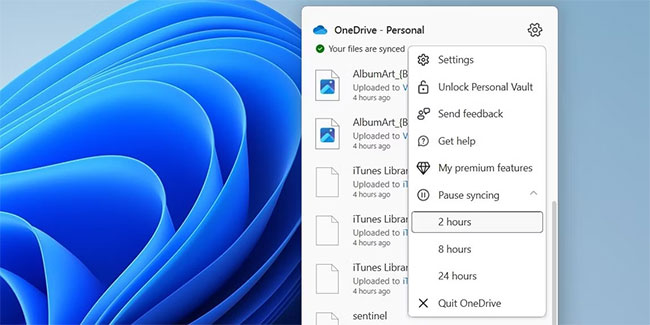
<p style="text-align: justify;">Bắt đầu bằng cách nhấp vào biểu tượng OneDrive trên thanh tác vụ. Nhấp vào biểu tượng bánh răng và chọn&nbsp;<strong>Pause syncing</strong>. Sau đó, chỉ định khoảng thời gian bạn muốn tạm dừng đồng bộ OneDrive.</p>

<figure>
<div style="text-align: justify;"><img alt="Tạm dừng Windows lưu file vào OneDrive" data-i="0" data-src="https://st.quantrimang.com/photos/image/2022/12/28/cach-ngan-windows-luu-file-vao-onedrive-1.jpg" data-was-processed="true" height="325" src="https://st.quantrimang.com/photos/image/2022/12/28/cach-ngan-windows-luu-file-vao-onedrive-1.jpg" width="650" /></div>

<figcaption>
<div style="text-align: justify;">Tạm dừng Windows lưu file vào OneDrive</div>
</figcaption>
</figure>

<h2 style="text-align: justify;">2. Ngăn OneDrive sao lưu thư mục</h2>

<p style="text-align: justify;">Nếu đang tìm kiếm một giải pháp lâu dài hơn, bạn có thể ngăn OneDrive sao lưu các thư mục của mình và lưu các file media từ những thiết bị bên ngoài. Dưới đây là các bước cần thực hiện.</p>

<p style="text-align: justify;">1. Nhấp vào biểu tượng OneDrive trên thanh tác vụ.</p>

<p style="text-align: justify;">2. Nhấp vào biểu tượng bánh răng và chọn&nbsp;<strong>Settings</strong>&nbsp;từ menu kết quả.</p>

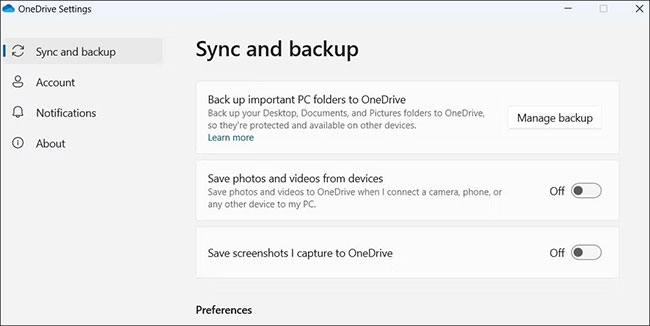
<p style="text-align: justify;">3. Trong tab&nbsp;<strong>Sync and backup</strong>, hãy tắt các công tắc chuyển đổi cho&nbsp;<strong>Save photos and videos from devices</strong>&nbsp;và&nbsp;<strong>Save screenshots I capture to OneDrive</strong>.</p>

<p style="text-align: justify;">4. Tiếp theo, nhấp vào nút&nbsp;<strong>Manage backup.</strong></p>

<figure>
<div style="text-align: justify;"><img alt="Nhấp vào nút Manage backup" data-i="1" data-src="https://st.quantrimang.com/photos/image/2022/12/28/cach-ngan-windows-luu-file-vao-onedrive-2.jpg" data-was-processed="true" height="326" src="https://st.quantrimang.com/photos/image/2022/12/28/cach-ngan-windows-luu-file-vao-onedrive-2.jpg" width="650" /></div>

<figcaption>
<div style="text-align: justify;">Nhấp vào nút Manage backup</div>
</figcaption>
</figure>

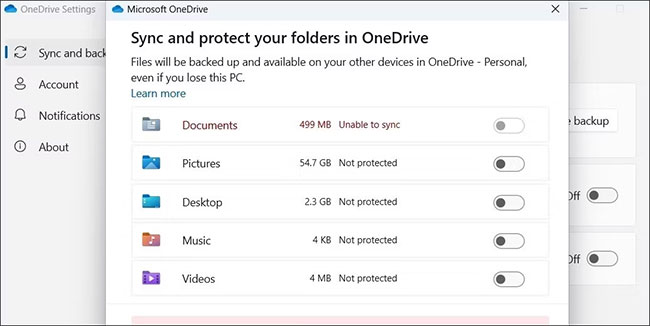
<p style="text-align: justify;">5. Tắt công tắc chuyển đổi tương ứng với các thư mục mà bạn không muốn sao lưu vào OneDrive.</p>

<p style="text-align: justify;">6. Nhấp vào nút&nbsp;<strong>Save changes.</strong></p>

<figure>
<div style="text-align: justify;"><img alt="Nhấp vào nút Save changes" data-i="2" data-src="https://st.quantrimang.com/photos/image/2022/12/28/cach-ngan-windows-luu-file-vao-onedrive-3.jpg" data-was-processed="true" height="326" src="https://st.quantrimang.com/photos/image/2022/12/28/cach-ngan-windows-luu-file-vao-onedrive-3.jpg" width="650" /></div>

<figcaption>
<div style="text-align: justify;">Nhấp vào nút Save changes</div>
</figcaption>
</figure>

<h2 style="text-align: justify;">3. Ngăn các ứng dụng Office lưu file vào OneDrive</h2>

<p style="text-align: justify;">Mặc dù việc đồng bộ các file Office của bạn với OneDrive cho phép bạn truy cập chúng trên nhiều thiết bị, nhưng bạn có thể muốn tránh làm như vậy vì nhiều lý do. Rất may, khá đơn giản để thực hiện điều đó.</p>

<p style="text-align: justify;">1. Mở bất kỳ ứng dụng Office nào, chẳng hạn như Word hoặc Excel.</p>

<p style="text-align: justify;">2. Nhấp vào menu&nbsp;<strong>File</strong>&nbsp;ở góc trên cùng bên trái.</p>

<p style="text-align: justify;">3. Chọn&nbsp;<strong>Options</strong>&nbsp;từ ngăn bên trái.</p>

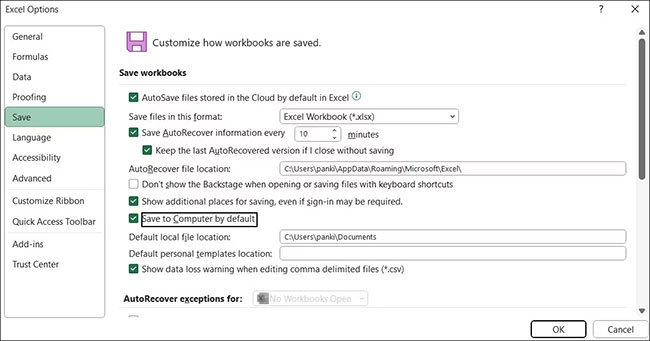
<p style="text-align: justify;">4. Trong tab&nbsp;<strong>Save</strong>, đánh dấu vào tùy chọn&nbsp;<strong>Save to Computer by default</strong>.</p>

<p style="text-align: justify;">5. Trong hộp&nbsp;<strong>Default local file location</strong>, chỉ định nơi bạn muốn lưu các file Office của mình.</p>

<p style="text-align: justify;">6. Nhấn&nbsp;<strong>OK</strong>&nbsp;để lưu các thay đổi.</p>

<figure>
<div style="text-align: justify;"><img alt="Ngăn các ứng dụng Office lưu file vào OneDrive" data-i="3" data-src="https://st.quantrimang.com/photos/image/2022/12/28/cach-ngan-windows-luu-file-vao-onedrive-4.jpg" data-was-processed="true" height="341" src="https://st.quantrimang.com/photos/image/2022/12/28/cach-ngan-windows-luu-file-vao-onedrive-4.jpg" width="650" /></div>

<figcaption>
<div style="text-align: justify;">Ngăn các ứng dụng Office lưu file vào OneDrive</div>
</figcaption>
</figure>

<p style="text-align: justify;">Những thay đổi trên sẽ được áp dụng cho tất cả các ứng dụng Office. Đừng lo, bạn vẫn có thể lưu file vào OneDrive theo cách thủ công nếu muốn.</p>

<h2 style="text-align: justify;">4. Sử dụng Group Policy Editor để ngăn Windows lưu file vào OneDrive</h2>

<p style="text-align: justify;">Một phương pháp khác để ngăn Windows lưu file vào OneDrive là sử dụng Group Policy Editor. Bạn có thể truy cập Group Policy Editor trên các phiên bản Windows Professional, Education hoặc Enterprise. Nếu bạn đang sử dụng Windows Home, hãy tìm hiểu&nbsp;cách truy cập Group Policy Editor trên Windows Home&nbsp;trước khi thử các bước này.</p>

<p style="text-align: justify;">1. Nhấn<strong>&nbsp;Win + R</strong>&nbsp;để&nbsp;mở hộp thoại Run.</p>

<p style="text-align: justify;">2. Nhập&nbsp;<strong>gpedit.msc</strong>&nbsp;vào hộp và nhấn&nbsp;<strong>Enter.</strong></p>

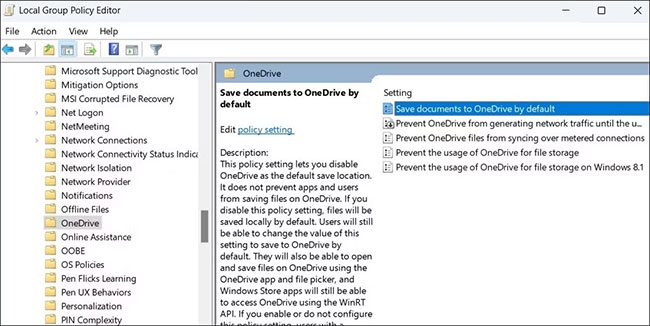
<p style="text-align: justify;">3. Trong cửa sổ&nbsp;<strong>Local Group Policy Editor</strong>, sử dụng ngăn bên trái để điều hướng đến&nbsp;<strong>Computer Configuration &gt; Administrative Templates &gt; OneDrive</strong>.</p>

<p style="text-align: justify;">4. Nhấp đúp vào policy&nbsp;<strong>Save documents to OneDrive by default</strong>&nbsp;ở bên phải.</p>

<p style="text-align: justify;">5. Chọn tùy chọn&nbsp;<strong>Disabled.</strong></p>

<p style="text-align: justify;">6. Nhấn&nbsp;<strong>Apply &gt; OK</strong>.</p>

<figure>
<div style="text-align: justify;"><img alt="Nhấn Apply &gt; OK" data-i="4" data-src="https://st.quantrimang.com/photos/image/2022/12/28/cach-ngan-windows-luu-file-vao-onedrive-5.jpg" data-was-processed="true" height="326" src="https://st.quantrimang.com/photos/image/2022/12/28/cach-ngan-windows-luu-file-vao-onedrive-5.jpg" width="650" /></div>

<figcaption>
<div style="text-align: justify;">Nhấn Apply &gt; OK</div>
</figcaption>
</figure>

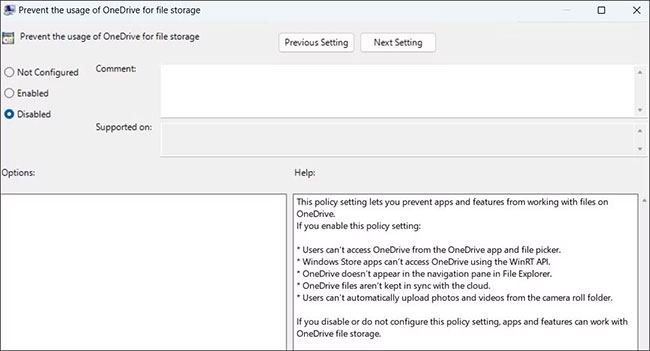
<p style="text-align: justify;">7. Bạn cũng có thể chọn vô hiệu hóa hoàn toàn OneDrive từ đây. Để làm điều đó, hãy nhấp đúp vào policy&nbsp;<strong>Prevent the usage of OneDrive for file storage</strong>.</p>

<p style="text-align: justify;">8. Chọn&nbsp;<strong>Disabled.</strong></p>

<p style="text-align: justify;">9. Nhấn vào&nbsp;<strong>Apply</strong>&nbsp;và sau đó nhấp vào&nbsp;<strong>OK</strong>&nbsp;để lưu các thay đổi.</p>

<figure>
<div style="text-align: justify;"><img alt="Lưu các thay đổi" data-i="5" data-src="https://st.quantrimang.com/photos/image/2022/12/28/cach-ngan-windows-luu-file-vao-onedrive-6.jpg" data-was-processed="true" height="351" src="https://st.quantrimang.com/photos/image/2022/12/28/cach-ngan-windows-luu-file-vao-onedrive-6.jpg" width="650" /></div>

<figcaption>
<div style="text-align: justify;">Lưu các thay đổi</div>
</figcaption>
</figure>

<h2 style="text-align: justify;">5. Gỡ cài đặt OneDrive khỏi Windows</h2>

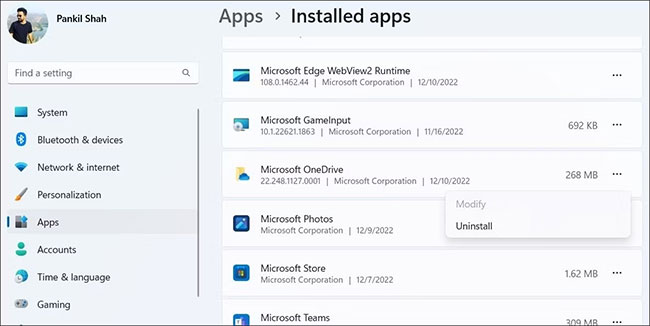
<p style="text-align: justify;">Nếu bạn không có ý định sử dụng OneDrive để truy nhập file từ thiết bị khác hoặc lưu file mới từ máy tính của mình, bạn cũng có thể&nbsp;gỡ cài đặt OneDrive khỏi máy tính Windows&nbsp;của mình.</p>

<figure>
<div style="text-align: justify;"><img alt="Gỡ cài đặt OneDrive khỏi Windows" data-i="6" data-src="https://st.quantrimang.com/photos/image/2022/12/28/cach-ngan-windows-luu-file-vao-onedrive-7.jpg" data-was-processed="true" height="326" src="https://st.quantrimang.com/photos/image/2022/12/28/cach-ngan-windows-luu-file-vao-onedrive-7.jpg" width="650" /></div>

<figcaption>
<div style="text-align: justify;">Gỡ cài đặt OneDrive khỏi Windows</div>
</figcaption>
</figure>

<p style="text-align: justify;">Bằng cách làm theo các bước được nêu trong bài viết này, bạn có thể dễ dàng ngăn Windows lưu file vào OneDrive. Khi đã hoàn thành việc đó, bạn nên loại bỏ các file được lưu vào OneDrive mà không xóa chúng khỏi máy tính.</p>
		</div>
				<div id="author">
						<p>
				<strong>Nguồn tin:</strong>
				Quantrimang.com
			</p>
		</div>
	</div>
	<div id="footer" class="clearfix">
		<div id="url">
			<strong>URL của bản tin này: </strong><a href="https://www.nguoicodonvn2008.info/vi/news/savefile/kien-thuc-may-tinh/cach-ngan-windows-luu-file-vao-onedrive-6533.html" title="Cách ngăn Windows lưu file vào OneDrive">https://www.nguoicodonvn2008.info/vi/news/savefile/kien-thuc-may-tinh/cach-ngan-windows-luu-file-vao-onedrive-6533.html</a>

		</div>
		<div class="clear"></div>
		<div class="copyright">
			&copy; .&#x3A; Nguoicodonvn2008.info - Cõi lòng người cô đơn &#x3A;.
		</div>
		<div id="contact">
			<a href="mailto:admin@nguoicodonvn2008.info">admin@nguoicodonvn2008.info</a>
		</div>
	</div>
</div>
        <div id="timeoutsess" class="chromeframe">
            Bạn đã không sử dụng Site, <a onclick="timeoutsesscancel();" href="https://www.nguoicodonvn2008.info/#">Bấm vào đây để duy trì trạng thái đăng nhập</a>. Thời gian chờ: <span id="secField"> 60 </span> giây
        </div>
        <div id="openidResult" class="nv-alert" style="display:none"></div>
        <div id="openidBt" data-result="" data-redirect=""></div>
		</script>
		<div class="car-top">
  <span><img src="https://www.nguoicodonvn2008.info/themes/default/images/car.png" alt=""></span>
</div>
<script src="https://www.nguoicodonvn2008.info/assets/js/jquery/jquery.min.js"></script>
<script>var nv_base_siteurl="/",nv_lang_data="vi",nv_lang_interface="vi",nv_name_variable="nv",nv_fc_variable="op",nv_lang_variable="language",nv_module_name="news",nv_func_name="savefile",nv_is_user=0, nv_my_ofs=-4,nv_my_abbr="EDT",nv_cookie_prefix="nv4c_e856T",nv_check_pass_mstime=1738000,nv_area_admin=0,nv_safemode=0,theme_responsive=0,nv_recaptcha_ver=2,nv_recaptcha_sitekey="",nv_recaptcha_type="image",XSSsanitize=1;</script>
<script src="https://www.nguoicodonvn2008.info/assets/js/language/vi.js"></script>
<script src="https://www.nguoicodonvn2008.info/assets/js/DOMPurify/purify3.js"></script>
<script src="https://www.nguoicodonvn2008.info/assets/js/global.js"></script>
<script src="https://www.nguoicodonvn2008.info/assets/js/site.js"></script>
<script src="https://www.nguoicodonvn2008.info/themes/default/js/news.js"></script>
<script src="https://www.nguoicodonvn2008.info/themes/default/js/main.js"></script>
<script src="https://www.nguoicodonvn2008.info/themes/default/js/custom.js"></script>
<script type="application/ld+json">
        {
            "@context": "https://schema.org",
            "@type": "Organization",
            "url": "https://www.nguoicodonvn2008.info",
            "logo": "https://www.nguoicodonvn2008.info/uploads/angel.gif"
        }
        </script>
<script src="https://www.nguoicodonvn2008.info/themes/default/js/bootstrap.min.js"></script>
<script type="text/javascript">
var $scrolltop = $('.car-top');
$scrolltop.on('click', function () {
    $('html,body').animate({
        scrollTop: 0
    }, 800);
    $(this).addClass("car-run");
    setTimeout(function(){ $scrolltop.removeClass('car-run');}, 1000);
    return false;
});
$(window).on('scroll', function ()
{ 
    if($(window).scrollTop() >= 200)
    {
        $scrolltop.addClass("show");
        $scrolltop.addClass("car-down");
    }
    else
    {
       $scrolltop.removeClass("show");
       setTimeout(function(){ $scrolltop.removeClass('car-down');}, 300);
    }
});
</script>
</body>
</html>