<!DOCTYPE html>
    <html lang="vi" xmlns="http://www.w3.org/1999/xhtml" prefix="og: http://ogp.me/ns#">
    <head>
<title>Cách mở cổng bằng Windows Firewall trong Windows 10</title>
<meta name="description" content="Cách mở cổng bằng Windows Firewall trong Windows 10 - Savefile - Tin Tức -...">
<meta name="author" content=".: Nguoicodonvn2008.info - Cõi lòng người cô đơn :.">
<meta name="copyright" content=".: Nguoicodonvn2008.info - Cõi lòng người cô đơn :. [admin@nguoicodonvn2008.info]">
<meta name="robots" content="index, archive, follow, noodp">
<meta name="googlebot" content="index,archive,follow,noodp">
<meta name="msnbot" content="all,index,follow">
<meta name="generator" content="NukeViet v4.5">
<meta http-equiv="Content-Type" content="text/html; charset=utf-8">
<meta property="og:title" content="Cách mở cổng bằng Windows Firewall trong Windows 10">
<meta property="og:type" content="website">
<meta property="og:description" content="Savefile - Tin Tức - https&#x3A;&#x002F;&#x002F;www.nguoicodonvn2008.info&#x002F;vi&#x002F;news&#x002F;savefile&#x002F;kien-thuc-may-tinh&#x002F;cach-mo-cong-bang-windows-firewall-trong-windows-10-2645.html">
<meta property="og:site_name" content=".&#x3A; Nguoicodonvn2008.info - Cõi lòng người cô đơn &#x3A;.">
<meta property="og:url" content="https://www.nguoicodonvn2008.info/vi/news/savefile/kien-thuc-may-tinh/cach-mo-cong-bang-windows-firewall-trong-windows-10-2645.html">
<link rel="shortcut icon" href="https://www.nguoicodonvn2008.info/favicon.ico">
<link rel="canonical" href="https://www.nguoicodonvn2008.info/vi/news/savefile/kien-thuc-may-tinh/cach-mo-cong-bang-windows-firewall-trong-windows-10-2645.html">
<link rel="alternate" href="https://www.nguoicodonvn2008.info/vi/news/rss/" title="Tin Tức" type="application/rss+xml">
<link rel="alternate" href="https://www.nguoicodonvn2008.info/vi/news/rss/karaoke-dual/" title="Tin Tức - Karaoke Dual" type="application/rss+xml">
<link rel="alternate" href="https://www.nguoicodonvn2008.info/vi/news/rss/nhac-tre/" title="Tin Tức - Nhạc trẻ" type="application/rss+xml">
<link rel="alternate" href="https://www.nguoicodonvn2008.info/vi/news/rss/tru-tinh/" title="Tin Tức - Trữ tình" type="application/rss+xml">
<link rel="alternate" href="https://www.nguoicodonvn2008.info/vi/news/rss/nuoc-ngoai/" title="Tin Tức - Nước ngoài" type="application/rss+xml">
<link rel="alternate" href="https://www.nguoicodonvn2008.info/vi/news/rss/remix/" title="Tin Tức - Remix" type="application/rss+xml">
<link rel="alternate" href="https://www.nguoicodonvn2008.info/vi/news/rss/tam-su-tinh-yeu/" title="Tin Tức - Tâm sự tình yêu" type="application/rss+xml">
<link rel="alternate" href="https://www.nguoicodonvn2008.info/vi/news/rss/tho-suu-tam/" title="Tin Tức - Thơ sưu tầm" type="application/rss+xml">
<link rel="alternate" href="https://www.nguoicodonvn2008.info/vi/news/rss/cuoc-song/" title="Tin Tức - Cuộc sống" type="application/rss+xml">
<link rel="alternate" href="https://www.nguoicodonvn2008.info/vi/news/rss/phan-mem/" title="Tin Tức - Phần mềm" type="application/rss+xml">
<link rel="alternate" href="https://www.nguoicodonvn2008.info/vi/news/rss/kien-thuc-may-tinh/" title="Tin Tức - Kiến thức máy tính" type="application/rss+xml">
<link rel="alternate" href="https://www.nguoicodonvn2008.info/vi/news/rss/hoc-tap/" title="Tin Tức - Học tập" type="application/rss+xml">
<link rel="alternate" href="https://www.nguoicodonvn2008.info/vi/news/rss/tai-lieu/" title="Tin Tức - Tài liệu" type="application/rss+xml">
<link rel="alternate" href="https://www.nguoicodonvn2008.info/vi/news/rss/de-thi/" title="Tin Tức - Đề thi" type="application/rss+xml">
<link rel="preload" as="style" href="https://www.nguoicodonvn2008.info/assets/css/font-awesome.min.css" type="text/css">
<link rel="preload" as="style" href="https://www.nguoicodonvn2008.info/themes/default/css/bootstrap.non-responsive.css" type="text/css">
<link rel="preload" as="style" href="https://www.nguoicodonvn2008.info/themes/default/css/style.css" type="text/css">
<link rel="preload" as="style" href="https://www.nguoicodonvn2008.info/themes/default/css/style.non-responsive.css" type="text/css">
<link rel="preload" as="style" href="https://www.nguoicodonvn2008.info/themes/default/css/news.css" type="text/css">
<link rel="preload" as="style" href="https://www.nguoicodonvn2008.info/themes/default/css/custom.css" type="text/css">
<link rel="preload" as="script" href="https://www.nguoicodonvn2008.info/assets/js/jquery/jquery.min.js" type="text/javascript">
<link rel="preload" as="script" href="https://www.nguoicodonvn2008.info/assets/js/language/vi.js" type="text/javascript">
<link rel="preload" as="script" href="https://www.nguoicodonvn2008.info/assets/js/DOMPurify/purify3.js" type="text/javascript">
<link rel="preload" as="script" href="https://www.nguoicodonvn2008.info/assets/js/global.js" type="text/javascript">
<link rel="preload" as="script" href="https://www.nguoicodonvn2008.info/assets/js/site.js" type="text/javascript">
<link rel="preload" as="script" href="https://www.nguoicodonvn2008.info/themes/default/js/news.js" type="text/javascript">
<link rel="preload" as="script" href="https://www.nguoicodonvn2008.info/themes/default/js/main.js" type="text/javascript">
<link rel="preload" as="script" href="https://www.nguoicodonvn2008.info/themes/default/js/custom.js" type="text/javascript">
<link rel="preload" as="script" href="https://www.nguoicodonvn2008.info/themes/default/js/bootstrap.min.js" type="text/javascript">
<link rel="stylesheet" href="https://www.nguoicodonvn2008.info/assets/css/font-awesome.min.css">
<link rel="stylesheet" href="https://www.nguoicodonvn2008.info/themes/default/css/bootstrap.non-responsive.css">
<link rel="stylesheet" href="https://www.nguoicodonvn2008.info/themes/default/css/style.css">
<link rel="stylesheet" href="https://www.nguoicodonvn2008.info/themes/default/css/style.non-responsive.css">
<link rel="StyleSheet" href="https://www.nguoicodonvn2008.info/themes/default/css/news.css">
<link rel="stylesheet" href="https://www.nguoicodonvn2008.info/themes/default/css/custom.css">
<style type="text/css">
	body{background: #fff;}
</style>
    </head>
    <body>
<div id="print">
	<div id="hd_print">
		<h2 class="pull-left">.&#x3A; Nguoicodonvn2008.info - Cõi lòng người cô đơn &#x3A;.</h2>
		<p class="pull-right"><a title=".&#x3A; Nguoicodonvn2008.info - Cõi lòng người cô đơn &#x3A;." href="https://www.nguoicodonvn2008.info/">https://www.nguoicodonvn2008.info</a></p>
	</div>
	<div class="clear"></div>
	<hr />
	<div id="content">
		<h1>Cách mở cổng bằng Windows Firewall trong Windows 10</h1>
		<ul class="list-inline">
			<li>Thứ bảy - 05/09/2020 00:20</li>
			<li class="hidden-print txtrequired"><em class="fa fa-print">&nbsp;</em><a title="In ra" href="javascript:;" onclick="window.print()">In ra</a></li>
			<li class="hidden-print txtrequired"><em class="fa fa-power-off">&nbsp;</em><a title="Đóng cửa sổ này" href="javascript:;" onclick="window.close()">Đóng cửa sổ này</a></li>
		</ul>
		<div class="clear"></div>
		<div id="hometext">
		</div>
				<div class="imghome">
			<img alt="Cách mở cổng bằng Windows Firewall trong Windows 10" src="https://st.quantrimang.com/photos/image/2020/06/22/mo-cong-bang-windows-firewall-8.png" width="460" class="img-thumbnail" />
		</div>
		<div class="clear"></div>
		<div id="bodytext" class="clearfix">
			<p style="text-align: justify;">Nếu một ứng dụng hoặc chương trình yêu cầu một cổng cụ thể được mở, đây là cách bạn có thể&nbsp;sử dụng Windows Firewall&nbsp;để mở một cổng trong Windows 10.</p>

<p style="text-align: justify;"><strong>Lưu ý:</strong>&nbsp;Bạn cần quyền admin để tạo, xóa hoặc chỉnh sửa quy tắc Windows Firewall.</p>

<h2 style="text-align: justify;">Tại sao bạn cần mở một cổng trên PC?</h2>

<p style="text-align: justify;">Tường lửa&nbsp;là một khía cạnh thiết yếu của máy tính và không máy tính nào lại không cần có tường lửa. Tường lửa được thiết kế để bảo vệ mạng khỏi các mối đe dọa, có thể là các mối đe dọa từ bên ngoài hoặc bên trong. Nó thực hiện điều này bằng cách chặn các cổng hỗ trợ mạng.</p>

<p style="text-align: justify;">Mỗi khi một chương trình cố gắng giao tiếp qua cổng này, tường lửa sẽ kiểm tra cơ sở dữ liệu các quy tắc, để xem ứng dụng có được phép hay không. Nếu không, bạn sẽ được yêu cầu xác nhận (đó là lý do tại sao đôi khi bạn thấy lời nhắc hỏi bạn xem một chương trình cụ thể có được phép truy cập Internet hay không).</p>

<figure data-inimage-loaded="true">
<div style="text-align: justify;"><a href="https://stats.adrealclick.com/url?q=aHR0cHM6Ly9tZXRhLnZuL3JvYm90LWh1dC1idWktdGhvbmctbWluaC1jMTIzMD91dG1fc291cmNlPWluLWltYWdlJnV0bV9tZWRpdW09UVRNJnJlZj1pbi1pbWFnZS1RVE0%3D&amp;bid=9701&amp;zid=421" rel="nofollow" target="_blank"><img alt="" data-i="0" height="100" loading="lazy" src="https://as.gamevui.com/data/image/2020/07/02/robot-hut-bui-640x100.png" width="640" /></a><br />
<img alt="Có những trường hợp bạn nên mở cổng mạng và để lưu lượng truy cập vào ứng dụng" data-i="1" data-src="https://st.quantrimang.com/photos/image/2020/09/05/mo-cong-bang-windows-firewall.jpg" data-was-processed="true" height="228" src="https://st.quantrimang.com/photos/image/2020/09/05/mo-cong-bang-windows-firewall.jpg" width="650" /></div>

<figcaption>
<div style="text-align: justify;">Có những trường hợp bạn nên mở cổng mạng và để lưu lượng truy cập vào ứng dụng</div>
</figcaption>
</figure>

<p style="text-align: justify;">Các ứng dụng mạng và đám mây chạy trên máy tính được thiết kế để giao tiếp qua một cổng mạng (hoặc một bộ cổng) cụ thể. Và máy ở đầu kia của kết nối đó cũng sẽ gửi và nhận dữ liệu qua các cổng quy định.</p>

<p style="text-align: justify;">Nhưng vấn đề là hầu hết các hệ điều hành, đặc biệt là hệ điều hành &quot;tiêu dùng&quot;, có thể được thiết lập để từ chối một số hoặc tất cả các giao tiếp mạng đến. Vì vậy, bạn có thể gặp phải trường hợp ứng dụng gửi nội dung nào đó đến dịch vụ đám mây và dịch vụ này đang gửi lại nội dung nào đó, nhưng tường lửa được tích hợp trong router hoặc hệ điều hành đang chặn dữ liệu đó. Trong trường hợp này, bạn nên mở cổng mạng và để lưu lượng truy cập vào ứng dụng của mình.</p>

<div style="text-align: justify;">&nbsp;</div>

<h3 style="text-align: justify;">Mở một cổng trên router</h3>

<p style="text-align: justify;">Trước khi xử lý PC, bạn nên đảm bảo lưu lượng truy cập có thể đi qua router của mạng. Trong trường hợp này, bạn không chỉ mở một cổng, mà còn cho router biết nơi gửi dữ liệu này trong&nbsp;mạng cục bộ. Để làm điều đó, bạn cần thiết lập chuyển tiếp cổng (Port Forwarding). Nhưng cho dù bạn có cần chuyển tiếp hay không, thì bước đầu tiên vẫn là mở (các) cổng tương ứng trên PC như hướng dẫn dưới đây.</p>

<h2 style="text-align: justify;">Các bước để mở một cổng trong Windows Firewall</h2>

<p style="text-align: justify;">Để mở một cổng trong Windows 10, bạn cần tạo quy tắc tùy chỉnh trong Windows Firewall. Thực hiện theo các bước dưới đây để tạo quy tắc mở cổng bằng Windows Firewall.</p>

<div style="text-align: justify;">&nbsp;</div>

<h3 style="text-align: justify;">Mở cổng cho Inbound Traffic (traffic được tạo ra từ Internet đến server)</h3>

<p style="text-align: justify;">1. Mở&nbsp;<strong>Start</strong>&nbsp;bằng cách bấm phím&nbsp;<code>Win</code>.</p>

<p style="text-align: justify;">2. Tìm kiếm và mở&nbsp;<strong>&quot;Windows Defender Firewall&quot;</strong>.</p>

<p style="text-align: justify;">3. Nhấp vào liên kết&nbsp;<strong>&quot;Advanced Settings”</strong>&nbsp;ở bên trái.</p>

<p style="text-align: justify;">4. Chọn tùy chọn&nbsp;<strong>&quot;Inbound Rules”</strong>&nbsp;ở bên trái.</p>

<figure>
<div style="text-align: justify;"><img alt="Chọn tùy chọn &#039;Inbound Rules”" data-i="2" data-src="https://st.quantrimang.com/photos/image/2020/06/22/mo-cong-bang-windows-firewall-1.png" data-was-processed="true" height="285" src="https://st.quantrimang.com/photos/image/2020/06/22/mo-cong-bang-windows-firewall-1.png" width="366" /></div>

<figcaption>
<div style="text-align: justify;">Chọn tùy chọn &quot;Inbound Rules”</div>
</figcaption>
</figure>

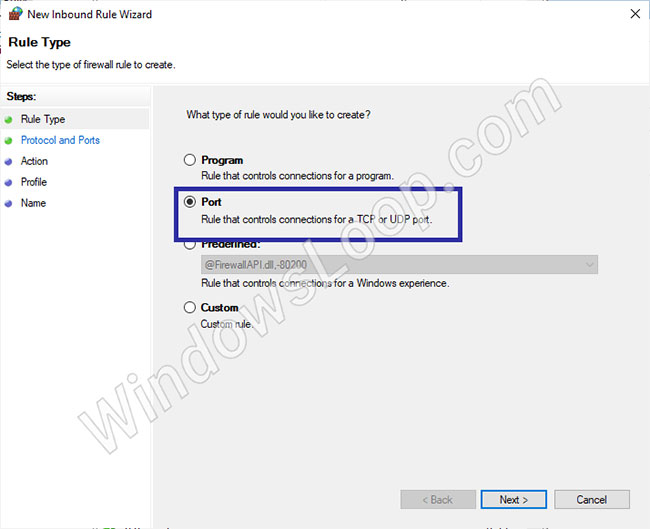
<p style="text-align: justify;">5. Trong cửa sổ mới, chọn tùy chọn&nbsp;<strong>Port</strong>&nbsp;và nhấp vào&nbsp;<strong>Next.</strong></p>

<figure>
<div style="text-align: justify;"><img alt="Chọn tùy chọn Port và nhấp vào Next" data-i="3" data-src="https://st.quantrimang.com/photos/image/2020/06/22/mo-cong-bang-windows-firewall-2.jpg" data-was-processed="true" height="529" src="https://st.quantrimang.com/photos/image/2020/06/22/mo-cong-bang-windows-firewall-2.jpg" width="650" /></div>

<figcaption>
<div style="text-align: justify;">Chọn tùy chọn Port và nhấp vào Next</div>
</figcaption>
</figure>

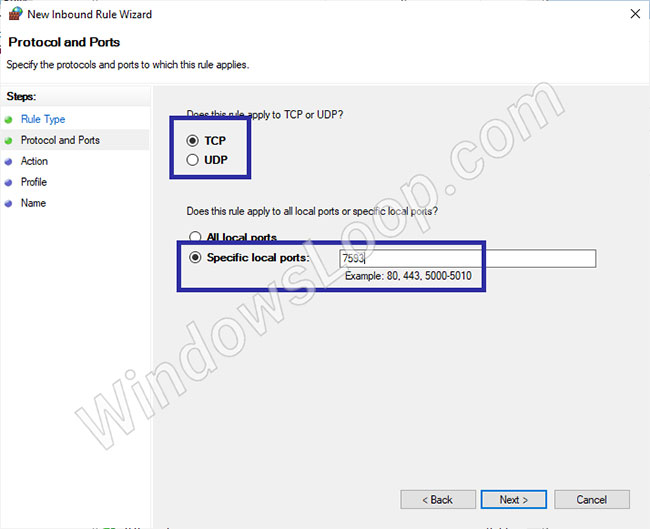
<p style="text-align: justify;">6. Tùy thuộc vào cổng nào bạn muốn mở, chọn&nbsp;<strong>&quot;TCP&quot;</strong>&nbsp;hoặc&nbsp;<strong>&quot;UDP&quot;</strong>&nbsp;và nhấp vào&nbsp;<strong>Next.</strong>&nbsp;Trong trường hợp ví dụ, tác giả sẽ chọn tùy chọn&nbsp;<strong>TCP.</strong></p>

<p style="text-align: justify;">7. Chọn tùy chọn&nbsp;<strong>Specific local ports</strong>&nbsp;và nhập số cổng bạn muốn mở vào trường trống. Nhấn&nbsp;<strong>Next.</strong></p>

<figure>
<div style="text-align: justify;"><img alt="Chọn tùy chọn Specific local ports" data-i="4" data-src="https://st.quantrimang.com/photos/image/2020/06/22/mo-cong-bang-windows-firewall-3.jpg" data-was-processed="true" height="529" src="https://st.quantrimang.com/photos/image/2020/06/22/mo-cong-bang-windows-firewall-3.jpg" width="650" /></div>

<figcaption>
<div style="text-align: justify;">Chọn tùy chọn Specific local ports</div>
</figcaption>
</figure>

<p style="text-align: justify;">8. Chọn&nbsp;<strong>Allow the connection</strong>&nbsp;và nhấp vào&nbsp;<strong>Next.</strong></p>

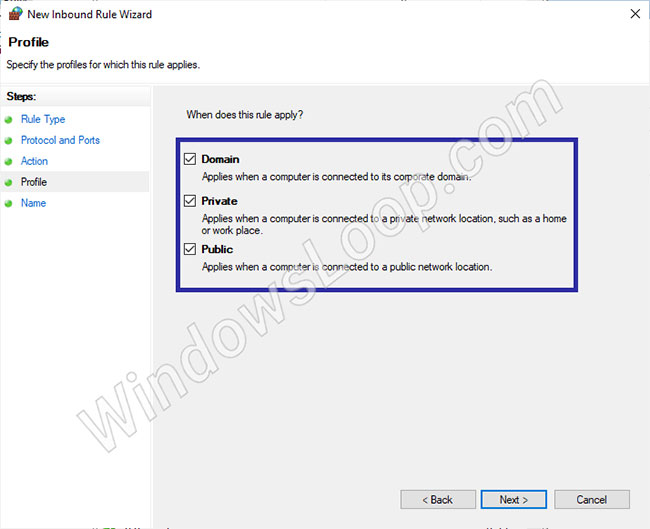
<p style="text-align: justify;">9. Chọn loại mạng bạn muốn áp dụng quy tắc và nhấp vào&nbsp;<strong>Next.</strong></p>

<figure>
<div style="text-align: justify;"><img alt="Chọn loại mạng bạn muốn áp dụng quy tắc" data-i="5" data-src="https://st.quantrimang.com/photos/image/2020/06/22/mo-cong-bang-windows-firewall-4.jpg" data-was-processed="true" height="529" src="https://st.quantrimang.com/photos/image/2020/06/22/mo-cong-bang-windows-firewall-4.jpg" width="650" /></div>

<figcaption>
<div style="text-align: justify;">Chọn loại mạng bạn muốn áp dụng quy tắc</div>
</figcaption>
</figure>

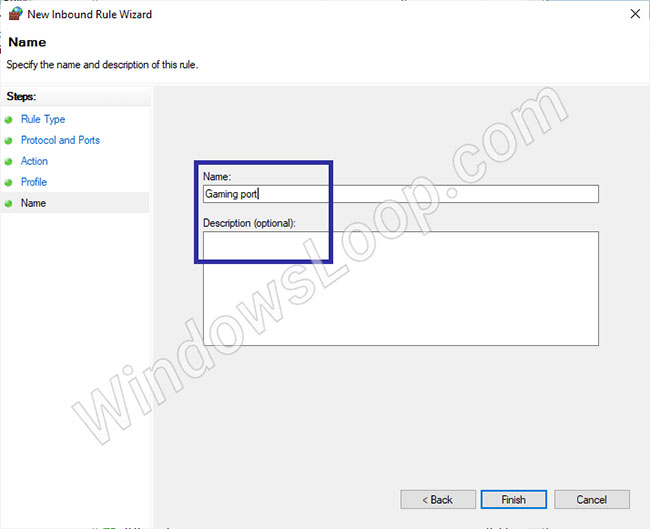
<p style="text-align: justify;">10. Đặt một tên có ý nghĩa và nhấp vào&nbsp;<strong>Finish.</strong></p>

<figure>
<div style="text-align: justify;"><img alt="Đặt tên cho quy tắc" data-i="6" data-src="https://st.quantrimang.com/photos/image/2020/06/22/mo-cong-bang-windows-firewall-5.jpg" data-was-processed="true" height="529" src="https://st.quantrimang.com/photos/image/2020/06/22/mo-cong-bang-windows-firewall-5.jpg" width="650" /></div>

<figcaption>
<div style="text-align: justify;">Đặt tên cho quy tắc</div>
</figcaption>
</figure>

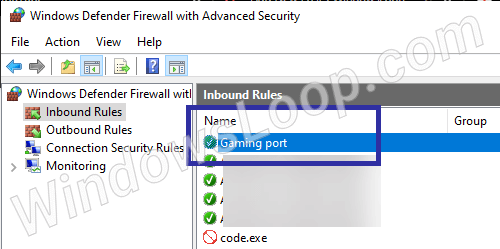
<p style="text-align: justify;">Bạn sẽ thấy quy tắc mới được cấu hình trong cửa sổ Windows Firewall rules.</p>

<figure>
<div style="text-align: justify;"><img alt="Bạn sẽ thấy quy tắc mới được cấu hình trong cửa sổ Windows Firewall rules" data-i="7" data-src="https://st.quantrimang.com/photos/image/2020/06/22/mo-cong-bang-windows-firewall-6.png" data-was-processed="true" height="249" src="https://st.quantrimang.com/photos/image/2020/06/22/mo-cong-bang-windows-firewall-6.png" width="500" /></div>

<figcaption>
<div style="text-align: justify;">Bạn sẽ thấy quy tắc mới được cấu hình trong cửa sổ Windows Firewall rules</div>
</figcaption>
</figure>

<h3 style="text-align: justify;">Mở cổng cho Outbound Traffic (traffic được tạo ra từ server đến Internet)</h3>

<p style="text-align: justify;">Để mở một cổng cho Outbound Traffic, hãy làm theo các bước được liệt kê dưới đây.</p>

<p style="text-align: justify;">1. Mở&nbsp;<strong>Start.</strong></p>

<p style="text-align: justify;">2. Tìm kiếm và mở&nbsp;<strong>Windows Defender Firewall</strong>.</p>

<p style="text-align: justify;">3. Nhấp vào&nbsp;<strong>Advanced Settings.</strong></p>

<p style="text-align: justify;">4. Chọn&nbsp;<strong>Outbound Rules.</strong></p>

<p style="text-align: justify;">5. Chọn tùy chọn&nbsp;<strong>Port</strong>&nbsp;và nhấp vào&nbsp;<strong>Next.</strong></p>

<p style="text-align: justify;">6. Tùy thuộc vào cổng nào bạn muốn mở, chọn&nbsp;<strong>&quot;TCP&quot;</strong>&nbsp;hoặc&nbsp;<strong>&quot;UDP&quot;</strong>&nbsp;và nhấp vào&nbsp;<strong>Next.</strong></p>

<p style="text-align: justify;">7. Chọn tùy chọn&nbsp;<strong>Specific local ports</strong>&nbsp;và nhập số cổng vào trường trống. Nhấn&nbsp;<strong>Next.</strong></p>

<p style="text-align: justify;">8. Chọn&nbsp;<strong>Allow the connection</strong>&nbsp;và nhấp vào&nbsp;<strong>Next.</strong></p>

<p style="text-align: justify;">9. Chọn loại mạng bạn muốn áp dụng quy tắc và nhấp vào&nbsp;<strong>Next.</strong></p>

<p style="text-align: justify;">10. Đặt một tên có ý nghĩa và nhấp vào&nbsp;<strong>Finish.</strong></p>

<h2 style="text-align: justify;">Vô hiệu hóa để xóa quy tắc mở cổng trong Windows Firewall</h2>

<p style="text-align: justify;">Nếu không còn cần một quy tắc chuyên dụng để mở cổng nữa, bạn có thể vô hiệu hóa hoặc xóa quy tắc.</p>

<div style="text-align: justify;">&nbsp;</div>

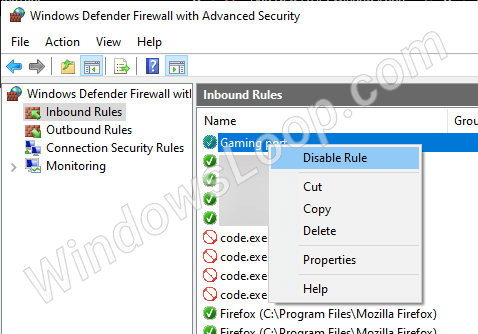
<p style="text-align: justify;">Để vô hiệu hóa quy tắc tường lửa mở cổng, nhấp chuột phải vào quy tắc trong phần cài đặt của Windows Firewall và chọn tùy chọn&nbsp;<strong>Disable Rule.</strong></p>

<figure>
<div style="text-align: justify;"><img alt="Vô hiệu hóa quy tắc tường lửa mở cổng" data-i="8" data-src="https://st.quantrimang.com/photos/image/2020/06/22/mo-cong-bang-windows-firewall-7.png" data-was-processed="true" height="334" src="https://st.quantrimang.com/photos/image/2020/06/22/mo-cong-bang-windows-firewall-7.png" width="478" /></div>

<figcaption>
<div style="text-align: justify;">Vô hiệu hóa quy tắc tường lửa mở cổng</div>
</figcaption>
</figure>

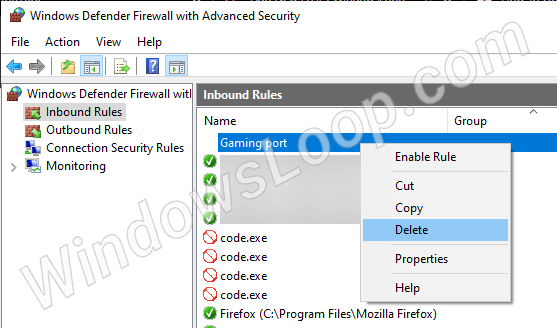
<p style="text-align: justify;">Để xóa quy tắc, nhấp chuột phải vào quy tắc và chọn tùy chọn&nbsp;<strong>Delete.</strong></p>

<figure>
<div style="text-align: justify;"><img alt="Xóa quy tắc tường lửa mở cổng" data-i="9" data-src="https://st.quantrimang.com/photos/image/2020/06/22/mo-cong-bang-windows-firewall-8.png" data-was-processed="true" height="328" src="https://st.quantrimang.com/photos/image/2020/06/22/mo-cong-bang-windows-firewall-8.png" width="557" /></div>

<figcaption>
<div style="text-align: justify;">Xóa quy tắc tường lửa mở cổng</div>
</figcaption>
</figure>

<div style="text-align: justify;">&nbsp;</div>
		</div>
				<div id="author">
						<p>
				<strong>Nguồn tin:</strong>
				Quantrimang.com
			</p>
		</div>
	</div>
	<div id="footer" class="clearfix">
		<div id="url">
			<strong>URL của bản tin này: </strong><a href="https://www.nguoicodonvn2008.info/vi/news/savefile/kien-thuc-may-tinh/cach-mo-cong-bang-windows-firewall-trong-windows-10-2645.html" title="Cách mở cổng bằng Windows Firewall trong Windows 10">https://www.nguoicodonvn2008.info/vi/news/savefile/kien-thuc-may-tinh/cach-mo-cong-bang-windows-firewall-trong-windows-10-2645.html</a>

		</div>
		<div class="clear"></div>
		<div class="copyright">
			&copy; .&#x3A; Nguoicodonvn2008.info - Cõi lòng người cô đơn &#x3A;.
		</div>
		<div id="contact">
			<a href="mailto:admin@nguoicodonvn2008.info">admin@nguoicodonvn2008.info</a>
		</div>
	</div>
</div>
        <div id="timeoutsess" class="chromeframe">
            Bạn đã không sử dụng Site, <a onclick="timeoutsesscancel();" href="https://www.nguoicodonvn2008.info/#">Bấm vào đây để duy trì trạng thái đăng nhập</a>. Thời gian chờ: <span id="secField"> 60 </span> giây
        </div>
        <div id="openidResult" class="nv-alert" style="display:none"></div>
        <div id="openidBt" data-result="" data-redirect=""></div>
		</script>
		<div class="car-top">
  <span><img src="https://www.nguoicodonvn2008.info/themes/default/images/car.png" alt=""></span>
</div>
<script src="https://www.nguoicodonvn2008.info/assets/js/jquery/jquery.min.js"></script>
<script>var nv_base_siteurl="/",nv_lang_data="vi",nv_lang_interface="vi",nv_name_variable="nv",nv_fc_variable="op",nv_lang_variable="language",nv_module_name="news",nv_func_name="savefile",nv_is_user=0, nv_my_ofs=-4,nv_my_abbr="EDT",nv_cookie_prefix="nv4c_e856T",nv_check_pass_mstime=1738000,nv_area_admin=0,nv_safemode=0,theme_responsive=0,nv_recaptcha_ver=2,nv_recaptcha_sitekey="",nv_recaptcha_type="image",XSSsanitize=1;</script>
<script src="https://www.nguoicodonvn2008.info/assets/js/language/vi.js"></script>
<script src="https://www.nguoicodonvn2008.info/assets/js/DOMPurify/purify3.js"></script>
<script src="https://www.nguoicodonvn2008.info/assets/js/global.js"></script>
<script src="https://www.nguoicodonvn2008.info/assets/js/site.js"></script>
<script src="https://www.nguoicodonvn2008.info/themes/default/js/news.js"></script>
<script src="https://www.nguoicodonvn2008.info/themes/default/js/main.js"></script>
<script src="https://www.nguoicodonvn2008.info/themes/default/js/custom.js"></script>
<script type="application/ld+json">
        {
            "@context": "https://schema.org",
            "@type": "Organization",
            "url": "https://www.nguoicodonvn2008.info",
            "logo": "https://www.nguoicodonvn2008.info/uploads/angel.gif"
        }
        </script>
<script src="https://www.nguoicodonvn2008.info/themes/default/js/bootstrap.min.js"></script>
<script type="text/javascript">
var $scrolltop = $('.car-top');
$scrolltop.on('click', function () {
    $('html,body').animate({
        scrollTop: 0
    }, 800);
    $(this).addClass("car-run");
    setTimeout(function(){ $scrolltop.removeClass('car-run');}, 1000);
    return false;
});
$(window).on('scroll', function ()
{ 
    if($(window).scrollTop() >= 200)
    {
        $scrolltop.addClass("show");
        $scrolltop.addClass("car-down");
    }
    else
    {
       $scrolltop.removeClass("show");
       setTimeout(function(){ $scrolltop.removeClass('car-down');}, 300);
    }
});
</script>
</body>
</html>