<!DOCTYPE html>
    <html lang="vi" xmlns="http://www.w3.org/1999/xhtml" prefix="og: http://ogp.me/ns#">
    <head>
<title>Cách lên lịch gửi email trong Outlook</title>
<meta name="description" content="Cách lên lịch gửi email trong Outlook - Savefile - Tin Tức -...">
<meta name="author" content=".: Nguoicodonvn2008.info - Cõi lòng người cô đơn :.">
<meta name="copyright" content=".: Nguoicodonvn2008.info - Cõi lòng người cô đơn :. [admin@nguoicodonvn2008.info]">
<meta name="robots" content="index, archive, follow, noodp">
<meta name="googlebot" content="index,archive,follow,noodp">
<meta name="msnbot" content="all,index,follow">
<meta name="generator" content="NukeViet v4.5">
<meta http-equiv="Content-Type" content="text/html; charset=utf-8">
<meta property="og:title" content="Cách lên lịch gửi email trong Outlook">
<meta property="og:type" content="website">
<meta property="og:description" content="Savefile - Tin Tức - https&#x3A;&#x002F;&#x002F;www.nguoicodonvn2008.info&#x002F;vi&#x002F;news&#x002F;savefile&#x002F;kien-thuc-may-tinh&#x002F;cach-len-lich-gui-email-trong-outlook-10734.html">
<meta property="og:site_name" content=".&#x3A; Nguoicodonvn2008.info - Cõi lòng người cô đơn &#x3A;.">
<meta property="og:url" content="https://www.nguoicodonvn2008.info/vi/news/savefile/kien-thuc-may-tinh/cach-len-lich-gui-email-trong-outlook-10734.html">
<link rel="shortcut icon" href="https://www.nguoicodonvn2008.info/favicon.ico">
<link rel="canonical" href="https://www.nguoicodonvn2008.info/vi/news/savefile/kien-thuc-may-tinh/cach-len-lich-gui-email-trong-outlook-10734.html">
<link rel="alternate" href="https://www.nguoicodonvn2008.info/vi/news/rss/" title="Tin Tức" type="application/rss+xml">
<link rel="alternate" href="https://www.nguoicodonvn2008.info/vi/news/rss/karaoke-dual/" title="Tin Tức - Karaoke Dual" type="application/rss+xml">
<link rel="alternate" href="https://www.nguoicodonvn2008.info/vi/news/rss/nhac-tre/" title="Tin Tức - Nhạc trẻ" type="application/rss+xml">
<link rel="alternate" href="https://www.nguoicodonvn2008.info/vi/news/rss/tru-tinh/" title="Tin Tức - Trữ tình" type="application/rss+xml">
<link rel="alternate" href="https://www.nguoicodonvn2008.info/vi/news/rss/nuoc-ngoai/" title="Tin Tức - Nước ngoài" type="application/rss+xml">
<link rel="alternate" href="https://www.nguoicodonvn2008.info/vi/news/rss/remix/" title="Tin Tức - Remix" type="application/rss+xml">
<link rel="alternate" href="https://www.nguoicodonvn2008.info/vi/news/rss/tam-su-tinh-yeu/" title="Tin Tức - Tâm sự tình yêu" type="application/rss+xml">
<link rel="alternate" href="https://www.nguoicodonvn2008.info/vi/news/rss/tho-suu-tam/" title="Tin Tức - Thơ sưu tầm" type="application/rss+xml">
<link rel="alternate" href="https://www.nguoicodonvn2008.info/vi/news/rss/cuoc-song/" title="Tin Tức - Cuộc sống" type="application/rss+xml">
<link rel="alternate" href="https://www.nguoicodonvn2008.info/vi/news/rss/phan-mem/" title="Tin Tức - Phần mềm" type="application/rss+xml">
<link rel="alternate" href="https://www.nguoicodonvn2008.info/vi/news/rss/kien-thuc-may-tinh/" title="Tin Tức - Kiến thức máy tính" type="application/rss+xml">
<link rel="alternate" href="https://www.nguoicodonvn2008.info/vi/news/rss/hoc-tap/" title="Tin Tức - Học tập" type="application/rss+xml">
<link rel="alternate" href="https://www.nguoicodonvn2008.info/vi/news/rss/tai-lieu/" title="Tin Tức - Tài liệu" type="application/rss+xml">
<link rel="alternate" href="https://www.nguoicodonvn2008.info/vi/news/rss/de-thi/" title="Tin Tức - Đề thi" type="application/rss+xml">
<link rel="preload" as="style" href="https://www.nguoicodonvn2008.info/assets/css/font-awesome.min.css" type="text/css">
<link rel="preload" as="style" href="https://www.nguoicodonvn2008.info/themes/default/css/bootstrap.non-responsive.css" type="text/css">
<link rel="preload" as="style" href="https://www.nguoicodonvn2008.info/themes/default/css/style.css" type="text/css">
<link rel="preload" as="style" href="https://www.nguoicodonvn2008.info/themes/default/css/style.non-responsive.css" type="text/css">
<link rel="preload" as="style" href="https://www.nguoicodonvn2008.info/themes/default/css/news.css" type="text/css">
<link rel="preload" as="style" href="https://www.nguoicodonvn2008.info/themes/default/css/custom.css" type="text/css">
<link rel="preload" as="script" href="https://www.nguoicodonvn2008.info/assets/js/jquery/jquery.min.js" type="text/javascript">
<link rel="preload" as="script" href="https://www.nguoicodonvn2008.info/assets/js/language/vi.js" type="text/javascript">
<link rel="preload" as="script" href="https://www.nguoicodonvn2008.info/assets/js/DOMPurify/purify3.js" type="text/javascript">
<link rel="preload" as="script" href="https://www.nguoicodonvn2008.info/assets/js/global.js" type="text/javascript">
<link rel="preload" as="script" href="https://www.nguoicodonvn2008.info/assets/js/site.js" type="text/javascript">
<link rel="preload" as="script" href="https://www.nguoicodonvn2008.info/themes/default/js/news.js" type="text/javascript">
<link rel="preload" as="script" href="https://www.nguoicodonvn2008.info/themes/default/js/main.js" type="text/javascript">
<link rel="preload" as="script" href="https://www.nguoicodonvn2008.info/themes/default/js/custom.js" type="text/javascript">
<link rel="preload" as="script" href="https://www.nguoicodonvn2008.info/themes/default/js/bootstrap.min.js" type="text/javascript">
<link rel="stylesheet" href="https://www.nguoicodonvn2008.info/assets/css/font-awesome.min.css">
<link rel="stylesheet" href="https://www.nguoicodonvn2008.info/themes/default/css/bootstrap.non-responsive.css">
<link rel="stylesheet" href="https://www.nguoicodonvn2008.info/themes/default/css/style.css">
<link rel="stylesheet" href="https://www.nguoicodonvn2008.info/themes/default/css/style.non-responsive.css">
<link rel="StyleSheet" href="https://www.nguoicodonvn2008.info/themes/default/css/news.css">
<link rel="stylesheet" href="https://www.nguoicodonvn2008.info/themes/default/css/custom.css">
<style type="text/css">
	body{background: #fff;}
</style>
    </head>
    <body>
<div id="print">
	<div id="hd_print">
		<h2 class="pull-left">.&#x3A; Nguoicodonvn2008.info - Cõi lòng người cô đơn &#x3A;.</h2>
		<p class="pull-right"><a title=".&#x3A; Nguoicodonvn2008.info - Cõi lòng người cô đơn &#x3A;." href="https://www.nguoicodonvn2008.info/">https://www.nguoicodonvn2008.info</a></p>
	</div>
	<div class="clear"></div>
	<hr />
	<div id="content">
		<h1>Cách lên lịch gửi email trong Outlook</h1>
		<ul class="list-inline">
			<li>Thứ hai - 07/07/2025 22:47</li>
			<li class="hidden-print txtrequired"><em class="fa fa-print">&nbsp;</em><a title="In ra" href="javascript:;" onclick="window.print()">In ra</a></li>
			<li class="hidden-print txtrequired"><em class="fa fa-power-off">&nbsp;</em><a title="Đóng cửa sổ này" href="javascript:;" onclick="window.close()">Đóng cửa sổ này</a></li>
		</ul>
		<div class="clear"></div>
		<div id="hometext">
		</div>
				<div class="imghome">
			<img alt="Cách lên lịch gửi email trong Outlook" src="https://st.quantrimang.com/photos/image/2025/07/04/Outlook-len-lich-gui-email-1.jpg" width="460" class="img-thumbnail" />
		</div>
		<div class="clear"></div>
		<div id="bodytext" class="clearfix">
			<p style="text-align: justify;">Lên lịch gửi email trong Outlook là một tính năng tiện dụng vì nó cho phép bạn kiểm soát thời điểm gửi tin nhắn. Theo cách này, bạn có thể tiếp cận khách hàng tiềm năng vào thời điểm phù hợp. Trong hướng dẫn này, Quản trị mạng giải thích các bước chi tiết để lên lịch gửi email trong Outlook. Cho dù là ứng dụng Outlook trên máy tính hay ứng dụng di động đều thực hiện được tính năng này.</p>

<h2 style="text-align: justify;">Cách lên lịch gửi email trong Outlook trên máy tính</h2>

<div style="text-align: justify;">Linh kiện máy tính</div>

<p style="text-align: justify;">Quá trình lên lịch email trong Outlook khá giống nhau trên&nbsp;&nbsp;Windows, macOS và phiên bản web.</p>

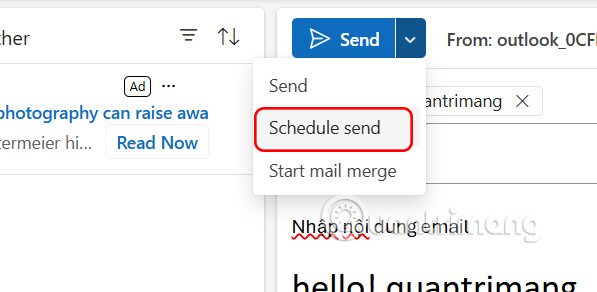
<p style="text-align: justify;"><strong>Bước 1:</strong></p>

<p style="text-align: justify;">Tại giao diện Outlook trên máy tính, chúng ta&nbsp;<strong>soạn email như bình thường</strong>. Sau đó bạn nhấn vào&nbsp;<strong>biểu tượng mũi tên cạnh Send</strong>. Lúc này bạn&nbsp;<strong>chọn Schedule send</strong>.</p>

<p style="text-align: justify;"><img alt="Lên lịch gửi email Outlook máy tính" data-i="0" data-src="https://st.quantrimang.com/photos/image/2025/07/04/Outlook-len-lich-gui-email-1.jpg" data-was-processed="true" height="292" src="https://st.quantrimang.com/photos/image/2025/07/04/Outlook-len-lich-gui-email-1.jpg" width="597" /></p>

<div style="text-align: justify;">Linh kiện máy tính</div>

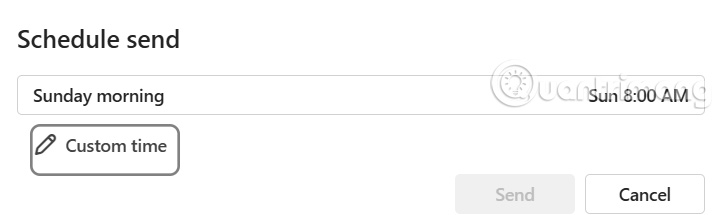
<p style="text-align: justify;"><strong>Bước 2:</strong></p>

<p style="text-align: justify;">Hiển thị giao diện lựa chọn thời gian gửi email Outlook. Bạn có thể chọn thời gian gợi ý, hoặc&nbsp;<strong>nhấn Custom time để chọn thời gian lên lịch gửi email</strong>&nbsp;khác bạn muốn.</p>

<p style="text-align: justify;"><img alt="Chọn lịch gửi email Outlook máy tính" data-i="1" data-src="https://st.quantrimang.com/photos/image/2025/07/04/Outlook-len-lich-gui-email-2.jpg" data-was-processed="true" height="190" src="https://st.quantrimang.com/photos/image/2025/07/04/Outlook-len-lich-gui-email-2.jpg" width="640" /></p>

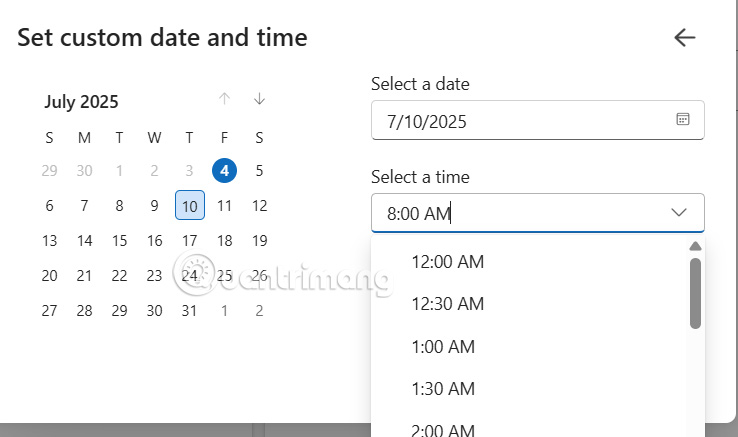
<p style="text-align: justify;"><strong>Bước 3:</strong></p>

<p style="text-align: justify;">Chúng ta chọn ngày và thời gian bạn muốn lên lịch gửi email Outlook rồi<strong>&nbsp;nhấn Send</strong>&nbsp;để lên lịch là được.</p>

<p style="text-align: justify;"><img alt="Lịch gửi email Outlook máy tính" data-i="2" data-src="https://st.quantrimang.com/photos/image/2025/07/04/Outlook-len-lich-gui-email-3.jpg" data-was-processed="true" height="355" src="https://st.quantrimang.com/photos/image/2025/07/04/Outlook-len-lich-gui-email-3.jpg" width="600" /></p>

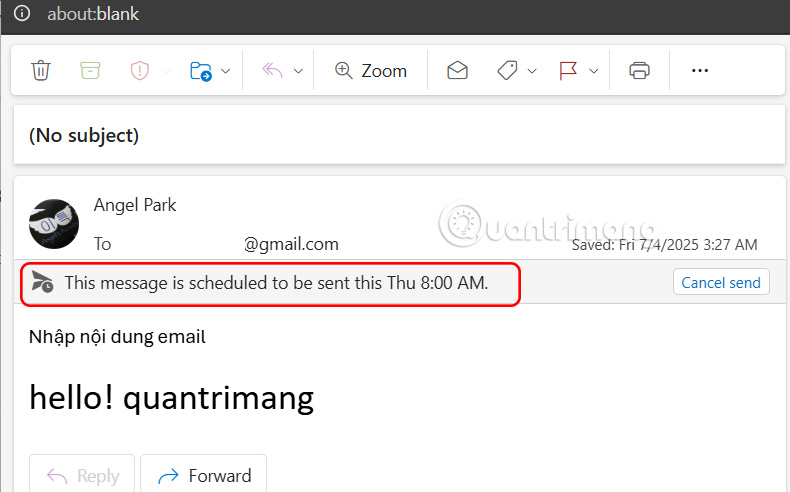
<p style="text-align: justify;">Email lên lịch gửi trong Outlook được lưu lại kèm thời gian như hình dưới đây. Tại đây bạn có thể nhấn Cancel send để hủy lên lịch gửi email trên Outlook máy tính.</p>

<div style="text-align: justify;">Linh kiện máy tính</div>

<p style="text-align: justify;"><img alt="Email Outlook lên lịch gửi trên máy tính" data-i="3" data-src="https://st.quantrimang.com/photos/image/2025/07/04/Outlook-len-lich-gui-email-4.jpg" data-was-processed="true" height="374" src="https://st.quantrimang.com/photos/image/2025/07/04/Outlook-len-lich-gui-email-4.jpg" width="600" /></p>

<h2 style="text-align: justify;">Cách lên lịch gửi email Outlook trên Android</h2>

<p style="text-align: justify;">Hiện tại mới chỉ có Outlook trên Android có tùy chọn hẹn giờ lên lịch mà thôi</p>

<p style="text-align: justify;"><strong>Bước 1:</strong></p>

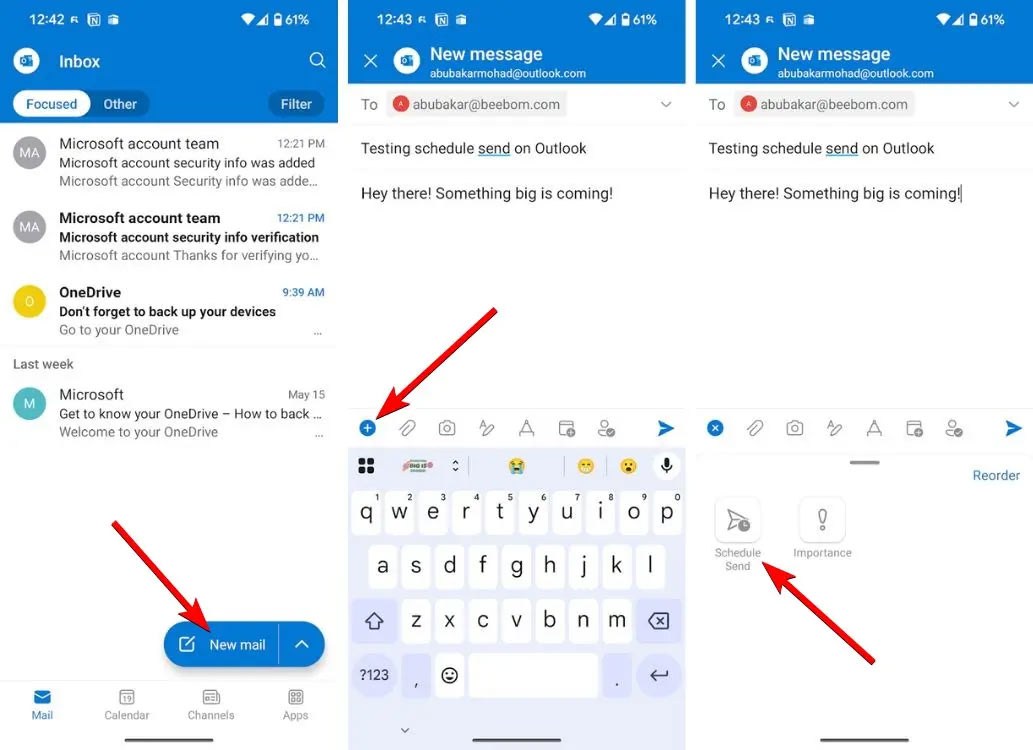
<p style="text-align: justify;">Trong giao diện ứng dụng Outlook Android, bạn<strong>&nbsp;nhấn vào New mail</strong>&nbsp;rồi&nbsp;<strong>soạn email mới&nbsp;</strong>như bình thường.</p>

<p style="text-align: justify;">Lúc này bạn nhấn vào<strong>&nbsp;biểu tượng dấu cộng màu xanh</strong>&nbsp;ở thanh công cụ bên dưới rồi chọn&nbsp;<strong>Schedule Send</strong>&nbsp;để tiến hành lên lịch gửi email trên Outlook.</p>

<p style="text-align: justify;"><img alt="Lên lịch gửi email Outlook Android" data-i="4" data-src="https://st.quantrimang.com/photos/image/2025/07/04/Outlook-len-lich-gui-email-5.jpg" data-was-processed="true" height="436" src="https://st.quantrimang.com/photos/image/2025/07/04/Outlook-len-lich-gui-email-5.jpg" width="600" /></p>

<p style="text-align: justify;"><strong>Bước 2:</strong></p>

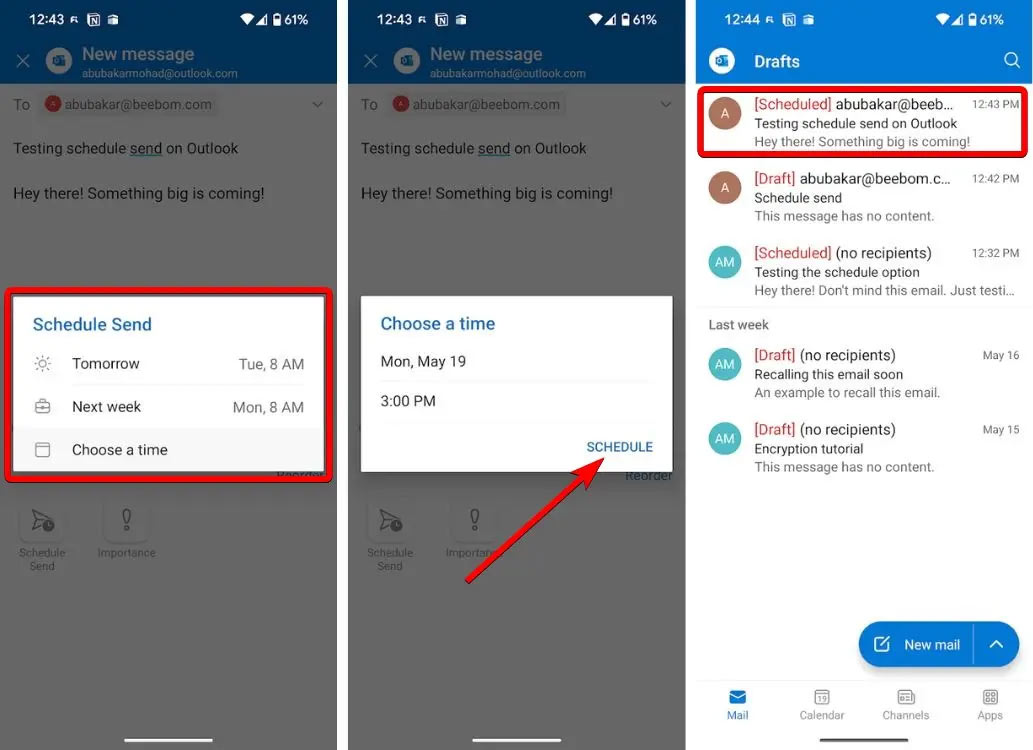
<p style="text-align: justify;">Tiếp tới bạn cũng&nbsp;<strong>chọn thời gian mình muốn gửi email Outlook&nbsp;</strong>này rồi&nbsp;<strong>nhấn Schedule</strong>&nbsp;là xong. Email lên lịch gửi trong Outlook sẽ hiển thị trong mục Drafts để bạn theo dõi và hủy gửi nếu muốn.</p>

<p style="text-align: justify;"><img alt="Thời gian lên lịch gửi email Outlook Android" data-i="5" data-src="https://st.quantrimang.com/photos/image/2025/07/04/Outlook-len-lich-gui-email-6.jpg" data-was-processed="true" height="436" src="https://st.quantrimang.com/photos/image/2025/07/04/Outlook-len-lich-gui-email-6.jpg" width="600" /></p>

<div style="text-align: justify;">&nbsp;</div>
		</div>
				<div id="author">
						<p>
				<strong>Nguồn tin:</strong>
				Quantrimang.com:
			</p>
		</div>
	</div>
	<div id="footer" class="clearfix">
		<div id="url">
			<strong>URL của bản tin này: </strong><a href="https://www.nguoicodonvn2008.info/vi/news/savefile/kien-thuc-may-tinh/cach-len-lich-gui-email-trong-outlook-10734.html" title="Cách lên lịch gửi email trong Outlook">https://www.nguoicodonvn2008.info/vi/news/savefile/kien-thuc-may-tinh/cach-len-lich-gui-email-trong-outlook-10734.html</a>

		</div>
		<div class="clear"></div>
		<div class="copyright">
			&copy; .&#x3A; Nguoicodonvn2008.info - Cõi lòng người cô đơn &#x3A;.
		</div>
		<div id="contact">
			<a href="mailto:admin@nguoicodonvn2008.info">admin@nguoicodonvn2008.info</a>
		</div>
	</div>
</div>
        <div id="timeoutsess" class="chromeframe">
            Bạn đã không sử dụng Site, <a onclick="timeoutsesscancel();" href="https://www.nguoicodonvn2008.info/#">Bấm vào đây để duy trì trạng thái đăng nhập</a>. Thời gian chờ: <span id="secField"> 60 </span> giây
        </div>
        <div id="openidResult" class="nv-alert" style="display:none"></div>
        <div id="openidBt" data-result="" data-redirect=""></div>
		</script>
		<div class="car-top">
  <span><img src="https://www.nguoicodonvn2008.info/themes/default/images/car.png" alt=""></span>
</div>
<script src="https://www.nguoicodonvn2008.info/assets/js/jquery/jquery.min.js"></script>
<script>var nv_base_siteurl="/",nv_lang_data="vi",nv_lang_interface="vi",nv_name_variable="nv",nv_fc_variable="op",nv_lang_variable="language",nv_module_name="news",nv_func_name="savefile",nv_is_user=0, nv_my_ofs=-4,nv_my_abbr="EDT",nv_cookie_prefix="nv4c_e856T",nv_check_pass_mstime=1738000,nv_area_admin=0,nv_safemode=0,theme_responsive=0,nv_recaptcha_ver=2,nv_recaptcha_sitekey="",nv_recaptcha_type="image",XSSsanitize=1;</script>
<script src="https://www.nguoicodonvn2008.info/assets/js/language/vi.js"></script>
<script src="https://www.nguoicodonvn2008.info/assets/js/DOMPurify/purify3.js"></script>
<script src="https://www.nguoicodonvn2008.info/assets/js/global.js"></script>
<script src="https://www.nguoicodonvn2008.info/assets/js/site.js"></script>
<script src="https://www.nguoicodonvn2008.info/themes/default/js/news.js"></script>
<script src="https://www.nguoicodonvn2008.info/themes/default/js/main.js"></script>
<script src="https://www.nguoicodonvn2008.info/themes/default/js/custom.js"></script>
<script type="application/ld+json">
        {
            "@context": "https://schema.org",
            "@type": "Organization",
            "url": "https://www.nguoicodonvn2008.info",
            "logo": "https://www.nguoicodonvn2008.info/uploads/angel.gif"
        }
        </script>
<script src="https://www.nguoicodonvn2008.info/themes/default/js/bootstrap.min.js"></script>
<script type="text/javascript">
var $scrolltop = $('.car-top');
$scrolltop.on('click', function () {
    $('html,body').animate({
        scrollTop: 0
    }, 800);
    $(this).addClass("car-run");
    setTimeout(function(){ $scrolltop.removeClass('car-run');}, 1000);
    return false;
});
$(window).on('scroll', function ()
{ 
    if($(window).scrollTop() >= 200)
    {
        $scrolltop.addClass("show");
        $scrolltop.addClass("car-down");
    }
    else
    {
       $scrolltop.removeClass("show");
       setTimeout(function(){ $scrolltop.removeClass('car-down');}, 300);
    }
});
</script>
</body>
</html>