<!DOCTYPE html>
    <html lang="vi" xmlns="http://www.w3.org/1999/xhtml" prefix="og: http://ogp.me/ns#">
    <head>
<title>Cách làm slide PowerPoint nổi bật với video nhúng</title>
<meta name="description" content="Cách làm slide PowerPoint nổi bật với video nhúng - Savefile - Tin Tức -...">
<meta name="author" content=".: Nguoicodonvn2008.info - Cõi lòng người cô đơn :.">
<meta name="copyright" content=".: Nguoicodonvn2008.info - Cõi lòng người cô đơn :. [admin@nguoicodonvn2008.info]">
<meta name="robots" content="index, archive, follow, noodp">
<meta name="googlebot" content="index,archive,follow,noodp">
<meta name="msnbot" content="all,index,follow">
<meta name="generator" content="NukeViet v4.5">
<meta http-equiv="Content-Type" content="text/html; charset=utf-8">
<meta property="og:title" content="Cách làm slide PowerPoint nổi bật với video nhúng">
<meta property="og:type" content="website">
<meta property="og:description" content="Savefile - Tin Tức - https&#x3A;&#x002F;&#x002F;www.nguoicodonvn2008.info&#x002F;vi&#x002F;news&#x002F;savefile&#x002F;kien-thuc-may-tinh&#x002F;cach-lam-slide-powerpoint-noi-bat-voi-video-nhung-9803.html">
<meta property="og:site_name" content=".&#x3A; Nguoicodonvn2008.info - Cõi lòng người cô đơn &#x3A;.">
<meta property="og:url" content="https://www.nguoicodonvn2008.info/vi/news/savefile/kien-thuc-may-tinh/cach-lam-slide-powerpoint-noi-bat-voi-video-nhung-9803.html">
<link rel="shortcut icon" href="https://www.nguoicodonvn2008.info/favicon.ico">
<link rel="canonical" href="https://www.nguoicodonvn2008.info/vi/news/savefile/kien-thuc-may-tinh/cach-lam-slide-powerpoint-noi-bat-voi-video-nhung-9803.html">
<link rel="alternate" href="https://www.nguoicodonvn2008.info/vi/news/rss/" title="Tin Tức" type="application/rss+xml">
<link rel="alternate" href="https://www.nguoicodonvn2008.info/vi/news/rss/karaoke-dual/" title="Tin Tức - Karaoke Dual" type="application/rss+xml">
<link rel="alternate" href="https://www.nguoicodonvn2008.info/vi/news/rss/nhac-tre/" title="Tin Tức - Nhạc trẻ" type="application/rss+xml">
<link rel="alternate" href="https://www.nguoicodonvn2008.info/vi/news/rss/tru-tinh/" title="Tin Tức - Trữ tình" type="application/rss+xml">
<link rel="alternate" href="https://www.nguoicodonvn2008.info/vi/news/rss/nuoc-ngoai/" title="Tin Tức - Nước ngoài" type="application/rss+xml">
<link rel="alternate" href="https://www.nguoicodonvn2008.info/vi/news/rss/remix/" title="Tin Tức - Remix" type="application/rss+xml">
<link rel="alternate" href="https://www.nguoicodonvn2008.info/vi/news/rss/tam-su-tinh-yeu/" title="Tin Tức - Tâm sự tình yêu" type="application/rss+xml">
<link rel="alternate" href="https://www.nguoicodonvn2008.info/vi/news/rss/tho-suu-tam/" title="Tin Tức - Thơ sưu tầm" type="application/rss+xml">
<link rel="alternate" href="https://www.nguoicodonvn2008.info/vi/news/rss/cuoc-song/" title="Tin Tức - Cuộc sống" type="application/rss+xml">
<link rel="alternate" href="https://www.nguoicodonvn2008.info/vi/news/rss/phan-mem/" title="Tin Tức - Phần mềm" type="application/rss+xml">
<link rel="alternate" href="https://www.nguoicodonvn2008.info/vi/news/rss/kien-thuc-may-tinh/" title="Tin Tức - Kiến thức máy tính" type="application/rss+xml">
<link rel="alternate" href="https://www.nguoicodonvn2008.info/vi/news/rss/hoc-tap/" title="Tin Tức - Học tập" type="application/rss+xml">
<link rel="alternate" href="https://www.nguoicodonvn2008.info/vi/news/rss/tai-lieu/" title="Tin Tức - Tài liệu" type="application/rss+xml">
<link rel="alternate" href="https://www.nguoicodonvn2008.info/vi/news/rss/de-thi/" title="Tin Tức - Đề thi" type="application/rss+xml">
<link rel="preload" as="style" href="https://www.nguoicodonvn2008.info/assets/css/font-awesome.min.css" type="text/css">
<link rel="preload" as="style" href="https://www.nguoicodonvn2008.info/themes/default/css/bootstrap.non-responsive.css" type="text/css">
<link rel="preload" as="style" href="https://www.nguoicodonvn2008.info/themes/default/css/style.css" type="text/css">
<link rel="preload" as="style" href="https://www.nguoicodonvn2008.info/themes/default/css/style.non-responsive.css" type="text/css">
<link rel="preload" as="style" href="https://www.nguoicodonvn2008.info/themes/default/css/news.css" type="text/css">
<link rel="preload" as="style" href="https://www.nguoicodonvn2008.info/themes/default/css/custom.css" type="text/css">
<link rel="preload" as="script" href="https://www.nguoicodonvn2008.info/assets/js/jquery/jquery.min.js" type="text/javascript">
<link rel="preload" as="script" href="https://www.nguoicodonvn2008.info/assets/js/language/vi.js" type="text/javascript">
<link rel="preload" as="script" href="https://www.nguoicodonvn2008.info/assets/js/DOMPurify/purify3.js" type="text/javascript">
<link rel="preload" as="script" href="https://www.nguoicodonvn2008.info/assets/js/global.js" type="text/javascript">
<link rel="preload" as="script" href="https://www.nguoicodonvn2008.info/assets/js/site.js" type="text/javascript">
<link rel="preload" as="script" href="https://www.nguoicodonvn2008.info/themes/default/js/news.js" type="text/javascript">
<link rel="preload" as="script" href="https://www.nguoicodonvn2008.info/themes/default/js/main.js" type="text/javascript">
<link rel="preload" as="script" href="https://www.nguoicodonvn2008.info/themes/default/js/custom.js" type="text/javascript">
<link rel="preload" as="script" href="https://www.nguoicodonvn2008.info/themes/default/js/bootstrap.min.js" type="text/javascript">
<link rel="stylesheet" href="https://www.nguoicodonvn2008.info/assets/css/font-awesome.min.css">
<link rel="stylesheet" href="https://www.nguoicodonvn2008.info/themes/default/css/bootstrap.non-responsive.css">
<link rel="stylesheet" href="https://www.nguoicodonvn2008.info/themes/default/css/style.css">
<link rel="stylesheet" href="https://www.nguoicodonvn2008.info/themes/default/css/style.non-responsive.css">
<link rel="StyleSheet" href="https://www.nguoicodonvn2008.info/themes/default/css/news.css">
<link rel="stylesheet" href="https://www.nguoicodonvn2008.info/themes/default/css/custom.css">
<style type="text/css">
	body{background: #fff;}
</style>
    </head>
    <body>
<div id="print">
	<div id="hd_print">
		<h2 class="pull-left">.&#x3A; Nguoicodonvn2008.info - Cõi lòng người cô đơn &#x3A;.</h2>
		<p class="pull-right"><a title=".&#x3A; Nguoicodonvn2008.info - Cõi lòng người cô đơn &#x3A;." href="https://www.nguoicodonvn2008.info/">https://www.nguoicodonvn2008.info</a></p>
	</div>
	<div class="clear"></div>
	<hr />
	<div id="content">
		<h1>Cách làm slide PowerPoint nổi bật với video nhúng</h1>
		<ul class="list-inline">
			<li>Thứ tư - 12/02/2025 22:46</li>
			<li class="hidden-print txtrequired"><em class="fa fa-print">&nbsp;</em><a title="In ra" href="javascript:;" onclick="window.print()">In ra</a></li>
			<li class="hidden-print txtrequired"><em class="fa fa-power-off">&nbsp;</em><a title="Đóng cửa sổ này" href="javascript:;" onclick="window.close()">Đóng cửa sổ này</a></li>
		</ul>
		<div class="clear"></div>
		<div id="hometext">
		</div>
				<div class="imghome">
			<img alt="Cách làm slide PowerPoint nổi bật với video nhúng" src="https://st.quantrimang.com/photos/image/2025/02/11/lam-slide-powerpoint-noi-bat-voi-video-nhung-5.png" width="460" class="img-thumbnail" />
		</div>
		<div class="clear"></div>
		<div id="bodytext" class="clearfix">
			<p style="text-align: justify;">Các slide quá nhiều văn bản có thể khiến khán giả của bạn buồn ngủ. Nếu muốn họ tập trung theo dõi, thêm video vào PowerPoint dễ hơn bạn nghĩ và nó ngay lập tức khiến bài thuyết trình của bạn hấp dẫn hơn.</p>

<h2 style="text-align: justify;">Thêm video từ PC vào PowerPoint</h2>

<p style="text-align: justify;">Nếu video bạn muốn đưa vào bài thuyết trình PowerPoint đã được lưu trữ trên PC, bạn có thể chèn trực tiếp vào bài thuyết trình hoặc liên kết đến file.</p>

<p style="text-align: justify;">Khi bạn chèn video trực tiếp, file video sẽ trở thành một phần của chính bài thuyết trình PowerPoint. Đây là một tùy chọn tuyệt vời nếu bạn muốn đảm bảo video phát bất kể đang sử dụng thiết bị nào để thuyết trình, vì video sẽ di chuyển cùng với bài thuyết trình. Tuy nhiên, hãy nhớ rằng điều này có thể làm tăng đáng kể kích thước file bài thuyết trình của bạn.</p>

<p style="text-align: justify;">Ngoài ra, bạn có thể liên kết video, video sẽ phát trong bài thuyết trình, nhưng bạn phải đảm bảo file video vẫn ở cùng một vị trí và có thể truy cập được trong khi thuyết trình. Tùy chọn này rất tiện lợi nếu bạn muốn giữ kích thước file bài thuyết trình nhỏ hơn.</p>

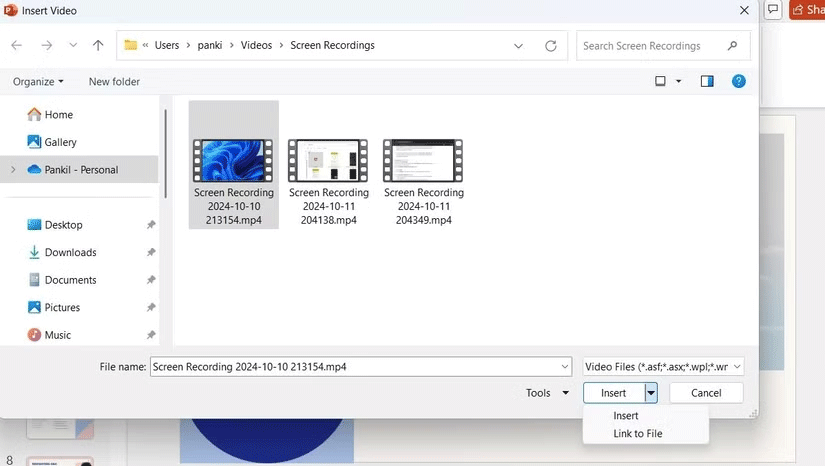
<p style="text-align: justify;">Để chèn hoặc liên kết đến video được lưu trữ trên PC trong bài thuyết trình PowerPoint:</p>

<ol>
	<li style="text-align: justify;">Trong PowerPoint, hãy chuyển đến slide mà bạn muốn thêm video.</li>
	<li style="text-align: justify;">Nhấp vào tab&nbsp;<strong>Insert</strong>&nbsp;ở trên cùng.</li>
	<li style="text-align: justify;">Đi đến phần&nbsp;<strong>Media</strong>&nbsp;và nhấp vào&nbsp;<strong>Video &gt; This Device</strong>.</li>
	<li style="text-align: justify;">Trong cửa sổ&nbsp;<strong>Insert Video</strong>, hãy tìm và chọn video bạn muốn thêm.</li>
	<li style="text-align: justify;">Nhấp vào mũi tên nhỏ bên cạnh nút&nbsp;<strong>Insert</strong>&nbsp;và chọn&nbsp;<strong>Insert</strong>&nbsp;(để nhúng video trực tiếp) hoặc&nbsp;<strong>Link to File</strong>&nbsp;(để tạo shortcut đến video).</li>
</ol>

<figure>
<div style="text-align: justify;"><img alt="Hộp thoại Insert Video trong PowerPoint" data-i="0" data-src="https://st.quantrimang.com/photos/image/2025/02/11/lam-slide-powerpoint-noi-bat-voi-video-nhung-1.png" data-was-processed="true" height="466" src="https://st.quantrimang.com/photos/image/2025/02/11/lam-slide-powerpoint-noi-bat-voi-video-nhung-1.png" width="825" /></div>

<figcaption>
<div style="text-align: justify;">Hộp thoại Insert Video trong PowerPoint</div>
</figcaption>
</figure>

<h2 style="text-align: justify;">Nhúng video trực tuyến vào PowerPoint</h2>

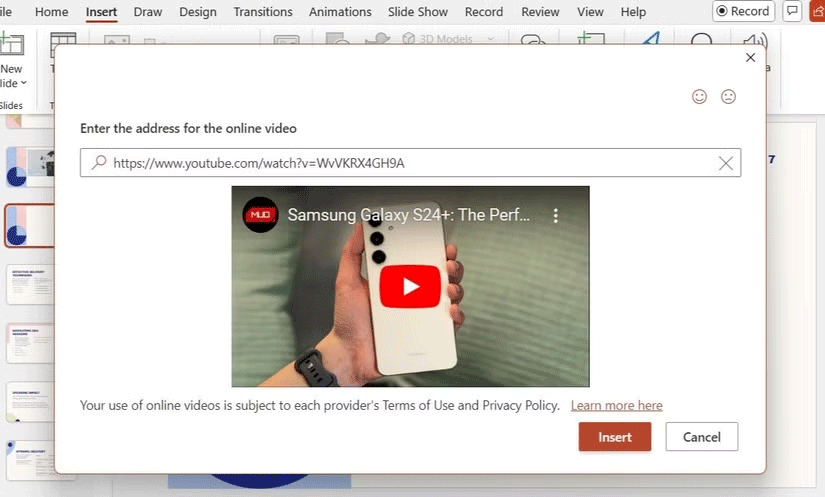
<p style="text-align: justify;">Nếu muốn nâng cao bài thuyết trình PowerPoint của mình bằng video từ các nền tảng như YouTube hoặc Vimeo, bạn không cần phải tải video xuống PC. Các phiên bản PowerPoint hiện đại (PowerPoint cho Microsoft 365, PowerPoint 2021 hoặc PowerPoint 2019) giúp bạn dễ dàng nhúng video trực tiếp từ web. Sau đây là cách thực hiện:</p>

<ol>
	<li style="text-align: justify;">Tìm video bạn muốn sử dụng trong bài thuyết trình của mình và sao chép URL của video đó từ thanh địa chỉ.</li>
	<li style="text-align: justify;">Đi đến PowerPoint và chọn slide mà bạn muốn thêm video.</li>
	<li style="text-align: justify;">Đi đến tab&nbsp;<strong>Insert</strong>&nbsp;và nhấp vào&nbsp;<strong>Video &gt; Online Video</strong>.</li>
	<li style="text-align: justify;">Trong hộp thoại&nbsp;<strong>Online Video</strong>, hãy dán URL bạn đã sao chép trước đó.</li>
	<li style="text-align: justify;">Chọn&nbsp;<strong>Insert</strong>.</li>
</ol>

<figure>
<div style="text-align: justify;"><img alt="Hộp thoại Insert trong PowerPoint hiển thị video YouTube có URL" data-adbro-processed="true" data-i="1" data-src="https://st.quantrimang.com/photos/image/2025/02/11/lam-slide-powerpoint-noi-bat-voi-video-nhung-2.png" data-was-processed="true" height="497" src="https://st.quantrimang.com/photos/image/2025/02/11/lam-slide-powerpoint-noi-bat-voi-video-nhung-2.png" width="825" /></div>

<figcaption>
<div style="text-align: justify;">Hộp thoại Insert trong PowerPoint hiển thị video YouTube có URL</div>
</figcaption>
</figure>

<p style="text-align: justify;"><strong>Lưu ý</strong>: Bạn có thể phát video trong bài thuyết trình của mình miễn là bạn được kết nối với Internet. Video sẽ phát trực tiếp từ nguồn, do đó bạn sẽ thấy các chức năng điều khiển của trang web cho những hành động như phát, tạm dừng và điều chỉnh âm lượng.</p>

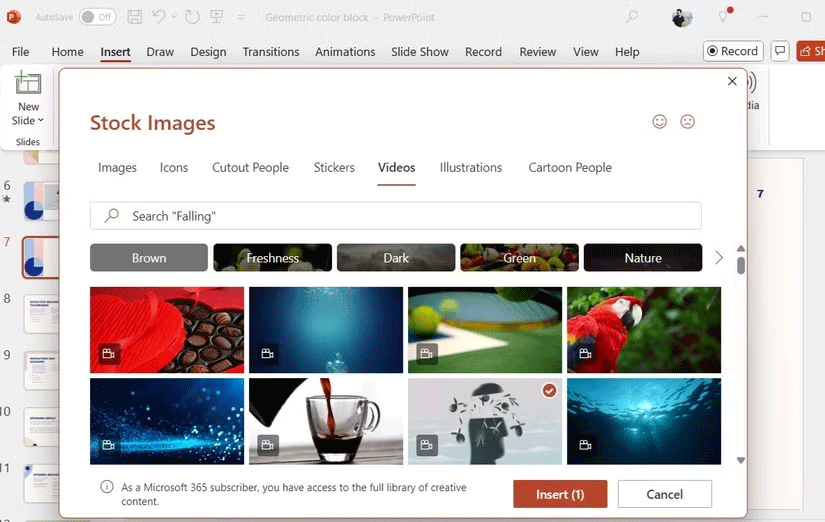
<p style="text-align: justify;">Nếu bạn đang tìm kiếm hình ảnh miễn phí bản quyền chất lượng cao nhưng không có video cụ thể nào trong đầu, bạn có thể thêm video từ thư viện nội dung của Microsoft 365. Để thực hiện việc này, chỉ cần vào&nbsp;<strong>Insert &gt; Video &gt; Stock Video</strong>. Sau đó, duyệt qua thư viện, chọn video bạn thích và nhấp vào&nbsp;<strong>Insert</strong>.</p>

<figure>
<div style="text-align: justify;"><img alt="Hộp thoại Stock Images hiển thị video có nút Insert trong PowerPoint" data-i="2" data-src="https://st.quantrimang.com/photos/image/2025/02/11/lam-slide-powerpoint-noi-bat-voi-video-nhung-3.png" data-was-processed="true" height="522" src="https://st.quantrimang.com/photos/image/2025/02/11/lam-slide-powerpoint-noi-bat-voi-video-nhung-3.png" width="825" /></div>

<figcaption>
<div style="text-align: justify;">Hộp thoại Stock Images hiển thị video có nút Insert trong PowerPoint</div>
</figcaption>
</figure>

<p style="text-align: justify;"><strong>Lưu ý</strong>: Video stock sẽ được tải xuống và nhúng vào bài thuyết trình, do đó bạn sẽ không cần kết nối Internet trong khi thuyết trình.</p>

<h2 style="text-align: justify;">Mẹo nhúng video trong PowerPoint</h2>

<p style="text-align: justify;">Sau khi chèn video ưa thích vào bài thuyết trình, bạn có thể thực hiện một số thao tác để khiến video trông đẹp hơn.</p>

<h3 style="text-align: justify;">1. Thay đổi thumbnail của video</h3>

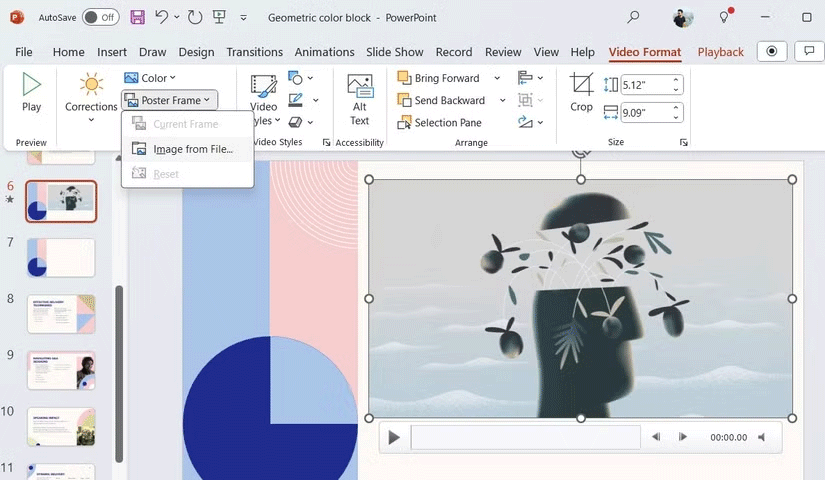
<p style="text-align: justify;">Theo mặc định, PowerPoint sử dụng khung hình đầu tiên của video làm thumbnail, nhưng bạn có thể dễ dàng thay đổi thành hình ảnh hấp dẫn hơn. Chỉ cần chọn video, vào&nbsp;<strong>Video Format &gt; Poster Frame &gt; Image from File</strong>&nbsp;và chọn hình ảnh từ PC, thư viện lưu trữ hoặc thậm chí sử dụng biểu tượng để tạo điểm nhấn độc đáo.</p>

<figure>
<div style="text-align: justify;"><img alt="Tùy chọn Poster Frame trong bài thuyết trình PowerPoint" data-i="3" data-src="https://st.quantrimang.com/photos/image/2025/02/11/lam-slide-powerpoint-noi-bat-voi-video-nhung-4.png" data-was-processed="true" height="480" src="https://st.quantrimang.com/photos/image/2025/02/11/lam-slide-powerpoint-noi-bat-voi-video-nhung-4.png" width="825" /></div>

<figcaption>
<div style="text-align: justify;">Tùy chọn Poster Frame trong bài thuyết trình PowerPoint</div>
</figcaption>
</figure>

<h3 style="text-align: justify;">2. Áp dụng hiệu ứng</h3>

<p style="text-align: justify;">PowerPoint cung cấp nhiều hiệu ứng khác nhau để giúp video của bạn hòa trộn liền mạch vào thiết kế hoặc nổi bật như một điểm nhấn.</p>

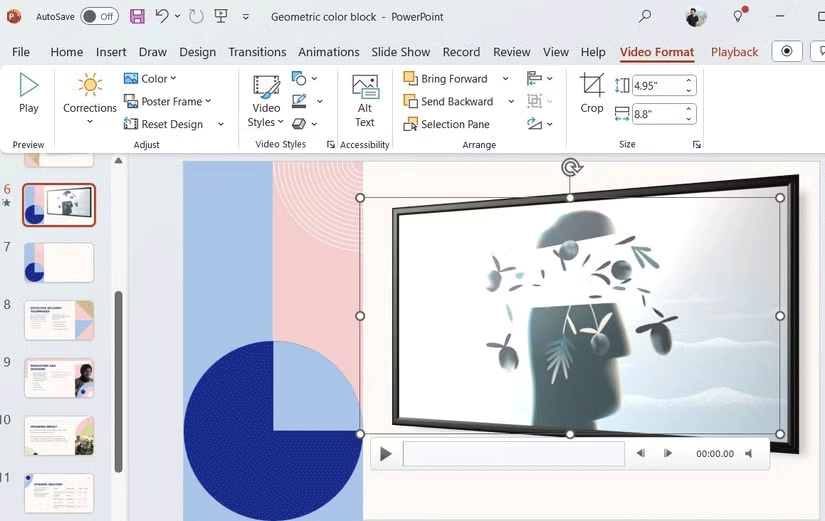
<p style="text-align: justify;">Chọn video của bạn và vào tab&nbsp;<strong>Video Format</strong>&nbsp;để tùy chỉnh. Từ đó, bạn có thể sử dụng các tùy chọn ở trên cùng để thêm đường viền hoặc bóng mờ tinh tế để có giao diện đẹp mắt. Ngoài ra, bạn có thể áp dụng một trong các kiểu video có sẵn để tăng cường giao diện của video.</p>

<figure>
<div style="text-align: justify;"><img alt="Tab Video Format trong PowerPoint" data-i="4" data-src="https://st.quantrimang.com/photos/image/2025/02/11/lam-slide-powerpoint-noi-bat-voi-video-nhung-5.png" data-was-processed="true" height="521" src="https://st.quantrimang.com/photos/image/2025/02/11/lam-slide-powerpoint-noi-bat-voi-video-nhung-5.png" width="825" /></div>

<figcaption>
<div style="text-align: justify;">Tab Video Format trong PowerPoint</div>
</figcaption>
</figure>

<h3 style="text-align: justify;">3. Điều chỉnh cài đặt&nbsp;Playback</h3>

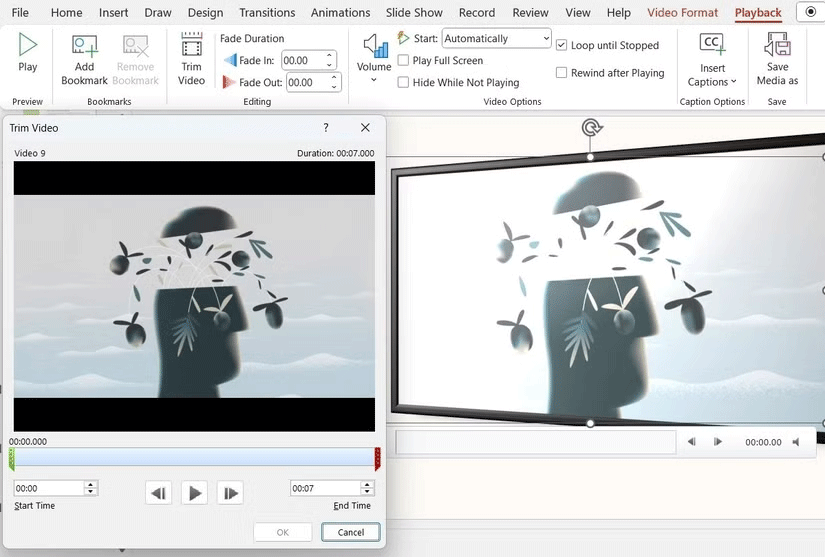
<p style="text-align: justify;">Nếu bạn đã nhúng video vào bài thuyết trình của mình - cho dù từ PC hay thư viện lưu trữ - bạn có thể vào tab&nbsp;<strong>Playback</strong>&nbsp;để cắt video đó. Từ tab này, bạn cũng có thể áp dụng hiệu ứng fade-in và fade-out, cũng như điều chỉnh âm lượng.</p>

<figure>
<div style="text-align: justify;"><img alt="Cửa sổ Trim Video trong bài thuyết trình PowerPoint" data-i="5" data-src="https://st.quantrimang.com/photos/image/2025/02/11/lam-slide-powerpoint-noi-bat-voi-video-nhung-6.png" data-was-processed="true" height="557" src="https://st.quantrimang.com/photos/image/2025/02/11/lam-slide-powerpoint-noi-bat-voi-video-nhung-6.png" width="825" /></div>

<figcaption>
<div style="text-align: justify;">Cửa sổ Trim Video trong bài thuyết trình PowerPoint</div>
</figcaption>
</figure>

<p style="text-align: justify;"><strong>Mẹo</strong>: Bạn cũng có thể chỉ định xem video có nên tự động phát khi slide xuất hiện hay muốn kích hoạt thủ công.</p>

<div style="text-align: justify;">&nbsp;</div>
		</div>
				<div id="author">
						<p>
				<strong>Nguồn tin:</strong>
				Quantrimang.com::
			</p>
		</div>
	</div>
	<div id="footer" class="clearfix">
		<div id="url">
			<strong>URL của bản tin này: </strong><a href="https://www.nguoicodonvn2008.info/vi/news/savefile/kien-thuc-may-tinh/cach-lam-slide-powerpoint-noi-bat-voi-video-nhung-9803.html" title="Cách làm slide PowerPoint nổi bật với video nhúng">https://www.nguoicodonvn2008.info/vi/news/savefile/kien-thuc-may-tinh/cach-lam-slide-powerpoint-noi-bat-voi-video-nhung-9803.html</a>

		</div>
		<div class="clear"></div>
		<div class="copyright">
			&copy; .&#x3A; Nguoicodonvn2008.info - Cõi lòng người cô đơn &#x3A;.
		</div>
		<div id="contact">
			<a href="mailto:admin@nguoicodonvn2008.info">admin@nguoicodonvn2008.info</a>
		</div>
	</div>
</div>
        <div id="timeoutsess" class="chromeframe">
            Bạn đã không sử dụng Site, <a onclick="timeoutsesscancel();" href="https://www.nguoicodonvn2008.info/#">Bấm vào đây để duy trì trạng thái đăng nhập</a>. Thời gian chờ: <span id="secField"> 60 </span> giây
        </div>
        <div id="openidResult" class="nv-alert" style="display:none"></div>
        <div id="openidBt" data-result="" data-redirect=""></div>
		</script>
		<div class="car-top">
  <span><img src="https://www.nguoicodonvn2008.info/themes/default/images/car.png" alt=""></span>
</div>
<div id="run_cronjobs" style="visibility:hidden;display:none;"><img alt="cron" src="/index.php?second=cronjobs&amp;p=p7c1E1go" width="1" height="1" /></div>
<script src="https://www.nguoicodonvn2008.info/assets/js/jquery/jquery.min.js"></script>
<script>var nv_base_siteurl="/",nv_lang_data="vi",nv_lang_interface="vi",nv_name_variable="nv",nv_fc_variable="op",nv_lang_variable="language",nv_module_name="news",nv_func_name="savefile",nv_is_user=0, nv_my_ofs=-4,nv_my_abbr="EDT",nv_cookie_prefix="nv4c_e856T",nv_check_pass_mstime=1738000,nv_area_admin=0,nv_safemode=0,theme_responsive=0,nv_recaptcha_ver=2,nv_recaptcha_sitekey="",nv_recaptcha_type="image",XSSsanitize=1;</script>
<script src="https://www.nguoicodonvn2008.info/assets/js/language/vi.js"></script>
<script src="https://www.nguoicodonvn2008.info/assets/js/DOMPurify/purify3.js"></script>
<script src="https://www.nguoicodonvn2008.info/assets/js/global.js"></script>
<script src="https://www.nguoicodonvn2008.info/assets/js/site.js"></script>
<script src="https://www.nguoicodonvn2008.info/themes/default/js/news.js"></script>
<script src="https://www.nguoicodonvn2008.info/themes/default/js/main.js"></script>
<script src="https://www.nguoicodonvn2008.info/themes/default/js/custom.js"></script>
<script type="application/ld+json">
        {
            "@context": "https://schema.org",
            "@type": "Organization",
            "url": "https://www.nguoicodonvn2008.info",
            "logo": "https://www.nguoicodonvn2008.info/uploads/angel.gif"
        }
        </script>
<script src="https://www.nguoicodonvn2008.info/themes/default/js/bootstrap.min.js"></script>
<script type="text/javascript">
var $scrolltop = $('.car-top');
$scrolltop.on('click', function () {
    $('html,body').animate({
        scrollTop: 0
    }, 800);
    $(this).addClass("car-run");
    setTimeout(function(){ $scrolltop.removeClass('car-run');}, 1000);
    return false;
});
$(window).on('scroll', function ()
{ 
    if($(window).scrollTop() >= 200)
    {
        $scrolltop.addClass("show");
        $scrolltop.addClass("car-down");
    }
    else
    {
       $scrolltop.removeClass("show");
       setTimeout(function(){ $scrolltop.removeClass('car-down');}, 300);
    }
});
</script>
</body>
</html>