<!DOCTYPE html>
    <html lang="vi" xmlns="http://www.w3.org/1999/xhtml" prefix="og: http://ogp.me/ns#">
    <head>
<title>Cách làm mờ chữ xuất hiện trong PowerPoint</title>
<meta name="description" content="Cách làm mờ chữ xuất hiện trong PowerPoint - Savefile - Tin Tức -...">
<meta name="author" content=".: Nguoicodonvn2008.info - Cõi lòng người cô đơn :.">
<meta name="copyright" content=".: Nguoicodonvn2008.info - Cõi lòng người cô đơn :. [admin@nguoicodonvn2008.info]">
<meta name="robots" content="index, archive, follow, noodp">
<meta name="googlebot" content="index,archive,follow,noodp">
<meta name="msnbot" content="all,index,follow">
<meta name="generator" content="NukeViet v4.5">
<meta http-equiv="Content-Type" content="text/html; charset=utf-8">
<meta property="og:title" content="Cách làm mờ chữ xuất hiện trong PowerPoint">
<meta property="og:type" content="website">
<meta property="og:description" content="Savefile - Tin Tức - https&#x3A;&#x002F;&#x002F;www.nguoicodonvn2008.info&#x002F;vi&#x002F;news&#x002F;savefile&#x002F;kien-thuc-may-tinh&#x002F;cach-lam-mo-chu-xuat-hien-trong-powerpoint-8887.html">
<meta property="og:site_name" content=".&#x3A; Nguoicodonvn2008.info - Cõi lòng người cô đơn &#x3A;.">
<meta property="og:url" content="https://www.nguoicodonvn2008.info/vi/news/savefile/kien-thuc-may-tinh/cach-lam-mo-chu-xuat-hien-trong-powerpoint-8887.html">
<link rel="shortcut icon" href="https://www.nguoicodonvn2008.info/favicon.ico">
<link rel="canonical" href="https://www.nguoicodonvn2008.info/vi/news/savefile/kien-thuc-may-tinh/cach-lam-mo-chu-xuat-hien-trong-powerpoint-8887.html">
<link rel="alternate" href="https://www.nguoicodonvn2008.info/vi/news/rss/" title="Tin Tức" type="application/rss+xml">
<link rel="alternate" href="https://www.nguoicodonvn2008.info/vi/news/rss/karaoke-dual/" title="Tin Tức - Karaoke Dual" type="application/rss+xml">
<link rel="alternate" href="https://www.nguoicodonvn2008.info/vi/news/rss/nhac-tre/" title="Tin Tức - Nhạc trẻ" type="application/rss+xml">
<link rel="alternate" href="https://www.nguoicodonvn2008.info/vi/news/rss/tru-tinh/" title="Tin Tức - Trữ tình" type="application/rss+xml">
<link rel="alternate" href="https://www.nguoicodonvn2008.info/vi/news/rss/nuoc-ngoai/" title="Tin Tức - Nước ngoài" type="application/rss+xml">
<link rel="alternate" href="https://www.nguoicodonvn2008.info/vi/news/rss/remix/" title="Tin Tức - Remix" type="application/rss+xml">
<link rel="alternate" href="https://www.nguoicodonvn2008.info/vi/news/rss/tam-su-tinh-yeu/" title="Tin Tức - Tâm sự tình yêu" type="application/rss+xml">
<link rel="alternate" href="https://www.nguoicodonvn2008.info/vi/news/rss/tho-suu-tam/" title="Tin Tức - Thơ sưu tầm" type="application/rss+xml">
<link rel="alternate" href="https://www.nguoicodonvn2008.info/vi/news/rss/cuoc-song/" title="Tin Tức - Cuộc sống" type="application/rss+xml">
<link rel="alternate" href="https://www.nguoicodonvn2008.info/vi/news/rss/phan-mem/" title="Tin Tức - Phần mềm" type="application/rss+xml">
<link rel="alternate" href="https://www.nguoicodonvn2008.info/vi/news/rss/kien-thuc-may-tinh/" title="Tin Tức - Kiến thức máy tính" type="application/rss+xml">
<link rel="alternate" href="https://www.nguoicodonvn2008.info/vi/news/rss/hoc-tap/" title="Tin Tức - Học tập" type="application/rss+xml">
<link rel="alternate" href="https://www.nguoicodonvn2008.info/vi/news/rss/tai-lieu/" title="Tin Tức - Tài liệu" type="application/rss+xml">
<link rel="alternate" href="https://www.nguoicodonvn2008.info/vi/news/rss/de-thi/" title="Tin Tức - Đề thi" type="application/rss+xml">
<link rel="preload" as="style" href="https://www.nguoicodonvn2008.info/assets/css/font-awesome.min.css" type="text/css">
<link rel="preload" as="style" href="https://www.nguoicodonvn2008.info/themes/default/css/bootstrap.non-responsive.css" type="text/css">
<link rel="preload" as="style" href="https://www.nguoicodonvn2008.info/themes/default/css/style.css" type="text/css">
<link rel="preload" as="style" href="https://www.nguoicodonvn2008.info/themes/default/css/style.non-responsive.css" type="text/css">
<link rel="preload" as="style" href="https://www.nguoicodonvn2008.info/themes/default/css/news.css" type="text/css">
<link rel="preload" as="style" href="https://www.nguoicodonvn2008.info/themes/default/css/custom.css" type="text/css">
<link rel="preload" as="script" href="https://www.nguoicodonvn2008.info/assets/js/jquery/jquery.min.js" type="text/javascript">
<link rel="preload" as="script" href="https://www.nguoicodonvn2008.info/assets/js/language/vi.js" type="text/javascript">
<link rel="preload" as="script" href="https://www.nguoicodonvn2008.info/assets/js/DOMPurify/purify3.js" type="text/javascript">
<link rel="preload" as="script" href="https://www.nguoicodonvn2008.info/assets/js/global.js" type="text/javascript">
<link rel="preload" as="script" href="https://www.nguoicodonvn2008.info/assets/js/site.js" type="text/javascript">
<link rel="preload" as="script" href="https://www.nguoicodonvn2008.info/themes/default/js/news.js" type="text/javascript">
<link rel="preload" as="script" href="https://www.nguoicodonvn2008.info/themes/default/js/main.js" type="text/javascript">
<link rel="preload" as="script" href="https://www.nguoicodonvn2008.info/themes/default/js/custom.js" type="text/javascript">
<link rel="preload" as="script" href="https://www.nguoicodonvn2008.info/themes/default/js/bootstrap.min.js" type="text/javascript">
<link rel="stylesheet" href="https://www.nguoicodonvn2008.info/assets/css/font-awesome.min.css">
<link rel="stylesheet" href="https://www.nguoicodonvn2008.info/themes/default/css/bootstrap.non-responsive.css">
<link rel="stylesheet" href="https://www.nguoicodonvn2008.info/themes/default/css/style.css">
<link rel="stylesheet" href="https://www.nguoicodonvn2008.info/themes/default/css/style.non-responsive.css">
<link rel="StyleSheet" href="https://www.nguoicodonvn2008.info/themes/default/css/news.css">
<link rel="stylesheet" href="https://www.nguoicodonvn2008.info/themes/default/css/custom.css">
<style type="text/css">
	body{background: #fff;}
</style>
    </head>
    <body>
<div id="print">
	<div id="hd_print">
		<h2 class="pull-left">.&#x3A; Nguoicodonvn2008.info - Cõi lòng người cô đơn &#x3A;.</h2>
		<p class="pull-right"><a title=".&#x3A; Nguoicodonvn2008.info - Cõi lòng người cô đơn &#x3A;." href="https://www.nguoicodonvn2008.info/">https://www.nguoicodonvn2008.info</a></p>
	</div>
	<div class="clear"></div>
	<hr />
	<div id="content">
		<h1>Cách làm mờ chữ xuất hiện trong PowerPoint</h1>
		<ul class="list-inline">
			<li>Thứ ba - 20/08/2024 23:56</li>
			<li class="hidden-print txtrequired"><em class="fa fa-print">&nbsp;</em><a title="In ra" href="javascript:;" onclick="window.print()">In ra</a></li>
			<li class="hidden-print txtrequired"><em class="fa fa-power-off">&nbsp;</em><a title="Đóng cửa sổ này" href="javascript:;" onclick="window.close()">Đóng cửa sổ này</a></li>
		</ul>
		<div class="clear"></div>
		<div id="hometext">
		</div>
				<div class="imghome">
			<img alt="Cách làm mờ chữ xuất hiện trong PowerPoint" src="https://st.quantrimang.com/photos/image/2020/01/16/PowerPoint-hieu-ung-lam-mo-1.jpg" width="460" class="img-thumbnail" />
		</div>
		<div class="clear"></div>
		<div id="bodytext" class="clearfix">
			<p style="text-align: justify;">Có rất nhiều hiệu ứng áp dụng cho chữ khi trình chiếu trên slide PowerPoint mà người dùng có thể lựa chọn sử dụng sao cho phù hợp. Một trong số đó là hiệu ứng làm mờ chữ hiển thị trong slide. Khi bạn thuyết trình nhiều nội dung thì chúng ta có thể làm mờ nội dung đã trình bày để tập trung hiển thị vào nội dung đang thuyết trình. Nội dung cũ vẫn xuất hiện trên slide, nhưng không làm ảnh hưởng tới nội dung mới mà người xem vẫn có thể theo dõi lại. Bài viết dưới đây sẽ hướng dẫn bạn đọc cách tạo hiệu ứng làm mờ chữ hiển thị trong PowerPoint.</p>

<h3 style="text-align: justify;">Video hướng dẫn làm mờ chữ trong PowerPoint</h3>

<p style="text-align: center;">
<video autoplay="autoplay" controls="controls" height="480" loop="loop" muted="muted" preload="metadata" src="https://e.xem.video/data/media/2020/02/03/Cach-tao-hieu-ung-chu-bien-mat-trong-PowerPoint-480p.mp4" width="650">&nbsp;</video>
</p>

<h2 style="text-align: justify;">Hướng dẫn làm mờ chữ hiển thị trong PowerPoint</h2>

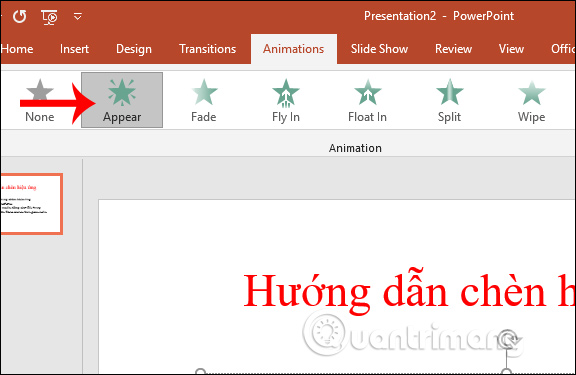
<p style="text-align: justify;"><strong>Bước 1:</strong></p>

<p style="text-align: justify;">Tại nội dung muốn tạo hiệu ứng, chúng ta bôi đen rồi vào<strong>&nbsp;tab Animation</strong>. Khi đó chúng ta sẽ chọn&nbsp;<strong>hiệu ứng Appear</strong>.</p>

<p style="text-align: justify;"><img alt="Hiệu ứng xuất hiện" data-i="0" data-src="https://st.quantrimang.com/photos/image/2020/01/16/PowerPoint-hieu-ung-lam-mo-1.jpg" data-was-processed="true" height="375" src="https://st.quantrimang.com/photos/image/2020/01/16/PowerPoint-hieu-ung-lam-mo-1.jpg" width="576" /></p>

<div style="text-align: justify;">&nbsp;</div>

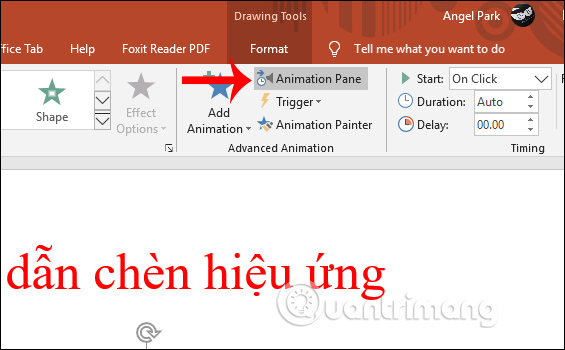
<p style="text-align: justify;"><strong>Bước 2:</strong></p>

<p style="text-align: justify;">Tiếp đến chúng ta&nbsp;<strong>thêm hiệu ứng Appear cho những nội dung còn lại</strong>. Sau đó nhấn vào&nbsp;<strong>Animation Pane</strong>&nbsp;trên thanh ribbon của PowerPoint.</p>

<div style="text-align: justify;"><br />
<img alt="Khung hiệu ứng " data-adbro-processed="true" data-i="1" data-src="https://st.quantrimang.com/photos/image/2020/01/16/PowerPoint-hieu-ung-lam-mo-2.jpg" data-was-processed="true" height="350" src="https://st.quantrimang.com/photos/image/2020/01/16/PowerPoint-hieu-ung-lam-mo-2.jpg" width="565" /></div>

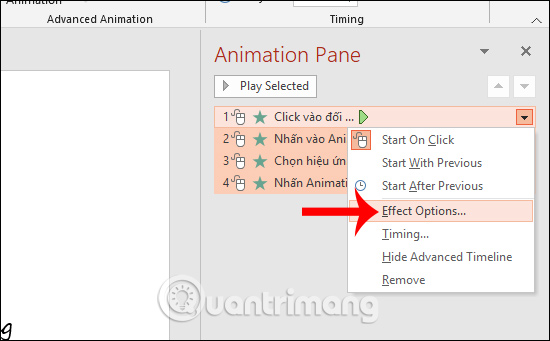
<p style="text-align: justify;"><strong>Bước 3:</strong></p>

<p style="text-align: justify;">Trong khung Animation Pane bên dưới,&nbsp;<strong>nhấn phím Ctrl</strong>&nbsp;rồi&nbsp;<strong>nhấn chuột vào từng hiệu ứng động</strong>&nbsp;đã sử dụng. Nhấn tiếp vào<strong>&nbsp;tam giác xổ xuống</strong>&nbsp;rồi chọn&nbsp;<strong>Effect Options</strong>.</p>

<p style="text-align: justify;"><img alt="Chỉnh hiệu ứng động " data-i="2" data-src="https://st.quantrimang.com/photos/image/2020/01/16/PowerPoint-hieu-ung-lam-mo-3.jpg" data-was-processed="true" height="341" src="https://st.quantrimang.com/photos/image/2020/01/16/PowerPoint-hieu-ung-lam-mo-3.jpg" width="550" /></p>

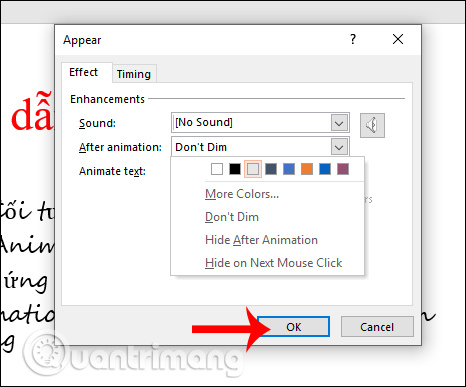
<p style="text-align: justify;"><strong>Bước 4:</strong></p>

<p style="text-align: justify;">Xuất hiện giao diện hộp thoại Appear, nhấn vào&nbsp;<strong>tab Effect</strong>. Tại phần&nbsp;<strong>After animation</strong>&nbsp;nhấn vào&nbsp;<strong>biểu tượng tam giác xổ xuống</strong>&nbsp;rồi&nbsp;<strong>chọn màu xám</strong>&nbsp;hoặc nhấn More Colors để tìm thêm màu khác. Ưu tiên chọn màu tương tự với nền slide đang dùng. Cuối cùng nhấn OK.</p>

<p style="text-align: justify;">Cuối cùng chúng ta xem slide trình bày hiển thị như thế nào.</p>

<p style="text-align: justify;"><img alt="Chọn màu làm mờ " data-i="3" data-src="https://st.quantrimang.com/photos/image/2020/01/16/PowerPoint-hieu-ung-lam-mo-4.jpg" data-was-processed="true" height="387" src="https://st.quantrimang.com/photos/image/2020/01/16/PowerPoint-hieu-ung-lam-mo-4.jpg" width="466" /></p>
		</div>
				<div id="author">
						<p>
				<strong>Nguồn tin:</strong>
				Quantrimang.com:
			</p>
		</div>
	</div>
	<div id="footer" class="clearfix">
		<div id="url">
			<strong>URL của bản tin này: </strong><a href="https://www.nguoicodonvn2008.info/vi/news/savefile/kien-thuc-may-tinh/cach-lam-mo-chu-xuat-hien-trong-powerpoint-8887.html" title="Cách làm mờ chữ xuất hiện trong PowerPoint">https://www.nguoicodonvn2008.info/vi/news/savefile/kien-thuc-may-tinh/cach-lam-mo-chu-xuat-hien-trong-powerpoint-8887.html</a>

		</div>
		<div class="clear"></div>
		<div class="copyright">
			&copy; .&#x3A; Nguoicodonvn2008.info - Cõi lòng người cô đơn &#x3A;.
		</div>
		<div id="contact">
			<a href="mailto:admin@nguoicodonvn2008.info">admin@nguoicodonvn2008.info</a>
		</div>
	</div>
</div>
        <div id="timeoutsess" class="chromeframe">
            Bạn đã không sử dụng Site, <a onclick="timeoutsesscancel();" href="https://www.nguoicodonvn2008.info/#">Bấm vào đây để duy trì trạng thái đăng nhập</a>. Thời gian chờ: <span id="secField"> 60 </span> giây
        </div>
        <div id="openidResult" class="nv-alert" style="display:none"></div>
        <div id="openidBt" data-result="" data-redirect=""></div>
		</script>
		<div class="car-top">
  <span><img src="https://www.nguoicodonvn2008.info/themes/default/images/car.png" alt=""></span>
</div>
<script src="https://www.nguoicodonvn2008.info/assets/js/jquery/jquery.min.js"></script>
<script>var nv_base_siteurl="/",nv_lang_data="vi",nv_lang_interface="vi",nv_name_variable="nv",nv_fc_variable="op",nv_lang_variable="language",nv_module_name="news",nv_func_name="savefile",nv_is_user=0, nv_my_ofs=-4,nv_my_abbr="EDT",nv_cookie_prefix="nv4c_e856T",nv_check_pass_mstime=1738000,nv_area_admin=0,nv_safemode=0,theme_responsive=0,nv_recaptcha_ver=2,nv_recaptcha_sitekey="",nv_recaptcha_type="image",XSSsanitize=1;</script>
<script src="https://www.nguoicodonvn2008.info/assets/js/language/vi.js"></script>
<script src="https://www.nguoicodonvn2008.info/assets/js/DOMPurify/purify3.js"></script>
<script src="https://www.nguoicodonvn2008.info/assets/js/global.js"></script>
<script src="https://www.nguoicodonvn2008.info/assets/js/site.js"></script>
<script src="https://www.nguoicodonvn2008.info/themes/default/js/news.js"></script>
<script src="https://www.nguoicodonvn2008.info/themes/default/js/main.js"></script>
<script src="https://www.nguoicodonvn2008.info/themes/default/js/custom.js"></script>
<script type="application/ld+json">
        {
            "@context": "https://schema.org",
            "@type": "Organization",
            "url": "https://www.nguoicodonvn2008.info",
            "logo": "https://www.nguoicodonvn2008.info/uploads/angel.gif"
        }
        </script>
<script src="https://www.nguoicodonvn2008.info/themes/default/js/bootstrap.min.js"></script>
<script type="text/javascript">
var $scrolltop = $('.car-top');
$scrolltop.on('click', function () {
    $('html,body').animate({
        scrollTop: 0
    }, 800);
    $(this).addClass("car-run");
    setTimeout(function(){ $scrolltop.removeClass('car-run');}, 1000);
    return false;
});
$(window).on('scroll', function ()
{ 
    if($(window).scrollTop() >= 200)
    {
        $scrolltop.addClass("show");
        $scrolltop.addClass("car-down");
    }
    else
    {
       $scrolltop.removeClass("show");
       setTimeout(function(){ $scrolltop.removeClass('car-down');}, 300);
    }
});
</script>
</body>
</html>