<!DOCTYPE html>
    <html lang="vi" xmlns="http://www.w3.org/1999/xhtml" prefix="og: http://ogp.me/ns#">
    <head>
<title>Cách kiểm tra cấu hình Chromebook</title>
<meta name="description" content="Cách kiểm tra cấu hình Chromebook - Savefile - Tin Tức - https&#x3A;&#x002F;&#x002F;www.nguoicodonvn2008.info&#x002F;vi&#x002F;news&#x002F;savefile&#x002F;kien-thuc-may-tinh&#x002F;cach-kiem-tra-cau-hinh-chromebook-3383.html">
<meta name="author" content=".: Nguoicodonvn2008.info - Cõi lòng người cô đơn :.">
<meta name="copyright" content=".: Nguoicodonvn2008.info - Cõi lòng người cô đơn :. [admin@nguoicodonvn2008.info]">
<meta name="robots" content="index, archive, follow, noodp">
<meta name="googlebot" content="index,archive,follow,noodp">
<meta name="msnbot" content="all,index,follow">
<meta name="generator" content="NukeViet v4.5">
<meta http-equiv="Content-Type" content="text/html; charset=utf-8">
<meta property="og:title" content="Cách kiểm tra cấu hình Chromebook">
<meta property="og:type" content="website">
<meta property="og:description" content="Savefile - Tin Tức - https&#x3A;&#x002F;&#x002F;www.nguoicodonvn2008.info&#x002F;vi&#x002F;news&#x002F;savefile&#x002F;kien-thuc-may-tinh&#x002F;cach-kiem-tra-cau-hinh-chromebook-3383.html">
<meta property="og:site_name" content=".&#x3A; Nguoicodonvn2008.info - Cõi lòng người cô đơn &#x3A;.">
<meta property="og:url" content="https://www.nguoicodonvn2008.info/vi/news/savefile/kien-thuc-may-tinh/cach-kiem-tra-cau-hinh-chromebook-3383.html">
<link rel="shortcut icon" href="https://www.nguoicodonvn2008.info/favicon.ico">
<link rel="canonical" href="https://www.nguoicodonvn2008.info/vi/news/savefile/kien-thuc-may-tinh/cach-kiem-tra-cau-hinh-chromebook-3383.html">
<link rel="alternate" href="https://www.nguoicodonvn2008.info/vi/news/rss/" title="Tin Tức" type="application/rss+xml">
<link rel="alternate" href="https://www.nguoicodonvn2008.info/vi/news/rss/karaoke-dual/" title="Tin Tức - Karaoke Dual" type="application/rss+xml">
<link rel="alternate" href="https://www.nguoicodonvn2008.info/vi/news/rss/nhac-tre/" title="Tin Tức - Nhạc trẻ" type="application/rss+xml">
<link rel="alternate" href="https://www.nguoicodonvn2008.info/vi/news/rss/tru-tinh/" title="Tin Tức - Trữ tình" type="application/rss+xml">
<link rel="alternate" href="https://www.nguoicodonvn2008.info/vi/news/rss/nuoc-ngoai/" title="Tin Tức - Nước ngoài" type="application/rss+xml">
<link rel="alternate" href="https://www.nguoicodonvn2008.info/vi/news/rss/remix/" title="Tin Tức - Remix" type="application/rss+xml">
<link rel="alternate" href="https://www.nguoicodonvn2008.info/vi/news/rss/tam-su-tinh-yeu/" title="Tin Tức - Tâm sự tình yêu" type="application/rss+xml">
<link rel="alternate" href="https://www.nguoicodonvn2008.info/vi/news/rss/tho-suu-tam/" title="Tin Tức - Thơ sưu tầm" type="application/rss+xml">
<link rel="alternate" href="https://www.nguoicodonvn2008.info/vi/news/rss/cuoc-song/" title="Tin Tức - Cuộc sống" type="application/rss+xml">
<link rel="alternate" href="https://www.nguoicodonvn2008.info/vi/news/rss/phan-mem/" title="Tin Tức - Phần mềm" type="application/rss+xml">
<link rel="alternate" href="https://www.nguoicodonvn2008.info/vi/news/rss/kien-thuc-may-tinh/" title="Tin Tức - Kiến thức máy tính" type="application/rss+xml">
<link rel="alternate" href="https://www.nguoicodonvn2008.info/vi/news/rss/hoc-tap/" title="Tin Tức - Học tập" type="application/rss+xml">
<link rel="alternate" href="https://www.nguoicodonvn2008.info/vi/news/rss/tai-lieu/" title="Tin Tức - Tài liệu" type="application/rss+xml">
<link rel="alternate" href="https://www.nguoicodonvn2008.info/vi/news/rss/de-thi/" title="Tin Tức - Đề thi" type="application/rss+xml">
<link rel="preload" as="style" href="https://www.nguoicodonvn2008.info/assets/css/font-awesome.min.css" type="text/css">
<link rel="preload" as="style" href="https://www.nguoicodonvn2008.info/themes/default/css/bootstrap.non-responsive.css" type="text/css">
<link rel="preload" as="style" href="https://www.nguoicodonvn2008.info/themes/default/css/style.css" type="text/css">
<link rel="preload" as="style" href="https://www.nguoicodonvn2008.info/themes/default/css/style.non-responsive.css" type="text/css">
<link rel="preload" as="style" href="https://www.nguoicodonvn2008.info/themes/default/css/news.css" type="text/css">
<link rel="preload" as="style" href="https://www.nguoicodonvn2008.info/themes/default/css/custom.css" type="text/css">
<link rel="preload" as="script" href="https://www.nguoicodonvn2008.info/assets/js/jquery/jquery.min.js" type="text/javascript">
<link rel="preload" as="script" href="https://www.nguoicodonvn2008.info/assets/js/language/vi.js" type="text/javascript">
<link rel="preload" as="script" href="https://www.nguoicodonvn2008.info/assets/js/DOMPurify/purify3.js" type="text/javascript">
<link rel="preload" as="script" href="https://www.nguoicodonvn2008.info/assets/js/global.js" type="text/javascript">
<link rel="preload" as="script" href="https://www.nguoicodonvn2008.info/assets/js/site.js" type="text/javascript">
<link rel="preload" as="script" href="https://www.nguoicodonvn2008.info/themes/default/js/news.js" type="text/javascript">
<link rel="preload" as="script" href="https://www.nguoicodonvn2008.info/themes/default/js/main.js" type="text/javascript">
<link rel="preload" as="script" href="https://www.nguoicodonvn2008.info/themes/default/js/custom.js" type="text/javascript">
<link rel="preload" as="script" href="https://www.nguoicodonvn2008.info/themes/default/js/bootstrap.min.js" type="text/javascript">
<link rel="stylesheet" href="https://www.nguoicodonvn2008.info/assets/css/font-awesome.min.css">
<link rel="stylesheet" href="https://www.nguoicodonvn2008.info/themes/default/css/bootstrap.non-responsive.css">
<link rel="stylesheet" href="https://www.nguoicodonvn2008.info/themes/default/css/style.css">
<link rel="stylesheet" href="https://www.nguoicodonvn2008.info/themes/default/css/style.non-responsive.css">
<link rel="StyleSheet" href="https://www.nguoicodonvn2008.info/themes/default/css/news.css">
<link rel="stylesheet" href="https://www.nguoicodonvn2008.info/themes/default/css/custom.css">
<style type="text/css">
	body{background: #fff;}
</style>
    </head>
    <body>
<div id="print">
	<div id="hd_print">
		<h2 class="pull-left">.&#x3A; Nguoicodonvn2008.info - Cõi lòng người cô đơn &#x3A;.</h2>
		<p class="pull-right"><a title=".&#x3A; Nguoicodonvn2008.info - Cõi lòng người cô đơn &#x3A;." href="https://www.nguoicodonvn2008.info/">https://www.nguoicodonvn2008.info</a></p>
	</div>
	<div class="clear"></div>
	<hr />
	<div id="content">
		<h1>Cách kiểm tra cấu hình Chromebook</h1>
		<ul class="list-inline">
			<li>Thứ hai - 04/01/2021 23:58</li>
			<li class="hidden-print txtrequired"><em class="fa fa-print">&nbsp;</em><a title="In ra" href="javascript:;" onclick="window.print()">In ra</a></li>
			<li class="hidden-print txtrequired"><em class="fa fa-power-off">&nbsp;</em><a title="Đóng cửa sổ này" href="javascript:;" onclick="window.close()">Đóng cửa sổ này</a></li>
		</ul>
		<div class="clear"></div>
		<div id="hometext">
		</div>
				<div class="imghome">
			<img alt="Cách kiểm tra cấu hình Chromebook" src="https://st.quantrimang.com/photos/image/2021/01/01/xem-dung-luong-ram-trong-chromebook1.jpg" width="460" class="img-thumbnail" />
		</div>
		<div class="clear"></div>
		<div id="bodytext" class="clearfix">
			<p style="text-align: justify;">Bạn có thể dễ dàng&nbsp;kiểm tra cấu hình máy tính chạy Windows&nbsp;hoặc&nbsp;xem cấu hình MacBook&nbsp;nhưng Chrome OS thì hơi khác một chút.&nbsp;Trong bài viết này, chúng tôi sẽ hướng dẫn bạn 2 cách truy cập và xem chiếc Chromebook của mình đang sở hữu cấu hình như thế nào, có bao nhiêu RAM...</p>

<h2 style="text-align: justify;">Xem cấu hình Chromebook bằng page About System</h2>

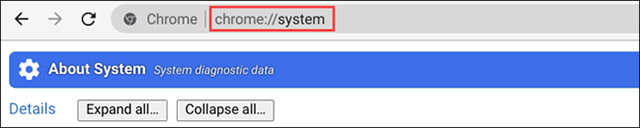
<p style="text-align: justify;">Phương pháp đầu tiên này không yêu cầu bạn phải cài đặt thêm bất kỳ ứng dụng hoặc tiện ích mở rộng bổ sung nào. Trên Chromebook, bạn chỉ cần mở trình duyệt web Chrome và nhập từ khóa “<strong>chrome://system</strong>” vào thanh địa chỉ rồi nhấn enter.</p>

<figure>
<div style="text-align: justify;"><img alt="" data-i="0" data-src="https://st.quantrimang.com/photos/image/2021/01/01/xem-dung-luong-ram-trong-chromebook1.jpg" data-was-processed="true" height="128" src="https://st.quantrimang.com/photos/image/2021/01/01/xem-dung-luong-ram-trong-chromebook1.jpg" width="640" /></div>
</figure>

<p style="text-align: justify;">Thao tác này sẽ giúp bạn truy cập được vào trang “<strong>About System</strong>” được tích hợp sẵn trong nền tảng Chrome OS. Có rất nhiều thông tin ở đây, bạn cần xem thông tin phần cứng nào chỉ cần click vào nút Expand tương ứng.</p>

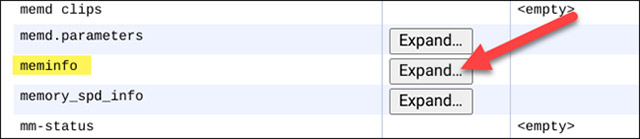
<p style="text-align: justify;">Trong bài viết này, chúng ta sẽ xem thông tin RAM.&nbsp;Để xem bạn có bao nhiêu RAM, hãy tìm mục nhập “<strong>meminfo</strong>”, sau đó nhấp vào “<strong>Expand</strong>” bên cạnh nó.</p>

<figure>
<div style="text-align: justify;"><img alt="" data-i="1" data-src="https://st.quantrimang.com/photos/image/2021/01/01/xem-dung-luong-ram-trong-chromebook2.jpg" data-was-processed="true" height="139" src="https://st.quantrimang.com/photos/image/2021/01/01/xem-dung-luong-ram-trong-chromebook2.jpg" width="640" /></div>
</figure>

<p style="text-align: justify;">Trong bảng thông tin mở rộng, bạn sẽ thấy hai thông số “MemTotal” (Lượng RAM tổng) và “<strong>MemAvailable</strong>” (Lượng RAM khả dụng) ở trên cùng. Các chỉ số được tính bằng kilobyte (KB), bạn có thể (gần như) dịch sang gigabyte (GB) bằng cách lấy một số thập phân sau số đầu tiên. Ví dụ: Chromebook của tôi có 3.938.392 kB RAM, tức là khoảng 3,9 GB.</p>

<figure>
<div style="text-align: justify;"><img alt="" data-i="2" data-src="https://st.quantrimang.com/photos/image/2021/01/01/xem-dung-luong-ram-trong-chromebook3.jpg" data-was-processed="true" height="99" src="https://st.quantrimang.com/photos/image/2021/01/01/xem-dung-luong-ram-trong-chromebook3.jpg" width="640" /></div>
</figure>

<h2 style="text-align: justify;">Check cấu hình Chromebook sử dụng Cog – System Info Viewer</h2>

<p style="text-align: justify;">Phương pháp thứ hai này yêu cầu phải dùng đến một ứng dụng web Chrome, với giao diện gọn gàng hơn và cung cấp thông tin cụ thể, dễ hiểu hơn hẳn so với page About System.</p>

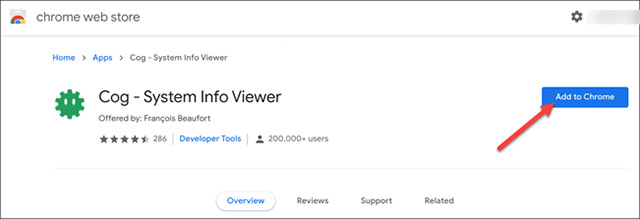
<p style="text-align: justify;">Để sử dụng phương pháp này, hãy truy cập Chrome Web Store trên Chromebook của bạn, sau đó nhấp vào “<strong>Add to Chrome</strong>” bên cạnh ứng dụng “<strong>Cog – System Info Viewer</strong>”.</p>

<figure>
<div style="text-align: justify;"><img alt="" data-i="3" data-src="https://st.quantrimang.com/photos/image/2021/01/01/xem-dung-luong-ram-trong-chromebook4.jpg" data-was-processed="true" height="219" src="https://st.quantrimang.com/photos/image/2021/01/01/xem-dung-luong-ram-trong-chromebook4.jpg" width="640" /></div>
</figure>

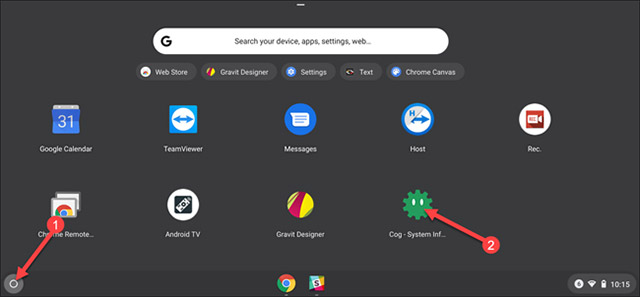
<p style="text-align: justify;">Sau khi đã tải xuống ứng dụng, hãy khởi chạy nó.</p>

<figure>
<div style="text-align: justify;"><img alt="" data-i="4" data-src="https://st.quantrimang.com/photos/image/2021/01/01/xem-dung-luong-ram-trong-chromebook5.jpg" data-was-processed="true" height="297" src="https://st.quantrimang.com/photos/image/2021/01/01/xem-dung-luong-ram-trong-chromebook5.jpg" width="640" /></div>
</figure>

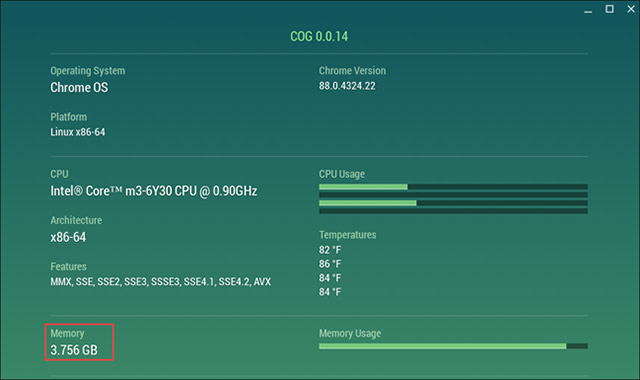
<p style="text-align: justify;">Ứng dụng sẽ mở và hiển thị thông tin chi tiết về Chromebook của bạn.</p>

<p style="text-align: justify;">Trong mục Operating System bạn sẽ xem được phiên bản Chrome đang chạy, nền tảng là Linux gì, CPU của máy là gì...</p>

<div style="text-align: justify;">&nbsp;</div>

<p style="text-align: justify;">Trong mục &quot;<strong>Memory</strong>&quot;, bạn sẽ thấy các thông số về RAM được liệt kê bằng đơn vị gigabyte.</p>

<figure>
<div style="text-align: justify;"><img alt="Thông số kỹ thuật cơ bản của thiết bị" data-i="5" data-src="https://st.quantrimang.com/photos/image/2021/01/01/xem-dung-luong-ram-trong-chromebook6.jpg" data-was-processed="true" height="380" src="https://st.quantrimang.com/photos/image/2021/01/01/xem-dung-luong-ram-trong-chromebook6.jpg" width="640" /></div>

<figcaption>
<div style="text-align: justify;">Thông số kỹ thuật cơ bản của thiết bị</div>
</figcaption>
</figure>

<p style="text-align: justify;">Như vậy, bài viết đã cung cấp cho bạn 2 phương pháp nêu trên để xem các thông tin phần cứng quan trọng của Chromebook bao gồm&nbsp;CPU, phiên bản Chrome bạn đang chạy và hơn thế nữa!&nbsp;</p>

<p style="text-align: justify;">Nếu biết cách làm nào hay hơn, hãy chia sẻ cùng Quantrimang.com và các bạn đọc khác bằng cách bình luận bên dưới bạn nhé.</p>
		</div>
				<div id="author">
						<p>
				<strong>Nguồn tin:</strong>
				Quantrimang.com
			</p>
		</div>
	</div>
	<div id="footer" class="clearfix">
		<div id="url">
			<strong>URL của bản tin này: </strong><a href="https://www.nguoicodonvn2008.info/vi/news/savefile/kien-thuc-may-tinh/cach-kiem-tra-cau-hinh-chromebook-3383.html" title="Cách kiểm tra cấu hình Chromebook">https://www.nguoicodonvn2008.info/vi/news/savefile/kien-thuc-may-tinh/cach-kiem-tra-cau-hinh-chromebook-3383.html</a>

		</div>
		<div class="clear"></div>
		<div class="copyright">
			&copy; .&#x3A; Nguoicodonvn2008.info - Cõi lòng người cô đơn &#x3A;.
		</div>
		<div id="contact">
			<a href="mailto:admin@nguoicodonvn2008.info">admin@nguoicodonvn2008.info</a>
		</div>
	</div>
</div>
        <div id="timeoutsess" class="chromeframe">
            Bạn đã không sử dụng Site, <a onclick="timeoutsesscancel();" href="https://www.nguoicodonvn2008.info/#">Bấm vào đây để duy trì trạng thái đăng nhập</a>. Thời gian chờ: <span id="secField"> 60 </span> giây
        </div>
        <div id="openidResult" class="nv-alert" style="display:none"></div>
        <div id="openidBt" data-result="" data-redirect=""></div>
		</script>
		<div class="car-top">
  <span><img src="https://www.nguoicodonvn2008.info/themes/default/images/car.png" alt=""></span>
</div>
<script src="https://www.nguoicodonvn2008.info/assets/js/jquery/jquery.min.js"></script>
<script>var nv_base_siteurl="/",nv_lang_data="vi",nv_lang_interface="vi",nv_name_variable="nv",nv_fc_variable="op",nv_lang_variable="language",nv_module_name="news",nv_func_name="savefile",nv_is_user=0, nv_my_ofs=-4,nv_my_abbr="EDT",nv_cookie_prefix="nv4c_e856T",nv_check_pass_mstime=1738000,nv_area_admin=0,nv_safemode=0,theme_responsive=0,nv_recaptcha_ver=2,nv_recaptcha_sitekey="",nv_recaptcha_type="image",XSSsanitize=1;</script>
<script src="https://www.nguoicodonvn2008.info/assets/js/language/vi.js"></script>
<script src="https://www.nguoicodonvn2008.info/assets/js/DOMPurify/purify3.js"></script>
<script src="https://www.nguoicodonvn2008.info/assets/js/global.js"></script>
<script src="https://www.nguoicodonvn2008.info/assets/js/site.js"></script>
<script src="https://www.nguoicodonvn2008.info/themes/default/js/news.js"></script>
<script src="https://www.nguoicodonvn2008.info/themes/default/js/main.js"></script>
<script src="https://www.nguoicodonvn2008.info/themes/default/js/custom.js"></script>
<script type="application/ld+json">
        {
            "@context": "https://schema.org",
            "@type": "Organization",
            "url": "https://www.nguoicodonvn2008.info",
            "logo": "https://www.nguoicodonvn2008.info/uploads/angel.gif"
        }
        </script>
<script src="https://www.nguoicodonvn2008.info/themes/default/js/bootstrap.min.js"></script>
<script type="text/javascript">
var $scrolltop = $('.car-top');
$scrolltop.on('click', function () {
    $('html,body').animate({
        scrollTop: 0
    }, 800);
    $(this).addClass("car-run");
    setTimeout(function(){ $scrolltop.removeClass('car-run');}, 1000);
    return false;
});
$(window).on('scroll', function ()
{ 
    if($(window).scrollTop() >= 200)
    {
        $scrolltop.addClass("show");
        $scrolltop.addClass("car-down");
    }
    else
    {
       $scrolltop.removeClass("show");
       setTimeout(function(){ $scrolltop.removeClass('car-down');}, 300);
    }
});
</script>
</body>
</html>