<!DOCTYPE html>
    <html lang="vi" xmlns="http://www.w3.org/1999/xhtml" prefix="og: http://ogp.me/ns#">
    <head>
<title>Cách kích hoạt và sử dụng Script Execution Policy trong Windows PowerShell</title>
<meta name="description" content="Cách kích hoạt và sử dụng Script Execution Policy trong Windows PowerShell - Savefile - Tin Tức -...">
<meta name="author" content=".: Nguoicodonvn2008.info - Cõi lòng người cô đơn :.">
<meta name="copyright" content=".: Nguoicodonvn2008.info - Cõi lòng người cô đơn :. [admin@nguoicodonvn2008.info]">
<meta name="robots" content="index, archive, follow, noodp">
<meta name="googlebot" content="index,archive,follow,noodp">
<meta name="msnbot" content="all,index,follow">
<meta name="generator" content="NukeViet v4.5">
<meta http-equiv="Content-Type" content="text/html; charset=utf-8">
<meta property="og:title" content="Cách kích hoạt và sử dụng Script Execution Policy trong Windows PowerShell">
<meta property="og:type" content="website">
<meta property="og:description" content="Savefile - Tin Tức -...">
<meta property="og:site_name" content=".&#x3A; Nguoicodonvn2008.info - Cõi lòng người cô đơn &#x3A;.">
<meta property="og:url" content="https://www.nguoicodonvn2008.info/vi/news/savefile/kien-thuc-may-tinh/cach-kich-hoat-va-su-dung-script-execution-policy-trong-windows-powershell-6911.html">
<link rel="shortcut icon" href="https://www.nguoicodonvn2008.info/favicon.ico">
<link rel="canonical" href="https://www.nguoicodonvn2008.info/vi/news/savefile/kien-thuc-may-tinh/cach-kich-hoat-va-su-dung-script-execution-policy-trong-windows-powershell-6911.html">
<link rel="alternate" href="https://www.nguoicodonvn2008.info/vi/news/rss/" title="Tin Tức" type="application/rss+xml">
<link rel="alternate" href="https://www.nguoicodonvn2008.info/vi/news/rss/karaoke-dual/" title="Tin Tức - Karaoke Dual" type="application/rss+xml">
<link rel="alternate" href="https://www.nguoicodonvn2008.info/vi/news/rss/nhac-tre/" title="Tin Tức - Nhạc trẻ" type="application/rss+xml">
<link rel="alternate" href="https://www.nguoicodonvn2008.info/vi/news/rss/tru-tinh/" title="Tin Tức - Trữ tình" type="application/rss+xml">
<link rel="alternate" href="https://www.nguoicodonvn2008.info/vi/news/rss/nuoc-ngoai/" title="Tin Tức - Nước ngoài" type="application/rss+xml">
<link rel="alternate" href="https://www.nguoicodonvn2008.info/vi/news/rss/remix/" title="Tin Tức - Remix" type="application/rss+xml">
<link rel="alternate" href="https://www.nguoicodonvn2008.info/vi/news/rss/tam-su-tinh-yeu/" title="Tin Tức - Tâm sự tình yêu" type="application/rss+xml">
<link rel="alternate" href="https://www.nguoicodonvn2008.info/vi/news/rss/tho-suu-tam/" title="Tin Tức - Thơ sưu tầm" type="application/rss+xml">
<link rel="alternate" href="https://www.nguoicodonvn2008.info/vi/news/rss/cuoc-song/" title="Tin Tức - Cuộc sống" type="application/rss+xml">
<link rel="alternate" href="https://www.nguoicodonvn2008.info/vi/news/rss/phan-mem/" title="Tin Tức - Phần mềm" type="application/rss+xml">
<link rel="alternate" href="https://www.nguoicodonvn2008.info/vi/news/rss/kien-thuc-may-tinh/" title="Tin Tức - Kiến thức máy tính" type="application/rss+xml">
<link rel="alternate" href="https://www.nguoicodonvn2008.info/vi/news/rss/hoc-tap/" title="Tin Tức - Học tập" type="application/rss+xml">
<link rel="alternate" href="https://www.nguoicodonvn2008.info/vi/news/rss/tai-lieu/" title="Tin Tức - Tài liệu" type="application/rss+xml">
<link rel="alternate" href="https://www.nguoicodonvn2008.info/vi/news/rss/de-thi/" title="Tin Tức - Đề thi" type="application/rss+xml">
<link rel="preload" as="style" href="https://www.nguoicodonvn2008.info/assets/css/font-awesome.min.css" type="text/css">
<link rel="preload" as="style" href="https://www.nguoicodonvn2008.info/themes/default/css/bootstrap.non-responsive.css" type="text/css">
<link rel="preload" as="style" href="https://www.nguoicodonvn2008.info/themes/default/css/style.css" type="text/css">
<link rel="preload" as="style" href="https://www.nguoicodonvn2008.info/themes/default/css/style.non-responsive.css" type="text/css">
<link rel="preload" as="style" href="https://www.nguoicodonvn2008.info/themes/default/css/news.css" type="text/css">
<link rel="preload" as="style" href="https://www.nguoicodonvn2008.info/themes/default/css/custom.css" type="text/css">
<link rel="preload" as="script" href="https://www.nguoicodonvn2008.info/assets/js/jquery/jquery.min.js" type="text/javascript">
<link rel="preload" as="script" href="https://www.nguoicodonvn2008.info/assets/js/language/vi.js" type="text/javascript">
<link rel="preload" as="script" href="https://www.nguoicodonvn2008.info/assets/js/DOMPurify/purify3.js" type="text/javascript">
<link rel="preload" as="script" href="https://www.nguoicodonvn2008.info/assets/js/global.js" type="text/javascript">
<link rel="preload" as="script" href="https://www.nguoicodonvn2008.info/assets/js/site.js" type="text/javascript">
<link rel="preload" as="script" href="https://www.nguoicodonvn2008.info/themes/default/js/news.js" type="text/javascript">
<link rel="preload" as="script" href="https://www.nguoicodonvn2008.info/themes/default/js/main.js" type="text/javascript">
<link rel="preload" as="script" href="https://www.nguoicodonvn2008.info/themes/default/js/custom.js" type="text/javascript">
<link rel="preload" as="script" href="https://www.nguoicodonvn2008.info/themes/default/js/bootstrap.min.js" type="text/javascript">
<link rel="stylesheet" href="https://www.nguoicodonvn2008.info/assets/css/font-awesome.min.css">
<link rel="stylesheet" href="https://www.nguoicodonvn2008.info/themes/default/css/bootstrap.non-responsive.css">
<link rel="stylesheet" href="https://www.nguoicodonvn2008.info/themes/default/css/style.css">
<link rel="stylesheet" href="https://www.nguoicodonvn2008.info/themes/default/css/style.non-responsive.css">
<link rel="StyleSheet" href="https://www.nguoicodonvn2008.info/themes/default/css/news.css">
<link rel="stylesheet" href="https://www.nguoicodonvn2008.info/themes/default/css/custom.css">
<style type="text/css">
	body{background: #fff;}
</style>
    </head>
    <body>
<div id="print">
	<div id="hd_print">
		<h2 class="pull-left">.&#x3A; Nguoicodonvn2008.info - Cõi lòng người cô đơn &#x3A;.</h2>
		<p class="pull-right"><a title=".&#x3A; Nguoicodonvn2008.info - Cõi lòng người cô đơn &#x3A;." href="https://www.nguoicodonvn2008.info/">https://www.nguoicodonvn2008.info</a></p>
	</div>
	<div class="clear"></div>
	<hr />
	<div id="content">
		<h1>Cách kích hoạt và sử dụng Script Execution Policy trong Windows PowerShell</h1>
		<ul class="list-inline">
			<li>Thứ ba - 21/03/2023 00:46</li>
			<li class="hidden-print txtrequired"><em class="fa fa-print">&nbsp;</em><a title="In ra" href="javascript:;" onclick="window.print()">In ra</a></li>
			<li class="hidden-print txtrequired"><em class="fa fa-power-off">&nbsp;</em><a title="Đóng cửa sổ này" href="javascript:;" onclick="window.close()">Đóng cửa sổ này</a></li>
		</ul>
		<div class="clear"></div>
		<div id="hometext">
		</div>
				<div class="imghome">
			<img alt="Cách kích hoạt và sử dụng Script Execution Policy trong Windows PowerShell" src="https://st.quantrimang.com/photos/image/2023/03/20/script-execution-policy-trong-powershell-1.jpg" width="460" class="img-thumbnail" />
		</div>
		<div class="clear"></div>
		<div id="bodytext" class="clearfix">
			<p style="text-align: justify;">PowerShell, theo mặc định, cho phép bạn chạy các lệnh (cmdlet) thông qua console của nó. Để thực thi một script, bạn có thể tạo một file notepad có code script, lưu nó với phần mở rộng file .ps1 và thực thi nó qua PowerShell console. Bạn cũng có thể dán trực tiếp script vào console để thực thi.</p>

<p style="text-align: justify;">Tuy nhiên, nếu đây là lần đầu tiên bạn thực thi script qua PowerShell, thì bạn sẽ gặp phải lỗi &quot;running script is disabled&quot; (script đang chạy bị vô hiệu hóa). Theo mặc định, việc thực thi script trên PowerShell bị vô hiệu hóa như một biện pháp bảo mật để ngăn các script độc hại chạy trên hệ thống. Bài viết sau đây sẽ chỉ cho bạn hai cách để kích hoạt Script Execution Policy trong Windows PowerShell.</p>

<h2 style="text-align: justify;">Cách kiểm tra policy thực thi hiện tại</h2>

<figure>
<div style="text-align: justify;"><img alt="Powershell đặt policy thực thi thành undefined" data-i="0" data-src="https://st.quantrimang.com/photos/image/2023/03/20/script-execution-policy-trong-powershell-1.jpg" data-was-processed="true" height="322" src="https://st.quantrimang.com/photos/image/2023/03/20/script-execution-policy-trong-powershell-1.jpg" width="1113" /></div>

<figcaption>
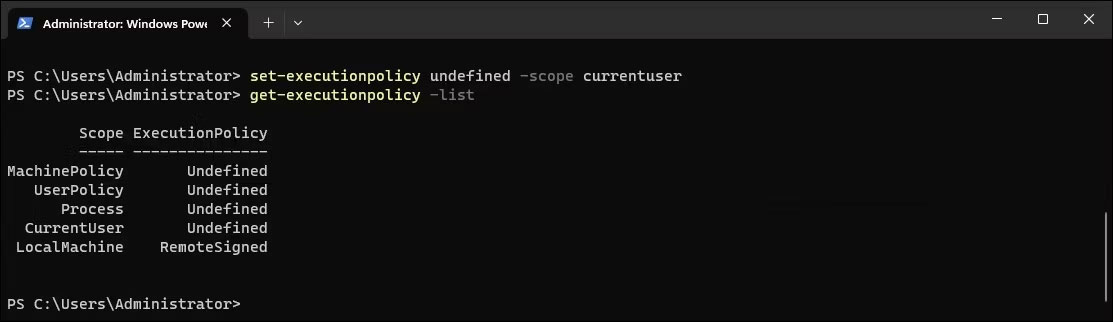
<div style="text-align: justify;">Powershell đặt policy thực thi thành undefined</div>
</figcaption>
</figure>

<p style="text-align: justify;">Bạn có thể sử dụng một PowerShell cmdlet để nhận policy thực thi hiện tại của mình. Việc biết policy thực thi hiện tại là cần thiết để biết liệu bạn có cần thay đổi policy hay không.</p>

<p style="text-align: justify;">Để có được policy thực thi cho người dùng hiện tại:</p>

<p style="text-align: justify;">1.&nbsp;Mở Windows PowerShell với quyền admin.</p>

<p style="text-align: justify;">2. Nhập lệnh sau vào console PowerShell và nhấn&nbsp;<strong>Enter</strong>:</p>

<pre id="pre0">
<code>get-executionpolicy</code></pre>

<p style="text-align: justify;">3. Vì bạn đã gặp phải lỗi khi thực thi script nên kết quả trả lại có thể sẽ hiển thị&nbsp;<strong>Restricted</strong>&nbsp;cho policy thực thi hiện tại của bạn.</p>

<p style="text-align: justify;">4. Nếu bạn cần xem policy thực thi cho tất cả các phạm vi được hỗ trợ:</p>

<pre id="pre1">
<code>get-executionpolicy -list</code></pre>

<p style="text-align: justify;">Bạn sẽ cần thay đổi policy thực thi thành&nbsp;<strong>RemoteSigned</strong>&nbsp;để chạy script cục bộ mà không gặp lỗi. Bạn có thể thay đổi policy thực thi từ ứng dụng Settings và PowerShell.</p>

<h2 style="text-align: justify;">Cách bật policy thực thi PowerShell bằng ứng dụng Settings</h2>

<p style="text-align: justify;">Bạn có thể thay đổi và đặt policy thực thi PowerShell thành&nbsp;<strong>RemoteSigned</strong>&nbsp;bằng ứng dụng Settings. Tất cả những gì bạn phải làm là điều chỉnh cài đặt PowerShell trong phần dành cho nhà phát triển để thay đổi policy thực thi nhằm kích hoạt thực thi script PowerShell.</p>

<p style="text-align: justify;">Để thay đổi policy thực thi bằng Settings:</p>

<p style="text-align: justify;">1. Nhấn&nbsp;<strong>Win + I&nbsp;</strong>để&nbsp;mở Settings.</p>

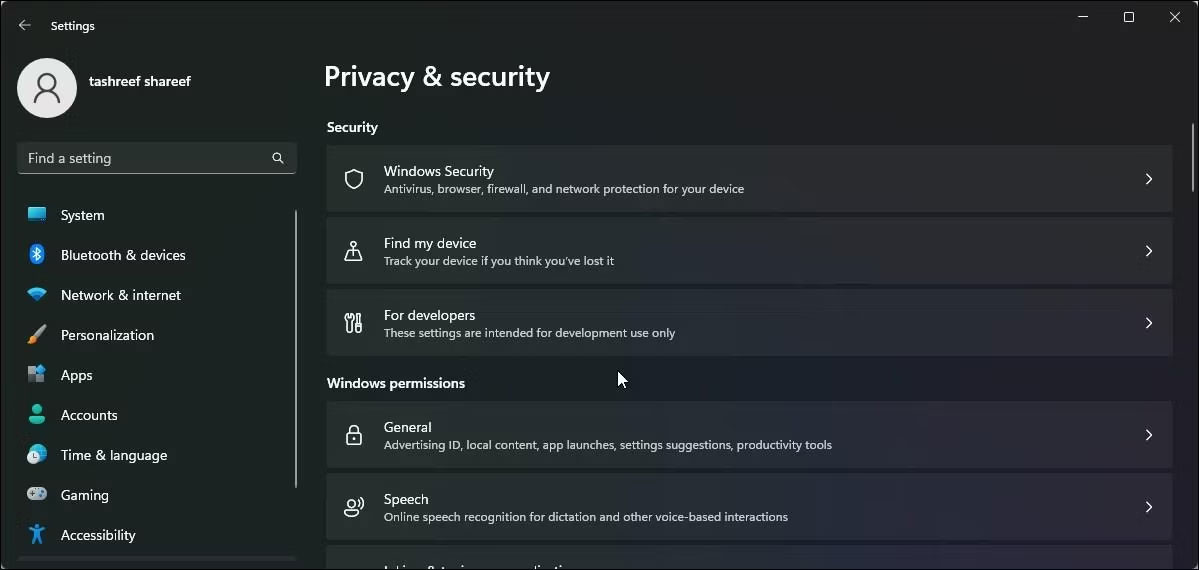
<p style="text-align: justify;">2. Mở tab&nbsp;<strong>Privacy &amp; Security</strong>&nbsp;ở ngăn bên trái.</p>

<p style="text-align: justify;">3. Tiếp theo, nhấp vào&nbsp;<strong>For developers</strong>.</p>

<figure>
<div style="text-align: justify;"><img alt="Windows 11 cho nhà phát triển" data-i="1" data-src="https://st.quantrimang.com/photos/image/2023/03/20/script-execution-policy-trong-powershell-2.jpg" data-was-processed="true" height="570" src="https://st.quantrimang.com/photos/image/2023/03/20/script-execution-policy-trong-powershell-2.jpg" width="1199" /></div>

<figcaption>
<div style="text-align: justify;">Windows 11 cho nhà phát triển</div>
</figcaption>
</figure>

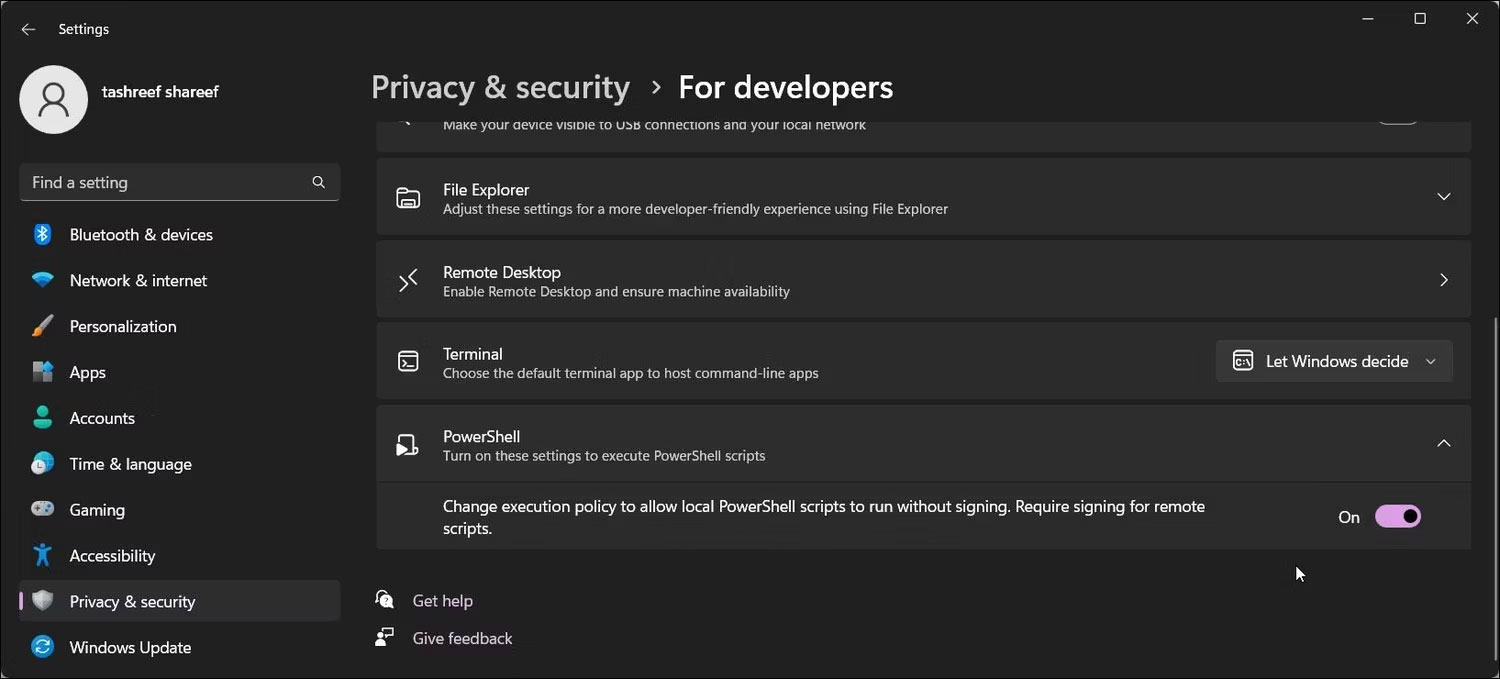
<p style="text-align: justify;">4. Nhấp để mở rộng phần&nbsp;<strong>PowerShell.</strong></p>

<p style="text-align: justify;">5. Bật công tắc&nbsp;<strong>Change the execution policy to allow local PowerShell scripts to run without signing - Require signing for remote scripts</strong>.</p>

<figure>
<div style="text-align: justify;"><img alt="Bật cài đặt thực thi script Powershell Windows 11" data-i="2" data-src="https://st.quantrimang.com/photos/image/2023/03/20/script-execution-policy-trong-powershell-3.jpg" data-was-processed="true" height="679" src="https://st.quantrimang.com/photos/image/2023/03/20/script-execution-policy-trong-powershell-3.jpg" width="1500" /></div>

<figcaption>
<div style="text-align: justify;">Bật cài đặt thực thi script Powershell Windows 11</div>
</figcaption>
</figure>

<p style="text-align: justify;">6. Sau khi hoàn tất, hãy mở PowerShell, nhập&nbsp;<strong>get executionpolicy</strong>&nbsp;và nhấn&nbsp;<strong>Enter.</strong>&nbsp;Policy thực thi cho người dùng hiện tại được đặt thành&nbsp;<strong>RemoteSigned.</strong></p>

<p style="text-align: justify;">7. Nếu bạn cần tắt policy thực thi, hãy bật công tắc PowerShell và đặt thành&nbsp;<strong>Off</strong>.</p>

<h2 style="text-align: justify;">Cách cho phép script chạy trong PowerShell bằng PowerShell</h2>

<figure>
<div style="text-align: justify;"><img alt="Powershell đặt policy thực thi thành RemoteSigned" data-i="3" data-src="https://st.quantrimang.com/photos/image/2023/03/20/script-execution-policy-trong-powershell-4.jpg" data-was-processed="true" height="363" src="https://st.quantrimang.com/photos/image/2023/03/20/script-execution-policy-trong-powershell-4.jpg" width="1112" /></div>

<figcaption>
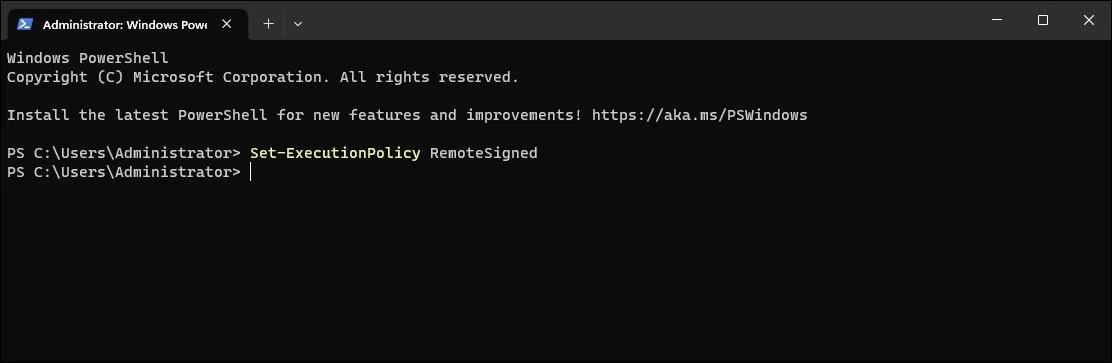
<div style="text-align: justify;">Powershell đặt policy thực thi thành RemoteSigned</div>
</figcaption>
</figure>

<p style="text-align: justify;">Bạn có thể sử dụng PowerShell cmdlet để đặt policy thực thi thành&nbsp;<strong>RemoteSigned.</strong>&nbsp;Giao diện dòng lệnh giúp dễ dàng thay đổi policy thực thi một cách nhanh chóng mà không cần sử dụng ứng dụng Settings.</p>

<p style="text-align: justify;">Ngoài ra, ứng dụng Settings chỉ có thể bật hoặc tắt policy thực thi RemoteSigned. Trong khi PowerShell còn cho phép bạn đặt các policy và phạm vi khác.</p>

<p style="text-align: justify;">Để thay đổi policy thực thi bằng PowerShell:</p>

<p style="text-align: justify;">1. Mở PowerShell với quyền admin.</p>

<p style="text-align: justify;">2. Trong cửa sổ PowerShell, gõ lệnh sau và nhấn&nbsp;<strong>Enter</strong>:</p>

<pre id="pre2">
<code>Set-ExecutionPolicy RemoteSigned</code></pre>

<p style="text-align: justify;">3. Nếu được nhắc, nhấn&nbsp;<strong>A&nbsp;</strong>để xác nhận hành động. Điều này sẽ đặt policy thực thi&nbsp;<strong>RemoteSigned</strong>&nbsp;cho tất cả người dùng. Nếu bạn chỉ muốn đặt policy thực thi cho&nbsp;<strong>Current User</strong>, hãy sử dụng tham số Scope theo sau tên người dùng.</p>

<p style="text-align: justify;">4. Ví dụ, để đặt policy thực thi&nbsp;<strong>RemoteSigned</strong>&nbsp;cho&nbsp;<strong>CurrentUser</strong>, hãy sử dụng lệnh sau:</p>

<pre id="pre3">
<code>Set-ExecutionPolicy RemoteSgined -Scope CurrentUser</code></pre>

<p style="text-align: justify;">5. Thay thế&nbsp;<strong>CurrentUser</strong>&nbsp;trong lệnh trên bằng người dùng khác (Scope) theo yêu cầu của bạn.</p>

<h2 style="text-align: justify;">Cách xóa&nbsp;Script Execution Policy bằng PowerShell</h2>

<figure>
<div style="text-align: justify;"><img alt="Set -ExecutionPolicy undefined" data-i="4" data-src="https://st.quantrimang.com/photos/image/2023/03/20/script-execution-policy-trong-powershell-5.jpg" data-was-processed="true" height="325" src="https://st.quantrimang.com/photos/image/2023/03/20/script-execution-policy-trong-powershell-5.jpg" width="1115" /></div>

<figcaption>
<div style="text-align: justify;">Set -ExecutionPolicy undefined</div>
</figcaption>
</figure>

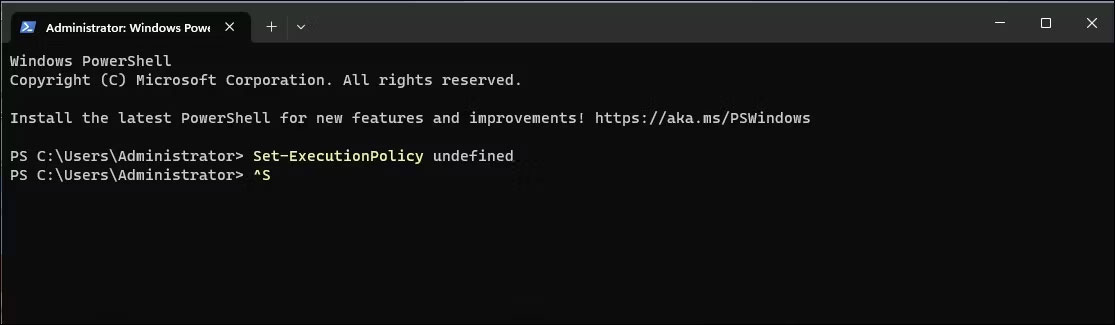
<p style="text-align: justify;">Nếu bạn muốn tắt tính năng thực thi script, hãy đặt policy thực thi thành&nbsp;<strong>Undefined</strong>&nbsp;bằng cmdlet&nbsp;<strong>Set_ExecutionPolicy.</strong>&nbsp;Đây là trạng thái mặc định và ngăn PowerShell thực thi bất kỳ script nào.</p>

<p style="text-align: justify;">Để tắt thực thi script bằng PowerShell:</p>

<p style="text-align: justify;">1. Mở PowerShell với quyền admin.</p>

<p style="text-align: justify;">2. Tiếp theo, nhập lệnh sau và nhấn&nbsp;<strong>Enter</strong>&nbsp;để tắt tính năng thực thi script cho tất cả người dùng:</p>

<pre id="pre4">
<code>Set-ExecutionPolicy undefined</code></pre>

<p style="text-align: justify;">3. Lệnh trên sẽ đặt policy thực thi mặc định (undefined) cho tất cả người dùng. Nếu bạn muốn tắt thực thi script cho một phạm vi cụ thể, hãy sử dụng lệnh sau:</p>

<pre id="pre5">
<code>Set-ExecutionPolicy undefined -Scope CurrentUser</code></pre>

<p style="text-align: justify;">4. Lệnh trên sẽ vô hiệu hóa việc thực thi script cho&nbsp;<strong>CurrentUser</strong>.</p>
		</div>
				<div id="author">
						<p>
				<strong>Nguồn tin:</strong>
				Quantrimang.com
			</p>
		</div>
	</div>
	<div id="footer" class="clearfix">
		<div id="url">
			<strong>URL của bản tin này: </strong><a href="https://www.nguoicodonvn2008.info/vi/news/savefile/kien-thuc-may-tinh/cach-kich-hoat-va-su-dung-script-execution-policy-trong-windows-powershell-6911.html" title="Cách kích hoạt và sử dụng Script Execution Policy trong Windows PowerShell">https://www.nguoicodonvn2008.info/vi/news/savefile/kien-thuc-may-tinh/cach-kich-hoat-va-su-dung-script-execution-policy-trong-windows-powershell-6911.html</a>

		</div>
		<div class="clear"></div>
		<div class="copyright">
			&copy; .&#x3A; Nguoicodonvn2008.info - Cõi lòng người cô đơn &#x3A;.
		</div>
		<div id="contact">
			<a href="mailto:admin@nguoicodonvn2008.info">admin@nguoicodonvn2008.info</a>
		</div>
	</div>
</div>
        <div id="timeoutsess" class="chromeframe">
            Bạn đã không sử dụng Site, <a onclick="timeoutsesscancel();" href="https://www.nguoicodonvn2008.info/#">Bấm vào đây để duy trì trạng thái đăng nhập</a>. Thời gian chờ: <span id="secField"> 60 </span> giây
        </div>
        <div id="openidResult" class="nv-alert" style="display:none"></div>
        <div id="openidBt" data-result="" data-redirect=""></div>
		</script>
		<div class="car-top">
  <span><img src="https://www.nguoicodonvn2008.info/themes/default/images/car.png" alt=""></span>
</div>
<script src="https://www.nguoicodonvn2008.info/assets/js/jquery/jquery.min.js"></script>
<script>var nv_base_siteurl="/",nv_lang_data="vi",nv_lang_interface="vi",nv_name_variable="nv",nv_fc_variable="op",nv_lang_variable="language",nv_module_name="news",nv_func_name="savefile",nv_is_user=0, nv_my_ofs=-4,nv_my_abbr="EDT",nv_cookie_prefix="nv4c_e856T",nv_check_pass_mstime=1738000,nv_area_admin=0,nv_safemode=0,theme_responsive=0,nv_recaptcha_ver=2,nv_recaptcha_sitekey="",nv_recaptcha_type="image",XSSsanitize=1;</script>
<script src="https://www.nguoicodonvn2008.info/assets/js/language/vi.js"></script>
<script src="https://www.nguoicodonvn2008.info/assets/js/DOMPurify/purify3.js"></script>
<script src="https://www.nguoicodonvn2008.info/assets/js/global.js"></script>
<script src="https://www.nguoicodonvn2008.info/assets/js/site.js"></script>
<script src="https://www.nguoicodonvn2008.info/themes/default/js/news.js"></script>
<script src="https://www.nguoicodonvn2008.info/themes/default/js/main.js"></script>
<script src="https://www.nguoicodonvn2008.info/themes/default/js/custom.js"></script>
<script type="application/ld+json">
        {
            "@context": "https://schema.org",
            "@type": "Organization",
            "url": "https://www.nguoicodonvn2008.info",
            "logo": "https://www.nguoicodonvn2008.info/uploads/angel.gif"
        }
        </script>
<script src="https://www.nguoicodonvn2008.info/themes/default/js/bootstrap.min.js"></script>
<script type="text/javascript">
var $scrolltop = $('.car-top');
$scrolltop.on('click', function () {
    $('html,body').animate({
        scrollTop: 0
    }, 800);
    $(this).addClass("car-run");
    setTimeout(function(){ $scrolltop.removeClass('car-run');}, 1000);
    return false;
});
$(window).on('scroll', function ()
{ 
    if($(window).scrollTop() >= 200)
    {
        $scrolltop.addClass("show");
        $scrolltop.addClass("car-down");
    }
    else
    {
       $scrolltop.removeClass("show");
       setTimeout(function(){ $scrolltop.removeClass('car-down');}, 300);
    }
});
</script>
</body>
</html>