<!DOCTYPE html>
    <html lang="vi" xmlns="http://www.w3.org/1999/xhtml" prefix="og: http://ogp.me/ns#">
    <head>
<title>Cách kích hoạt tính năng Gallery trong File Explorer Windows 11</title>
<meta name="description" content="Cách kích hoạt tính năng Gallery trong File Explorer Windows 11 - Savefile - Tin Tức -...">
<meta name="author" content=".: Nguoicodonvn2008.info - Cõi lòng người cô đơn :.">
<meta name="copyright" content=".: Nguoicodonvn2008.info - Cõi lòng người cô đơn :. [admin@nguoicodonvn2008.info]">
<meta name="robots" content="index, archive, follow, noodp">
<meta name="googlebot" content="index,archive,follow,noodp">
<meta name="msnbot" content="all,index,follow">
<meta name="generator" content="NukeViet v4.5">
<meta http-equiv="Content-Type" content="text/html; charset=utf-8">
<meta property="og:title" content="Cách kích hoạt tính năng Gallery trong File Explorer Windows 11">
<meta property="og:type" content="website">
<meta property="og:description" content="Savefile - Tin Tức - https&#x3A;&#x002F;&#x002F;www.nguoicodonvn2008.info&#x002F;vi&#x002F;news&#x002F;savefile&#x002F;kien-thuc-may-tinh&#x002F;cach-kich-hoat-tinh-nang-gallery-trong-file-explorer-windows-11-7015.html">
<meta property="og:site_name" content=".&#x3A; Nguoicodonvn2008.info - Cõi lòng người cô đơn &#x3A;.">
<meta property="og:url" content="https://www.nguoicodonvn2008.info/vi/news/savefile/kien-thuc-may-tinh/cach-kich-hoat-tinh-nang-gallery-trong-file-explorer-windows-11-7015.html">
<link rel="shortcut icon" href="https://www.nguoicodonvn2008.info/favicon.ico">
<link rel="canonical" href="https://www.nguoicodonvn2008.info/vi/news/savefile/kien-thuc-may-tinh/cach-kich-hoat-tinh-nang-gallery-trong-file-explorer-windows-11-7015.html">
<link rel="alternate" href="https://www.nguoicodonvn2008.info/vi/news/rss/" title="Tin Tức" type="application/rss+xml">
<link rel="alternate" href="https://www.nguoicodonvn2008.info/vi/news/rss/karaoke-dual/" title="Tin Tức - Karaoke Dual" type="application/rss+xml">
<link rel="alternate" href="https://www.nguoicodonvn2008.info/vi/news/rss/nhac-tre/" title="Tin Tức - Nhạc trẻ" type="application/rss+xml">
<link rel="alternate" href="https://www.nguoicodonvn2008.info/vi/news/rss/tru-tinh/" title="Tin Tức - Trữ tình" type="application/rss+xml">
<link rel="alternate" href="https://www.nguoicodonvn2008.info/vi/news/rss/nuoc-ngoai/" title="Tin Tức - Nước ngoài" type="application/rss+xml">
<link rel="alternate" href="https://www.nguoicodonvn2008.info/vi/news/rss/remix/" title="Tin Tức - Remix" type="application/rss+xml">
<link rel="alternate" href="https://www.nguoicodonvn2008.info/vi/news/rss/tam-su-tinh-yeu/" title="Tin Tức - Tâm sự tình yêu" type="application/rss+xml">
<link rel="alternate" href="https://www.nguoicodonvn2008.info/vi/news/rss/tho-suu-tam/" title="Tin Tức - Thơ sưu tầm" type="application/rss+xml">
<link rel="alternate" href="https://www.nguoicodonvn2008.info/vi/news/rss/cuoc-song/" title="Tin Tức - Cuộc sống" type="application/rss+xml">
<link rel="alternate" href="https://www.nguoicodonvn2008.info/vi/news/rss/phan-mem/" title="Tin Tức - Phần mềm" type="application/rss+xml">
<link rel="alternate" href="https://www.nguoicodonvn2008.info/vi/news/rss/kien-thuc-may-tinh/" title="Tin Tức - Kiến thức máy tính" type="application/rss+xml">
<link rel="alternate" href="https://www.nguoicodonvn2008.info/vi/news/rss/hoc-tap/" title="Tin Tức - Học tập" type="application/rss+xml">
<link rel="alternate" href="https://www.nguoicodonvn2008.info/vi/news/rss/tai-lieu/" title="Tin Tức - Tài liệu" type="application/rss+xml">
<link rel="alternate" href="https://www.nguoicodonvn2008.info/vi/news/rss/de-thi/" title="Tin Tức - Đề thi" type="application/rss+xml">
<link rel="preload" as="style" href="https://www.nguoicodonvn2008.info/assets/css/font-awesome.min.css" type="text/css">
<link rel="preload" as="style" href="https://www.nguoicodonvn2008.info/themes/default/css/bootstrap.non-responsive.css" type="text/css">
<link rel="preload" as="style" href="https://www.nguoicodonvn2008.info/themes/default/css/style.css" type="text/css">
<link rel="preload" as="style" href="https://www.nguoicodonvn2008.info/themes/default/css/style.non-responsive.css" type="text/css">
<link rel="preload" as="style" href="https://www.nguoicodonvn2008.info/themes/default/css/news.css" type="text/css">
<link rel="preload" as="style" href="https://www.nguoicodonvn2008.info/themes/default/css/custom.css" type="text/css">
<link rel="preload" as="script" href="https://www.nguoicodonvn2008.info/assets/js/jquery/jquery.min.js" type="text/javascript">
<link rel="preload" as="script" href="https://www.nguoicodonvn2008.info/assets/js/language/vi.js" type="text/javascript">
<link rel="preload" as="script" href="https://www.nguoicodonvn2008.info/assets/js/DOMPurify/purify3.js" type="text/javascript">
<link rel="preload" as="script" href="https://www.nguoicodonvn2008.info/assets/js/global.js" type="text/javascript">
<link rel="preload" as="script" href="https://www.nguoicodonvn2008.info/assets/js/site.js" type="text/javascript">
<link rel="preload" as="script" href="https://www.nguoicodonvn2008.info/themes/default/js/news.js" type="text/javascript">
<link rel="preload" as="script" href="https://www.nguoicodonvn2008.info/themes/default/js/main.js" type="text/javascript">
<link rel="preload" as="script" href="https://www.nguoicodonvn2008.info/themes/default/js/custom.js" type="text/javascript">
<link rel="preload" as="script" href="https://www.nguoicodonvn2008.info/themes/default/js/bootstrap.min.js" type="text/javascript">
<link rel="stylesheet" href="https://www.nguoicodonvn2008.info/assets/css/font-awesome.min.css">
<link rel="stylesheet" href="https://www.nguoicodonvn2008.info/themes/default/css/bootstrap.non-responsive.css">
<link rel="stylesheet" href="https://www.nguoicodonvn2008.info/themes/default/css/style.css">
<link rel="stylesheet" href="https://www.nguoicodonvn2008.info/themes/default/css/style.non-responsive.css">
<link rel="StyleSheet" href="https://www.nguoicodonvn2008.info/themes/default/css/news.css">
<link rel="stylesheet" href="https://www.nguoicodonvn2008.info/themes/default/css/custom.css">
<style type="text/css">
	body{background: #fff;}
</style>
    </head>
    <body>
<div id="print">
	<div id="hd_print">
		<h2 class="pull-left">.&#x3A; Nguoicodonvn2008.info - Cõi lòng người cô đơn &#x3A;.</h2>
		<p class="pull-right"><a title=".&#x3A; Nguoicodonvn2008.info - Cõi lòng người cô đơn &#x3A;." href="https://www.nguoicodonvn2008.info/">https://www.nguoicodonvn2008.info</a></p>
	</div>
	<div class="clear"></div>
	<hr />
	<div id="content">
		<h1>Cách kích hoạt tính năng Gallery trong File Explorer Windows 11</h1>
		<ul class="list-inline">
			<li>Thứ sáu - 21/04/2023 01:01</li>
			<li class="hidden-print txtrequired"><em class="fa fa-print">&nbsp;</em><a title="In ra" href="javascript:;" onclick="window.print()">In ra</a></li>
			<li class="hidden-print txtrequired"><em class="fa fa-power-off">&nbsp;</em><a title="Đóng cửa sổ này" href="javascript:;" onclick="window.close()">Đóng cửa sổ này</a></li>
		</ul>
		<div class="clear"></div>
		<div id="hometext">
		</div>
				<div class="imghome">
			<img alt="Cách kích hoạt tính năng Gallery trong File Explorer Windows 11" src="https://st.quantrimang.com/photos/image/2023/04/20/gallery-trong-file-explorer-1.jpg" width="460" class="img-thumbnail" />
		</div>
		<div class="clear"></div>
		<div id="bodytext" class="clearfix">
			<p style="text-align: justify;">File Explorer của Windows 11 hiện có tính năng Tabs. Bạn có thể mở một vị trí mới trên ổ đĩa trong tab mới thay vì&nbsp;mở cửa sổ File Explorer&nbsp;mới. Chuyển đổi giữa nhiều vị trí file rất liền mạch, tất cả là nhờ tính năng này. Nhưng Microsoft không có kế hoạch dừng lại ở đây. Hãng muốn đại tu hoàn toàn File Explorer.</p>

<p style="text-align: justify;">File Explorer Gallery là một trong những tính năng mới mà Microsoft đang thử nghiệm trên kênh Canary. Có một phần Gallery sẽ loại bỏ nhu cầu duyệt các thư mục riêng biệt để tìm hoặc xem trước một hình ảnh. Bài viết sau đây sẽ chỉ cho bạn cách kích hoạt tính năng này trên hệ thống của mình..</p>

<h2 style="text-align: justify;">Tính năng Gallery trong Windows File Explorer là gì?</h2>

<p style="text-align: justify;">Tính năng Gallery của File Explorer hoạt động chính xác như tên gọi của nó. Nó liệt kê rõ ràng tất cả các hình ảnh trên hệ thống của bạn trong một phần riêng biệt, vì vậy bạn có thể tìm và xem tất cả các hình ảnh trong một tab.</p>

<p style="text-align: justify;">Tính năng mới này có sẵn trong Windows Insider phiên bản 25300 trở lên. Nhưng Microsoft đã thực hiện một thay đổi lớn đối với chương trình Insider bằng cách thêm kênh Canary. Vì vậy, bất kỳ bản build Canary mới nào cũng sẽ có tính năng thử nghiệm này. Microsoft bổ sung File Explorer mới dựa trên Windows App SDK mà bạn có thể xác minh bằng cách di chuột qua biểu tượng “pizza” trong thanh địa chỉ File Explorer.</p>

<p style="text-align: justify;">Phần Gallery hiển thị hình ảnh từ các thư mục Pictures và OneDrive, sau đó liệt kê chúng theo ngày. Nó có các góc tròn, đẹp xung quanh mỗi hình ảnh trong phần Gallery, khiến nó giống như một phần của thiết kế tổng thể của Windows 11. Nó xuất hiện ngay bên dưới tùy chọn&nbsp;<strong>Home</strong>&nbsp;ở khung bên trái.</p>

<h2 style="text-align: justify;">Cách kích hoạt Gallery trong File Explorer trên Windows 11</h2>

<p style="text-align: justify;">Lặp lại các bước sau để kích hoạt Gallery mới trong File Explorer:</p>

<h3 style="text-align: justify;">1. Cập nhật lên bản build Windows Insider phù hợp</h3>

<p style="text-align: justify;">Phần Gallery bị ẩn trong các bản build Insider 25300 trở lên. Nếu bạn là người tham gia chương trình Windows Insider, hãy mở và kiểm tra các bản build Insider mới nhất trên hệ thống. Đảm bảo bạn đang ở trong kênh Dev hoặc Canary vì tính năng thử nghiệm này chỉ dành riêng cho những kênh này. Hoặc, bạn có thể sử dụng UUP Dump để tải xuống các bản build Windows Insider mà không cần tham gia chương trình Insider của Microsoft.</p>

<h3 style="text-align: justify;">2. Tải xuống ViVeTool</h3>

<p style="text-align: justify;">Bạn cũng sẽ cần ViVeTool để bật các tính năng thử nghiệm này trên hệ thống của mình. Bạn có thể&nbsp;tải xuống ViVetool từ GitHub:&nbsp;<span style="color:rgb(192, 57, 43);"><strong>https://github.com/thebookisclosed/ViVe/releases&nbsp;</strong></span>nhưng hãy đảm bảo rằng bạn chọn bản phát hành mới nhất. Giải nén tool vào ổ C rồi thực hiện tiếp phần tiếp theo.</p>

<h3 style="text-align: justify;">3. Kích hoạt Gallery trong Windows File Explorer</h3>

<p style="text-align: justify;">Thực hiện các bước sau để kích hoạt phần Gallery trên Windows 11:</p>

<p style="text-align: justify;">1. Nhấn&nbsp;<strong>Win + R</strong>&nbsp;để&nbsp;khởi chạy hộp lệnh Run. Nhập&nbsp;<strong>cmd</strong>&nbsp;và nhấn các phím&nbsp;<strong>Ctrl + Shift + Enter</strong>&nbsp;cùng một lúc để&nbsp;mở cửa sổ Command Prompt với quyền admin.</p>

<p style="text-align: justify;">2. Bây giờ, điều hướng đến thư mục chính trong ổ C. Nhập lệnh&nbsp;<strong>cd C:\</strong>&nbsp;và nhấn phím&nbsp;<strong>Enter.</strong></p>

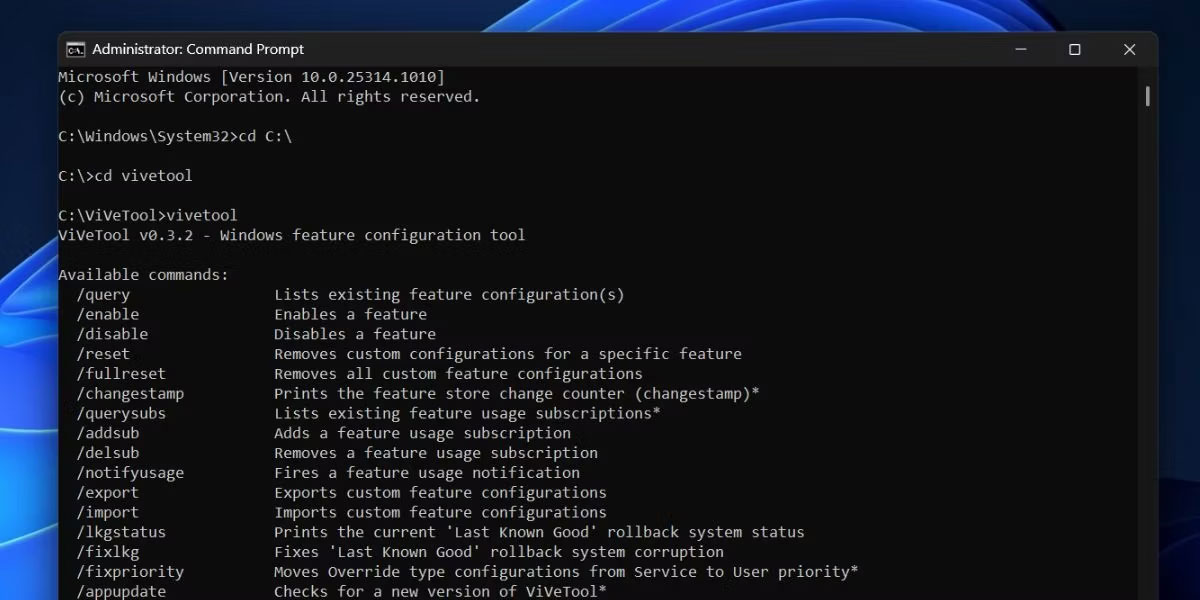
<p style="text-align: justify;">3. Tiếp theo, gõ lệnh&nbsp;<strong>cd Vivetool</strong>&nbsp;để vào thư mục chứa Vivetool trong ổ C. Đó là lý do chính tại sao bài viết đề nghị bạn trích xuất Vivetool ở một vị trí thuận tiện.</p>

<p style="text-align: justify;">4. Nhập lệnh&nbsp;<strong>Vivetool</strong>&nbsp;và nhấn phím&nbsp;<strong>Enter</strong>&nbsp;để kiểm tra xem công cụ có thể truy cập và hoạt động hay không. Bạn sẽ thấy phiên bản của công cụ cùng với các tham số mà nó hỗ trợ.</p>

<figure>
<div style="text-align: justify;"><img alt="Kích hoạt Gallery trong File Explorer trong Windows 11" data-i="0" data-src="https://st.quantrimang.com/photos/image/2023/04/20/gallery-trong-file-explorer-1.jpg" data-was-processed="true" height="600" src="https://st.quantrimang.com/photos/image/2023/04/20/gallery-trong-file-explorer-1.jpg" width="1200" /></div>

<figcaption>
<div style="text-align: justify;">Kích hoạt Gallery trong File Explorer trong Windows 11</div>
</figcaption>
</figure>

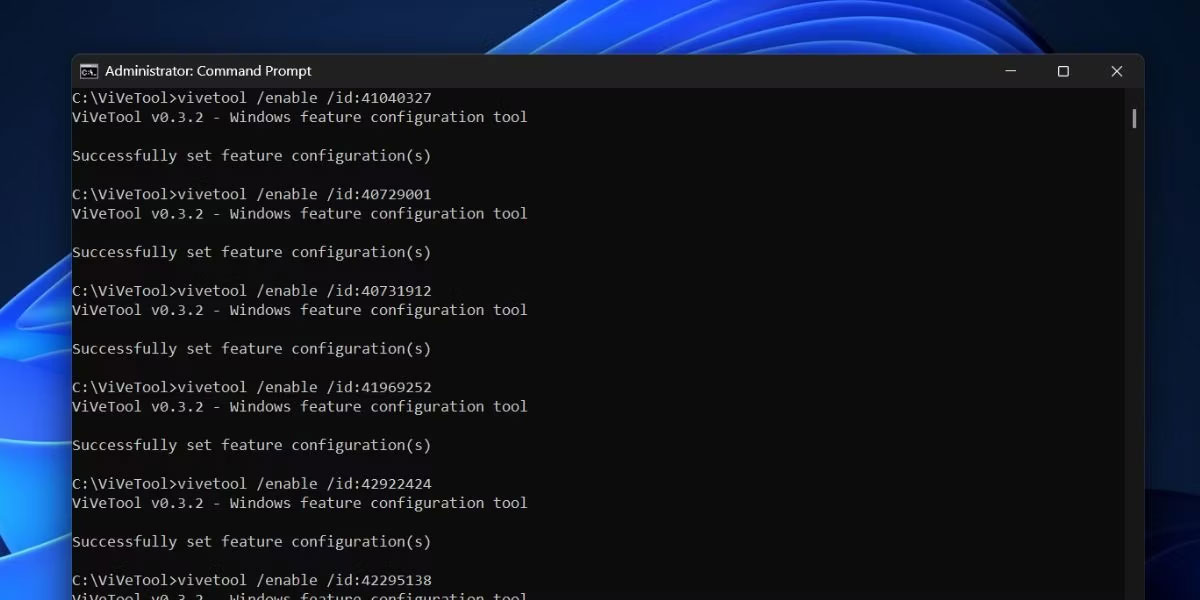
<p style="text-align: justify;">5. Bây giờ, gõ lệnh sau và nhấn phím&nbsp;<strong>Enter</strong>:</p>

<pre id="pre0">
<code>vivetool /enable /id:41040327</code></pre>

<p style="text-align: justify;">6. Nếu lệnh thực thi chính xác, bạn sẽ thấy thông báo&nbsp;<em>“Successfully set feature configuration(s)”&nbsp;</em>(Tạm dịch: (Các) cấu hình tính năng được thiết lập thành công). Nhưng đừng đóng cửa sổ CMD. Nhập các lệnh sau để bật từng tính năng của Gallery và thực thi chúng.</p>

<pre id="pre1">
<code>vivetool /enable /id:40729001 vivetool /enable /id:40731912 vivetool /enable /id:41969252 
vivetool /enable /id:42922424 vivetool /enable /id:42295138</code></pre>

<p style="text-align: justify;">7. Sau khi chạy tất cả các lệnh mà không có bất kỳ lỗi nào, hãy nhập&nbsp;<strong>exit</strong>&nbsp;và nhấn phím&nbsp;<strong>Enter</strong>&nbsp;để đóng cửa sổ CMD.</p>

<figure>
<div style="text-align: justify;"><img alt="Bật Gallery trong File Explorer" data-i="1" data-src="https://st.quantrimang.com/photos/image/2023/04/20/gallery-trong-file-explorer-2.jpg" data-was-processed="true" height="600" src="https://st.quantrimang.com/photos/image/2023/04/20/gallery-trong-file-explorer-2.jpg" width="1200" /></div>

<figcaption>
<div style="text-align: justify;">Bật Gallery trong File Explorer</div>
</figcaption>
</figure>

<p style="text-align: justify;">8.&nbsp;<a href="https://quantrimang.com/cong-nghe/6-cach-khoi-dong-lai-windows-that-pro-116819" title="6 cách khởi động lại máy tính Windows từ đơn giản đến &#039;Pro&#039;">Khởi động lại máy tính</a>&nbsp;để những thay đổi do Vivetool thực hiện có hiệu lực.</p>

<p style="text-align: justify;">9. Khi máy tính của bạn khởi động, hãy nhấn&nbsp;<strong>Win + E</strong>&nbsp;để mở File Explorer. Bạn sẽ thấy tùy chọn&nbsp;<strong>Gallery</strong>&nbsp;mới trong ngăn bên trái bên dưới tùy chọn&nbsp;<strong>Home</strong>.</p>

<h2 style="text-align: justify;">Cách xem Gallery trong File Explorer</h2>

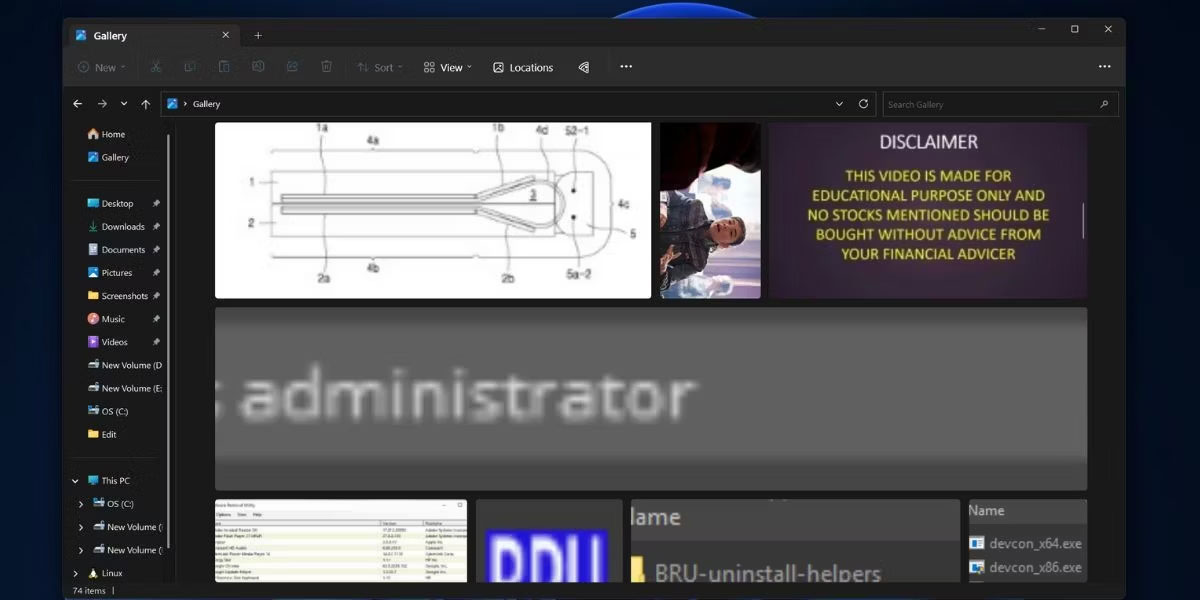
<p style="text-align: justify;">Bạn có thể truy cập phần&nbsp;<strong>Gallery</strong>&nbsp;bằng cách khởi chạy File Explorer và nhấp vào tùy chọn&nbsp;<strong>Gallery</strong>&nbsp;trong ngăn điều hướng bên trái. Bạn sẽ thấy tất cả các hình ảnh từ thư mục Pictures và OneDrive được sắp xếp theo thời gian sửa đổi (mới đến cũ). Ngoài ra còn có một thanh trượt tiện dụng để cuộn qua các ô hình ảnh rộng lớn mà không cần sử dụng con lăn chuột.</p>

<figure>
<div style="text-align: justify;"><img alt="Gallery trong Windows File Explorer" data-i="2" data-src="https://st.quantrimang.com/photos/image/2023/04/20/gallery-trong-file-explorer-3.jpg" data-was-processed="true" height="600" src="https://st.quantrimang.com/photos/image/2023/04/20/gallery-trong-file-explorer-3.jpg" width="1200" /></div>

<figcaption>
<div style="text-align: justify;">Gallery trong Windows File Explorer</div>
</figcaption>
</figure>

<p style="text-align: justify;">Ứng dụng Gallery cho phép bạn điều chỉnh chế độ xem của các tile hình ảnh để phù hợp nhiều hơn hoặc ít hơn trong một cửa sổ. Bạn có thể sử dụng tùy chọn&nbsp;<strong>View</strong>&nbsp;trong thanh menu của File Explorer để thay đổi kích thước tile ảnh. Nếu bạn nhấp vào bất kỳ hình ảnh nào, nó sẽ mở trong một cửa sổ ứng dụng riêng (ứng dụng Photos hoặc bất kỳ ứng dụng nào khác mà bạn sử dụng).</p>

<h2 style="text-align: justify;">Cách thêm hoặc xóa vị trí khỏi Gallery trong Windows File Explorer</h2>

<p style="text-align: justify;">Theo mặc định, lựa chọn Gallery sẽ hiển thị tất cả các hình ảnh nằm trong thư mục Pictures và OneDrive. Nhưng bạn cũng có thể thêm hoặc xóa một thư mục khỏi phần Gallery.</p>

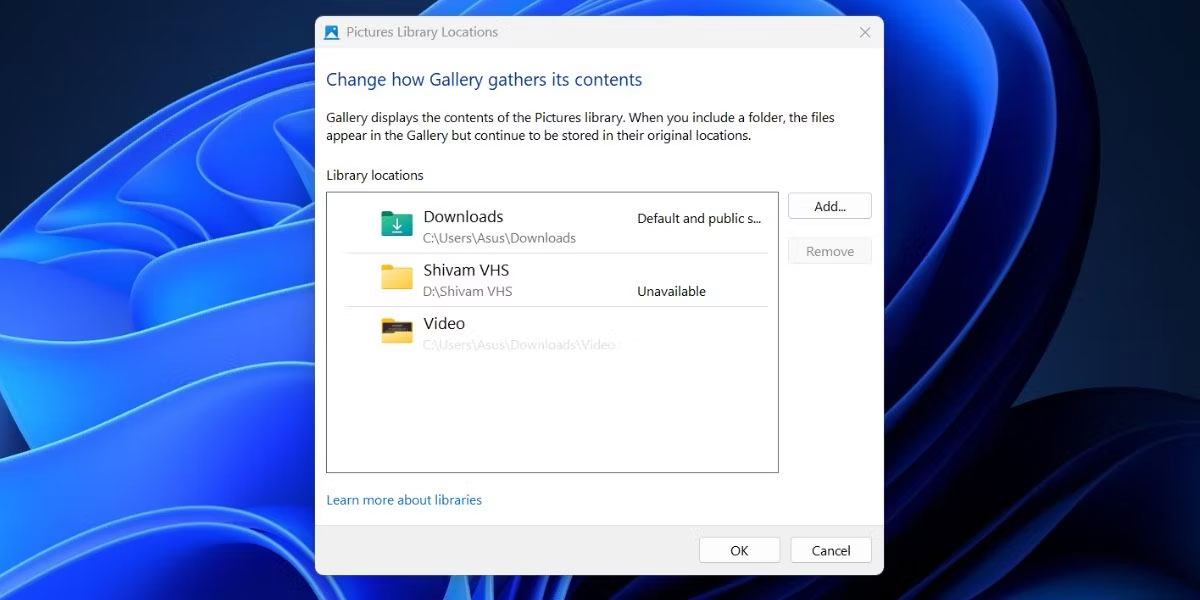
<p style="text-align: justify;">1. Để thêm một thư mục vào Gallery, hãy chuyển đến thanh menu và nhấp vào tùy chọn&nbsp;<strong>Locations</strong>. Một cửa sổ pop-up mới sẽ mở ra và liệt kê tất cả các thư mục mà phần&nbsp;<strong>Gallery</strong>&nbsp;đang lấy hình ảnh từ đó. Nhấp vào nút&nbsp;<strong>Add</strong>.</p>

<figure>
<div style="text-align: justify;"><img alt="Thêm thư mục vào Gallery trong Windows File Explorer" data-i="3" data-src="https://st.quantrimang.com/photos/image/2023/04/20/gallery-trong-file-explorer-4.jpg" data-was-processed="true" height="600" src="https://st.quantrimang.com/photos/image/2023/04/20/gallery-trong-file-explorer-4.jpg" width="1200" /></div>

<figcaption>
<div style="text-align: justify;">Thêm thư mục vào Gallery trong Windows File Explorer</div>
</figcaption>
</figure>

<p style="text-align: justify;">2. Bây giờ, chọn bất kỳ thư mục hoặc thư mục con nào có hình ảnh và nhấp vào nút&nbsp;<strong>Include Folder</strong>.</p>

<p style="text-align: justify;">3. Thư mục đã chọn sẽ xuất hiện trong danh sách các thư mục có sẵn. Bấm vào nút&nbsp;<strong>OK.</strong></p>

<p style="text-align: justify;">4. Gallery File Explorer giờ đây cũng sẽ hiển thị các hình ảnh có trong thư mục mới được thêm vào.</p>

<p style="text-align: justify;">Để xóa một thư mục khỏi Gallery, hãy làm theo các bước sau:</p>

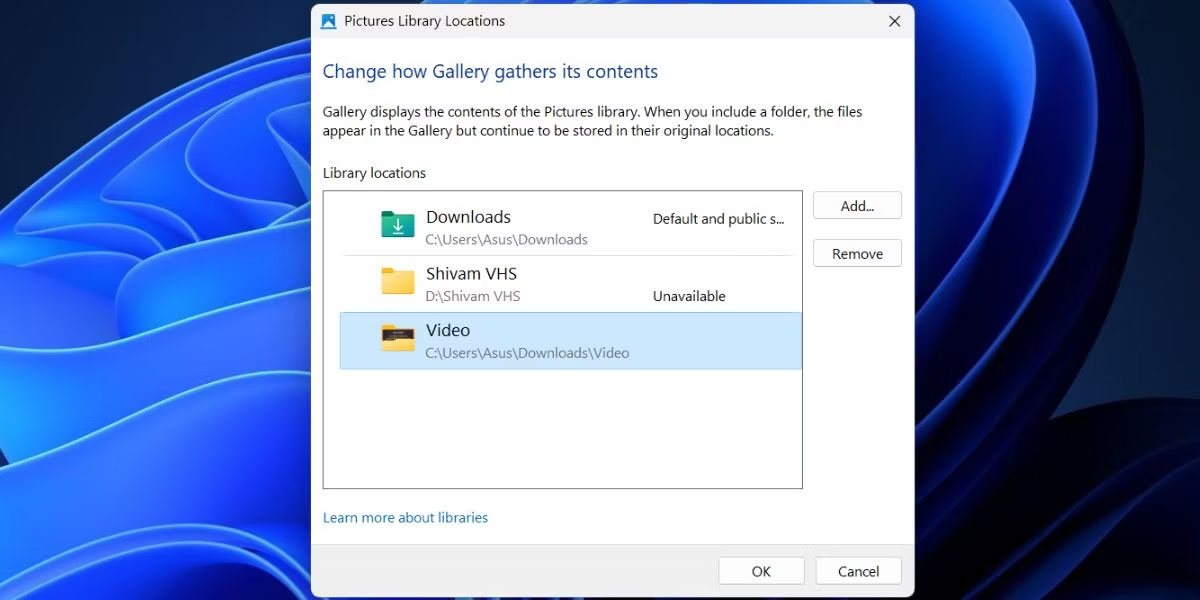
<p style="text-align: justify;">1. Mở phần&nbsp;<strong>Gallery</strong>&nbsp;và nhấp vào tùy chọn&nbsp;<strong>Locations</strong>&nbsp;trong thanh menu.</p>

<p style="text-align: justify;">2. Bạn sẽ thấy danh sách tất cả các thư mục hiện có trong&nbsp;<strong>Gallery.</strong></p>

<p style="text-align: justify;">3. Nhấp vào thư mục bạn muốn xóa để chọn nó. Sau đó bấm vào nút&nbsp;<strong>Remove</strong>.</p>

<figure>
<div style="text-align: justify;"><img alt="Xóa thư mục khỏi Gallery trong Windows File Explorer" data-i="4" data-src="https://st.quantrimang.com/photos/image/2023/04/20/gallery-trong-file-explorer-5.jpg" data-was-processed="true" height="600" src="https://st.quantrimang.com/photos/image/2023/04/20/gallery-trong-file-explorer-5.jpg" width="1200" /></div>

<figcaption>
<div style="text-align: justify;">Xóa thư mục khỏi Gallery trong Windows File Explorer</div>
</figcaption>
</figure>

<p style="text-align: justify;">4. Cuối cùng, nhấp vào nút&nbsp;<strong>OK</strong>&nbsp;để hoàn tất các thay đổi. Phần&nbsp;<strong>Gallery</strong>&nbsp;sẽ không hiển thị bất kỳ hình ảnh nào từ thư mục bị loại trừ kể từ bây giờ trở đi.</p>
		</div>
				<div id="author">
						<p>
				<strong>Nguồn tin:</strong>
				Quantrimang.com
			</p>
		</div>
	</div>
	<div id="footer" class="clearfix">
		<div id="url">
			<strong>URL của bản tin này: </strong><a href="https://www.nguoicodonvn2008.info/vi/news/savefile/kien-thuc-may-tinh/cach-kich-hoat-tinh-nang-gallery-trong-file-explorer-windows-11-7015.html" title="Cách kích hoạt tính năng Gallery trong File Explorer Windows 11">https://www.nguoicodonvn2008.info/vi/news/savefile/kien-thuc-may-tinh/cach-kich-hoat-tinh-nang-gallery-trong-file-explorer-windows-11-7015.html</a>

		</div>
		<div class="clear"></div>
		<div class="copyright">
			&copy; .&#x3A; Nguoicodonvn2008.info - Cõi lòng người cô đơn &#x3A;.
		</div>
		<div id="contact">
			<a href="mailto:admin@nguoicodonvn2008.info">admin@nguoicodonvn2008.info</a>
		</div>
	</div>
</div>
        <div id="timeoutsess" class="chromeframe">
            Bạn đã không sử dụng Site, <a onclick="timeoutsesscancel();" href="https://www.nguoicodonvn2008.info/#">Bấm vào đây để duy trì trạng thái đăng nhập</a>. Thời gian chờ: <span id="secField"> 60 </span> giây
        </div>
        <div id="openidResult" class="nv-alert" style="display:none"></div>
        <div id="openidBt" data-result="" data-redirect=""></div>
		</script>
		<div class="car-top">
  <span><img src="https://www.nguoicodonvn2008.info/themes/default/images/car.png" alt=""></span>
</div>
<script src="https://www.nguoicodonvn2008.info/assets/js/jquery/jquery.min.js"></script>
<script>var nv_base_siteurl="/",nv_lang_data="vi",nv_lang_interface="vi",nv_name_variable="nv",nv_fc_variable="op",nv_lang_variable="language",nv_module_name="news",nv_func_name="savefile",nv_is_user=0, nv_my_ofs=-4,nv_my_abbr="EDT",nv_cookie_prefix="nv4c_e856T",nv_check_pass_mstime=1738000,nv_area_admin=0,nv_safemode=0,theme_responsive=0,nv_recaptcha_ver=2,nv_recaptcha_sitekey="",nv_recaptcha_type="image",XSSsanitize=1;</script>
<script src="https://www.nguoicodonvn2008.info/assets/js/language/vi.js"></script>
<script src="https://www.nguoicodonvn2008.info/assets/js/DOMPurify/purify3.js"></script>
<script src="https://www.nguoicodonvn2008.info/assets/js/global.js"></script>
<script src="https://www.nguoicodonvn2008.info/assets/js/site.js"></script>
<script src="https://www.nguoicodonvn2008.info/themes/default/js/news.js"></script>
<script src="https://www.nguoicodonvn2008.info/themes/default/js/main.js"></script>
<script src="https://www.nguoicodonvn2008.info/themes/default/js/custom.js"></script>
<script type="application/ld+json">
        {
            "@context": "https://schema.org",
            "@type": "Organization",
            "url": "https://www.nguoicodonvn2008.info",
            "logo": "https://www.nguoicodonvn2008.info/uploads/angel.gif"
        }
        </script>
<script src="https://www.nguoicodonvn2008.info/themes/default/js/bootstrap.min.js"></script>
<script type="text/javascript">
var $scrolltop = $('.car-top');
$scrolltop.on('click', function () {
    $('html,body').animate({
        scrollTop: 0
    }, 800);
    $(this).addClass("car-run");
    setTimeout(function(){ $scrolltop.removeClass('car-run');}, 1000);
    return false;
});
$(window).on('scroll', function ()
{ 
    if($(window).scrollTop() >= 200)
    {
        $scrolltop.addClass("show");
        $scrolltop.addClass("car-down");
    }
    else
    {
       $scrolltop.removeClass("show");
       setTimeout(function(){ $scrolltop.removeClass('car-down');}, 300);
    }
});
</script>
</body>
</html>