<!DOCTYPE html>
    <html lang="vi" xmlns="http://www.w3.org/1999/xhtml" prefix="og: http://ogp.me/ns#">
    <head>
<title>Cách khôi phục tập tin đã xóa trên macOS</title>
<meta name="description" content="Cách khôi phục tập tin đã xóa trên macOS - Savefile - Tin Tức -...">
<meta name="author" content=".: Nguoicodonvn2008.info - Cõi lòng người cô đơn :.">
<meta name="copyright" content=".: Nguoicodonvn2008.info - Cõi lòng người cô đơn :. [admin@nguoicodonvn2008.info]">
<meta name="robots" content="index, archive, follow, noodp">
<meta name="googlebot" content="index,archive,follow,noodp">
<meta name="msnbot" content="all,index,follow">
<meta name="generator" content="NukeViet v4.5">
<meta http-equiv="Content-Type" content="text/html; charset=utf-8">
<meta property="og:title" content="Cách khôi phục tập tin đã xóa trên macOS">
<meta property="og:type" content="website">
<meta property="og:description" content="Savefile - Tin Tức - https&#x3A;&#x002F;&#x002F;www.nguoicodonvn2008.info&#x002F;vi&#x002F;news&#x002F;savefile&#x002F;kien-thuc-may-tinh&#x002F;cach-khoi-phuc-tap-tin-da-xoa-tren-macos-1641.html">
<meta property="og:site_name" content=".&#x3A; Nguoicodonvn2008.info - Cõi lòng người cô đơn &#x3A;.">
<meta property="og:url" content="https://www.nguoicodonvn2008.info/vi/news/savefile/kien-thuc-may-tinh/cach-khoi-phuc-tap-tin-da-xoa-tren-macos-1641.html">
<link rel="shortcut icon" href="https://www.nguoicodonvn2008.info/favicon.ico">
<link rel="canonical" href="https://www.nguoicodonvn2008.info/vi/news/savefile/kien-thuc-may-tinh/cach-khoi-phuc-tap-tin-da-xoa-tren-macos-1641.html">
<link rel="alternate" href="https://www.nguoicodonvn2008.info/vi/news/rss/" title="Tin Tức" type="application/rss+xml">
<link rel="alternate" href="https://www.nguoicodonvn2008.info/vi/news/rss/karaoke-dual/" title="Tin Tức - Karaoke Dual" type="application/rss+xml">
<link rel="alternate" href="https://www.nguoicodonvn2008.info/vi/news/rss/nhac-tre/" title="Tin Tức - Nhạc trẻ" type="application/rss+xml">
<link rel="alternate" href="https://www.nguoicodonvn2008.info/vi/news/rss/tru-tinh/" title="Tin Tức - Trữ tình" type="application/rss+xml">
<link rel="alternate" href="https://www.nguoicodonvn2008.info/vi/news/rss/nuoc-ngoai/" title="Tin Tức - Nước ngoài" type="application/rss+xml">
<link rel="alternate" href="https://www.nguoicodonvn2008.info/vi/news/rss/remix/" title="Tin Tức - Remix" type="application/rss+xml">
<link rel="alternate" href="https://www.nguoicodonvn2008.info/vi/news/rss/tam-su-tinh-yeu/" title="Tin Tức - Tâm sự tình yêu" type="application/rss+xml">
<link rel="alternate" href="https://www.nguoicodonvn2008.info/vi/news/rss/tho-suu-tam/" title="Tin Tức - Thơ sưu tầm" type="application/rss+xml">
<link rel="alternate" href="https://www.nguoicodonvn2008.info/vi/news/rss/cuoc-song/" title="Tin Tức - Cuộc sống" type="application/rss+xml">
<link rel="alternate" href="https://www.nguoicodonvn2008.info/vi/news/rss/phan-mem/" title="Tin Tức - Phần mềm" type="application/rss+xml">
<link rel="alternate" href="https://www.nguoicodonvn2008.info/vi/news/rss/kien-thuc-may-tinh/" title="Tin Tức - Kiến thức máy tính" type="application/rss+xml">
<link rel="alternate" href="https://www.nguoicodonvn2008.info/vi/news/rss/hoc-tap/" title="Tin Tức - Học tập" type="application/rss+xml">
<link rel="alternate" href="https://www.nguoicodonvn2008.info/vi/news/rss/tai-lieu/" title="Tin Tức - Tài liệu" type="application/rss+xml">
<link rel="alternate" href="https://www.nguoicodonvn2008.info/vi/news/rss/de-thi/" title="Tin Tức - Đề thi" type="application/rss+xml">
<link rel="preload" as="style" href="https://www.nguoicodonvn2008.info/assets/css/font-awesome.min.css" type="text/css">
<link rel="preload" as="style" href="https://www.nguoicodonvn2008.info/themes/default/css/bootstrap.non-responsive.css" type="text/css">
<link rel="preload" as="style" href="https://www.nguoicodonvn2008.info/themes/default/css/style.css" type="text/css">
<link rel="preload" as="style" href="https://www.nguoicodonvn2008.info/themes/default/css/style.non-responsive.css" type="text/css">
<link rel="preload" as="style" href="https://www.nguoicodonvn2008.info/themes/default/css/news.css" type="text/css">
<link rel="preload" as="style" href="https://www.nguoicodonvn2008.info/themes/default/css/custom.css" type="text/css">
<link rel="preload" as="script" href="https://www.nguoicodonvn2008.info/assets/js/jquery/jquery.min.js" type="text/javascript">
<link rel="preload" as="script" href="https://www.nguoicodonvn2008.info/assets/js/language/vi.js" type="text/javascript">
<link rel="preload" as="script" href="https://www.nguoicodonvn2008.info/assets/js/DOMPurify/purify3.js" type="text/javascript">
<link rel="preload" as="script" href="https://www.nguoicodonvn2008.info/assets/js/global.js" type="text/javascript">
<link rel="preload" as="script" href="https://www.nguoicodonvn2008.info/assets/js/site.js" type="text/javascript">
<link rel="preload" as="script" href="https://www.nguoicodonvn2008.info/themes/default/js/news.js" type="text/javascript">
<link rel="preload" as="script" href="https://www.nguoicodonvn2008.info/themes/default/js/main.js" type="text/javascript">
<link rel="preload" as="script" href="https://www.nguoicodonvn2008.info/themes/default/js/custom.js" type="text/javascript">
<link rel="preload" as="script" href="https://www.nguoicodonvn2008.info/themes/default/js/bootstrap.min.js" type="text/javascript">
<link rel="stylesheet" href="https://www.nguoicodonvn2008.info/assets/css/font-awesome.min.css">
<link rel="stylesheet" href="https://www.nguoicodonvn2008.info/themes/default/css/bootstrap.non-responsive.css">
<link rel="stylesheet" href="https://www.nguoicodonvn2008.info/themes/default/css/style.css">
<link rel="stylesheet" href="https://www.nguoicodonvn2008.info/themes/default/css/style.non-responsive.css">
<link rel="StyleSheet" href="https://www.nguoicodonvn2008.info/themes/default/css/news.css">
<link rel="stylesheet" href="https://www.nguoicodonvn2008.info/themes/default/css/custom.css">
<style type="text/css">
	body{background: #fff;}
</style>
    </head>
    <body>
<div id="print">
	<div id="hd_print">
		<h2 class="pull-left">.&#x3A; Nguoicodonvn2008.info - Cõi lòng người cô đơn &#x3A;.</h2>
		<p class="pull-right"><a title=".&#x3A; Nguoicodonvn2008.info - Cõi lòng người cô đơn &#x3A;." href="https://www.nguoicodonvn2008.info/">https://www.nguoicodonvn2008.info</a></p>
	</div>
	<div class="clear"></div>
	<hr />
	<div id="content">
		<h1>Cách khôi phục tập tin đã xóa trên macOS</h1>
		<ul class="list-inline">
			<li>Thứ bảy - 08/02/2020 09:30</li>
			<li class="hidden-print txtrequired"><em class="fa fa-print">&nbsp;</em><a title="In ra" href="javascript:;" onclick="window.print()">In ra</a></li>
			<li class="hidden-print txtrequired"><em class="fa fa-power-off">&nbsp;</em><a title="Đóng cửa sổ này" href="javascript:;" onclick="window.close()">Đóng cửa sổ này</a></li>
		</ul>
		<div class="clear"></div>
		<div id="hometext">
		</div>
				<div class="imghome">
			<img alt="Cách khôi phục tập tin đã xóa trên macOS" src="https://st.quantrimang.com/photos/image/2017/08/21/Trash-macOS-thong-bao.jpg" width="460" class="img-thumbnail" />
		</div>
		<div class="clear"></div>
		<div id="bodytext" class="clearfix">
			<p style="text-align: justify;">Để lấy lại những tập tin bị xóa khỏi máy, trên Windows bạn sẽ truy cập vào khu vực Recycle Bin. Với macOS, khu vực để người dùng tìm lại dữ liệu sẽ là khu vực Trash. Đây sẽ là nơi để bạn tìm lại những tập tin đã xóa khỏi ổ cứng, thẻ nhớ, ổ lưu trữ ngoài (không bao gồm ổ lưu trữ qua mạng). Khi người dùng truy cập tại đây, chúng ta sẽ có 3 lựa chọn gồm khôi phục tập tin về vị trí cũ (ngoài Trash), xoá hoàn toàn dữ liệu, và cuối cùng là xoá toàn bộ các tập tin nằm trong Trash.</p>

<h2 style="text-align: justify;">Kiểm tra thư mục Trash</h2>

<h3 style="text-align: justify;">Bước 1:</h3>

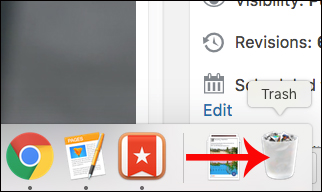
<p style="text-align: justify;">Tại thanh công cụ Dock, chúng ta nhấn vào&nbsp;<strong>biểu tượng thùng rác</strong>&nbsp;để mở giao diện Trash.</p>

<p style="text-align: justify;"><img alt="Biểu tượng Trash" data-i="0" data-src="https://st.quantrimang.com/photos/image/2017/08/21/Trash-macOS-icon.jpg" data-was-processed="true" height="192" src="https://st.quantrimang.com/photos/image/2017/08/21/Trash-macOS-icon.jpg" width="322" /></p>

<h3 style="text-align: justify;">Bước 2:</h3>

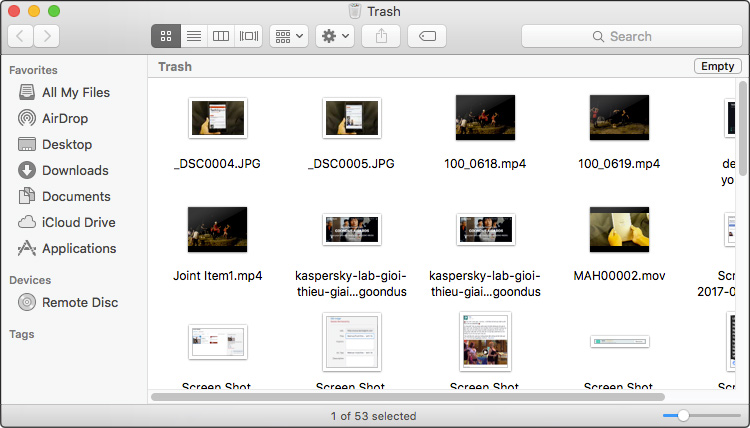
<p style="text-align: justify;">Ngay sau đó xuất hiện giao diện mục Trash. Chúng ta sẽ nhìn thấy toàn bộ các tập tin đã xóa trên máy.</p>

<p style="text-align: justify;"><img alt="Dữ liệu đã xóa trên máy" data-i="1" data-src="https://st.quantrimang.com/photos/image/2017/08/21/Trash-macOS-du-lieu.jpg" data-was-processed="true" height="342" src="https://st.quantrimang.com/photos/image/2017/08/21/Trash-macOS-du-lieu.jpg" width="600" /></p>

<div style="text-align: justify;">&nbsp;</div>

<h3 style="text-align: justify;">Bước 3:</h3>

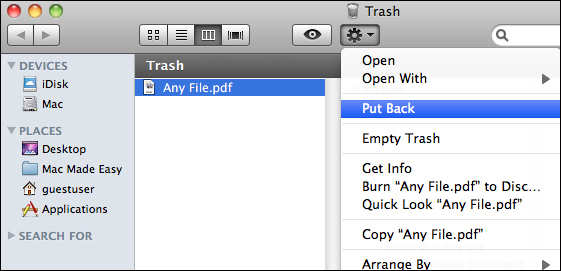
<p style="text-align: justify;">Để khôi phục một tập tin trong Trash, chúng ta nhấp chuột vào tập tin đó và chọn&nbsp;<strong>Put Back</strong>. Như vậy tập tin sẽ quay trở lại vị trí lưu trữ dữ liệu trước khi xóa.</p>

<p style="text-align: justify;"><img alt="Lấy lại dữ liệu từ Trash" data-i="2" data-src="https://st.quantrimang.com/photos/image/2017/08/21/Trash-macOS-lay-lai.jpg" data-was-processed="true" height="271" src="https://st.quantrimang.com/photos/image/2017/08/21/Trash-macOS-lay-lai.jpg" width="561" /></p>

<h3 style="text-align: justify;">Bước 4:</h3>

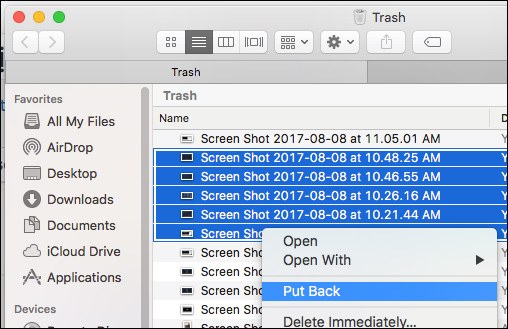
<p style="text-align: justify;">Để khôi phục nhiều tập tin cùng 1 lúc, chúng ta&nbsp;<strong>bôi đen những dữ liệu muốn lấy lại</strong>, hoặc nhấp vào từng tâp tin kết hợp ấn phím Command để chọn lựa toàn bộ các tập tin muốn lấy lại. Sau đó, nhấp chuột phải và chọn&nbsp;<strong>Put Back</strong>.</p>

<p style="text-align: justify;"><img alt="Lấy lại nhiều dữ liệu" data-i="3" data-src="https://st.quantrimang.com/photos/image/2017/08/21/Trash-macOS-nhieu-file.jpg" data-was-processed="true" height="329" src="https://st.quantrimang.com/photos/image/2017/08/21/Trash-macOS-nhieu-file.jpg" width="508" /></p>

<h3 style="text-align: justify;">Bước 5:</h3>

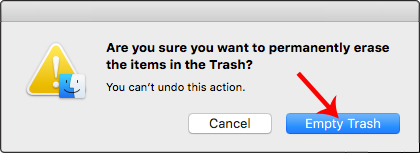
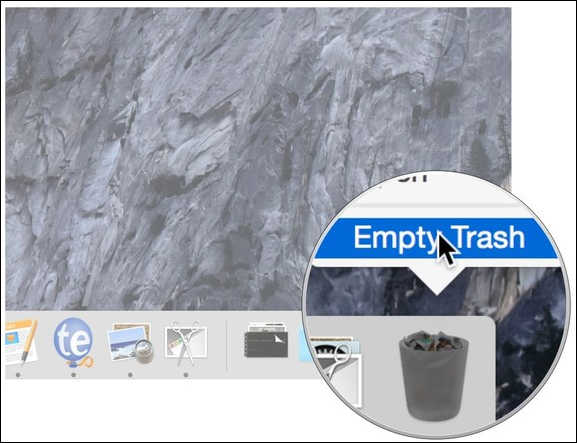
<p style="text-align: justify;">Sau khi đã lấy lại những dữ liệu cần thiết, kiểm tra lại những dữ liệu còn lại để tiến hành xóa hẳn trong mục Trask. Chúng ta có thể nhấp chuột phải lên<strong>&nbsp;biểu tượng Trask</strong>&nbsp;ở thanh công cụ và chọn&nbsp;<strong>Empty Trash</strong>.</p>

<p style="text-align: justify;">Hoặc có thể mở giao diện Trask và chọn Empty Trash.</p>

<p style="text-align: justify;"><img alt="Xóa toàn bộ dữ liệu trong Trash" data-i="4" data-src="https://st.quantrimang.com/photos/image/2017/08/21/Trash-macOS-Empty-Trash.jpg" data-was-processed="true" height="384" src="https://st.quantrimang.com/photos/image/2017/08/21/Trash-macOS-Empty-Trash.jpg" width="500" /></p>

<p style="text-align: justify;">Sau đó, xuất hiện giao diện thông báo hỏi người dùng có chắc chắn xóa những dữ liệu này hay không. Nếu chắc chắn nhấn Empty Trash. Khi nhấn xong, người dùng không thể khôi phục lại thao tác đã thực hiện trước đó, đồng nghĩa toàn bộ dữ liệu sẽ biến mất trên hệ thống.</p>

<p style="text-align: justify;"><img alt="Thông báo xóa dữ liệu trong Trash" data-i="5" data-src="https://st.quantrimang.com/photos/image/2017/08/21/Trash-macOS-thong-bao.jpg" data-was-processed="true" height="153" src="https://st.quantrimang.com/photos/image/2017/08/21/Trash-macOS-thong-bao.jpg" width="420" /></p>

<p style="text-align: justify;">Với khu vực Trash, người dùng có thể tìm lại những dữ liệu mình đã xóa trước đó, nếu bạn không xóa hoàn toàn tập tin bằng cách nhấn Delete Immediately... trên hệ thống. Và khi lấy lại tập tin, chúng ta sẽ có thêm các tùy chọn lấy lại dữ liệu hoặc xóa toàn bộ dữ liệu khỏi khu vực Trash.</p>

<h2 style="text-align: justify;">Khôi phục các file đã xóa trên macOS với Disk Drill</h2>

<p style="text-align: justify;">Khi bạn xóa các file khỏi thư mục&nbsp;<strong>Trash</strong>, nó sẽ không xóa hoàn toàn mọi dấu vết của các file đó khỏi ổ. Thông tin về file bị xóa, nhưng nội dung thường được giữ nguyên trên ổ cho đến khi bị ghi đè bởi các file khác.</p>

<p style="text-align: justify;">Điều này cho phép các ứng dụng khôi phục file, như Disk Drill, khôi phục các file của bạn. Tuy nhiên không phải lúc nào cũng khôi phục được các file đã bị xóa, đặc biệt nếu chúng đã bị loại bỏ cách đây một thời gian.</p>

<p style="text-align: justify;">Cơ hội thành công cao nhất là sử dụng Disk Drill để khôi phục các file mà bạn vừa mới xóa. Có thể sử dụng&nbsp;<strong>Disk Drill</strong>&nbsp;để quét các file đã bị xóa, nhưng bạn sẽ phải trả tiền cho&nbsp;<strong>Disk Drill Pro</strong>&nbsp;để có thể khôi phục chúng. Thực hiện càng ít thay đổi càng tốt đối với ổ trước khi bạn chạy ứng dụng.</p>

<p style="text-align: justify;">Hãy tải xuống ứng dụng Disk Drill bằng PC hoặc Mac khác và chạy nó từ USB, nếu có thể.</p>

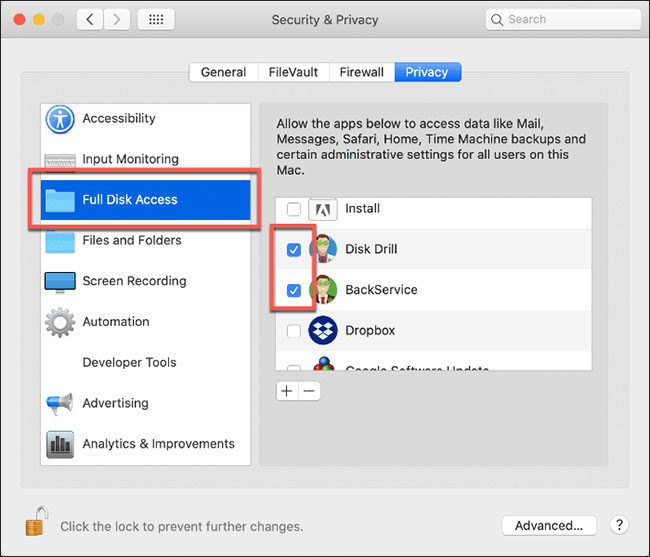
<p style="text-align: justify;">Khi lần đầu chạy ứng dụng Disk Drill, bạn sẽ được yêu cầu cấp quyền truy cập ổ đĩa đầy đủ. Bạn có thể thực hiện việc này từ&nbsp;<strong>System Preferences</strong>&nbsp;(truy cập từ&nbsp;<strong>Launchpad</strong>&nbsp;hoặc dưới dạng biểu tượng trên&nbsp;<strong>Dock</strong>).</p>

<p style="text-align: justify;">Từ đó, nhấp&nbsp;<strong>Security &amp; Privacy &gt; Privacy &gt; Full Disk Access</strong>&nbsp;và cấp quyền truy cập cho&nbsp;<strong>Disk Drill</strong>&nbsp;và<strong>&nbsp;BackService</strong>.</p>

<figure>
<div style="text-align: justify;"><img alt="Cấp quyền truy cập cho Disk Drill và BackService" data-i="6" data-src="https://st.quantrimang.com/photos/image/2020/02/07/cach-khoi-phuc-tap-tin-da-xoa-tren-macos-1.jpg" data-was-processed="true" height="557" src="https://st.quantrimang.com/photos/image/2020/02/07/cach-khoi-phuc-tap-tin-da-xoa-tren-macos-1.jpg" width="650" /></div>

<figcaption>
<div style="text-align: justify;">Cấp quyền truy cập cho Disk Drill và BackService</div>
</figcaption>
</figure>

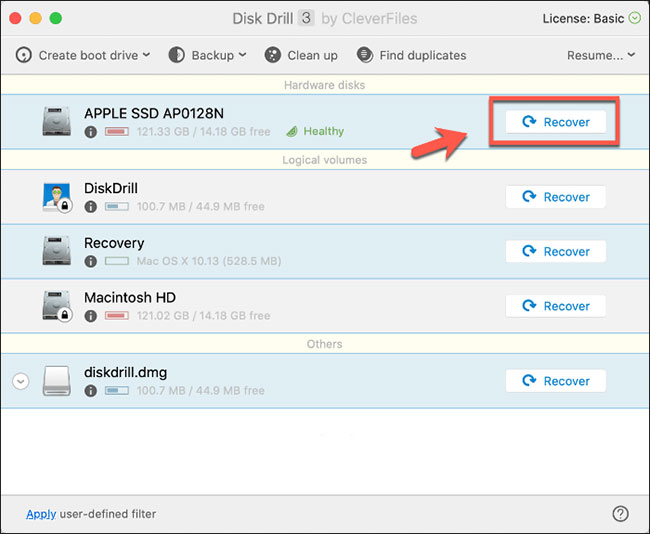
<p style="text-align: justify;">Khi Disk Drill được cấp quyền, hãy chạy lại ứng dụng. Một danh sách các ổ đĩa và phân vùng được phát hiện sẽ xuất hiện trong menu Disk Drill.</p>

<p style="text-align: justify;">Để bắt đầu khôi phục các file từ ổ, nhấp vào nút&nbsp;<strong>Recover</strong>&nbsp;bên cạnh nó.</p>

<figure>
<div style="text-align: justify;"><img alt="Nhấp vào nút Recover" data-i="7" data-src="https://st.quantrimang.com/photos/image/2020/02/07/cach-khoi-phuc-tap-tin-da-xoa-tren-macos-2.jpg" data-was-processed="true" height="534" src="https://st.quantrimang.com/photos/image/2020/02/07/cach-khoi-phuc-tap-tin-da-xoa-tren-macos-2.jpg" width="650" /></div>

<figcaption>
<div style="text-align: justify;">Nhấp vào nút Recover</div>
</figcaption>
</figure>

<p style="text-align: justify;">Disk Drill sẽ mất một thời gian để quét ổ và khôi phục bất kỳ file tiềm năng nào. Khi quá trình hoàn tất, Disk Drill sẽ cho bạn thấy những gì nó đã tìm thấy. Nhiều file có thể là file rác mà bạn đã bỏ qua, nhưng hãy chú ý đến các file mà bạn muốn khôi phục.</p>

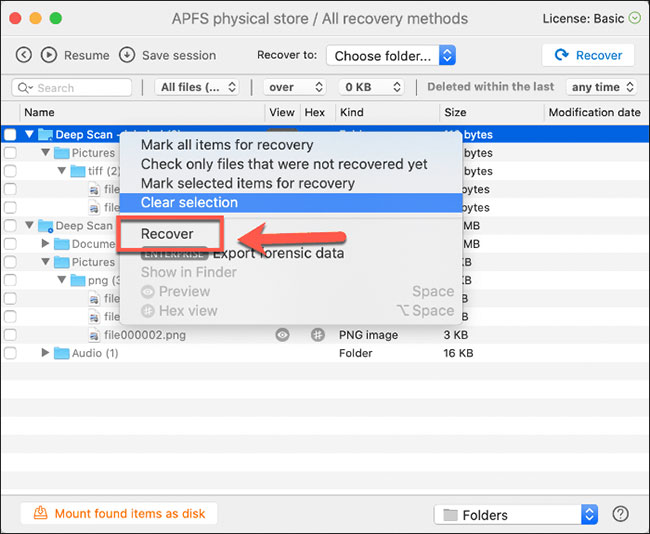
<p style="text-align: justify;">Bấm chuột phải vào bất kỳ file nào bạn muốn khôi phục và bấm&nbsp;<strong>Recover</strong>&nbsp;để khôi phục chúng. Chọn nơi bạn muốn lưu file, sau đó bấm&nbsp;<strong>Choose&nbsp;</strong>để lưu.</p>

<figure>
<div style="text-align: justify;"><img alt="Bấm Recover" data-i="8" data-src="https://st.quantrimang.com/photos/image/2020/02/07/cach-khoi-phuc-tap-tin-da-xoa-tren-macos-3.jpg" data-was-processed="true" height="534" src="https://st.quantrimang.com/photos/image/2020/02/07/cach-khoi-phuc-tap-tin-da-xoa-tren-macos-3.jpg" width="650" /></div>

<figcaption>
<div style="text-align: justify;">Bấm Recover</div>
</figcaption>
</figure>

<p style="text-align: justify;">Các file đã xóa sẽ xuất hiện trong thư mục bạn đã chọn, sẵn sàng để bạn sử dụng lại.</p>

<p style="text-align: justify;">Hy vọng bài viết này hữu ích với bạn!</p>
		</div>
				<div id="author">
						<p>
				<strong>Nguồn tin:</strong>
				Quantrimang.com
			</p>
		</div>
	</div>
	<div id="footer" class="clearfix">
		<div id="url">
			<strong>URL của bản tin này: </strong><a href="https://www.nguoicodonvn2008.info/vi/news/savefile/kien-thuc-may-tinh/cach-khoi-phuc-tap-tin-da-xoa-tren-macos-1641.html" title="Cách khôi phục tập tin đã xóa trên macOS">https://www.nguoicodonvn2008.info/vi/news/savefile/kien-thuc-may-tinh/cach-khoi-phuc-tap-tin-da-xoa-tren-macos-1641.html</a>

		</div>
		<div class="clear"></div>
		<div class="copyright">
			&copy; .&#x3A; Nguoicodonvn2008.info - Cõi lòng người cô đơn &#x3A;.
		</div>
		<div id="contact">
			<a href="mailto:admin@nguoicodonvn2008.info">admin@nguoicodonvn2008.info</a>
		</div>
	</div>
</div>
        <div id="timeoutsess" class="chromeframe">
            Bạn đã không sử dụng Site, <a onclick="timeoutsesscancel();" href="https://www.nguoicodonvn2008.info/#">Bấm vào đây để duy trì trạng thái đăng nhập</a>. Thời gian chờ: <span id="secField"> 60 </span> giây
        </div>
        <div id="openidResult" class="nv-alert" style="display:none"></div>
        <div id="openidBt" data-result="" data-redirect=""></div>
		</script>
		<div class="car-top">
  <span><img src="https://www.nguoicodonvn2008.info/themes/default/images/car.png" alt=""></span>
</div>
<script src="https://www.nguoicodonvn2008.info/assets/js/jquery/jquery.min.js"></script>
<script>var nv_base_siteurl="/",nv_lang_data="vi",nv_lang_interface="vi",nv_name_variable="nv",nv_fc_variable="op",nv_lang_variable="language",nv_module_name="news",nv_func_name="savefile",nv_is_user=0, nv_my_ofs=-4,nv_my_abbr="EDT",nv_cookie_prefix="nv4c_e856T",nv_check_pass_mstime=1738000,nv_area_admin=0,nv_safemode=0,theme_responsive=0,nv_recaptcha_ver=2,nv_recaptcha_sitekey="",nv_recaptcha_type="image",XSSsanitize=1;</script>
<script src="https://www.nguoicodonvn2008.info/assets/js/language/vi.js"></script>
<script src="https://www.nguoicodonvn2008.info/assets/js/DOMPurify/purify3.js"></script>
<script src="https://www.nguoicodonvn2008.info/assets/js/global.js"></script>
<script src="https://www.nguoicodonvn2008.info/assets/js/site.js"></script>
<script src="https://www.nguoicodonvn2008.info/themes/default/js/news.js"></script>
<script src="https://www.nguoicodonvn2008.info/themes/default/js/main.js"></script>
<script src="https://www.nguoicodonvn2008.info/themes/default/js/custom.js"></script>
<script type="application/ld+json">
        {
            "@context": "https://schema.org",
            "@type": "Organization",
            "url": "https://www.nguoicodonvn2008.info",
            "logo": "https://www.nguoicodonvn2008.info/uploads/angel.gif"
        }
        </script>
<script src="https://www.nguoicodonvn2008.info/themes/default/js/bootstrap.min.js"></script>
<script type="text/javascript">
var $scrolltop = $('.car-top');
$scrolltop.on('click', function () {
    $('html,body').animate({
        scrollTop: 0
    }, 800);
    $(this).addClass("car-run");
    setTimeout(function(){ $scrolltop.removeClass('car-run');}, 1000);
    return false;
});
$(window).on('scroll', function ()
{ 
    if($(window).scrollTop() >= 200)
    {
        $scrolltop.addClass("show");
        $scrolltop.addClass("car-down");
    }
    else
    {
       $scrolltop.removeClass("show");
       setTimeout(function(){ $scrolltop.removeClass('car-down');}, 300);
    }
});
</script>
</body>
</html>