<!DOCTYPE html>
    <html lang="vi" xmlns="http://www.w3.org/1999/xhtml" prefix="og: http://ogp.me/ns#">
    <head>
<title>Cách khởi động lại máy Mac</title>
<meta name="description" content="Cách khởi động lại máy Mac - Savefile - Tin Tức - https&#x3A;&#x002F;&#x002F;www.nguoicodonvn2008.info&#x002F;vi&#x002F;news&#x002F;savefile&#x002F;kien-thuc-may-tinh&#x002F;cach-khoi-dong-lai-may-mac-6311.html">
<meta name="author" content=".: Nguoicodonvn2008.info - Cõi lòng người cô đơn :.">
<meta name="copyright" content=".: Nguoicodonvn2008.info - Cõi lòng người cô đơn :. [admin@nguoicodonvn2008.info]">
<meta name="robots" content="index, archive, follow, noodp">
<meta name="googlebot" content="index,archive,follow,noodp">
<meta name="msnbot" content="all,index,follow">
<meta name="generator" content="NukeViet v4.5">
<meta http-equiv="Content-Type" content="text/html; charset=utf-8">
<meta property="og:title" content="Cách khởi động lại máy Mac">
<meta property="og:type" content="website">
<meta property="og:description" content="Savefile - Tin Tức - https&#x3A;&#x002F;&#x002F;www.nguoicodonvn2008.info&#x002F;vi&#x002F;news&#x002F;savefile&#x002F;kien-thuc-may-tinh&#x002F;cach-khoi-dong-lai-may-mac-6311.html">
<meta property="og:site_name" content=".&#x3A; Nguoicodonvn2008.info - Cõi lòng người cô đơn &#x3A;.">
<meta property="og:url" content="https://www.nguoicodonvn2008.info/vi/news/savefile/kien-thuc-may-tinh/cach-khoi-dong-lai-may-mac-6311.html">
<link rel="shortcut icon" href="https://www.nguoicodonvn2008.info/favicon.ico">
<link rel="canonical" href="https://www.nguoicodonvn2008.info/vi/news/savefile/kien-thuc-may-tinh/cach-khoi-dong-lai-may-mac-6311.html">
<link rel="alternate" href="https://www.nguoicodonvn2008.info/vi/news/rss/" title="Tin Tức" type="application/rss+xml">
<link rel="alternate" href="https://www.nguoicodonvn2008.info/vi/news/rss/karaoke-dual/" title="Tin Tức - Karaoke Dual" type="application/rss+xml">
<link rel="alternate" href="https://www.nguoicodonvn2008.info/vi/news/rss/nhac-tre/" title="Tin Tức - Nhạc trẻ" type="application/rss+xml">
<link rel="alternate" href="https://www.nguoicodonvn2008.info/vi/news/rss/tru-tinh/" title="Tin Tức - Trữ tình" type="application/rss+xml">
<link rel="alternate" href="https://www.nguoicodonvn2008.info/vi/news/rss/nuoc-ngoai/" title="Tin Tức - Nước ngoài" type="application/rss+xml">
<link rel="alternate" href="https://www.nguoicodonvn2008.info/vi/news/rss/remix/" title="Tin Tức - Remix" type="application/rss+xml">
<link rel="alternate" href="https://www.nguoicodonvn2008.info/vi/news/rss/tam-su-tinh-yeu/" title="Tin Tức - Tâm sự tình yêu" type="application/rss+xml">
<link rel="alternate" href="https://www.nguoicodonvn2008.info/vi/news/rss/tho-suu-tam/" title="Tin Tức - Thơ sưu tầm" type="application/rss+xml">
<link rel="alternate" href="https://www.nguoicodonvn2008.info/vi/news/rss/cuoc-song/" title="Tin Tức - Cuộc sống" type="application/rss+xml">
<link rel="alternate" href="https://www.nguoicodonvn2008.info/vi/news/rss/phan-mem/" title="Tin Tức - Phần mềm" type="application/rss+xml">
<link rel="alternate" href="https://www.nguoicodonvn2008.info/vi/news/rss/kien-thuc-may-tinh/" title="Tin Tức - Kiến thức máy tính" type="application/rss+xml">
<link rel="alternate" href="https://www.nguoicodonvn2008.info/vi/news/rss/hoc-tap/" title="Tin Tức - Học tập" type="application/rss+xml">
<link rel="alternate" href="https://www.nguoicodonvn2008.info/vi/news/rss/tai-lieu/" title="Tin Tức - Tài liệu" type="application/rss+xml">
<link rel="alternate" href="https://www.nguoicodonvn2008.info/vi/news/rss/de-thi/" title="Tin Tức - Đề thi" type="application/rss+xml">
<link rel="preload" as="style" href="https://www.nguoicodonvn2008.info/assets/css/font-awesome.min.css" type="text/css">
<link rel="preload" as="style" href="https://www.nguoicodonvn2008.info/themes/default/css/bootstrap.non-responsive.css" type="text/css">
<link rel="preload" as="style" href="https://www.nguoicodonvn2008.info/themes/default/css/style.css" type="text/css">
<link rel="preload" as="style" href="https://www.nguoicodonvn2008.info/themes/default/css/style.non-responsive.css" type="text/css">
<link rel="preload" as="style" href="https://www.nguoicodonvn2008.info/themes/default/css/news.css" type="text/css">
<link rel="preload" as="style" href="https://www.nguoicodonvn2008.info/themes/default/css/custom.css" type="text/css">
<link rel="preload" as="script" href="https://www.nguoicodonvn2008.info/assets/js/jquery/jquery.min.js" type="text/javascript">
<link rel="preload" as="script" href="https://www.nguoicodonvn2008.info/assets/js/language/vi.js" type="text/javascript">
<link rel="preload" as="script" href="https://www.nguoicodonvn2008.info/assets/js/DOMPurify/purify3.js" type="text/javascript">
<link rel="preload" as="script" href="https://www.nguoicodonvn2008.info/assets/js/global.js" type="text/javascript">
<link rel="preload" as="script" href="https://www.nguoicodonvn2008.info/assets/js/site.js" type="text/javascript">
<link rel="preload" as="script" href="https://www.nguoicodonvn2008.info/themes/default/js/news.js" type="text/javascript">
<link rel="preload" as="script" href="https://www.nguoicodonvn2008.info/themes/default/js/main.js" type="text/javascript">
<link rel="preload" as="script" href="https://www.nguoicodonvn2008.info/themes/default/js/custom.js" type="text/javascript">
<link rel="preload" as="script" href="https://www.nguoicodonvn2008.info/themes/default/js/bootstrap.min.js" type="text/javascript">
<link rel="stylesheet" href="https://www.nguoicodonvn2008.info/assets/css/font-awesome.min.css">
<link rel="stylesheet" href="https://www.nguoicodonvn2008.info/themes/default/css/bootstrap.non-responsive.css">
<link rel="stylesheet" href="https://www.nguoicodonvn2008.info/themes/default/css/style.css">
<link rel="stylesheet" href="https://www.nguoicodonvn2008.info/themes/default/css/style.non-responsive.css">
<link rel="StyleSheet" href="https://www.nguoicodonvn2008.info/themes/default/css/news.css">
<link rel="stylesheet" href="https://www.nguoicodonvn2008.info/themes/default/css/custom.css">
<style type="text/css">
	body{background: #fff;}
</style>
    </head>
    <body>
<div id="print">
	<div id="hd_print">
		<h2 class="pull-left">.&#x3A; Nguoicodonvn2008.info - Cõi lòng người cô đơn &#x3A;.</h2>
		<p class="pull-right"><a title=".&#x3A; Nguoicodonvn2008.info - Cõi lòng người cô đơn &#x3A;." href="https://www.nguoicodonvn2008.info/">https://www.nguoicodonvn2008.info</a></p>
	</div>
	<div class="clear"></div>
	<hr />
	<div id="content">
		<h1>Cách khởi động lại máy Mac</h1>
		<ul class="list-inline">
			<li>Thứ sáu - 11/11/2022 23:58</li>
			<li class="hidden-print txtrequired"><em class="fa fa-print">&nbsp;</em><a title="In ra" href="javascript:;" onclick="window.print()">In ra</a></li>
			<li class="hidden-print txtrequired"><em class="fa fa-power-off">&nbsp;</em><a title="Đóng cửa sổ này" href="javascript:;" onclick="window.close()">Đóng cửa sổ này</a></li>
		</ul>
		<div class="clear"></div>
		<div id="hometext">
		</div>
				<div class="imghome">
			<img alt="Cách khởi động lại máy Mac" src="https://st.quantrimang.com/photos/image/2022/11/11/khoi-dong-lai-may-mac-19.jpg" width="460" class="img-thumbnail" />
		</div>
		<div class="clear"></div>
		<div id="bodytext" class="clearfix">
			<p style="text-align: justify;">Nếu máy tính Mac của bạn đột nhiên bị đóng băng hoặc bắt đầu hoạt động chậm và ì ạch, việc khởi động lại máy Mac có thể giúp xóa bộ nhớ và xử lý các mục trở lại ở tốc độ bình thường. Có một số phương pháp bạn có thể sử dụng để khởi động lại máy Mac của mình, hữu ích trong trường hợp bạn không thể truy cập các lệnh hoặc chương trình nhất định do sự cố máy tính.</p>

<h2 style="text-align: justify;">Phương pháp 1: Sử dụng menu Apple</h2>

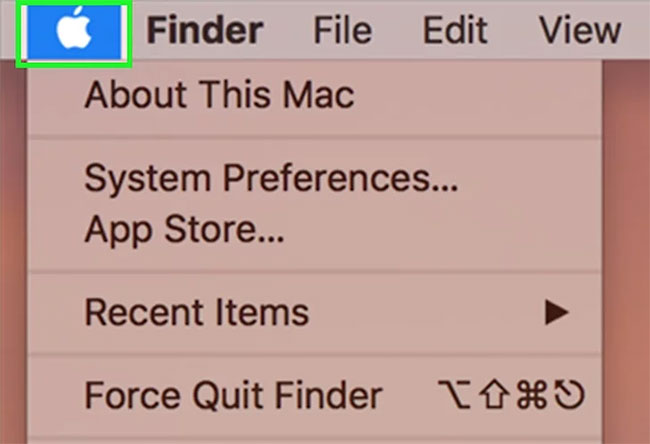
<p style="text-align: justify;"><strong>Bước 1</strong>: Nhấp vào biểu tượng Apple nằm trong thanh công cụ của máy Mac.</p>

<figure>
<div style="text-align: justify;"><img alt="Nhấp vào biểu tượng Apple" data-i="0" data-src="https://st.quantrimang.com/photos/image/2022/11/11/khoi-dong-lai-may-mac-1.jpg" data-was-processed="true" height="444" src="https://st.quantrimang.com/photos/image/2022/11/11/khoi-dong-lai-may-mac-1.jpg" width="650" /></div>

<figcaption>
<div style="text-align: justify;">Nhấp vào biểu tượng Apple</div>
</figcaption>
</figure>

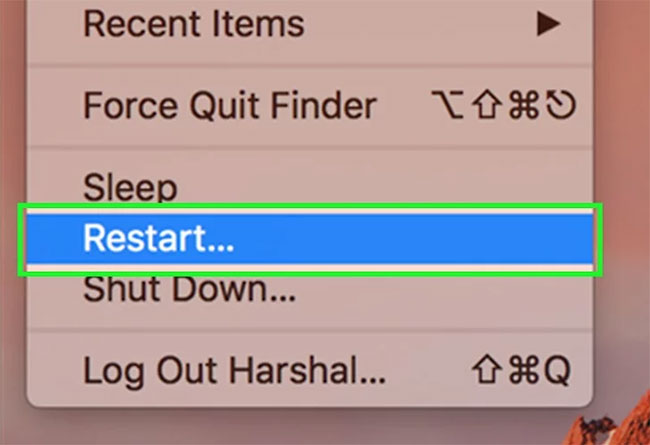
<p style="text-align: justify;"><strong>Bước 2</strong>: Nhấp vào&nbsp;<strong>“Restart”.</strong></p>

<figure>
<div style="text-align: justify;"><img alt="Nhấp vào “Restart”" data-i="1" data-src="https://st.quantrimang.com/photos/image/2022/11/11/khoi-dong-lai-may-mac-2.jpg" data-was-processed="true" height="445" src="https://st.quantrimang.com/photos/image/2022/11/11/khoi-dong-lai-may-mac-2.jpg" width="650" /></div>

<figcaption>
<div style="text-align: justify;">Nhấp vào “Restart”</div>
</figcaption>
</figure>

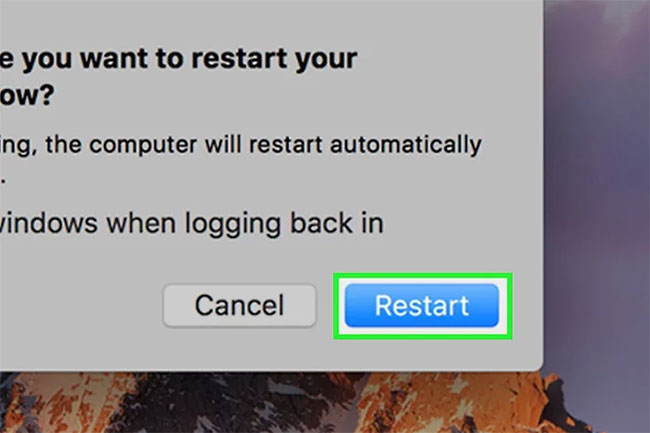
<p style="text-align: justify;"><strong>Bước 3</strong>: Nhấp vào&nbsp;<strong>“Restart”</strong>&nbsp;một lần nữa khi được yêu cầu xác nhận rằng bạn muốn khởi động lại máy tính của mình. Máy Mac sẽ khởi động lại ngay lập tức.</p>

<figure>
<div style="text-align: justify;"><img alt="Xác nhận việc khởi động lại" data-i="2" data-src="https://st.quantrimang.com/photos/image/2022/11/11/khoi-dong-lai-may-mac-3.jpg" data-was-processed="true" height="433" src="https://st.quantrimang.com/photos/image/2022/11/11/khoi-dong-lai-may-mac-3.jpg" width="650" /></div>

<figcaption>
<div style="text-align: justify;">Xác nhận việc khởi động lại</div>
</figcaption>
</figure>

<p style="text-align: justify;"><strong>Lưu ý</strong>: Bạn nên khởi động lại máy Mac mỗi tuần một lần để giải phóng bộ nhớ trên máy tính của mình. Bạn có thể&nbsp;<a href="https://quantrimang.com/cong-nghe/activity-monitor-la-gi-163097" title="Tìm hiểu về Activity Monitor trên Mac">sử dụng Activity Monitor</a>&nbsp;để kiểm tra lượng bộ nhớ đang được các ứng dụng khác sử dụng và quyết định thời điểm thích hợp để khởi động lại máy Mac. Bằng cách này, bạn có thể sử dụng tất cả bộ nhớ thực sự có trên máy tính.</p>

<h2 style="text-align: justify;">Phương pháp 2: Sử dụng cửa sổ Shutdown</h2>

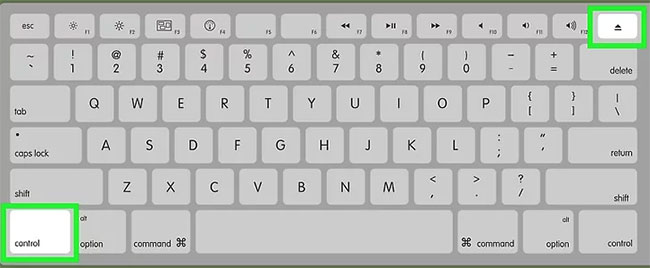
<p style="text-align: justify;"><strong>Bước 1</strong>: Nhấn đồng thời các phím&nbsp;<strong>“Control”</strong>&nbsp;và&nbsp;<strong>“Eject”</strong>&nbsp;trên bàn phím.</p>

<figure>
<div style="text-align: justify;"><img alt="Nhấn phím “Control” và “Eject”" data-i="3" data-src="https://st.quantrimang.com/photos/image/2022/11/11/khoi-dong-lai-may-mac-4.jpg" data-was-processed="true" height="268" src="https://st.quantrimang.com/photos/image/2022/11/11/khoi-dong-lai-may-mac-4.jpg" width="650" /></div>

<figcaption>
<div style="text-align: justify;">Nhấn phím “Control” và “Eject”</div>
</figcaption>
</figure>

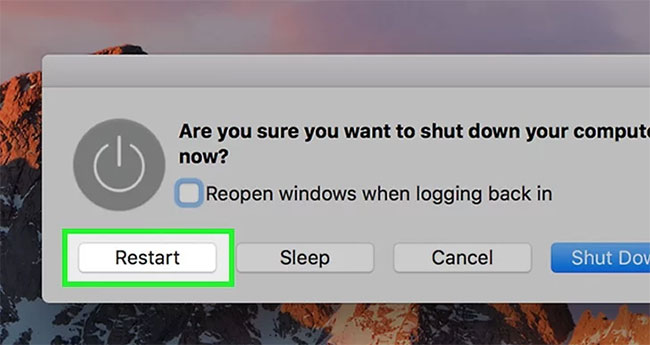
<p style="text-align: justify;"><strong>Bước 2</strong>: Chọn&nbsp;<strong>“Restart”</strong>&nbsp;khi được yêu cầu lựa chọn. Máy tính của bạn sẽ ngay lập tức tự khởi động lại.</p>

<figure>
<div style="text-align: justify;"><img alt="Chọn “Restart” khi được yêu cầu" data-i="4" data-src="https://st.quantrimang.com/photos/image/2022/11/11/khoi-dong-lai-may-mac-5.jpg" data-was-processed="true" height="345" src="https://st.quantrimang.com/photos/image/2022/11/11/khoi-dong-lai-may-mac-5.jpg" width="650" /></div>

<figcaption>
<div style="text-align: justify;">Chọn “Restart” khi được yêu cầu</div>
</figcaption>
</figure>

<h2 style="text-align: justify;">Phương pháp 3: Sử dụng hotkey</h2>

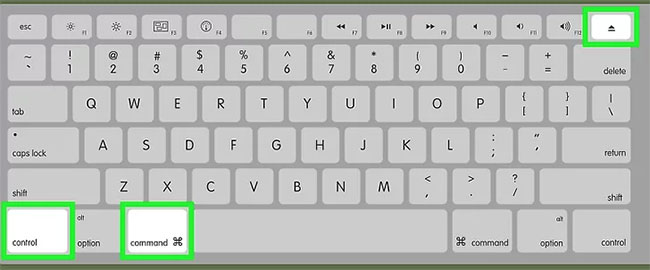
<p style="text-align: justify;">Nhấn đồng thời các phím&nbsp;<strong>“Control”, “Command”</strong>&nbsp;và&nbsp;<strong>“Eject”.</strong>&nbsp;Máy tính của bạn sẽ khởi động lại ngay lập tức mà không yêu cầu bạn xác minh lệnh của mình.</p>

<figure>
<div style="text-align: justify;"><img alt="Nhấn đồng thời các phím “Control”, “Command” và “Eject”" data-i="5" data-src="https://st.quantrimang.com/photos/image/2022/11/11/khoi-dong-lai-may-mac-6.jpg" data-was-processed="true" height="270" src="https://st.quantrimang.com/photos/image/2022/11/11/khoi-dong-lai-may-mac-6.jpg" width="650" /></div>

<figcaption>
<div style="text-align: justify;">Nhấn đồng thời các phím “Control”, “Command” và “Eject”</div>
</figcaption>
</figure>

<h2 style="text-align: justify;">Phương pháp 4: Sử dụng ứng dụng Terminal</h2>

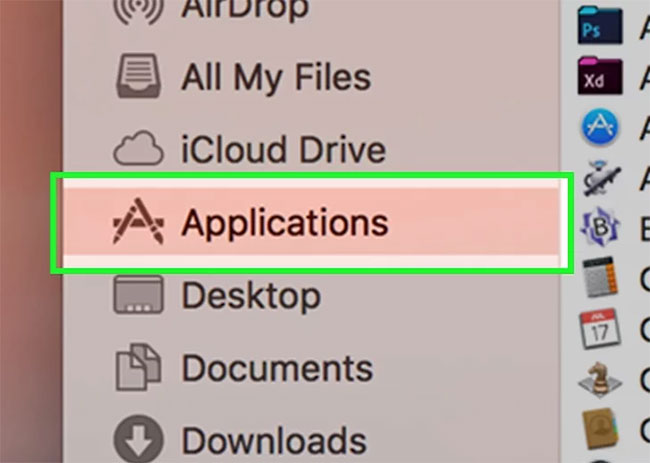
<p style="text-align: justify;"><strong>Bước 1</strong>: Mở thư mục&nbsp;<strong>Applications</strong>&nbsp;từ Dock của máy Mac.</p>

<figure>
<div style="text-align: justify;"><img alt="Mở thư mục Applications" data-i="6" data-src="https://st.quantrimang.com/photos/image/2022/11/11/khoi-dong-lai-may-mac-7.jpg" data-was-processed="true" height="463" src="https://st.quantrimang.com/photos/image/2022/11/11/khoi-dong-lai-may-mac-7.jpg" width="650" /></div>

<figcaption>
<div style="text-align: justify;">Mở thư mục Applications</div>
</figcaption>
</figure>

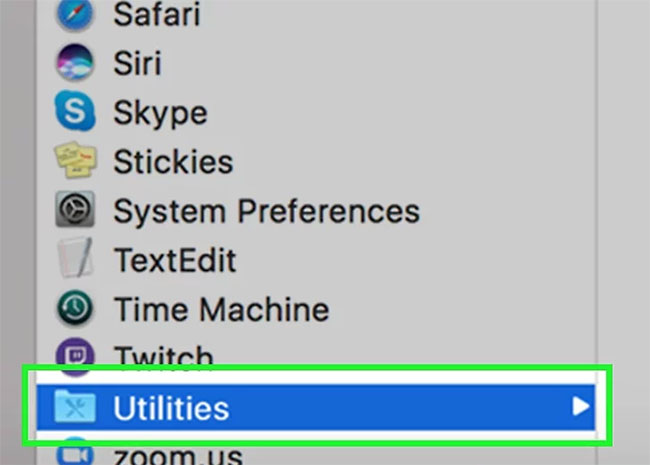
<p style="text-align: justify;"><strong>Bước 2</strong>: Mở&nbsp;<strong>Utilities.</strong></p>

<figure>
<div style="text-align: justify;"><img alt="Mở Utilities" data-i="7" data-src="https://st.quantrimang.com/photos/image/2022/11/11/khoi-dong-lai-may-mac-8.jpg" data-was-processed="true" height="465" src="https://st.quantrimang.com/photos/image/2022/11/11/khoi-dong-lai-may-mac-8.jpg" width="650" /></div>

<figcaption>
<div style="text-align: justify;">Mở Utilities</div>
</figcaption>
</figure>

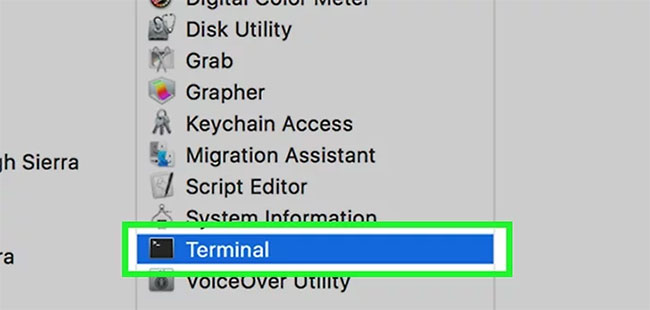
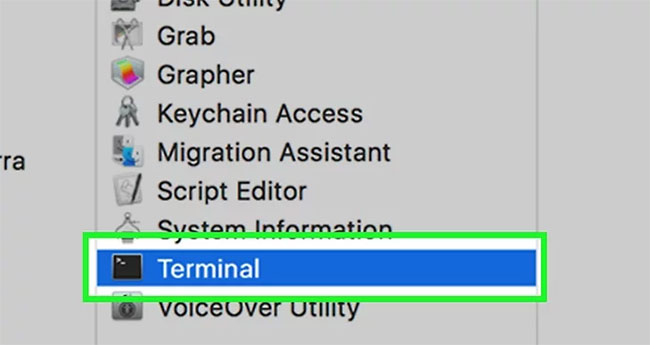
<p style="text-align: justify;"><strong>Bước 3</strong>: Nhấp vào&nbsp;<strong>“Terminal”.</strong>&nbsp;Cửa sổ Terminal sẽ hiển thị trên màn hình.</p>

<figure>
<div style="text-align: justify;"><img alt="Nhấp vào “Terminal”" data-i="8" data-src="https://st.quantrimang.com/photos/image/2022/11/11/khoi-dong-lai-may-mac-9.jpg" data-was-processed="true" height="310" src="https://st.quantrimang.com/photos/image/2022/11/11/khoi-dong-lai-may-mac-9.jpg" width="650" /></div>

<figcaption>
<div style="text-align: justify;">Nhấp vào “Terminal”</div>
</figcaption>
</figure>

<p style="text-align: justify;"><strong>Bước 4</strong>: Gõ lệnh sau vào Terminal:</p>

<pre id="pre0">
<code>shutdown -r now</code></pre>

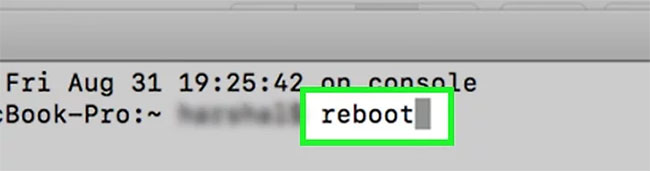
<p style="text-align: justify;">Ngoài ra, bạn có thể nhập các lệnh,&nbsp;<strong>&quot;reboot&quot;</strong>&nbsp;hoặc&nbsp;<strong>&quot;reboot -q&quot;.</strong></p>

<figure>
<div style="text-align: justify;"><img alt="Lệnh reboot" data-i="9" data-src="https://st.quantrimang.com/photos/image/2022/11/11/khoi-dong-lai-may-mac-10.jpg" data-was-processed="true" height="171" src="https://st.quantrimang.com/photos/image/2022/11/11/khoi-dong-lai-may-mac-10.jpg" width="650" /></div>

<figcaption>
<div style="text-align: justify;">Lệnh reboot</div>
</figcaption>
</figure>

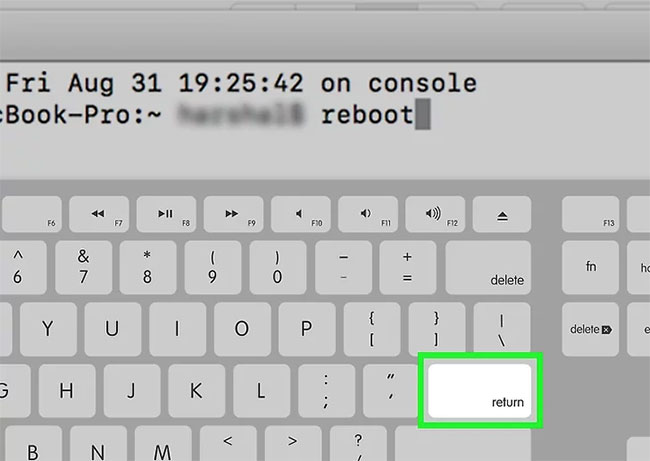
<p style="text-align: justify;"><strong>Bước 5</strong>: Nhấn&nbsp;<strong>Enter</strong>&nbsp;trên bàn phím. Máy Mac của bạn sẽ bắt đầu quá trình tắt máy và khởi động lại ngay lập tức.</p>

<figure>
<div style="text-align: justify;"><img alt="Quá trình khởi động lại sẽ bắt đầu khi bạn nhấn Return" data-i="10" data-src="https://st.quantrimang.com/photos/image/2022/11/11/khoi-dong-lai-may-mac-11.jpg" data-was-processed="true" height="461" src="https://st.quantrimang.com/photos/image/2022/11/11/khoi-dong-lai-may-mac-11.jpg" width="650" /></div>

<figcaption>
<div style="text-align: justify;">Quá trình khởi động lại sẽ bắt đầu khi bạn nhấn Return</div>
</figcaption>
</figure>

<h2 style="text-align: justify;">Phương pháp 5: Thực hiện Hard Reset</h2>

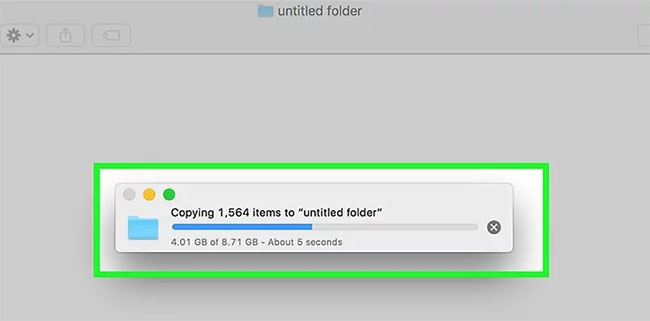
<p style="text-align: justify;"><strong>Bước 1</strong>: Thoát khỏi bất kỳ quy trình nào yêu cầu sử dụng ổ cứng. Ví dụ, nếu bạn đang di chuyển file giữa ổ flash và ổ cứng, hãy đợi cho đến khi file di chuyển xong.</p>

<figure>
<div style="text-align: justify;"><img alt="Xem có chương trình nào đang sử dụng ổ cứng không" data-i="11" data-src="https://st.quantrimang.com/photos/image/2022/11/11/khoi-dong-lai-may-mac-12.jpg" data-was-processed="true" height="321" src="https://st.quantrimang.com/photos/image/2022/11/11/khoi-dong-lai-may-mac-12.jpg" width="650" /></div>

<figcaption>
<div style="text-align: justify;">Xem có chương trình nào đang sử dụng ổ cứng không</div>
</figcaption>
</figure>

<p style="text-align: justify;"><strong>Bước 2</strong>: Nhấn và giữ nút&nbsp;<strong>Nguồn</strong>&nbsp;trên máy Mac cho đến khi máy tính tắt. Quá trình này sẽ mất từ ​​2 đến 3 giây.</p>

<p style="text-align: justify;"><strong>Bước 3</strong>: Nhấn lại nút&nbsp;<strong>Nguồn</strong>&nbsp;để khởi động lại máy Mac.</p>

<h2 style="text-align: justify;">Phương pháp 6: Khởi động lại bằng tính năng truy cập từ xa</h2>

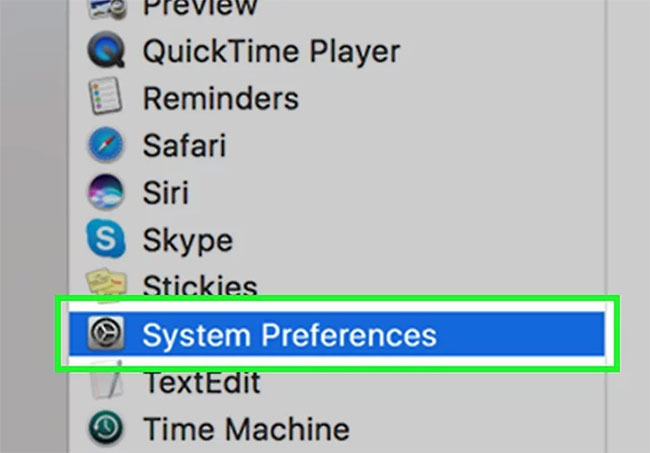
<p style="text-align: justify;"><strong>Bước 1</strong>: Mở ứng dụng&nbsp;<strong>System Preferences</strong>&nbsp;từ Dock của máy Mac.</p>

<figure>
<div style="text-align: justify;"><img alt="Mở ứng dụng System Preferences" data-i="12" data-src="https://st.quantrimang.com/photos/image/2022/11/11/khoi-dong-lai-may-mac-13.jpg" data-was-processed="true" height="453" src="https://st.quantrimang.com/photos/image/2022/11/11/khoi-dong-lai-may-mac-13.jpg" width="650" /></div>

<figcaption>
<div style="text-align: justify;">Mở ứng dụng System Preferences</div>
</figcaption>
</figure>

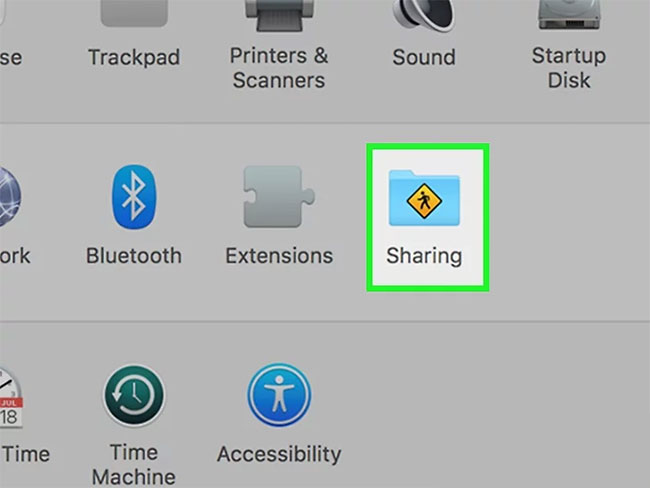
<p style="text-align: justify;"><strong>Bước 2</strong>: Nhấp vào biểu tượng&nbsp;<strong>&quot;Sharing&quot;.</strong></p>

<figure>
<div style="text-align: justify;"><img alt="Nhấp vào biểu tượng &#039;Sharing&#039;" data-i="13" data-src="https://st.quantrimang.com/photos/image/2022/11/11/khoi-dong-lai-may-mac-14.jpg" data-was-processed="true" height="488" src="https://st.quantrimang.com/photos/image/2022/11/11/khoi-dong-lai-may-mac-14.jpg" width="650" /></div>

<figcaption>
<div style="text-align: justify;">Nhấp vào biểu tượng &quot;Sharing&quot;</div>
</figcaption>
</figure>

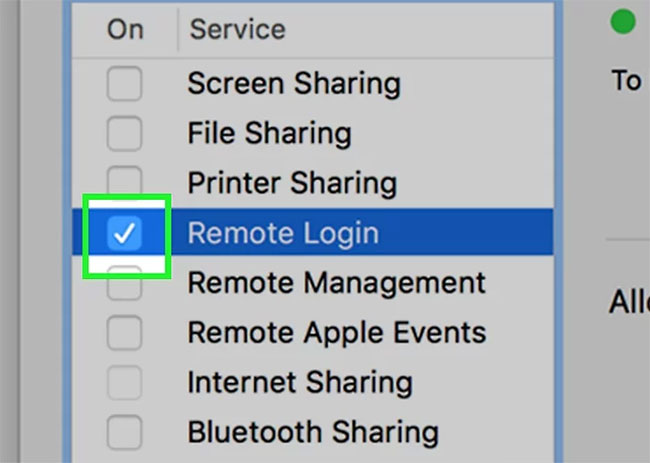
<p style="text-align: justify;"><strong>Bước 3</strong>: Đặt dấu kiểm bên cạnh&nbsp;<strong>“Remote Login”.</strong></p>

<figure>
<div style="text-align: justify;"><img alt="Đặt dấu kiểm bên cạnh “Remote Login”" data-i="14" data-src="https://st.quantrimang.com/photos/image/2022/11/11/khoi-dong-lai-may-mac-15.jpg" data-was-processed="true" height="463" src="https://st.quantrimang.com/photos/image/2022/11/11/khoi-dong-lai-may-mac-15.jpg" width="650" /></div>

<figcaption>
<div style="text-align: justify;">Đặt dấu kiểm bên cạnh “Remote Login”</div>
</figcaption>
</figure>

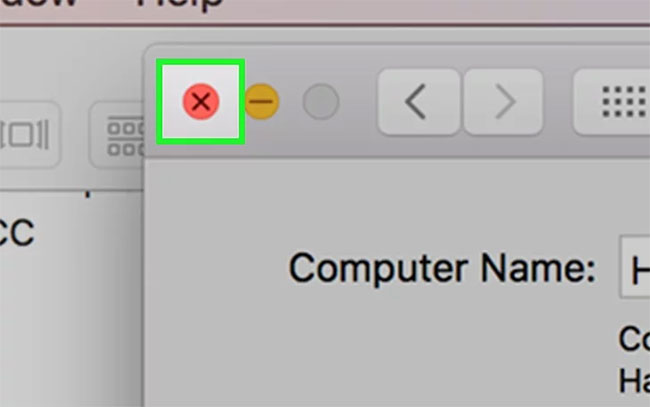
<p style="text-align: justify;"><strong>Bước 4</strong>: Đóng cửa sổ&nbsp;<strong>System Preferences.</strong></p>

<figure>
<div style="text-align: justify;"><img alt="Đóng cửa sổ System Preferences" data-i="15" data-src="https://st.quantrimang.com/photos/image/2022/11/11/khoi-dong-lai-may-mac-16.jpg" data-was-processed="true" height="407" src="https://st.quantrimang.com/photos/image/2022/11/11/khoi-dong-lai-may-mac-16.jpg" width="650" /></div>

<figcaption>
<div style="text-align: justify;">Đóng cửa sổ System Preferences</div>
</figcaption>
</figure>

<p style="text-align: justify;"><strong>Bước 5</strong>: Mở trình duyệt Internet và truy cập&nbsp;<em>https://google.com.</em></p>

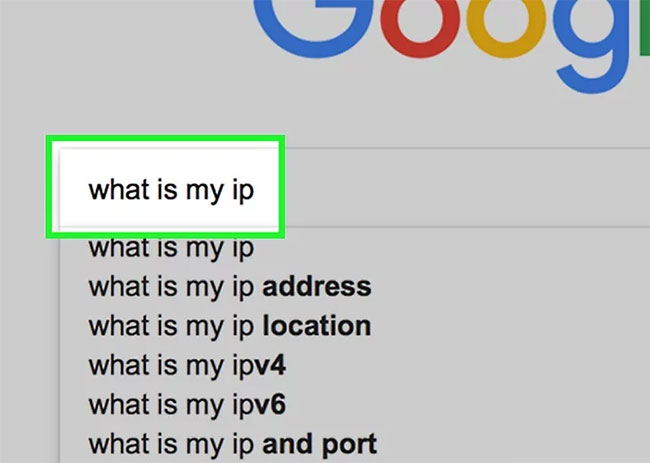
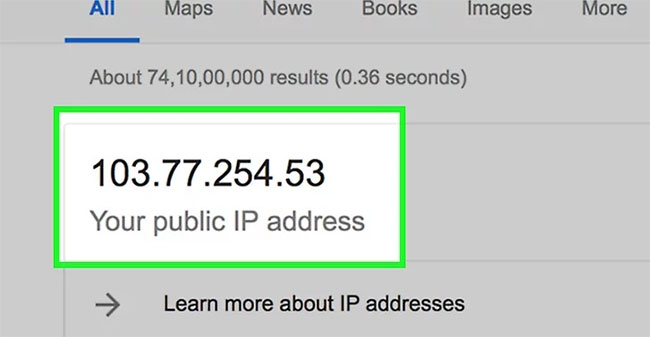
<p style="text-align: justify;"><strong>Bước 6</strong>: Nhập&nbsp;<strong>“what is my ip”</strong>&nbsp;vào thanh tìm kiếm và nhấn&nbsp;<strong>Enter.</strong>&nbsp;Google sẽ hiển thị địa chỉ IP của bạn ở đầu kết quả tìm kiếm. Tham khảo:&nbsp;<a href="https://quantrimang.com/cong-nghe/cac-buoc-thay-doi-dia-chi-ip-tren-may-tinh-va-mac-118493" title="Cách tìm và thay đổi địa chỉ IP trên Mac">Cách tìm và thay đổi địa chỉ IP trên Mac</a>&nbsp;để biết một số cách làm khác.</p>

<figure>
<div style="text-align: justify;"><img alt="Tìm địa chỉ IP" data-i="16" data-src="https://st.quantrimang.com/photos/image/2022/11/11/khoi-dong-lai-may-mac-17.jpg" data-was-processed="true" height="463" src="https://st.quantrimang.com/photos/image/2022/11/11/khoi-dong-lai-may-mac-17.jpg" width="650" /></div>

<figcaption>
<div style="text-align: justify;">Tìm địa chỉ IP</div>
</figcaption>
</figure>

<p style="text-align: justify;"><strong>Bước 7</strong>: Ghi lại địa chỉ IP của bạn.</p>

<figure>
<div style="text-align: justify;"><img alt=" Ghi lại địa chỉ IP " data-i="17" data-src="https://st.quantrimang.com/photos/image/2022/11/11/khoi-dong-lai-may-mac-18.jpg" data-was-processed="true" height="337" src="https://st.quantrimang.com/photos/image/2022/11/11/khoi-dong-lai-may-mac-18.jpg" width="650" /></div>

<figcaption>
<div style="text-align: justify;">Ghi lại địa chỉ IP</div>
</figcaption>
</figure>

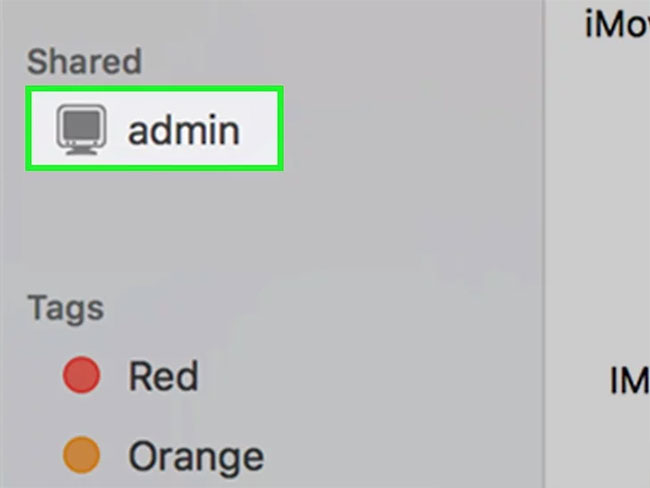
<p style="text-align: justify;"><strong>Bước 8</strong>: Chuyển đến một máy tính khác được kết nối với cùng một mạng.</p>

<figure>
<div style="text-align: justify;"><img alt="Chuyển đến một máy tính khác được kết nối với cùng một mạng" data-i="18" data-src="https://st.quantrimang.com/photos/image/2022/11/11/khoi-dong-lai-may-mac-19.jpg" data-was-processed="true" height="488" src="https://st.quantrimang.com/photos/image/2022/11/11/khoi-dong-lai-may-mac-19.jpg" width="650" /></div>

<figcaption>
<div style="text-align: justify;">Chuyển đến một máy tính khác được kết nối với cùng một mạng</div>
</figcaption>
</figure>

<p style="text-align: justify;"><strong>Bước 9</strong>: Truy cập ứng dụng&nbsp;<strong>Terminal</strong>&nbsp;hoặc&nbsp;<strong>Command Prompt</strong>&nbsp;nếu sử dụng máy tính Windows.</p>

<figure>
<div style="text-align: justify;"><img alt="Truy cập ứng dụng Terminal" data-i="19" data-src="https://st.quantrimang.com/photos/image/2022/11/11/khoi-dong-lai-may-mac-20.jpg" data-was-processed="true" height="345" src="https://st.quantrimang.com/photos/image/2022/11/11/khoi-dong-lai-may-mac-20.jpg" width="650" /></div>

<figcaption>
<div style="text-align: justify;">Truy cập ứng dụng Terminal</div>
</figcaption>
</figure>

<p style="text-align: justify;"><strong>Bước 10</strong>: Nhập lệnh sau với địa chỉ IP của bạn vào Terminal để đăng nhập vào máy tính của chính bạn từ xa:</p>

<pre id="pre1">
<code>ssh username@ip_address</code></pre>

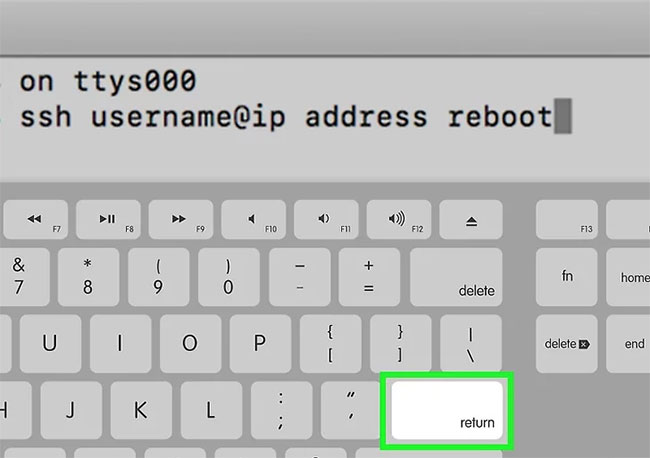
<p style="text-align: justify;"><strong>Bước 11</strong>: Nhập từ&nbsp;<strong>“reboot”</strong>&nbsp;vào Terminal và nhấn&nbsp;<strong>Enter.</strong>&nbsp;Sau đó máy tính của bạn sẽ khởi động lại.</p>

<figure>
<div style="text-align: justify;"><img alt="Nhập lệnh reboot và nhấn Enter" data-i="20" data-src="https://st.quantrimang.com/photos/image/2022/11/11/khoi-dong-lai-may-mac-21.jpg" data-was-processed="true" height="458" src="https://st.quantrimang.com/photos/image/2022/11/11/khoi-dong-lai-may-mac-21.jpg" width="650" /></div>

<figcaption>
<div style="text-align: justify;">Nhập lệnh reboot và nhấn Enter</div>
</figcaption>
</figure>
		</div>
				<div id="author">
						<p>
				<strong>Nguồn tin:</strong>
				Quantrimang.com
			</p>
		</div>
	</div>
	<div id="footer" class="clearfix">
		<div id="url">
			<strong>URL của bản tin này: </strong><a href="https://www.nguoicodonvn2008.info/vi/news/savefile/kien-thuc-may-tinh/cach-khoi-dong-lai-may-mac-6311.html" title="Cách khởi động lại máy Mac">https://www.nguoicodonvn2008.info/vi/news/savefile/kien-thuc-may-tinh/cach-khoi-dong-lai-may-mac-6311.html</a>

		</div>
		<div class="clear"></div>
		<div class="copyright">
			&copy; .&#x3A; Nguoicodonvn2008.info - Cõi lòng người cô đơn &#x3A;.
		</div>
		<div id="contact">
			<a href="mailto:admin@nguoicodonvn2008.info">admin@nguoicodonvn2008.info</a>
		</div>
	</div>
</div>
        <div id="timeoutsess" class="chromeframe">
            Bạn đã không sử dụng Site, <a onclick="timeoutsesscancel();" href="https://www.nguoicodonvn2008.info/#">Bấm vào đây để duy trì trạng thái đăng nhập</a>. Thời gian chờ: <span id="secField"> 60 </span> giây
        </div>
        <div id="openidResult" class="nv-alert" style="display:none"></div>
        <div id="openidBt" data-result="" data-redirect=""></div>
		</script>
		<div class="car-top">
  <span><img src="https://www.nguoicodonvn2008.info/themes/default/images/car.png" alt=""></span>
</div>
<div id="run_cronjobs" style="visibility:hidden;display:none;"><img alt="cron" src="/index.php?second=cronjobs&amp;p=y2bG7WOa" width="1" height="1" /></div>
<script src="https://www.nguoicodonvn2008.info/assets/js/jquery/jquery.min.js"></script>
<script>var nv_base_siteurl="/",nv_lang_data="vi",nv_lang_interface="vi",nv_name_variable="nv",nv_fc_variable="op",nv_lang_variable="language",nv_module_name="news",nv_func_name="savefile",nv_is_user=0, nv_my_ofs=-4,nv_my_abbr="EDT",nv_cookie_prefix="nv4c_e856T",nv_check_pass_mstime=1738000,nv_area_admin=0,nv_safemode=0,theme_responsive=0,nv_recaptcha_ver=2,nv_recaptcha_sitekey="",nv_recaptcha_type="image",XSSsanitize=1;</script>
<script src="https://www.nguoicodonvn2008.info/assets/js/language/vi.js"></script>
<script src="https://www.nguoicodonvn2008.info/assets/js/DOMPurify/purify3.js"></script>
<script src="https://www.nguoicodonvn2008.info/assets/js/global.js"></script>
<script src="https://www.nguoicodonvn2008.info/assets/js/site.js"></script>
<script src="https://www.nguoicodonvn2008.info/themes/default/js/news.js"></script>
<script src="https://www.nguoicodonvn2008.info/themes/default/js/main.js"></script>
<script src="https://www.nguoicodonvn2008.info/themes/default/js/custom.js"></script>
<script type="application/ld+json">
        {
            "@context": "https://schema.org",
            "@type": "Organization",
            "url": "https://www.nguoicodonvn2008.info",
            "logo": "https://www.nguoicodonvn2008.info/uploads/angel.gif"
        }
        </script>
<script src="https://www.nguoicodonvn2008.info/themes/default/js/bootstrap.min.js"></script>
<script type="text/javascript">
var $scrolltop = $('.car-top');
$scrolltop.on('click', function () {
    $('html,body').animate({
        scrollTop: 0
    }, 800);
    $(this).addClass("car-run");
    setTimeout(function(){ $scrolltop.removeClass('car-run');}, 1000);
    return false;
});
$(window).on('scroll', function ()
{ 
    if($(window).scrollTop() >= 200)
    {
        $scrolltop.addClass("show");
        $scrolltop.addClass("car-down");
    }
    else
    {
       $scrolltop.removeClass("show");
       setTimeout(function(){ $scrolltop.removeClass('car-down');}, 300);
    }
});
</script>
</body>
</html>