<!DOCTYPE html>
    <html lang="vi" xmlns="http://www.w3.org/1999/xhtml" prefix="og: http://ogp.me/ns#">
    <head>
<title>Cách khắc phục vấn đề Game Bar không hoạt động trên Windows 10</title>
<meta name="description" content="Cách khắc phục vấn đề Game Bar không hoạt động trên Windows 10 - Savefile - Tin Tức -...">
<meta name="author" content=".: Nguoicodonvn2008.info - Cõi lòng người cô đơn :.">
<meta name="copyright" content=".: Nguoicodonvn2008.info - Cõi lòng người cô đơn :. [admin@nguoicodonvn2008.info]">
<meta name="robots" content="index, archive, follow, noodp">
<meta name="googlebot" content="index,archive,follow,noodp">
<meta name="msnbot" content="all,index,follow">
<meta name="generator" content="NukeViet v4.5">
<meta http-equiv="Content-Type" content="text/html; charset=utf-8">
<meta property="og:title" content="Cách khắc phục vấn đề Game Bar không hoạt động trên Windows 10">
<meta property="og:type" content="website">
<meta property="og:description" content="Savefile - Tin Tức - https&#x3A;&#x002F;&#x002F;www.nguoicodonvn2008.info&#x002F;vi&#x002F;news&#x002F;savefile&#x002F;kien-thuc-may-tinh&#x002F;cach-khac-phuc-van-de-game-bar-khong-hoat-dong-tren-windows-10-659.html">
<meta property="og:site_name" content=".&#x3A; Nguoicodonvn2008.info - Cõi lòng người cô đơn &#x3A;.">
<meta property="og:url" content="https://www.nguoicodonvn2008.info/vi/news/savefile/kien-thuc-may-tinh/cach-khac-phuc-van-de-game-bar-khong-hoat-dong-tren-windows-10-659.html">
<link rel="shortcut icon" href="https://www.nguoicodonvn2008.info/favicon.ico">
<link rel="canonical" href="https://www.nguoicodonvn2008.info/vi/news/savefile/kien-thuc-may-tinh/cach-khac-phuc-van-de-game-bar-khong-hoat-dong-tren-windows-10-659.html">
<link rel="alternate" href="https://www.nguoicodonvn2008.info/vi/news/rss/" title="Tin Tức" type="application/rss+xml">
<link rel="alternate" href="https://www.nguoicodonvn2008.info/vi/news/rss/karaoke-dual/" title="Tin Tức - Karaoke Dual" type="application/rss+xml">
<link rel="alternate" href="https://www.nguoicodonvn2008.info/vi/news/rss/nhac-tre/" title="Tin Tức - Nhạc trẻ" type="application/rss+xml">
<link rel="alternate" href="https://www.nguoicodonvn2008.info/vi/news/rss/tru-tinh/" title="Tin Tức - Trữ tình" type="application/rss+xml">
<link rel="alternate" href="https://www.nguoicodonvn2008.info/vi/news/rss/nuoc-ngoai/" title="Tin Tức - Nước ngoài" type="application/rss+xml">
<link rel="alternate" href="https://www.nguoicodonvn2008.info/vi/news/rss/remix/" title="Tin Tức - Remix" type="application/rss+xml">
<link rel="alternate" href="https://www.nguoicodonvn2008.info/vi/news/rss/tam-su-tinh-yeu/" title="Tin Tức - Tâm sự tình yêu" type="application/rss+xml">
<link rel="alternate" href="https://www.nguoicodonvn2008.info/vi/news/rss/tho-suu-tam/" title="Tin Tức - Thơ sưu tầm" type="application/rss+xml">
<link rel="alternate" href="https://www.nguoicodonvn2008.info/vi/news/rss/cuoc-song/" title="Tin Tức - Cuộc sống" type="application/rss+xml">
<link rel="alternate" href="https://www.nguoicodonvn2008.info/vi/news/rss/phan-mem/" title="Tin Tức - Phần mềm" type="application/rss+xml">
<link rel="alternate" href="https://www.nguoicodonvn2008.info/vi/news/rss/kien-thuc-may-tinh/" title="Tin Tức - Kiến thức máy tính" type="application/rss+xml">
<link rel="alternate" href="https://www.nguoicodonvn2008.info/vi/news/rss/hoc-tap/" title="Tin Tức - Học tập" type="application/rss+xml">
<link rel="alternate" href="https://www.nguoicodonvn2008.info/vi/news/rss/tai-lieu/" title="Tin Tức - Tài liệu" type="application/rss+xml">
<link rel="alternate" href="https://www.nguoicodonvn2008.info/vi/news/rss/de-thi/" title="Tin Tức - Đề thi" type="application/rss+xml">
<link rel="preload" as="style" href="https://www.nguoicodonvn2008.info/assets/css/font-awesome.min.css" type="text/css">
<link rel="preload" as="style" href="https://www.nguoicodonvn2008.info/themes/default/css/bootstrap.non-responsive.css" type="text/css">
<link rel="preload" as="style" href="https://www.nguoicodonvn2008.info/themes/default/css/style.css" type="text/css">
<link rel="preload" as="style" href="https://www.nguoicodonvn2008.info/themes/default/css/style.non-responsive.css" type="text/css">
<link rel="preload" as="style" href="https://www.nguoicodonvn2008.info/themes/default/css/news.css" type="text/css">
<link rel="preload" as="style" href="https://www.nguoicodonvn2008.info/themes/default/css/custom.css" type="text/css">
<link rel="preload" as="script" href="https://www.nguoicodonvn2008.info/assets/js/jquery/jquery.min.js" type="text/javascript">
<link rel="preload" as="script" href="https://www.nguoicodonvn2008.info/assets/js/language/vi.js" type="text/javascript">
<link rel="preload" as="script" href="https://www.nguoicodonvn2008.info/assets/js/DOMPurify/purify3.js" type="text/javascript">
<link rel="preload" as="script" href="https://www.nguoicodonvn2008.info/assets/js/global.js" type="text/javascript">
<link rel="preload" as="script" href="https://www.nguoicodonvn2008.info/assets/js/site.js" type="text/javascript">
<link rel="preload" as="script" href="https://www.nguoicodonvn2008.info/themes/default/js/news.js" type="text/javascript">
<link rel="preload" as="script" href="https://www.nguoicodonvn2008.info/themes/default/js/main.js" type="text/javascript">
<link rel="preload" as="script" href="https://www.nguoicodonvn2008.info/themes/default/js/custom.js" type="text/javascript">
<link rel="preload" as="script" href="https://www.nguoicodonvn2008.info/themes/default/js/bootstrap.min.js" type="text/javascript">
<link rel="stylesheet" href="https://www.nguoicodonvn2008.info/assets/css/font-awesome.min.css">
<link rel="stylesheet" href="https://www.nguoicodonvn2008.info/themes/default/css/bootstrap.non-responsive.css">
<link rel="stylesheet" href="https://www.nguoicodonvn2008.info/themes/default/css/style.css">
<link rel="stylesheet" href="https://www.nguoicodonvn2008.info/themes/default/css/style.non-responsive.css">
<link rel="StyleSheet" href="https://www.nguoicodonvn2008.info/themes/default/css/news.css">
<link rel="stylesheet" href="https://www.nguoicodonvn2008.info/themes/default/css/custom.css">
<style type="text/css">
	body{background: #fff;}
</style>
    </head>
    <body>
<div id="print">
	<div id="hd_print">
		<h2 class="pull-left">.&#x3A; Nguoicodonvn2008.info - Cõi lòng người cô đơn &#x3A;.</h2>
		<p class="pull-right"><a title=".&#x3A; Nguoicodonvn2008.info - Cõi lòng người cô đơn &#x3A;." href="https://www.nguoicodonvn2008.info/">https://www.nguoicodonvn2008.info</a></p>
	</div>
	<div class="clear"></div>
	<hr />
	<div id="content">
		<h1>Cách khắc phục vấn đề Game Bar không hoạt động trên Windows 10</h1>
		<ul class="list-inline">
			<li>Thứ bảy - 03/08/2019 01:45</li>
			<li class="hidden-print txtrequired"><em class="fa fa-print">&nbsp;</em><a title="In ra" href="javascript:;" onclick="window.print()">In ra</a></li>
			<li class="hidden-print txtrequired"><em class="fa fa-power-off">&nbsp;</em><a title="Đóng cửa sổ này" href="javascript:;" onclick="window.close()">Đóng cửa sổ này</a></li>
		</ul>
		<div class="clear"></div>
		<div id="hometext">
		</div>
				<div class="imghome">
			<img alt="Cách khắc phục vấn đề Game Bar không hoạt động trên Windows 10" src="https://st.quantrimang.com/photos/image/2019/08/03/sua-loi-game-bar-2.png" width="460" class="img-thumbnail" />
		</div>
		<div class="clear"></div>
		<div id="bodytext" class="clearfix">
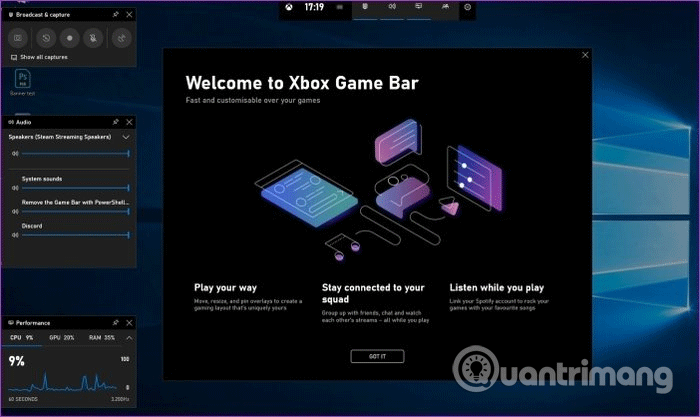
			<p style="text-align: justify;">Với bản&nbsp;cập nhật Windows 10&nbsp;phiên bản 1809, Microsoft đã đẩy một loạt các cải tiến lên Xbox Game Bar. Tất cả các game thủ đều coi&nbsp;Game Bar&nbsp;như một công cụ bắt buộc vì nó chứa một vài tiện ích mới với nhiều chức năng bổ sung.</p>

<p style="text-align: justify;">Tuy nhiên, một số người sử dụng Windows 10 phiên bản 1809 trở lên đang gặp phải vấn đề khi khởi chạy Game Bar. Bài viết này sẽ giúp bạn khắc phục vấn đề Game Bar không hoạt động và một số vấn đề khác.</p>

<h2 style="text-align: justify;">&nbsp;</h2>

<h2 id="mcetoc_1dhar4q080" style="text-align: justify;">1. Không mở được Game Bar Windows 10&nbsp;</h2>

<p style="text-align: justify;">Một trong những vấn đề phổ biến nhất khi nhấn phím tắt&nbsp;<code>Win</code>+<code>G</code>, Game Bar không mở. Cách sửa lỗi này rất đơn giản, thực hiện theo các bước sau:</p>

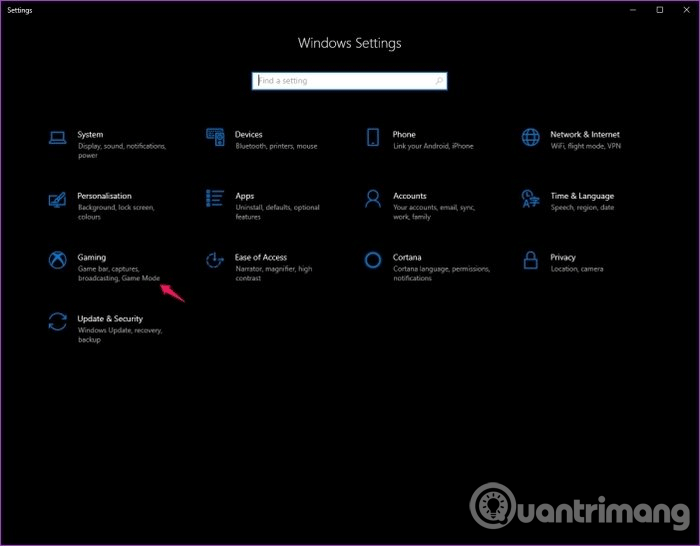
<p style="text-align: justify;"><strong>Bước 1</strong>. Truy cập&nbsp;<strong>Settings</strong>&nbsp;Windows 10 bằng cách nhấn&nbsp;<code>Win</code>+<code>I</code>&nbsp;và click vào tùy chọn&nbsp;<strong>Gaming</strong>.</p>

<p style="text-align: justify;"><img alt="Click vào tùy chọn Gaming" data-i="0" data-src="https://st.quantrimang.com/photos/image/2019/08/03/sua-loi-game-bar-1.png" data-was-processed="true" height="499" src="https://st.quantrimang.com/photos/image/2019/08/03/sua-loi-game-bar-1.png" width="640" /></p>

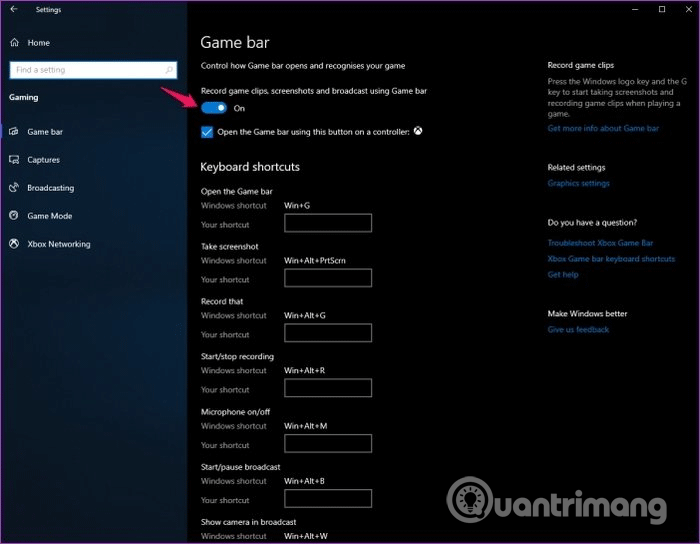
<p style="text-align: justify;"><strong>Bước 2</strong>. Chọn tùy chọn Game Bar từ menu bên trái và sau đó bật&nbsp;<strong>Record game clips, screenshots and broadcast using Game bar</strong>.</p>

<p style="text-align: justify;"><img alt="Bật Record game clips, screenshots and broadcast using Game bar" data-i="1" data-src="https://st.quantrimang.com/photos/image/2019/08/03/sua-loi-game-bar-2.png" data-was-processed="true" height="497" src="https://st.quantrimang.com/photos/image/2019/08/03/sua-loi-game-bar-2.png" width="640" /></p>

<p style="text-align: justify;">Bây giờ, đóng cửa sổ cài đặt, mở trò chơi bất kỳ và sử dụng lại phím tắt&nbsp;<code>Win</code>+<code>G</code>. Game Bar sẽ hiện ra, trong trường hợp nếu không thấy thanh Game Bar, khởi động lại hệ thống trước khi thử lại.</p>

<h2 id="mcetoc_1dhar4q091" style="text-align: justify;">2. Không thể bật chế độ Game Mode trên Windows 10</h2>

<p style="text-align: justify;"><a href="https://quantrimang.com/huong-dan-kich-hoat-che-do-game-mode-tren-windows-10-130041" title="Hướng dẫn kích hoạt chế độ Game Mode trên Windows 10">Game Mode</a>&nbsp;trên Windows 10 là một tính năng tiện lợi cho những ai không thích việc Windows chuyển hướng tài nguyên sang tiến trình nền khác trong khi chơi game. Khi bật chế độ này, Windows dành một lượng lớn tài nguyên hệ thống cho trò chơi bạn đang chơi để không gặp bất kỳ sự cố hoặc giảm khung hình.</p>

<p style="text-align: justify;">Tính năng này được cấu hình để bật tự động ngay khi khởi chạy game. Trong trường hợp nó không bật, thực hiện theo các bước sau để bật thủ công:</p>

<p style="text-align: justify;"><strong>Bước 1</strong>. Mở cài đặt Windows 10 sử dụng&nbsp;<code>Win</code>+<code>I</code>&nbsp;và click vào tùy chọn&nbsp;<strong>Gaming</strong>.</p>

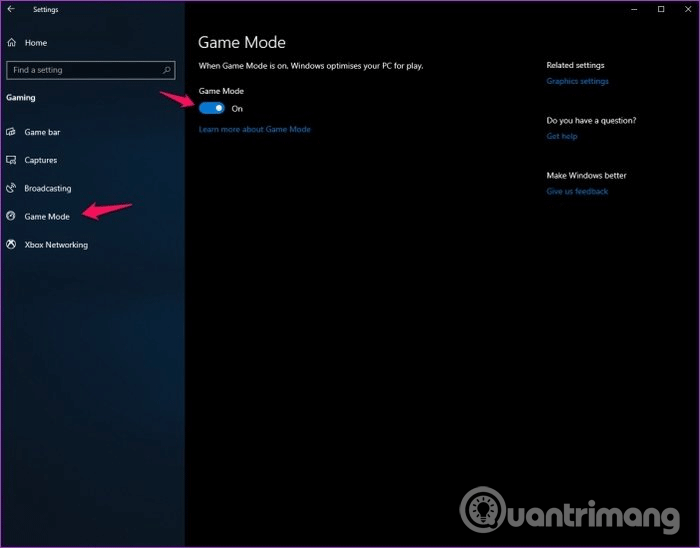
<p style="text-align: justify;"><strong>Bước 2</strong>. Chọn tùy chọn&nbsp;<strong>Game Mode</strong>&nbsp;từ danh sách bên trái và bật&nbsp;<strong>Game Mode</strong>.</p>

<p style="text-align: justify;"><img alt="Bật Game Mode" data-i="2" data-src="https://st.quantrimang.com/photos/image/2019/08/03/sua-loi-game-bar-3.png" data-was-processed="true" height="501" src="https://st.quantrimang.com/photos/image/2019/08/03/sua-loi-game-bar-3.png" width="640" /></p>

<p style="text-align: justify;">Bây giờ khi khởi chạy game trên hệ thống, Game Mode sẽ bật tự động.</p>

<div style="text-align: justify;">&nbsp;</div>

<h2 id="mcetoc_1dhar4q092" style="text-align: justify;">3. Phím tắt Game Bar không hoạt động</h2>

<p style="text-align: justify;">Nếu khi nhấn&nbsp;<code>Win</code>+<code>G</code>&nbsp;mà Game Bar không hoạt động, có thể do xung đột với trò chơi hoặc bàn phím. Một số trò chơi hoặc thiết bị ngoại vi trò chơi có thể vô hiệu hóa phím Windows để tránh vô tình nhấn vào đó trong khi chơi game.</p>

<p style="text-align: justify;">Để khắc phục vấn đề này, bạn cần remap phím tắt bàn phím cho Game Bar. Thực hiện theo các bước dưới đây:</p>

<p style="text-align: justify;"><strong>Bước 1</strong>. Truy cập vào&nbsp;<strong>Settings</strong>&nbsp;Windows 10 và click vào tùy chọn&nbsp;<strong>Gaming</strong>.</p>

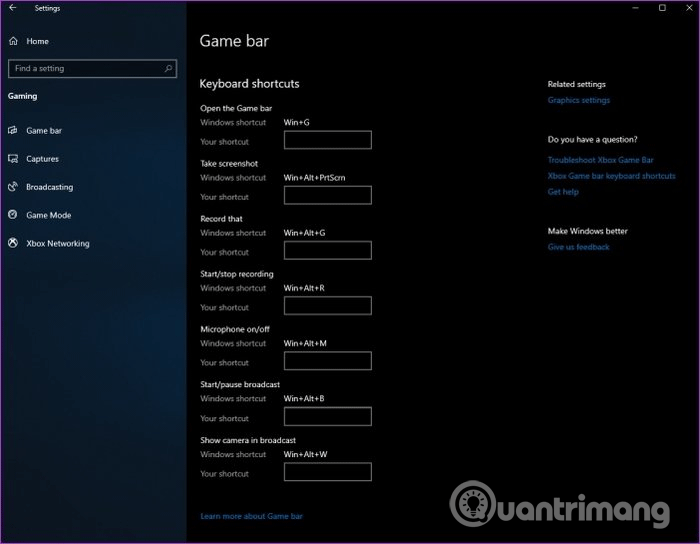
<p style="text-align: justify;"><strong>Bước 2</strong>. Chọn tùy chọn<strong>&nbsp;Game Bar</strong>&nbsp;từ danh sách bên trái và cuộn xuống đến phần Keyboard shortcuts</p>

<p style="text-align: justify;"><img alt="Đến phần Keyboard shortcuts" data-i="3" data-src="https://st.quantrimang.com/photos/image/2019/08/03/sua-loi-game-bar-4.png" data-was-processed="true" height="497" src="https://st.quantrimang.com/photos/image/2019/08/03/sua-loi-game-bar-4.png" width="640" /></p>

<p style="text-align: justify;">Nhập phím tắt bàn phím mới trong trường trống cạnh từng chức năng bạn muốn sử dụng. Đảm bảo bạn không dùng phím tắt bàn phím đã sử dụng nếu không có thể gây ra vấn đề xung đột không cần thiết.</p>

<h2 id="mcetoc_1dhar4q093" style="text-align: justify;">4. Game Bar Windows 10 không hoạt động trên các trò chơi toàn màn hình</h2>

<p style="text-align: justify;">Mặc dù Game Bar có thể hoạt động với hầu hết các trò chơi chạy ở chế độ toàn màn hình, nhưng vẫn có khả năng nó không hoạt động với một số game.</p>

<p style="text-align: justify;">Trong trường hợp này, bạn cần vào cài đặt trong game và vô hiệu hóa chế độ toàn màn hình. Bạn cũng có thể chọn chế độ&nbsp;<strong>Windowed</strong>&nbsp;hoặc&nbsp;<strong>Windowed Fullscreen</strong>, phụ thuộc vào trò chơi bạn đang chơi. Sau khi chọn xong, bạn có thể khởi chạy Game Bar trong trò chơi mà không có vấn đề gì.</p>

<h2 id="mcetoc_1dhar4q094" style="text-align: justify;">5. Cài đặt lại ứng dụng Game Bar Windows 10</h2>

<p style="text-align: justify;">Nếu những cách trên không giải quyết được vấn đề, bạn nên thử gỡ cài đặt sau đó cài đặt lại Game Bar. Thực hiện theo các bước sau:</p>

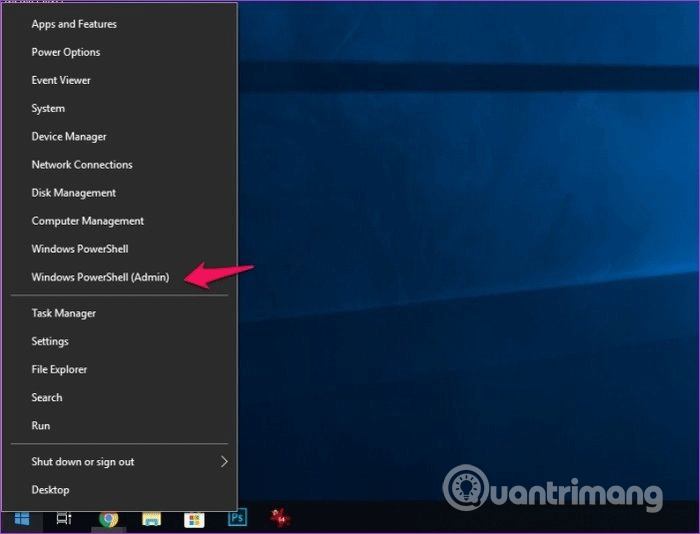
<p style="text-align: justify;"><strong>Bước 1</strong>. Click chuột phải vào nút&nbsp;<strong>Start</strong>&nbsp;và chọn&nbsp;<strong>Windows PowerShell (Admin)</strong>&nbsp;từ menu bật lên.</p>

<p style="text-align: justify;"><img alt="Chọn Windows PowerShell (Admin)" data-i="4" data-src="https://st.quantrimang.com/photos/image/2019/08/03/sua-loi-game-bar-5.png" data-was-processed="true" height="488" src="https://st.quantrimang.com/photos/image/2019/08/03/sua-loi-game-bar-5.png" width="640" /></p>

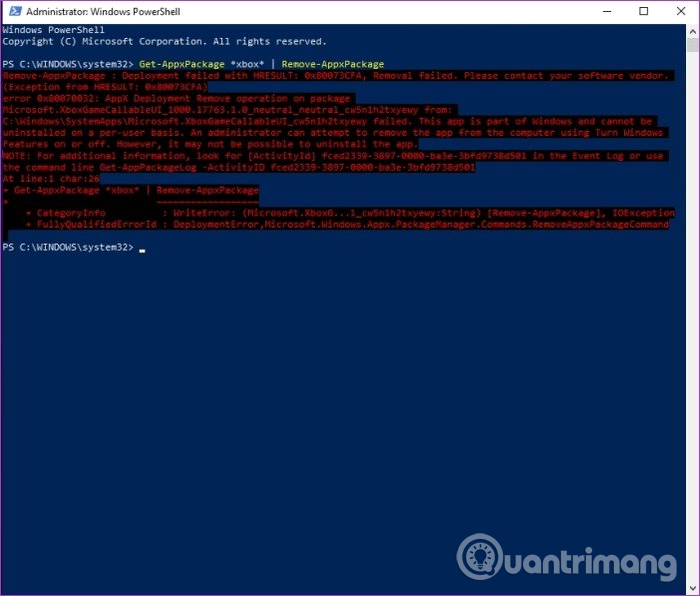
<p style="text-align: justify;"><strong>Bước 2.</strong>&nbsp;Nhập lệnh sau vào&nbsp;PowerShell&nbsp;và nhấn&nbsp;<strong>Enter</strong>&nbsp;để gỡ cài đặt Game Bar từ hệ thống.</p>

<pre id="pre0">
<code>Get-AppxPackage *xbox* | Remove-AppxPackage</code></pre>

<p style="text-align: justify;"><img alt="Gỡ cài đặt Game Bar" data-i="5" data-src="https://st.quantrimang.com/photos/image/2019/08/03/sua-loi-game-bar-6.png" data-was-processed="true" height="545" src="https://st.quantrimang.com/photos/image/2019/08/03/sua-loi-game-bar-6.png" width="640" /></p>

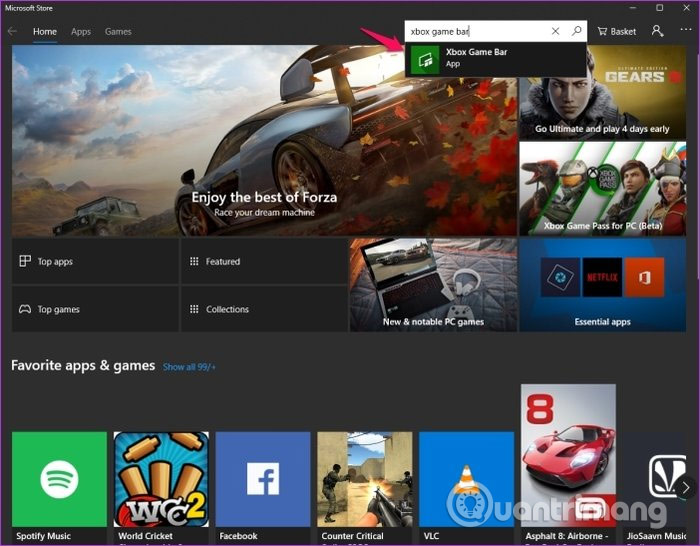
<p style="text-align: justify;"><strong>Bước 3</strong>. Truy cập vào Microsoft Store và tìm kiếm Xbox Game Bar.</p>

<p style="text-align: justify;"><img alt="Tìm kiếm Xbox Game Bar" data-i="6" data-src="https://st.quantrimang.com/photos/image/2019/08/03/sua-loi-game-bar-7.jpg" data-was-processed="true" height="499" src="https://st.quantrimang.com/photos/image/2019/08/03/sua-loi-game-bar-7.jpg" width="640" /></p>

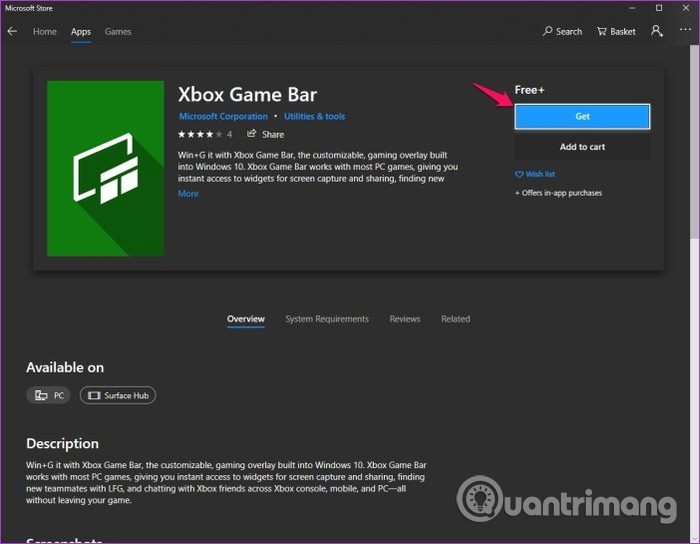
<p style="text-align: justify;"><strong>Bước 4</strong>. Click vào nút&nbsp;<strong>Get</strong>&nbsp;trên trang Xbox Game Bar và click vào&nbsp;<strong>Install</strong>.</p>

<p style="text-align: justify;"><img alt="Click vào Get" data-i="7" data-src="https://st.quantrimang.com/photos/image/2019/08/03/sua-loi-game-bar-8.jpg" data-was-processed="true" height="497" src="https://st.quantrimang.com/photos/image/2019/08/03/sua-loi-game-bar-8.jpg" width="640" /></p>

<p style="text-align: justify;">Game Bar Windows 10 sẽ được cài đặt trên hệ thống của bạn. Thử nhấn&nbsp;<code>Win</code>+<code>G</code>&nbsp;để mở Game Bar.</p>

<p style="text-align: justify;"><img alt="Mở Game Bar" data-i="8" data-src="https://st.quantrimang.com/photos/image/2019/08/03/sua-loi-game-bar-9.png" data-was-processed="true" height="381" src="https://st.quantrimang.com/photos/image/2019/08/03/sua-loi-game-bar-9.png" width="640" /></p>

<p style="text-align: justify;">Khởi động lại hệ thống để áp dụng thay đổi.</p>

<p style="text-align: justify;">Hy vọng một trong những giải pháp này có thể giúp bạn khắc phục được các vấn đề Game Bar trên hệ thống.</p>

<p style="text-align: justify;">Chúc các bạn thực hiện thành công!</p>
		</div>
				<div id="author">
						<p>
				<strong>Nguồn tin:</strong>
				Quantrimang.com
			</p>
		</div>
	</div>
	<div id="footer" class="clearfix">
		<div id="url">
			<strong>URL của bản tin này: </strong><a href="https://www.nguoicodonvn2008.info/vi/news/savefile/kien-thuc-may-tinh/cach-khac-phuc-van-de-game-bar-khong-hoat-dong-tren-windows-10-659.html" title="Cách khắc phục vấn đề Game Bar không hoạt động trên Windows 10">https://www.nguoicodonvn2008.info/vi/news/savefile/kien-thuc-may-tinh/cach-khac-phuc-van-de-game-bar-khong-hoat-dong-tren-windows-10-659.html</a>

		</div>
		<div class="clear"></div>
		<div class="copyright">
			&copy; .&#x3A; Nguoicodonvn2008.info - Cõi lòng người cô đơn &#x3A;.
		</div>
		<div id="contact">
			<a href="mailto:admin@nguoicodonvn2008.info">admin@nguoicodonvn2008.info</a>
		</div>
	</div>
</div>
        <div id="timeoutsess" class="chromeframe">
            Bạn đã không sử dụng Site, <a onclick="timeoutsesscancel();" href="https://www.nguoicodonvn2008.info/#">Bấm vào đây để duy trì trạng thái đăng nhập</a>. Thời gian chờ: <span id="secField"> 60 </span> giây
        </div>
        <div id="openidResult" class="nv-alert" style="display:none"></div>
        <div id="openidBt" data-result="" data-redirect=""></div>
		</script>
		<div class="car-top">
  <span><img src="https://www.nguoicodonvn2008.info/themes/default/images/car.png" alt=""></span>
</div>
<div id="run_cronjobs" style="visibility:hidden;display:none;"><img alt="cron" src="/index.php?second=cronjobs&amp;p=g14qp5X6" width="1" height="1" /></div>
<script src="https://www.nguoicodonvn2008.info/assets/js/jquery/jquery.min.js"></script>
<script>var nv_base_siteurl="/",nv_lang_data="vi",nv_lang_interface="vi",nv_name_variable="nv",nv_fc_variable="op",nv_lang_variable="language",nv_module_name="news",nv_func_name="savefile",nv_is_user=0, nv_my_ofs=-4,nv_my_abbr="EDT",nv_cookie_prefix="nv4c_e856T",nv_check_pass_mstime=1738000,nv_area_admin=0,nv_safemode=0,theme_responsive=0,nv_recaptcha_ver=2,nv_recaptcha_sitekey="",nv_recaptcha_type="image",XSSsanitize=1;</script>
<script src="https://www.nguoicodonvn2008.info/assets/js/language/vi.js"></script>
<script src="https://www.nguoicodonvn2008.info/assets/js/DOMPurify/purify3.js"></script>
<script src="https://www.nguoicodonvn2008.info/assets/js/global.js"></script>
<script src="https://www.nguoicodonvn2008.info/assets/js/site.js"></script>
<script src="https://www.nguoicodonvn2008.info/themes/default/js/news.js"></script>
<script src="https://www.nguoicodonvn2008.info/themes/default/js/main.js"></script>
<script src="https://www.nguoicodonvn2008.info/themes/default/js/custom.js"></script>
<script type="application/ld+json">
        {
            "@context": "https://schema.org",
            "@type": "Organization",
            "url": "https://www.nguoicodonvn2008.info",
            "logo": "https://www.nguoicodonvn2008.info/uploads/angel.gif"
        }
        </script>
<script src="https://www.nguoicodonvn2008.info/themes/default/js/bootstrap.min.js"></script>
<script type="text/javascript">
var $scrolltop = $('.car-top');
$scrolltop.on('click', function () {
    $('html,body').animate({
        scrollTop: 0
    }, 800);
    $(this).addClass("car-run");
    setTimeout(function(){ $scrolltop.removeClass('car-run');}, 1000);
    return false;
});
$(window).on('scroll', function ()
{ 
    if($(window).scrollTop() >= 200)
    {
        $scrolltop.addClass("show");
        $scrolltop.addClass("car-down");
    }
    else
    {
       $scrolltop.removeClass("show");
       setTimeout(function(){ $scrolltop.removeClass('car-down');}, 300);
    }
});
</script>
</body>
</html>