<!DOCTYPE html>
    <html lang="vi" xmlns="http://www.w3.org/1999/xhtml" prefix="og: http://ogp.me/ns#">
    <head>
<title>Cách khắc phục mã lỗi Microsoft Store 0x80004003 trong Windows 10&#x002F;11</title>
<meta name="description" content="Cách khắc phục mã lỗi Microsoft Store 0x80004003 trong Windows 10&#x002F;11 - Savefile - Tin Tức -...">
<meta name="author" content=".: Nguoicodonvn2008.info - Cõi lòng người cô đơn :.">
<meta name="copyright" content=".: Nguoicodonvn2008.info - Cõi lòng người cô đơn :. [admin@nguoicodonvn2008.info]">
<meta name="robots" content="index, archive, follow, noodp">
<meta name="googlebot" content="index,archive,follow,noodp">
<meta name="msnbot" content="all,index,follow">
<meta name="generator" content="NukeViet v4.5">
<meta http-equiv="Content-Type" content="text/html; charset=utf-8">
<meta property="og:title" content="Cách khắc phục mã lỗi Microsoft Store 0x80004003 trong Windows 10&#x002F;11">
<meta property="og:type" content="website">
<meta property="og:description" content="Savefile - Tin Tức - https&#x3A;&#x002F;&#x002F;www.nguoicodonvn2008.info&#x002F;vi&#x002F;news&#x002F;savefile&#x002F;kien-thuc-may-tinh&#x002F;cach-khac-phuc-ma-loi-microsoft-store-0x80004003-trong-windows-10-11-4920.html">
<meta property="og:site_name" content=".&#x3A; Nguoicodonvn2008.info - Cõi lòng người cô đơn &#x3A;.">
<meta property="og:url" content="https://www.nguoicodonvn2008.info/vi/news/savefile/kien-thuc-may-tinh/cach-khac-phuc-ma-loi-microsoft-store-0x80004003-trong-windows-10-11-4920.html">
<link rel="shortcut icon" href="https://www.nguoicodonvn2008.info/favicon.ico">
<link rel="canonical" href="https://www.nguoicodonvn2008.info/vi/news/savefile/kien-thuc-may-tinh/cach-khac-phuc-ma-loi-microsoft-store-0x80004003-trong-windows-10-11-4920.html">
<link rel="alternate" href="https://www.nguoicodonvn2008.info/vi/news/rss/" title="Tin Tức" type="application/rss+xml">
<link rel="alternate" href="https://www.nguoicodonvn2008.info/vi/news/rss/karaoke-dual/" title="Tin Tức - Karaoke Dual" type="application/rss+xml">
<link rel="alternate" href="https://www.nguoicodonvn2008.info/vi/news/rss/nhac-tre/" title="Tin Tức - Nhạc trẻ" type="application/rss+xml">
<link rel="alternate" href="https://www.nguoicodonvn2008.info/vi/news/rss/tru-tinh/" title="Tin Tức - Trữ tình" type="application/rss+xml">
<link rel="alternate" href="https://www.nguoicodonvn2008.info/vi/news/rss/nuoc-ngoai/" title="Tin Tức - Nước ngoài" type="application/rss+xml">
<link rel="alternate" href="https://www.nguoicodonvn2008.info/vi/news/rss/remix/" title="Tin Tức - Remix" type="application/rss+xml">
<link rel="alternate" href="https://www.nguoicodonvn2008.info/vi/news/rss/tam-su-tinh-yeu/" title="Tin Tức - Tâm sự tình yêu" type="application/rss+xml">
<link rel="alternate" href="https://www.nguoicodonvn2008.info/vi/news/rss/tho-suu-tam/" title="Tin Tức - Thơ sưu tầm" type="application/rss+xml">
<link rel="alternate" href="https://www.nguoicodonvn2008.info/vi/news/rss/cuoc-song/" title="Tin Tức - Cuộc sống" type="application/rss+xml">
<link rel="alternate" href="https://www.nguoicodonvn2008.info/vi/news/rss/phan-mem/" title="Tin Tức - Phần mềm" type="application/rss+xml">
<link rel="alternate" href="https://www.nguoicodonvn2008.info/vi/news/rss/kien-thuc-may-tinh/" title="Tin Tức - Kiến thức máy tính" type="application/rss+xml">
<link rel="alternate" href="https://www.nguoicodonvn2008.info/vi/news/rss/hoc-tap/" title="Tin Tức - Học tập" type="application/rss+xml">
<link rel="alternate" href="https://www.nguoicodonvn2008.info/vi/news/rss/tai-lieu/" title="Tin Tức - Tài liệu" type="application/rss+xml">
<link rel="alternate" href="https://www.nguoicodonvn2008.info/vi/news/rss/de-thi/" title="Tin Tức - Đề thi" type="application/rss+xml">
<link rel="preload" as="style" href="https://www.nguoicodonvn2008.info/assets/css/font-awesome.min.css" type="text/css">
<link rel="preload" as="style" href="https://www.nguoicodonvn2008.info/themes/default/css/bootstrap.non-responsive.css" type="text/css">
<link rel="preload" as="style" href="https://www.nguoicodonvn2008.info/themes/default/css/style.css" type="text/css">
<link rel="preload" as="style" href="https://www.nguoicodonvn2008.info/themes/default/css/style.non-responsive.css" type="text/css">
<link rel="preload" as="style" href="https://www.nguoicodonvn2008.info/themes/default/css/news.css" type="text/css">
<link rel="preload" as="style" href="https://www.nguoicodonvn2008.info/themes/default/css/custom.css" type="text/css">
<link rel="preload" as="script" href="https://www.nguoicodonvn2008.info/assets/js/jquery/jquery.min.js" type="text/javascript">
<link rel="preload" as="script" href="https://www.nguoicodonvn2008.info/assets/js/language/vi.js" type="text/javascript">
<link rel="preload" as="script" href="https://www.nguoicodonvn2008.info/assets/js/DOMPurify/purify3.js" type="text/javascript">
<link rel="preload" as="script" href="https://www.nguoicodonvn2008.info/assets/js/global.js" type="text/javascript">
<link rel="preload" as="script" href="https://www.nguoicodonvn2008.info/assets/js/site.js" type="text/javascript">
<link rel="preload" as="script" href="https://www.nguoicodonvn2008.info/themes/default/js/news.js" type="text/javascript">
<link rel="preload" as="script" href="https://www.nguoicodonvn2008.info/themes/default/js/main.js" type="text/javascript">
<link rel="preload" as="script" href="https://www.nguoicodonvn2008.info/themes/default/js/custom.js" type="text/javascript">
<link rel="preload" as="script" href="https://www.nguoicodonvn2008.info/themes/default/js/bootstrap.min.js" type="text/javascript">
<link rel="stylesheet" href="https://www.nguoicodonvn2008.info/assets/css/font-awesome.min.css">
<link rel="stylesheet" href="https://www.nguoicodonvn2008.info/themes/default/css/bootstrap.non-responsive.css">
<link rel="stylesheet" href="https://www.nguoicodonvn2008.info/themes/default/css/style.css">
<link rel="stylesheet" href="https://www.nguoicodonvn2008.info/themes/default/css/style.non-responsive.css">
<link rel="StyleSheet" href="https://www.nguoicodonvn2008.info/themes/default/css/news.css">
<link rel="stylesheet" href="https://www.nguoicodonvn2008.info/themes/default/css/custom.css">
<style type="text/css">
	body{background: #fff;}
</style>
    </head>
    <body>
<div id="print">
	<div id="hd_print">
		<h2 class="pull-left">.&#x3A; Nguoicodonvn2008.info - Cõi lòng người cô đơn &#x3A;.</h2>
		<p class="pull-right"><a title=".&#x3A; Nguoicodonvn2008.info - Cõi lòng người cô đơn &#x3A;." href="https://www.nguoicodonvn2008.info/">https://www.nguoicodonvn2008.info</a></p>
	</div>
	<div class="clear"></div>
	<hr />
	<div id="content">
		<h1>Cách khắc phục mã lỗi Microsoft Store 0x80004003 trong Windows 10&#x002F;11</h1>
		<ul class="list-inline">
			<li>Thứ tư - 22/12/2021 23:54</li>
			<li class="hidden-print txtrequired"><em class="fa fa-print">&nbsp;</em><a title="In ra" href="javascript:;" onclick="window.print()">In ra</a></li>
			<li class="hidden-print txtrequired"><em class="fa fa-power-off">&nbsp;</em><a title="Đóng cửa sổ này" href="javascript:;" onclick="window.close()">Đóng cửa sổ này</a></li>
		</ul>
		<div class="clear"></div>
		<div id="hometext">
		</div>
				<div class="imghome">
			<img alt="Cách khắc phục mã lỗi Microsoft Store 0x80004003 trong Windows 10&#x002F;11" src="https://fs.quantrimang.com/photos/image/2021/12/23/loi-microsoft-store-0x80004003-2.jpg" width="460" class="img-thumbnail" />
		</div>
		<div class="clear"></div>
		<div id="bodytext" class="clearfix">
			<p style="text-align: justify;">Microsoft Store là một trong những ứng dụng quan trọng nhất trong Windows 10 và 11. Nếu không có nó, bạn không thể tải xuống và cài đặt các ứng dụng UWP từ cửa hàng của Microsoft.</p>

<p style="text-align: justify;">Thật không may, bạn có thể gặp lỗi 0x80004003 khi sử dụng Microsoft Store. Lỗi này đôi khi xảy ra khi bạn cố gắng tải xuống ứng dụng từ MS Store hoặc khởi chạy ứng dụng storefront của Microsoft và kèm theo thông báo:&nbsp;<em>“Page could not be loaded. Please try again later&quot;</em>.</p>

<p style="text-align: justify;">Do đó, người dùng không thể tải xuống và cài đặt ứng dụng qua MS Store khi lỗi này xuất hiện. Nếu bạn phát ngán khi nhìn thấy thông báo lỗi này, hãy thử áp dụng các giải pháp tiềm năng sau đây để khắc phục.</p>

<h2 style="text-align: justify;">1. Chạy Windows Store App Troubleshooter</h2>

<p style="text-align: justify;">Windows Store App Troubleshooter có thể khắc phục được nhiều sự cố MS Store. Công cụ này không khắc phục được mọi sự cố của Microsoft Store, nhưng dù sao thì nó cũng là một giải pháp tiềm năng để bắt đầu khắc phục các lỗi liên quan đến ứng dụng. Bạn có thể chạy Windows Store App Troubleshooter như sau.</p>

<p style="text-align: justify;"><strong>B1:</strong>&nbsp;Mở Settings&nbsp;bằng cách nhấp vào nút&nbsp;<strong>Start</strong>&nbsp;và chọn ứng dụng đó trên menu.</p>

<p style="text-align: justify;"><strong>B2:</strong>&nbsp;Chọn tùy chọn&nbsp;<strong>Troubleshoot navigation</strong>&nbsp;trên tab&nbsp;<strong>System.</strong></p>

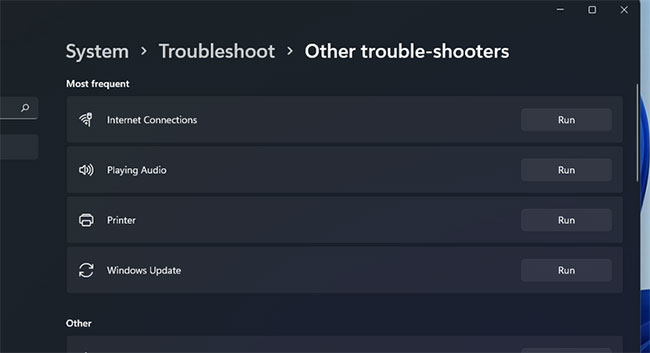
<p style="text-align: justify;"><strong>B3:</strong>&nbsp;Nhấp vào&nbsp;<strong>Other trouble-shooters</strong>&nbsp;để hiển thị một số tùy chọn.</p>

<figure>
<div style="text-align: justify;"><img alt="Nhấp vào Other trouble-shooters" data-i="0" data-src="https://fs.quantrimang.com/photos/image/2021/12/23/loi-microsoft-store-0x80004003-1.jpg" data-was-processed="true" height="353" src="https://fs.quantrimang.com/photos/image/2021/12/23/loi-microsoft-store-0x80004003-1.jpg" width="650" /></div>

<figcaption>
<div style="text-align: justify;">Nhấp vào Other trouble-shooters</div>
</figcaption>
</figure>

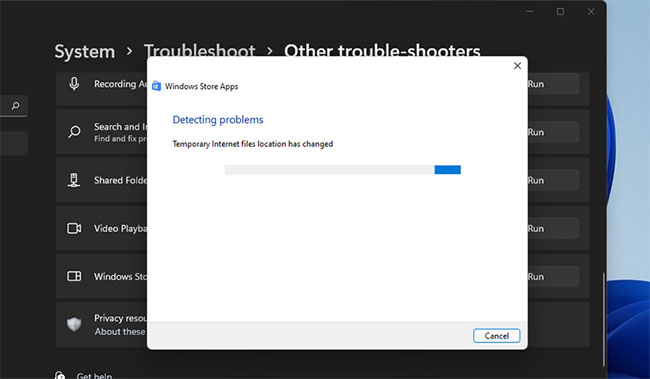
<p style="text-align: justify;"><strong>B4:</strong>&nbsp;Nhấn nút&nbsp;<strong>Run</strong>&nbsp;cho Windows Store Apps để khởi chạy trình khắc phục sự cố đó.</p>

<figure>
<div style="text-align: justify;"><img alt=" Nhấn nút Run " data-i="1" data-src="https://fs.quantrimang.com/photos/image/2021/12/23/loi-microsoft-store-0x80004003-2.jpg" data-was-processed="true" height="379" src="https://fs.quantrimang.com/photos/image/2021/12/23/loi-microsoft-store-0x80004003-2.jpg" width="650" /></div>

<figcaption>
<div style="text-align: justify;">Nhấn nút Run</div>
</figcaption>
</figure>

<p style="text-align: justify;"><strong>B5:</strong>&nbsp;Sau đó, hãy xem qua các hướng dẫn được cung cấp trong trình khắc phục sự cố để áp dụng những bản sửa lỗi tiềm năng.</p>

<h2 style="text-align: justify;">2. Kiểm tra cài đặt thời gian &amp; ngày và khu vực</h2>

<p style="text-align: justify;">Lỗi 0x80004003 có thể phát sinh do ngày và giờ không chính xác. Nó cũng có thể xuất hiện do cài đặt khu vực cho vị trí của bạn. Vì vậy, hãy kiểm tra các cài đặt đó để đảm bảo chúng được thiết lập chính xác.</p>

<p style="text-align: justify;">Dưới đây là cách thay đổi cài đặt tải xuống theo khu vực và thời gian trong Windows 11:</p>

<p style="text-align: justify;"><strong>B1:</strong>&nbsp;Mở&nbsp;<strong>Settings</strong>&nbsp;thông qua menu&nbsp;<strong>Start</strong>&nbsp;hoặc bằng phím nóng&nbsp;<strong>Win + I</strong>.</p>

<p style="text-align: justify;"><strong>B2:</strong>&nbsp;Chọn tab&nbsp;<strong>Time &amp; language</strong>.</p>

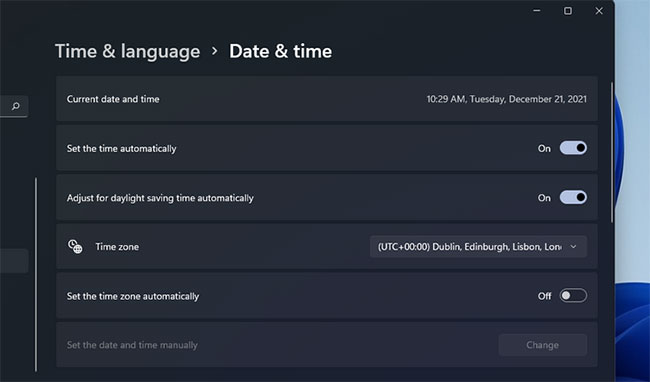
<p style="text-align: justify;"><strong>B3:</strong>&nbsp;Sau đó, nhấp vào&nbsp;<strong>Date &amp; time</strong>.</p>

<figure>
<div style="text-align: justify;"><img alt="Nhấp vào Date &amp; time" data-i="2" data-src="https://fs.quantrimang.com/photos/image/2021/12/23/loi-microsoft-store-0x80004003-3.jpg" data-was-processed="true" height="382" src="https://fs.quantrimang.com/photos/image/2021/12/23/loi-microsoft-store-0x80004003-3.jpg" width="650" /></div>

<figcaption>
<div style="text-align: justify;">Nhấp vào Date &amp; time</div>
</figcaption>
</figure>

<p style="text-align: justify;"><strong>B4:</strong>&nbsp;Đặt tùy chọn&nbsp;<strong>Set the time automatically</strong>&nbsp;thành&nbsp;<strong>On</strong>&nbsp;nếu nó đang tắt.</p>

<p style="text-align: justify;"><strong>B5:</strong>&nbsp;Nếu tùy chọn&nbsp;<strong>Set time zone automatically&nbsp;</strong>bị vô hiệu hóa, hãy nhấp vào cài đặt đó để kích hoạt nó.</p>

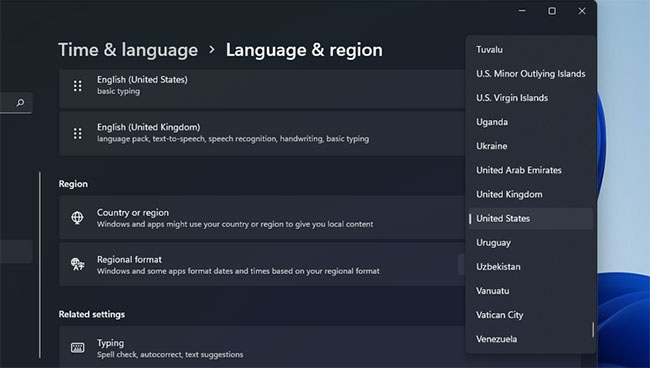
<p style="text-align: justify;"><strong>B6:</strong>&nbsp;Để kiểm tra cài đặt khu vực, hãy nhấp vào&nbsp;<strong>Language and region</strong>&nbsp;trên tab&nbsp;<strong>Time and language</strong>.</p>

<figure>
<div style="text-align: justify;"><img alt="Nhấp vào Language and region" data-i="3" data-src="https://fs.quantrimang.com/photos/image/2021/12/23/loi-microsoft-store-0x80004003-4.jpg" data-was-processed="true" height="368" src="https://fs.quantrimang.com/photos/image/2021/12/23/loi-microsoft-store-0x80004003-4.jpg" width="650" /></div>

<figcaption>
<div style="text-align: justify;">Nhấp vào Language and region</div>
</figcaption>
</figure>

<p style="text-align: justify;"><strong>B7:</strong>&nbsp;Nhấp vào menu drop-down&nbsp;<strong>Country or region</strong>&nbsp;để chọn đúng khu vực bạn đang ở.</p>

<p style="text-align: justify;">Nếu thời gian của đồng hồ trên khay hệ thống vẫn không đúng với cài đặt tự động được chọn, thì có thể có sự cố với&nbsp;pin CMOS&nbsp;của PC. Trong trường hợp đó, bạn sẽ cần phải&nbsp;thay pin CMOS&nbsp;để khôi phục lại thời gian hệ thống chính xác.</p>

<h2 style="text-align: justify;">3. Thiết lập các service bắt buộc khởi chạy tự động</h2>

<p style="text-align: justify;">Microsoft Store sẽ không hoạt động bình thường nếu một số service Windows cần có bị vô hiệu hóa. Do đó, bạn có thể cần phải cấu hình các service nhất định để bắt đầu tự động và giải quyết lỗi 0x80004003.</p>

<p style="text-align: justify;">Bạn có thể làm điều đó bằng cách nhập một vài lệnh trong&nbsp;Command Prompt&nbsp;như sau.</p>

<p style="text-align: justify;"><strong>B1:</strong>&nbsp;Nhấp chuột phải vào nút&nbsp;<strong>Start</strong>&nbsp;của Windows 11 để chọn&nbsp;<strong>Windows Terminal (Admin)</strong>.</p>

<p style="text-align: justify;"><strong>B2:</strong>&nbsp;Chọn&nbsp;<strong>Yes</strong>&nbsp;trên lời nhắc UAC.</p>

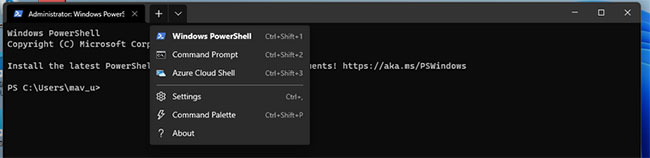
<p style="text-align: justify;"><strong>B3:</strong>&nbsp;Nhấp vào nút&nbsp;<strong>Open a new tab&nbsp;</strong>(mũi tên xuống) để chọn&nbsp;<strong>Command Prompt.</strong></p>

<figure>
<div style="text-align: justify;"><img alt="Nhấp vào nút Open a new tab" data-i="4" data-src="https://fs.quantrimang.com/photos/image/2021/12/23/loi-microsoft-store-0x80004003-5.jpg" data-was-processed="true" height="158" src="https://fs.quantrimang.com/photos/image/2021/12/23/loi-microsoft-store-0x80004003-5.jpg" width="650" /></div>

<figcaption>
<div style="text-align: justify;">Nhấp vào nút Open a new tab</div>
</figcaption>
</figure>

<p style="text-align: justify;"><strong>B4:</strong>&nbsp;Nhập các lệnh riêng biệt sau, nhấn&nbsp;<strong>Enter</strong>&nbsp;sau mỗi lệnh:</p>

<pre id="pre0">
<code>SC config wuauserv start=auto
SC config bits start=auto
SC config cryptsvc start=auto
SC config trustedinstaller start=auto</code></pre>

<p style="text-align: justify;">Bạn có thể sao chép từng lệnh đó vào clipboard của mình bằng cách chọn chúng với con trỏ và nhấn&nbsp;<strong>Ctrl + C</strong>. Sau đó, dán từng lệnh bằng phím tắt&nbsp;<strong>Ctrl + V</strong>. Nhấn phím nóng&nbsp;<strong>Win + V</strong>&nbsp;để chọn các mục được sao chép khác nhau bằng trình quản lý clipboard.</p>

<h2 style="text-align: justify;">4. Sửa chữa và reset ứng dụng Microsoft Store</h2>

<p style="text-align: justify;">Windows 11 và 10 bao gồm các tùy chọn&nbsp;<strong>Reset</strong>&nbsp;và&nbsp;<strong>Repair</strong>&nbsp;cho ứng dụng Microsoft Store. Đó là những tùy chọn tích hợp tốt nhất mà bạn có thể chọn để giải quyết lỗi Microsoft Store. Vì vậy, chúng đáng để thử nếu bạn gặp lỗi 0x80004003.</p>

<p style="text-align: justify;">Dưới đây là cách chạy các tùy chọn khắc phục sự cố của Microsoft Store:</p>

<h3 style="text-align: justify;">Reset cache của Microsoft Store</h3>

<p style="text-align: justify;"><strong>B1:</strong>&nbsp;Mở công cụ tìm kiếm và nhập&nbsp;<strong>apps and feature</strong>&nbsp;vào hộp văn bản.</p>

<p style="text-align: justify;"><strong>B2:</strong>&nbsp;Nhấp vào&nbsp;<strong>Apps &amp; features</strong>&nbsp;trong kết quả tìm kiếm để mở tab&nbsp;<strong>Settings.</strong></p>

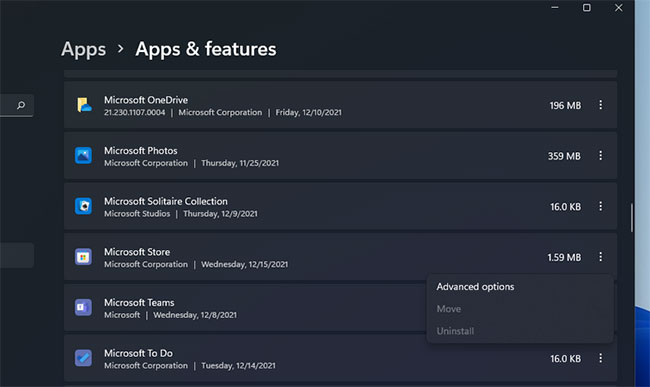
<p style="text-align: justify;"><strong>B3:</strong>&nbsp;Cuộn xuống vị trí của Microsoft Store và nhấp vào nút ba chấm ở phía bên phải của ứng dụng.</p>

<figure>
<div style="text-align: justify;"><img alt="Nhấp vào nút 3 chấm" data-i="5" data-src="https://fs.quantrimang.com/photos/image/2021/12/23/loi-microsoft-store-0x80004003-6.jpg" data-was-processed="true" height="387" src="https://fs.quantrimang.com/photos/image/2021/12/23/loi-microsoft-store-0x80004003-6.jpg" width="650" /></div>

<figcaption>
<div style="text-align: justify;">Nhấp vào nút 3 chấm</div>
</figcaption>
</figure>

<p style="text-align: justify;"><strong>B4:</strong>&nbsp;Chọn<strong>&nbsp;Advanced options</strong>&nbsp;để mở các tùy chọn sửa chữa cho ứng dụng đó.</p>

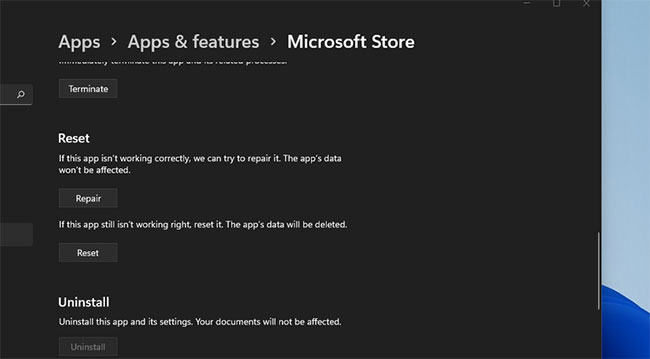
<p style="text-align: justify;"><strong>B5:</strong>&nbsp;Trước tiên, hãy nhấp vào nút&nbsp;<strong>Repair</strong>, nút này sẽ không xóa dữ liệu ứng dụng.</p>

<figure>
<div style="text-align: justify;"><img alt="Nhấp vào nút Repair" data-i="6" data-src="https://fs.quantrimang.com/photos/image/2021/12/23/loi-microsoft-store-0x80004003-7.jpg" data-was-processed="true" height="359" src="https://fs.quantrimang.com/photos/image/2021/12/23/loi-microsoft-store-0x80004003-7.jpg" width="650" /></div>

<figcaption>
<div style="text-align: justify;">Nhấp vào nút Repair</div>
</figcaption>
</figure>

<p style="text-align: justify;"><strong>B6:</strong>&nbsp;Nếu điều đó không giải quyết được lỗi 0x80004003, hãy nhấp vào nút&nbsp;<strong>Reset.</strong></p>

<p style="text-align: justify;"><strong>B7:</strong>&nbsp;Sau đó chọn&nbsp;<strong>Reset</strong>&nbsp;một lần nữa để xác nhận tùy chọn đã chọn.</p>

<p style="text-align: justify;"><strong>B8:</strong>&nbsp;<a href="https://quantrimang.com/6-cach-khoi-dong-lai-windows-that-pro-116819" title="6 cách khởi động lại máy tính Windows từ đơn giản đến &#039;Pro&#039;">Khởi động lại máy tính</a>&nbsp;sau khi áp dụng giải pháp này.</p>

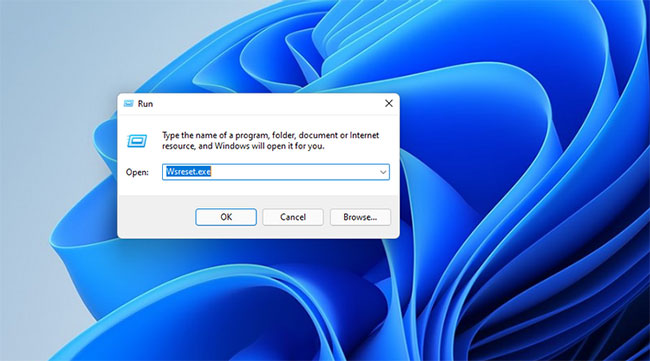
<p style="text-align: justify;">Dữ liệu cache của Microsoft Store bị hỏng cũng có thể gây ra lỗi 0x80004003. Do đó, việc reset bằng công cụ dòng lệnh Wsreset.exe có thể giải quyết các vấn đề về dữ liệu cache. Dưới đây là cách sử dụng công cụ đó trong ba bước nhanh chóng:</p>

<p style="text-align: justify;"><strong>B1:</strong>&nbsp;Nhấp chuột phải vào biểu tượng thanh tác vụ của menu Start để chọn&nbsp;<strong>Run.</strong></p>

<p style="text-align: justify;"><strong>B2:</strong>&nbsp;Nhập&nbsp;<strong>wsreset.exe</strong>&nbsp;trong hộp&nbsp;<strong>Open.</strong></p>

<figure>
<div style="text-align: justify;"><img alt="Nhập wsreset.exe trong hộp Open" data-i="7" data-src="https://fs.quantrimang.com/photos/image/2021/12/23/loi-microsoft-store-0x80004003-8.jpg" data-was-processed="true" height="361" src="https://fs.quantrimang.com/photos/image/2021/12/23/loi-microsoft-store-0x80004003-8.jpg" width="650" /></div>

<figcaption>
<div style="text-align: justify;">Nhập wsreset.exe trong hộp Open</div>
</figcaption>
</figure>

<p style="text-align: justify;"><strong>B3:</strong>&nbsp;Bấm&nbsp;<strong>OK</strong>&nbsp;để chạy lệnh.</p>

<p style="text-align: justify;"><strong>B4:</strong>&nbsp;Sau đó, đợi cửa sổ&nbsp;<strong>wsreset</strong>&nbsp;trống đóng và ứng dụng MS Store mở.</p>

<h3 style="text-align: justify;">Xóa thư mục DataStore</h3>

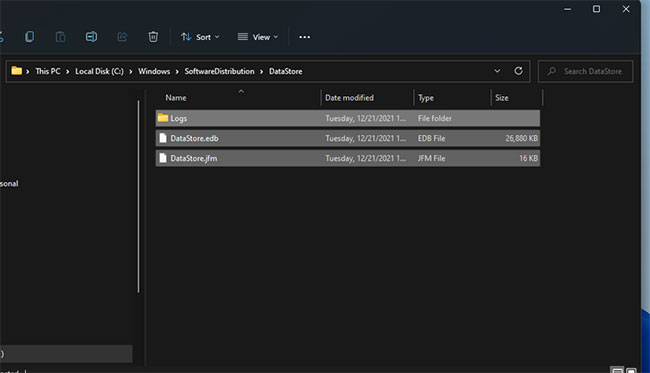
<p style="text-align: justify;">Nhiều người dùng cho biết họ có thể sửa lỗi 0x80004003 bằng cách xóa thư mục DataStore thông qua File Explorer. Thư mục con đó bao gồm file nhật ký Windows Update DataStore.edb.</p>

<p style="text-align: justify;">Đó có lẽ là một bản sửa lỗi tiềm năng gây tò mò, nhưng dù sao thì cũng đã được xác nhận là có tác dụng. Làm theo các bước sau để xóa nội dung của thư mục DataStore.</p>

<p style="text-align: justify;"><strong>B1:</strong>&nbsp;Để mở&nbsp;<strong>Run</strong>, hãy nhấn phím nóng&nbsp;<strong>Win + R</strong>.</p>

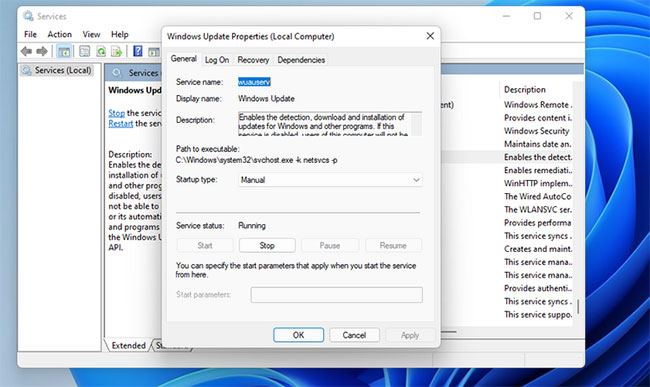
<p style="text-align: justify;"><strong>B2:</strong>&nbsp;Nhập&nbsp;<strong>services.msc</strong>&nbsp;vào hộp&nbsp;<strong>Open</strong>&nbsp;và nhấp vào tùy chọn&nbsp;<strong>OK.</strong></p>

<p style="text-align: justify;"><strong>B3:</strong>&nbsp;Nhấp đúp vào service&nbsp;<strong>Windows Update.</strong></p>

<p style="text-align: justify;"><strong>B4:</strong>&nbsp;Nhấp vào&nbsp;<strong>Disabled</strong>&nbsp;trên menu drop-down&nbsp;<strong>Startup type.</strong></p>

<figure>
<div style="text-align: justify;"><img alt=" Nhấp vào Disabled " data-i="8" data-src="https://fs.quantrimang.com/photos/image/2021/12/23/loi-microsoft-store-0x80004003-9.jpg" data-was-processed="true" height="387" src="https://fs.quantrimang.com/photos/image/2021/12/23/loi-microsoft-store-0x80004003-9.jpg" width="650" /></div>

<figcaption>
<div style="text-align: justify;">Nhấp vào Disabled</div>
</figcaption>
</figure>

<p style="text-align: justify;"><strong>B5:</strong>&nbsp;Chọn tùy chọn&nbsp;<strong>Apply</strong>&nbsp;và nhấp vào&nbsp;<strong>OK</strong>&nbsp;để thoát khỏi cửa sổ.</p>

<p style="text-align: justify;"><strong>B6:</strong>&nbsp;Nhấn&nbsp;<strong>Win + E</strong>&nbsp;để&nbsp;khởi chạy File Explorer.</p>

<p style="text-align: justify;"><strong>B7:</strong>&nbsp;Sau đó, chuyển đến<strong>&nbsp;C: &gt; Windows &gt; SoftwareDistribution &gt; DataStore</strong>&nbsp;trong&nbsp;<strong>File Explorer.</strong></p>

<figure>
<div style="text-align: justify;"><img alt="Chuyển đến C: &gt; Windows &gt; SoftwareDistribution &gt; DataStore trong File Explorer" data-i="9" data-src="https://fs.quantrimang.com/photos/image/2021/12/23/loi-microsoft-store-0x80004003-10.jpg" data-was-processed="true" height="373" src="https://fs.quantrimang.com/photos/image/2021/12/23/loi-microsoft-store-0x80004003-10.jpg" width="650" /></div>

<figcaption>
<div style="text-align: justify;">Chuyển đến C: &gt; Windows &gt; SoftwareDistribution &gt; DataStore trong File Explorer</div>
</figcaption>
</figure>

<p style="text-align: justify;"><strong>B8:</strong>&nbsp;Chọn tất cả nội dung trong thư mục&nbsp;<strong>DataStore</strong>&nbsp;(nhấn phím nóng&nbsp;<strong>Ctrl + A</strong>&nbsp;để làm như vậy).</p>

<p style="text-align: justify;"><strong>B9:</strong>&nbsp;Nhấn nút&nbsp;<strong>Delete</strong>&nbsp;trên thanh lệnh của File Explorer.</p>

<p style="text-align: justify;"><strong>B10:</strong>&nbsp;Mở lại cửa sổ&nbsp;<strong>Windows Update Properties</strong>. Sau đó, chọn các tùy chọn&nbsp;<strong>Automatic startup</strong>&nbsp;và&nbsp;<strong>Start</strong>&nbsp;ở đó, nhấp vào&nbsp;<strong>Apply</strong>&nbsp;để lưu.</p>

<h3 style="text-align: justify;">Cài đặt lại ứng dụng Microsoft Store</h3>

<p style="text-align: justify;">Phương án cuối cùng, hãy thử cài đặt lại Microsoft Store, thao tác này sẽ đăng ký lại ứng dụng đó. Bạn có thể gỡ bỏ MS Store và sau đó cài đặt lại nó qua&nbsp;PowerShell&nbsp;bằng một vài lệnh. Để làm như vậy, hãy làm theo các bước dưới đây.</p>

<p style="text-align: justify;"><strong>B1:</strong>&nbsp;Nhấp chuột phải vào&nbsp;<strong>Start</strong>&nbsp;để chọn tùy chọn&nbsp;<strong>Windows Terminal (Admin).</strong></p>

<p style="text-align: justify;"><strong>B2:</strong>&nbsp;Nhấp vào&nbsp;<strong>Yes</strong>&nbsp;trên bất kỳ lời nhắc UAC nào mở ra.</p>

<p style="text-align: justify;"><strong>B3:</strong>&nbsp;Trong&nbsp;<strong>Windows PowerShell</strong>, nhập lệnh này và nhấn&nbsp;<strong>Return</strong>:</p>

<pre id="pre1">
<code>Get-AppxPackage *windowsstore* | Remove-AppxPackage&amp;nbs</code></pre>

<p style="text-align: justify;"><strong>B4:</strong>&nbsp;Khởi động lại Windows 11 sau khi gỡ cài đặt MS Store.</p>

<p style="text-align: justify;"><strong>B5:</strong>&nbsp;Để cài đặt lại Microsoft Store, hãy nhập lệnh PowerShell này và nhấn&nbsp;<strong>Enter</strong>:</p>

<pre id="pre2">
<code>Get-AppXPackage *WindowsStore* -AllUsers | Foreach {Add-AppxPackage -DisableDevelopmentMode -Register &quot;$($_.InstallLocation)\AppXManifest.xml&quot;}</code></pre>

<p style="text-align: justify;">Những giải pháp tiềm năng ở trên có lẽ sẽ giải quyết được lỗi 0x80004003 cho đa số người dùng. Phương án cuối cùng là reset Windows 11/10 cũng có thể giải quyết được sự cố này, nhưng đừng làm vậy cho đến khi bạn đã thử tất cả các bản sửa lỗi tiềm năng khác. Với lỗi 0x80004003 đã được khắc phục, bạn sẽ có thể sử dụng MS Store cũng như tải xuống và cài đặt các ứng dụng như bình thường.</p>
		</div>
				<div id="author">
						<p>
				<strong>Nguồn tin:</strong>
				Quantrimang.com
			</p>
		</div>
	</div>
	<div id="footer" class="clearfix">
		<div id="url">
			<strong>URL của bản tin này: </strong><a href="https://www.nguoicodonvn2008.info/vi/news/savefile/kien-thuc-may-tinh/cach-khac-phuc-ma-loi-microsoft-store-0x80004003-trong-windows-10-11-4920.html" title="Cách khắc phục mã lỗi Microsoft Store 0x80004003 trong Windows 10&#x002F;11">https://www.nguoicodonvn2008.info/vi/news/savefile/kien-thuc-may-tinh/cach-khac-phuc-ma-loi-microsoft-store-0x80004003-trong-windows-10-11-4920.html</a>

		</div>
		<div class="clear"></div>
		<div class="copyright">
			&copy; .&#x3A; Nguoicodonvn2008.info - Cõi lòng người cô đơn &#x3A;.
		</div>
		<div id="contact">
			<a href="mailto:admin@nguoicodonvn2008.info">admin@nguoicodonvn2008.info</a>
		</div>
	</div>
</div>
        <div id="timeoutsess" class="chromeframe">
            Bạn đã không sử dụng Site, <a onclick="timeoutsesscancel();" href="https://www.nguoicodonvn2008.info/#">Bấm vào đây để duy trì trạng thái đăng nhập</a>. Thời gian chờ: <span id="secField"> 60 </span> giây
        </div>
        <div id="openidResult" class="nv-alert" style="display:none"></div>
        <div id="openidBt" data-result="" data-redirect=""></div>
		</script>
		<div class="car-top">
  <span><img src="https://www.nguoicodonvn2008.info/themes/default/images/car.png" alt=""></span>
</div>
<script src="https://www.nguoicodonvn2008.info/assets/js/jquery/jquery.min.js"></script>
<script>var nv_base_siteurl="/",nv_lang_data="vi",nv_lang_interface="vi",nv_name_variable="nv",nv_fc_variable="op",nv_lang_variable="language",nv_module_name="news",nv_func_name="savefile",nv_is_user=0, nv_my_ofs=-4,nv_my_abbr="EDT",nv_cookie_prefix="nv4c_e856T",nv_check_pass_mstime=1738000,nv_area_admin=0,nv_safemode=0,theme_responsive=0,nv_recaptcha_ver=2,nv_recaptcha_sitekey="",nv_recaptcha_type="image",XSSsanitize=1;</script>
<script src="https://www.nguoicodonvn2008.info/assets/js/language/vi.js"></script>
<script src="https://www.nguoicodonvn2008.info/assets/js/DOMPurify/purify3.js"></script>
<script src="https://www.nguoicodonvn2008.info/assets/js/global.js"></script>
<script src="https://www.nguoicodonvn2008.info/assets/js/site.js"></script>
<script src="https://www.nguoicodonvn2008.info/themes/default/js/news.js"></script>
<script src="https://www.nguoicodonvn2008.info/themes/default/js/main.js"></script>
<script src="https://www.nguoicodonvn2008.info/themes/default/js/custom.js"></script>
<script type="application/ld+json">
        {
            "@context": "https://schema.org",
            "@type": "Organization",
            "url": "https://www.nguoicodonvn2008.info",
            "logo": "https://www.nguoicodonvn2008.info/uploads/angel.gif"
        }
        </script>
<script src="https://www.nguoicodonvn2008.info/themes/default/js/bootstrap.min.js"></script>
<script type="text/javascript">
var $scrolltop = $('.car-top');
$scrolltop.on('click', function () {
    $('html,body').animate({
        scrollTop: 0
    }, 800);
    $(this).addClass("car-run");
    setTimeout(function(){ $scrolltop.removeClass('car-run');}, 1000);
    return false;
});
$(window).on('scroll', function ()
{ 
    if($(window).scrollTop() >= 200)
    {
        $scrolltop.addClass("show");
        $scrolltop.addClass("car-down");
    }
    else
    {
       $scrolltop.removeClass("show");
       setTimeout(function(){ $scrolltop.removeClass('car-down');}, 300);
    }
});
</script>
</body>
</html>