<!DOCTYPE html>
    <html lang="vi" xmlns="http://www.w3.org/1999/xhtml" prefix="og: http://ogp.me/ns#">
    <head>
<title>Cách khắc phục lỗi không thể kéo thả trong Windows 10</title>
<meta name="description" content="Cách khắc phục lỗi không thể kéo thả trong Windows 10 - Savefile - Tin Tức -...">
<meta name="author" content=".: Nguoicodonvn2008.info - Cõi lòng người cô đơn :.">
<meta name="copyright" content=".: Nguoicodonvn2008.info - Cõi lòng người cô đơn :. [admin@nguoicodonvn2008.info]">
<meta name="robots" content="index, archive, follow, noodp">
<meta name="googlebot" content="index,archive,follow,noodp">
<meta name="msnbot" content="all,index,follow">
<meta name="generator" content="NukeViet v4.5">
<meta http-equiv="Content-Type" content="text/html; charset=utf-8">
<meta property="og:title" content="Cách khắc phục lỗi không thể kéo thả trong Windows 10">
<meta property="og:type" content="website">
<meta property="og:description" content="Savefile - Tin Tức - https&#x3A;&#x002F;&#x002F;www.nguoicodonvn2008.info&#x002F;vi&#x002F;news&#x002F;savefile&#x002F;kien-thuc-may-tinh&#x002F;cach-khac-phuc-loi-khong-the-keo-tha-trong-windows-10-4642.html">
<meta property="og:site_name" content=".&#x3A; Nguoicodonvn2008.info - Cõi lòng người cô đơn &#x3A;.">
<meta property="og:url" content="https://www.nguoicodonvn2008.info/vi/news/savefile/kien-thuc-may-tinh/cach-khac-phuc-loi-khong-the-keo-tha-trong-windows-10-4642.html">
<link rel="shortcut icon" href="https://www.nguoicodonvn2008.info/favicon.ico">
<link rel="canonical" href="https://www.nguoicodonvn2008.info/vi/news/savefile/kien-thuc-may-tinh/cach-khac-phuc-loi-khong-the-keo-tha-trong-windows-10-4642.html">
<link rel="alternate" href="https://www.nguoicodonvn2008.info/vi/news/rss/" title="Tin Tức" type="application/rss+xml">
<link rel="alternate" href="https://www.nguoicodonvn2008.info/vi/news/rss/karaoke-dual/" title="Tin Tức - Karaoke Dual" type="application/rss+xml">
<link rel="alternate" href="https://www.nguoicodonvn2008.info/vi/news/rss/nhac-tre/" title="Tin Tức - Nhạc trẻ" type="application/rss+xml">
<link rel="alternate" href="https://www.nguoicodonvn2008.info/vi/news/rss/tru-tinh/" title="Tin Tức - Trữ tình" type="application/rss+xml">
<link rel="alternate" href="https://www.nguoicodonvn2008.info/vi/news/rss/nuoc-ngoai/" title="Tin Tức - Nước ngoài" type="application/rss+xml">
<link rel="alternate" href="https://www.nguoicodonvn2008.info/vi/news/rss/remix/" title="Tin Tức - Remix" type="application/rss+xml">
<link rel="alternate" href="https://www.nguoicodonvn2008.info/vi/news/rss/tam-su-tinh-yeu/" title="Tin Tức - Tâm sự tình yêu" type="application/rss+xml">
<link rel="alternate" href="https://www.nguoicodonvn2008.info/vi/news/rss/tho-suu-tam/" title="Tin Tức - Thơ sưu tầm" type="application/rss+xml">
<link rel="alternate" href="https://www.nguoicodonvn2008.info/vi/news/rss/cuoc-song/" title="Tin Tức - Cuộc sống" type="application/rss+xml">
<link rel="alternate" href="https://www.nguoicodonvn2008.info/vi/news/rss/phan-mem/" title="Tin Tức - Phần mềm" type="application/rss+xml">
<link rel="alternate" href="https://www.nguoicodonvn2008.info/vi/news/rss/kien-thuc-may-tinh/" title="Tin Tức - Kiến thức máy tính" type="application/rss+xml">
<link rel="alternate" href="https://www.nguoicodonvn2008.info/vi/news/rss/hoc-tap/" title="Tin Tức - Học tập" type="application/rss+xml">
<link rel="alternate" href="https://www.nguoicodonvn2008.info/vi/news/rss/tai-lieu/" title="Tin Tức - Tài liệu" type="application/rss+xml">
<link rel="alternate" href="https://www.nguoicodonvn2008.info/vi/news/rss/de-thi/" title="Tin Tức - Đề thi" type="application/rss+xml">
<link rel="preload" as="style" href="https://www.nguoicodonvn2008.info/assets/css/font-awesome.min.css" type="text/css">
<link rel="preload" as="style" href="https://www.nguoicodonvn2008.info/themes/default/css/bootstrap.non-responsive.css" type="text/css">
<link rel="preload" as="style" href="https://www.nguoicodonvn2008.info/themes/default/css/style.css" type="text/css">
<link rel="preload" as="style" href="https://www.nguoicodonvn2008.info/themes/default/css/style.non-responsive.css" type="text/css">
<link rel="preload" as="style" href="https://www.nguoicodonvn2008.info/themes/default/css/news.css" type="text/css">
<link rel="preload" as="style" href="https://www.nguoicodonvn2008.info/themes/default/css/custom.css" type="text/css">
<link rel="preload" as="script" href="https://www.nguoicodonvn2008.info/assets/js/jquery/jquery.min.js" type="text/javascript">
<link rel="preload" as="script" href="https://www.nguoicodonvn2008.info/assets/js/language/vi.js" type="text/javascript">
<link rel="preload" as="script" href="https://www.nguoicodonvn2008.info/assets/js/DOMPurify/purify3.js" type="text/javascript">
<link rel="preload" as="script" href="https://www.nguoicodonvn2008.info/assets/js/global.js" type="text/javascript">
<link rel="preload" as="script" href="https://www.nguoicodonvn2008.info/assets/js/site.js" type="text/javascript">
<link rel="preload" as="script" href="https://www.nguoicodonvn2008.info/themes/default/js/news.js" type="text/javascript">
<link rel="preload" as="script" href="https://www.nguoicodonvn2008.info/themes/default/js/main.js" type="text/javascript">
<link rel="preload" as="script" href="https://www.nguoicodonvn2008.info/themes/default/js/custom.js" type="text/javascript">
<link rel="preload" as="script" href="https://www.nguoicodonvn2008.info/themes/default/js/bootstrap.min.js" type="text/javascript">
<link rel="stylesheet" href="https://www.nguoicodonvn2008.info/assets/css/font-awesome.min.css">
<link rel="stylesheet" href="https://www.nguoicodonvn2008.info/themes/default/css/bootstrap.non-responsive.css">
<link rel="stylesheet" href="https://www.nguoicodonvn2008.info/themes/default/css/style.css">
<link rel="stylesheet" href="https://www.nguoicodonvn2008.info/themes/default/css/style.non-responsive.css">
<link rel="StyleSheet" href="https://www.nguoicodonvn2008.info/themes/default/css/news.css">
<link rel="stylesheet" href="https://www.nguoicodonvn2008.info/themes/default/css/custom.css">
<style type="text/css">
	body{background: #fff;}
</style>
    </head>
    <body>
<div id="print">
	<div id="hd_print">
		<h2 class="pull-left">.&#x3A; Nguoicodonvn2008.info - Cõi lòng người cô đơn &#x3A;.</h2>
		<p class="pull-right"><a title=".&#x3A; Nguoicodonvn2008.info - Cõi lòng người cô đơn &#x3A;." href="https://www.nguoicodonvn2008.info/">https://www.nguoicodonvn2008.info</a></p>
	</div>
	<div class="clear"></div>
	<hr />
	<div id="content">
		<h1>Cách khắc phục lỗi không thể kéo thả trong Windows 10</h1>
		<ul class="list-inline">
			<li>Thứ ba - 26/10/2021 00:42</li>
			<li class="hidden-print txtrequired"><em class="fa fa-print">&nbsp;</em><a title="In ra" href="javascript:;" onclick="window.print()">In ra</a></li>
			<li class="hidden-print txtrequired"><em class="fa fa-power-off">&nbsp;</em><a title="Đóng cửa sổ này" href="javascript:;" onclick="window.close()">Đóng cửa sổ này</a></li>
		</ul>
		<div class="clear"></div>
		<div id="hometext">
		</div>
				<div class="imghome">
			<img alt="Cách khắc phục lỗi không thể kéo thả trong Windows 10" src="https://st.quantrimang.com/photos/image/2021/10/26/khong-the-keo-tha-trong-windows-10-1.jpg" width="460" class="img-thumbnail" />
		</div>
		<div class="clear"></div>
		<div id="bodytext" class="clearfix">
			<p style="text-align: justify;">Tính năng kéo thả cho phép bạn dễ dàng di chuyển các file hoặc thư mục đến một vị trí mới. Bạn luôn có thể di chuyển file bằng cách nhấn&nbsp;<strong>Ctrl + X</strong>&nbsp;và&nbsp;<strong>Ctrl + V</strong>&nbsp;hoặc duyệt qua các thư mục khi bạn muốn đính kèm file vào email, nhưng tính năng kéo thả đơn giản vẫn tiện lợi hơn.</p>

<p style="text-align: justify;">Đó là lý do tại sao thật khó chịu khi tính năng tiện dụng này ngừng hoạt động trên máy tính. Nếu điều này xảy ra với bạn, đừng lo lắng; đây là 8 giải pháp giúp bạn khắc phục lỗi không thể kéo thả trong&nbsp;Windows 10.</p>

<h2 style="text-align: justify;">1. Khởi động lại chương trình đang sử dụng</h2>

<p style="text-align: justify;">Nếu bạn nhận thấy rằng bạn không thể kéo thả vào một chương trình cụ thể, có khả năng phần mềm bị đóng băng. Để nhanh chóng khắc phục, hãy lưu công việc của bạn và khởi động lại chương trình. Sau đó, hãy thử kéo thả lại.</p>

<h2 style="text-align: justify;">2. Làm cho Windows quên thao tác kéo thả gần nhất</h2>

<p style="text-align: justify;">Đôi khi, máy tính của bạn vẫn đang xử lý quá trình kéo thả gần nhất, ngăn bạn bắt đầu sự kiện kéo thả mới. May mắn thay, bạn có thể dễ dàng khắc phục mà không cần phải khởi động lại máy tính hoặc cấu hình cài đặt hệ thống của mình.</p>

<p style="text-align: justify;">Trong&nbsp;<strong>File Explorer</strong>, nhấp vào bất kỳ file hoặc thư mục nào và giữ nút chuột trái. Sau đó, nhấn phím&nbsp;<strong>Esc.</strong>&nbsp;Bây giờ, hãy thử kéo thả một lần nữa.</p>

<h2 style="text-align: justify;">3.&nbsp;Khởi động lại File Explorer</h2>

<p style="text-align: justify;">Đôi khi File Explorer gặp sự cố kéo thả. May mắn thay, bạn có thể khắc phục sự cố này bằng cách khởi động lại service. Tuy nhiên, làm như vậy không dễ dàng bằng việc đóng tất cả các cửa sổ File Explorer đang mở, vì service này luôn chạy ở chế độ nền.</p>

<h2 style="text-align: justify;">4. Kiểm tra phiên bản Windows</h2>

<p style="text-align: justify;">Có khả năng bạn không thể kéo thả trên máy tính của mình nếu đang chạy phiên bản Windows 10 cũ.&nbsp;</p>

<h2 style="text-align: justify;">5. Kiểm tra driver chuột</h2>

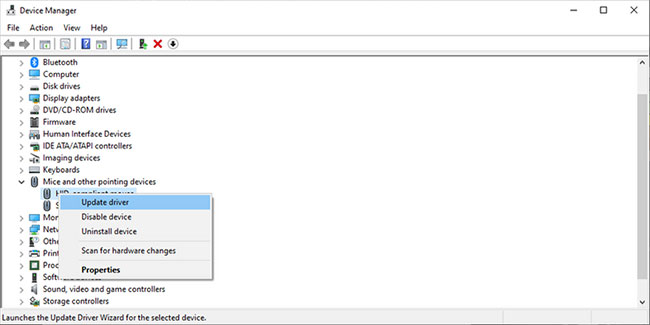
<p style="text-align: justify;">Nếu bạn không thể sử dụng chuột để kéo thả, driver của chuột có thể cần được cập nhật. Đây có khả năng rất cao là nguyên nhân gây ra lỗi, nếu bạn đang sử dụng laptop và vẫn có thể kéo thả bằng bàn di chuột.</p>

<p style="text-align: justify;"><strong>Bước 1</strong>: Nhấp chuột phải vào nút&nbsp;<strong>Start</strong>&nbsp;và chọn&nbsp;<strong>Device Manager.</strong></p>

<p style="text-align: justify;"><strong>Bước 2</strong>: Mở rộng menu<strong>&nbsp;Mice and other pointing devices</strong>.</p>

<p style="text-align: justify;"><strong>Bước 3</strong>: Nhấp chuột phải vào driver chuột và chọn&nbsp;<strong>Update driver</strong>.</p>

<p style="text-align: justify;"><strong>Bước 4</strong>: Chọn&nbsp;<strong>Search automatically for drivers</strong>, sau đó Windows sẽ tìm và cài đặt mọi bản cập nhật driver có sẵn.</p>

<figure>
<div style="text-align: justify;"><img alt="Kiểm tra driver chuột" data-i="0" data-src="https://st.quantrimang.com/photos/image/2021/10/26/khong-the-keo-tha-trong-windows-10-1.jpg" data-was-processed="true" height="325" src="https://st.quantrimang.com/photos/image/2021/10/26/khong-the-keo-tha-trong-windows-10-1.jpg" width="650" /></div>

<figcaption>
<div style="text-align: justify;">Kiểm tra driver chuột</div>
</figcaption>
</figure>

<p style="text-align: justify;">Ngoài ra, nếu bạn đang sử dụng ứng dụng của bên thứ ba để tùy chỉnh cài đặt điều khiển chuột, điều đó có thể ảnh hưởng đến cách hoạt động của chuột. Hãy vào cài đặt ứng dụng và xem liệu điều gì có thể ngăn chuột của bạn hoạt động bình thường hay không.</p>

<p style="text-align: justify;">Nếu đó là ứng dụng bạn sử dụng để chơi game, hãy dừng ứng dụng đó chạy khi khởi động.&nbsp;Mở Task Manager, đi tới&nbsp;<strong>Startup</strong>, chọn ứng dụng và nhấp vào&nbsp;<strong>Disable.</strong></p>

<h2 style="text-align: justify;">6. Chạy quét SFC và DISM</h2>

<p style="text-align: justify;">SFC sẽ kiểm tra tất cả các file hệ thống để tìm bất kỳ file nào bị hỏng. Khi phát hiện các file như vậy, SFC sẽ tự động thay thế chúng. Ngoài ra, System File Checker sẽ cung cấp cho bạn thông tin chi tiết về quá trình quét mà bạn có thể truy cập trong file nhật ký của nó.</p>

<p style="text-align: justify;">Không đóng cửa sổ Command Prompt cho đến khi quá trình quét chưa hoàn tất. Độ dài của quá trình quét sẽ phụ thuộc vào tổng tài nguyên hệ thống của bạn.</p>

<p style="text-align: justify;">Nếu System File Checker phát hiện bất kỳ file hệ thống nào bị hỏng hoặc có vấn đề, nó sẽ hiển thị thông báo&nbsp;<strong>Windows Resource Protection found corrupt files and successfully repaired them</strong>. Nếu không tìm thấy file bị hỏng, bạn sẽ thấy&nbsp;<strong>Windows Resource Protection did not find any integrity violations</strong>.</p>

<p style="text-align: justify;">Nếu quá trình&nbsp;quét SFC&nbsp;không khắc phục được sự cố, bạn nên thử chạy&nbsp;quét DISM. Sau khi hệ thống hoàn tất quá trình quét, hãy kiểm tra xem bạn có thể kéo thả hay không.</p>

<h2 style="text-align: justify;">7. Chạy Hardware &amp; Devices troubleshooter</h2>

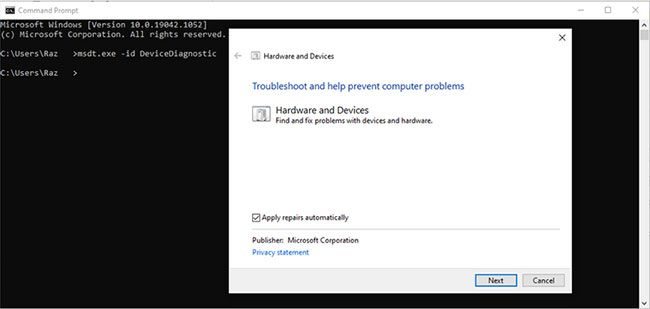
<p style="text-align: justify;">Một công cụ khác mà bạn có thể sử dụng để khắc phục sự cố của mình là&nbsp;<strong>Hardware &amp; Devices troubleshooter</strong>. Trong các phiên bản Windows 10 cũ, công cụ này nằm trong&nbsp;Control Panel<strong>.</strong>&nbsp;Bây giờ, bạn cần&nbsp;sử dụng Command Prompt&nbsp;để khởi chạy nó. Đây là cách bạn có thể làm điều đó:</p>

<p style="text-align: justify;"><strong>Bước 1</strong>:&nbsp;Mở Command Prompt với quyền admin.</p>

<p style="text-align: justify;"><strong>Bước 2</strong>: Nhập:</p>

<pre id="pre0">
<code>msdt.exe -id DeviceDiagnostic</code></pre>

<p style="text-align: justify;"><strong>Bước 3</strong>: Nhấn nút&nbsp;<strong>Enter.</strong></p>

<p style="text-align: justify;"><strong>Bước 4</strong>: Nhấp vào&nbsp;<strong>Advanced &gt; Apply repairs automatically</strong>.</p>

<p style="text-align: justify;"><strong>Bước 5</strong>: Bấm vào&nbsp;<strong>Next.</strong></p>

<figure>
<div style="text-align: justify;"><img alt="Chạy Hardware &amp; Devices troubleshooter" data-i="1" data-src="https://st.quantrimang.com/photos/image/2021/10/26/khong-the-keo-tha-trong-windows-10-2.jpg" data-was-processed="true" height="309" src="https://st.quantrimang.com/photos/image/2021/10/26/khong-the-keo-tha-trong-windows-10-2.jpg" width="650" /></div>

<figcaption>
<div style="text-align: justify;">Chạy Hardware &amp; Devices troubleshooter</div>
</figcaption>
</figure>

<h2 style="text-align: justify;">8. Chỉnh sửa Windows Registry</h2>

<p style="text-align: justify;">Windows Registry là một trong những thành phần chính của hệ thống vì nó chứa các cài đặt Windows, phần mềm, thông tin driver và mật khẩu người dùng. Vì vậy, khi gặp sự cố trên máy tính, bạn nên xem qua Windows Registry.</p>

<p style="text-align: justify;">Trước khi thực hiện bất kỳ thay đổi nào trong Windows Registry, bạn nên tạo một bản sao lưu cho cơ sở dữ liệu registry. Nếu lỗi chỉnh sửa ảnh hưởng tiêu cực đến hệ thống, bạn sẽ có thể lấy cài đặt gốc từ bản sao lưu.</p>

<p style="text-align: justify;">Đây là cách bạn có thể chỉnh sửa Windows Registry một cách an toàn để chức năng kéo thả hoạt động trở lại:</p>

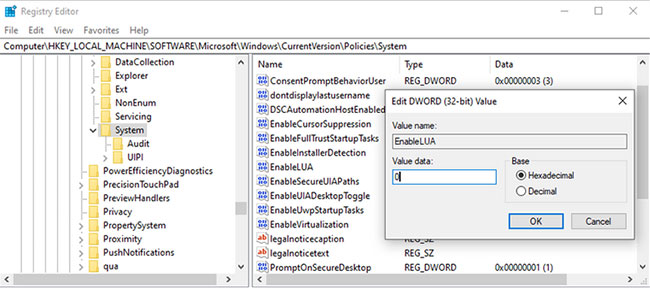
<p style="text-align: justify;"><strong>Bước 1</strong>: Nhập&nbsp;<strong>registry editor</strong>&nbsp;vào thanh tìm kiếm của menu&nbsp;<strong>Start</strong>&nbsp;và chọn&nbsp;<strong>Run as administrator</strong>.</p>

<p style="text-align: justify;"><strong>Bước 2</strong>: Đi tới:</p>

<pre id="pre1">
<code>Computer &gt; HKEY_LOCAL_MACHINE &gt; SOFTWARE &gt; Microsoft &gt; Windows &gt; CurrentVersion &gt; Policies &gt; System</code></pre>

<p style="text-align: justify;"><strong>Bước 3</strong>: Ở bên phải của cửa sổ, mở&nbsp;<strong>EnableLUA.</strong></p>

<p style="text-align: justify;"><strong>Bước 4</strong>: Đặt&nbsp;<strong>Base</strong>&nbsp;thành&nbsp;<strong>Hexadecimal.</strong></p>

<p style="text-align: justify;"><strong>Bước 5</strong>: Đặt&nbsp;<strong>Value data</strong>&nbsp;thành&nbsp;<strong>0</strong>&nbsp;và nhấp vào&nbsp;<strong>OK.</strong></p>

<p style="text-align: justify;"><strong>Bước 6</strong>:&nbsp;Khởi động lại máy tính&nbsp;và kiểm tra xem bạn có thể kéo thả hay không.</p>

<figure>
<div style="text-align: justify;"><img alt="Chỉnh sửa Windows Registry" data-i="2" data-src="https://st.quantrimang.com/photos/image/2021/10/26/khong-the-keo-tha-trong-windows-10-3.jpg" data-was-processed="true" height="288" src="https://st.quantrimang.com/photos/image/2021/10/26/khong-the-keo-tha-trong-windows-10-3.jpg" width="650" /></div>

<figcaption>
<div style="text-align: justify;">Chỉnh sửa Windows Registry</div>
</figcaption>
</figure>

<h3 style="text-align: justify;">Chỉnh sửa thông số chiều cao và chiều rộng của thao tác kéo</h3>

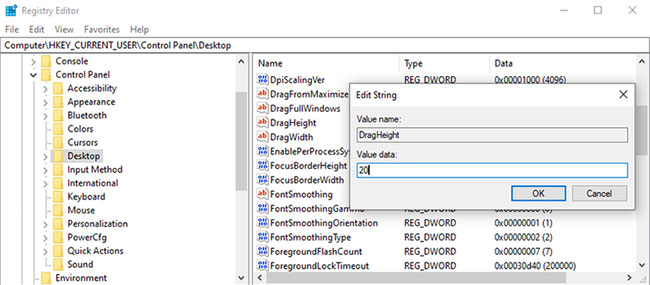
<p style="text-align: justify;">Registry Editor cũng chứa các cài đặt cho chiều cao và chiều rộng của thao tác kéo. Nếu giải pháp trước đó không khắc phục được sự cố của bạn, hãy thử giải pháp này.</p>

<p style="text-align: justify;"><strong>Bước 1</strong>:&nbsp;Mở Registry Editor&nbsp;với quyền admin.</p>

<p style="text-align: justify;"><strong>Bước 2</strong>: Đi tới:</p>

<pre id="pre2">
<code>Computer &gt; HKEY_CURRENT_USER &gt; Control Panel &gt; Desktop</code></pre>

<p style="text-align: justify;"><strong>Bước 3</strong>: Từ ngăn bên phải, mở&nbsp;<strong>DragHeight.</strong></p>

<p style="text-align: justify;"><strong>Bước 4</strong>: Nhập một giá trị mới trong trường&nbsp;<strong>Value data</strong>&nbsp;và bấm&nbsp;<strong>OK.</strong></p>

<p style="text-align: justify;"><strong>Bước 5</strong>: Mở&nbsp;<strong>DragWidth.</strong></p>

<p style="text-align: justify;"><strong>Bước 6</strong>: Nhập một giá trị mới trong trường&nbsp;<strong>Value</strong>&nbsp;và bấm&nbsp;<strong>OK.</strong></p>

<figure>
<div style="text-align: justify;"><img alt="Chỉnh sửa thông số chiều cao và chiều rộng của thao tác kéo" data-i="3" data-src="https://st.quantrimang.com/photos/image/2021/10/26/khong-the-keo-tha-trong-windows-10-4.jpg" data-was-processed="true" height="285" src="https://st.quantrimang.com/photos/image/2021/10/26/khong-the-keo-tha-trong-windows-10-4.jpg" width="650" /></div>

<figcaption>
<div style="text-align: justify;">Chỉnh sửa thông số chiều cao và chiều rộng của thao tác kéo</div>
</figcaption>
</figure>

<p style="text-align: justify;"><strong>Lưu ý</strong>: Giá trị mặc định cho&nbsp;<strong>DragWidth</strong>&nbsp;và&nbsp;<strong>DragHeight</strong>&nbsp;là&nbsp;<strong>4</strong>. Khi thay đổi, đừng đặt giá trị quá cao, chẳng hạn như&nbsp;<strong>2000</strong>&nbsp;vì việc này có thể dẫn đến các vấn đề mới.</p>

<p style="text-align: justify;">Hy vọng rằng một trong những giải pháp được liệt kê đã sửa lỗi chức năng kéo thả không hoạt động trên máy tính của bạn. Nếu không có giải pháp nào hiệu quả, có khả năng chuột của bạn đã bị hỏng. Trong trường hợp này, bạn cần mua một con chuột mới.</p>
		</div>
				<div id="author">
						<p>
				<strong>Nguồn tin:</strong>
				Quantrimang.com
			</p>
		</div>
	</div>
	<div id="footer" class="clearfix">
		<div id="url">
			<strong>URL của bản tin này: </strong><a href="https://www.nguoicodonvn2008.info/vi/news/savefile/kien-thuc-may-tinh/cach-khac-phuc-loi-khong-the-keo-tha-trong-windows-10-4642.html" title="Cách khắc phục lỗi không thể kéo thả trong Windows 10">https://www.nguoicodonvn2008.info/vi/news/savefile/kien-thuc-may-tinh/cach-khac-phuc-loi-khong-the-keo-tha-trong-windows-10-4642.html</a>

		</div>
		<div class="clear"></div>
		<div class="copyright">
			&copy; .&#x3A; Nguoicodonvn2008.info - Cõi lòng người cô đơn &#x3A;.
		</div>
		<div id="contact">
			<a href="mailto:admin@nguoicodonvn2008.info">admin@nguoicodonvn2008.info</a>
		</div>
	</div>
</div>
        <div id="timeoutsess" class="chromeframe">
            Bạn đã không sử dụng Site, <a onclick="timeoutsesscancel();" href="https://www.nguoicodonvn2008.info/#">Bấm vào đây để duy trì trạng thái đăng nhập</a>. Thời gian chờ: <span id="secField"> 60 </span> giây
        </div>
        <div id="openidResult" class="nv-alert" style="display:none"></div>
        <div id="openidBt" data-result="" data-redirect=""></div>
		</script>
		<div class="car-top">
  <span><img src="https://www.nguoicodonvn2008.info/themes/default/images/car.png" alt=""></span>
</div>
<script src="https://www.nguoicodonvn2008.info/assets/js/jquery/jquery.min.js"></script>
<script>var nv_base_siteurl="/",nv_lang_data="vi",nv_lang_interface="vi",nv_name_variable="nv",nv_fc_variable="op",nv_lang_variable="language",nv_module_name="news",nv_func_name="savefile",nv_is_user=0, nv_my_ofs=-4,nv_my_abbr="EDT",nv_cookie_prefix="nv4c_e856T",nv_check_pass_mstime=1738000,nv_area_admin=0,nv_safemode=0,theme_responsive=0,nv_recaptcha_ver=2,nv_recaptcha_sitekey="",nv_recaptcha_type="image",XSSsanitize=1;</script>
<script src="https://www.nguoicodonvn2008.info/assets/js/language/vi.js"></script>
<script src="https://www.nguoicodonvn2008.info/assets/js/DOMPurify/purify3.js"></script>
<script src="https://www.nguoicodonvn2008.info/assets/js/global.js"></script>
<script src="https://www.nguoicodonvn2008.info/assets/js/site.js"></script>
<script src="https://www.nguoicodonvn2008.info/themes/default/js/news.js"></script>
<script src="https://www.nguoicodonvn2008.info/themes/default/js/main.js"></script>
<script src="https://www.nguoicodonvn2008.info/themes/default/js/custom.js"></script>
<script type="application/ld+json">
        {
            "@context": "https://schema.org",
            "@type": "Organization",
            "url": "https://www.nguoicodonvn2008.info",
            "logo": "https://www.nguoicodonvn2008.info/uploads/angel.gif"
        }
        </script>
<script src="https://www.nguoicodonvn2008.info/themes/default/js/bootstrap.min.js"></script>
<script type="text/javascript">
var $scrolltop = $('.car-top');
$scrolltop.on('click', function () {
    $('html,body').animate({
        scrollTop: 0
    }, 800);
    $(this).addClass("car-run");
    setTimeout(function(){ $scrolltop.removeClass('car-run');}, 1000);
    return false;
});
$(window).on('scroll', function ()
{ 
    if($(window).scrollTop() >= 200)
    {
        $scrolltop.addClass("show");
        $scrolltop.addClass("car-down");
    }
    else
    {
       $scrolltop.removeClass("show");
       setTimeout(function(){ $scrolltop.removeClass('car-down');}, 300);
    }
});
</script>
</body>
</html>