<!DOCTYPE html>
    <html lang="vi" xmlns="http://www.w3.org/1999/xhtml" prefix="og: http://ogp.me/ns#">
    <head>
<title>Cách kết nối với BTPAN &#40;Bluetooth Personal Area Network&#41; trong Windows 11</title>
<meta name="description" content="Cách kết nối với BTPAN &#40;Bluetooth Personal Area Network&#41; trong Windows 11 - Savefile - Tin Tức -...">
<meta name="author" content=".: Nguoicodonvn2008.info - Cõi lòng người cô đơn :.">
<meta name="copyright" content=".: Nguoicodonvn2008.info - Cõi lòng người cô đơn :. [admin@nguoicodonvn2008.info]">
<meta name="robots" content="index, archive, follow, noodp">
<meta name="googlebot" content="index,archive,follow,noodp">
<meta name="msnbot" content="all,index,follow">
<meta name="generator" content="NukeViet v4.5">
<meta http-equiv="Content-Type" content="text/html; charset=utf-8">
<meta property="og:title" content="Cách kết nối với BTPAN &#40;Bluetooth Personal Area Network&#41; trong Windows 11">
<meta property="og:type" content="website">
<meta property="og:description" content="Savefile - Tin Tức -...">
<meta property="og:site_name" content=".&#x3A; Nguoicodonvn2008.info - Cõi lòng người cô đơn &#x3A;.">
<meta property="og:url" content="https://www.nguoicodonvn2008.info/vi/news/savefile/kien-thuc-may-tinh/cach-ket-noi-voi-btpan-bluetooth-personal-area-network-trong-windows-11-7812.html">
<link rel="shortcut icon" href="https://www.nguoicodonvn2008.info/favicon.ico">
<link rel="canonical" href="https://www.nguoicodonvn2008.info/vi/news/savefile/kien-thuc-may-tinh/cach-ket-noi-voi-btpan-bluetooth-personal-area-network-trong-windows-11-7812.html">
<link rel="alternate" href="https://www.nguoicodonvn2008.info/vi/news/rss/" title="Tin Tức" type="application/rss+xml">
<link rel="alternate" href="https://www.nguoicodonvn2008.info/vi/news/rss/karaoke-dual/" title="Tin Tức - Karaoke Dual" type="application/rss+xml">
<link rel="alternate" href="https://www.nguoicodonvn2008.info/vi/news/rss/nhac-tre/" title="Tin Tức - Nhạc trẻ" type="application/rss+xml">
<link rel="alternate" href="https://www.nguoicodonvn2008.info/vi/news/rss/tru-tinh/" title="Tin Tức - Trữ tình" type="application/rss+xml">
<link rel="alternate" href="https://www.nguoicodonvn2008.info/vi/news/rss/nuoc-ngoai/" title="Tin Tức - Nước ngoài" type="application/rss+xml">
<link rel="alternate" href="https://www.nguoicodonvn2008.info/vi/news/rss/remix/" title="Tin Tức - Remix" type="application/rss+xml">
<link rel="alternate" href="https://www.nguoicodonvn2008.info/vi/news/rss/tam-su-tinh-yeu/" title="Tin Tức - Tâm sự tình yêu" type="application/rss+xml">
<link rel="alternate" href="https://www.nguoicodonvn2008.info/vi/news/rss/tho-suu-tam/" title="Tin Tức - Thơ sưu tầm" type="application/rss+xml">
<link rel="alternate" href="https://www.nguoicodonvn2008.info/vi/news/rss/cuoc-song/" title="Tin Tức - Cuộc sống" type="application/rss+xml">
<link rel="alternate" href="https://www.nguoicodonvn2008.info/vi/news/rss/phan-mem/" title="Tin Tức - Phần mềm" type="application/rss+xml">
<link rel="alternate" href="https://www.nguoicodonvn2008.info/vi/news/rss/kien-thuc-may-tinh/" title="Tin Tức - Kiến thức máy tính" type="application/rss+xml">
<link rel="alternate" href="https://www.nguoicodonvn2008.info/vi/news/rss/hoc-tap/" title="Tin Tức - Học tập" type="application/rss+xml">
<link rel="alternate" href="https://www.nguoicodonvn2008.info/vi/news/rss/tai-lieu/" title="Tin Tức - Tài liệu" type="application/rss+xml">
<link rel="alternate" href="https://www.nguoicodonvn2008.info/vi/news/rss/de-thi/" title="Tin Tức - Đề thi" type="application/rss+xml">
<link rel="preload" as="style" href="https://www.nguoicodonvn2008.info/assets/css/font-awesome.min.css" type="text/css">
<link rel="preload" as="style" href="https://www.nguoicodonvn2008.info/themes/default/css/bootstrap.non-responsive.css" type="text/css">
<link rel="preload" as="style" href="https://www.nguoicodonvn2008.info/themes/default/css/style.css" type="text/css">
<link rel="preload" as="style" href="https://www.nguoicodonvn2008.info/themes/default/css/style.non-responsive.css" type="text/css">
<link rel="preload" as="style" href="https://www.nguoicodonvn2008.info/themes/default/css/news.css" type="text/css">
<link rel="preload" as="style" href="https://www.nguoicodonvn2008.info/themes/default/css/custom.css" type="text/css">
<link rel="preload" as="script" href="https://www.nguoicodonvn2008.info/assets/js/jquery/jquery.min.js" type="text/javascript">
<link rel="preload" as="script" href="https://www.nguoicodonvn2008.info/assets/js/language/vi.js" type="text/javascript">
<link rel="preload" as="script" href="https://www.nguoicodonvn2008.info/assets/js/DOMPurify/purify3.js" type="text/javascript">
<link rel="preload" as="script" href="https://www.nguoicodonvn2008.info/assets/js/global.js" type="text/javascript">
<link rel="preload" as="script" href="https://www.nguoicodonvn2008.info/assets/js/site.js" type="text/javascript">
<link rel="preload" as="script" href="https://www.nguoicodonvn2008.info/themes/default/js/news.js" type="text/javascript">
<link rel="preload" as="script" href="https://www.nguoicodonvn2008.info/themes/default/js/main.js" type="text/javascript">
<link rel="preload" as="script" href="https://www.nguoicodonvn2008.info/themes/default/js/custom.js" type="text/javascript">
<link rel="preload" as="script" href="https://www.nguoicodonvn2008.info/themes/default/js/bootstrap.min.js" type="text/javascript">
<link rel="stylesheet" href="https://www.nguoicodonvn2008.info/assets/css/font-awesome.min.css">
<link rel="stylesheet" href="https://www.nguoicodonvn2008.info/themes/default/css/bootstrap.non-responsive.css">
<link rel="stylesheet" href="https://www.nguoicodonvn2008.info/themes/default/css/style.css">
<link rel="stylesheet" href="https://www.nguoicodonvn2008.info/themes/default/css/style.non-responsive.css">
<link rel="StyleSheet" href="https://www.nguoicodonvn2008.info/themes/default/css/news.css">
<link rel="stylesheet" href="https://www.nguoicodonvn2008.info/themes/default/css/custom.css">
<style type="text/css">
	body{background: #fff;}
</style>
    </head>
    <body>
<div id="print">
	<div id="hd_print">
		<h2 class="pull-left">.&#x3A; Nguoicodonvn2008.info - Cõi lòng người cô đơn &#x3A;.</h2>
		<p class="pull-right"><a title=".&#x3A; Nguoicodonvn2008.info - Cõi lòng người cô đơn &#x3A;." href="https://www.nguoicodonvn2008.info/">https://www.nguoicodonvn2008.info</a></p>
	</div>
	<div class="clear"></div>
	<hr />
	<div id="content">
		<h1>Cách kết nối với BTPAN &#40;Bluetooth Personal Area Network&#41; trong Windows 11</h1>
		<ul class="list-inline">
			<li>Thứ hai - 27/11/2023 09:39</li>
			<li class="hidden-print txtrequired"><em class="fa fa-print">&nbsp;</em><a title="In ra" href="javascript:;" onclick="window.print()">In ra</a></li>
			<li class="hidden-print txtrequired"><em class="fa fa-power-off">&nbsp;</em><a title="Đóng cửa sổ này" href="javascript:;" onclick="window.close()">Đóng cửa sổ này</a></li>
		</ul>
		<div class="clear"></div>
		<div id="hometext">
		</div>
				<div class="imghome">
			<img alt="Cách kết nối với BTPAN &#40;Bluetooth Personal Area Network&#41; trong Windows 11" src="https://st.quantrimang.com/photos/image/2023/11/23/cach-ket-noi-voi-btpan-trong-windows-11-7.jpg" width="460" class="img-thumbnail" />
		</div>
		<div class="clear"></div>
		<div id="bodytext" class="clearfix">
			<p style="text-align: justify;">Hướng dẫn này sẽ chỉ cho bạn cách kết nối hoặc ngắt kết nối khỏi Bluetooth Personal Area Network (BTPAN) trong&nbsp;Windows 11.</p>

<p style="text-align: justify;">Bluetooth Personal Area Network (BTPAN) là một cách khác để chia sẻ kết nối Internet giữa các thiết bị không dây. Bạn có thể sử dụng tính năng này để kết nối máy tính của mình với điểm phát sóng của PC hoặc điện thoại thông qua Bluetooth thay vì sử dụng&nbsp;<a data-type="internal" href="https://quantrimang.com/cong-nghe/wifi-la-gi-120057" title="WiFi là gì? WiFi hoạt động như thế nào?">WiFi</a>.</p>

<p style="text-align: justify;">Để sử dụng BTPAN, bạn sẽ cần một Bluetooth adapter (thiết bị có hình dáng gần giống với chiếc USB lưu trữ dữ liệu bình thường nhưng được tích hợp thêm chức năng Bluetooth) trên máy tính của mình và một thiết bị khác có Bluetooth và hỗ trợ chức năng điểm phát sóng.</p>

<h2 style="text-align: justify;">Kết nối với Bluetooth Personal Area Network</h2>

<p style="text-align: justify;">1. Bật Bluetooth trên cả hai thiết bị và đảm bảo các thiết bị được ghép nối với nhau.</p>

<p style="text-align: justify;">2.&nbsp;Mở Settings&nbsp;(<strong>Win + I</strong>).</p>

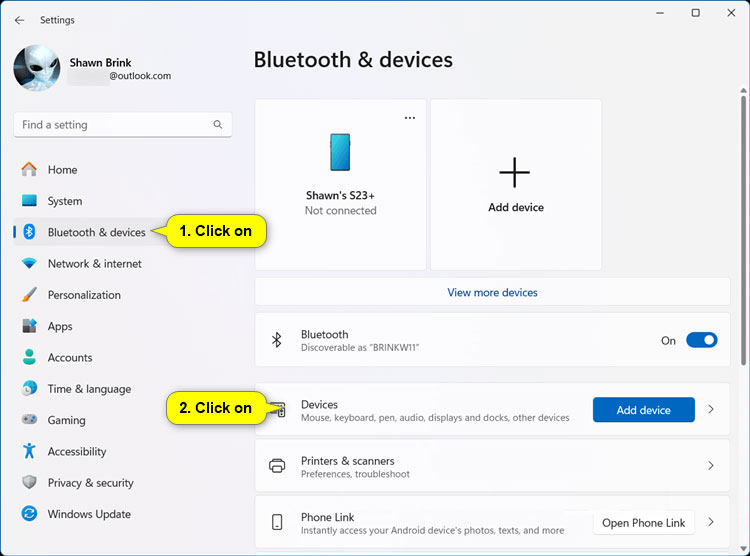
<p style="text-align: justify;">3. Nhấp vào&nbsp;<strong>Bluetooth &amp; devices</strong>&nbsp;ở bên trái và nhấn vào&nbsp;<strong>Devices</strong>&nbsp;ở bên phải.</p>

<figure>
<div style="text-align: justify;"><img alt="Nhấp vào Bluetooth &amp; devices &gt; Devices" data-i="0" data-src="https://st.quantrimang.com/photos/image/2023/11/23/cach-ket-noi-voi-btpan-trong-windows-11-1.jpg" data-was-processed="true" height="556" src="https://st.quantrimang.com/photos/image/2023/11/23/cach-ket-noi-voi-btpan-trong-windows-11-1.jpg" width="750" /></div>

<figcaption>
<div style="text-align: justify;">Nhấp vào Bluetooth &amp; devices &gt; Devices</div>
</figcaption>
</figure>

<div style="text-align: justify;"><iframe allowtransparency="true" data-google-container-id="a!2" data-google-query-id="CO3s_Ze05IIDFUgeewcdXcMBXQ" data-load-complete="true" frameborder="0" height="0" hspace="0" id="aswift_1" marginheight="0" marginwidth="0" name="aswift_1" sandbox="" scrolling="no" vspace="0" width="694"></iframe></div>

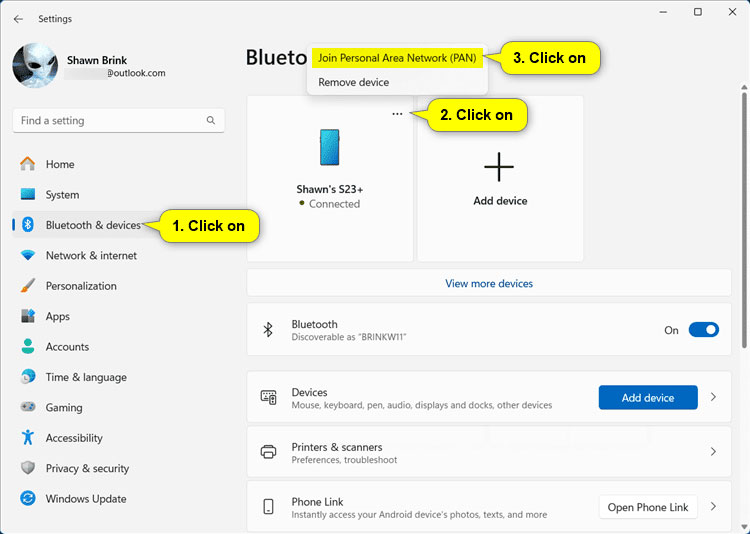
<p style="text-align: justify;"><strong>Lưu ý</strong>: Nếu thiết bị Bluetooth đã ghép nối và kết nối của bạn hiển thị ở trên cùng thì bạn có thể nhấn vào nút&nbsp;<strong>More options</strong>&nbsp;(3 dấu chấm), nhấp vào&nbsp;<strong>Join Personal Area Network (PAN)</strong>&nbsp;và thay vào đó chuyển sang bước 5.</p>

<figure>
<div style="text-align: justify;"><br />
<img alt="Nhấp vào More options &gt; Join Personal Area Network (PAN)" data-adbro-processed="true" data-i="1" data-src="https://st.quantrimang.com/photos/image/2023/11/23/cach-ket-noi-voi-btpan-trong-windows-11-2.jpg" data-was-processed="true" height="534" src="https://st.quantrimang.com/photos/image/2023/11/23/cach-ket-noi-voi-btpan-trong-windows-11-2.jpg" width="750" /></div>

<figcaption>
<div style="text-align: justify;">Nhấp vào More options &gt; Join Personal Area Network (PAN)</div>
</figcaption>
</figure>

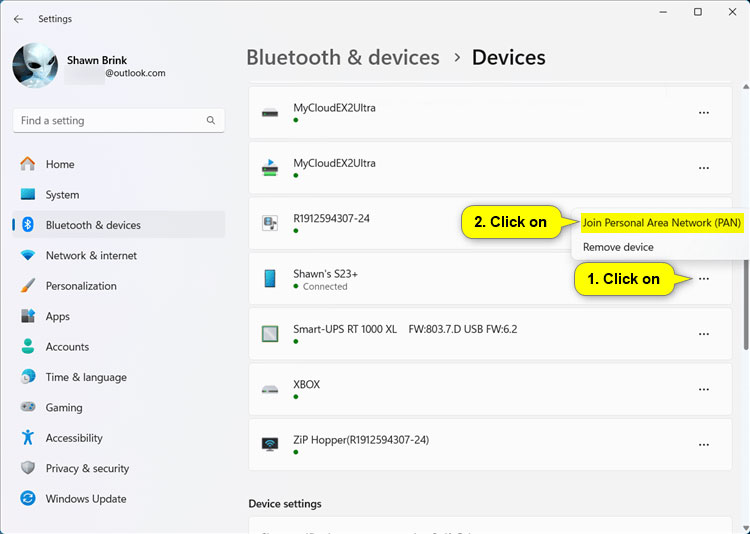
<p style="text-align: justify;">4. Nhấp vào nút&nbsp;<strong>More options</strong>&nbsp;(3 chấm) cho thiết bị Bluetooth đã ghép nối và kết nối mà bạn muốn, rồi nhấn vào&nbsp;<strong>Join Personal Area Network (PAN)</strong>.</p>

<figure>
<div style="text-align: justify;"><img alt="Nhấp vào More options &gt; Join Personal Area Network (PAN)" data-i="2" data-src="https://st.quantrimang.com/photos/image/2023/11/23/cach-ket-noi-voi-btpan-trong-windows-11-3.jpg" data-was-processed="true" height="534" src="https://st.quantrimang.com/photos/image/2023/11/23/cach-ket-noi-voi-btpan-trong-windows-11-3.jpg" width="750" /></div>

<figcaption>
<div style="text-align: justify;">Nhấp vào More options &gt; Join Personal Area Network (PAN)</div>
</figcaption>
</figure>

<div style="text-align: justify;"><iframe allowtransparency="true" data-google-container-id="a!3" data-google-query-id="CNXPhKO05IIDFWYaewcd09IJog" data-load-complete="true" frameborder="0" height="0" hspace="0" id="aswift_2" marginheight="0" marginwidth="0" name="aswift_2" sandbox="" scrolling="no" vspace="0" width="694"></iframe></div>

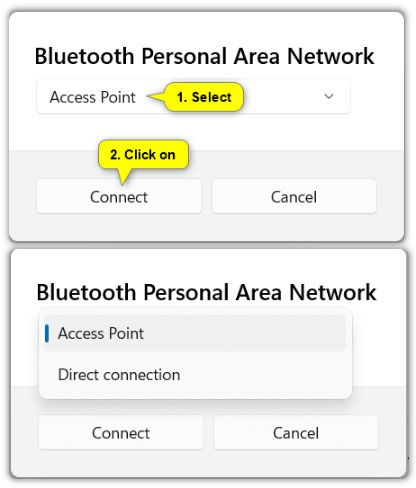
<p style="text-align: justify;">5. Chọn chế độ kết nối&nbsp;<strong>Access Point</strong>&nbsp;hoặc&nbsp;<strong>Direct connection</strong>&nbsp;trong menu drop-down và nhấp vào&nbsp;<strong>Connect</strong>.</p>

<figure>
<div style="text-align: justify;"><img alt="Chọn chế độ kết nối Access Point hoặc Direct connection" data-i="3" data-src="https://st.quantrimang.com/photos/image/2023/11/23/cach-ket-noi-voi-btpan-trong-windows-11-4.jpg" data-was-processed="true" height="488" src="https://st.quantrimang.com/photos/image/2023/11/23/cach-ket-noi-voi-btpan-trong-windows-11-4.jpg" width="416" /></div>

<figcaption>
<div style="text-align: justify;">Chọn chế độ kết nối Access Point hoặc Direct connection</div>
</figcaption>
</figure>

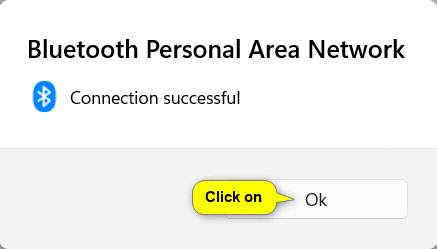
<p style="text-align: justify;">6. Nhấp vào&nbsp;<strong>OK</strong>&nbsp;khi nhận được thông báo &quot;Connection successful&quot;.</p>

<figure>
<div style="text-align: justify;"><img alt="Nhấn OK khi kết nối thành công" data-i="4" data-src="https://st.quantrimang.com/photos/image/2023/11/23/cach-ket-noi-voi-btpan-trong-windows-11-5.jpg" data-was-processed="true" height="249" src="https://st.quantrimang.com/photos/image/2023/11/23/cach-ket-noi-voi-btpan-trong-windows-11-5.jpg" width="437" /></div>

<figcaption>
<div style="text-align: justify;">Nhấn OK khi kết nối thành công</div>
</figcaption>
</figure>

<p style="text-align: justify;">7. Bây giờ, bạn có thể đóng Settings nếu muốn.</p>

<h2 style="text-align: justify;">Ngắt kết nối khỏi Bluetooth Personal Area Network</h2>

<p style="text-align: justify;">1. Mở Settings (<strong>Win + I</strong>).</p>

<p style="text-align: justify;">2. Nhấp vào&nbsp;<strong>Bluetooth &amp; devices</strong>&nbsp;ở bên trái và nhấn vào&nbsp;<strong>Devices</strong>&nbsp;ở bên phải.</p>

<figure>
<div style="text-align: justify;"><img alt="Mở cài đặt Bluetooth &amp; devices" data-i="5" data-src="https://st.quantrimang.com/photos/image/2023/11/23/cach-ket-noi-voi-btpan-trong-windows-11-1.jpg" data-was-processed="true" height="556" src="https://st.quantrimang.com/photos/image/2023/11/23/cach-ket-noi-voi-btpan-trong-windows-11-1.jpg" width="750" /></div>

<figcaption>
<div style="text-align: justify;">Mở cài đặt Bluetooth &amp; devices</div>
</figcaption>
</figure>

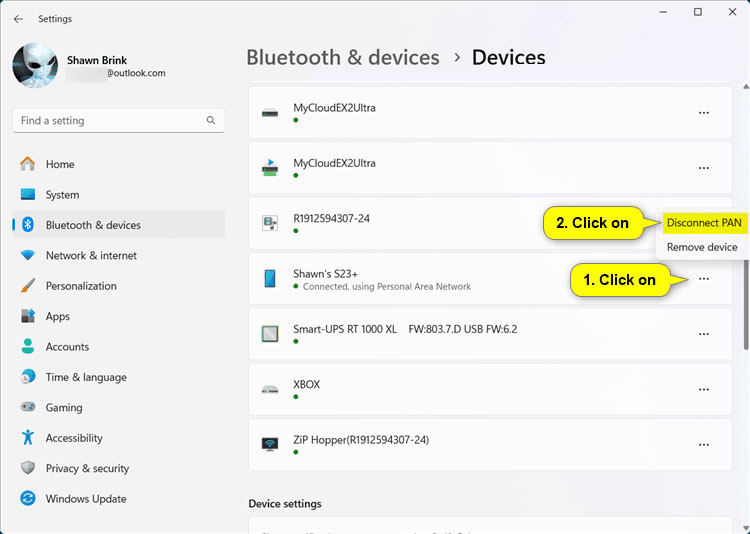
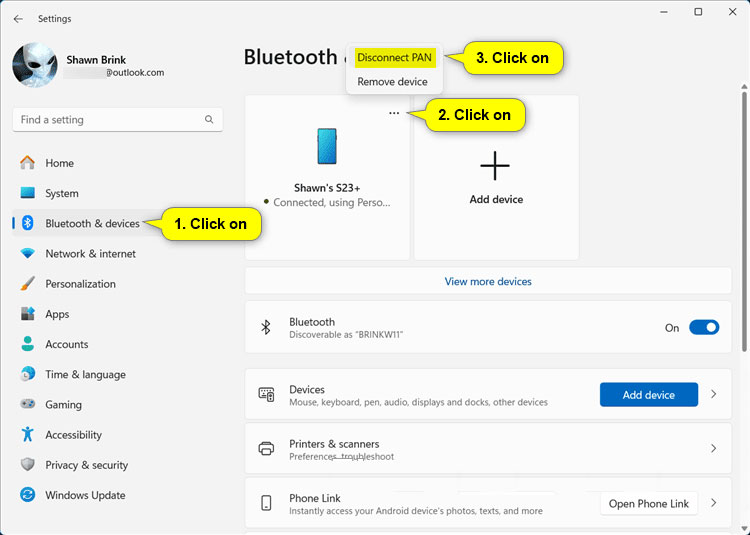
<p style="text-align: justify;"><strong>Lưu ý</strong>: Nếu thiết bị được kết nối BTPAN của bạn hiển thị ở trên cùng thì bạn có thể nhấp vào nút&nbsp;<strong>More options</strong>&nbsp;(3 dấu chấm), nhấn vào&nbsp;<strong>Disconnect PAN</strong>&nbsp;và thay vào đó chuyển sang bước 4.</p>

<figure>
<div style="text-align: justify;"><img alt="Chọn More options &gt; Disconnect PAN" data-i="6" data-src="https://st.quantrimang.com/photos/image/2023/11/23/cach-ket-noi-voi-btpan-trong-windows-11-6.jpg" data-was-processed="true" height="535" src="https://st.quantrimang.com/photos/image/2023/11/23/cach-ket-noi-voi-btpan-trong-windows-11-6.jpg" width="750" /></div>

<figcaption>
<div style="text-align: justify;">Chọn More options &gt; Disconnect PAN</div>
</figcaption>
</figure>

<div style="text-align: justify;"><br />
<iframe allowtransparency="true" data-google-container-id="a!4" data-google-query-id="CJC_maS05IIDFYLETAIdp1gFPw" data-load-complete="true" frameborder="0" height="0" hspace="0" id="aswift_3" marginheight="0" marginwidth="0" name="aswift_3" sandbox="" scrolling="no" vspace="0" width="694"></iframe></div>

<p style="text-align: justify;">3. Nhấp vào nút&nbsp;<strong>More options</strong>&nbsp;(3 dấu chấm) cho thiết bị được kết nối BTPAN mà bạn muốn và nhấp/nhấn vào&nbsp;<strong>Disconnect PAN</strong>.</p>

<figure>
<div style="text-align: justify;"><img alt="Chọn More options &gt; Disconnect PAN" data-i="7" data-src="https://st.quantrimang.com/photos/image/2023/11/23/cach-ket-noi-voi-btpan-trong-windows-11-7.jpg" data-was-processed="true" height="534" src="https://st.quantrimang.com/photos/image/2023/11/23/cach-ket-noi-voi-btpan-trong-windows-11-7.jpg" width="750" /></div>

<figcaption>
<div style="text-align: justify;">Chọn More options &gt; Disconnect PAN</div>
</figcaption>
</figure>

<p style="text-align: justify;">4. Bây giờ, bạn có thể đóng Settings nếu muốn.</p>
		</div>
				<div id="author">
						<p>
				<strong>Nguồn tin:</strong>
				Quantrimang.com
			</p>
		</div>
	</div>
	<div id="footer" class="clearfix">
		<div id="url">
			<strong>URL của bản tin này: </strong><a href="https://www.nguoicodonvn2008.info/vi/news/savefile/kien-thuc-may-tinh/cach-ket-noi-voi-btpan-bluetooth-personal-area-network-trong-windows-11-7812.html" title="Cách kết nối với BTPAN &#40;Bluetooth Personal Area Network&#41; trong Windows 11">https://www.nguoicodonvn2008.info/vi/news/savefile/kien-thuc-may-tinh/cach-ket-noi-voi-btpan-bluetooth-personal-area-network-trong-windows-11-7812.html</a>

		</div>
		<div class="clear"></div>
		<div class="copyright">
			&copy; .&#x3A; Nguoicodonvn2008.info - Cõi lòng người cô đơn &#x3A;.
		</div>
		<div id="contact">
			<a href="mailto:admin@nguoicodonvn2008.info">admin@nguoicodonvn2008.info</a>
		</div>
	</div>
</div>
        <div id="timeoutsess" class="chromeframe">
            Bạn đã không sử dụng Site, <a onclick="timeoutsesscancel();" href="https://www.nguoicodonvn2008.info/#">Bấm vào đây để duy trì trạng thái đăng nhập</a>. Thời gian chờ: <span id="secField"> 60 </span> giây
        </div>
        <div id="openidResult" class="nv-alert" style="display:none"></div>
        <div id="openidBt" data-result="" data-redirect=""></div>
		</script>
		<div class="car-top">
  <span><img src="https://www.nguoicodonvn2008.info/themes/default/images/car.png" alt=""></span>
</div>
<script src="https://www.nguoicodonvn2008.info/assets/js/jquery/jquery.min.js"></script>
<script>var nv_base_siteurl="/",nv_lang_data="vi",nv_lang_interface="vi",nv_name_variable="nv",nv_fc_variable="op",nv_lang_variable="language",nv_module_name="news",nv_func_name="savefile",nv_is_user=0, nv_my_ofs=-4,nv_my_abbr="EDT",nv_cookie_prefix="nv4c_e856T",nv_check_pass_mstime=1738000,nv_area_admin=0,nv_safemode=0,theme_responsive=0,nv_recaptcha_ver=2,nv_recaptcha_sitekey="",nv_recaptcha_type="image",XSSsanitize=1;</script>
<script src="https://www.nguoicodonvn2008.info/assets/js/language/vi.js"></script>
<script src="https://www.nguoicodonvn2008.info/assets/js/DOMPurify/purify3.js"></script>
<script src="https://www.nguoicodonvn2008.info/assets/js/global.js"></script>
<script src="https://www.nguoicodonvn2008.info/assets/js/site.js"></script>
<script src="https://www.nguoicodonvn2008.info/themes/default/js/news.js"></script>
<script src="https://www.nguoicodonvn2008.info/themes/default/js/main.js"></script>
<script src="https://www.nguoicodonvn2008.info/themes/default/js/custom.js"></script>
<script type="application/ld+json">
        {
            "@context": "https://schema.org",
            "@type": "Organization",
            "url": "https://www.nguoicodonvn2008.info",
            "logo": "https://www.nguoicodonvn2008.info/uploads/angel.gif"
        }
        </script>
<script src="https://www.nguoicodonvn2008.info/themes/default/js/bootstrap.min.js"></script>
<script type="text/javascript">
var $scrolltop = $('.car-top');
$scrolltop.on('click', function () {
    $('html,body').animate({
        scrollTop: 0
    }, 800);
    $(this).addClass("car-run");
    setTimeout(function(){ $scrolltop.removeClass('car-run');}, 1000);
    return false;
});
$(window).on('scroll', function ()
{ 
    if($(window).scrollTop() >= 200)
    {
        $scrolltop.addClass("show");
        $scrolltop.addClass("car-down");
    }
    else
    {
       $scrolltop.removeClass("show");
       setTimeout(function(){ $scrolltop.removeClass('car-down');}, 300);
    }
});
</script>
</body>
</html>