<!DOCTYPE html>
    <html lang="vi" xmlns="http://www.w3.org/1999/xhtml" prefix="og: http://ogp.me/ns#">
    <head>
<title>Cách host website trong Ubuntu bằng Tor</title>
<meta name="description" content="Cách host website trong Ubuntu bằng Tor - Savefile - Tin Tức -...">
<meta name="author" content=".: Nguoicodonvn2008.info - Cõi lòng người cô đơn :.">
<meta name="copyright" content=".: Nguoicodonvn2008.info - Cõi lòng người cô đơn :. [admin@nguoicodonvn2008.info]">
<meta name="robots" content="index, archive, follow, noodp">
<meta name="googlebot" content="index,archive,follow,noodp">
<meta name="msnbot" content="all,index,follow">
<meta name="generator" content="NukeViet v4.5">
<meta http-equiv="Content-Type" content="text/html; charset=utf-8">
<meta property="og:title" content="Cách host website trong Ubuntu bằng Tor">
<meta property="og:type" content="website">
<meta property="og:description" content="Savefile - Tin Tức - https&#x3A;&#x002F;&#x002F;www.nguoicodonvn2008.info&#x002F;vi&#x002F;news&#x002F;savefile&#x002F;kien-thuc-may-tinh&#x002F;cach-host-website-trong-ubuntu-bang-tor-6373.html">
<meta property="og:site_name" content=".&#x3A; Nguoicodonvn2008.info - Cõi lòng người cô đơn &#x3A;.">
<meta property="og:url" content="https://www.nguoicodonvn2008.info/vi/news/savefile/kien-thuc-may-tinh/cach-host-website-trong-ubuntu-bang-tor-6373.html">
<link rel="shortcut icon" href="https://www.nguoicodonvn2008.info/favicon.ico">
<link rel="canonical" href="https://www.nguoicodonvn2008.info/vi/news/savefile/kien-thuc-may-tinh/cach-host-website-trong-ubuntu-bang-tor-6373.html">
<link rel="alternate" href="https://www.nguoicodonvn2008.info/vi/news/rss/" title="Tin Tức" type="application/rss+xml">
<link rel="alternate" href="https://www.nguoicodonvn2008.info/vi/news/rss/karaoke-dual/" title="Tin Tức - Karaoke Dual" type="application/rss+xml">
<link rel="alternate" href="https://www.nguoicodonvn2008.info/vi/news/rss/nhac-tre/" title="Tin Tức - Nhạc trẻ" type="application/rss+xml">
<link rel="alternate" href="https://www.nguoicodonvn2008.info/vi/news/rss/tru-tinh/" title="Tin Tức - Trữ tình" type="application/rss+xml">
<link rel="alternate" href="https://www.nguoicodonvn2008.info/vi/news/rss/nuoc-ngoai/" title="Tin Tức - Nước ngoài" type="application/rss+xml">
<link rel="alternate" href="https://www.nguoicodonvn2008.info/vi/news/rss/remix/" title="Tin Tức - Remix" type="application/rss+xml">
<link rel="alternate" href="https://www.nguoicodonvn2008.info/vi/news/rss/tam-su-tinh-yeu/" title="Tin Tức - Tâm sự tình yêu" type="application/rss+xml">
<link rel="alternate" href="https://www.nguoicodonvn2008.info/vi/news/rss/tho-suu-tam/" title="Tin Tức - Thơ sưu tầm" type="application/rss+xml">
<link rel="alternate" href="https://www.nguoicodonvn2008.info/vi/news/rss/cuoc-song/" title="Tin Tức - Cuộc sống" type="application/rss+xml">
<link rel="alternate" href="https://www.nguoicodonvn2008.info/vi/news/rss/phan-mem/" title="Tin Tức - Phần mềm" type="application/rss+xml">
<link rel="alternate" href="https://www.nguoicodonvn2008.info/vi/news/rss/kien-thuc-may-tinh/" title="Tin Tức - Kiến thức máy tính" type="application/rss+xml">
<link rel="alternate" href="https://www.nguoicodonvn2008.info/vi/news/rss/hoc-tap/" title="Tin Tức - Học tập" type="application/rss+xml">
<link rel="alternate" href="https://www.nguoicodonvn2008.info/vi/news/rss/tai-lieu/" title="Tin Tức - Tài liệu" type="application/rss+xml">
<link rel="alternate" href="https://www.nguoicodonvn2008.info/vi/news/rss/de-thi/" title="Tin Tức - Đề thi" type="application/rss+xml">
<link rel="preload" as="style" href="https://www.nguoicodonvn2008.info/assets/css/font-awesome.min.css" type="text/css">
<link rel="preload" as="style" href="https://www.nguoicodonvn2008.info/themes/default/css/bootstrap.non-responsive.css" type="text/css">
<link rel="preload" as="style" href="https://www.nguoicodonvn2008.info/themes/default/css/style.css" type="text/css">
<link rel="preload" as="style" href="https://www.nguoicodonvn2008.info/themes/default/css/style.non-responsive.css" type="text/css">
<link rel="preload" as="style" href="https://www.nguoicodonvn2008.info/themes/default/css/news.css" type="text/css">
<link rel="preload" as="style" href="https://www.nguoicodonvn2008.info/themes/default/css/custom.css" type="text/css">
<link rel="preload" as="script" href="https://www.nguoicodonvn2008.info/assets/js/jquery/jquery.min.js" type="text/javascript">
<link rel="preload" as="script" href="https://www.nguoicodonvn2008.info/assets/js/language/vi.js" type="text/javascript">
<link rel="preload" as="script" href="https://www.nguoicodonvn2008.info/assets/js/DOMPurify/purify3.js" type="text/javascript">
<link rel="preload" as="script" href="https://www.nguoicodonvn2008.info/assets/js/global.js" type="text/javascript">
<link rel="preload" as="script" href="https://www.nguoicodonvn2008.info/assets/js/site.js" type="text/javascript">
<link rel="preload" as="script" href="https://www.nguoicodonvn2008.info/themes/default/js/news.js" type="text/javascript">
<link rel="preload" as="script" href="https://www.nguoicodonvn2008.info/themes/default/js/main.js" type="text/javascript">
<link rel="preload" as="script" href="https://www.nguoicodonvn2008.info/themes/default/js/custom.js" type="text/javascript">
<link rel="preload" as="script" href="https://www.nguoicodonvn2008.info/themes/default/js/bootstrap.min.js" type="text/javascript">
<link rel="stylesheet" href="https://www.nguoicodonvn2008.info/assets/css/font-awesome.min.css">
<link rel="stylesheet" href="https://www.nguoicodonvn2008.info/themes/default/css/bootstrap.non-responsive.css">
<link rel="stylesheet" href="https://www.nguoicodonvn2008.info/themes/default/css/style.css">
<link rel="stylesheet" href="https://www.nguoicodonvn2008.info/themes/default/css/style.non-responsive.css">
<link rel="StyleSheet" href="https://www.nguoicodonvn2008.info/themes/default/css/news.css">
<link rel="stylesheet" href="https://www.nguoicodonvn2008.info/themes/default/css/custom.css">
<style type="text/css">
	body{background: #fff;}
</style>
    </head>
    <body>
<div id="print">
	<div id="hd_print">
		<h2 class="pull-left">.&#x3A; Nguoicodonvn2008.info - Cõi lòng người cô đơn &#x3A;.</h2>
		<p class="pull-right"><a title=".&#x3A; Nguoicodonvn2008.info - Cõi lòng người cô đơn &#x3A;." href="https://www.nguoicodonvn2008.info/">https://www.nguoicodonvn2008.info</a></p>
	</div>
	<div class="clear"></div>
	<hr />
	<div id="content">
		<h1>Cách host website trong Ubuntu bằng Tor</h1>
		<ul class="list-inline">
			<li>Thứ sáu - 25/11/2022 23:47</li>
			<li class="hidden-print txtrequired"><em class="fa fa-print">&nbsp;</em><a title="In ra" href="javascript:;" onclick="window.print()">In ra</a></li>
			<li class="hidden-print txtrequired"><em class="fa fa-power-off">&nbsp;</em><a title="Đóng cửa sổ này" href="javascript:;" onclick="window.close()">Đóng cửa sổ này</a></li>
		</ul>
		<div class="clear"></div>
		<div id="hometext">
		</div>
				<div class="imghome">
			<img alt="Cách host website trong Ubuntu bằng Tor" src="https://st.quantrimang.com/photos/image/2022/11/25/host-website-trong-ubuntu-bang-tor-1.jpg" width="460" class="img-thumbnail" />
		</div>
		<div class="clear"></div>
		<div id="bodytext" class="clearfix">
			<p style="text-align: justify;">Mạng Tor là một phần mềm mang tính cách mạng. Với một chương trình duy nhất, giờ đây có thể duyệt và xem web ẩn danh. Điều này làm cho Tor trở thành một công cụ thiết yếu cho những người dùng muốn bảo vệ quyền riêng tư của họ khi duyệt một trang web. Việc có thể sử dụng Tor để host một web server cục bộ trực tuyến làm cho nó cực kỳ hữu ích cho những người dùng có ý thức về quyền riêng tư, muốn chia sẻ thông tin công khai mà không tiết lộ bản thân.</p>

<h2 style="text-align: justify;">Yêu cầu</h2>

<p style="text-align: justify;">Trước khi bạn có thể cài đặt cả Nginx và Tor, cần đảm bảo rằng bạn có sẵn các tài nguyên sau:</p>

<ul>
	<li style="text-align: justify;">Kết nối Internet không hạn chế Tor đối với cả yêu cầu đến và đi. Điều này cho phép bạn quảng bá trang web của mình thông qua mạng Tor.</li>
	<li style="text-align: justify;">Một máy có thể xử lý trang web bạn đang host. Trong hầu hết các trường hợp, máy tính để bàn lõi kép với RAM 4GB là đủ cho một trang web cơ bản.</li>
	<li style="text-align: justify;">Quyền truy cập root vào máy host, vì việc cấu hình Tor yêu cầu bạn truy cập các file hệ thống.</li>
</ul>

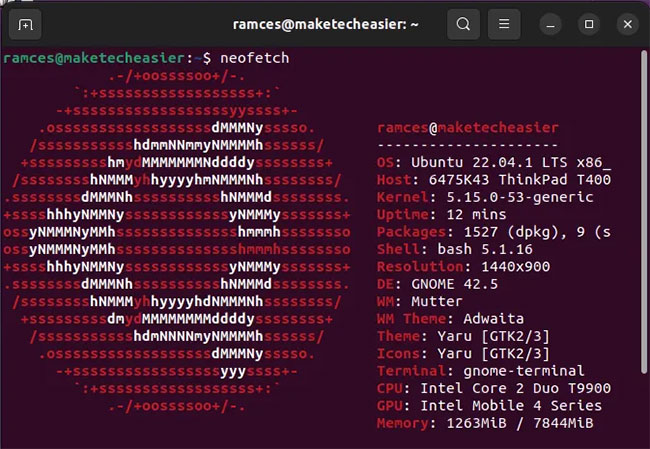
<p style="text-align: justify;">Hình ảnh dưới đây cho thấy cách host trang web chỉ dành cho Nginx Tor trên máy Ubuntu 22.04 LTS.</p>

<figure>
<div style="text-align: justify;"><img alt="Host trang web chỉ dành cho Nginx Tor trên máy Ubuntu 22.04 LTS" data-i="0" data-src="https://st.quantrimang.com/photos/image/2022/11/25/host-website-trong-ubuntu-bang-tor-1.jpg" data-was-processed="true" height="449" src="https://st.quantrimang.com/photos/image/2022/11/25/host-website-trong-ubuntu-bang-tor-1.jpg" width="650" /></div>

<figcaption>
<div style="text-align: justify;">Host trang web chỉ dành cho Nginx Tor trên máy Ubuntu 22.04 LTS</div>
</figcaption>
</figure>

<h2 style="text-align: justify;">Cài đặt Nginx và Tor</h2>

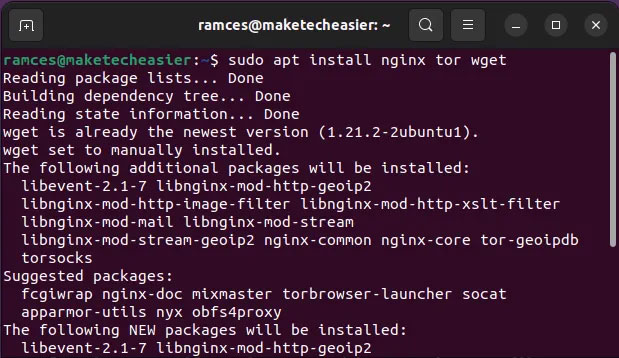
<p style="text-align: justify;"><a href="https://quantrimang.com/cong-nghe/4-cach-truy-cap-nhanh-toi-mot-terminal-trong-linux-69438" title="5 cách truy cập nhanh tới một Terminal trong Linux">Mở một terminal</a>. Nhập lệnh sau để cài đặt Nginx và Tor:</p>

<pre id="pre0">
<code>sudo apt install nginx tor wget</code></pre>

<figure>
<div style="text-align: justify;"><img alt="Cài đặt Nginx và Tor" data-i="1" data-src="https://st.quantrimang.com/photos/image/2022/11/25/host-website-trong-ubuntu-bang-tor-2.jpg" data-was-processed="true" height="358" src="https://st.quantrimang.com/photos/image/2022/11/25/host-website-trong-ubuntu-bang-tor-2.jpg" width="619" /></div>

<figcaption>
<div style="text-align: justify;">Cài đặt Nginx và Tor</div>
</figcaption>
</figure>

<h2 style="text-align: justify;">Cấu hình tường lửa</h2>

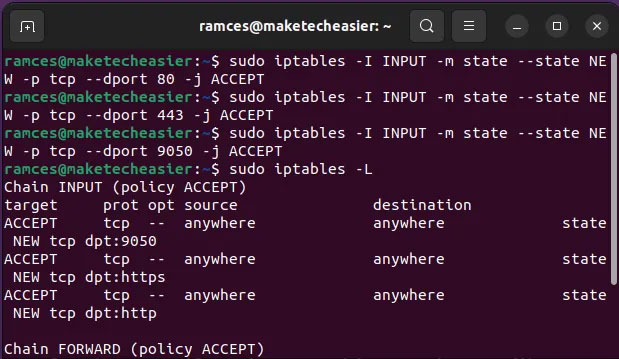
<p style="text-align: justify;">Khi đã cài đặt cả hai gói trong hệ thống, bạn có thể bảo mật máy chủ của mình bằng cách cấu hình tường lửa để chỉ chấp nhận các kết nối đến từ mạng Tor bằng cách nhập những lệnh sau trong terminal:</p>

<pre id="pre1">
<code>sudo iptables -I INPUT -m state --state NEW -p tcp --dport 80 -j ACCEPT
sudo iptables -I INPUT -m state --state NEW -p tcp --dport 443 -j ACCEPT
sudo iptables -I INPUT -m state --state NEW -p tcp --dport 9050 -j ACCEPT</code></pre>

<figure>
<div style="text-align: justify;"><img alt="Cấu hình tường lửa" data-i="2" data-src="https://st.quantrimang.com/photos/image/2022/11/25/host-website-trong-ubuntu-bang-tor-3.jpg" data-was-processed="true" height="359" src="https://st.quantrimang.com/photos/image/2022/11/25/host-website-trong-ubuntu-bang-tor-3.jpg" width="619" /></div>

<figcaption>
<div style="text-align: justify;">Cấu hình tường lửa</div>
</figcaption>
</figure>

<p style="text-align: justify;">Hai lệnh đầu tiên mở cả cổng HTTP và HTTPS trong hệ thống, trong khi lệnh cuối cùng mở cổng SOCKS cho mạng Tor. Cách tiếp cận này đảm bảo rằng Tor sẽ có thể chuyển hướng chính xác bất kỳ lưu lượng truy cập nào đến máy của bạn.</p>

<h2 style="text-align: justify;">Tạo một Tor service cho website</h2>

<p style="text-align: justify;">Tiếp theo, bạn cần tạo một mục nhập service ẩn cho web server của mình. Đây là cấu hình dành riêng cho service sẽ cho phép bạn phát trong mạng Tor.</p>

<p style="text-align: justify;">Đầu tiên, chuyển sang tài khoản root của bạn. Bạn có thể làm điều đó bằng cách chạy lệnh sau:</p>

<pre id="pre2">
<code>sudo -i</code></pre>

<figure>
<div style="text-align: justify;"><img alt="Chuyển sang tài khoản root" data-i="3" data-src="https://st.quantrimang.com/photos/image/2022/11/25/host-website-trong-ubuntu-bang-tor-4.jpg" data-was-processed="true" height="106" src="https://st.quantrimang.com/photos/image/2022/11/25/host-website-trong-ubuntu-bang-tor-4.jpg" width="617" /></div>

<figcaption>
<div style="text-align: justify;">Chuyển sang tài khoản root</div>
</figcaption>
</figure>

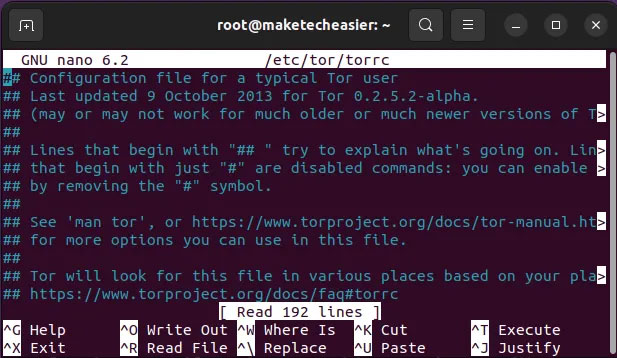
<p style="text-align: justify;">Khi bạn đã ở trong thư mục root, hãy tạo service ẩn của mình bằng cách chỉnh sửa file&nbsp;<strong>“/etc/tor/torrc”.</strong>&nbsp;Ví dụ đang mở file này thông qua GNU Nano.</p>

<pre id="pre3">
<code>nano /etc/tor/torrc</code></pre>

<figure>
<div style="text-align: justify;"><img alt="Chỉnh sửa file “/etc/tor/torrc”" data-i="4" data-src="https://st.quantrimang.com/photos/image/2022/11/25/host-website-trong-ubuntu-bang-tor-5.jpg" data-was-processed="true" height="358" src="https://st.quantrimang.com/photos/image/2022/11/25/host-website-trong-ubuntu-bang-tor-5.jpg" width="617" /></div>

<figcaption>
<div style="text-align: justify;">Chỉnh sửa file “/etc/tor/torrc”</div>
</figcaption>
</figure>

<p style="text-align: justify;">Tìm phần&nbsp;<strong>“location-hidden</strong>&nbsp;services” bằng cách nhấn&nbsp;<strong>Ctrl + W</strong>, sau đó nhập&nbsp;<strong>“location-hidden”.</strong></p>

<figure>
<div style="text-align: justify;"><img alt="Tạo Tor service ẩn" data-i="5" data-src="https://st.quantrimang.com/photos/image/2022/11/25/host-website-trong-ubuntu-bang-tor-6.jpg" data-was-processed="true" height="356" src="https://st.quantrimang.com/photos/image/2022/11/25/host-website-trong-ubuntu-bang-tor-6.jpg" width="616" /></div>

<figcaption>
<div style="text-align: justify;">Tạo Tor service ẩn</div>
</figcaption>
</figure>

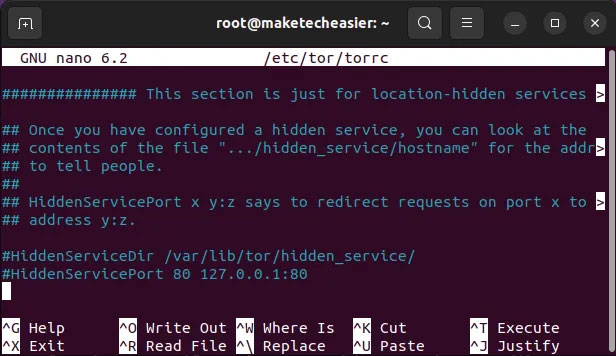
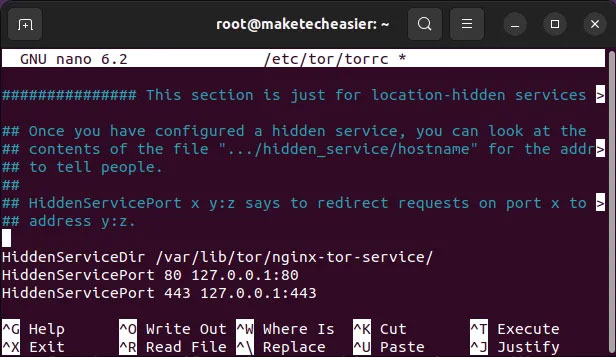
<p style="text-align: justify;">Bạn sẽ thấy một vài ví dụ minh họa cách tạo Tor service ẩn của riêng bạn. Tuy nhiên, đối với hầu hết các phần, bạn chỉ cần đặt hai tùy chọn:&nbsp;<strong>HiddenServiceDir</strong>&nbsp;và&nbsp;<strong>HiddenServicePort.</strong></p>

<p style="text-align: justify;">Tùy chọn&nbsp;<strong>HiddenServiceDir</strong>&nbsp;cho Tor biết nơi lưu các file cấu hình cho service ẩn của bạn. Tùy chọn&nbsp;<strong>HiddenServicePort</strong>&nbsp;cho Tor biết nó nên chuyển hướng bất kỳ yêu cầu nào đến service ẩn của bạn ra sao.</p>

<p style="text-align: justify;">Các dòng code sau sẽ tạo một service ẩn mới cho web service của bạn:</p>

<pre id="pre4">
<code>HiddenServiceDir /var/lib/tor/nginx-tor-service/
HiddenServicePort 80 127.0.0.1:80
HiddenServicePort 443 127.0.0.1:443</code></pre>

<figure>
<div style="text-align: justify;"><img alt="Tạo một service ẩn mới cho web service" data-i="6" data-src="https://st.quantrimang.com/photos/image/2022/11/25/host-website-trong-ubuntu-bang-tor-7.jpg" data-was-processed="true" height="357" src="https://st.quantrimang.com/photos/image/2022/11/25/host-website-trong-ubuntu-bang-tor-7.jpg" width="616" /></div>

<figcaption>
<div style="text-align: justify;">Tạo một service ẩn mới cho web service</div>
</figcaption>
</figure>

<p style="text-align: justify;">Load lại Tor daemon để áp dụng cài đặt mới của bạn bằng cách chạy các lệnh sau:</p>

<pre id="pre5">
<code>systemctl enable tor
systemctl restart tor</code></pre>

<h2 style="text-align: justify;">Tạo một trang web đơn giản bằng Nginx</h2>

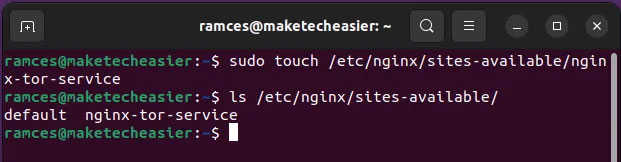
<p style="text-align: justify;">Sau khi Tor service ẩn được thiết lập và chạy, hãy bắt đầu thiết lập web service của bạn. Tạo một file cấu hình mới thông qua lệnh touch:</p>

<pre id="pre6">
<code>sudo touch /etc/nginx/sites-available/nginx-tor-service</code></pre>

<figure>
<div style="text-align: justify;"><img alt="Tạo một file cấu hình mới" data-i="7" data-src="https://st.quantrimang.com/photos/image/2022/11/25/host-website-trong-ubuntu-bang-tor-8.jpg" data-was-processed="true" height="162" src="https://st.quantrimang.com/photos/image/2022/11/25/host-website-trong-ubuntu-bang-tor-8.jpg" width="621" /></div>

<figcaption>
<div style="text-align: justify;">Tạo một file cấu hình mới</div>
</figcaption>
</figure>

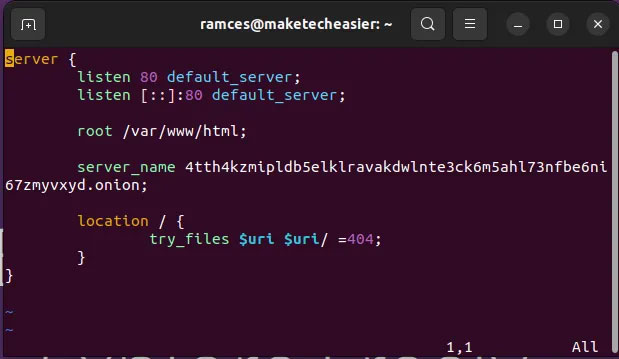
<p style="text-align: justify;">Chỉnh sửa file cấu hình Nginx mới của bạn dưới dạng web server cơ bản. Ví dụ, khối code sau sẽ triển khai một web server đơn giản tại cổng 80:</p>

<pre id="pre7">
<code>server {
        listen 80 default_server;
        listen &#91;::&#93;:80 default_server;
        root /var/www/html;
        server_name 4tth4kzmipldb5elklravakdwlnte3ck6m5ahl73nfbe6ni67zmyvxyd.onion;
        location / {
                    try_files $uri $uri/ =404;
        }
}</code></pre>

<ul>
	<li style="text-align: justify;">Hai biến&nbsp;<strong>listen</strong>&nbsp;đặt cả cổng và host mà cấu hình máy chủ này sẽ lắng nghe. Trong trường hợp này, Nginx lắng nghe ở cổng 80 trên cả IPv4 và IPv6.</li>
	<li style="text-align: justify;">Biến root đặt vị trí mà Nginx sẽ tìm kiếm các file trên web server của bạn.</li>
	<li style="text-align: justify;">Biến&nbsp;<strong>server_name</strong>&nbsp;chứa tên miền của server. Tìm nó bằng cách chạy&nbsp;<strong>sudo less /var/lib/tor/nginx-tor-service/hostname</strong>.</li>
	<li style="text-align: justify;">Biến&nbsp;<strong>location</strong>&nbsp;chứa các chức năng về cách Nginx xử lý những file trong thư mục root của trang web. Trong ví dụ này, nó thiết lậpt lỗi 404 cho bất kỳ file nào bị thiếu.</li>
</ul>

<figure>
<div style="text-align: justify;"><img alt="Chỉnh sửa file cấu hình Nginx" data-i="8" data-src="https://st.quantrimang.com/photos/image/2022/11/25/host-website-trong-ubuntu-bang-tor-9.jpg" data-was-processed="true" height="359" src="https://st.quantrimang.com/photos/image/2022/11/25/host-website-trong-ubuntu-bang-tor-9.jpg" width="619" /></div>

<figcaption>
<div style="text-align: justify;">Chỉnh sửa file cấu hình Nginx</div>
</figcaption>
</figure>

<p style="text-align: justify;">Tạo một liên kết tượng trưng cho file cấu hình mới của bạn tới&nbsp;<strong>“/etc/nginx/sites-enabled.”</strong></p>

<pre id="pre8">
<code>sudo ln -s /etc/nginx/sites-available/nginx-tor-service /etc/nginx/sites-enabled/</code></pre>
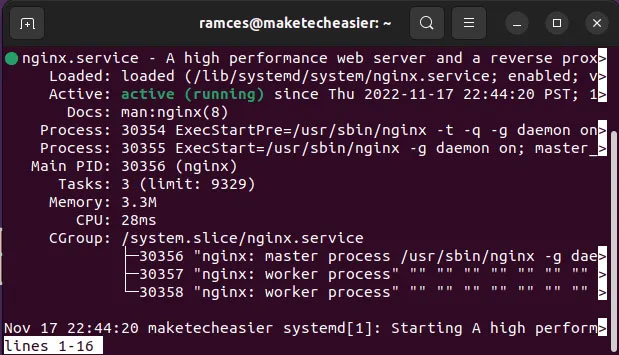
<p style="text-align: justify;">Cuối cùng, kích hoạt trang web mới của bạn bằng cách khởi động lại Nginx:</p>

<pre id="pre9">
<code>sudo systemctl enable nginx
sudo systemctl restart nginx</code></pre>

<figure>
<div style="text-align: justify;"><img alt="Kích hoạt trang web mới" data-i="9" data-src="https://st.quantrimang.com/photos/image/2022/11/25/host-website-trong-ubuntu-bang-tor-10.jpg" data-was-processed="true" height="355" src="https://st.quantrimang.com/photos/image/2022/11/25/host-website-trong-ubuntu-bang-tor-10.jpg" width="619" /></div>

<figcaption>
<div style="text-align: justify;">Kích hoạt trang web mới</div>
</figcaption>
</figure>

<h2 style="text-align: justify;">Truy cập trang web qua Tor</h2>

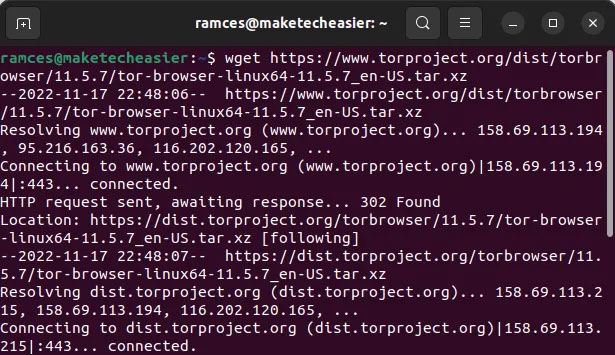
<p style="text-align: justify;">Khi cả Tor và Nginx được thiết lập và chạy, hãy kiểm tra xem trang web của bạn có thể truy cập được từ mạng Tor hay không. Trước tiên, hãy tải xuống file nhị phân trình duyệt Tor mới nhất:</p>

<pre id="pre10">
<code>wget https://www.torproject.org/dist/torbrowser/11.5.7/tor-browser-linux64-11.5.7_en-US.tar.xz</code></pre>

<figure>
<div style="text-align: justify;"><img alt="Tải xuống file nhị phân trình duyệt Tor mới nhất" data-i="10" data-src="https://st.quantrimang.com/photos/image/2022/11/25/host-website-trong-ubuntu-bang-tor-11.jpg" data-was-processed="true" height="355" src="https://st.quantrimang.com/photos/image/2022/11/25/host-website-trong-ubuntu-bang-tor-11.jpg" width="615" /></div>

<figcaption>
<div style="text-align: justify;">Tải xuống file nhị phân trình duyệt Tor mới nhất</div>
</figcaption>
</figure>

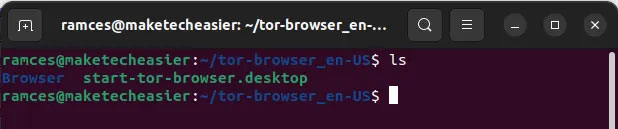
<p style="text-align: justify;">Giải nén các file của trình duyệt trong thư mục hiện tại bằng cách chạy lệnh sau:</p>

<pre id="pre11">
<code>tar xvf ./tor-browser-linux64-11.5.7_en-US.tar.xz
cd ./tor-browser_en-US</code></pre>

<figure>
<div style="text-align: justify;"><img alt="Giải nén các file của trình duyệt trong thư mục hiện tại" data-i="11" data-src="https://st.quantrimang.com/photos/image/2022/11/25/host-website-trong-ubuntu-bang-tor-12.jpg" data-was-processed="true" height="129" src="https://st.quantrimang.com/photos/image/2022/11/25/host-website-trong-ubuntu-bang-tor-12.jpg" width="618" /></div>

<figcaption>
<div style="text-align: justify;">Giải nén các file của trình duyệt trong thư mục hiện tại</div>
</figcaption>
</figure>

<p style="text-align: justify;">Ngoài ra, hãy đảm bảo rằng file nhị phân của trình duyệt Tor có các bit thực thi phù hợp:</p>

<pre id="pre12">
<code>sudo chmod +x ./start-tor-browser.desktop</code></pre>

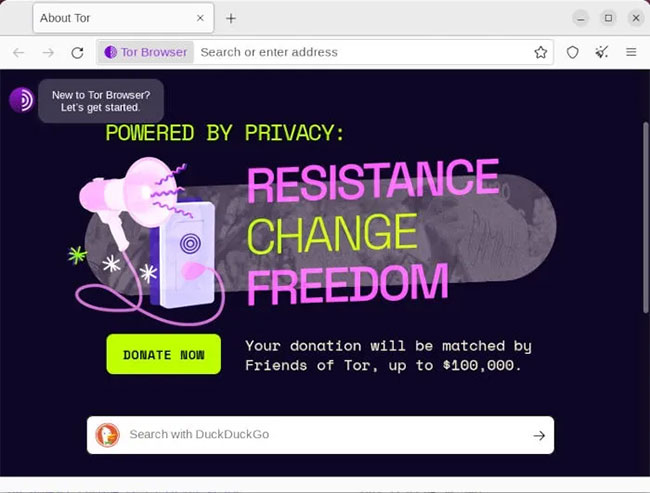
<p style="text-align: justify;">Chạy và cài đặt Tor Browser trên máy của bạn bằng cách chạy lệnh sau:</p>

<pre id="pre13">
<code>./start-tor-browser.desktop --register-app</code></pre>

<figure>
<div style="text-align: justify;"><img alt="Chạy và cài đặt Tor Browser" data-i="12" data-src="https://st.quantrimang.com/photos/image/2022/11/25/host-website-trong-ubuntu-bang-tor-13.jpg" data-was-processed="true" height="493" src="https://st.quantrimang.com/photos/image/2022/11/25/host-website-trong-ubuntu-bang-tor-13.jpg" width="650" /></div>

<figcaption>
<div style="text-align: justify;">Chạy và cài đặt Tor Browser</div>
</figcaption>
</figure>

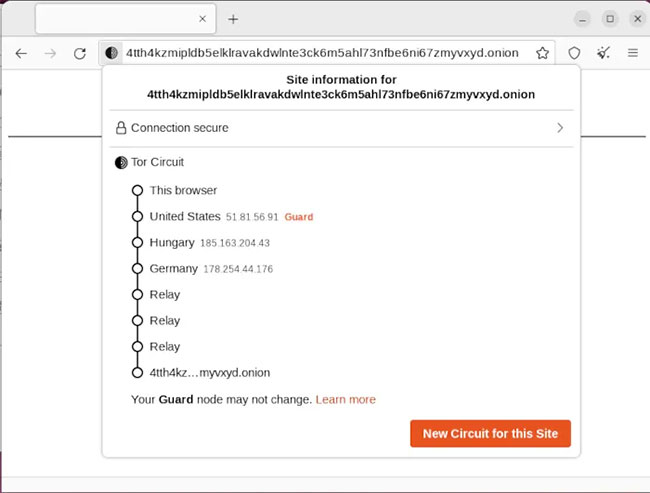
<p style="text-align: justify;">Cuối cùng, duyệt đến trang web Tor mới của bạn bằng cách nhập tên miền của nó vào thanh địa chỉ.</p>

<figure>
<div style="text-align: justify;"><img alt="Duyệt đến trang web Tor mới" data-i="13" data-src="https://st.quantrimang.com/photos/image/2022/11/25/host-website-trong-ubuntu-bang-tor-14.jpg" data-was-processed="true" height="493" src="https://st.quantrimang.com/photos/image/2022/11/25/host-website-trong-ubuntu-bang-tor-14.jpg" width="650" /></div>

<figcaption>
<div style="text-align: justify;">Duyệt đến trang web Tor mới</div>
</figcaption>
</figure>
		</div>
				<div id="author">
						<p>
				<strong>Nguồn tin:</strong>
				Quantrimang.com
			</p>
		</div>
	</div>
	<div id="footer" class="clearfix">
		<div id="url">
			<strong>URL của bản tin này: </strong><a href="https://www.nguoicodonvn2008.info/vi/news/savefile/kien-thuc-may-tinh/cach-host-website-trong-ubuntu-bang-tor-6373.html" title="Cách host website trong Ubuntu bằng Tor">https://www.nguoicodonvn2008.info/vi/news/savefile/kien-thuc-may-tinh/cach-host-website-trong-ubuntu-bang-tor-6373.html</a>

		</div>
		<div class="clear"></div>
		<div class="copyright">
			&copy; .&#x3A; Nguoicodonvn2008.info - Cõi lòng người cô đơn &#x3A;.
		</div>
		<div id="contact">
			<a href="mailto:admin@nguoicodonvn2008.info">admin@nguoicodonvn2008.info</a>
		</div>
	</div>
</div>
        <div id="timeoutsess" class="chromeframe">
            Bạn đã không sử dụng Site, <a onclick="timeoutsesscancel();" href="https://www.nguoicodonvn2008.info/#">Bấm vào đây để duy trì trạng thái đăng nhập</a>. Thời gian chờ: <span id="secField"> 60 </span> giây
        </div>
        <div id="openidResult" class="nv-alert" style="display:none"></div>
        <div id="openidBt" data-result="" data-redirect=""></div>
		</script>
		<div class="car-top">
  <span><img src="https://www.nguoicodonvn2008.info/themes/default/images/car.png" alt=""></span>
</div>
<script src="https://www.nguoicodonvn2008.info/assets/js/jquery/jquery.min.js"></script>
<script>var nv_base_siteurl="/",nv_lang_data="vi",nv_lang_interface="vi",nv_name_variable="nv",nv_fc_variable="op",nv_lang_variable="language",nv_module_name="news",nv_func_name="savefile",nv_is_user=0, nv_my_ofs=-4,nv_my_abbr="EDT",nv_cookie_prefix="nv4c_e856T",nv_check_pass_mstime=1738000,nv_area_admin=0,nv_safemode=0,theme_responsive=0,nv_recaptcha_ver=2,nv_recaptcha_sitekey="",nv_recaptcha_type="image",XSSsanitize=1;</script>
<script src="https://www.nguoicodonvn2008.info/assets/js/language/vi.js"></script>
<script src="https://www.nguoicodonvn2008.info/assets/js/DOMPurify/purify3.js"></script>
<script src="https://www.nguoicodonvn2008.info/assets/js/global.js"></script>
<script src="https://www.nguoicodonvn2008.info/assets/js/site.js"></script>
<script src="https://www.nguoicodonvn2008.info/themes/default/js/news.js"></script>
<script src="https://www.nguoicodonvn2008.info/themes/default/js/main.js"></script>
<script src="https://www.nguoicodonvn2008.info/themes/default/js/custom.js"></script>
<script type="application/ld+json">
        {
            "@context": "https://schema.org",
            "@type": "Organization",
            "url": "https://www.nguoicodonvn2008.info",
            "logo": "https://www.nguoicodonvn2008.info/uploads/angel.gif"
        }
        </script>
<script src="https://www.nguoicodonvn2008.info/themes/default/js/bootstrap.min.js"></script>
<script type="text/javascript">
var $scrolltop = $('.car-top');
$scrolltop.on('click', function () {
    $('html,body').animate({
        scrollTop: 0
    }, 800);
    $(this).addClass("car-run");
    setTimeout(function(){ $scrolltop.removeClass('car-run');}, 1000);
    return false;
});
$(window).on('scroll', function ()
{ 
    if($(window).scrollTop() >= 200)
    {
        $scrolltop.addClass("show");
        $scrolltop.addClass("car-down");
    }
    else
    {
       $scrolltop.removeClass("show");
       setTimeout(function(){ $scrolltop.removeClass('car-down');}, 300);
    }
});
</script>
</body>
</html>