<!DOCTYPE html>
    <html lang="vi" xmlns="http://www.w3.org/1999/xhtml" prefix="og: http://ogp.me/ns#">
    <head>
<title>Cách hiển thị Preview Pane của File Explorer trên Windows 10</title>
<meta name="description" content="Cách hiển thị Preview Pane của File Explorer trên Windows 10 - Savefile - Tin Tức -...">
<meta name="author" content=".: Nguoicodonvn2008.info - Cõi lòng người cô đơn :.">
<meta name="copyright" content=".: Nguoicodonvn2008.info - Cõi lòng người cô đơn :. [admin@nguoicodonvn2008.info]">
<meta name="robots" content="index, archive, follow, noodp">
<meta name="googlebot" content="index,archive,follow,noodp">
<meta name="msnbot" content="all,index,follow">
<meta name="generator" content="NukeViet v4.5">
<meta http-equiv="Content-Type" content="text/html; charset=utf-8">
<meta property="og:title" content="Cách hiển thị Preview Pane của File Explorer trên Windows 10">
<meta property="og:type" content="website">
<meta property="og:description" content="Savefile - Tin Tức - https&#x3A;&#x002F;&#x002F;www.nguoicodonvn2008.info&#x002F;vi&#x002F;news&#x002F;savefile&#x002F;kien-thuc-may-tinh&#x002F;cach-hien-thi-preview-pane-cua-file-explorer-tren-windows-10-1989.html">
<meta property="og:site_name" content=".&#x3A; Nguoicodonvn2008.info - Cõi lòng người cô đơn &#x3A;.">
<meta property="og:url" content="https://www.nguoicodonvn2008.info/vi/news/savefile/kien-thuc-may-tinh/cach-hien-thi-preview-pane-cua-file-explorer-tren-windows-10-1989.html">
<link rel="shortcut icon" href="https://www.nguoicodonvn2008.info/favicon.ico">
<link rel="canonical" href="https://www.nguoicodonvn2008.info/vi/news/savefile/kien-thuc-may-tinh/cach-hien-thi-preview-pane-cua-file-explorer-tren-windows-10-1989.html">
<link rel="alternate" href="https://www.nguoicodonvn2008.info/vi/news/rss/" title="Tin Tức" type="application/rss+xml">
<link rel="alternate" href="https://www.nguoicodonvn2008.info/vi/news/rss/karaoke-dual/" title="Tin Tức - Karaoke Dual" type="application/rss+xml">
<link rel="alternate" href="https://www.nguoicodonvn2008.info/vi/news/rss/nhac-tre/" title="Tin Tức - Nhạc trẻ" type="application/rss+xml">
<link rel="alternate" href="https://www.nguoicodonvn2008.info/vi/news/rss/tru-tinh/" title="Tin Tức - Trữ tình" type="application/rss+xml">
<link rel="alternate" href="https://www.nguoicodonvn2008.info/vi/news/rss/nuoc-ngoai/" title="Tin Tức - Nước ngoài" type="application/rss+xml">
<link rel="alternate" href="https://www.nguoicodonvn2008.info/vi/news/rss/remix/" title="Tin Tức - Remix" type="application/rss+xml">
<link rel="alternate" href="https://www.nguoicodonvn2008.info/vi/news/rss/tam-su-tinh-yeu/" title="Tin Tức - Tâm sự tình yêu" type="application/rss+xml">
<link rel="alternate" href="https://www.nguoicodonvn2008.info/vi/news/rss/tho-suu-tam/" title="Tin Tức - Thơ sưu tầm" type="application/rss+xml">
<link rel="alternate" href="https://www.nguoicodonvn2008.info/vi/news/rss/cuoc-song/" title="Tin Tức - Cuộc sống" type="application/rss+xml">
<link rel="alternate" href="https://www.nguoicodonvn2008.info/vi/news/rss/phan-mem/" title="Tin Tức - Phần mềm" type="application/rss+xml">
<link rel="alternate" href="https://www.nguoicodonvn2008.info/vi/news/rss/kien-thuc-may-tinh/" title="Tin Tức - Kiến thức máy tính" type="application/rss+xml">
<link rel="alternate" href="https://www.nguoicodonvn2008.info/vi/news/rss/hoc-tap/" title="Tin Tức - Học tập" type="application/rss+xml">
<link rel="alternate" href="https://www.nguoicodonvn2008.info/vi/news/rss/tai-lieu/" title="Tin Tức - Tài liệu" type="application/rss+xml">
<link rel="alternate" href="https://www.nguoicodonvn2008.info/vi/news/rss/de-thi/" title="Tin Tức - Đề thi" type="application/rss+xml">
<link rel="preload" as="style" href="https://www.nguoicodonvn2008.info/assets/css/font-awesome.min.css" type="text/css">
<link rel="preload" as="style" href="https://www.nguoicodonvn2008.info/themes/default/css/bootstrap.non-responsive.css" type="text/css">
<link rel="preload" as="style" href="https://www.nguoicodonvn2008.info/themes/default/css/style.css" type="text/css">
<link rel="preload" as="style" href="https://www.nguoicodonvn2008.info/themes/default/css/style.non-responsive.css" type="text/css">
<link rel="preload" as="style" href="https://www.nguoicodonvn2008.info/themes/default/css/news.css" type="text/css">
<link rel="preload" as="style" href="https://www.nguoicodonvn2008.info/themes/default/css/custom.css" type="text/css">
<link rel="preload" as="script" href="https://www.nguoicodonvn2008.info/assets/js/jquery/jquery.min.js" type="text/javascript">
<link rel="preload" as="script" href="https://www.nguoicodonvn2008.info/assets/js/language/vi.js" type="text/javascript">
<link rel="preload" as="script" href="https://www.nguoicodonvn2008.info/assets/js/DOMPurify/purify3.js" type="text/javascript">
<link rel="preload" as="script" href="https://www.nguoicodonvn2008.info/assets/js/global.js" type="text/javascript">
<link rel="preload" as="script" href="https://www.nguoicodonvn2008.info/assets/js/site.js" type="text/javascript">
<link rel="preload" as="script" href="https://www.nguoicodonvn2008.info/themes/default/js/news.js" type="text/javascript">
<link rel="preload" as="script" href="https://www.nguoicodonvn2008.info/themes/default/js/main.js" type="text/javascript">
<link rel="preload" as="script" href="https://www.nguoicodonvn2008.info/themes/default/js/custom.js" type="text/javascript">
<link rel="preload" as="script" href="https://www.nguoicodonvn2008.info/themes/default/js/bootstrap.min.js" type="text/javascript">
<link rel="stylesheet" href="https://www.nguoicodonvn2008.info/assets/css/font-awesome.min.css">
<link rel="stylesheet" href="https://www.nguoicodonvn2008.info/themes/default/css/bootstrap.non-responsive.css">
<link rel="stylesheet" href="https://www.nguoicodonvn2008.info/themes/default/css/style.css">
<link rel="stylesheet" href="https://www.nguoicodonvn2008.info/themes/default/css/style.non-responsive.css">
<link rel="StyleSheet" href="https://www.nguoicodonvn2008.info/themes/default/css/news.css">
<link rel="stylesheet" href="https://www.nguoicodonvn2008.info/themes/default/css/custom.css">
<style type="text/css">
	body{background: #fff;}
</style>
    </head>
    <body>
<div id="print">
	<div id="hd_print">
		<h2 class="pull-left">.&#x3A; Nguoicodonvn2008.info - Cõi lòng người cô đơn &#x3A;.</h2>
		<p class="pull-right"><a title=".&#x3A; Nguoicodonvn2008.info - Cõi lòng người cô đơn &#x3A;." href="https://www.nguoicodonvn2008.info/">https://www.nguoicodonvn2008.info</a></p>
	</div>
	<div class="clear"></div>
	<hr />
	<div id="content">
		<h1>Cách hiển thị Preview Pane của File Explorer trên Windows 10</h1>
		<ul class="list-inline">
			<li>Thứ năm - 30/04/2020 12:24</li>
			<li class="hidden-print txtrequired"><em class="fa fa-print">&nbsp;</em><a title="In ra" href="javascript:;" onclick="window.print()">In ra</a></li>
			<li class="hidden-print txtrequired"><em class="fa fa-power-off">&nbsp;</em><a title="Đóng cửa sổ này" href="javascript:;" onclick="window.close()">Đóng cửa sổ này</a></li>
		</ul>
		<div class="clear"></div>
		<div id="hometext">
		</div>
				<div class="imghome">
			<img alt="Cách hiển thị Preview Pane của File Explorer trên Windows 10" src="https://st.quantrimang.com/photos/image/2020/04/29/hien-thi-preview-pane-cua-file-explorer-2.jpg" width="460" class="img-thumbnail" />
		</div>
		<div class="clear"></div>
		<div id="bodytext" class="clearfix">
			<p style="text-align: justify;">Thật dễ dàng để&nbsp;xem trước các file mà không cần mở chúng trong Windows 10&nbsp;nhờ tính năng Preview Pane trong File Explorer. Bạn có thể thấy hình thu nhỏ của hầu hết các hình ảnh, video, file âm thanh và một số tài liệu dựa trên văn bản. Đây là cách để bật Preview Pane.</p>

<p style="text-align: justify;"><strong>Lưu ý</strong>: Bạn có thể đã nghe về một lỗ hổng bảo mật liên quan đến Preview Pane, nhưng nó đã được sửa trên Windows 10 với bản cập nhật phát hành vào ngày 14 tháng 4 năm 2020. Nếu bạn có các bản cập nhật mới nhất, việc sử dụng tính năng này sẽ rất an toàn).</p>

<h2 style="text-align: justify;">Kích hoạt Preview Pane của File Explorer trên Windows 10</h2>

<p style="text-align: justify;">Đầu tiên,&nbsp;mở File Explorer. Để thực hiện nhanh chóng, nhấn<code>Win</code>+<code>E</code>&nbsp;hoặc nhấp vào biểu tượng thư mục trong thanh tác vụ, nếu File Explorer được ghim ở đó. Bạn cũng sẽ tìm thấy File Explorer trong menu Start.</p>

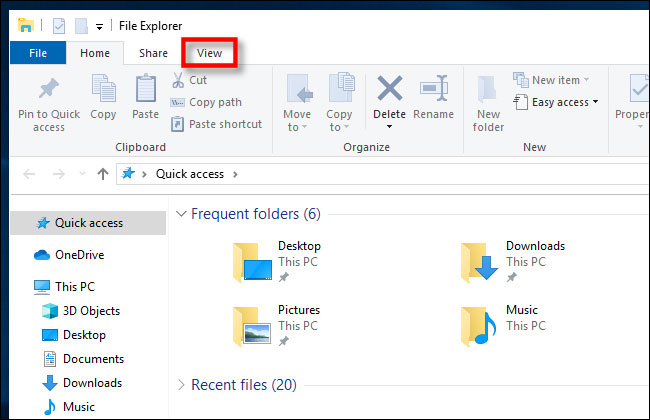
<p style="text-align: justify;">Trong thanh menu ở đầu cửa sổ File Explorer, nhấp vào&nbsp;<strong>View.</strong></p>

<figure>
<div style="text-align: justify;"><img alt="Nhấp vào View" data-i="0" data-src="https://st.quantrimang.com/photos/image/2020/04/29/hien-thi-preview-pane-cua-file-explorer-1.jpg" data-was-processed="true" height="420" src="https://st.quantrimang.com/photos/image/2020/04/29/hien-thi-preview-pane-cua-file-explorer-1.jpg" width="650" /></div>

<figcaption>
<div style="text-align: justify;">Nhấp vào View</div>
</figcaption>
</figure>

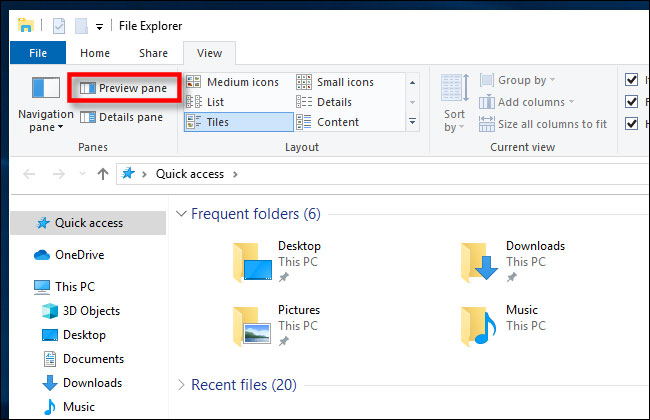
<p style="text-align: justify;">Tìm&nbsp;<strong>Preview Pane</strong>&nbsp;ở khu vực phía trên bên trái của thanh công cụ và nhấp vào nó.</p>

<figure>
<div style="text-align: justify;"><img alt="Tìm Preview Pane ở khu vực phía trên bên trái" data-i="1" data-src="https://st.quantrimang.com/photos/image/2020/04/29/hien-thi-preview-pane-cua-file-explorer-2.jpg" data-was-processed="true" height="420" src="https://st.quantrimang.com/photos/image/2020/04/29/hien-thi-preview-pane-cua-file-explorer-2.jpg" width="650" /></div>

<figcaption>
<div style="text-align: justify;">Tìm Preview Pane ở khu vực phía trên bên trái</div>
</figcaption>
</figure>

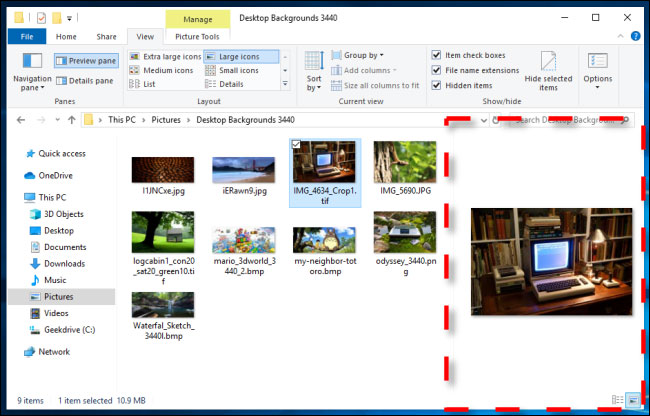
<p style="text-align: justify;">Preview Pane hiện đã được kích hoạt. Điều hướng File Explorer đến một thư mục có các tài liệu mà bạn muốn xem trước. Sau khi chọn một file, bạn sẽ thấy hình thu nhỏ xem trước của nó ở bên phải của cửa sổ.</p>

<figure>
<div style="text-align: justify;"><img alt="Hình thu nhỏ xem trước của file" data-i="2" data-src="https://st.quantrimang.com/photos/image/2020/04/29/hien-thi-preview-pane-cua-file-explorer-3.jpg" data-was-processed="true" height="416" src="https://st.quantrimang.com/photos/image/2020/04/29/hien-thi-preview-pane-cua-file-explorer-3.jpg" width="650" /></div>

<figcaption>
<div style="text-align: justify;">Hình thu nhỏ xem trước của file</div>
</figcaption>
</figure>

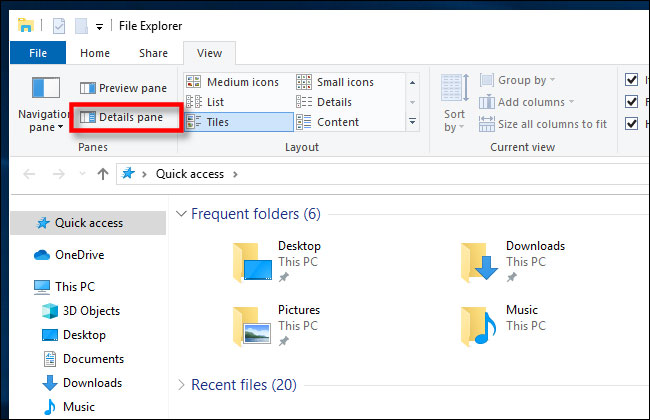
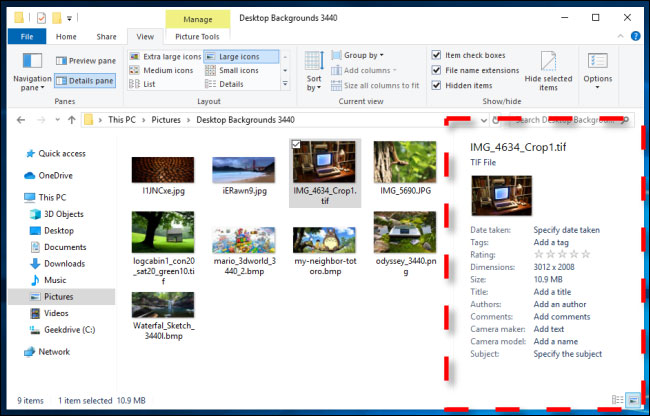
<p style="text-align: justify;">File Explorer cũng có một tính năng liên quan được gọi là&nbsp;<strong>Details Pane</strong>. Để bật tính năng này, hãy nhấp vào<strong>View</strong>&nbsp;trong thanh menu Explorer, sau đó nhấp vào&nbsp;<strong>Details Pane</strong>&nbsp;trên thanh công cụ (nó ngay bên cạnh tùy chọn<strong>Preview Pane</strong>).</p>

<figure>
<div style="text-align: justify;"><img alt="File Explorer cũng có một tính năng liên quan được gọi là Details Pane" data-i="3" data-src="https://st.quantrimang.com/photos/image/2020/04/29/hien-thi-preview-pane-cua-file-explorer-4.jpg" data-was-processed="true" height="420" src="https://st.quantrimang.com/photos/image/2020/04/29/hien-thi-preview-pane-cua-file-explorer-4.jpg" width="650" /></div>

<figcaption>
<div style="text-align: justify;">File Explorer cũng có một tính năng liên quan được gọi là Details Pane</div>
</figcaption>
</figure>

<p style="text-align: justify;">Khi bạn highlight một file với&nbsp;<strong>Details Pane</strong>&nbsp;được bật, bạn sẽ thấy một hình thu nhỏ nhỏ và một số chi tiết về file, chẳng hạn như kích thước của nó hoặc ngày được tạo, ở phần bên phải của cửa sổ.</p>

<figure>
<div style="text-align: justify;"><img alt="Với Details Pane được bật, bạn sẽ thấy một hình thu nhỏ nhỏ và một số chi tiết về file" data-i="4" data-src="https://st.quantrimang.com/photos/image/2020/04/29/hien-thi-preview-pane-cua-file-explorer-5.jpg" data-was-processed="true" height="416" src="https://st.quantrimang.com/photos/image/2020/04/29/hien-thi-preview-pane-cua-file-explorer-5.jpg" width="650" /></div>

<figcaption>
<div style="text-align: justify;">Với Details Pane được bật, bạn sẽ thấy một hình thu nhỏ nhỏ và một số chi tiết về file</div>
</figcaption>
</figure>

<div style="text-align: justify;">&nbsp;</div>

<h2 style="text-align: justify;">Phím tắt để kích hoạt Preview và Details Pane</h2>

<p style="text-align: justify;">Bạn cũng có thể nhanh chóng bật hoặc tắt Preview và Details Pane bằng các phím tắt như sau:</p>

<ul>
	<li style="text-align: justify;">Để mở hoặc đóng Preview Pane, nhấn&nbsp;<code>Alt</code>+<code>P</code>.</li>
	<li style="text-align: justify;">Để mở hoặc đóng Details Pane, nhấn&nbsp;<code>Alt</code>+<code>Shift</code>+<code>P</code>.</li>
</ul>
		</div>
				<div id="author">
						<p>
				<strong>Nguồn tin:</strong>
				Quantrimang.com
			</p>
		</div>
	</div>
	<div id="footer" class="clearfix">
		<div id="url">
			<strong>URL của bản tin này: </strong><a href="https://www.nguoicodonvn2008.info/vi/news/savefile/kien-thuc-may-tinh/cach-hien-thi-preview-pane-cua-file-explorer-tren-windows-10-1989.html" title="Cách hiển thị Preview Pane của File Explorer trên Windows 10">https://www.nguoicodonvn2008.info/vi/news/savefile/kien-thuc-may-tinh/cach-hien-thi-preview-pane-cua-file-explorer-tren-windows-10-1989.html</a>

		</div>
		<div class="clear"></div>
		<div class="copyright">
			&copy; .&#x3A; Nguoicodonvn2008.info - Cõi lòng người cô đơn &#x3A;.
		</div>
		<div id="contact">
			<a href="mailto:admin@nguoicodonvn2008.info">admin@nguoicodonvn2008.info</a>
		</div>
	</div>
</div>
        <div id="timeoutsess" class="chromeframe">
            Bạn đã không sử dụng Site, <a onclick="timeoutsesscancel();" href="https://www.nguoicodonvn2008.info/#">Bấm vào đây để duy trì trạng thái đăng nhập</a>. Thời gian chờ: <span id="secField"> 60 </span> giây
        </div>
        <div id="openidResult" class="nv-alert" style="display:none"></div>
        <div id="openidBt" data-result="" data-redirect=""></div>
		</script>
		<div class="car-top">
  <span><img src="https://www.nguoicodonvn2008.info/themes/default/images/car.png" alt=""></span>
</div>
<script src="https://www.nguoicodonvn2008.info/assets/js/jquery/jquery.min.js"></script>
<script>var nv_base_siteurl="/",nv_lang_data="vi",nv_lang_interface="vi",nv_name_variable="nv",nv_fc_variable="op",nv_lang_variable="language",nv_module_name="news",nv_func_name="savefile",nv_is_user=0, nv_my_ofs=-4,nv_my_abbr="EDT",nv_cookie_prefix="nv4c_e856T",nv_check_pass_mstime=1738000,nv_area_admin=0,nv_safemode=0,theme_responsive=0,nv_recaptcha_ver=2,nv_recaptcha_sitekey="",nv_recaptcha_type="image",XSSsanitize=1;</script>
<script src="https://www.nguoicodonvn2008.info/assets/js/language/vi.js"></script>
<script src="https://www.nguoicodonvn2008.info/assets/js/DOMPurify/purify3.js"></script>
<script src="https://www.nguoicodonvn2008.info/assets/js/global.js"></script>
<script src="https://www.nguoicodonvn2008.info/assets/js/site.js"></script>
<script src="https://www.nguoicodonvn2008.info/themes/default/js/news.js"></script>
<script src="https://www.nguoicodonvn2008.info/themes/default/js/main.js"></script>
<script src="https://www.nguoicodonvn2008.info/themes/default/js/custom.js"></script>
<script type="application/ld+json">
        {
            "@context": "https://schema.org",
            "@type": "Organization",
            "url": "https://www.nguoicodonvn2008.info",
            "logo": "https://www.nguoicodonvn2008.info/uploads/angel.gif"
        }
        </script>
<script src="https://www.nguoicodonvn2008.info/themes/default/js/bootstrap.min.js"></script>
<script type="text/javascript">
var $scrolltop = $('.car-top');
$scrolltop.on('click', function () {
    $('html,body').animate({
        scrollTop: 0
    }, 800);
    $(this).addClass("car-run");
    setTimeout(function(){ $scrolltop.removeClass('car-run');}, 1000);
    return false;
});
$(window).on('scroll', function ()
{ 
    if($(window).scrollTop() >= 200)
    {
        $scrolltop.addClass("show");
        $scrolltop.addClass("car-down");
    }
    else
    {
       $scrolltop.removeClass("show");
       setTimeout(function(){ $scrolltop.removeClass('car-down');}, 300);
    }
});
</script>
</body>
</html>