<!DOCTYPE html>
    <html lang="vi" xmlns="http://www.w3.org/1999/xhtml" prefix="og: http://ogp.me/ns#">
    <head>
<title>Cách gộp 2 cột Họ và Tên trong Excel không mất nội dung</title>
<meta name="description" content="Cách gộp 2 cột Họ và Tên trong Excel không mất nội dung - Savefile - Tin Tức -...">
<meta name="author" content=".: Nguoicodonvn2008.info - Cõi lòng người cô đơn :.">
<meta name="copyright" content=".: Nguoicodonvn2008.info - Cõi lòng người cô đơn :. [admin@nguoicodonvn2008.info]">
<meta name="robots" content="index, archive, follow, noodp">
<meta name="googlebot" content="index,archive,follow,noodp">
<meta name="msnbot" content="all,index,follow">
<meta name="generator" content="NukeViet v4.5">
<meta http-equiv="Content-Type" content="text/html; charset=utf-8">
<meta property="og:title" content="Cách gộp 2 cột Họ và Tên trong Excel không mất nội dung">
<meta property="og:type" content="website">
<meta property="og:description" content="Savefile - Tin Tức - https&#x3A;&#x002F;&#x002F;www.nguoicodonvn2008.info&#x002F;vi&#x002F;news&#x002F;savefile&#x002F;kien-thuc-may-tinh&#x002F;cach-gop-2-cot-ho-va-ten-trong-excel-khong-mat-noi-dung-8195.html">
<meta property="og:site_name" content=".&#x3A; Nguoicodonvn2008.info - Cõi lòng người cô đơn &#x3A;.">
<meta property="og:url" content="https://www.nguoicodonvn2008.info/vi/news/savefile/kien-thuc-may-tinh/cach-gop-2-cot-ho-va-ten-trong-excel-khong-mat-noi-dung-8195.html">
<link rel="shortcut icon" href="https://www.nguoicodonvn2008.info/favicon.ico">
<link rel="canonical" href="https://www.nguoicodonvn2008.info/vi/news/savefile/kien-thuc-may-tinh/cach-gop-2-cot-ho-va-ten-trong-excel-khong-mat-noi-dung-8195.html">
<link rel="alternate" href="https://www.nguoicodonvn2008.info/vi/news/rss/" title="Tin Tức" type="application/rss+xml">
<link rel="alternate" href="https://www.nguoicodonvn2008.info/vi/news/rss/karaoke-dual/" title="Tin Tức - Karaoke Dual" type="application/rss+xml">
<link rel="alternate" href="https://www.nguoicodonvn2008.info/vi/news/rss/nhac-tre/" title="Tin Tức - Nhạc trẻ" type="application/rss+xml">
<link rel="alternate" href="https://www.nguoicodonvn2008.info/vi/news/rss/tru-tinh/" title="Tin Tức - Trữ tình" type="application/rss+xml">
<link rel="alternate" href="https://www.nguoicodonvn2008.info/vi/news/rss/nuoc-ngoai/" title="Tin Tức - Nước ngoài" type="application/rss+xml">
<link rel="alternate" href="https://www.nguoicodonvn2008.info/vi/news/rss/remix/" title="Tin Tức - Remix" type="application/rss+xml">
<link rel="alternate" href="https://www.nguoicodonvn2008.info/vi/news/rss/tam-su-tinh-yeu/" title="Tin Tức - Tâm sự tình yêu" type="application/rss+xml">
<link rel="alternate" href="https://www.nguoicodonvn2008.info/vi/news/rss/tho-suu-tam/" title="Tin Tức - Thơ sưu tầm" type="application/rss+xml">
<link rel="alternate" href="https://www.nguoicodonvn2008.info/vi/news/rss/cuoc-song/" title="Tin Tức - Cuộc sống" type="application/rss+xml">
<link rel="alternate" href="https://www.nguoicodonvn2008.info/vi/news/rss/phan-mem/" title="Tin Tức - Phần mềm" type="application/rss+xml">
<link rel="alternate" href="https://www.nguoicodonvn2008.info/vi/news/rss/kien-thuc-may-tinh/" title="Tin Tức - Kiến thức máy tính" type="application/rss+xml">
<link rel="alternate" href="https://www.nguoicodonvn2008.info/vi/news/rss/hoc-tap/" title="Tin Tức - Học tập" type="application/rss+xml">
<link rel="alternate" href="https://www.nguoicodonvn2008.info/vi/news/rss/tai-lieu/" title="Tin Tức - Tài liệu" type="application/rss+xml">
<link rel="alternate" href="https://www.nguoicodonvn2008.info/vi/news/rss/de-thi/" title="Tin Tức - Đề thi" type="application/rss+xml">
<link rel="preload" as="style" href="https://www.nguoicodonvn2008.info/assets/css/font-awesome.min.css" type="text/css">
<link rel="preload" as="style" href="https://www.nguoicodonvn2008.info/themes/default/css/bootstrap.non-responsive.css" type="text/css">
<link rel="preload" as="style" href="https://www.nguoicodonvn2008.info/themes/default/css/style.css" type="text/css">
<link rel="preload" as="style" href="https://www.nguoicodonvn2008.info/themes/default/css/style.non-responsive.css" type="text/css">
<link rel="preload" as="style" href="https://www.nguoicodonvn2008.info/themes/default/css/news.css" type="text/css">
<link rel="preload" as="style" href="https://www.nguoicodonvn2008.info/themes/default/css/custom.css" type="text/css">
<link rel="preload" as="script" href="https://www.nguoicodonvn2008.info/assets/js/jquery/jquery.min.js" type="text/javascript">
<link rel="preload" as="script" href="https://www.nguoicodonvn2008.info/assets/js/language/vi.js" type="text/javascript">
<link rel="preload" as="script" href="https://www.nguoicodonvn2008.info/assets/js/DOMPurify/purify3.js" type="text/javascript">
<link rel="preload" as="script" href="https://www.nguoicodonvn2008.info/assets/js/global.js" type="text/javascript">
<link rel="preload" as="script" href="https://www.nguoicodonvn2008.info/assets/js/site.js" type="text/javascript">
<link rel="preload" as="script" href="https://www.nguoicodonvn2008.info/themes/default/js/news.js" type="text/javascript">
<link rel="preload" as="script" href="https://www.nguoicodonvn2008.info/themes/default/js/main.js" type="text/javascript">
<link rel="preload" as="script" href="https://www.nguoicodonvn2008.info/themes/default/js/custom.js" type="text/javascript">
<link rel="preload" as="script" href="https://www.nguoicodonvn2008.info/themes/default/js/bootstrap.min.js" type="text/javascript">
<link rel="stylesheet" href="https://www.nguoicodonvn2008.info/assets/css/font-awesome.min.css">
<link rel="stylesheet" href="https://www.nguoicodonvn2008.info/themes/default/css/bootstrap.non-responsive.css">
<link rel="stylesheet" href="https://www.nguoicodonvn2008.info/themes/default/css/style.css">
<link rel="stylesheet" href="https://www.nguoicodonvn2008.info/themes/default/css/style.non-responsive.css">
<link rel="StyleSheet" href="https://www.nguoicodonvn2008.info/themes/default/css/news.css">
<link rel="stylesheet" href="https://www.nguoicodonvn2008.info/themes/default/css/custom.css">
<style type="text/css">
	body{background: #fff;}
</style>
    </head>
    <body>
<div id="print">
	<div id="hd_print">
		<h2 class="pull-left">.&#x3A; Nguoicodonvn2008.info - Cõi lòng người cô đơn &#x3A;.</h2>
		<p class="pull-right"><a title=".&#x3A; Nguoicodonvn2008.info - Cõi lòng người cô đơn &#x3A;." href="https://www.nguoicodonvn2008.info/">https://www.nguoicodonvn2008.info</a></p>
	</div>
	<div class="clear"></div>
	<hr />
	<div id="content">
		<h1>Cách gộp 2 cột Họ và Tên trong Excel không mất nội dung</h1>
		<ul class="list-inline">
			<li>Thứ sáu - 15/03/2024 23:04</li>
			<li class="hidden-print txtrequired"><em class="fa fa-print">&nbsp;</em><a title="In ra" href="javascript:;" onclick="window.print()">In ra</a></li>
			<li class="hidden-print txtrequired"><em class="fa fa-power-off">&nbsp;</em><a title="Đóng cửa sổ này" href="javascript:;" onclick="window.close()">Đóng cửa sổ này</a></li>
		</ul>
		<div class="clear"></div>
		<div id="hometext">
		</div>
				<div class="imghome">
			<img alt="Cách gộp 2 cột Họ và Tên trong Excel không mất nội dung" src="https://st.quantrimang.com/photos/image/2020/08/10/Excel-gop-nhieu-cot-1.jpg" width="460" class="img-thumbnail" />
		</div>
		<div class="clear"></div>
		<div id="bodytext" class="clearfix">
			<p style="text-align: justify;">Trường hợp chúng ta cần phải gộp nội dung trong 2, hoặc 3 cột trong Excel khá nhiều, chẳng hạn gộp 1 cột Họ và 1 cột Tên hay gộp cột Họ và cột Tên đệm với nhau. Người dùng phải ghép nội dung trong 2 cột và không được để mất dữ liệu. Trên Excel có một số tính năng gộp ô như Merge Cell, nhưng khi sử dụng sẽ bị mất 1 cột bên phải, đồng nghĩa với nội dung của cột biến mất.</p>

<p style="text-align: justify;">Vậy làm sao để có thể gộp nội dung của 2 cột dữ liệu trên&nbsp;Excel, mà vẫn giữ được nội dung của các cột? Để có thể thực hiện được thao tác gộp 2 cột Excel, chúng ta cần sử dụng hàm để nối các chuỗi ở từng cột thành 1 cột, sau đó xóa cột không cần sử dụng.</p>

<div style="text-align: justify;">&nbsp;</div>

<h2 id="mcetoc_1efcdged04" style="text-align: justify;">1. Cách gộp nhiều cột trong Excel 2019/2016</h2>

<p style="text-align: justify;">Ngoài việc gộp 2 cột trong bảng Excel thì chúng ta cũng có thể xử lý bảng biểu với việc gộp nhiều cột thành 1 cột duy nhất. Cách thực hiện thì bạn cũng làm tương tự như với gộp 2 cột mà thôi.</p>

<h3 id="mcetoc_1efcdged05" style="text-align: justify;">Cách 1: Gộp nhiều cột Excel bằng “toán tử &amp;”</h3>

<div style="text-align: justify;">&nbsp;</div>

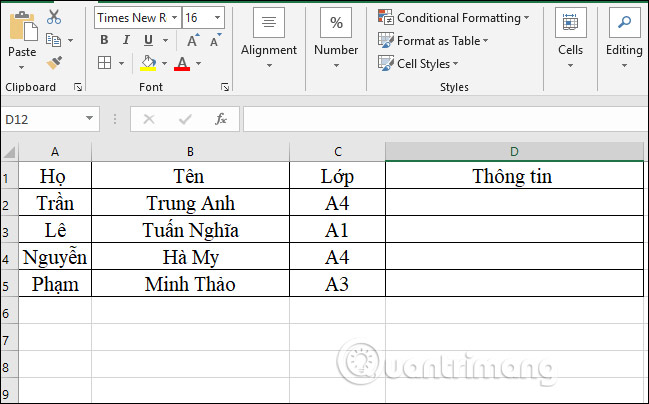
<p style="text-align: justify;">Chúng ta sẽ có công thức gộp là&nbsp;<strong>=Chuỗi1&amp;Chuỗi2&amp;…</strong>&nbsp;Lưu ý muốn giữa các chuỗi nối có khoảng trắng thì giữa 2 dấu (&quot; &quot;) để khoảng trắng, nếu muốn các chuỗi nối liền dính vào nhau thì giữa 2 dấu (&quot;&quot;) viết liền. Áp dụng vào bảng dữ liệu dưới đây sẽ gộp 3 ô A2, B2 và C2 thành một ô thông tin đầy đủ.</p>

<p style="text-align: justify;"><img alt="Bảng dữ liệu " data-i="0" data-src="https://st.quantrimang.com/photos/image/2020/08/10/Excel-gop-nhieu-cot-1.jpg" data-was-processed="true" height="373" src="https://st.quantrimang.com/photos/image/2020/08/10/Excel-gop-nhieu-cot-1.jpg" width="600" /></p>

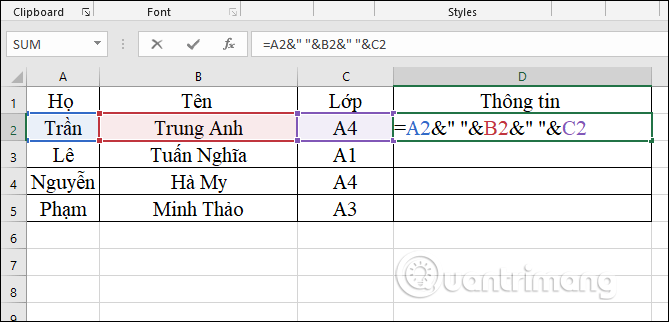
<p style="text-align: justify;">Bạn nhập công thức =A2&amp;&quot; &quot;&amp;B2&amp;&quot; &quot;&amp;C2 rồi nhấn Enter.</p>

<p style="text-align: justify;"><img alt="Nhập công thức toán tử" data-i="1" data-src="https://st.quantrimang.com/photos/image/2020/08/10/Excel-gop-nhieu-cot-2.png" data-was-processed="true" height="308" src="https://st.quantrimang.com/photos/image/2020/08/10/Excel-gop-nhieu-cot-2.png" width="640" /></p>

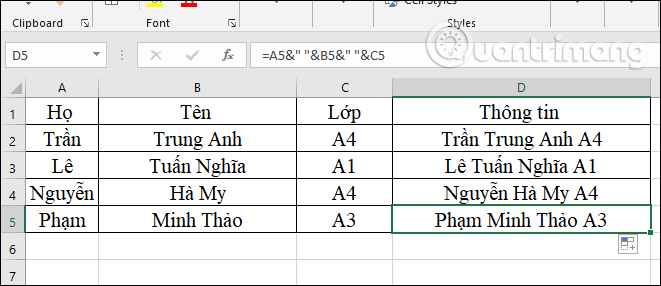
<p style="text-align: justify;">Kết quả sẽ được văn bản hoàn chỉnh như dưới đây. Cuối cùng bạn chỉ cần kéo ô đầu tiên xuống những ô còn lại để cho ra kết quả tương tự.</p>

<p style="text-align: justify;"><img alt="Nối nhiều cột" data-i="2" data-src="https://st.quantrimang.com/photos/image/2020/08/10/Excel-gop-nhieu-cot-3.png" data-was-processed="true" height="277" src="https://st.quantrimang.com/photos/image/2020/08/10/Excel-gop-nhieu-cot-3.png" width="640" /></p>

<h3 id="mcetoc_1efcdged06" style="text-align: justify;">Cách 2: Dùng hàm CONCATENATE gộp nhiều ô</h3>

<div style="text-align: justify;"><iframe allowtransparency="true" data-google-container-id="a!3" data-google-query-id="CLnw2Ijm94QDFa9AwgUdZW4KHg" data-load-complete="true" frameborder="0" height="0" hspace="0" id="aswift_2" marginheight="0" marginwidth="0" name="aswift_2" sandbox="" scrolling="no" vspace="0" width="694"></iframe></div>

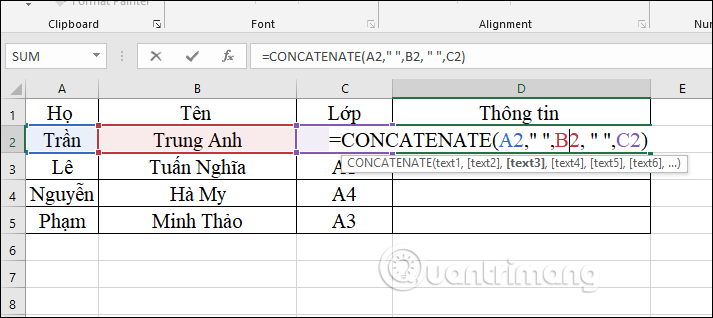
<p style="text-align: justify;">Cú pháp hàm nối chuỗi CONCATENATE trong Excel là&nbsp;<strong>=CONCATENATE(text1,text2,…)</strong>.</p>

<p style="text-align: justify;">Cũng giống như trên nếu các chuỗi nối có khoảng trắng thì giữa 2 dấu (&quot; &quot;) để khoảng trắng, nếu muốn các chuỗi nối liền dính vào nhau thì giữa 2 dấu (&quot;&quot;) viết liền.</p>

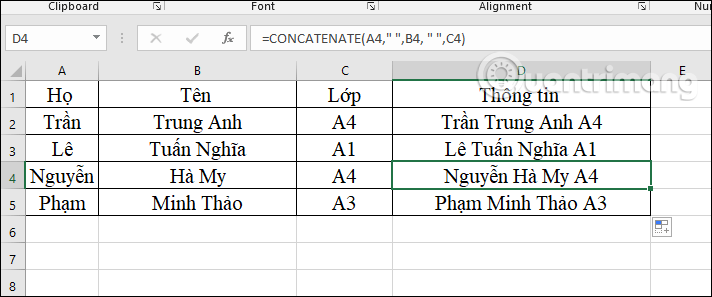
<p style="text-align: justify;">Áp dụng công thức vào bảng dữ liệu chúng ta sẽ có =CONCATENATE(A2,&quot; &quot;,B2, &quot; &quot;,C2).</p>

<p style="text-align: justify;"><img alt="Công thức hàm nối chuỗi" data-i="3" data-src="https://st.quantrimang.com/photos/image/2020/08/10/Excel-gop-nhieu-cot-4.png" data-was-processed="true" height="285" src="https://st.quantrimang.com/photos/image/2020/08/10/Excel-gop-nhieu-cot-4.png" width="640" /></p>

<p style="text-align: justify;">Bạn nhấn Enter cũng sẽ cho được kết quả như Cách 1 dùng với toán tử &amp;.</p>

<p style="text-align: justify;"><img alt="Gộp các cột" data-i="4" data-src="https://st.quantrimang.com/photos/image/2020/08/10/Excel-gop-nhieu-cot-5.png" data-was-processed="true" height="267" src="https://st.quantrimang.com/photos/image/2020/08/10/Excel-gop-nhieu-cot-5.png" width="640" /></p>

<h2 id="mcetoc_1efcdged00" style="text-align: justify;">2. Hướng dẫn ghép 2 cột trong Excel 2007</h2>

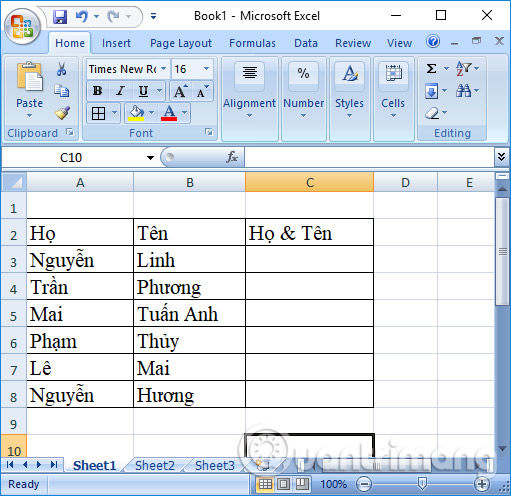
<p style="text-align: justify;">Bài viết dưới đây sẽ lấy ví dụ ghép 1 cột Họ và 1 cột Tên thành 1 cột duy nhất.</p>

<p style="text-align: justify;"><img alt="Bảng Excel gộp cột " data-i="5" data-src="https://st.quantrimang.com/photos/image/2017/08/01/Excel-gop-2-cot-bang.jpg" data-was-processed="true" height="466" src="https://st.quantrimang.com/photos/image/2017/08/01/Excel-gop-2-cot-bang.jpg" width="480" /></p>

<h3 id="mcetoc_1efcdged01" style="text-align: justify;">Cách 1: Sử dụng “toán tử &amp;” gộp cột Excel</h3>

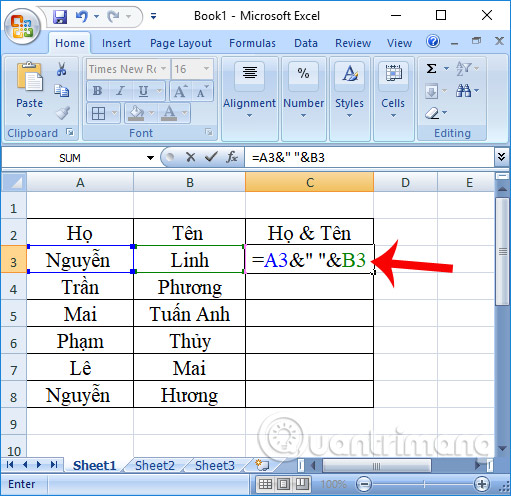
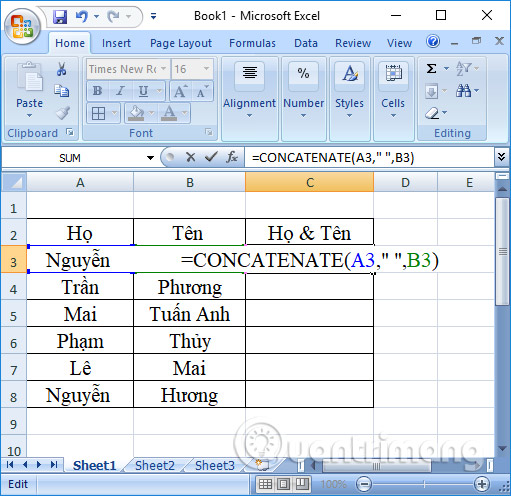
<p style="text-align: justify;">Để có thể ghép 2 cột lại với nhau trên Excel, chúng ta có thể sử dụng cách đơn giản nhất đó là dùng toán tử &amp; để nối 2 hoặc nhiều chuỗi với nhau. Trong bảng ví dụ này, chúng ta sẽ nối ô A3 với 1 khoảng trắng và ô B3, rồi nhập nội dung hoàn chỉnh vào ô C3.</p>

<p style="text-align: justify;">Chúng ta nhập công thức vào ô C3 như sau&nbsp;<strong>=A3&amp;&quot; &quot;&amp;B3.</strong></p>

<p style="text-align: justify;"><strong><img alt="Sử dụng toán tử &amp; gộp cột" data-i="6" data-src="https://st.quantrimang.com/photos/image/2017/08/01/Excel-gop-2-cot-toan-tu.jpg" data-was-processed="true" height="466" src="https://st.quantrimang.com/photos/image/2017/08/01/Excel-gop-2-cot-toan-tu.jpg" width="480" /></strong></p>

<div style="text-align: justify;"><iframe allowtransparency="true" data-google-container-id="a!4" data-google-query-id="CPL5mYnm94QDFTtFwgUd3h4BBQ" data-load-complete="true" frameborder="0" height="0" hspace="0" id="aswift_3" marginheight="0" marginwidth="0" name="aswift_3" sandbox="" scrolling="no" vspace="0" width="694"></iframe></div>

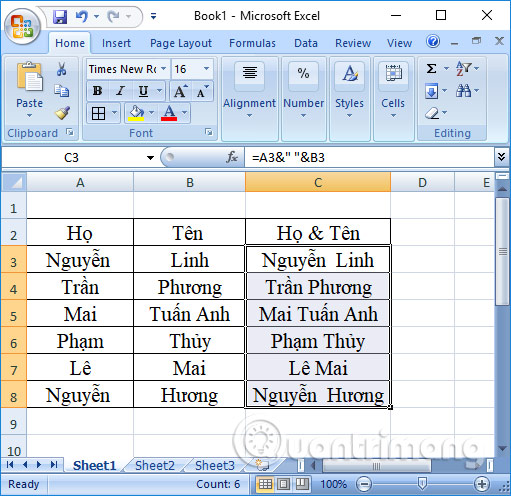
<p style="text-align: justify;">Sau đó nhấn Enter và kết quả sẽ có 1 ô có nội dung hoàn chỉnh là Họ và Tên được ghép với nhau. Chúng ta copy công thức tới các hàng tiếp theo để được cột Họ &amp; Tên hoàn chỉnh.</p>

<p style="text-align: justify;"><img alt="Nối 2 cột lại trên Excel" data-i="7" data-src="https://st.quantrimang.com/photos/image/2017/08/01/Excel-gop-2-cot-noi.jpg" data-was-processed="true" height="466" src="https://st.quantrimang.com/photos/image/2017/08/01/Excel-gop-2-cot-noi.jpg" width="480" /></p>

<h3 id="mcetoc_1efcdged02" style="text-align: justify;">Cách 2: Sử dụng hàm nối chuỗi CONCATENATE</h3>

<p style="text-align: justify;">Ngoài cách sử dụng toán tử bên trên, người dùng có thể sử dụng hàm nối chuỗi CONCATENATE để ghép 2 cột nội dung trên Excel thành 1 cột duy nhất.</p>

<p style="text-align: justify;">Bạn sẽ nhập công thức vào trong ô C3 là&nbsp;<strong>=CONCATENATE(A3,&quot; &quot;,B3)</strong>&nbsp;rồi nhấn Enter.</p>

<p style="text-align: justify;"><img alt="Sử dụng hàm Concatenate nối cột Excel" data-i="8" data-src="https://st.quantrimang.com/photos/image/2017/08/01/Excel-gop-2-cot-ham-Concatenate.jpg" data-was-processed="true" height="466" src="https://st.quantrimang.com/photos/image/2017/08/01/Excel-gop-2-cot-ham-Concatenate.jpg" width="480" /></p>

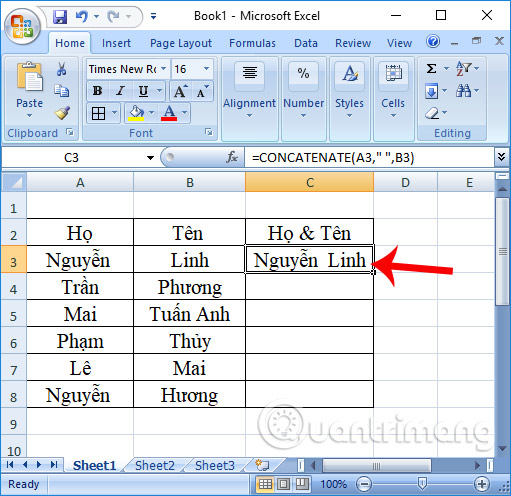
<p style="text-align: justify;">Kết quả cuối cùng, nội dung ở 2 ô đã gộp lại thành 1 mà ở đây là cột Họ và Tên đã được ghép với nhau. Cuối cùng bạn cũng copy công thức xuống những ô tiếp theo để hoàn thành nội dung của bảng thống kê.</p>

<p style="text-align: justify;"><img alt="Nối 2 cột Excel thành 1 cột" data-i="9" data-src="https://st.quantrimang.com/photos/image/2017/08/01/Excel-gop-2-cot-gop.jpg" data-was-processed="true" height="466" src="https://st.quantrimang.com/photos/image/2017/08/01/Excel-gop-2-cot-gop.jpg" width="480" /></p>

<h2 id="mcetoc_1g1fpu3epc" style="text-align: justify;">3. Hướng dẫn gộp cột trong Excel bằng Flash Fill</h2>

<p style="text-align: justify;">Trong bản&nbsp;<strong>Excel 2013</strong>&nbsp;trở lên có sẵn tính năng Flash Fill để hỗ trợ thao tác gộp cột dữ liệu, tách cột dữ liệu rất nhanh chóng, đơn giản. Chúng ta có thể sử dụng Flash Fill để gộp 2 hoặc 3, 4 cột dữ liệu trở lên tùy theo yêu bảng dữ liệu. Lưu ý, Flash Fill không tự động cập nhật khi bạn thay đổi các ô ban đầu.</p>

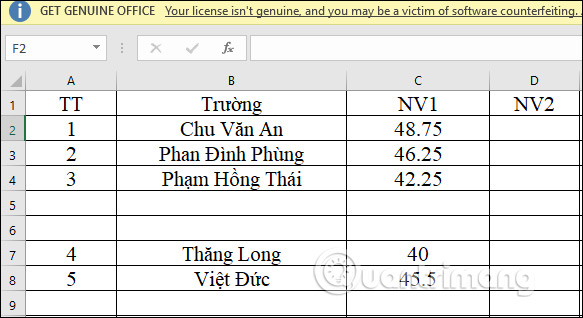
<p style="text-align: justify;">Chúng ta có bảng dữ liệu mẫu dưới đây với 2 cột nội dung là tên Trường và điểm NV1. Yêu cầu sẽ gộp nội dung ở 2 cột này làm 1 cột.</p>

<p style="text-align: justify;"><img alt="Bảng dữ liệu Excel" data-i="10" data-src="https://st.quantrimang.com/photos/image/2022/04/22/Excel-gop-cot-du-lieu-1.jpg" data-was-processed="true" height="318" src="https://st.quantrimang.com/photos/image/2022/04/22/Excel-gop-cot-du-lieu-1.jpg" width="583" /></p>

<div style="text-align: justify;"><iframe allowtransparency="true" data-google-container-id="a!5" data-google-query-id="CN_p94nm94QDFedUwgUd1RICLw" data-load-complete="true" frameborder="0" height="0" hspace="0" id="aswift_4" marginheight="0" marginwidth="0" name="aswift_4" sandbox="" scrolling="no" vspace="0" width="694"></iframe></div>

<p style="text-align: justify;"><strong>Bước 1:</strong></p>

<p style="text-align: justify;">Đầu tiên tại ô thông tin gộp, chúng ta sẽ&nbsp;<strong>nhập 1 mẫu thông tin gộp</strong>&nbsp;như hình.</p>

<p style="text-align: justify;"><img alt="Nhập mẫu thông tin gộp Excel" data-i="11" data-src="https://st.quantrimang.com/photos/image/2022/04/22/Excel-gop-cot-du-lieu-2.jpg" data-was-processed="true" height="300" src="https://st.quantrimang.com/photos/image/2022/04/22/Excel-gop-cot-du-lieu-2.jpg" width="624" /></p>

<p style="text-align: justify;"><strong>Bước 2:</strong></p>

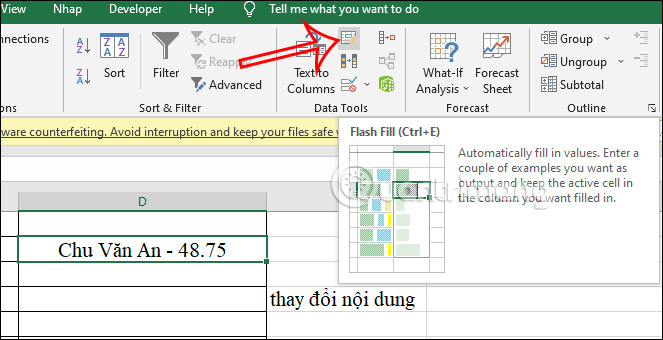
<p style="text-align: justify;">Tiếp đến bạn<strong>&nbsp;nhấn vào ô thông tin mẫu đó</strong>, nhấn tiếp vào<strong>&nbsp;tab Data</strong>&nbsp;trên thanh công cụ rồi nhìn xuống nhóm Data Tools, bạn nhấn vào&nbsp;<strong>biểu tượng Flash Fill&nbsp;</strong>như hình dưới đây để tiến hành tự động điền dữ liệu.</p>

<p style="text-align: justify;"><img alt="Dùng Flash Fill trong Excel" data-i="12" data-src="https://st.quantrimang.com/photos/image/2022/04/22/Excel-gop-cot-du-lieu-3.jpg" data-was-processed="true" height="328" src="https://st.quantrimang.com/photos/image/2022/04/22/Excel-gop-cot-du-lieu-3.jpg" width="640" /></p>

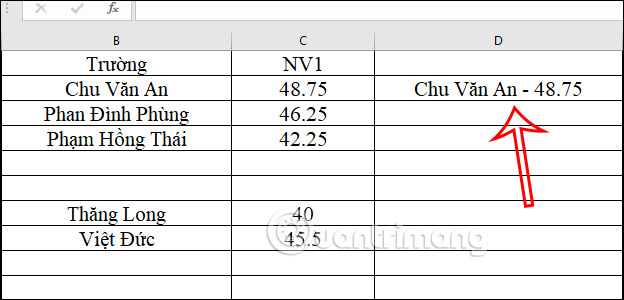
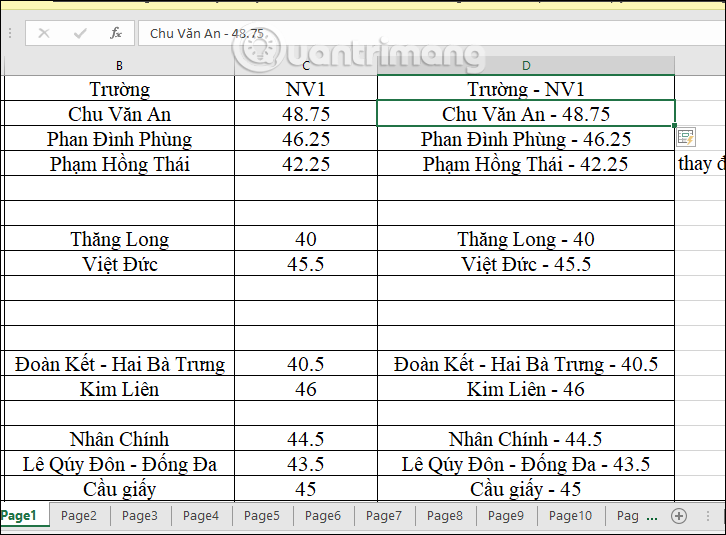
<p style="text-align: justify;">Ngay lập tức toàn bộ dữ liệu trong 2 cột sẽ đều được tự động gộp với nhau như hình dưới đây, bao gồm dấu nối bạn sử dụng.</p>

<p style="text-align: justify;"><img alt="Dùng Flash Fill trong Excel" data-i="13" data-src="https://st.quantrimang.com/photos/image/2022/04/22/Excel-gop-cot-du-lieu-4.png" data-was-processed="true" height="472" src="https://st.quantrimang.com/photos/image/2022/04/22/Excel-gop-cot-du-lieu-4.png" width="640" /></p>

<p style="text-align: justify;"><strong>Bước 3:</strong></p>

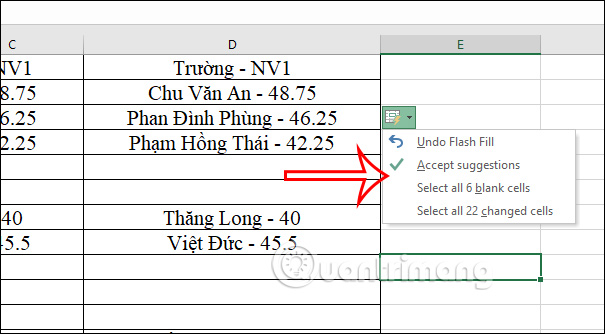
<p style="text-align: justify;">Khi nhấn vào&nbsp;<strong>biểu tượng Flash Fill</strong>&nbsp;trong vùng dữ liệu sử đã gộp bằng công cụ này bạn sẽ thấy có thêm một vài tùy chọn khác như hình.</p>

<ul>
	<li style="text-align: justify;">Undo Flash Fill: Hoàn tác hành động đã gộp tất cả các dữ liệu vào toàn bộ cột sau khi bạn nhấn Enter.</li>
	<li style="text-align: justify;">Accept suggestions: Áp dụng kết quả gộp bằng công cụ Flash Fill của Excel cho các cột dữ liệu.</li>
	<li style="text-align: justify;">Select all 6 blank cells: Chọn 6 ô chưa được điền dữ liệu và đang trống để bạn có thể sửa những ô đó nếu cần. Số ô thay đổi tùy vào bảng dữ liệu.</li>
	<li style="text-align: justify;">Select all 22 changed cells: Chọn 22 ô dữ liệu đã tự động thay đổi sau khi tính năng Flash Fill cập nhật các ô đó.</li>
</ul>

<p style="text-align: justify;"><img alt="Tùy chọn Flash Fill trong Excel" data-i="14" data-src="https://st.quantrimang.com/photos/image/2022/04/22/Excel-gop-cot-du-lieu-5.jpg" data-was-processed="true" height="334" src="https://st.quantrimang.com/photos/image/2022/04/22/Excel-gop-cot-du-lieu-5.jpg" width="605" /></p>

<h3 id="mcetoc_1g1fpu3epd" style="text-align: justify;">Cách sửa lỗi Excel không có Flash Fill</h3>

<p style="text-align: justify;">Mặc định thì công cụ Flash Fill sẽ luôn hiện có trong Excel nhưng do một vài trường hợp mà Flash Fill biến mất thì bạn có thể kích hoạt lại trong Excel.</p>

<p style="text-align: justify;"><strong>Bước 1:</strong></p>

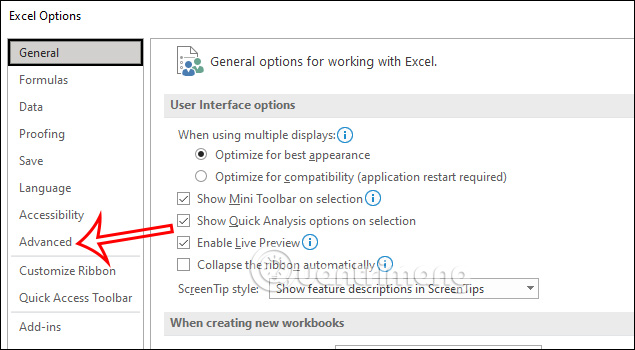
<p style="text-align: justify;">Tại giao diện trong Excel chúng ta nhấn vào&nbsp;<strong>File rồi chọn Options</strong>. Tiếp đến trong giao diện các tùy chọn thiết lập cho Excel bạn&nbsp;<strong>nhấn vào Advanced</strong>.</p>

<p style="text-align: justify;"><img alt="Advanced trong Excel" data-i="15" data-src="https://st.quantrimang.com/photos/image/2022/04/22/Excel-gop-cot-du-lieu-6.jpg" data-was-processed="true" height="350" src="https://st.quantrimang.com/photos/image/2022/04/22/Excel-gop-cot-du-lieu-6.jpg" width="635" /></p>

<p style="text-align: justify;"><strong>Bước 2:</strong></p>

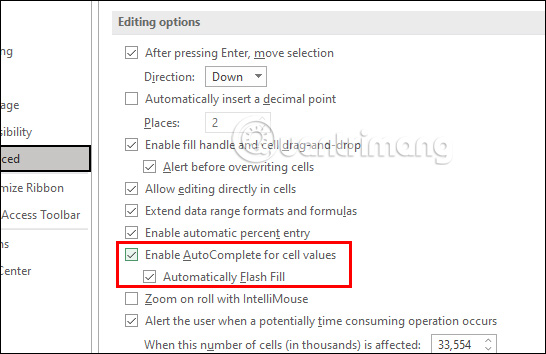
<p style="text-align: justify;">Nhìn tiếp sang nội dung bên cạnh tại&nbsp;<strong>nhóm Editing options</strong>, bạn kiểm tra xem đã&nbsp;<strong>tích chọn vào 2 thiết lập Enable AutoComplete for cell values và Automatically Flash Fill</strong>&nbsp;ở ngay bên dưới hay chưa.</p>

<p style="text-align: justify;">Nếu chưa tích chọn vào 2 thiết lập này thì Flash Fill sẽ biến mất, bạn chỉ cần tích vào 2 thiết lập này để dùng Flash Fill và tự động điền dữ liệu khi dùng công cụ này.</p>

<div style="text-align: justify;"><iframe allowtransparency="true" data-google-container-id="a!6" data-google-query-id="CPrO3Yrm94QDFSdEwgUdi9YN5Q" data-load-complete="true" frameborder="0" height="0" hspace="0" id="aswift_5" marginheight="0" marginwidth="0" name="aswift_5" sandbox="" scrolling="no" vspace="0" width="694"></iframe></div>

<p style="text-align: justify;"><img alt="Bật Flash Fill trong Excel" data-i="16" data-src="https://st.quantrimang.com/photos/image/2022/04/22/Excel-gop-cot-du-lieu-7.jpg" data-was-processed="true" height="354" src="https://st.quantrimang.com/photos/image/2022/04/22/Excel-gop-cot-du-lieu-7.jpg" width="546" /></p>

<p style="text-align: justify;">Ngoài tính năng gộp dữ liệu Flash Fill còn có thêm nhiều tính năng khác như tách dữ liệu trong Excel, tách số khỏi chữ và số,...</p>

<h2 id="mcetoc_1efcdged07" style="text-align: justify;">4. Xuống dòng sau khi gộp nhiều cột</h2>

<p style="text-align: justify;">Các dữ liệu khi gộp cũng có thể xuống dòng khi chúng ta sử dụng thêm hàm ngắt dòng CHAR(10). Bạn có thể kết hợp ghép với toán tử &amp; hoặc hàm CONCATENATE đều được.</p>

<h3 id="mcetoc_1efcdged08" style="text-align: justify;">Kết hợp hàm CHAR(10) với toán tử &amp;</h3>

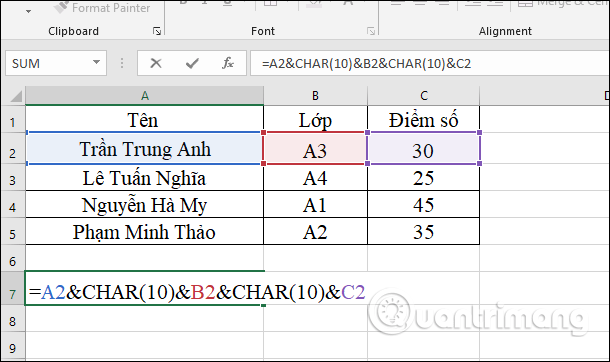
<p style="text-align: justify;">Bạn nhập công thức&nbsp;<strong>=A2&amp;CHAR(10)&amp;B2&amp;CHAR(10)&amp;C2</strong>&nbsp;rồi nhấn Enter.</p>

<p style="text-align: justify;"><img alt="Xuống dòng với hàm CHAR(10)" data-i="17" data-src="https://st.quantrimang.com/photos/image/2020/08/10/Excel-gop-nhieu-cot-6.png" data-was-processed="true" height="362" src="https://st.quantrimang.com/photos/image/2020/08/10/Excel-gop-nhieu-cot-6.png" width="610" /></p>

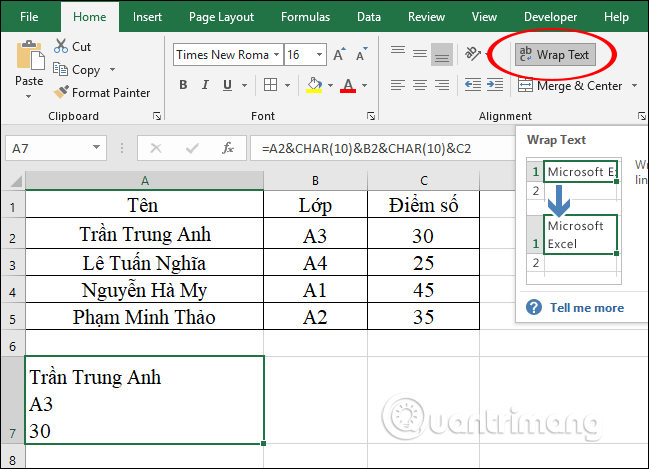
<p style="text-align: justify;">Sau đó chúng ta nhấn vào&nbsp;<strong>Wrap Text</strong>&nbsp;<strong>để xuống dòng</strong>&nbsp;cho các nội dung. Lưu ý, lúc này bạn cần phải điều chỉnh lại độ rộng của ô cho phù hợp.</p>

<p style="text-align: justify;"><img alt="Tách dữ liệu đã gộp" data-i="18" data-src="https://st.quantrimang.com/photos/image/2020/08/10/Excel-gop-nhieu-cot-7.png" data-was-processed="true" height="434" src="https://st.quantrimang.com/photos/image/2020/08/10/Excel-gop-nhieu-cot-7.png" width="600" /></p>

<h3 id="mcetoc_1efcdged09" style="text-align: justify;">Kết hợp hàm CHAR(10) với hàm CONCATENATE</h3>

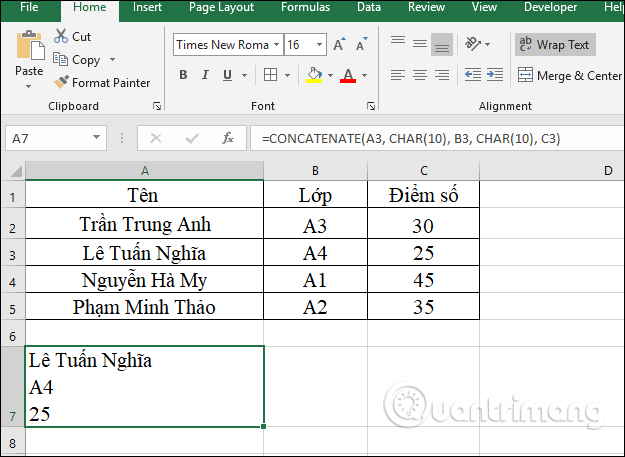
<p style="text-align: justify;">Bạn nhập công thức&nbsp;<strong>=Concatenate(A2, char(10), B3, char(10), C3)</strong>&nbsp;rồi cũng nhấn Enter để cho kết quả gộp nội dung ở các cột. Sau đó nhấn tiếp vào&nbsp;<strong>Wrap Text</strong>&nbsp;để xuống dòng cho các nội dung.</p>

<p style="text-align: justify;"><img alt="Kết hợp hàm nối chuỗi" data-i="19" data-src="https://st.quantrimang.com/photos/image/2020/08/10/Excel-gop-nhieu-cot-8.png" data-was-processed="true" height="457" src="https://st.quantrimang.com/photos/image/2020/08/10/Excel-gop-nhieu-cot-8.png" width="625" /></p>

<h2 id="mcetoc_1efcdged03" style="text-align: justify;"><strong>5. Xóa cột gốc sau khi gộp trong Excel</strong></h2>

<p style="text-align: justify;"><strong>Lưu ý:&nbsp;</strong>Sau khi gộp 2 cột Excel, bạn muốn xóa 2 cột gốc ban đầu thì làm như sau: Ví dụ, ảnh ngay trên này nhé.</p>

<p style="text-align: justify;">Chèn thêm một cột mới (cột D) bên cạnh cột vừa gộp (cột C), bôi đen toàn bộ cột C, nhấn Ctrl + C, chuyển sang cột D, chuột phải, chọn&nbsp;<strong>Paste as values</strong>, để chỉ dán giá trị của cột C vào cột D, chứ không dán công thức.</p>

<p style="text-align: justify;">Sau đó bạn xóa cả 2 cột gốc (A và B), và cột C, đổi tên cột D là được.</p>

<h2 id="mcetoc_1efcdged0a" style="text-align: justify;">Video hướng dẫn gộp 2 cột Họ và Tên trên Excel</h2>

<p style="text-align: justify;"><iframe allowfullscreen="" data-src="https://www.nguoicodonvn2008.info//xem.video/embed/20828" data-was-processed="true" frameborder="0" height="360" sandbox="" width="640"></iframe></p>

<p style="text-align: justify;">Trên đây là 2 cách để có thể ghép nội dung trong 2 cột trên Excel thành 1 cột duy nhất, với ví dụ gộp cột Họ và cột Tên thành 1 cột duy nhất trong bài. Nếu muốn sử dụng hàm để gộp 2 cột thành một cột duy nhất trên Excel, chúng ta cần phải nhớ tên hàm Concatenate nên để đơn giản hơn, người dùng có thể sử dụng toán tử &amp; theo bài hướng dẫn trên.</p>

<p style="text-align: justify;">Chúc các bạn thực hiện thành công!</p>

<div style="text-align: justify;">&nbsp;</div>
		</div>
				<div id="author">
						<p>
				<strong>Nguồn tin:</strong>
				Quantrimang.com
			</p>
		</div>
	</div>
	<div id="footer" class="clearfix">
		<div id="url">
			<strong>URL của bản tin này: </strong><a href="https://www.nguoicodonvn2008.info/vi/news/savefile/kien-thuc-may-tinh/cach-gop-2-cot-ho-va-ten-trong-excel-khong-mat-noi-dung-8195.html" title="Cách gộp 2 cột Họ và Tên trong Excel không mất nội dung">https://www.nguoicodonvn2008.info/vi/news/savefile/kien-thuc-may-tinh/cach-gop-2-cot-ho-va-ten-trong-excel-khong-mat-noi-dung-8195.html</a>

		</div>
		<div class="clear"></div>
		<div class="copyright">
			&copy; .&#x3A; Nguoicodonvn2008.info - Cõi lòng người cô đơn &#x3A;.
		</div>
		<div id="contact">
			<a href="mailto:admin@nguoicodonvn2008.info">admin@nguoicodonvn2008.info</a>
		</div>
	</div>
</div>
        <div id="timeoutsess" class="chromeframe">
            Bạn đã không sử dụng Site, <a onclick="timeoutsesscancel();" href="https://www.nguoicodonvn2008.info/#">Bấm vào đây để duy trì trạng thái đăng nhập</a>. Thời gian chờ: <span id="secField"> 60 </span> giây
        </div>
        <div id="openidResult" class="nv-alert" style="display:none"></div>
        <div id="openidBt" data-result="" data-redirect=""></div>
		</script>
		<div class="car-top">
  <span><img src="https://www.nguoicodonvn2008.info/themes/default/images/car.png" alt=""></span>
</div>
<script src="https://www.nguoicodonvn2008.info/assets/js/jquery/jquery.min.js"></script>
<script>var nv_base_siteurl="/",nv_lang_data="vi",nv_lang_interface="vi",nv_name_variable="nv",nv_fc_variable="op",nv_lang_variable="language",nv_module_name="news",nv_func_name="savefile",nv_is_user=0, nv_my_ofs=-4,nv_my_abbr="EDT",nv_cookie_prefix="nv4c_e856T",nv_check_pass_mstime=1738000,nv_area_admin=0,nv_safemode=0,theme_responsive=0,nv_recaptcha_ver=2,nv_recaptcha_sitekey="",nv_recaptcha_type="image",XSSsanitize=1;</script>
<script src="https://www.nguoicodonvn2008.info/assets/js/language/vi.js"></script>
<script src="https://www.nguoicodonvn2008.info/assets/js/DOMPurify/purify3.js"></script>
<script src="https://www.nguoicodonvn2008.info/assets/js/global.js"></script>
<script src="https://www.nguoicodonvn2008.info/assets/js/site.js"></script>
<script src="https://www.nguoicodonvn2008.info/themes/default/js/news.js"></script>
<script src="https://www.nguoicodonvn2008.info/themes/default/js/main.js"></script>
<script src="https://www.nguoicodonvn2008.info/themes/default/js/custom.js"></script>
<script type="application/ld+json">
        {
            "@context": "https://schema.org",
            "@type": "Organization",
            "url": "https://www.nguoicodonvn2008.info",
            "logo": "https://www.nguoicodonvn2008.info/uploads/angel.gif"
        }
        </script>
<script src="https://www.nguoicodonvn2008.info/themes/default/js/bootstrap.min.js"></script>
<script type="text/javascript">
var $scrolltop = $('.car-top');
$scrolltop.on('click', function () {
    $('html,body').animate({
        scrollTop: 0
    }, 800);
    $(this).addClass("car-run");
    setTimeout(function(){ $scrolltop.removeClass('car-run');}, 1000);
    return false;
});
$(window).on('scroll', function ()
{ 
    if($(window).scrollTop() >= 200)
    {
        $scrolltop.addClass("show");
        $scrolltop.addClass("car-down");
    }
    else
    {
       $scrolltop.removeClass("show");
       setTimeout(function(){ $scrolltop.removeClass('car-down');}, 300);
    }
});
</script>
</body>
</html>