<!DOCTYPE html>
    <html lang="vi" xmlns="http://www.w3.org/1999/xhtml" prefix="og: http://ogp.me/ns#">
    <head>
<title>Cách giữ các biểu tượng desktop và con trỏ chuột mặc định khi thay đổi theme Windows 11</title>
<meta name="description" content="Cách giữ các biểu tượng desktop và con trỏ chuột mặc định khi thay đổi theme Windows 11 - Savefile - Tin Tức -...">
<meta name="author" content=".: Nguoicodonvn2008.info - Cõi lòng người cô đơn :.">
<meta name="copyright" content=".: Nguoicodonvn2008.info - Cõi lòng người cô đơn :. [admin@nguoicodonvn2008.info]">
<meta name="robots" content="index, archive, follow, noodp">
<meta name="googlebot" content="index,archive,follow,noodp">
<meta name="msnbot" content="all,index,follow">
<meta name="generator" content="NukeViet v4.5">
<meta http-equiv="Content-Type" content="text/html; charset=utf-8">
<meta property="og:title" content="Cách giữ các biểu tượng desktop và con trỏ chuột mặc định khi thay đổi theme Windows 11">
<meta property="og:type" content="website">
<meta property="og:description" content="Savefile - Tin Tức -...">
<meta property="og:site_name" content=".&#x3A; Nguoicodonvn2008.info - Cõi lòng người cô đơn &#x3A;.">
<meta property="og:url" content="https://www.nguoicodonvn2008.info/vi/news/savefile/kien-thuc-may-tinh/cach-giu-cac-bieu-tuong-desktop-va-con-tro-chuot-mac-dinh-khi-thay-doi-theme-windows-11-6903.html">
<link rel="shortcut icon" href="https://www.nguoicodonvn2008.info/favicon.ico">
<link rel="canonical" href="https://www.nguoicodonvn2008.info/vi/news/savefile/kien-thuc-may-tinh/cach-giu-cac-bieu-tuong-desktop-va-con-tro-chuot-mac-dinh-khi-thay-doi-theme-windows-11-6903.html">
<link rel="alternate" href="https://www.nguoicodonvn2008.info/vi/news/rss/" title="Tin Tức" type="application/rss+xml">
<link rel="alternate" href="https://www.nguoicodonvn2008.info/vi/news/rss/karaoke-dual/" title="Tin Tức - Karaoke Dual" type="application/rss+xml">
<link rel="alternate" href="https://www.nguoicodonvn2008.info/vi/news/rss/nhac-tre/" title="Tin Tức - Nhạc trẻ" type="application/rss+xml">
<link rel="alternate" href="https://www.nguoicodonvn2008.info/vi/news/rss/tru-tinh/" title="Tin Tức - Trữ tình" type="application/rss+xml">
<link rel="alternate" href="https://www.nguoicodonvn2008.info/vi/news/rss/nuoc-ngoai/" title="Tin Tức - Nước ngoài" type="application/rss+xml">
<link rel="alternate" href="https://www.nguoicodonvn2008.info/vi/news/rss/remix/" title="Tin Tức - Remix" type="application/rss+xml">
<link rel="alternate" href="https://www.nguoicodonvn2008.info/vi/news/rss/tam-su-tinh-yeu/" title="Tin Tức - Tâm sự tình yêu" type="application/rss+xml">
<link rel="alternate" href="https://www.nguoicodonvn2008.info/vi/news/rss/tho-suu-tam/" title="Tin Tức - Thơ sưu tầm" type="application/rss+xml">
<link rel="alternate" href="https://www.nguoicodonvn2008.info/vi/news/rss/cuoc-song/" title="Tin Tức - Cuộc sống" type="application/rss+xml">
<link rel="alternate" href="https://www.nguoicodonvn2008.info/vi/news/rss/phan-mem/" title="Tin Tức - Phần mềm" type="application/rss+xml">
<link rel="alternate" href="https://www.nguoicodonvn2008.info/vi/news/rss/kien-thuc-may-tinh/" title="Tin Tức - Kiến thức máy tính" type="application/rss+xml">
<link rel="alternate" href="https://www.nguoicodonvn2008.info/vi/news/rss/hoc-tap/" title="Tin Tức - Học tập" type="application/rss+xml">
<link rel="alternate" href="https://www.nguoicodonvn2008.info/vi/news/rss/tai-lieu/" title="Tin Tức - Tài liệu" type="application/rss+xml">
<link rel="alternate" href="https://www.nguoicodonvn2008.info/vi/news/rss/de-thi/" title="Tin Tức - Đề thi" type="application/rss+xml">
<link rel="preload" as="style" href="https://www.nguoicodonvn2008.info/assets/css/font-awesome.min.css" type="text/css">
<link rel="preload" as="style" href="https://www.nguoicodonvn2008.info/themes/default/css/bootstrap.non-responsive.css" type="text/css">
<link rel="preload" as="style" href="https://www.nguoicodonvn2008.info/themes/default/css/style.css" type="text/css">
<link rel="preload" as="style" href="https://www.nguoicodonvn2008.info/themes/default/css/style.non-responsive.css" type="text/css">
<link rel="preload" as="style" href="https://www.nguoicodonvn2008.info/themes/default/css/news.css" type="text/css">
<link rel="preload" as="style" href="https://www.nguoicodonvn2008.info/themes/default/css/custom.css" type="text/css">
<link rel="preload" as="script" href="https://www.nguoicodonvn2008.info/assets/js/jquery/jquery.min.js" type="text/javascript">
<link rel="preload" as="script" href="https://www.nguoicodonvn2008.info/assets/js/language/vi.js" type="text/javascript">
<link rel="preload" as="script" href="https://www.nguoicodonvn2008.info/assets/js/DOMPurify/purify3.js" type="text/javascript">
<link rel="preload" as="script" href="https://www.nguoicodonvn2008.info/assets/js/global.js" type="text/javascript">
<link rel="preload" as="script" href="https://www.nguoicodonvn2008.info/assets/js/site.js" type="text/javascript">
<link rel="preload" as="script" href="https://www.nguoicodonvn2008.info/themes/default/js/news.js" type="text/javascript">
<link rel="preload" as="script" href="https://www.nguoicodonvn2008.info/themes/default/js/main.js" type="text/javascript">
<link rel="preload" as="script" href="https://www.nguoicodonvn2008.info/themes/default/js/custom.js" type="text/javascript">
<link rel="preload" as="script" href="https://www.nguoicodonvn2008.info/themes/default/js/bootstrap.min.js" type="text/javascript">
<link rel="stylesheet" href="https://www.nguoicodonvn2008.info/assets/css/font-awesome.min.css">
<link rel="stylesheet" href="https://www.nguoicodonvn2008.info/themes/default/css/bootstrap.non-responsive.css">
<link rel="stylesheet" href="https://www.nguoicodonvn2008.info/themes/default/css/style.css">
<link rel="stylesheet" href="https://www.nguoicodonvn2008.info/themes/default/css/style.non-responsive.css">
<link rel="StyleSheet" href="https://www.nguoicodonvn2008.info/themes/default/css/news.css">
<link rel="stylesheet" href="https://www.nguoicodonvn2008.info/themes/default/css/custom.css">
<style type="text/css">
	body{background: #fff;}
</style>
    </head>
    <body>
<div id="print">
	<div id="hd_print">
		<h2 class="pull-left">.&#x3A; Nguoicodonvn2008.info - Cõi lòng người cô đơn &#x3A;.</h2>
		<p class="pull-right"><a title=".&#x3A; Nguoicodonvn2008.info - Cõi lòng người cô đơn &#x3A;." href="https://www.nguoicodonvn2008.info/">https://www.nguoicodonvn2008.info</a></p>
	</div>
	<div class="clear"></div>
	<hr />
	<div id="content">
		<h1>Cách giữ các biểu tượng desktop và con trỏ chuột mặc định khi thay đổi theme Windows 11</h1>
		<ul class="list-inline">
			<li>Thứ hai - 20/03/2023 00:57</li>
			<li class="hidden-print txtrequired"><em class="fa fa-print">&nbsp;</em><a title="In ra" href="javascript:;" onclick="window.print()">In ra</a></li>
			<li class="hidden-print txtrequired"><em class="fa fa-power-off">&nbsp;</em><a title="Đóng cửa sổ này" href="javascript:;" onclick="window.close()">Đóng cửa sổ này</a></li>
		</ul>
		<div class="clear"></div>
		<div id="hometext">
		</div>
				<div class="imghome">
			<img alt="Cách giữ các biểu tượng desktop và con trỏ chuột mặc định khi thay đổi theme Windows 11" src="https://st.quantrimang.com/photos/image/2023/03/20/giu-bieu-tuong-desktop-con-tro-chuot-mac-dinh-khi-doi-theme-5.jpg" width="460" class="img-thumbnail" />
		</div>
		<div class="clear"></div>
		<div id="bodytext" class="clearfix">
			<p style="text-align: justify;">Thật thú vị khi nâng cao trải nghiệm Windows của bạn với giao diện mới. Bạn cũng đã có thể sử dụng các hình nền phong cảnh hoặc những theme thú vị để làm sinh động màn hình desktop và các khu vực hệ thống khác.</p>

<p style="text-align: justify;">Tuy nhiên, một số theme thay đổi giao diện màn hình cũng có thể đổi luôn các biểu tượng desktop và thậm chí cả con trỏ chuột. Nhưng nếu bạn thích các biểu tượng gốc của Windows hoặc không thích các biểu tượng hoặc con trỏ chuột theo theme thì sao?</p>

<p style="text-align: justify;">Bằng cách điều chỉnh chỉ một vài cài đặt, bạn có thể giữ nguyên các biểu tượng mặc định của Windows trong khi thưởng thức những theme mới. Cùng khám phá cách thực hiện qua bài viết sau đây nhé!</p>

<h2 style="text-align: justify;">Cách giữ các biểu tượng desktop gốc khi thay đổi theme thông qua Settings</h2>

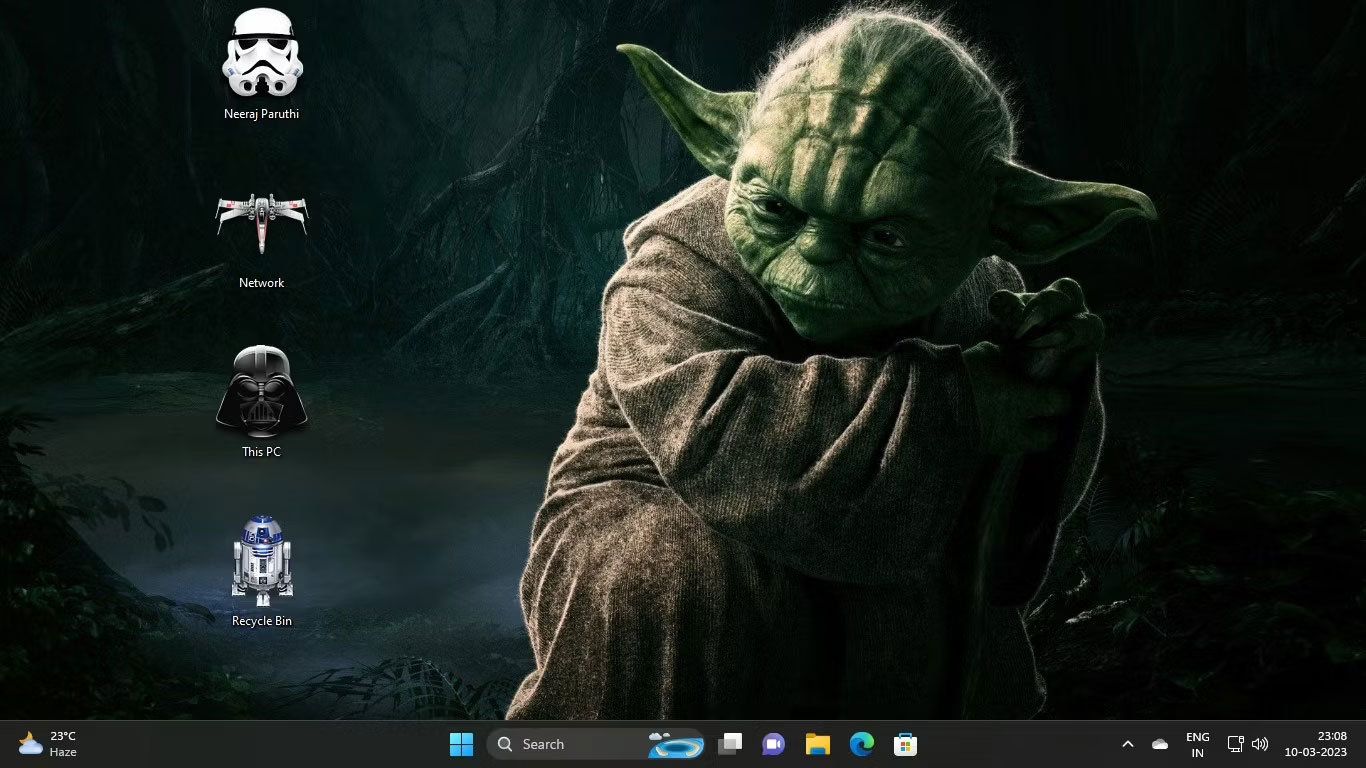
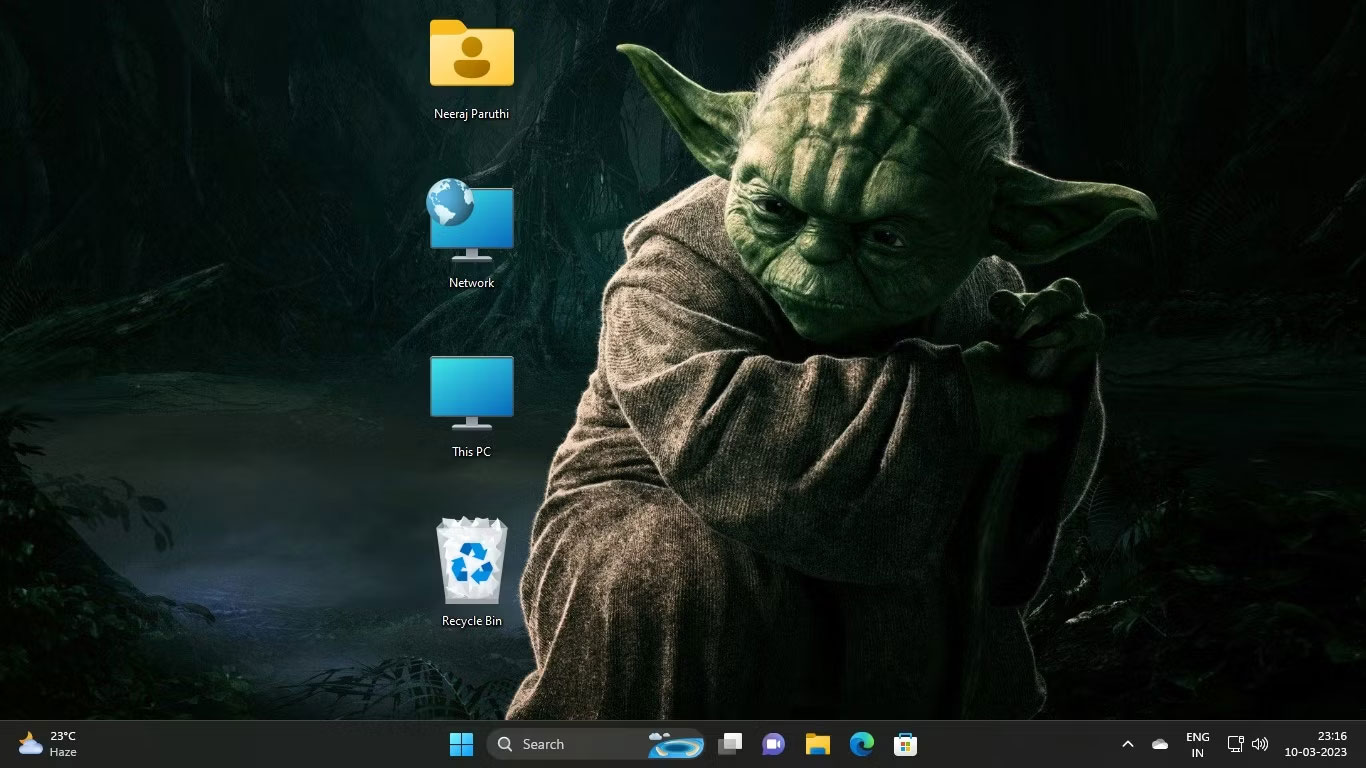
<p style="text-align: justify;">Ví dụ, bạn đã thêm theme Chiến tranh giữa các vì sao như hình bên dưới. Như bạn thấy, các biểu tượng mặc định cũng đã bị thay đổi theo theme.</p>

<figure>
<div style="text-align: justify;"><img alt="Theme Windows Chiến Tranh Giữa Các Vì Sao " data-i="0" data-src="https://st.quantrimang.com/photos/image/2023/03/20/giu-bieu-tuong-desktop-con-tro-chuot-mac-dinh-khi-doi-theme-1.jpg" data-was-processed="true" height="768" src="https://st.quantrimang.com/photos/image/2023/03/20/giu-bieu-tuong-desktop-con-tro-chuot-mac-dinh-khi-doi-theme-1.jpg" width="1366" /></div>

<figcaption>
<div style="text-align: justify;">Theme Windows Chiến Tranh Giữa Các Vì Sao</div>
</figcaption>
</figure>

<p style="text-align: justify;">Bạn thích các biểu tượng mặc định của Windows hơn các biểu tượng mà theme mới của bạn cung cấp. Đừng lo lắng, bạn có thể dễ dàng ngăn theme Chiến tranh giữa các vì sao hoặc bất kỳ theme nào khác thay đổi những biểu tượng desktop của mình. Hãy thực hiện các bước sau trước khi áp dụng một theme mới:</p>

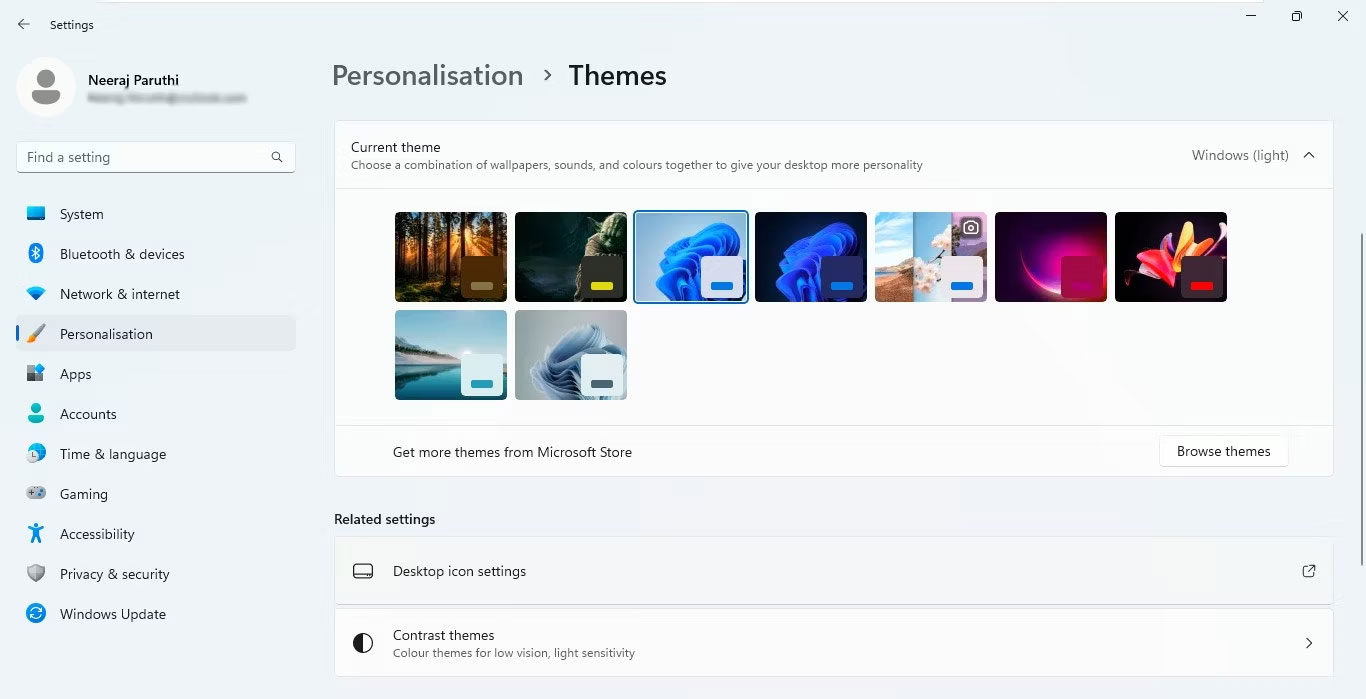
<p style="text-align: justify;">1. Nhấp chuột phải vào desktop, chọn&nbsp;<strong>Personalize</strong>, sau đó chọn theme từ ngăn bên phải trong cài đặt&nbsp;<strong>Personalization</strong>.</p>

<p style="text-align: justify;">2. Trong cài đặt&nbsp;<strong>Themes</strong>, bên dưới&nbsp;<strong>Related settings</strong>, hãy nhấp vào&nbsp;<strong>Desktop icon settings</strong>.</p>

<figure>
<div style="text-align: justify;"><img alt="Chọn Desktop icon settings trong Related settings" data-i="1" data-src="https://st.quantrimang.com/photos/image/2023/03/20/giu-bieu-tuong-desktop-con-tro-chuot-mac-dinh-khi-doi-theme-2.jpg" data-was-processed="true" height="699" src="https://st.quantrimang.com/photos/image/2023/03/20/giu-bieu-tuong-desktop-con-tro-chuot-mac-dinh-khi-doi-theme-2.jpg" width="1366" /></div>

<figcaption>
<div style="text-align: justify;">Chọn Desktop icon settings trong Related settings</div>
</figcaption>
</figure>

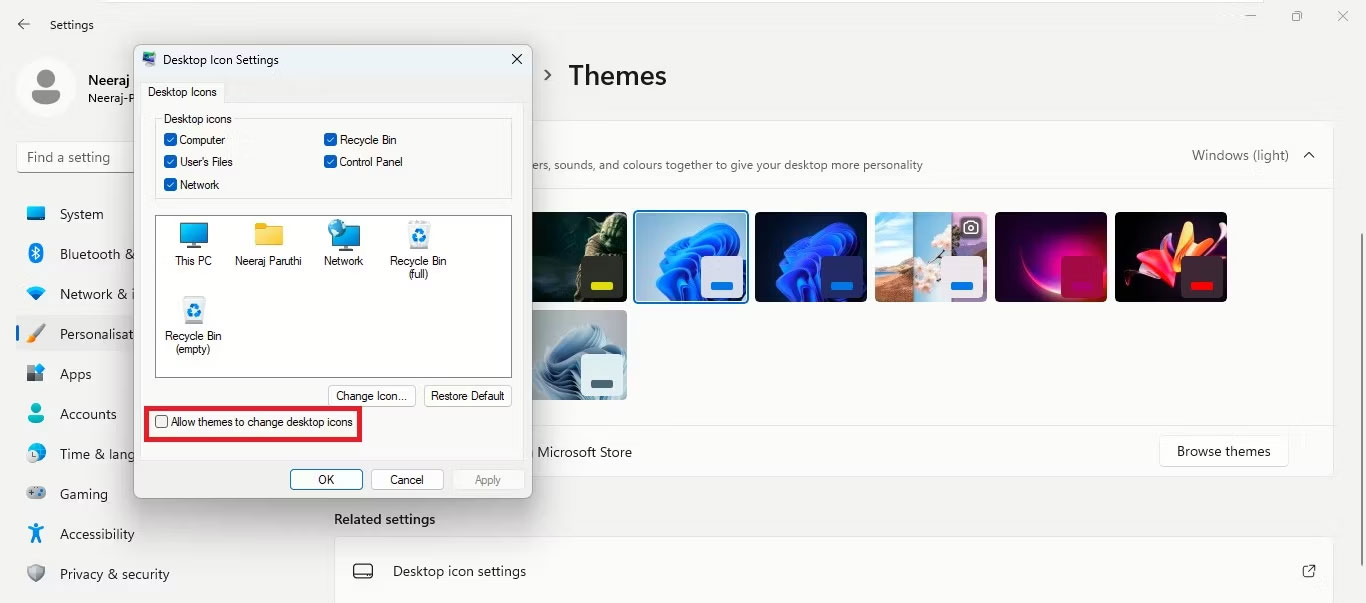
<p style="text-align: justify;">3. Sau đó, trong cửa sổ&nbsp;<strong>Desktop Icon Settings</strong>, bỏ chọn hộp bên cạnh&nbsp;<strong>Allow themes to change desktop icons</strong>.</p>

<figure>
<div style="text-align: justify;"><img alt="Bỏ chọn Allow Themes To Change Desktop Icons" data-i="2" data-src="https://st.quantrimang.com/photos/image/2023/03/20/giu-bieu-tuong-desktop-con-tro-chuot-mac-dinh-khi-doi-theme-3.jpg" data-was-processed="true" height="603" src="https://st.quantrimang.com/photos/image/2023/03/20/giu-bieu-tuong-desktop-con-tro-chuot-mac-dinh-khi-doi-theme-3.jpg" width="1366" /></div>

<figcaption>
<div style="text-align: justify;">Bỏ chọn Allow Themes To Change Desktop Icons</div>
</figcaption>
</figure>

<p style="text-align: justify;">4. Cuối cùng, nhấp vào&nbsp;<strong>Apply &gt; OK.</strong></p>

<figure>
<div style="text-align: justify;"><img alt="Các biểu tượng màn hình mặc định trong theme Windows mới" data-i="3" data-src="https://st.quantrimang.com/photos/image/2023/03/20/giu-bieu-tuong-desktop-con-tro-chuot-mac-dinh-khi-doi-theme-4.jpg" data-was-processed="true" height="768" src="https://st.quantrimang.com/photos/image/2023/03/20/giu-bieu-tuong-desktop-con-tro-chuot-mac-dinh-khi-doi-theme-4.jpg" width="1366" /></div>

<figcaption>
<div style="text-align: justify;">Các biểu tượng màn hình mặc định trong theme Windows mới</div>
</figcaption>
</figure>

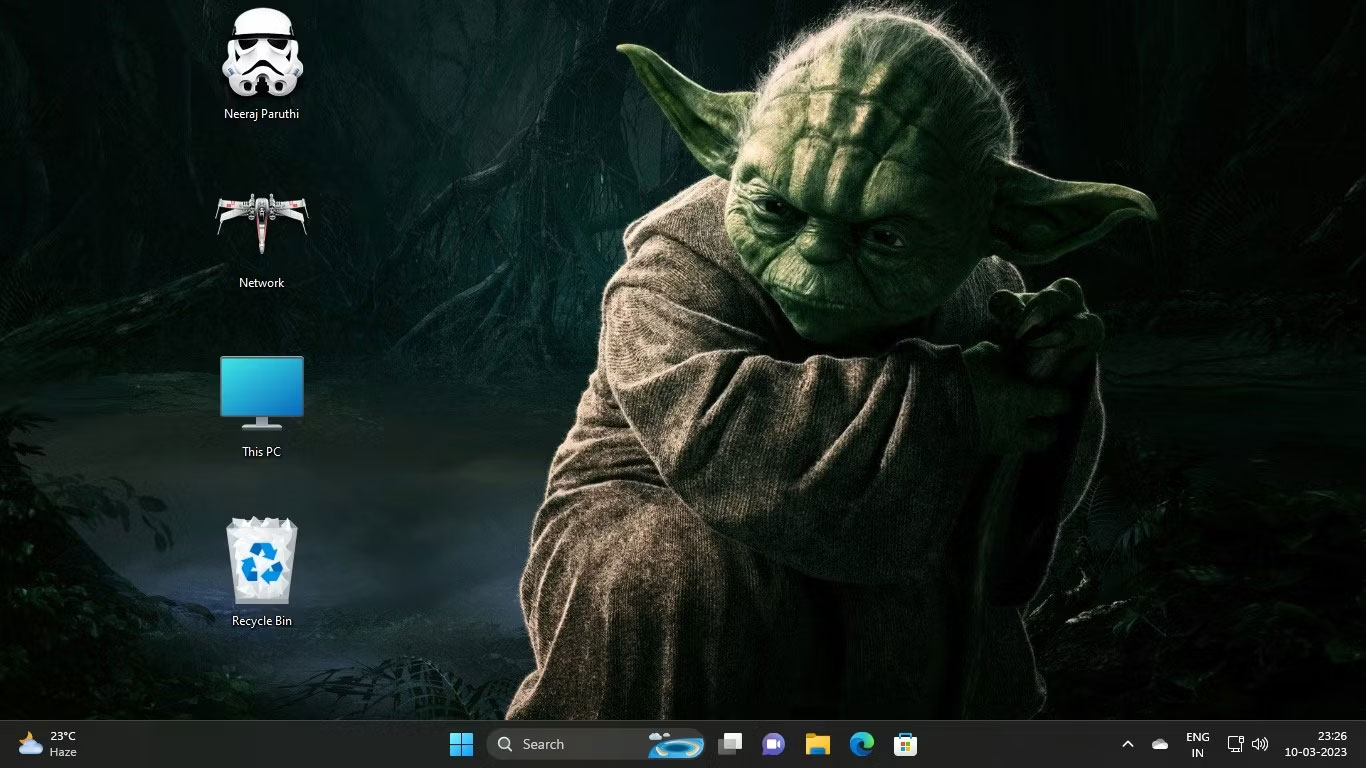
<p style="text-align: justify;">Giờ đây, bất cứ khi nào bạn thay đổi theme, các biểu tượng màn hình mặc định của bạn sẽ không thay đổi.</p>

<h2 style="text-align: justify;">Cách sử dụng kết hợp cả biểu tượng theme và biểu tượng desktop mặc định</h2>

<p style="text-align: justify;">Giả sử bạn chỉ thích hai biểu tượng desktop của theme mới và muốn giữ nguyên các biểu tượng desktop mặc định khác, bạn cũng có thể làm điều đó.</p>

<p style="text-align: justify;">Một lần nữa, hãy lấy các biểu tượng theme Chiến tranh giữa các vì sao làm ví dụ. Giả sử, bạn không thích dùng&nbsp;<strong>Darth Vader</strong>&nbsp;làm biểu tượng cho&nbsp;<strong>This PC</strong>&nbsp;và&nbsp;<strong>R2-D2</strong>&nbsp;làm biểu tượng cho&nbsp;<strong>Recycle Bin,</strong>&nbsp;nhưng bạn muốn dùng&nbsp;<strong>Stormtrooper</strong>&nbsp;làm biểu tượng cho&nbsp;<strong>Files</strong>&nbsp;và&nbsp;<strong>X-Wing Starfighter</strong>&nbsp;cho&nbsp;<strong>Network</strong>&nbsp;.</p>

<p style="text-align: justify;">Bạn có thể giữ các biểu tượng theme mà mình thích và thay thế những biểu tượng theme mà bạn không thích bằng các biểu tượng mặc định. Đây là cách thực hiện:</p>

<p style="text-align: justify;">1. Nhấp chuột phải vào desktop và chọn&nbsp;<strong>Personalize</strong>&nbsp;&gt;&nbsp;<strong>Themes</strong>&nbsp;&gt;&nbsp;<strong>Desktop icon settings</strong>.</p>

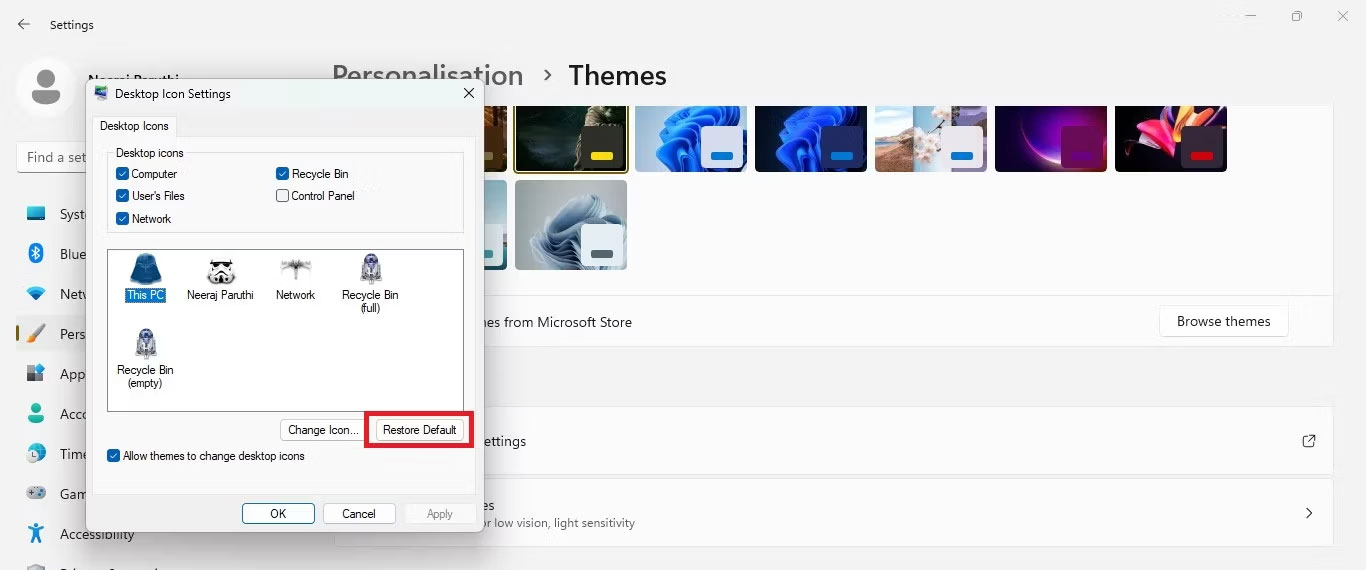
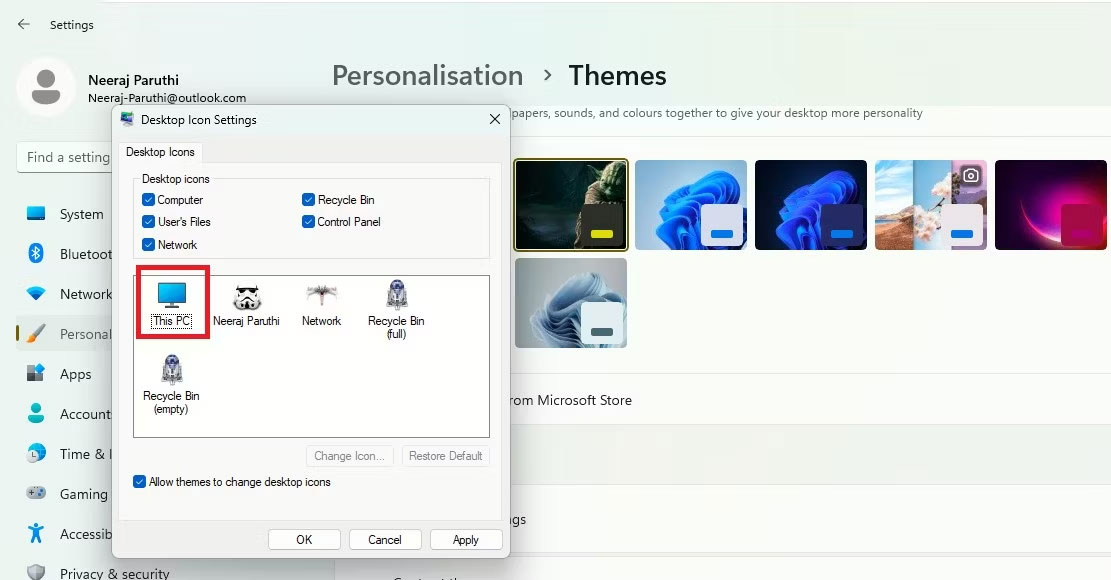
<p style="text-align: justify;">2. Trong&nbsp;<strong>Desktop Icon Settings</strong>, hãy chọn từng biểu tượng theme mà bạn muốn thay đổi. Vì vậy, trước tiên hãy chọn&nbsp;<strong>This PC</strong>&nbsp;hoặc&nbsp;<strong>Darth Vader</strong>, như trong ảnh chụp màn hình bên dưới. Sau đó bấm vào&nbsp;<strong>Restore Default</strong>.</p>

<figure>
<div style="text-align: justify;"><img alt="Đầu tiên chọn biểu tượng riêng lẻ và sau đó khôi phục mặc định" data-i="4" data-src="https://st.quantrimang.com/photos/image/2023/03/20/giu-bieu-tuong-desktop-con-tro-chuot-mac-dinh-khi-doi-theme-5.jpg" data-was-processed="true" height="570" src="https://st.quantrimang.com/photos/image/2023/03/20/giu-bieu-tuong-desktop-con-tro-chuot-mac-dinh-khi-doi-theme-5.jpg" width="1366" /></div>

<figcaption>
<div style="text-align: justify;">Đầu tiên chọn biểu tượng riêng lẻ và sau đó khôi phục mặc định</div>
</figcaption>
</figure>

<p style="text-align: justify;">Bạn sẽ thấy biểu tượng theme thay đổi trở lại biểu tượng mặc định trong cài đặt biểu tượng desktop.</p>

<figure>
<div style="text-align: justify;"><img alt="Biểu tượng theme được thay đổi thành biểu tượng desktop mặc định" data-i="5" data-src="https://st.quantrimang.com/photos/image/2023/03/20/giu-bieu-tuong-desktop-con-tro-chuot-mac-dinh-khi-doi-theme-6.jpg" data-was-processed="true" height="580" src="https://st.quantrimang.com/photos/image/2023/03/20/giu-bieu-tuong-desktop-con-tro-chuot-mac-dinh-khi-doi-theme-6.jpg" width="1111" /></div>

<figcaption>
<div style="text-align: justify;">Biểu tượng theme được thay đổi thành biểu tượng desktop mặc định</div>
</figcaption>
</figure>

<p style="text-align: justify;">3. Bây giờ, hãy thay đổi&nbsp;<strong>Recycle Bin</strong>&nbsp;hoặc&nbsp;<strong>R2-D2</strong>&nbsp;trở lại biểu tượng mặc định.</p>

<p style="text-align: justify;">4. Cuối cùng, nhấp vào&nbsp;<strong>Apply &gt; OK.</strong></p>

<figure>
<div style="text-align: justify;"><img alt="Theme mới với cả biểu tượng theme và biểu tượng mặc định" data-i="6" data-src="https://st.quantrimang.com/photos/image/2023/03/20/giu-bieu-tuong-desktop-con-tro-chuot-mac-dinh-khi-doi-theme-7.jpg" data-was-processed="true" height="768" src="https://st.quantrimang.com/photos/image/2023/03/20/giu-bieu-tuong-desktop-con-tro-chuot-mac-dinh-khi-doi-theme-7.jpg" width="1366" /></div>

<figcaption>
<div style="text-align: justify;">Theme mới với cả biểu tượng theme và biểu tượng mặc định</div>
</figcaption>
</figure>

<p style="text-align: justify;">Giờ đây, bạn có thể tận hưởng trải nghiệm Windows được cá nhân hóa với tất cả các biểu tượng desktop được tùy chỉnh theo ý thích của mình.</p>

<h2 style="text-align: justify;">Cách giữ lại các biểu tượng desktop gốc khi thay đổi theme thông qua Registry Editor</h2>

<p style="text-align: justify;">Bạn cũng có thể sử dụng Registry Editor để đảm bảo rằng theme không thay đổi các biểu tượng desktop. Tuy nhiên, việc điều chỉnh cài đặt registry cần phải được thực hiện một cách thận trọng. Vì vậy, bài viết khuyên bạn nên tạo một điểm khôi phục đề phòng trường hợp xảy ra sự cố. Sau đó làm theo các bước bên dưới:</p>

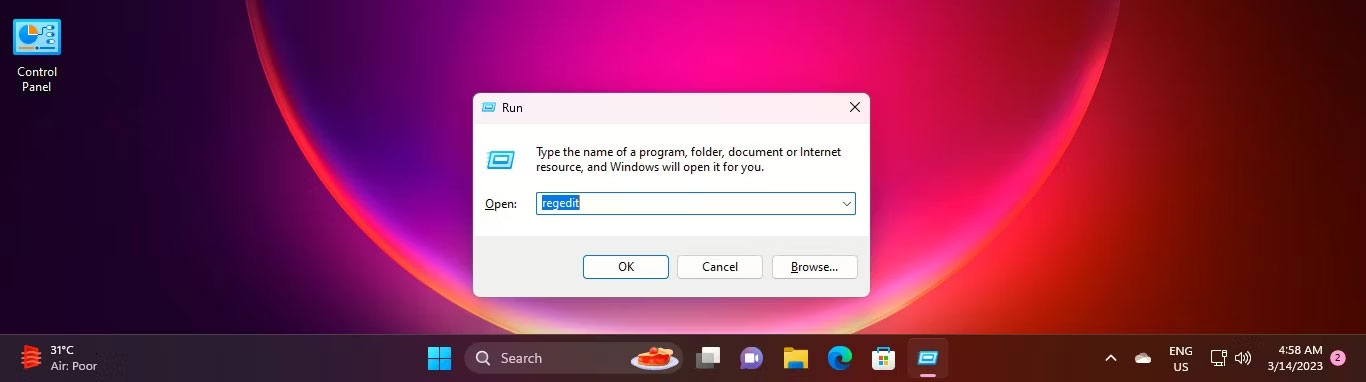
<p style="text-align: justify;">1. Nhấp vào các phím&nbsp;<strong>Win + R</strong>&nbsp;cùng lúc để&nbsp;<a href="https://quantrimang.com/cong-nghe/cach-mo-hop-thoai-run-trong-windows-187019" title="7 cách mở hộp thoại Run trong Windows">mở Run</a>. Nhập&nbsp;<strong>regedit</strong>&nbsp;vào thanh điều hướng và nhấn&nbsp;<strong>Enter</strong>&nbsp;hoặc sử dụng một trong nhiều&nbsp;<a href="https://quantrimang.com/cong-nghe/cach-mo-registry-editor-tren-windows-143522" title="Cách mở Registry Editor trên Windows">cách để mở Registry Editor</a>. Sau đó nhấp vào&nbsp;<strong>Yes</strong>&nbsp;trên UAC.</p>

<figure>
<div style="text-align: justify;"><img alt="Mở Registry Editor qua Run" data-i="7" data-src="https://st.quantrimang.com/photos/image/2023/03/20/giu-bieu-tuong-desktop-con-tro-chuot-mac-dinh-khi-doi-theme-8.jpg" data-was-processed="true" height="382" src="https://st.quantrimang.com/photos/image/2023/03/20/giu-bieu-tuong-desktop-con-tro-chuot-mac-dinh-khi-doi-theme-8.jpg" width="1366" /></div>

<figcaption>
<div style="text-align: justify;">Mở Registry Editor qua Run</div>
</figcaption>
</figure>

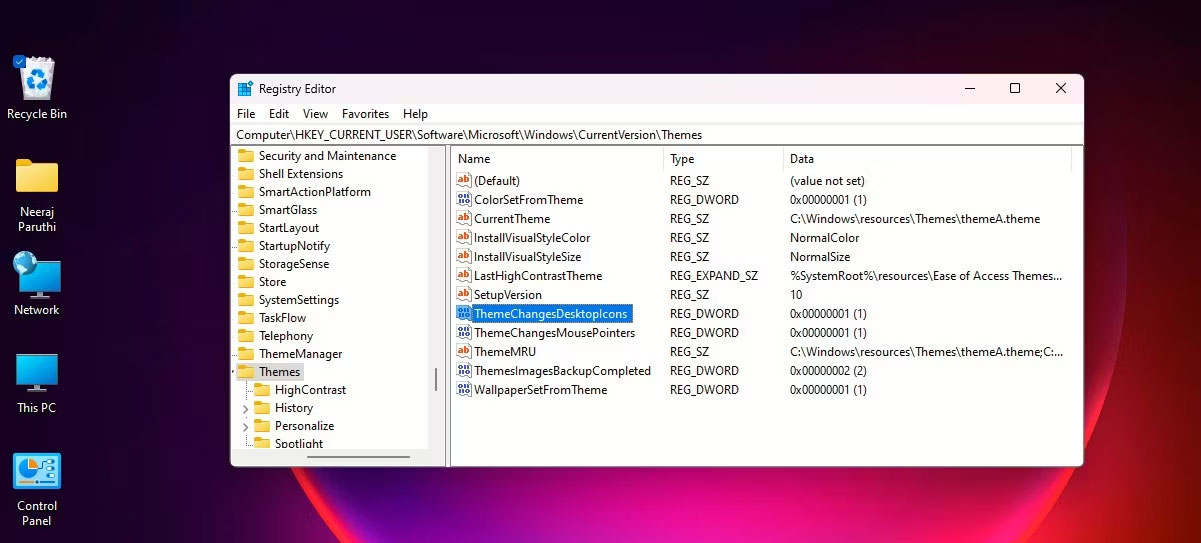
<p style="text-align: justify;">2. Bây giờ, điều hướng qua registry bằng đường dẫn sau để đến Themes:</p>

<pre id="pre0">
<code>HKEY_CURRENT_USER\Software\Microsoft\Windows\CurrentVersion\Themes</code></pre>

<p style="text-align: justify;">3. Trên ngăn bên phải của theme, nhấp đúp vào&nbsp;<strong>DWORD: ThemeChangesDesktopIcons</strong></p>

<figure>
<div style="text-align: justify;"><img alt="Nhấp đúp vào DWORD: ThemeChangesDesktopIcons" data-i="8" data-src="https://st.quantrimang.com/photos/image/2023/03/20/giu-bieu-tuong-desktop-con-tro-chuot-mac-dinh-khi-doi-theme-9.jpg" data-was-processed="true" height="543" src="https://st.quantrimang.com/photos/image/2023/03/20/giu-bieu-tuong-desktop-con-tro-chuot-mac-dinh-khi-doi-theme-9.jpg" width="1201" /></div>

<figcaption>
<div style="text-align: justify;">Nhấp đúp vào DWORD: ThemeChangesDesktopIcons</div>
</figcaption>
</figure>

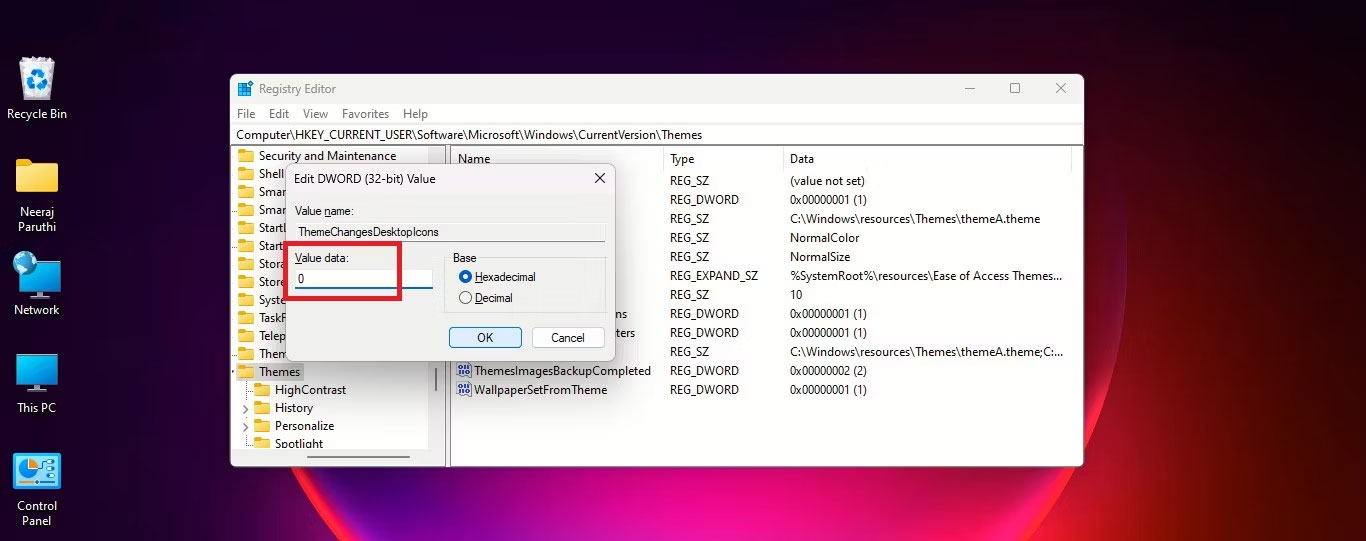
<p style="text-align: justify;">4. Trong cửa sổ&nbsp;<strong>EDIT DWord</strong>, thay đổi&nbsp;<strong>Value data</strong>&nbsp;từ&nbsp;<strong>1</strong>&nbsp;thành&nbsp;<strong>0</strong>. Và nhấp vào&nbsp;<strong>OK.</strong></p>

<figure>
<div style="text-align: justify;"><img alt="Thay đổi theme Value data từ 1 thành 0" data-i="9" data-src="https://st.quantrimang.com/photos/image/2023/03/20/giu-bieu-tuong-desktop-con-tro-chuot-mac-dinh-khi-doi-theme-10.jpg" data-was-processed="true" height="541" src="https://st.quantrimang.com/photos/image/2023/03/20/giu-bieu-tuong-desktop-con-tro-chuot-mac-dinh-khi-doi-theme-10.jpg" width="1366" /></div>

<figcaption>
<div style="text-align: justify;">Thay đổi theme Value data từ 1 thành 0</div>
</figcaption>
</figure>

<p style="text-align: justify;">5. Đóng Registry Editor.</p>

<p style="text-align: justify;">Bây giờ, khi bạn đổi sang một theme mới, các biểu tượng desktop sẽ không thay đổi theo theme đó.</p>

<p style="text-align: justify;">Bạn có thể dễ dàng đảo ngược điều này bằng cách điều hướng đến registry key:</p>

<pre id="pre1">
<code>HKEY_CURRENT_USER\Software\Microsoft\Windows\CurrentVersion\Themes</code></pre>

<p style="text-align: justify;">Sau đó nhấp đúp vào&nbsp;<strong>DWORD: ThemeChangesDesktopIcons</strong>&nbsp;và thay đổi&nbsp;<strong>Value Data</strong>&nbsp;thành&nbsp;<strong>1</strong>. Từ bây giờ, các theme mới mà bạn áp dụng sẽ có thể cài đặt các biểu tượng mới thay vì những biểu tượng desktop mặc định.</p>

<h2 style="text-align: justify;">Cách giữ lại con trỏ chuột ban đầu khi thay đổi theme</h2>

<p style="text-align: justify;">Một số theme cũng thay đổi con trỏ chuột để mở rộng hiệu ứng theme hơn nữa trong Windows.</p>

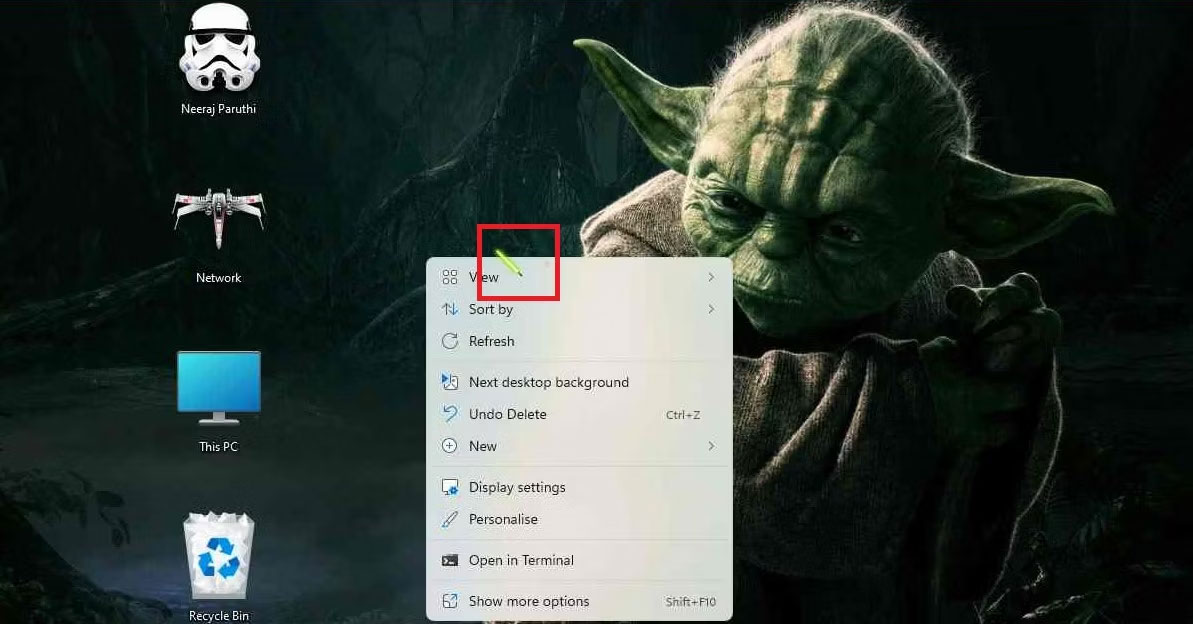
<p style="text-align: justify;">Theme Chiến tranh giữa các vì sao được sử dụng cho hướng dẫn này sẽ thay đổi con trỏ chuột thành một thanh kiếm ánh sáng đầy màu sắc. Nó trông bắt mắt, nhưng không tiện dụng, đặc biệt là khi làm việc trên tài liệu văn bản.</p>

<figure>
<div style="text-align: justify;"><img alt="Theme Stat Wars với con trỏ chuột Lightaber" data-i="10" data-src="https://st.quantrimang.com/photos/image/2023/03/20/giu-bieu-tuong-desktop-con-tro-chuot-mac-dinh-khi-doi-theme-11.jpg" data-was-processed="true" height="624" src="https://st.quantrimang.com/photos/image/2023/03/20/giu-bieu-tuong-desktop-con-tro-chuot-mac-dinh-khi-doi-theme-11.jpg" width="1193" /></div>

<figcaption>
<div style="text-align: justify;">Theme Stat Wars với con trỏ chuột Lightaber</div>
</figcaption>
</figure>

<p style="text-align: justify;">Nhưng bạn có thể dễ dàng khôi phục con trỏ chuột mũi tên mặc định để hoạt động trơn tru và hiệu quả như trước. Tuy nhiên, để lấy lại con trỏ chuột mặc định, bạn sẽ phải chỉnh sửa registry vì không có tùy chọn nào khác trong Settings.</p>

<p style="text-align: justify;">Nhưng yên tâm, mọi thao tác rất dễ dàng. Điều hướng đến cùng một key Themes như bạn đã làm trước đây để tinh chỉnh key biểu tượng desktop:</p>

<pre id="pre2">
<code>HKEY_CURRENT_USER\Software\Microsoft\Windows\CurrentVersion\Themes</code></pre>

<p style="text-align: justify;">Trên ngăn bên phải, ngay bên dưới&nbsp;<strong>DWORD: ThemeChangesDesktopIcons</strong>, bạn sẽ tìm thấy&nbsp;<strong>DWORD: ThemeChangesMousePointers.</strong></p>

<figure>
<div style="text-align: justify;"><img alt="Nhấp đúp chuột vào ThemeChangesMousePointers" data-i="11" data-src="https://st.quantrimang.com/photos/image/2023/03/20/giu-bieu-tuong-desktop-con-tro-chuot-mac-dinh-khi-doi-theme-12.jpg" data-was-processed="true" height="542" src="https://st.quantrimang.com/photos/image/2023/03/20/giu-bieu-tuong-desktop-con-tro-chuot-mac-dinh-khi-doi-theme-12.jpg" width="1366" /></div>

<figcaption>
<div style="text-align: justify;">Nhấp đúp chuột vào ThemeChangesMousePointers</div>
</figcaption>
</figure>

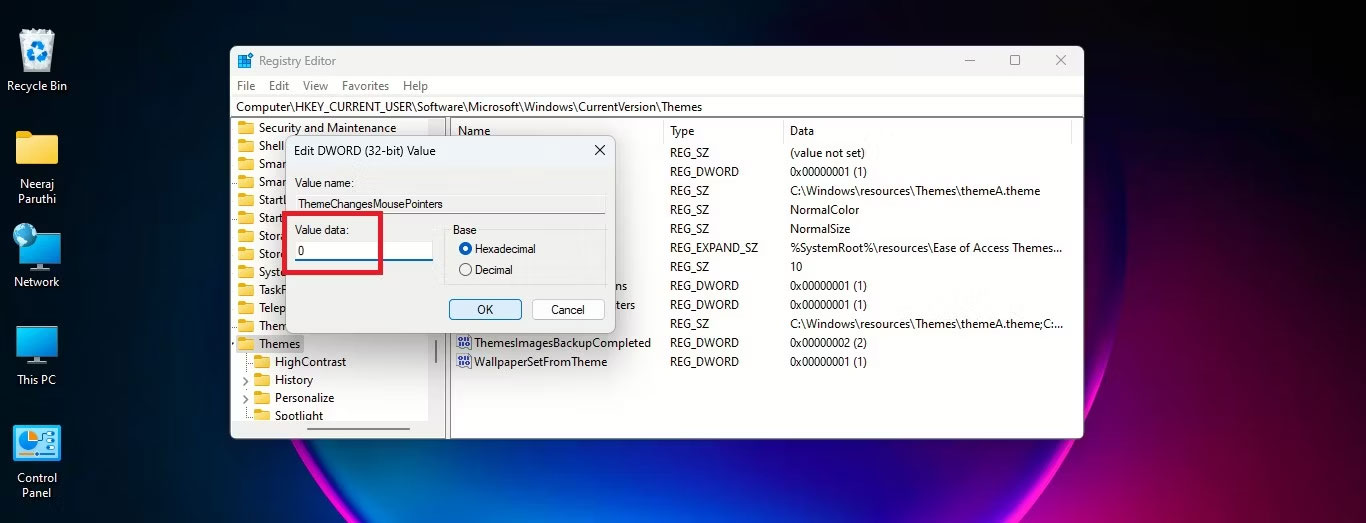
<p style="text-align: justify;">Nhấp đúp vào nó và thay đổi&nbsp;<strong>Value data</strong>&nbsp;thành<strong>&nbsp;0</strong>. Sau đó nhấn&nbsp;<strong>OK.</strong></p>

<figure>
<div style="text-align: justify;"><img alt="Thay đổi Value data thành 0" data-i="12" data-src="https://st.quantrimang.com/photos/image/2023/03/20/giu-bieu-tuong-desktop-con-tro-chuot-mac-dinh-khi-doi-theme-13.jpg" data-was-processed="true" height="523" src="https://st.quantrimang.com/photos/image/2023/03/20/giu-bieu-tuong-desktop-con-tro-chuot-mac-dinh-khi-doi-theme-13.jpg" width="1366" /></div>

<figcaption>
<div style="text-align: justify;">Thay đổi Value data thành 0</div>
</figcaption>
</figure>

<p style="text-align: justify;">Con trỏ mũi tên mặc định của Windows sẽ xuất hiện trong các theme mới mà bạn áp dụng trên PC của mình.</p>

<div style="text-align: justify;">&nbsp;</div>
		</div>
				<div id="author">
						<p>
				<strong>Nguồn tin:</strong>
				Quantrimang.com
			</p>
		</div>
	</div>
	<div id="footer" class="clearfix">
		<div id="url">
			<strong>URL của bản tin này: </strong><a href="https://www.nguoicodonvn2008.info/vi/news/savefile/kien-thuc-may-tinh/cach-giu-cac-bieu-tuong-desktop-va-con-tro-chuot-mac-dinh-khi-thay-doi-theme-windows-11-6903.html" title="Cách giữ các biểu tượng desktop và con trỏ chuột mặc định khi thay đổi theme Windows 11">https://www.nguoicodonvn2008.info/vi/news/savefile/kien-thuc-may-tinh/cach-giu-cac-bieu-tuong-desktop-va-con-tro-chuot-mac-dinh-khi-thay-doi-theme-windows-11-6903.html</a>

		</div>
		<div class="clear"></div>
		<div class="copyright">
			&copy; .&#x3A; Nguoicodonvn2008.info - Cõi lòng người cô đơn &#x3A;.
		</div>
		<div id="contact">
			<a href="mailto:admin@nguoicodonvn2008.info">admin@nguoicodonvn2008.info</a>
		</div>
	</div>
</div>
        <div id="timeoutsess" class="chromeframe">
            Bạn đã không sử dụng Site, <a onclick="timeoutsesscancel();" href="https://www.nguoicodonvn2008.info/#">Bấm vào đây để duy trì trạng thái đăng nhập</a>. Thời gian chờ: <span id="secField"> 60 </span> giây
        </div>
        <div id="openidResult" class="nv-alert" style="display:none"></div>
        <div id="openidBt" data-result="" data-redirect=""></div>
		</script>
		<div class="car-top">
  <span><img src="https://www.nguoicodonvn2008.info/themes/default/images/car.png" alt=""></span>
</div>
<div id="run_cronjobs" style="visibility:hidden;display:none;"><img alt="cron" src="/index.php?second=cronjobs&amp;p=o4hiUOht" width="1" height="1" /></div>
<script src="https://www.nguoicodonvn2008.info/assets/js/jquery/jquery.min.js"></script>
<script>var nv_base_siteurl="/",nv_lang_data="vi",nv_lang_interface="vi",nv_name_variable="nv",nv_fc_variable="op",nv_lang_variable="language",nv_module_name="news",nv_func_name="savefile",nv_is_user=0, nv_my_ofs=-4,nv_my_abbr="EDT",nv_cookie_prefix="nv4c_e856T",nv_check_pass_mstime=1738000,nv_area_admin=0,nv_safemode=0,theme_responsive=0,nv_recaptcha_ver=2,nv_recaptcha_sitekey="",nv_recaptcha_type="image",XSSsanitize=1;</script>
<script src="https://www.nguoicodonvn2008.info/assets/js/language/vi.js"></script>
<script src="https://www.nguoicodonvn2008.info/assets/js/DOMPurify/purify3.js"></script>
<script src="https://www.nguoicodonvn2008.info/assets/js/global.js"></script>
<script src="https://www.nguoicodonvn2008.info/assets/js/site.js"></script>
<script src="https://www.nguoicodonvn2008.info/themes/default/js/news.js"></script>
<script src="https://www.nguoicodonvn2008.info/themes/default/js/main.js"></script>
<script src="https://www.nguoicodonvn2008.info/themes/default/js/custom.js"></script>
<script type="application/ld+json">
        {
            "@context": "https://schema.org",
            "@type": "Organization",
            "url": "https://www.nguoicodonvn2008.info",
            "logo": "https://www.nguoicodonvn2008.info/uploads/angel.gif"
        }
        </script>
<script src="https://www.nguoicodonvn2008.info/themes/default/js/bootstrap.min.js"></script>
<script type="text/javascript">
var $scrolltop = $('.car-top');
$scrolltop.on('click', function () {
    $('html,body').animate({
        scrollTop: 0
    }, 800);
    $(this).addClass("car-run");
    setTimeout(function(){ $scrolltop.removeClass('car-run');}, 1000);
    return false;
});
$(window).on('scroll', function ()
{ 
    if($(window).scrollTop() >= 200)
    {
        $scrolltop.addClass("show");
        $scrolltop.addClass("car-down");
    }
    else
    {
       $scrolltop.removeClass("show");
       setTimeout(function(){ $scrolltop.removeClass('car-down');}, 300);
    }
});
</script>
</body>
</html>