<!DOCTYPE html>
    <html lang="vi" xmlns="http://www.w3.org/1999/xhtml" prefix="og: http://ogp.me/ns#">
    <head>
<title>Cách dùng ứng dụng Files quản lý file trên Windows</title>
<meta name="description" content="Cách dùng ứng dụng Files quản lý file trên Windows - Savefile - Tin Tức -...">
<meta name="author" content=".: Nguoicodonvn2008.info - Cõi lòng người cô đơn :.">
<meta name="copyright" content=".: Nguoicodonvn2008.info - Cõi lòng người cô đơn :. [admin@nguoicodonvn2008.info]">
<meta name="robots" content="index, archive, follow, noodp">
<meta name="googlebot" content="index,archive,follow,noodp">
<meta name="msnbot" content="all,index,follow">
<meta name="generator" content="NukeViet v4.5">
<meta http-equiv="Content-Type" content="text/html; charset=utf-8">
<meta property="og:title" content="Cách dùng ứng dụng Files quản lý file trên Windows">
<meta property="og:type" content="website">
<meta property="og:description" content="Savefile - Tin Tức - https&#x3A;&#x002F;&#x002F;www.nguoicodonvn2008.info&#x002F;vi&#x002F;news&#x002F;savefile&#x002F;kien-thuc-may-tinh&#x002F;cach-dung-ung-dung-files-quan-ly-file-tren-windows-10845.html">
<meta property="og:site_name" content=".&#x3A; Nguoicodonvn2008.info - Cõi lòng người cô đơn &#x3A;.">
<meta property="og:url" content="https://www.nguoicodonvn2008.info/vi/news/savefile/kien-thuc-may-tinh/cach-dung-ung-dung-files-quan-ly-file-tren-windows-10845.html">
<link rel="shortcut icon" href="https://www.nguoicodonvn2008.info/favicon.ico">
<link rel="canonical" href="https://www.nguoicodonvn2008.info/vi/news/savefile/kien-thuc-may-tinh/cach-dung-ung-dung-files-quan-ly-file-tren-windows-10845.html">
<link rel="alternate" href="https://www.nguoicodonvn2008.info/vi/news/rss/" title="Tin Tức" type="application/rss+xml">
<link rel="alternate" href="https://www.nguoicodonvn2008.info/vi/news/rss/karaoke-dual/" title="Tin Tức - Karaoke Dual" type="application/rss+xml">
<link rel="alternate" href="https://www.nguoicodonvn2008.info/vi/news/rss/nhac-tre/" title="Tin Tức - Nhạc trẻ" type="application/rss+xml">
<link rel="alternate" href="https://www.nguoicodonvn2008.info/vi/news/rss/tru-tinh/" title="Tin Tức - Trữ tình" type="application/rss+xml">
<link rel="alternate" href="https://www.nguoicodonvn2008.info/vi/news/rss/nuoc-ngoai/" title="Tin Tức - Nước ngoài" type="application/rss+xml">
<link rel="alternate" href="https://www.nguoicodonvn2008.info/vi/news/rss/remix/" title="Tin Tức - Remix" type="application/rss+xml">
<link rel="alternate" href="https://www.nguoicodonvn2008.info/vi/news/rss/tam-su-tinh-yeu/" title="Tin Tức - Tâm sự tình yêu" type="application/rss+xml">
<link rel="alternate" href="https://www.nguoicodonvn2008.info/vi/news/rss/tho-suu-tam/" title="Tin Tức - Thơ sưu tầm" type="application/rss+xml">
<link rel="alternate" href="https://www.nguoicodonvn2008.info/vi/news/rss/cuoc-song/" title="Tin Tức - Cuộc sống" type="application/rss+xml">
<link rel="alternate" href="https://www.nguoicodonvn2008.info/vi/news/rss/phan-mem/" title="Tin Tức - Phần mềm" type="application/rss+xml">
<link rel="alternate" href="https://www.nguoicodonvn2008.info/vi/news/rss/kien-thuc-may-tinh/" title="Tin Tức - Kiến thức máy tính" type="application/rss+xml">
<link rel="alternate" href="https://www.nguoicodonvn2008.info/vi/news/rss/hoc-tap/" title="Tin Tức - Học tập" type="application/rss+xml">
<link rel="alternate" href="https://www.nguoicodonvn2008.info/vi/news/rss/tai-lieu/" title="Tin Tức - Tài liệu" type="application/rss+xml">
<link rel="alternate" href="https://www.nguoicodonvn2008.info/vi/news/rss/de-thi/" title="Tin Tức - Đề thi" type="application/rss+xml">
<link rel="preload" as="style" href="https://www.nguoicodonvn2008.info/assets/css/font-awesome.min.css" type="text/css">
<link rel="preload" as="style" href="https://www.nguoicodonvn2008.info/themes/default/css/bootstrap.non-responsive.css" type="text/css">
<link rel="preload" as="style" href="https://www.nguoicodonvn2008.info/themes/default/css/style.css" type="text/css">
<link rel="preload" as="style" href="https://www.nguoicodonvn2008.info/themes/default/css/style.non-responsive.css" type="text/css">
<link rel="preload" as="style" href="https://www.nguoicodonvn2008.info/themes/default/css/news.css" type="text/css">
<link rel="preload" as="style" href="https://www.nguoicodonvn2008.info/themes/default/css/custom.css" type="text/css">
<link rel="preload" as="script" href="https://www.nguoicodonvn2008.info/assets/js/jquery/jquery.min.js" type="text/javascript">
<link rel="preload" as="script" href="https://www.nguoicodonvn2008.info/assets/js/language/vi.js" type="text/javascript">
<link rel="preload" as="script" href="https://www.nguoicodonvn2008.info/assets/js/DOMPurify/purify3.js" type="text/javascript">
<link rel="preload" as="script" href="https://www.nguoicodonvn2008.info/assets/js/global.js" type="text/javascript">
<link rel="preload" as="script" href="https://www.nguoicodonvn2008.info/assets/js/site.js" type="text/javascript">
<link rel="preload" as="script" href="https://www.nguoicodonvn2008.info/themes/default/js/news.js" type="text/javascript">
<link rel="preload" as="script" href="https://www.nguoicodonvn2008.info/themes/default/js/main.js" type="text/javascript">
<link rel="preload" as="script" href="https://www.nguoicodonvn2008.info/themes/default/js/custom.js" type="text/javascript">
<link rel="preload" as="script" href="https://www.nguoicodonvn2008.info/themes/default/js/bootstrap.min.js" type="text/javascript">
<link rel="stylesheet" href="https://www.nguoicodonvn2008.info/assets/css/font-awesome.min.css">
<link rel="stylesheet" href="https://www.nguoicodonvn2008.info/themes/default/css/bootstrap.non-responsive.css">
<link rel="stylesheet" href="https://www.nguoicodonvn2008.info/themes/default/css/style.css">
<link rel="stylesheet" href="https://www.nguoicodonvn2008.info/themes/default/css/style.non-responsive.css">
<link rel="StyleSheet" href="https://www.nguoicodonvn2008.info/themes/default/css/news.css">
<link rel="stylesheet" href="https://www.nguoicodonvn2008.info/themes/default/css/custom.css">
<style type="text/css">
	body{background: #fff;}
</style>
    </head>
    <body>
<div id="print">
	<div id="hd_print">
		<h2 class="pull-left">.&#x3A; Nguoicodonvn2008.info - Cõi lòng người cô đơn &#x3A;.</h2>
		<p class="pull-right"><a title=".&#x3A; Nguoicodonvn2008.info - Cõi lòng người cô đơn &#x3A;." href="https://www.nguoicodonvn2008.info/">https://www.nguoicodonvn2008.info</a></p>
	</div>
	<div class="clear"></div>
	<hr />
	<div id="content">
		<h1>Cách dùng ứng dụng Files quản lý file trên Windows</h1>
		<ul class="list-inline">
			<li>Thứ sáu - 25/07/2025 22:53</li>
			<li class="hidden-print txtrequired"><em class="fa fa-print">&nbsp;</em><a title="In ra" href="javascript:;" onclick="window.print()">In ra</a></li>
			<li class="hidden-print txtrequired"><em class="fa fa-power-off">&nbsp;</em><a title="Đóng cửa sổ này" href="javascript:;" onclick="window.close()">Đóng cửa sổ này</a></li>
		</ul>
		<div class="clear"></div>
		<div id="hometext">
		</div>
				<div class="imghome">
			<img alt="Cách dùng ứng dụng Files quản lý file trên Windows" src="https://st.quantrimang.com/photos/image/2025/07/25/ung-dung-files-quan-ly-file-tren-windows-10.jpg" width="460" class="img-thumbnail" />
		</div>
		<div class="clear"></div>
		<div id="bodytext" class="clearfix">
			<p style="text-align: justify;">Bạn đang tìm kiếm một giải pháp thay thế thông minh hơn cho File Explorer của&nbsp;&nbsp;Windows?&nbsp;Ứng dụng Files&nbsp;mang đến một diện mạo mới mẻ, giờ đây với Omnibar mới, giúp đơn giản hóa việc điều hướng và tìm kiếm thành một thanh duy nhất, dễ sử dụng. Dưới đây là cách dùng ứng dụng Files quản lý file trên Windows.</p>

<div style="text-align: justify;">&nbsp;</div>

<h2 style="text-align: justify;">Ứng dụng Files dành cho Windows là gì?</h2>

<p style="text-align: justify;">Files là một&nbsp;ứng dụng thay thế File Explorer&nbsp;mã nguồn mở, có thiết kế gần giống với bản gốc, mặc dù cách tiếp cận của nó mang lại cảm giác hiện đại hơn. Bạn sẽ thấy khung điều hướng quen thuộc ở bên trái, cung cấp quyền truy cập nhanh vào các thư mục và ổ, cùng khu vực nội dung ở bên phải, nơi hiển thị những file và thư mục. Nếu đã quen với File Explorer, bạn sẽ cảm thấy rất quen thuộc.</p>

<p style="text-align: justify;">Ứng dụng này tích hợp tất cả các tính năng bạn có với File Explorer cùng một số chức năng bổ sung hữu ích như gắn thẻ và chế độ xem Split View cho đa nhiệm. Gần đây nhất, ứng dụng đã giới thiệu Omnibar, kết hợp đường dẫn breadcrumb, hộp tìm kiếm cũng như Command Palette (bài viết sẽ thảo luận thêm về tùy chọn này bên dưới) thành một công cụ hợp lý.</p>

<p style="text-align: justify;">Tính năng mới hiện đã có sẵn. Bạn sẽ cần tải xuống bản build Preview mới nhất từ trang download Files để dùng thử.</p>

<h2 style="text-align: justify;">Sử dụng Omnibar</h2>

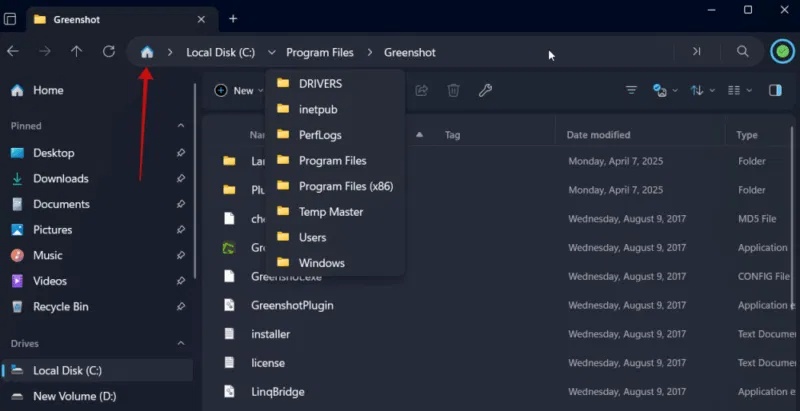
<p style="text-align: justify;">Với bố cục kiểu breadcrumb, Omnibar mới giúp bạn dễ dàng xem chính xác vị trí của mình trong hệ thống file. Mỗi đường dẫn đều có thể mở rộng, hiển thị các thư mục con để điều hướng nhanh hơn. Ở phía bên trái, biểu tượng&nbsp;<strong>Home</strong>&nbsp;cung cấp quyền truy cập nhanh vào các mục được ghim và những thư mục thường dùng.</p>

<figure>
<div style="text-align: justify;"><img alt="Xem thanh đường dẫn trong ứng dụng Files trên máy tính Windows." data-i="0" data-src="https://st.quantrimang.com/photos/image/2025/07/25/ung-dung-files-quan-ly-file-tren-windows-1.jpg" data-was-processed="true" height="411" src="https://st.quantrimang.com/photos/image/2025/07/25/ung-dung-files-quan-ly-file-tren-windows-1.jpg" width="800" /></div>

<figcaption>
<div style="text-align: justify;">Xem thanh đường dẫn trong ứng dụng Files trên&nbsp;<a data-google-interstitial="false" data-google-vignette="false" href="https://quantrimang.com/cong-nghe/cach-dung-ung-dung-files-quan-ly-file-tren-windows-187364#">&nbsp;máy tính</a>&nbsp;Windows.<br />
Phụ kiện máy tính</div>
</figcaption>
</figure>

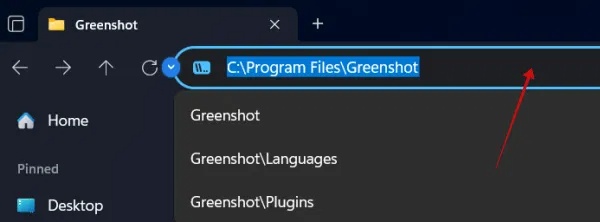
<p style="text-align: justify;">Nếu bạn cần chỉnh sửa đường dẫn, tất cả những gì bạn phải làm là nhấp vào khoảng trống trong menu breadcrumb. Bạn có thể thực hiện các sửa đổi từ đó. Ngoài ra, bạn có thể thử sử dụng phím tắt&nbsp;<strong>Ctrl + L</strong>.</p>

<figure>
<div style="text-align: justify;"><img alt="Nhấp vào khoảng trống trong thanh đường dẫn để chỉnh sửa trong ứng dụng Files trên Windows." data-i="1" data-src="https://st.quantrimang.com/photos/image/2025/07/25/ung-dung-files-quan-ly-file-tren-windows-2.jpg" data-was-processed="true" height="222" src="https://st.quantrimang.com/photos/image/2025/07/25/ung-dung-files-quan-ly-file-tren-windows-2.jpg" width="600" /></div>

<figcaption>
<div style="text-align: justify;">Nhấp vào khoảng trống trong thanh đường dẫn để chỉnh sửa trong ứng dụng Files trên Windows.</div>
</figcaption>
</figure>

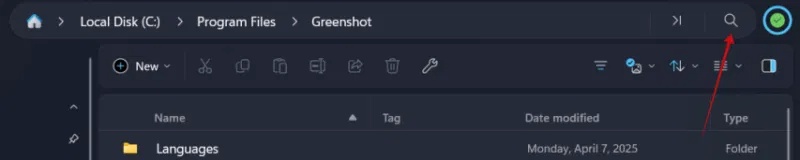
<p style="text-align: justify;">Việc chuyển sang tìm kiếm một file hoặc thư mục cụ thể giờ đây cũng cực kỳ dễ dàng. Nhấp vào biểu tượng kính lúp ở phía bên trái của Omnibar.</p>

<figure>
<div style="text-align: justify;"><img alt="Nút tìm kiếm trong Omnibar trong ứng dụng Files trên Windows." data-i="2" data-src="https://st.quantrimang.com/photos/image/2025/07/25/ung-dung-files-quan-ly-file-tren-windows-3.jpg" data-was-processed="true" height="160" src="https://st.quantrimang.com/photos/image/2025/07/25/ung-dung-files-quan-ly-file-tren-windows-3.jpg" width="800" /></div>

<figcaption>
<div style="text-align: justify;">Nút tìm kiếm trong Omnibar trong ứng dụng Files trên Windows.</div>
</figcaption>
</figure>

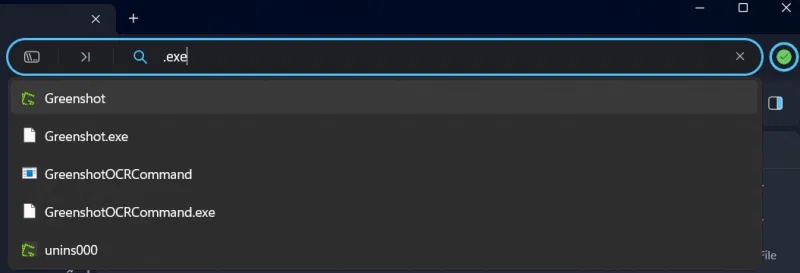
<p style="text-align: justify;">Files sẽ ngay lập tức hiển thị các kết quả tốt nhất bên dưới. Nếu bạn muốn thực hiện tìm kiếm chuyên sâu, hãy nhấn&nbsp;<strong>Enter</strong>.</p>

<figure>
<div style="text-align: justify;"><img alt="Kết quả tìm kiếm trong ứng dụng Files trên máy tính Windows." data-i="3" data-src="https://st.quantrimang.com/photos/image/2025/07/25/ung-dung-files-quan-ly-file-tren-windows-4.jpg" data-was-processed="true" height="273" src="https://st.quantrimang.com/photos/image/2025/07/25/ung-dung-files-quan-ly-file-tren-windows-4.jpg" width="800" /></div>

<figcaption>
<div style="text-align: justify;">Kết quả tìm kiếm trong ứng dụng Files trên máy tính&nbsp;<a data-google-interstitial="false" data-google-vignette="false" href="https://quantrimang.com/cong-nghe/cach-dung-ung-dung-files-quan-ly-file-tren-windows-187364#">&nbsp;Windows</a>.<br />
Phụ kiện máy tính</div>
</figcaption>
</figure>

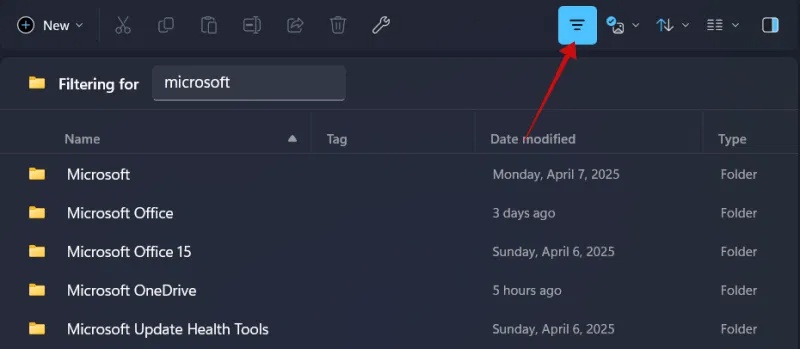
<p style="text-align: justify;">Ngoài ra còn có tùy chọn lọc qua các file và thư mục. Bạn sẽ tìm thấy biểu tượng cho tùy chọn này bên dưới Omnibar ở bên phải.</p>

<figure>
<div style="text-align: justify;"><img alt="Sử dụng bộ lọc để tìm file hoặc thư mục trong ứng dụng Files trên PC Windows." data-adbro-processed="true" data-i="4" data-src="https://st.quantrimang.com/photos/image/2025/07/25/ung-dung-files-quan-ly-file-tren-windows-5.jpg" data-was-processed="true" height="349" src="https://st.quantrimang.com/photos/image/2025/07/25/ung-dung-files-quan-ly-file-tren-windows-5.jpg" width="800" /></div>

<figcaption>
<div style="text-align: justify;">Sử dụng bộ lọc để tìm file hoặc thư mục trong ứng dụng Files trên&nbsp;<a data-google-interstitial="false" data-google-vignette="false" href="https://quantrimang.com/cong-nghe/cach-dung-ung-dung-files-quan-ly-file-tren-windows-187364#">&nbsp;PC</a>&nbsp;Windows.</div>
</figcaption>
</figure>

<p style="text-align: justify;">Cuối cùng, Omnibar cho phép truy cập vào Command Palette bằng cách nhấp vào biểu tượng chuyên dụng. Trước đây, Command Palette chỉ có thể truy cập thông qua phím tắt&nbsp;<strong>Ctrl + Shift + P</strong>, nhưng giờ đây tùy chọn này dễ nhìn và dễ truy cập hơn.</p>

<div style="text-align: justify;">Phụ kiện máy tính</div>

<figure>
<div style="text-align: justify;"><img alt="Nhấp vào tùy chọn &#039;Command Palette&#039; trong Omnibar của ứng dụng Files trên Windows." data-i="5" data-src="https://st.quantrimang.com/photos/image/2025/07/25/ung-dung-files-quan-ly-file-tren-windows-6.jpg" data-was-processed="true" height="95" src="https://st.quantrimang.com/photos/image/2025/07/25/ung-dung-files-quan-ly-file-tren-windows-6.jpg" width="800" /></div>

<figcaption>
<div style="text-align: justify;">Nhấp vào tùy chọn &quot;Command Palette&quot; trong Omnibar của ứng dụng Files trên Windows.</div>
</figcaption>
</figure>

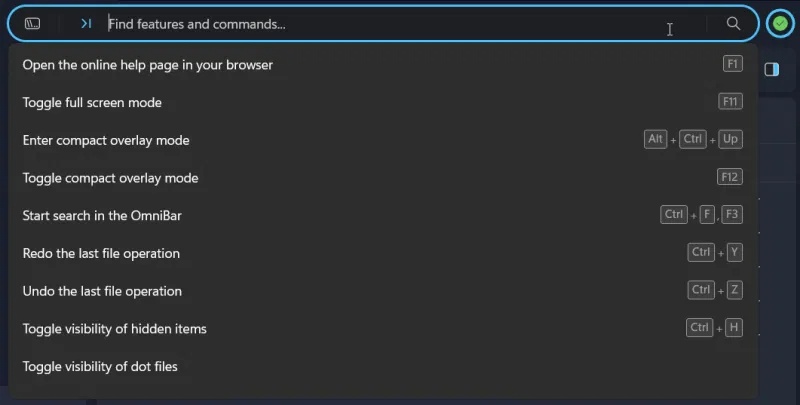
<p style="text-align: justify;">Nhấp vào biểu tượng sẽ hiển thị danh sách các hành động khả dụng cùng với phím tắt của chúng. Các hành động này là những lệnh bạn có thể thực hiện trên các mục như file, thư mục và hình ảnh.</p>

<figure>
<div style="text-align: justify;"><img alt="Xem các gợi ý lệnh trong Omnibar của ứng dụng Files trên Windows." data-i="6" data-src="https://st.quantrimang.com/photos/image/2025/07/25/ung-dung-files-quan-ly-file-tren-windows-7.jpg" data-was-processed="true" height="405" src="https://st.quantrimang.com/photos/image/2025/07/25/ung-dung-files-quan-ly-file-tren-windows-7.jpg" width="800" /></div>

<figcaption>
<div style="text-align: justify;">Xem các gợi ý lệnh trong Omnibar của ứng dụng Files trên Windows.</div>
</figcaption>
</figure>

<p style="text-align: justify;">Nếu bạn không chắc phím tắt nào thực hiện một hành động cụ thể, Command Palette có thể giúp bạn tìm thấy phím tắt đó. Tổng cộng có 150 hành động được hỗ trợ và bạn có thể dễ dàng tìm kiếm theo từ khóa để tìm chúng.</p>

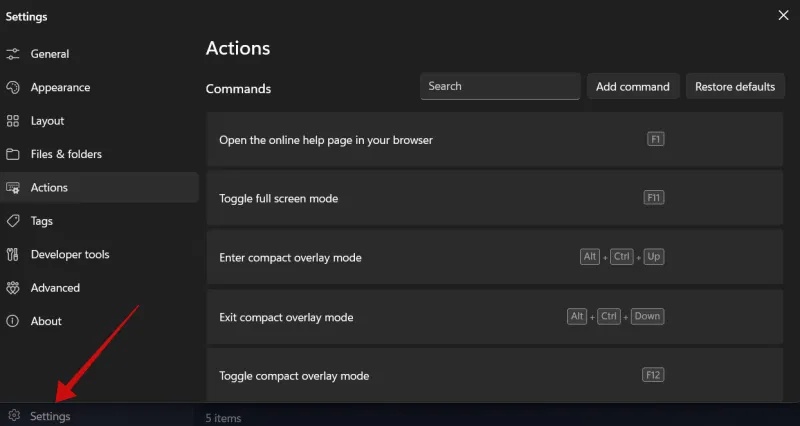
<p style="text-align: justify;">Nếu bạn cần kiểm tra danh sách đầy đủ các hành động được hỗ trợ, hãy vào&nbsp;<strong>Files -&gt; Settings -&gt; Actions</strong>.</p>

<figure>
<div style="text-align: justify;"><img alt="Xem Actions trong Settings của ứng dụng Files trên Windows." data-i="7" data-src="https://st.quantrimang.com/photos/image/2025/07/25/ung-dung-files-quan-ly-file-tren-windows-8.jpg" data-was-processed="true" height="426" src="https://st.quantrimang.com/photos/image/2025/07/25/ung-dung-files-quan-ly-file-tren-windows-8.jpg" width="800" /></div>

<figcaption>
<div style="text-align: justify;">Xem Actions trong Settings của ứng dụng Files trên Windows.</div>
</figcaption>
</figure>

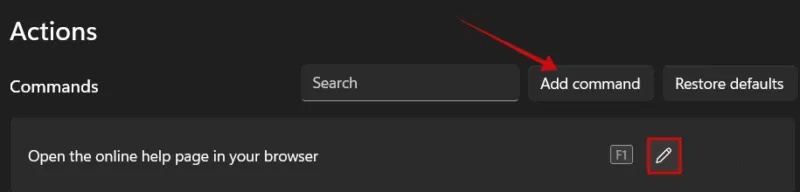
<p style="text-align: justify;">Bạn có thể chỉnh sửa lệnh cho một hành động từ đây và thậm chí tạo tổ hợp phím tắt của riêng mình.</p>

<figure>
<div style="text-align: justify;"><img alt="Nhấn vào &#039;Add command&#039; để tạo một hành động mới trong ứng dụng file trên Windows." data-i="8" data-src="https://st.quantrimang.com/photos/image/2025/07/25/ung-dung-files-quan-ly-file-tren-windows-9.jpg" data-was-processed="true" height="192" src="https://st.quantrimang.com/photos/image/2025/07/25/ung-dung-files-quan-ly-file-tren-windows-9.jpg" width="800" /></div>

<figcaption>
<div style="text-align: justify;">Nhấn vào &quot;Add command&quot; để tạo một hành động mới trong ứng dụng file trên Windows.</div>
</figcaption>
</figure>

<h3 style="text-align: justify;">Vô hiệu hóa Omnibar</h3>

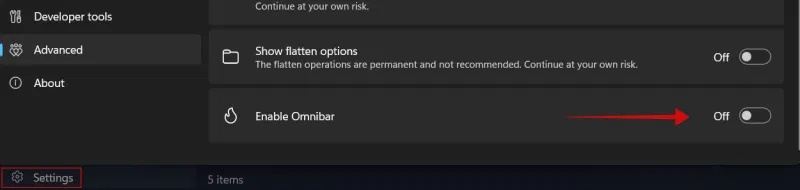
<p style="text-align: justify;">Trong trường hợp bạn không muốn sử dụng Omnibar, hãy vào&nbsp;<strong>Settings -&gt; Advanced</strong>.</p>

<figure>
<div style="text-align: justify;"><img alt="Tắt Omnibar trong ứng dụng Files trên Windows." data-i="9" data-src="https://st.quantrimang.com/photos/image/2025/07/25/ung-dung-files-quan-ly-file-tren-windows-10.jpg" data-was-processed="true" height="190" src="https://st.quantrimang.com/photos/image/2025/07/25/ung-dung-files-quan-ly-file-tren-windows-10.jpg" width="800" /></div>

<figcaption>
<div style="text-align: justify;">Tắt Omnibar trong ứng dụng Files trên Windows.</div>
</figcaption>
</figure>

<p style="text-align: justify;">Tắt tùy chọn&nbsp;<strong>Enable Omnibar</strong>&nbsp;ở phía dưới.</p>
		</div>
				<div id="author">
						<p>
				<strong>Nguồn tin:</strong>
				Quantrimang.com:
			</p>
		</div>
	</div>
	<div id="footer" class="clearfix">
		<div id="url">
			<strong>URL của bản tin này: </strong><a href="https://www.nguoicodonvn2008.info/vi/news/savefile/kien-thuc-may-tinh/cach-dung-ung-dung-files-quan-ly-file-tren-windows-10845.html" title="Cách dùng ứng dụng Files quản lý file trên Windows">https://www.nguoicodonvn2008.info/vi/news/savefile/kien-thuc-may-tinh/cach-dung-ung-dung-files-quan-ly-file-tren-windows-10845.html</a>

		</div>
		<div class="clear"></div>
		<div class="copyright">
			&copy; .&#x3A; Nguoicodonvn2008.info - Cõi lòng người cô đơn &#x3A;.
		</div>
		<div id="contact">
			<a href="mailto:admin@nguoicodonvn2008.info">admin@nguoicodonvn2008.info</a>
		</div>
	</div>
</div>
        <div id="timeoutsess" class="chromeframe">
            Bạn đã không sử dụng Site, <a onclick="timeoutsesscancel();" href="https://www.nguoicodonvn2008.info/#">Bấm vào đây để duy trì trạng thái đăng nhập</a>. Thời gian chờ: <span id="secField"> 60 </span> giây
        </div>
        <div id="openidResult" class="nv-alert" style="display:none"></div>
        <div id="openidBt" data-result="" data-redirect=""></div>
		</script>
		<div class="car-top">
  <span><img src="https://www.nguoicodonvn2008.info/themes/default/images/car.png" alt=""></span>
</div>
<script src="https://www.nguoicodonvn2008.info/assets/js/jquery/jquery.min.js"></script>
<script>var nv_base_siteurl="/",nv_lang_data="vi",nv_lang_interface="vi",nv_name_variable="nv",nv_fc_variable="op",nv_lang_variable="language",nv_module_name="news",nv_func_name="savefile",nv_is_user=0, nv_my_ofs=-4,nv_my_abbr="EDT",nv_cookie_prefix="nv4c_e856T",nv_check_pass_mstime=1738000,nv_area_admin=0,nv_safemode=0,theme_responsive=0,nv_recaptcha_ver=2,nv_recaptcha_sitekey="",nv_recaptcha_type="image",XSSsanitize=1;</script>
<script src="https://www.nguoicodonvn2008.info/assets/js/language/vi.js"></script>
<script src="https://www.nguoicodonvn2008.info/assets/js/DOMPurify/purify3.js"></script>
<script src="https://www.nguoicodonvn2008.info/assets/js/global.js"></script>
<script src="https://www.nguoicodonvn2008.info/assets/js/site.js"></script>
<script src="https://www.nguoicodonvn2008.info/themes/default/js/news.js"></script>
<script src="https://www.nguoicodonvn2008.info/themes/default/js/main.js"></script>
<script src="https://www.nguoicodonvn2008.info/themes/default/js/custom.js"></script>
<script type="application/ld+json">
        {
            "@context": "https://schema.org",
            "@type": "Organization",
            "url": "https://www.nguoicodonvn2008.info",
            "logo": "https://www.nguoicodonvn2008.info/uploads/angel.gif"
        }
        </script>
<script src="https://www.nguoicodonvn2008.info/themes/default/js/bootstrap.min.js"></script>
<script type="text/javascript">
var $scrolltop = $('.car-top');
$scrolltop.on('click', function () {
    $('html,body').animate({
        scrollTop: 0
    }, 800);
    $(this).addClass("car-run");
    setTimeout(function(){ $scrolltop.removeClass('car-run');}, 1000);
    return false;
});
$(window).on('scroll', function ()
{ 
    if($(window).scrollTop() >= 200)
    {
        $scrolltop.addClass("show");
        $scrolltop.addClass("car-down");
    }
    else
    {
       $scrolltop.removeClass("show");
       setTimeout(function(){ $scrolltop.removeClass('car-down');}, 300);
    }
});
</script>
</body>
</html>