<!DOCTYPE html>
    <html lang="vi" xmlns="http://www.w3.org/1999/xhtml" prefix="og: http://ogp.me/ns#">
    <head>
<title>Cách dùng IE Mode thay thế Internet Explorer vừa bị khai tử</title>
<meta name="description" content="Cách dùng IE Mode thay thế Internet Explorer vừa bị khai tử - Savefile - Tin Tức -...">
<meta name="author" content=".: Nguoicodonvn2008.info - Cõi lòng người cô đơn :.">
<meta name="copyright" content=".: Nguoicodonvn2008.info - Cõi lòng người cô đơn :. [admin@nguoicodonvn2008.info]">
<meta name="robots" content="index, archive, follow, noodp">
<meta name="googlebot" content="index,archive,follow,noodp">
<meta name="msnbot" content="all,index,follow">
<meta name="generator" content="NukeViet v4.5">
<meta http-equiv="Content-Type" content="text/html; charset=utf-8">
<meta property="og:title" content="Cách dùng IE Mode thay thế Internet Explorer vừa bị khai tử">
<meta property="og:type" content="website">
<meta property="og:description" content="Savefile - Tin Tức - https&#x3A;&#x002F;&#x002F;www.nguoicodonvn2008.info&#x002F;vi&#x002F;news&#x002F;savefile&#x002F;kien-thuc-may-tinh&#x002F;cach-dung-ie-mode-thay-the-internet-explorer-vua-bi-khai-tu-5748.html">
<meta property="og:site_name" content=".&#x3A; Nguoicodonvn2008.info - Cõi lòng người cô đơn &#x3A;.">
<meta property="og:url" content="https://www.nguoicodonvn2008.info/vi/news/savefile/kien-thuc-may-tinh/cach-dung-ie-mode-thay-the-internet-explorer-vua-bi-khai-tu-5748.html">
<link rel="shortcut icon" href="https://www.nguoicodonvn2008.info/favicon.ico">
<link rel="canonical" href="https://www.nguoicodonvn2008.info/vi/news/savefile/kien-thuc-may-tinh/cach-dung-ie-mode-thay-the-internet-explorer-vua-bi-khai-tu-5748.html">
<link rel="alternate" href="https://www.nguoicodonvn2008.info/vi/news/rss/" title="Tin Tức" type="application/rss+xml">
<link rel="alternate" href="https://www.nguoicodonvn2008.info/vi/news/rss/karaoke-dual/" title="Tin Tức - Karaoke Dual" type="application/rss+xml">
<link rel="alternate" href="https://www.nguoicodonvn2008.info/vi/news/rss/nhac-tre/" title="Tin Tức - Nhạc trẻ" type="application/rss+xml">
<link rel="alternate" href="https://www.nguoicodonvn2008.info/vi/news/rss/tru-tinh/" title="Tin Tức - Trữ tình" type="application/rss+xml">
<link rel="alternate" href="https://www.nguoicodonvn2008.info/vi/news/rss/nuoc-ngoai/" title="Tin Tức - Nước ngoài" type="application/rss+xml">
<link rel="alternate" href="https://www.nguoicodonvn2008.info/vi/news/rss/remix/" title="Tin Tức - Remix" type="application/rss+xml">
<link rel="alternate" href="https://www.nguoicodonvn2008.info/vi/news/rss/tam-su-tinh-yeu/" title="Tin Tức - Tâm sự tình yêu" type="application/rss+xml">
<link rel="alternate" href="https://www.nguoicodonvn2008.info/vi/news/rss/tho-suu-tam/" title="Tin Tức - Thơ sưu tầm" type="application/rss+xml">
<link rel="alternate" href="https://www.nguoicodonvn2008.info/vi/news/rss/cuoc-song/" title="Tin Tức - Cuộc sống" type="application/rss+xml">
<link rel="alternate" href="https://www.nguoicodonvn2008.info/vi/news/rss/phan-mem/" title="Tin Tức - Phần mềm" type="application/rss+xml">
<link rel="alternate" href="https://www.nguoicodonvn2008.info/vi/news/rss/kien-thuc-may-tinh/" title="Tin Tức - Kiến thức máy tính" type="application/rss+xml">
<link rel="alternate" href="https://www.nguoicodonvn2008.info/vi/news/rss/hoc-tap/" title="Tin Tức - Học tập" type="application/rss+xml">
<link rel="alternate" href="https://www.nguoicodonvn2008.info/vi/news/rss/tai-lieu/" title="Tin Tức - Tài liệu" type="application/rss+xml">
<link rel="alternate" href="https://www.nguoicodonvn2008.info/vi/news/rss/de-thi/" title="Tin Tức - Đề thi" type="application/rss+xml">
<link rel="preload" as="style" href="https://www.nguoicodonvn2008.info/assets/css/font-awesome.min.css" type="text/css">
<link rel="preload" as="style" href="https://www.nguoicodonvn2008.info/themes/default/css/bootstrap.non-responsive.css" type="text/css">
<link rel="preload" as="style" href="https://www.nguoicodonvn2008.info/themes/default/css/style.css" type="text/css">
<link rel="preload" as="style" href="https://www.nguoicodonvn2008.info/themes/default/css/style.non-responsive.css" type="text/css">
<link rel="preload" as="style" href="https://www.nguoicodonvn2008.info/themes/default/css/news.css" type="text/css">
<link rel="preload" as="style" href="https://www.nguoicodonvn2008.info/themes/default/css/custom.css" type="text/css">
<link rel="preload" as="script" href="https://www.nguoicodonvn2008.info/assets/js/jquery/jquery.min.js" type="text/javascript">
<link rel="preload" as="script" href="https://www.nguoicodonvn2008.info/assets/js/language/vi.js" type="text/javascript">
<link rel="preload" as="script" href="https://www.nguoicodonvn2008.info/assets/js/DOMPurify/purify3.js" type="text/javascript">
<link rel="preload" as="script" href="https://www.nguoicodonvn2008.info/assets/js/global.js" type="text/javascript">
<link rel="preload" as="script" href="https://www.nguoicodonvn2008.info/assets/js/site.js" type="text/javascript">
<link rel="preload" as="script" href="https://www.nguoicodonvn2008.info/themes/default/js/news.js" type="text/javascript">
<link rel="preload" as="script" href="https://www.nguoicodonvn2008.info/themes/default/js/main.js" type="text/javascript">
<link rel="preload" as="script" href="https://www.nguoicodonvn2008.info/themes/default/js/custom.js" type="text/javascript">
<link rel="preload" as="script" href="https://www.nguoicodonvn2008.info/themes/default/js/bootstrap.min.js" type="text/javascript">
<link rel="stylesheet" href="https://www.nguoicodonvn2008.info/assets/css/font-awesome.min.css">
<link rel="stylesheet" href="https://www.nguoicodonvn2008.info/themes/default/css/bootstrap.non-responsive.css">
<link rel="stylesheet" href="https://www.nguoicodonvn2008.info/themes/default/css/style.css">
<link rel="stylesheet" href="https://www.nguoicodonvn2008.info/themes/default/css/style.non-responsive.css">
<link rel="StyleSheet" href="https://www.nguoicodonvn2008.info/themes/default/css/news.css">
<link rel="stylesheet" href="https://www.nguoicodonvn2008.info/themes/default/css/custom.css">
<style type="text/css">
	body{background: #fff;}
</style>
    </head>
    <body>
<div id="print">
	<div id="hd_print">
		<h2 class="pull-left">.&#x3A; Nguoicodonvn2008.info - Cõi lòng người cô đơn &#x3A;.</h2>
		<p class="pull-right"><a title=".&#x3A; Nguoicodonvn2008.info - Cõi lòng người cô đơn &#x3A;." href="https://www.nguoicodonvn2008.info/">https://www.nguoicodonvn2008.info</a></p>
	</div>
	<div class="clear"></div>
	<hr />
	<div id="content">
		<h1>Cách dùng IE Mode thay thế Internet Explorer vừa bị khai tử</h1>
		<ul class="list-inline">
			<li>Thứ năm - 16/06/2022 23:32</li>
			<li class="hidden-print txtrequired"><em class="fa fa-print">&nbsp;</em><a title="In ra" href="javascript:;" onclick="window.print()">In ra</a></li>
			<li class="hidden-print txtrequired"><em class="fa fa-power-off">&nbsp;</em><a title="Đóng cửa sổ này" href="javascript:;" onclick="window.close()">Đóng cửa sổ này</a></li>
		</ul>
		<div class="clear"></div>
		<div id="hometext">
		</div>
				<div class="imghome">
			<img alt="Cách dùng IE Mode thay thế Internet Explorer vừa bị khai tử" src="https://st.quantrimang.com/photos/image/2021/09/17/cach-dung-internet-explorer-tren-windows-11-7.jpg" width="460" class="img-thumbnail" />
		</div>
		<div class="clear"></div>
		<div id="bodytext" class="clearfix">
			<p style="text-align: justify;">Với Windows 11, Microsoft đã loại bỏ một số ứng dụng và tính năng lỗi thời, bao gồm cả Internet Explorer bị ghét từ lâu. Internet Explorer là một trình duyệt cũ và lỗi thời, Microsoft đã định gỡ bỏ IE hoàn toàn. Tuy nhiên, một số ứng dụng độc quyền và các trang web vẫn yêu cầu chức năng của Internet Explorer để chạy.</p>

<p style="text-align: justify;">Internet Explorer&nbsp;luôn là một phần của Windows kể từ khi ra mắt với Windows 95 OSR1 vào năm 1996. Tuy nhiên, kể từ&nbsp;Windows 11, Internet Explorer sẽ bị loại bỏ do trình duyệt này bị khai tử, thay thế bằng Microsoft Edge Chromium. Thậm chí, từ ngày 15/6/2022, Internet Explorer cũng bị khai tử trên một số phiên bản Windows 10 phổ biến.</p>

<p style="text-align: justify;">Với nhiều người dùng, việc Internet Explorer bị khai tử chẳng ảnh hưởng gì tới họ. Nhưng thực tế vẫn còn một số người dùng vẫn còn đang sử dụng các dịch vụ web phụ thuộc vào Internet Explorer.</p>

<p style="text-align: justify;">Vì thế, trong bài viết này, Quản Trị Mạng sẽ hướng dẫn bạn cách sử dụng Internet Explorer trên Windows 11 cũng như Windows 10 qua chế độ IE tích hợp sẵn trong Microsoft Edge và qua extension.</p>

<h2 style="text-align: justify;">Cách 1: Kích hoạt IE Mode trong Microsoft Edge</h2>

<p style="text-align: justify;">Nếu bạn đang tìm kiếm Internet Explorer dưới dạng một ứng dụng độc lập (giống như trong Windows 10), thì rất tiếc bạn sẽ không tìm thấy nó. Cách duy nhất để Internet Explorer hoạt động trên Windows 11 là sử dụng Microsoft Edge ở Internet Explorer Mode theo các bước bên dưới.</p>

<p style="text-align: justify;">Mặc dù Microsoft Edge là trình duyệt web mặc định, nhưng bạn có thể thay đổi nó thành Chrome, Firefox hoặc bất kỳ trình duyệt nào khác. Nếu nhận thấy PC Windows 11 của mình khởi động chậm, bạn có thể tắt các ứng dụng khởi động để tăng thời gian khởi động.</p>

<p style="text-align: justify;">Microsoft đương nhiên hiểu rằng vẫn còn những người dùng sử dụng các dịch vụ phụ thuộc vào Internet Explorer. Chính vì thế, gã khổng lồ phần mềm đã tích hợp vào trình duyệt Microsoft Edge nhân Chromium chế độ gọi là IE Mode. Ở chế độ này, trang web của bạn sẽ được tải bằng những công nghệ tương thích của Internet Explorer.</p>

<p style="text-align: justify;">Rất hiếm khi gặp phải một trang web không tương thích với Edge, nhưng một số trang web chính phủ và giáo dục cũ vẫn yêu cầu Internet Explorer. Nhờ chế độ IE trong Edge, bạn vẫn có thể sử dụng các trang web cũ cho đến khi hỗ trợ Microsoft Edge được thêm vào. Cũng cần lưu ý rằng Microsoft đã cam kết hỗ trợ chế độ IE trong Edge cho đến năm 2029, vì vậy chức năng này sẽ tồn tại trong một số năm tới.</p>

<p style="text-align: justify;">Để kích hoạt IE Mode bạn cần thực hiện các thao tác sau:</p>

<ul>
	<li style="text-align: justify;">Mở&nbsp;<strong>Microsoft Edge</strong></li>
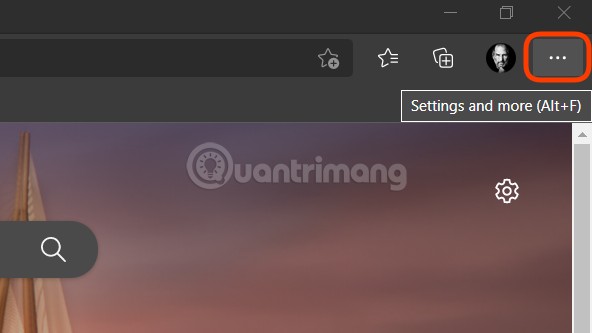
	<li style="text-align: justify;">Nhấn vào nút&nbsp;<strong>Settings and more</strong>&nbsp;(dấu 3 chấm nằm ngang) ở góc trên bên phải trình duyệt</li>
</ul>

<p style="text-align: justify;"><img alt="" data-i="0" data-src="https://st.quantrimang.com/photos/image/2021/09/17/cach-dung-internet-explorer-tren-windows-11.jpg" data-was-processed="true" height="333" src="https://st.quantrimang.com/photos/image/2021/09/17/cach-dung-internet-explorer-tren-windows-11.jpg" width="592" /></p>

<ul>
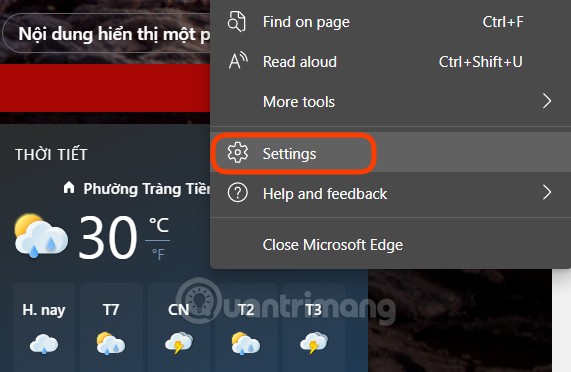
	<li style="text-align: justify;">Chọn&nbsp;<strong>Settings</strong></li>
</ul>

<p style="text-align: justify;"><strong><img alt="" data-i="1" data-src="https://st.quantrimang.com/photos/image/2021/09/17/cach-dung-internet-explorer-tren-windows-11-1.jpg" data-was-processed="true" height="372" src="https://st.quantrimang.com/photos/image/2021/09/17/cach-dung-internet-explorer-tren-windows-11-1.jpg" width="571" /></strong></p>

<ul>
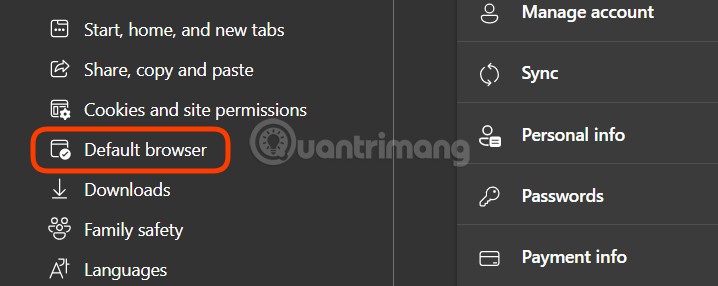
	<li style="text-align: justify;">Nhấp vào&nbsp;<strong>Default browser</strong></li>
</ul>

<p style="text-align: justify;"><strong><img alt="" data-i="2" data-src="https://st.quantrimang.com/photos/image/2021/09/17/cach-dung-internet-explorer-tren-windows-11-2.jpg" data-was-processed="true" height="286" src="https://st.quantrimang.com/photos/image/2021/09/17/cach-dung-internet-explorer-tren-windows-11-2.jpg" width="718" /></strong></p>

<ul>
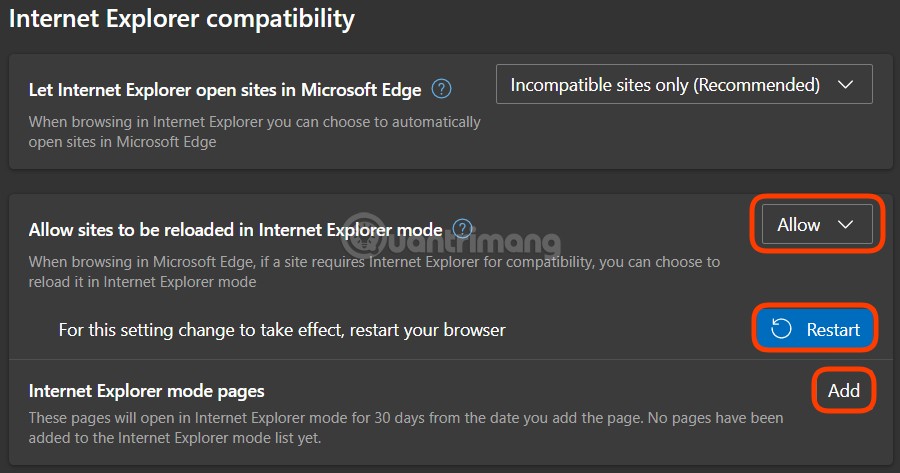
	<li style="text-align: justify;">Ở dưới phần&nbsp;<strong>Internet Explorer compatibility</strong>&nbsp;bạn chọn&nbsp;<strong>Allow</strong>&nbsp;ở mục&nbsp;<strong>Allow sites to be reloaded in Internet Explorer mode</strong></li>
</ul>

<p style="text-align: justify;"><strong><img alt="" data-i="3" data-src="https://st.quantrimang.com/photos/image/2021/09/17/cach-dung-internet-explorer-tren-windows-11-3.jpg" data-was-processed="true" height="473" src="https://st.quantrimang.com/photos/image/2021/09/17/cach-dung-internet-explorer-tren-windows-11-3.jpg" width="900" /></strong></p>

<ul>
	<li style="text-align: justify;">Microsoft Edge sẽ yêu cầu bạn khởi động lại trình duyệt để hoàn thành cài đặt</li>
</ul>

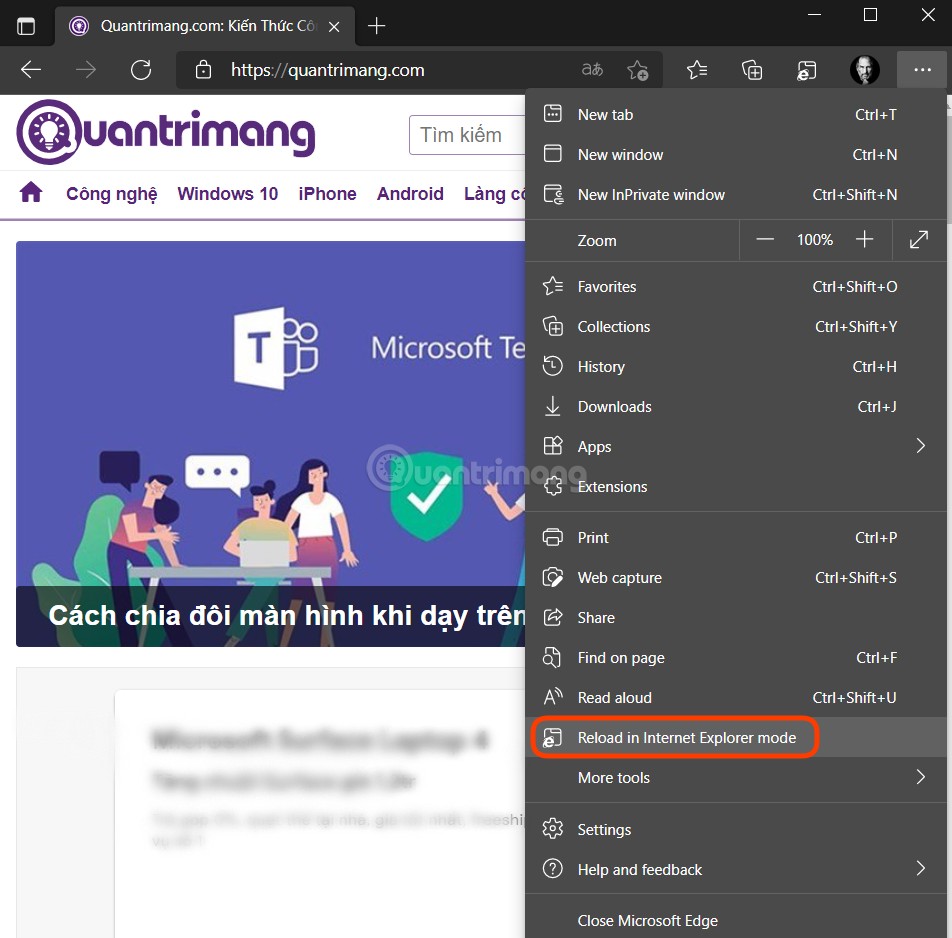
<p style="text-align: justify;">Giờ đây, mỗi lần truy cập vào một trang web yêu cầu IE Mode bạn có thể mở&nbsp;<strong>Settings and More</strong>&nbsp;sau đó nhấn vào&nbsp;<strong>Reload in Internet Explorer mode</strong>. Sau khi bạn nhấn nút, trang sẽ được tải lại ở chế độ IE Mode.</p>

<p style="text-align: justify;"><img alt="" data-i="4" data-src="https://st.quantrimang.com/photos/image/2021/09/17/cach-dung-internet-explorer-tren-windows-11-4.jpg" data-was-processed="true" height="938" src="https://st.quantrimang.com/photos/image/2021/09/17/cach-dung-internet-explorer-tren-windows-11-4.jpg" width="952" /></p>

<p style="text-align: justify;">Bạn cũng có thể lưu các trang cần tải ở chế độ IE Mode để chúng tự động mở trong chế độ IE Mode mỗi lần bạn truy cập bằng cách nhấn vào nút&nbsp;<strong>Add</strong>&nbsp;ở mục&nbsp;<strong>Internet Explorer mode pages</strong>&nbsp;bên dưới mục Allow sites to be reloaded in Internet Explorer mode.</p>

<h2 style="text-align: justify;">Cách 2: Sử dụng extension IE Tab</h2>

<p style="text-align: justify;">IE Tab là một extension của Blackfish Software. Nó cung cấp cho bạn khả năng truy cập các trang web, dịch vụ phụ thuộc vào Internet Explorer ngay trên trình duyệt Chrome. Hạn chế duy nhất của extension này là nó tính phí sử dụng và chỉ hỗ trợ Google Chrome.</p>

<p style="text-align: justify;">Ban đầu bạn có thể tải về và sử dụng bình thường nhưng tới một lúc nào đó IE Tab sẽ ngừng hoạt động, yêu cầu bạn phải bỏ tiền ra để có thể tiếp tục dùng. Mức phí hiện tại của IE Tab là 19 USD/1 người dùng cho một giấy phép trọn đời.</p>

<p style="text-align: justify;">Cách cài đặt IE Tab như sau:</p>

<ul>
	<li style="text-align: justify;">Bạn truy cập vào IE Tab trên cửa hàng Chrome theo đường link sau</li>
	<li style="text-align: justify;"><a href="https://quantrimang.com/url?q=aHR0cHM6Ly9jaHJvbWUuZ29vZ2xlLmNvbS93ZWJzdG9yZS9kZXRhaWwvaWUtdGFiL2hlaGlqYmZnaWVrbWpma2ZqcGJrYmFtbWpiZGVuYWRk" rel="nofollow noopener" target="_blank" title="IE Tab trên cửa hàng Chrome">IE Tab trên cửa hàng Chrome</a></li>
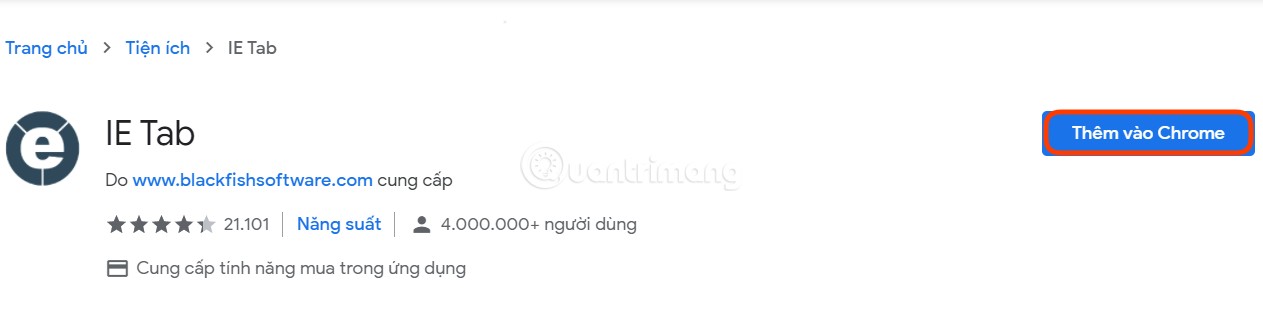
	<li style="text-align: justify;">Nhấn&nbsp;<strong>Thêm vào Chrome</strong>&nbsp;để cài đặt extension</li>
</ul>

<p style="text-align: justify;"><img alt="" data-i="5" data-src="https://st.quantrimang.com/photos/image/2021/09/17/cach-dung-internet-explorer-tren-windows-11-5.jpg" data-was-processed="true" height="331" src="https://st.quantrimang.com/photos/image/2021/09/17/cach-dung-internet-explorer-tren-windows-11-5.jpg" width="1263" /></p>

<ul>
	<li style="text-align: justify;">Tiếp theo bạn cần tải về và cài đặt&nbsp;<strong>IE Tab Helper</strong>&nbsp;bằng cách truy cập link sau</li>
	<li style="text-align: justify;"><a href="https://quantrimang.com/url?q=aHR0cHM6Ly93d3cuaWV0YWIubmV0L2llLXRhYi1kb2N1bWVudGF0aW9uI2hlbHBlcg%3D%3D" rel="nofollow noopener" target="_blank" title="Tải IE Tab Helper">Tải IE Tab Helper</a></li>
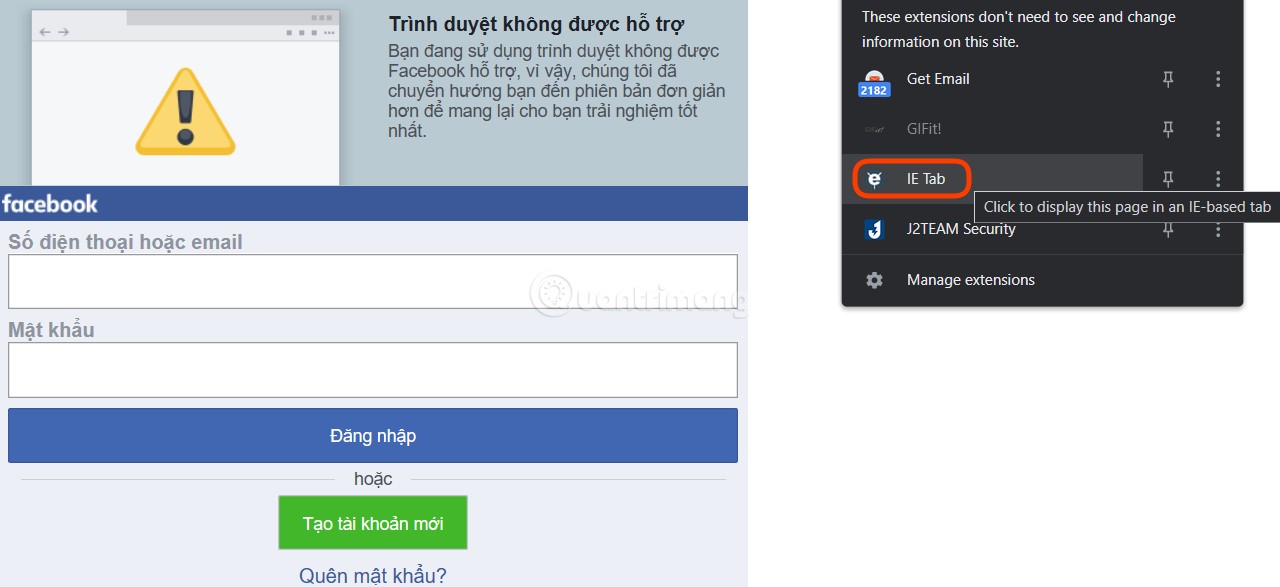
	<li style="text-align: justify;">Sau khi cài xong, khi cần truy cập trang nào đó bằng Internet Explorer bạn chỉ cần truy cập trên Chrome sau đó nhấn vào biểu tượng của&nbsp;<strong>IE Tab&nbsp;</strong>là trang sẽ được tải lại ở chế độ Internet Explorer</li>
</ul>

<figure>
<div style="text-align: justify;"><img alt="Trang Facebook được tải lại ở chế độ Internet Explorer" data-i="6" data-src="https://st.quantrimang.com/photos/image/2021/09/17/cach-dung-internet-explorer-tren-windows-11-6.jpg" data-was-processed="true" height="587" src="https://st.quantrimang.com/photos/image/2021/09/17/cach-dung-internet-explorer-tren-windows-11-6.jpg" width="1280" /></div>

<figcaption>
<div style="text-align: justify;">Trang Facebook được tải lại ở chế độ Internet Explorer</div>
</figcaption>
</figure>

<ul>
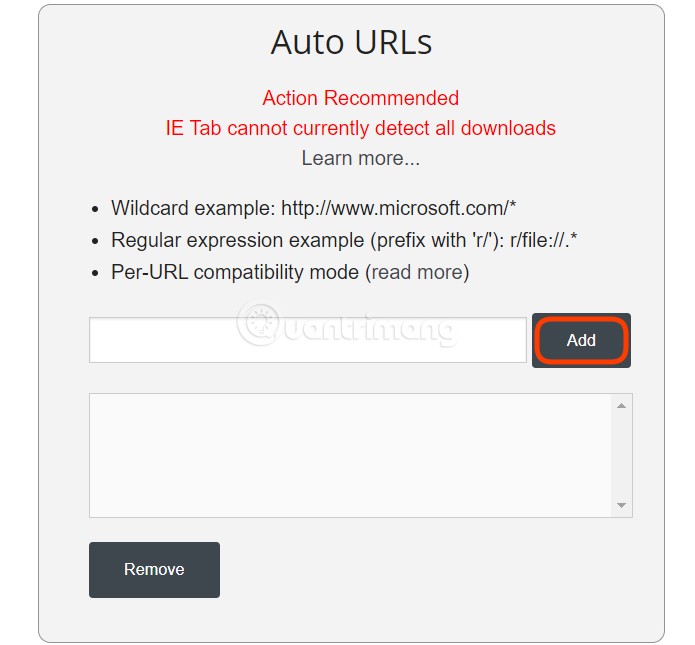
	<li style="text-align: justify;">Bạn cũng có thể thiết lập danh sách các trang tự động tải bằng chế độ Internet Explorer bằng cách nhấn vào menu dấu ba chấm của extension IE Tab sau đó chọn&nbsp;<strong>Options</strong>&nbsp;rồi kéo xuống phần&nbsp;<strong>Auto URLs</strong>&nbsp;rồi nhập địa chỉ vào hộp thoại sau đó nhấn&nbsp;<strong>Add.</strong></li>
</ul>

<p style="text-align: justify;"><strong><img alt="" data-i="7" data-src="https://st.quantrimang.com/photos/image/2021/09/17/cach-dung-internet-explorer-tren-windows-11-7.jpg" data-was-processed="true" height="645" src="https://st.quantrimang.com/photos/image/2021/09/17/cach-dung-internet-explorer-tren-windows-11-7.jpg" width="695" /></strong></p>

<p style="text-align: justify;">Bạn đã khám phá ra các cách khác (hoặc những chương trình khác) để mở các trang đúng cách ở chế độ IE đầy đủ chưa? Nếu có, hãy để lại ý kiến trong phần bình luận dưới đây nhé!</p>

<p style="text-align: justify;">Chúc các bạn thành công!</p>
		</div>
				<div id="author">
						<p>
				<strong>Nguồn tin:</strong>
				Quantrimang.com
			</p>
		</div>
	</div>
	<div id="footer" class="clearfix">
		<div id="url">
			<strong>URL của bản tin này: </strong><a href="https://www.nguoicodonvn2008.info/vi/news/savefile/kien-thuc-may-tinh/cach-dung-ie-mode-thay-the-internet-explorer-vua-bi-khai-tu-5748.html" title="Cách dùng IE Mode thay thế Internet Explorer vừa bị khai tử">https://www.nguoicodonvn2008.info/vi/news/savefile/kien-thuc-may-tinh/cach-dung-ie-mode-thay-the-internet-explorer-vua-bi-khai-tu-5748.html</a>

		</div>
		<div class="clear"></div>
		<div class="copyright">
			&copy; .&#x3A; Nguoicodonvn2008.info - Cõi lòng người cô đơn &#x3A;.
		</div>
		<div id="contact">
			<a href="mailto:admin@nguoicodonvn2008.info">admin@nguoicodonvn2008.info</a>
		</div>
	</div>
</div>
        <div id="timeoutsess" class="chromeframe">
            Bạn đã không sử dụng Site, <a onclick="timeoutsesscancel();" href="https://www.nguoicodonvn2008.info/#">Bấm vào đây để duy trì trạng thái đăng nhập</a>. Thời gian chờ: <span id="secField"> 60 </span> giây
        </div>
        <div id="openidResult" class="nv-alert" style="display:none"></div>
        <div id="openidBt" data-result="" data-redirect=""></div>
		</script>
		<div class="car-top">
  <span><img src="https://www.nguoicodonvn2008.info/themes/default/images/car.png" alt=""></span>
</div>
<script src="https://www.nguoicodonvn2008.info/assets/js/jquery/jquery.min.js"></script>
<script>var nv_base_siteurl="/",nv_lang_data="vi",nv_lang_interface="vi",nv_name_variable="nv",nv_fc_variable="op",nv_lang_variable="language",nv_module_name="news",nv_func_name="savefile",nv_is_user=0, nv_my_ofs=-4,nv_my_abbr="EDT",nv_cookie_prefix="nv4c_e856T",nv_check_pass_mstime=1738000,nv_area_admin=0,nv_safemode=0,theme_responsive=0,nv_recaptcha_ver=2,nv_recaptcha_sitekey="",nv_recaptcha_type="image",XSSsanitize=1;</script>
<script src="https://www.nguoicodonvn2008.info/assets/js/language/vi.js"></script>
<script src="https://www.nguoicodonvn2008.info/assets/js/DOMPurify/purify3.js"></script>
<script src="https://www.nguoicodonvn2008.info/assets/js/global.js"></script>
<script src="https://www.nguoicodonvn2008.info/assets/js/site.js"></script>
<script src="https://www.nguoicodonvn2008.info/themes/default/js/news.js"></script>
<script src="https://www.nguoicodonvn2008.info/themes/default/js/main.js"></script>
<script src="https://www.nguoicodonvn2008.info/themes/default/js/custom.js"></script>
<script type="application/ld+json">
        {
            "@context": "https://schema.org",
            "@type": "Organization",
            "url": "https://www.nguoicodonvn2008.info",
            "logo": "https://www.nguoicodonvn2008.info/uploads/angel.gif"
        }
        </script>
<script src="https://www.nguoicodonvn2008.info/themes/default/js/bootstrap.min.js"></script>
<script type="text/javascript">
var $scrolltop = $('.car-top');
$scrolltop.on('click', function () {
    $('html,body').animate({
        scrollTop: 0
    }, 800);
    $(this).addClass("car-run");
    setTimeout(function(){ $scrolltop.removeClass('car-run');}, 1000);
    return false;
});
$(window).on('scroll', function ()
{ 
    if($(window).scrollTop() >= 200)
    {
        $scrolltop.addClass("show");
        $scrolltop.addClass("car-down");
    }
    else
    {
       $scrolltop.removeClass("show");
       setTimeout(function(){ $scrolltop.removeClass('car-down');}, 300);
    }
});
</script>
</body>
</html>