<!DOCTYPE html>
    <html lang="vi" xmlns="http://www.w3.org/1999/xhtml" prefix="og: http://ogp.me/ns#">
    <head>
<title>Cách dùng Explorer Patcher, công cụ đưa Taskbar Windows 10 lên Windows 11</title>
<meta name="description" content="Cách dùng Explorer Patcher, công cụ đưa Taskbar Windows 10 lên Windows 11 - Savefile - Tin Tức -...">
<meta name="author" content=".: Nguoicodonvn2008.info - Cõi lòng người cô đơn :.">
<meta name="copyright" content=".: Nguoicodonvn2008.info - Cõi lòng người cô đơn :. [admin@nguoicodonvn2008.info]">
<meta name="robots" content="index, archive, follow, noodp">
<meta name="googlebot" content="index,archive,follow,noodp">
<meta name="msnbot" content="all,index,follow">
<meta name="generator" content="NukeViet v4.5">
<meta http-equiv="Content-Type" content="text/html; charset=utf-8">
<meta property="og:title" content="Cách dùng Explorer Patcher, công cụ đưa Taskbar Windows 10 lên Windows 11">
<meta property="og:type" content="website">
<meta property="og:description" content="Savefile - Tin Tức -...">
<meta property="og:site_name" content=".&#x3A; Nguoicodonvn2008.info - Cõi lòng người cô đơn &#x3A;.">
<meta property="og:url" content="https://www.nguoicodonvn2008.info/vi/news/savefile/kien-thuc-may-tinh/cach-dung-explorer-patcher-cong-cu-dua-taskbar-windows-10-len-windows-11-4588.html">
<link rel="shortcut icon" href="https://www.nguoicodonvn2008.info/favicon.ico">
<link rel="canonical" href="https://www.nguoicodonvn2008.info/vi/news/savefile/kien-thuc-may-tinh/cach-dung-explorer-patcher-cong-cu-dua-taskbar-windows-10-len-windows-11-4588.html">
<link rel="alternate" href="https://www.nguoicodonvn2008.info/vi/news/rss/" title="Tin Tức" type="application/rss+xml">
<link rel="alternate" href="https://www.nguoicodonvn2008.info/vi/news/rss/karaoke-dual/" title="Tin Tức - Karaoke Dual" type="application/rss+xml">
<link rel="alternate" href="https://www.nguoicodonvn2008.info/vi/news/rss/nhac-tre/" title="Tin Tức - Nhạc trẻ" type="application/rss+xml">
<link rel="alternate" href="https://www.nguoicodonvn2008.info/vi/news/rss/tru-tinh/" title="Tin Tức - Trữ tình" type="application/rss+xml">
<link rel="alternate" href="https://www.nguoicodonvn2008.info/vi/news/rss/nuoc-ngoai/" title="Tin Tức - Nước ngoài" type="application/rss+xml">
<link rel="alternate" href="https://www.nguoicodonvn2008.info/vi/news/rss/remix/" title="Tin Tức - Remix" type="application/rss+xml">
<link rel="alternate" href="https://www.nguoicodonvn2008.info/vi/news/rss/tam-su-tinh-yeu/" title="Tin Tức - Tâm sự tình yêu" type="application/rss+xml">
<link rel="alternate" href="https://www.nguoicodonvn2008.info/vi/news/rss/tho-suu-tam/" title="Tin Tức - Thơ sưu tầm" type="application/rss+xml">
<link rel="alternate" href="https://www.nguoicodonvn2008.info/vi/news/rss/cuoc-song/" title="Tin Tức - Cuộc sống" type="application/rss+xml">
<link rel="alternate" href="https://www.nguoicodonvn2008.info/vi/news/rss/phan-mem/" title="Tin Tức - Phần mềm" type="application/rss+xml">
<link rel="alternate" href="https://www.nguoicodonvn2008.info/vi/news/rss/kien-thuc-may-tinh/" title="Tin Tức - Kiến thức máy tính" type="application/rss+xml">
<link rel="alternate" href="https://www.nguoicodonvn2008.info/vi/news/rss/hoc-tap/" title="Tin Tức - Học tập" type="application/rss+xml">
<link rel="alternate" href="https://www.nguoicodonvn2008.info/vi/news/rss/tai-lieu/" title="Tin Tức - Tài liệu" type="application/rss+xml">
<link rel="alternate" href="https://www.nguoicodonvn2008.info/vi/news/rss/de-thi/" title="Tin Tức - Đề thi" type="application/rss+xml">
<link rel="preload" as="style" href="https://www.nguoicodonvn2008.info/assets/css/font-awesome.min.css" type="text/css">
<link rel="preload" as="style" href="https://www.nguoicodonvn2008.info/themes/default/css/bootstrap.non-responsive.css" type="text/css">
<link rel="preload" as="style" href="https://www.nguoicodonvn2008.info/themes/default/css/style.css" type="text/css">
<link rel="preload" as="style" href="https://www.nguoicodonvn2008.info/themes/default/css/style.non-responsive.css" type="text/css">
<link rel="preload" as="style" href="https://www.nguoicodonvn2008.info/themes/default/css/news.css" type="text/css">
<link rel="preload" as="style" href="https://www.nguoicodonvn2008.info/themes/default/css/custom.css" type="text/css">
<link rel="preload" as="script" href="https://www.nguoicodonvn2008.info/assets/js/jquery/jquery.min.js" type="text/javascript">
<link rel="preload" as="script" href="https://www.nguoicodonvn2008.info/assets/js/language/vi.js" type="text/javascript">
<link rel="preload" as="script" href="https://www.nguoicodonvn2008.info/assets/js/DOMPurify/purify3.js" type="text/javascript">
<link rel="preload" as="script" href="https://www.nguoicodonvn2008.info/assets/js/global.js" type="text/javascript">
<link rel="preload" as="script" href="https://www.nguoicodonvn2008.info/assets/js/site.js" type="text/javascript">
<link rel="preload" as="script" href="https://www.nguoicodonvn2008.info/themes/default/js/news.js" type="text/javascript">
<link rel="preload" as="script" href="https://www.nguoicodonvn2008.info/themes/default/js/main.js" type="text/javascript">
<link rel="preload" as="script" href="https://www.nguoicodonvn2008.info/themes/default/js/custom.js" type="text/javascript">
<link rel="preload" as="script" href="https://www.nguoicodonvn2008.info/themes/default/js/bootstrap.min.js" type="text/javascript">
<link rel="stylesheet" href="https://www.nguoicodonvn2008.info/assets/css/font-awesome.min.css">
<link rel="stylesheet" href="https://www.nguoicodonvn2008.info/themes/default/css/bootstrap.non-responsive.css">
<link rel="stylesheet" href="https://www.nguoicodonvn2008.info/themes/default/css/style.css">
<link rel="stylesheet" href="https://www.nguoicodonvn2008.info/themes/default/css/style.non-responsive.css">
<link rel="StyleSheet" href="https://www.nguoicodonvn2008.info/themes/default/css/news.css">
<link rel="stylesheet" href="https://www.nguoicodonvn2008.info/themes/default/css/custom.css">
<style type="text/css">
	body{background: #fff;}
</style>
    </head>
    <body>
<div id="print">
	<div id="hd_print">
		<h2 class="pull-left">.&#x3A; Nguoicodonvn2008.info - Cõi lòng người cô đơn &#x3A;.</h2>
		<p class="pull-right"><a title=".&#x3A; Nguoicodonvn2008.info - Cõi lòng người cô đơn &#x3A;." href="https://www.nguoicodonvn2008.info/">https://www.nguoicodonvn2008.info</a></p>
	</div>
	<div class="clear"></div>
	<hr />
	<div id="content">
		<h1>Cách dùng Explorer Patcher, công cụ đưa Taskbar Windows 10 lên Windows 11</h1>
		<ul class="list-inline">
			<li>Thứ hai - 18/10/2021 00:56</li>
			<li class="hidden-print txtrequired"><em class="fa fa-print">&nbsp;</em><a title="In ra" href="javascript:;" onclick="window.print()">In ra</a></li>
			<li class="hidden-print txtrequired"><em class="fa fa-power-off">&nbsp;</em><a title="Đóng cửa sổ này" href="javascript:;" onclick="window.close()">Đóng cửa sổ này</a></li>
		</ul>
		<div class="clear"></div>
		<div id="hometext">
		</div>
				<div class="imghome">
			<img alt="Cách dùng Explorer Patcher, công cụ đưa Taskbar Windows 10 lên Windows 11" src="https://st.quantrimang.com/photos/image/2021/10/16/dung-thu-explorer-patcher-cong-cu-dua-taskbar-windows-10-tro-ve-windows-11-3.jpg" width="460" class="img-thumbnail" />
		</div>
		<div class="clear"></div>
		<div id="bodytext" class="clearfix">
			<p style="text-align: justify;">Nếu bạn đang tìm cách đưa Taskbar và File Explorer trở lại hành vi giống như trên Windows 10 thì công cụ miễn phí Explorer Patcher này là dành riêng cho bạn. Bạn chỉ cần thêm một file DLL vào thư mục C:\Windows rồi restart lại Explorer.exe và chờ một lát là mọi thứ đã sẵn sàng.</p>

<p style="text-align: justify;">Người phát triển ra Explorer Patcher tuyên bố rằng dự án này có mục đích giúp mọi người tăng năng suất làm việc trên&nbsp;Windows 11.</p>

<p style="text-align: justify;">Các tính năng của Explorer Patcher:</p>

<p style="text-align: justify;"><strong>Taskbar</strong>:</p>

<ul>
	<li style="text-align: justify;">Đưa trở lại các tùy chọn gộp biểu tượng ứng dụng &quot;always combine&quot;/&quot;combine when full&quot;/&quot;never combine&quot; trên cả Taskbar chính và phụ</li>
	<li style="text-align: justify;">Loại bỏ nút Search</li>
	<li style="text-align: justify;">Loại bỏ nút Task View</li>
	<li style="text-align: justify;">Cùng một số tính năng khác...</li>
</ul>

<p style="text-align: justify;"><strong>File Explorer</strong>:</p>

<ul>
	<li style="text-align: justify;">Vô hiệu hóa thanh điều khiển Windows 11</li>
	<li style="text-align: justify;">Vô hiệu hóa menu ngữ cảnh Windows 11</li>
	<li style="text-align: justify;">Cùng một số tùy chọn khác...</li>
</ul>

<p style="text-align: justify;">Cùng một số tùy chỉnh, tùy chọn khác cho Start Menu, Windows switcher (Alt+Tab)...</p>

<h2 style="text-align: justify;">Cách cài đặt Explorer Patcher</h2>

<p style="text-align: justify;">Do cần tải file nên bạn phải đảm bảo rằng máy của mình có kết nối internet ổn định trong suốt quá trình cài đặt.</p>

<p style="text-align: justify;"><strong>B1</strong>: Đầu tiên, bạn cần truy cập vào link dưới đây để tải về file DLL có tên&nbsp;<strong>dxgi.dll.</strong>&nbsp;Theo nhà phát triển, Explorer Patcher hoạt động ổn định trên bản Windows 11 chính thức. Tuy nhiên, thử nghiệm của Quản Trị Mạng cho thấy ngay cả bản Dev mới nhất cũng vẫn chạy được bình thường:</p>

<ul>
	<li style="text-align: justify;">Link tải file DLL của Explorer Patcher chính thức:</li>
</ul>

<div style="text-align: justify;"><span style="color:rgb(192, 57, 43);"><strong>https://github.com/valinet/ExplorerPatcher/releases</strong></span></div>

<ul>
	<li style="text-align: justify;">Link tải file DLL từ Quản Trị Mạng:</li>
</ul>

<div style="text-align: justify;"><span style="color:rgb(192, 57, 43);"><strong>quantrimang.com/photos/file/2021/10/16/dxgi.zip</strong></span></div>

<p style="text-align: justify;"><strong>Lưu ý</strong>: Với file ZIP tải từ Quản Trị Mạng bạn cần giải nén để thấy file dxgi.dll.</p>

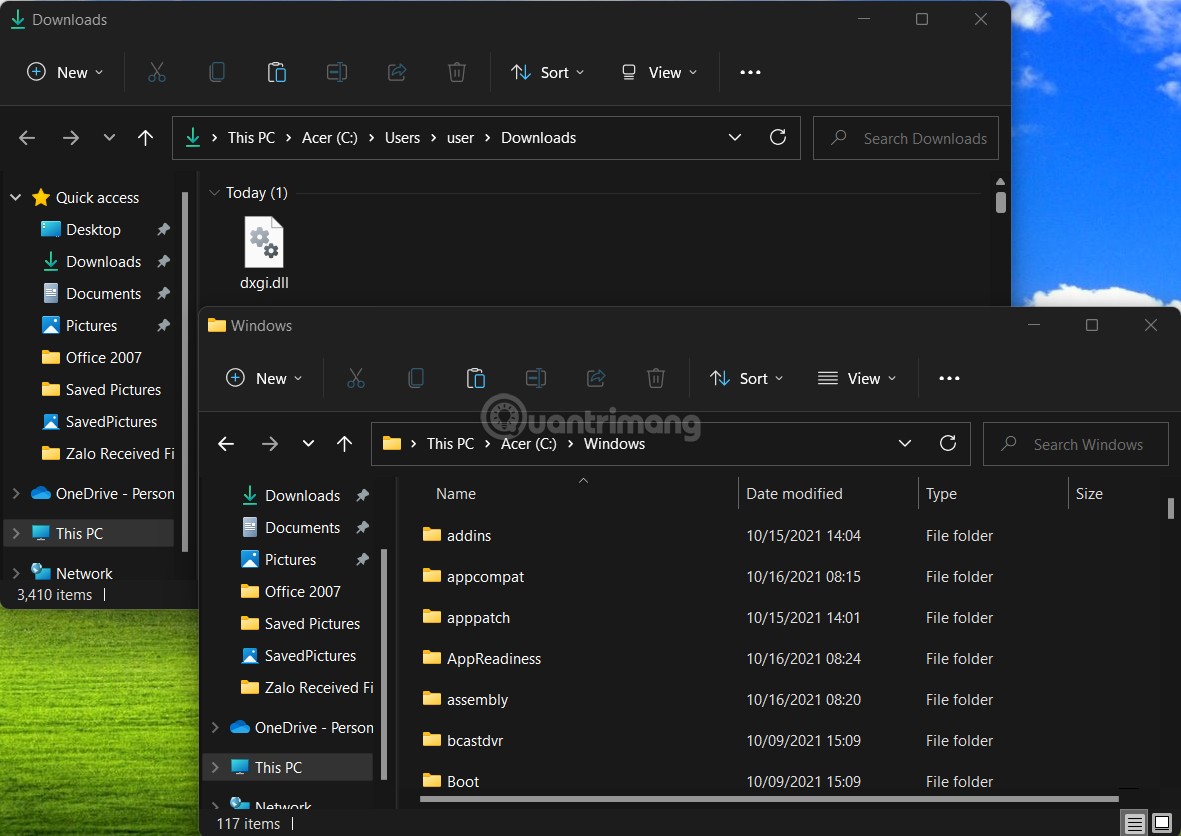
<p style="text-align: justify;"><strong>B2</strong>: Sau khi tải file DLL, bạn copy và paste file vào thư mục&nbsp;<strong>C:\Windows.</strong>&nbsp;Thao tác này yêu cầu bạn phải có quyền Administrator.</p>

<p style="text-align: justify;"><img alt="Dùng thử Explorer Patcher, công cụ đưa Taskbar Windows 10 trở về Windows 11" data-i="0" data-src="https://st.quantrimang.com/photos/image/2021/10/16/dung-thu-explorer-patcher-cong-cu-dua-taskbar-windows-10-tro-ve-windows-11.jpg" data-was-processed="true" height="836" src="https://st.quantrimang.com/photos/image/2021/10/16/dung-thu-explorer-patcher-cong-cu-dua-taskbar-windows-10-tro-ve-windows-11.jpg" width="1181" /></p>

<p style="text-align: justify;"><strong>B3</strong>: Bạn thởi động lại Explorer.exe theo hướng dẫn sau:</p>

<ul>
	<li style="text-align: justify;">Hướng dẫn khởi động lại Explorer.exer:</li>
</ul>

<div style="text-align: justify;"><span style="color:rgb(192, 57, 43);"><strong>quantrimang.com/huong-dan-khoi-dong-lai-explorer-tren-windows-8-90651</strong></span></div>

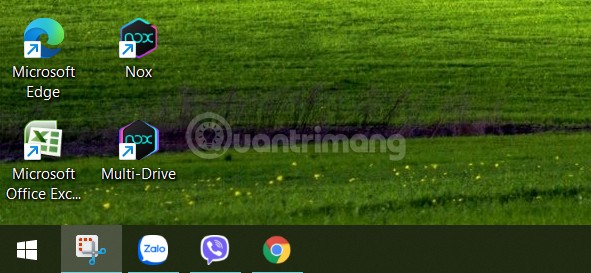
<p style="text-align: justify;"><strong>B4</strong>: Ở bước này, bạn phải chờ hệ thống tự tải về các file cần thiết từ Microsoft. Sau khi tải xong Explorer.exe sẽ tự khởi động lại một lần nữa và Taskbar với Start menu của Windows 10 sẽ hiện ra.</p>

<figure>
<div style="text-align: justify;"><img alt="Sau khi Explorer.exe khởi động lại bạn sẽ thấy Taskbar và Start Menu của Windows 10 hiện ra" data-i="1" data-src="https://st.quantrimang.com/photos/image/2021/10/16/dung-thu-explorer-patcher-cong-cu-dua-taskbar-windows-10-tro-ve-windows-11-2.jpg" data-was-processed="true" height="273" src="https://st.quantrimang.com/photos/image/2021/10/16/dung-thu-explorer-patcher-cong-cu-dua-taskbar-windows-10-tro-ve-windows-11-2.jpg" width="591" /></div>

<figcaption>
<div style="text-align: justify;">Sau khi Explorer.exe khởi động lại vài lần bạn sẽ thấy Taskbar và Start Menu của Windows 10 hiện ra</div>
</figcaption>
</figure>

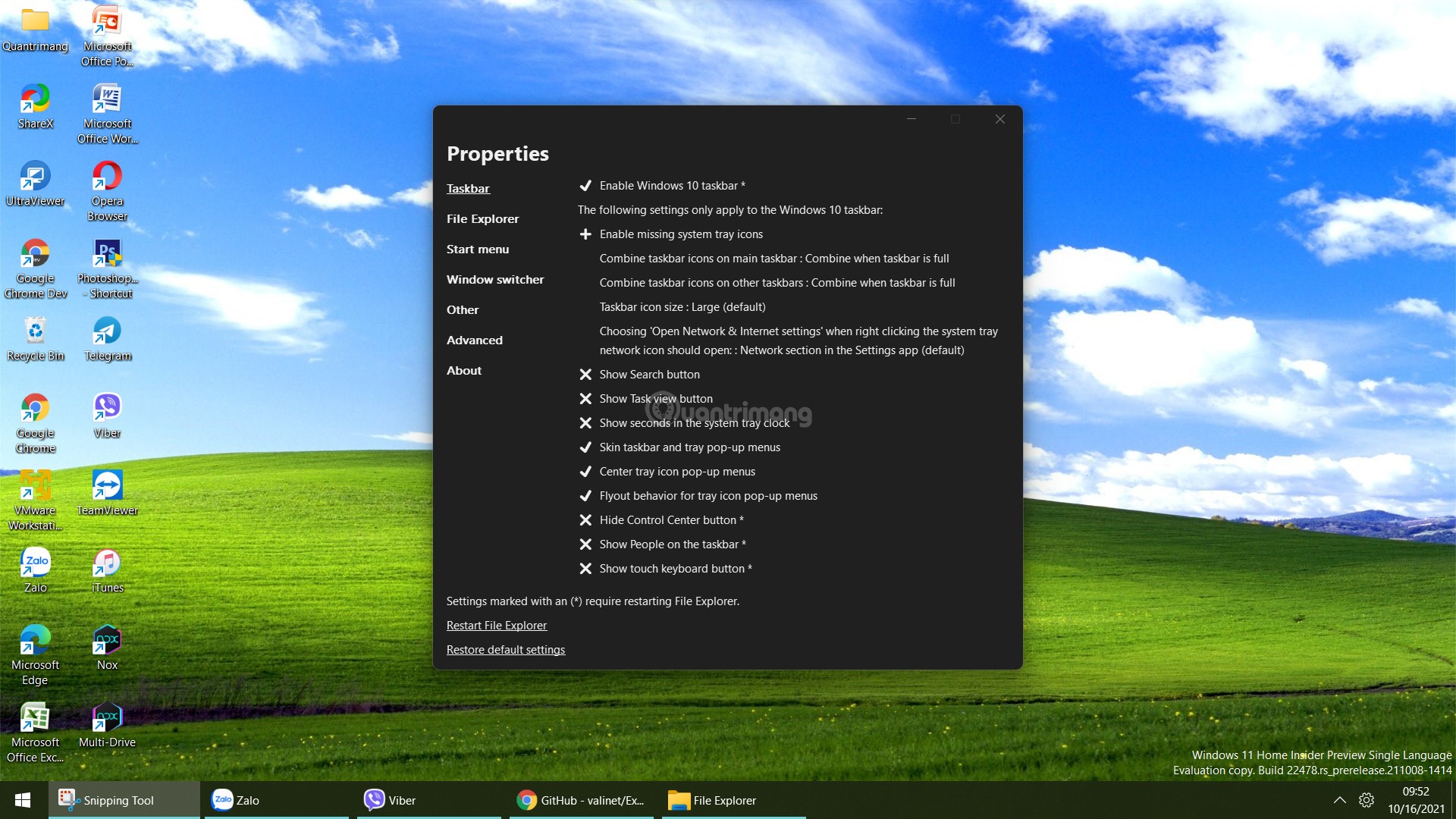
<p style="text-align: justify;"><strong>B5</strong>: Bạn cần cấu hình lại một chút cho phù hợp với nhu cầu. Để cấu hình Explorer Patcher bạn cần truy cập vào cài đặt của công cụ này bằng cách nhấn chuột phải vào nút&nbsp;<strong>Start</strong>&nbsp;(hoặc nhấn&nbsp;<strong>Win + X</strong>) sau đó chọn&nbsp;<strong>Properties.</strong></p>

<figure>
<div style="text-align: justify;"><img alt="Cấu hình Explorer Patcher" data-i="2" data-src="https://st.quantrimang.com/photos/image/2021/10/16/dung-thu-explorer-patcher-cong-cu-dua-taskbar-windows-10-tro-ve-windows-11-3.jpg" data-was-processed="true" height="1080" src="https://st.quantrimang.com/photos/image/2021/10/16/dung-thu-explorer-patcher-cong-cu-dua-taskbar-windows-10-tro-ve-windows-11-3.jpg" width="1920" /></div>

<figcaption>
<div style="text-align: justify;">Cấu hình Explorer Patcher</div>
</figcaption>
</figure>

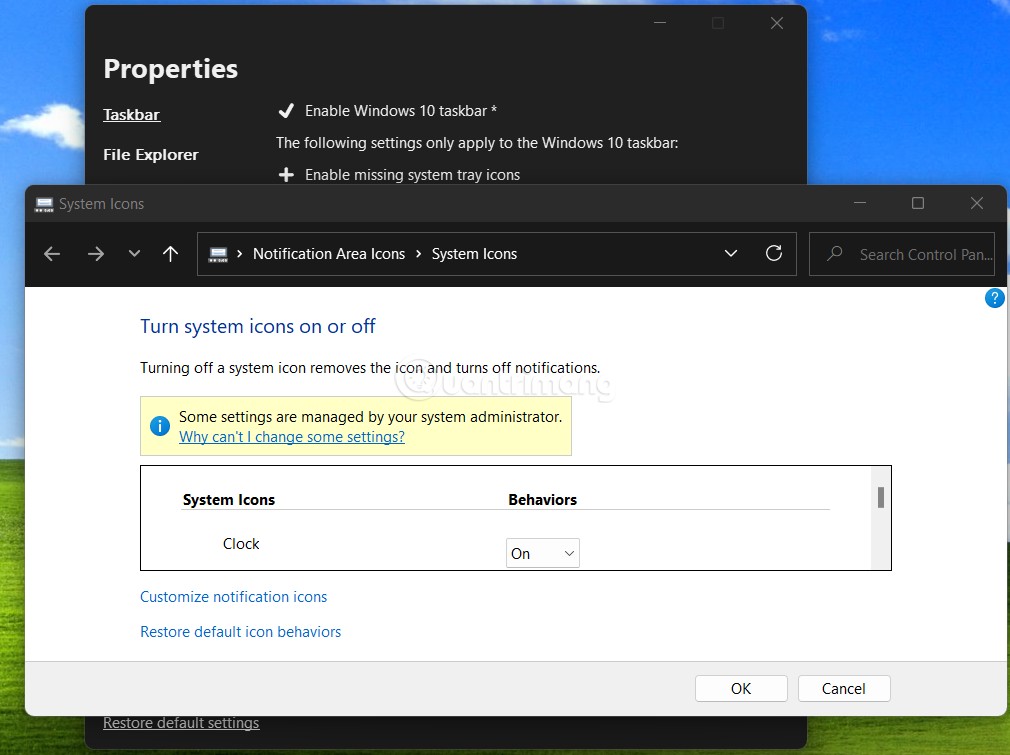
<p style="text-align: justify;"><strong>B6</strong>: Trong giao diện này, bạn có thể hiển thị biểu tượng đồng hồ và ngày tháng bị thiếu trên Taskbar bằng cách nhấn vào Enable missing system tray icons. Trong cửa sổ mới hiện lên bạn chọn On ở phần Clock.</p>

<figure>
<div style="text-align: justify;"><img alt="Hiển thị đồng hồ và ngày tháng trên khay biểu tượng hệ thống" data-i="3" data-src="https://st.quantrimang.com/photos/image/2021/10/16/dung-thu-explorer-patcher-cong-cu-dua-taskbar-windows-10-tro-ve-windows-11-4.jpg" data-was-processed="true" height="755" src="https://st.quantrimang.com/photos/image/2021/10/16/dung-thu-explorer-patcher-cong-cu-dua-taskbar-windows-10-tro-ve-windows-11-4.jpg" width="1010" /></div>

<figcaption>
<div style="text-align: justify;">Hiển thị đồng hồ và ngày tháng trên khay biểu tượng hệ thống</div>
</figcaption>
</figure>

<p style="text-align: justify;"><strong>B7</strong>: Bạn có thể tùy chỉnh gộp nhóm cho các biểu tượng ứng dụng bằng cách nhấp vào Combine taskbar icons on maint taskbar.</p>

<p style="text-align: justify;">Explorer Patcher còn rất nhiều tính năng thú vị khác mà các bạn có thể tự mình khám phá. Các bạn cũng có thể kết hợp với các công cụ khác như&nbsp;TaskbarX.</p>

<p style="text-align: justify;">Tham khảo thêm về Explorer Patcher:</p>

<ul>
	<li style="text-align: justify;">Trang GitHub của dự án Explorer Patcher:</li>
</ul>

<div style="text-align: justify;"><span style="color:rgb(192, 57, 43);"><strong>https://github.com/valinet/ExplorerPatcher</strong></span></div>

<h2 style="text-align: justify;">Cách gỡ Explorer Patcher</h2>

<p style="text-align: justify;">Để gỡ bỏ Explorer Patcher và trở về Taskbar và Start Menu bình thường của Windows 11 thì trước tiên bạn cần đưa Taskbar về vị trí bên dưới màn hình (nếu như bạn đã đổi vị trí của nó).</p>

<p style="text-align: justify;">Tiếp theo, bạn đổi tên file DLL trong thư mục C:\Windows từ dxgi.dll thành dxgio.dll. Sau đó, bạn khởi động lại máy và xóa file dxgio.dll đi. Bạn cũng có thể xóa cả thư mục %appdata%\ExplorerPatcher để đảm bảo trải nghiệm trở lại bình thường.</p>

<p style="text-align: justify;">Chúc các bạn thành công!</p>
		</div>
				<div id="author">
						<p>
				<strong>Tác giả:</strong>
				<a href="https://www.nguoicodonvn2008.info/vi/news/author/admin/">admin</a>
			</p>
						<p>
				<strong>Nguồn tin:</strong>
				Quantrimang.com
			</p>
		</div>
	</div>
	<div id="footer" class="clearfix">
		<div id="url">
			<strong>URL của bản tin này: </strong><a href="https://www.nguoicodonvn2008.info/vi/news/savefile/kien-thuc-may-tinh/cach-dung-explorer-patcher-cong-cu-dua-taskbar-windows-10-len-windows-11-4588.html" title="Cách dùng Explorer Patcher, công cụ đưa Taskbar Windows 10 lên Windows 11">https://www.nguoicodonvn2008.info/vi/news/savefile/kien-thuc-may-tinh/cach-dung-explorer-patcher-cong-cu-dua-taskbar-windows-10-len-windows-11-4588.html</a>

		</div>
		<div class="clear"></div>
		<div class="copyright">
			&copy; .&#x3A; Nguoicodonvn2008.info - Cõi lòng người cô đơn &#x3A;.
		</div>
		<div id="contact">
			<a href="mailto:admin@nguoicodonvn2008.info">admin@nguoicodonvn2008.info</a>
		</div>
	</div>
</div>
        <div id="timeoutsess" class="chromeframe">
            Bạn đã không sử dụng Site, <a onclick="timeoutsesscancel();" href="https://www.nguoicodonvn2008.info/#">Bấm vào đây để duy trì trạng thái đăng nhập</a>. Thời gian chờ: <span id="secField"> 60 </span> giây
        </div>
        <div id="openidResult" class="nv-alert" style="display:none"></div>
        <div id="openidBt" data-result="" data-redirect=""></div>
		</script>
		<div class="car-top">
  <span><img src="https://www.nguoicodonvn2008.info/themes/default/images/car.png" alt=""></span>
</div>
<script src="https://www.nguoicodonvn2008.info/assets/js/jquery/jquery.min.js"></script>
<script>var nv_base_siteurl="/",nv_lang_data="vi",nv_lang_interface="vi",nv_name_variable="nv",nv_fc_variable="op",nv_lang_variable="language",nv_module_name="news",nv_func_name="savefile",nv_is_user=0, nv_my_ofs=-4,nv_my_abbr="EDT",nv_cookie_prefix="nv4c_e856T",nv_check_pass_mstime=1738000,nv_area_admin=0,nv_safemode=0,theme_responsive=0,nv_recaptcha_ver=2,nv_recaptcha_sitekey="",nv_recaptcha_type="image",XSSsanitize=1;</script>
<script src="https://www.nguoicodonvn2008.info/assets/js/language/vi.js"></script>
<script src="https://www.nguoicodonvn2008.info/assets/js/DOMPurify/purify3.js"></script>
<script src="https://www.nguoicodonvn2008.info/assets/js/global.js"></script>
<script src="https://www.nguoicodonvn2008.info/assets/js/site.js"></script>
<script src="https://www.nguoicodonvn2008.info/themes/default/js/news.js"></script>
<script src="https://www.nguoicodonvn2008.info/themes/default/js/main.js"></script>
<script src="https://www.nguoicodonvn2008.info/themes/default/js/custom.js"></script>
<script type="application/ld+json">
        {
            "@context": "https://schema.org",
            "@type": "Organization",
            "url": "https://www.nguoicodonvn2008.info",
            "logo": "https://www.nguoicodonvn2008.info/uploads/angel.gif"
        }
        </script>
<script src="https://www.nguoicodonvn2008.info/themes/default/js/bootstrap.min.js"></script>
<script type="text/javascript">
var $scrolltop = $('.car-top');
$scrolltop.on('click', function () {
    $('html,body').animate({
        scrollTop: 0
    }, 800);
    $(this).addClass("car-run");
    setTimeout(function(){ $scrolltop.removeClass('car-run');}, 1000);
    return false;
});
$(window).on('scroll', function ()
{ 
    if($(window).scrollTop() >= 200)
    {
        $scrolltop.addClass("show");
        $scrolltop.addClass("car-down");
    }
    else
    {
       $scrolltop.removeClass("show");
       setTimeout(function(){ $scrolltop.removeClass('car-down');}, 300);
    }
});
</script>
</body>
</html>