<!DOCTYPE html>
    <html lang="vi" xmlns="http://www.w3.org/1999/xhtml" prefix="og: http://ogp.me/ns#">
    <head>
<title>Cách đổi màu tóc trong Photoshop</title>
<meta name="description" content="Cách đổi màu tóc trong Photoshop - Savefile - Tin Tức - https&#x3A;&#x002F;&#x002F;www.nguoicodonvn2008.info&#x002F;vi&#x002F;news&#x002F;savefile&#x002F;kien-thuc-may-tinh&#x002F;cach-doi-mau-toc-trong-photoshop-1787.html">
<meta name="author" content=".: Nguoicodonvn2008.info - Cõi lòng người cô đơn :.">
<meta name="copyright" content=".: Nguoicodonvn2008.info - Cõi lòng người cô đơn :. [admin@nguoicodonvn2008.info]">
<meta name="robots" content="index, archive, follow, noodp">
<meta name="googlebot" content="index,archive,follow,noodp">
<meta name="msnbot" content="all,index,follow">
<meta name="generator" content="NukeViet v4.5">
<meta http-equiv="Content-Type" content="text/html; charset=utf-8">
<meta property="og:title" content="Cách đổi màu tóc trong Photoshop">
<meta property="og:type" content="website">
<meta property="og:description" content="Savefile - Tin Tức - https&#x3A;&#x002F;&#x002F;www.nguoicodonvn2008.info&#x002F;vi&#x002F;news&#x002F;savefile&#x002F;kien-thuc-may-tinh&#x002F;cach-doi-mau-toc-trong-photoshop-1787.html">
<meta property="og:site_name" content=".&#x3A; Nguoicodonvn2008.info - Cõi lòng người cô đơn &#x3A;.">
<meta property="og:url" content="https://www.nguoicodonvn2008.info/vi/news/savefile/kien-thuc-may-tinh/cach-doi-mau-toc-trong-photoshop-1787.html">
<link rel="shortcut icon" href="https://www.nguoicodonvn2008.info/favicon.ico">
<link rel="canonical" href="https://www.nguoicodonvn2008.info/vi/news/savefile/kien-thuc-may-tinh/cach-doi-mau-toc-trong-photoshop-1787.html">
<link rel="alternate" href="https://www.nguoicodonvn2008.info/vi/news/rss/" title="Tin Tức" type="application/rss+xml">
<link rel="alternate" href="https://www.nguoicodonvn2008.info/vi/news/rss/karaoke-dual/" title="Tin Tức - Karaoke Dual" type="application/rss+xml">
<link rel="alternate" href="https://www.nguoicodonvn2008.info/vi/news/rss/nhac-tre/" title="Tin Tức - Nhạc trẻ" type="application/rss+xml">
<link rel="alternate" href="https://www.nguoicodonvn2008.info/vi/news/rss/tru-tinh/" title="Tin Tức - Trữ tình" type="application/rss+xml">
<link rel="alternate" href="https://www.nguoicodonvn2008.info/vi/news/rss/nuoc-ngoai/" title="Tin Tức - Nước ngoài" type="application/rss+xml">
<link rel="alternate" href="https://www.nguoicodonvn2008.info/vi/news/rss/remix/" title="Tin Tức - Remix" type="application/rss+xml">
<link rel="alternate" href="https://www.nguoicodonvn2008.info/vi/news/rss/tam-su-tinh-yeu/" title="Tin Tức - Tâm sự tình yêu" type="application/rss+xml">
<link rel="alternate" href="https://www.nguoicodonvn2008.info/vi/news/rss/tho-suu-tam/" title="Tin Tức - Thơ sưu tầm" type="application/rss+xml">
<link rel="alternate" href="https://www.nguoicodonvn2008.info/vi/news/rss/cuoc-song/" title="Tin Tức - Cuộc sống" type="application/rss+xml">
<link rel="alternate" href="https://www.nguoicodonvn2008.info/vi/news/rss/phan-mem/" title="Tin Tức - Phần mềm" type="application/rss+xml">
<link rel="alternate" href="https://www.nguoicodonvn2008.info/vi/news/rss/kien-thuc-may-tinh/" title="Tin Tức - Kiến thức máy tính" type="application/rss+xml">
<link rel="alternate" href="https://www.nguoicodonvn2008.info/vi/news/rss/hoc-tap/" title="Tin Tức - Học tập" type="application/rss+xml">
<link rel="alternate" href="https://www.nguoicodonvn2008.info/vi/news/rss/tai-lieu/" title="Tin Tức - Tài liệu" type="application/rss+xml">
<link rel="alternate" href="https://www.nguoicodonvn2008.info/vi/news/rss/de-thi/" title="Tin Tức - Đề thi" type="application/rss+xml">
<link rel="preload" as="style" href="https://www.nguoicodonvn2008.info/assets/css/font-awesome.min.css" type="text/css">
<link rel="preload" as="style" href="https://www.nguoicodonvn2008.info/themes/default/css/bootstrap.non-responsive.css" type="text/css">
<link rel="preload" as="style" href="https://www.nguoicodonvn2008.info/themes/default/css/style.css" type="text/css">
<link rel="preload" as="style" href="https://www.nguoicodonvn2008.info/themes/default/css/style.non-responsive.css" type="text/css">
<link rel="preload" as="style" href="https://www.nguoicodonvn2008.info/themes/default/css/news.css" type="text/css">
<link rel="preload" as="style" href="https://www.nguoicodonvn2008.info/themes/default/css/custom.css" type="text/css">
<link rel="preload" as="script" href="https://www.nguoicodonvn2008.info/assets/js/jquery/jquery.min.js" type="text/javascript">
<link rel="preload" as="script" href="https://www.nguoicodonvn2008.info/assets/js/language/vi.js" type="text/javascript">
<link rel="preload" as="script" href="https://www.nguoicodonvn2008.info/assets/js/DOMPurify/purify3.js" type="text/javascript">
<link rel="preload" as="script" href="https://www.nguoicodonvn2008.info/assets/js/global.js" type="text/javascript">
<link rel="preload" as="script" href="https://www.nguoicodonvn2008.info/assets/js/site.js" type="text/javascript">
<link rel="preload" as="script" href="https://www.nguoicodonvn2008.info/themes/default/js/news.js" type="text/javascript">
<link rel="preload" as="script" href="https://www.nguoicodonvn2008.info/themes/default/js/main.js" type="text/javascript">
<link rel="preload" as="script" href="https://www.nguoicodonvn2008.info/themes/default/js/custom.js" type="text/javascript">
<link rel="preload" as="script" href="https://www.nguoicodonvn2008.info/themes/default/js/bootstrap.min.js" type="text/javascript">
<link rel="stylesheet" href="https://www.nguoicodonvn2008.info/assets/css/font-awesome.min.css">
<link rel="stylesheet" href="https://www.nguoicodonvn2008.info/themes/default/css/bootstrap.non-responsive.css">
<link rel="stylesheet" href="https://www.nguoicodonvn2008.info/themes/default/css/style.css">
<link rel="stylesheet" href="https://www.nguoicodonvn2008.info/themes/default/css/style.non-responsive.css">
<link rel="StyleSheet" href="https://www.nguoicodonvn2008.info/themes/default/css/news.css">
<link rel="stylesheet" href="https://www.nguoicodonvn2008.info/themes/default/css/custom.css">
<style type="text/css">
	body{background: #fff;}
</style>
    </head>
    <body>
<div id="print">
	<div id="hd_print">
		<h2 class="pull-left">.&#x3A; Nguoicodonvn2008.info - Cõi lòng người cô đơn &#x3A;.</h2>
		<p class="pull-right"><a title=".&#x3A; Nguoicodonvn2008.info - Cõi lòng người cô đơn &#x3A;." href="https://www.nguoicodonvn2008.info/">https://www.nguoicodonvn2008.info</a></p>
	</div>
	<div class="clear"></div>
	<hr />
	<div id="content">
		<h1>Cách đổi màu tóc trong Photoshop</h1>
		<ul class="list-inline">
			<li>Thứ sáu - 06/03/2020 23:57</li>
			<li class="hidden-print txtrequired"><em class="fa fa-print">&nbsp;</em><a title="In ra" href="javascript:;" onclick="window.print()">In ra</a></li>
			<li class="hidden-print txtrequired"><em class="fa fa-power-off">&nbsp;</em><a title="Đóng cửa sổ này" href="javascript:;" onclick="window.close()">Đóng cửa sổ này</a></li>
		</ul>
		<div class="clear"></div>
		<div id="hometext">
		</div>
				<div class="imghome">
			<img alt="Cách đổi màu tóc trong Photoshop" src="https://st.quantrimang.com/photos/image/2020/03/05/Photoshop-doi-mau-toc-2.jpg" width="460" class="img-thumbnail" />
		</div>
		<div class="clear"></div>
		<div id="bodytext" class="clearfix">
			<p style="text-align: justify;">Photoshop cung cấp tới người dùng rất nhiều công cụ chỉnh sửa ảnh để bạn khám phá. Bạn hoàn toàn có thể biến đổi hình ảnh gốc mới lạ hơn, màu sắc hơn, nghệ thuật hơn theo ý mình. Việc thay đổi màu sắc của chủ thể như thay&nbsp;đổi màu áo trong Photoshop&nbsp;hay đổi màu tóc là một cách để chúng ta làm mới nhân vật trong ảnh chụp, lựa chọn gam màu mới theo ý của mình. Nhìn chung các bước đổi màu tóc trong Photoshop cũng không quá phức tạp. Bài viết dưới đây sẽ hướng dẫn bạn đọc cách đổi màu tóc trong Photoshop.</p>

<h2 style="text-align: justify;">Hướng dẫn đổi màu tóc trong Photoshop</h2>

<p style="text-align: justify;"><strong>Bước 1:</strong></p>

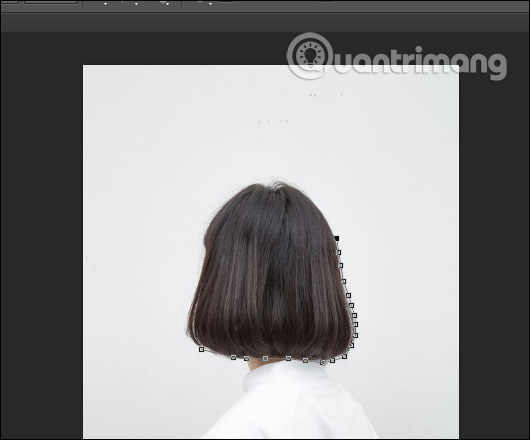
<p style="text-align: justify;">Chúng ta tải hình ảnh muốn thay đổi lên Photoshop rồi nhấn&nbsp;<strong>biểu tượng Pen Tool</strong>&nbsp;để&nbsp;<strong>khoanh vùng tóc cần đổi màu</strong>. Lúc đó sẽ có biểu tượng đầu bút để bạn chấm xung quanh vùng tóc. Lưu ý nếu mái tóc có nhiều chi tiết thì bạn cần khoanh vùng toàn bộ.</p>

<p style="text-align: justify;">Khi đã khoanh vùng xong thì&nbsp;<strong>nhấn Ctrl + Enter</strong>.</p>

<p style="text-align: justify;"><img alt="Khoanh vùng màu tóc " data-i="0" data-src="https://st.quantrimang.com/photos/image/2020/03/05/Photoshop-doi-mau-toc-1.jpg" data-was-processed="true" height="440" src="https://st.quantrimang.com/photos/image/2020/03/05/Photoshop-doi-mau-toc-1.jpg" width="530" /></p>

<p style="text-align: justify;"><strong>Bước 2:</strong></p>

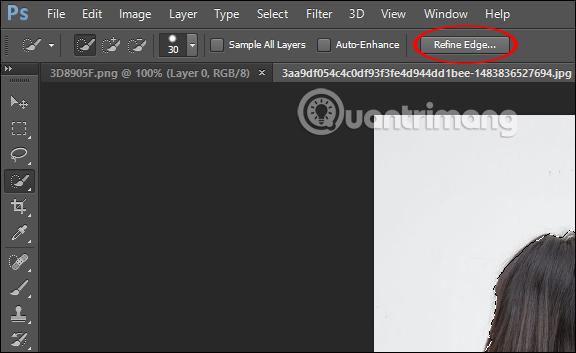
<p style="text-align: justify;">Tiếp đến nhấn vào<strong>&nbsp;công cụ Quick select tool</strong>&nbsp;như hình rồi nhấn vào&nbsp;<strong>nút Refine Edge...</strong></p>

<p style="text-align: justify;"><img alt="Quick select tool" data-i="1" data-src="https://st.quantrimang.com/photos/image/2020/03/05/Photoshop-doi-mau-toc-2.jpg" data-was-processed="true" height="353" src="https://st.quantrimang.com/photos/image/2020/03/05/Photoshop-doi-mau-toc-2.jpg" width="576" /></p>

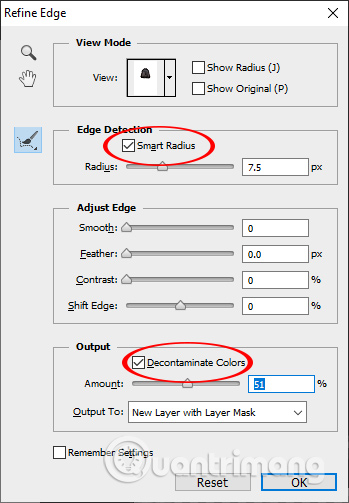
<p style="text-align: justify;">Chuyển sang giao diện thiết lập chỉnh tách vùng tóc, tích chọn vào&nbsp;<strong>Smart Radius</strong>&nbsp;rồi c<strong>hỉnh thanh Radius</strong>&nbsp;bên dưới. Sau đó tích chọn tiếp vào&nbsp;<strong>Decontaminate Colors</strong>&nbsp;ở phần Output. Nhấn<strong>&nbsp;OK</strong>&nbsp;để tiếp tục.</p>

<p style="text-align: justify;"><img alt="Giao diện chỉnh tách vùng " data-i="2" data-src="https://st.quantrimang.com/photos/image/2020/03/05/Photoshop-doi-mau-toc-3.jpg" data-was-processed="true" height="503" src="https://st.quantrimang.com/photos/image/2020/03/05/Photoshop-doi-mau-toc-3.jpg" width="349" /></p>

<p style="text-align: justify;"><strong>Bước 3:</strong></p>

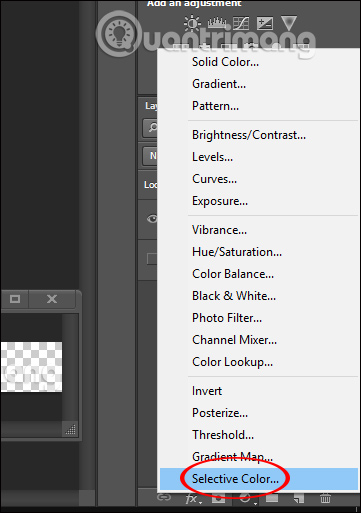
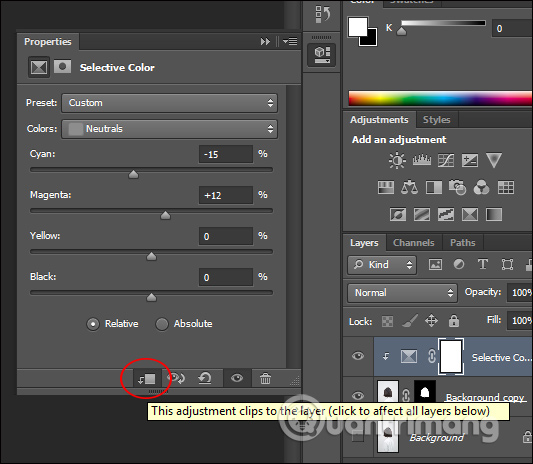
<p style="text-align: justify;">Lúc này sẽ chỉ còn mỗi bộ tóc để chúng ta điều chỉnh màu. Click chuột vào&nbsp;<strong>layer background copy</strong>&nbsp;rồi nhấn&nbsp;<strong>chuột phải vào biểu tượng hình tròn</strong>&nbsp;và chọn&nbsp;<strong>Selective Color</strong>.</p>

<p style="text-align: justify;"><img alt="Điều chỉnh màu " data-i="3" data-src="https://st.quantrimang.com/photos/image/2020/03/05/Photoshop-doi-mau-toc-4.jpg" data-was-processed="true" height="513" src="https://st.quantrimang.com/photos/image/2020/03/05/Photoshop-doi-mau-toc-4.jpg" width="361" /></p>

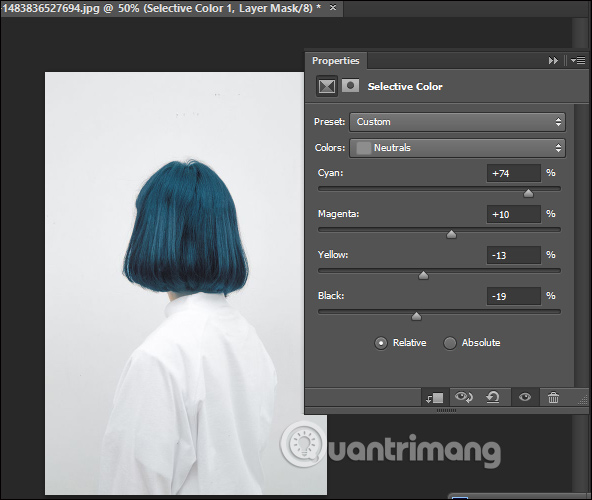
<p style="text-align: justify;">Trong giao diện&nbsp;<strong>Properties</strong>&nbsp;phần&nbsp;<strong>Colors</strong>&nbsp;bạn&nbsp;<strong>chọn màu Neutrals</strong>, tiếp đến&nbsp;<strong>chỉnh màu tóc</strong>&nbsp;bằng 4 thanh bên dưới. Cuối cùng nhấn vào&nbsp;<strong>biểu tượng hình vuông</strong>&nbsp;như hình.</p>

<p style="text-align: justify;"><img alt="Chỉnh màu tóc " data-i="4" data-src="https://st.quantrimang.com/photos/image/2020/03/05/Photoshop-doi-mau-toc-5.jpg" data-was-processed="true" height="464" src="https://st.quantrimang.com/photos/image/2020/03/05/Photoshop-doi-mau-toc-5.jpg" width="533" /></p>

<p style="text-align: justify;"><strong>Bước 4:</strong></p>

<p style="text-align: justify;">Quay lại phần layer&nbsp;<strong>click vào biểu tượng mắt ở background ảnh gốc đầu tiên</strong>&nbsp;và kết quả bạn được màu tóc thay đổi như dưới đây. Nếu không thích màu sắc đó thì bạn vẫn có thể chỉnh sửa lại màu trong giao diện Properties như trên.</p>

<p style="text-align: justify;"><img alt="Hiện ảnh hoàn chỉnh " data-i="5" data-src="https://st.quantrimang.com/photos/image/2020/03/05/Photoshop-doi-mau-toc-6.jpg" data-was-processed="true" height="500" src="https://st.quantrimang.com/photos/image/2020/03/05/Photoshop-doi-mau-toc-6.jpg" width="592" /></p>

<p style="text-align: justify;">&nbsp;</p>
		</div>
				<div id="author">
						<p>
				<strong>Nguồn tin:</strong>
				Quantrimang.com
			</p>
		</div>
	</div>
	<div id="footer" class="clearfix">
		<div id="url">
			<strong>URL của bản tin này: </strong><a href="https://www.nguoicodonvn2008.info/vi/news/savefile/kien-thuc-may-tinh/cach-doi-mau-toc-trong-photoshop-1787.html" title="Cách đổi màu tóc trong Photoshop">https://www.nguoicodonvn2008.info/vi/news/savefile/kien-thuc-may-tinh/cach-doi-mau-toc-trong-photoshop-1787.html</a>

		</div>
		<div class="clear"></div>
		<div class="copyright">
			&copy; .&#x3A; Nguoicodonvn2008.info - Cõi lòng người cô đơn &#x3A;.
		</div>
		<div id="contact">
			<a href="mailto:admin@nguoicodonvn2008.info">admin@nguoicodonvn2008.info</a>
		</div>
	</div>
</div>
        <div id="timeoutsess" class="chromeframe">
            Bạn đã không sử dụng Site, <a onclick="timeoutsesscancel();" href="https://www.nguoicodonvn2008.info/#">Bấm vào đây để duy trì trạng thái đăng nhập</a>. Thời gian chờ: <span id="secField"> 60 </span> giây
        </div>
        <div id="openidResult" class="nv-alert" style="display:none"></div>
        <div id="openidBt" data-result="" data-redirect=""></div>
		</script>
		<div class="car-top">
  <span><img src="https://www.nguoicodonvn2008.info/themes/default/images/car.png" alt=""></span>
</div>
<script src="https://www.nguoicodonvn2008.info/assets/js/jquery/jquery.min.js"></script>
<script>var nv_base_siteurl="/",nv_lang_data="vi",nv_lang_interface="vi",nv_name_variable="nv",nv_fc_variable="op",nv_lang_variable="language",nv_module_name="news",nv_func_name="savefile",nv_is_user=0, nv_my_ofs=-4,nv_my_abbr="EDT",nv_cookie_prefix="nv4c_e856T",nv_check_pass_mstime=1738000,nv_area_admin=0,nv_safemode=0,theme_responsive=0,nv_recaptcha_ver=2,nv_recaptcha_sitekey="",nv_recaptcha_type="image",XSSsanitize=1;</script>
<script src="https://www.nguoicodonvn2008.info/assets/js/language/vi.js"></script>
<script src="https://www.nguoicodonvn2008.info/assets/js/DOMPurify/purify3.js"></script>
<script src="https://www.nguoicodonvn2008.info/assets/js/global.js"></script>
<script src="https://www.nguoicodonvn2008.info/assets/js/site.js"></script>
<script src="https://www.nguoicodonvn2008.info/themes/default/js/news.js"></script>
<script src="https://www.nguoicodonvn2008.info/themes/default/js/main.js"></script>
<script src="https://www.nguoicodonvn2008.info/themes/default/js/custom.js"></script>
<script type="application/ld+json">
        {
            "@context": "https://schema.org",
            "@type": "Organization",
            "url": "https://www.nguoicodonvn2008.info",
            "logo": "https://www.nguoicodonvn2008.info/uploads/angel.gif"
        }
        </script>
<script src="https://www.nguoicodonvn2008.info/themes/default/js/bootstrap.min.js"></script>
<script type="text/javascript">
var $scrolltop = $('.car-top');
$scrolltop.on('click', function () {
    $('html,body').animate({
        scrollTop: 0
    }, 800);
    $(this).addClass("car-run");
    setTimeout(function(){ $scrolltop.removeClass('car-run');}, 1000);
    return false;
});
$(window).on('scroll', function ()
{ 
    if($(window).scrollTop() >= 200)
    {
        $scrolltop.addClass("show");
        $scrolltop.addClass("car-down");
    }
    else
    {
       $scrolltop.removeClass("show");
       setTimeout(function(){ $scrolltop.removeClass('car-down');}, 300);
    }
});
</script>
</body>
</html>