<!DOCTYPE html>
    <html lang="vi" xmlns="http://www.w3.org/1999/xhtml" prefix="og: http://ogp.me/ns#">
    <head>
<title>Cách đổi hình nền Google, cài đặt hình nền cho Chrome trên máy tính</title>
<meta name="description" content="Cách đổi hình nền Google, cài đặt hình nền cho Chrome trên máy tính - Savefile - Tin Tức -...">
<meta name="author" content=".: Nguoicodonvn2008.info - Cõi lòng người cô đơn :.">
<meta name="copyright" content=".: Nguoicodonvn2008.info - Cõi lòng người cô đơn :. [admin@nguoicodonvn2008.info]">
<meta name="robots" content="index, archive, follow, noodp">
<meta name="googlebot" content="index,archive,follow,noodp">
<meta name="msnbot" content="all,index,follow">
<meta name="generator" content="NukeViet v4.5">
<meta http-equiv="Content-Type" content="text/html; charset=utf-8">
<meta property="og:title" content="Cách đổi hình nền Google, cài đặt hình nền cho Chrome trên máy tính">
<meta property="og:type" content="website">
<meta property="og:description" content="Savefile - Tin Tức - https&#x3A;&#x002F;&#x002F;www.nguoicodonvn2008.info&#x002F;vi&#x002F;news&#x002F;savefile&#x002F;kien-thuc-may-tinh&#x002F;cach-doi-hinh-nen-google-cai-dat-hinh-nen-cho-chrome-tren-may-tinh-9990.html">
<meta property="og:site_name" content=".&#x3A; Nguoicodonvn2008.info - Cõi lòng người cô đơn &#x3A;.">
<meta property="og:url" content="https://www.nguoicodonvn2008.info/vi/news/savefile/kien-thuc-may-tinh/cach-doi-hinh-nen-google-cai-dat-hinh-nen-cho-chrome-tren-may-tinh-9990.html">
<link rel="shortcut icon" href="https://www.nguoicodonvn2008.info/favicon.ico">
<link rel="canonical" href="https://www.nguoicodonvn2008.info/vi/news/savefile/kien-thuc-may-tinh/cach-doi-hinh-nen-google-cai-dat-hinh-nen-cho-chrome-tren-may-tinh-9990.html">
<link rel="alternate" href="https://www.nguoicodonvn2008.info/vi/news/rss/" title="Tin Tức" type="application/rss+xml">
<link rel="alternate" href="https://www.nguoicodonvn2008.info/vi/news/rss/karaoke-dual/" title="Tin Tức - Karaoke Dual" type="application/rss+xml">
<link rel="alternate" href="https://www.nguoicodonvn2008.info/vi/news/rss/nhac-tre/" title="Tin Tức - Nhạc trẻ" type="application/rss+xml">
<link rel="alternate" href="https://www.nguoicodonvn2008.info/vi/news/rss/tru-tinh/" title="Tin Tức - Trữ tình" type="application/rss+xml">
<link rel="alternate" href="https://www.nguoicodonvn2008.info/vi/news/rss/nuoc-ngoai/" title="Tin Tức - Nước ngoài" type="application/rss+xml">
<link rel="alternate" href="https://www.nguoicodonvn2008.info/vi/news/rss/remix/" title="Tin Tức - Remix" type="application/rss+xml">
<link rel="alternate" href="https://www.nguoicodonvn2008.info/vi/news/rss/tam-su-tinh-yeu/" title="Tin Tức - Tâm sự tình yêu" type="application/rss+xml">
<link rel="alternate" href="https://www.nguoicodonvn2008.info/vi/news/rss/tho-suu-tam/" title="Tin Tức - Thơ sưu tầm" type="application/rss+xml">
<link rel="alternate" href="https://www.nguoicodonvn2008.info/vi/news/rss/cuoc-song/" title="Tin Tức - Cuộc sống" type="application/rss+xml">
<link rel="alternate" href="https://www.nguoicodonvn2008.info/vi/news/rss/phan-mem/" title="Tin Tức - Phần mềm" type="application/rss+xml">
<link rel="alternate" href="https://www.nguoicodonvn2008.info/vi/news/rss/kien-thuc-may-tinh/" title="Tin Tức - Kiến thức máy tính" type="application/rss+xml">
<link rel="alternate" href="https://www.nguoicodonvn2008.info/vi/news/rss/hoc-tap/" title="Tin Tức - Học tập" type="application/rss+xml">
<link rel="alternate" href="https://www.nguoicodonvn2008.info/vi/news/rss/tai-lieu/" title="Tin Tức - Tài liệu" type="application/rss+xml">
<link rel="alternate" href="https://www.nguoicodonvn2008.info/vi/news/rss/de-thi/" title="Tin Tức - Đề thi" type="application/rss+xml">
<link rel="preload" as="style" href="https://www.nguoicodonvn2008.info/assets/css/font-awesome.min.css" type="text/css">
<link rel="preload" as="style" href="https://www.nguoicodonvn2008.info/themes/default/css/bootstrap.non-responsive.css" type="text/css">
<link rel="preload" as="style" href="https://www.nguoicodonvn2008.info/themes/default/css/style.css" type="text/css">
<link rel="preload" as="style" href="https://www.nguoicodonvn2008.info/themes/default/css/style.non-responsive.css" type="text/css">
<link rel="preload" as="style" href="https://www.nguoicodonvn2008.info/themes/default/css/news.css" type="text/css">
<link rel="preload" as="style" href="https://www.nguoicodonvn2008.info/themes/default/css/custom.css" type="text/css">
<link rel="preload" as="script" href="https://www.nguoicodonvn2008.info/assets/js/jquery/jquery.min.js" type="text/javascript">
<link rel="preload" as="script" href="https://www.nguoicodonvn2008.info/assets/js/language/vi.js" type="text/javascript">
<link rel="preload" as="script" href="https://www.nguoicodonvn2008.info/assets/js/DOMPurify/purify3.js" type="text/javascript">
<link rel="preload" as="script" href="https://www.nguoicodonvn2008.info/assets/js/global.js" type="text/javascript">
<link rel="preload" as="script" href="https://www.nguoicodonvn2008.info/assets/js/site.js" type="text/javascript">
<link rel="preload" as="script" href="https://www.nguoicodonvn2008.info/themes/default/js/news.js" type="text/javascript">
<link rel="preload" as="script" href="https://www.nguoicodonvn2008.info/themes/default/js/main.js" type="text/javascript">
<link rel="preload" as="script" href="https://www.nguoicodonvn2008.info/themes/default/js/custom.js" type="text/javascript">
<link rel="preload" as="script" href="https://www.nguoicodonvn2008.info/themes/default/js/bootstrap.min.js" type="text/javascript">
<link rel="stylesheet" href="https://www.nguoicodonvn2008.info/assets/css/font-awesome.min.css">
<link rel="stylesheet" href="https://www.nguoicodonvn2008.info/themes/default/css/bootstrap.non-responsive.css">
<link rel="stylesheet" href="https://www.nguoicodonvn2008.info/themes/default/css/style.css">
<link rel="stylesheet" href="https://www.nguoicodonvn2008.info/themes/default/css/style.non-responsive.css">
<link rel="StyleSheet" href="https://www.nguoicodonvn2008.info/themes/default/css/news.css">
<link rel="stylesheet" href="https://www.nguoicodonvn2008.info/themes/default/css/custom.css">
<style type="text/css">
	body{background: #fff;}
</style>
    </head>
    <body>
<div id="print">
	<div id="hd_print">
		<h2 class="pull-left">.&#x3A; Nguoicodonvn2008.info - Cõi lòng người cô đơn &#x3A;.</h2>
		<p class="pull-right"><a title=".&#x3A; Nguoicodonvn2008.info - Cõi lòng người cô đơn &#x3A;." href="https://www.nguoicodonvn2008.info/">https://www.nguoicodonvn2008.info</a></p>
	</div>
	<div class="clear"></div>
	<hr />
	<div id="content">
		<h1>Cách đổi hình nền Google, cài đặt hình nền cho Chrome trên máy tính</h1>
		<ul class="list-inline">
			<li>Thứ năm - 13/03/2025 03:11</li>
			<li class="hidden-print txtrequired"><em class="fa fa-print">&nbsp;</em><a title="In ra" href="javascript:;" onclick="window.print()">In ra</a></li>
			<li class="hidden-print txtrequired"><em class="fa fa-power-off">&nbsp;</em><a title="Đóng cửa sổ này" href="javascript:;" onclick="window.close()">Đóng cửa sổ này</a></li>
		</ul>
		<div class="clear"></div>
		<div id="hometext">
		</div>
				<div class="imghome">
			<img alt="Cách đổi hình nền Google, cài đặt hình nền cho Chrome trên máy tính" src="https://st.quantrimang.com/photos/image/2023/09/19/thay-anh-nen-tab-moi-tren-chrome-14.jpg" width="460" class="img-thumbnail" />
		</div>
		<div class="clear"></div>
		<div id="bodytext" class="clearfix">
			<p style="text-align: justify;">Nếu thường xuyên phải làm việc với chrome, có thể bạn sẽ thấy nhàm chán với phông nền đơn điệu của trình duyệt. May thay, bạn hoàn toàn có thể dễ dàng thay đổi&nbsp;hình nền&nbsp;cho giao diện Chrome. Chỉ cần một vài thao tác đơn giản là bạn đã có thể cài đặt những hình ảnh yêu thích làm hình nền cho trình duyệt Chrome của mình rồi.</p>

<p style="text-align: justify;">Bài viết dưới đây sẽ hướng dẫn bạn đọc cách đổi hình nền cho trình duyệt Google Chrome trên&nbsp;&nbsp;máy tính.</p>

<div style="text-align: justify;">&nbsp;</div>

<h2 style="text-align: justify;">Cách thay đổi hình nền của Google trong Chrome bằng theme</h2>

<h3 style="text-align: justify;">Tìm cài đặt theme</h3>

<p style="text-align: justify;">Trước tiên, bài viết sẽ hướng dẫn bạn cách thay đổi nền Google Chrome bằng theme. Tại đây, bài viết cài đặt một theme mà bạn có thể tải xuống từ Chrome Web Store. Các theme thường bao gồm một hình ảnh tùy chỉnh xuất hiện trên nền&nbsp;<strong>New tab</strong>&nbsp;và những màu mới xuất hiện khắp trình duyệt.</p>

<p style="text-align: justify;">Trước tiên, hãy tìm cài đặt theme trong Google Chrome. Để làm điều này:</p>

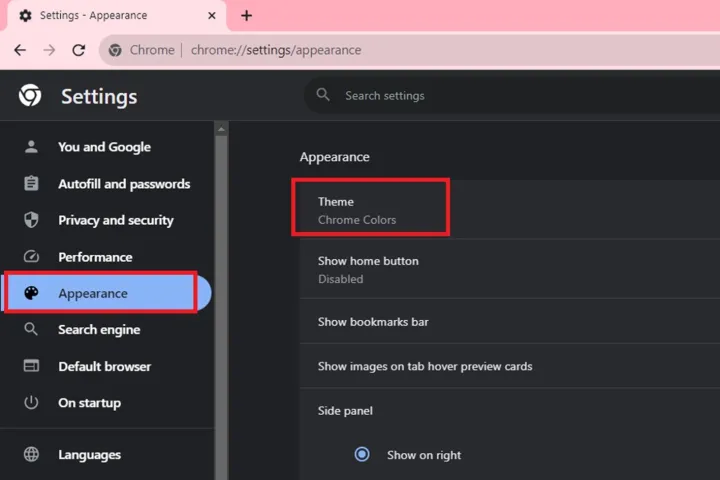
<p style="text-align: justify;"><strong>Bước 1</strong>: Chọn biểu tượng 3 chấm&nbsp;<strong>Customize and control Google Chrome</strong>&nbsp;nằm ở góc trên bên phải.</p>

<p style="text-align: justify;"><strong>Bước 2</strong>: Chọn tùy chọn&nbsp;<strong>Settings</strong>&nbsp;trên menu drop-down.</p>

<p style="text-align: justify;"><strong>Bước 3</strong>: Chọn&nbsp;<strong>Appearance</strong>&nbsp;được liệt kê ở bên trái.</p>

<figure>
<div style="text-align: justify;"><img alt="Cài đặt theme trong Google Chrome." data-i="0" data-src="https://st.quantrimang.com/photos/image/2024/02/23/thay-anh-nen-tab-moi-tren-chrome-1.jpg" data-was-processed="true" height="480" src="https://st.quantrimang.com/photos/image/2024/02/23/thay-anh-nen-tab-moi-tren-chrome-1.jpg" width="720" /></div>

<figcaption>
<div style="text-align: justify;">Cài đặt theme trong Google Chrome.</div>
</figcaption>
</figure>

<p style="text-align: justify;"><strong>Bước 4</strong>: Chọn&nbsp;<strong>Theme</strong>&nbsp;được liệt kê ở bên phải. Hành động này sẽ đưa bạn tới Chrome Web Store.</p>

<p style="text-align: justify;"><strong>Lưu ý</strong>: Bạn cũng có thể truy cập cài đặt này bằng cách nhập&nbsp;<strong>chrome://settings/appearance</strong>&nbsp;vào trường địa chỉ của trình duyệt.</p>

<figure>
<div style="text-align: justify;"><img alt="Trang web danh mục theme của Chrome Web Store." data-adbro-processed="true" data-i="1" data-src="https://st.quantrimang.com/photos/image/2024/02/23/thay-anh-nen-tab-moi-tren-chrome-2.jpg" data-was-processed="true" height="480" src="https://st.quantrimang.com/photos/image/2024/02/23/thay-anh-nen-tab-moi-tren-chrome-2.jpg" width="720" /></div>

<figcaption>
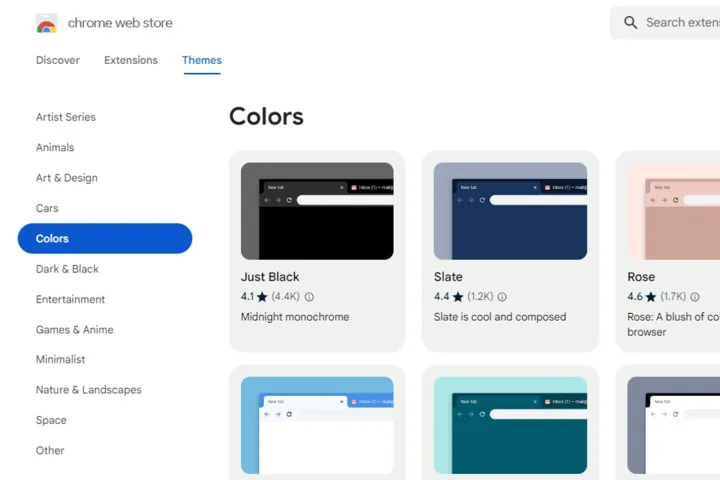
<div style="text-align: justify;">Trang web danh mục theme của Chrome Web Store.</div>
</figcaption>
</figure>

<h3 style="text-align: justify;">Chọn theme của bạn</h3>

<p style="text-align: justify;"><a href="https://quantrimang.com/url?u=aHR0cHM6Ly9jaHJvbWV3ZWJzdG9yZS5nb29nbGUuY29tL2NhdGVnb3J5L3RoZW1lcz9obD1lbg%3D%3D" rel="nofollow noopener" target="_blank" title="Phần Themes của Chrome Web Store">Phần Themes của Chrome Web Store</a>&nbsp;sẽ mở trong tab mới. Đây là những gì cần làm tiếp theo.</p>

<p style="text-align: justify;"><strong>Bước 1</strong>: Duyệt qua nhiều theme có sẵn của cửa hàng được chia theo các danh mục. Hình ảnh chính mà bạn nhìn thấy thường là hình ảnh sẽ xuất hiện dưới dạng nền tab mới của bạn, vì vậy, bạn có thể sử dụng hình ảnh đó làm hướng dẫn để chọn hình ảnh nào.</p>

<p style="text-align: justify;"><strong>Bước 2</strong>: Sau khi bạn chọn một theme, hãy đảm bảo xem các hình ảnh preview và đánh giá của theme đó. Phần&nbsp;<strong>Support</strong>&nbsp;(nếu có sẵn cho theme đó) cũng sẽ cung cấp cho bạn thông tin về các vấn đề (nếu có) mà người dùng gặp phải khi sử dụng theme đó.</p>

<p style="text-align: justify;"><strong>Bước 3</strong>: Hãy nhớ rằng hầu hết các theme đều mở rộng màu sắc và kiểu dáng của chúng trong suốt cửa sổ và tab trình duyệt, vì vậy hãy xem giao diện đầy đủ trước khi cài đặt.</p>

<h3 style="text-align: justify;">Thêm theme vào Chrome</h3>

<p style="text-align: justify;">Tiếp theo, đã đến lúc thêm theme của bạn vào Chrome. Đây là những gì cần làm:</p>

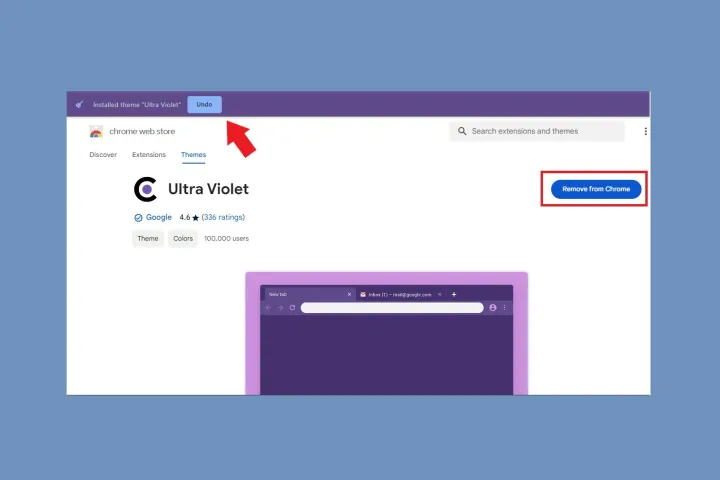
<p style="text-align: justify;"><strong>Bước 1</strong>: Nếu bạn tìm thấy thứ mình thích, hãy chọn nút&nbsp;<strong>Add to Chrome</strong>&nbsp;màu xanh lam.</p>

<p style="text-align: justify;"><strong>Bước 2</strong>: Khi Chrome áp dụng theme, nút này bây giờ sẽ có nội dung&nbsp;<strong>Remove from Chrome</strong>. Bạn cũng sẽ thấy nút&nbsp;<strong>Undo</strong>&nbsp;màu xanh lam để xóa theme.</p>

<figure>
<div style="text-align: justify;"><img alt="Các nút Undo và Remove from Chrome" data-i="2" data-src="https://st.quantrimang.com/photos/image/2024/02/23/thay-anh-nen-tab-moi-tren-chrome-3.jpg" data-was-processed="true" height="480" src="https://st.quantrimang.com/photos/image/2024/02/23/thay-anh-nen-tab-moi-tren-chrome-3.jpg" width="720" /></div>

<figcaption>
<div style="text-align: justify;">Các nút Undo và Remove from Chrome</div>
</figcaption>
</figure>

<p style="text-align: justify;"><strong>Bước 3</strong>: Hãy xem theme mới của bạn, theme này sẽ tự động thay đổi giao diện của trình duyệt. Các tab có thể thay đổi màu hoặc không và nếu bạn mở một tab mới, bạn sẽ thấy hình ảnh chính của theme.</p>

<p style="text-align: justify;"><strong>Bước 4</strong>: Xem liệu bạn có thích theme tổng thể hay không - đôi khi bạn có thể thích hình ảnh nhưng không thích tác dụng của nó đối với các tab của bạn hoặc màu sắc mà nó thêm vào trong toàn bộ trình duyệt. Nếu đúng như vậy, hãy chọn nút&nbsp;<strong>Undo</strong>&nbsp;hoặc quay lại&nbsp;<strong>Appearance</strong>&nbsp;trong menu&nbsp;<strong>Settings</strong>&nbsp;và trở lại theme mặc định.</p>

<p style="text-align: justify;"><strong>Cảnh báo</strong>: Mặc dù Google được cho là sẽ quét mọi thứ được upload lên Chrome Web Store nhưng hãy thận trọng với những gì bạn cài đặt trong Chrome. Cố gắng bám sát theme do Google phát triển hoặc cài đặt hình ảnh tùy chỉnh cho nền tab mới của bạn. Không phải tất cả các theme không phải của Google đều độc hại nhưng cẩn tắc vô áy náy.</p>

<h2 style="text-align: justify;">Cách thay đổi hình nền của Google Chrome bằng hình ảnh tùy chỉnh</h2>

<h3 style="text-align: justify;">Chọn một hình ảnh tùy chỉnh</h3>

<p style="text-align: justify;">Có lẽ bạn không quan tâm đến bất kỳ theme nào hoặc thay vào đó bạn muốn sử dụng hình ảnh mang tính cá nhân hơn. Bài viết sẽ hướng dẫn bạn các bước để thêm hình ảnh tùy chỉnh và thay đổi màu mà không cần cài đặt theme.</p>

<p style="text-align: justify;">Trước tiên, hãy cài đặt hình ảnh tùy chỉnh do bạn hoặc Google cung cấp.</p>

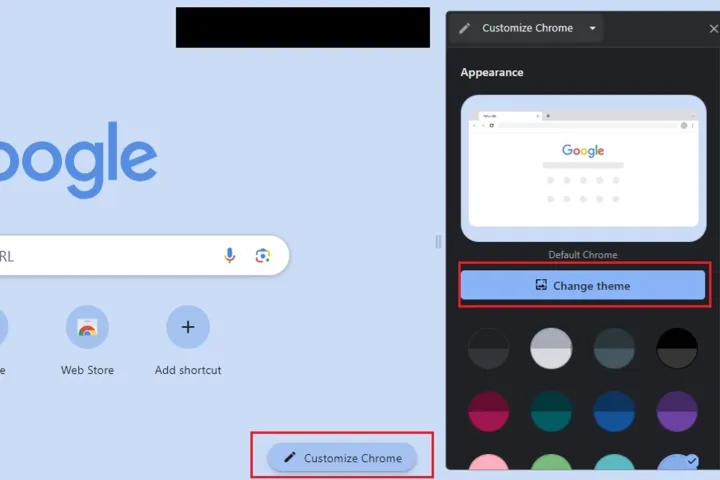
<p style="text-align: justify;"><strong>Bước 1</strong>: Mở tab mới và chọn nút&nbsp;<strong>Customize Chrome</strong>&nbsp;nằm ở góc dưới cùng bên phải.</p>

<figure>
<div style="text-align: justify;"><img alt="Chọn Customize Chrome rồi chọn nút Change theme." data-i="3" data-src="https://st.quantrimang.com/photos/image/2024/02/23/thay-anh-nen-tab-moi-tren-chrome-4.jpg" data-was-processed="true" height="480" src="https://st.quantrimang.com/photos/image/2024/02/23/thay-anh-nen-tab-moi-tren-chrome-4.jpg" width="720" /></div>

<figcaption>
<div style="text-align: justify;">Chọn Customize Chrome rồi chọn nút Change theme.</div>
</figcaption>
</figure>

<p style="text-align: justify;"><strong>Bước 2</strong>: Để upload lên hình ảnh của riêng bạn, chọn&nbsp;<strong>Change theme &gt; Upload an image</strong>. Chọn hình ảnh bạn muốn, rồi nhấp vào&nbsp;<strong>Open</strong>.</p>

<p style="text-align: justify;"><strong>Bước 3</strong>: Nếu bạn muốn sử dụng hình nền cài sẵn từ Google, chỉ cần chọn hình nền mong muốn. Nó sẽ tự động thay đổi.</p>

<p style="text-align: justify;"><strong>Bước 4</strong>: Khi bạn mở tab mới trong Chrome, hình ảnh sẽ xuất hiện trên&nbsp;<a data-google-interstitial="false" data-google-vignette="false" href="https://quantrimang.com/cong-nghe/cach-thay-anh-nen-tab-moi-tren-chrome-158232#">&nbsp;màn hình</a>&nbsp;của bạn. Bạn có thể xóa nó bất kỳ lúc nào bằng cách chọn lại nút&nbsp;<strong>Customize</strong>&nbsp;- trong trường hợp này nó chỉ là biểu tượng bút chì - và chọn&nbsp;<strong>Reset to default Chrome</strong>.</p>

<h3 style="text-align: justify;">Chọn màu sắc và theme</h3>

<p style="text-align: justify;">Bạn có thể chọn ảnh nền hoặc nếu muốn giao diện cá nhân hóa hơn, bạn có thể tùy chỉnh toàn bộ bố cục Chrome của mình. Nếu bạn không biết mình muốn cài đặt theme nào, hãy làm như sau:</p>

<p style="text-align: justify;"><strong>Bước 1</strong>: Mở tab mới và chọn nút&nbsp;<strong>Customize Chrome</strong>&nbsp;ở góc dưới bên phải.</p>

<p style="text-align: justify;"><strong>Bước 2</strong>: Một cửa sổ trong trình duyệt sẽ xuất hiện. Bên dưới nút&nbsp;<strong>Change theme</strong>, bạn sẽ thấy một loạt các mẫu màu bổ sung - hãy chọn màu yêu thích của bạn. Vậy là xong! Bạn sẽ thấy kết quả ngay lập tức trên trình duyệt của mình.</p>

<p style="text-align: justify;"><strong>Bước 3</strong>: Để loại bỏ theme bạn đã chọn, hãy điều hướng quay lại menu mẫu màu và chọn mẫu màu có nhãn&nbsp;<strong>Default color</strong>&nbsp;(nó phải là mẫu đầu tiên, từ bên trái).</p>

<h2 style="text-align: justify;">Cách thay đổi nền Google bằng theme từ&nbsp;Browser-Themes</h2>

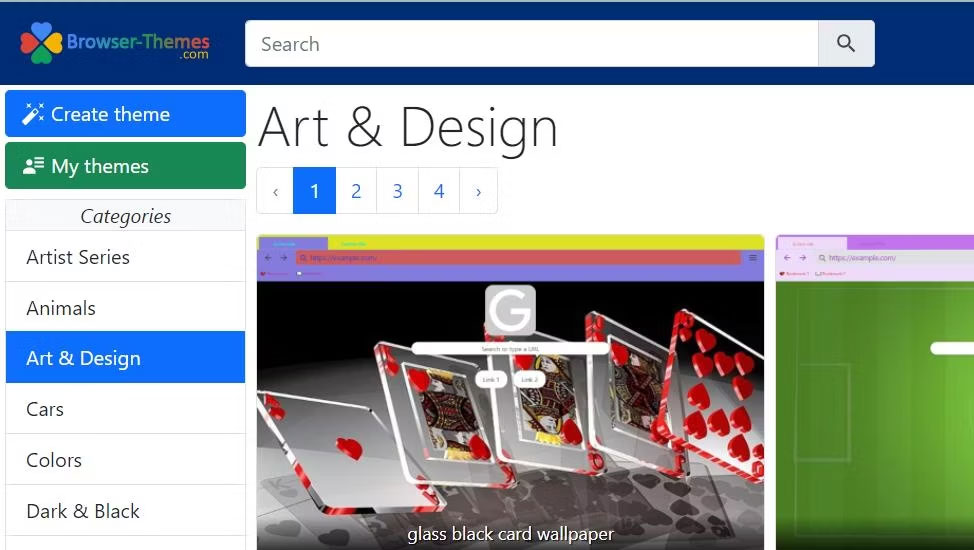
<p style="text-align: justify;">Trang Browser-Themes bao gồm một bộ sưu tập tuyệt vời các hình ảnh background theme Chrome mà bạn có thể thêm vào trang New Tab của Google. Tuy nhiên, bạn sẽ cần bật Developer Mode để cài đặt theme từ trang web đó. Bạn có thể thay đổi hình nền Google bằng các theme có sẵn tại Browser-Themes như thế này:</p>

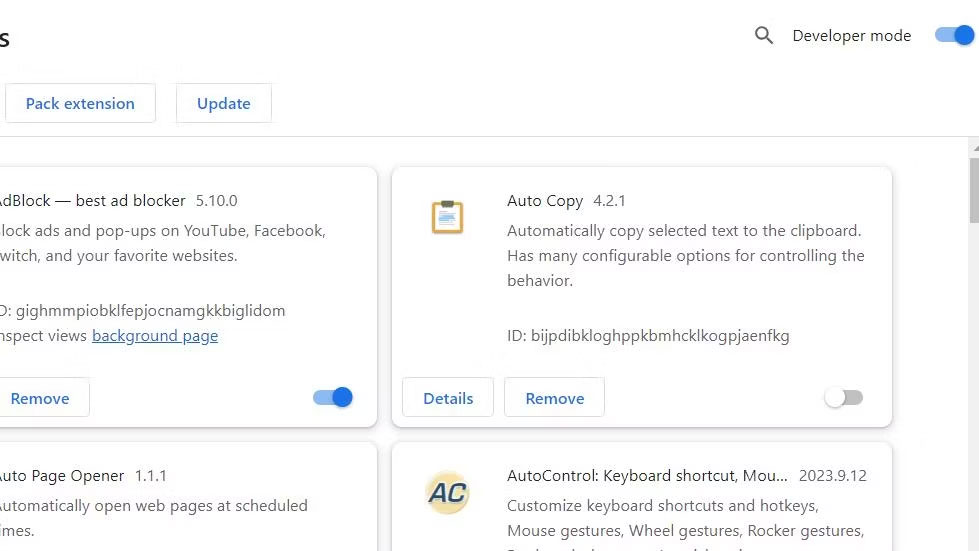
<p style="text-align: justify;">1. Nhấp vào thanh địa chỉ URL của Chrome, nhập&nbsp;<strong>chrome://extensions/</strong>&nbsp;và nhấn&nbsp;<strong>Enter.</strong></p>

<p style="text-align: justify;">2. Bật tùy chọn&nbsp;<strong>Developer Mode</strong>&nbsp;trong tab&nbsp;<strong><a data-google-interstitial="false" data-google-vignette="false" href="https://quantrimang.com/cong-nghe/cach-thay-anh-nen-tab-moi-tren-chrome-158232#">&nbsp;Extensions</a></strong>.</p>

<figure>
<div style="text-align: justify;"><img alt="Tùy chọn Developer Mode" data-i="4" data-src="https://st.quantrimang.com/photos/image/2023/09/19/thay-anh-nen-tab-moi-tren-chrome-11.jpg" data-was-processed="true" height="551" src="https://st.quantrimang.com/photos/image/2023/09/19/thay-anh-nen-tab-moi-tren-chrome-11.jpg" width="979" /></div>

<figcaption>
<div style="text-align: justify;">Tùy chọn Developer Mode</div>
</figcaption>
</figure>

<p style="text-align: justify;">3. Tiếp theo, mở trang&nbsp;Browser-Themes.com&nbsp;này.:&nbsp;<span style="color:rgb(192, 57, 43);"><strong>https://browser-themes.com/</strong></span></p>

<p style="text-align: justify;">4. Nhấn nút&nbsp;<strong>Sign in</strong>.</p>

<p style="text-align: justify;">5. Nhập địa chỉ email để nhận mã xác minh.</p>

<p style="text-align: justify;">6. Mở email Browser-Themes của bạn và nhấp vào nút&nbsp;<strong>Sign in</strong>&nbsp;ở đó.</p>

<p style="text-align: justify;">7. Nhấp vào hình ảnh theme để thêm vào nền Google.</p>

<figure>
<div style="text-align: justify;"><img alt="Trang Browser-Themes.com" data-i="5" data-src="https://st.quantrimang.com/photos/image/2023/09/19/thay-anh-nen-tab-moi-tren-chrome-12.jpg" data-was-processed="true" height="550" src="https://st.quantrimang.com/photos/image/2023/09/19/thay-anh-nen-tab-moi-tren-chrome-12.jpg" width="974" /></div>

<figcaption>
<div style="text-align: justify;">Trang Browser-Themes.com</div>
</figcaption>
</figure>

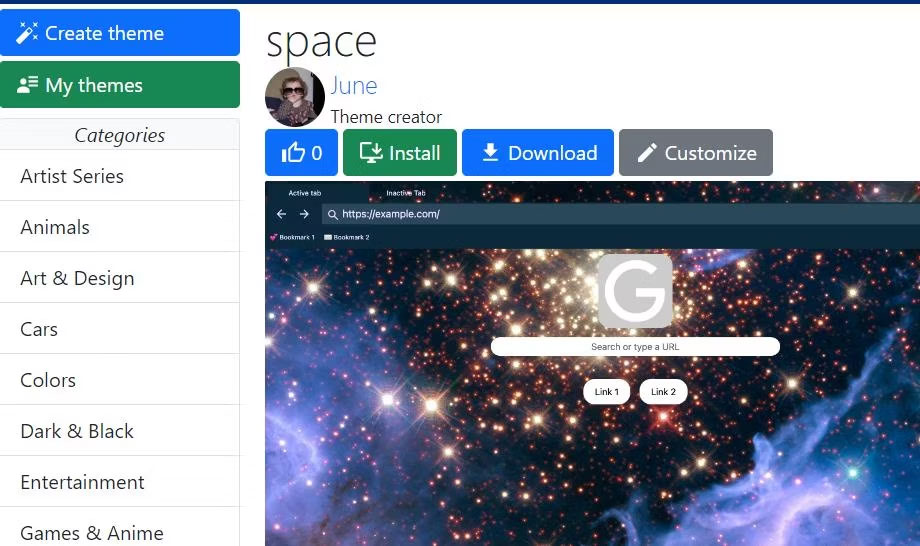
<p style="text-align: justify;">8. Nhấn nút&nbsp;<strong>Download</strong>&nbsp;của theme.</p>

<figure>
<div style="text-align: justify;"><img alt="Tùy chọn Download" data-i="6" data-src="https://st.quantrimang.com/photos/image/2023/09/19/thay-anh-nen-tab-moi-tren-chrome-13.jpg" data-was-processed="true" height="546" src="https://st.quantrimang.com/photos/image/2023/09/19/thay-anh-nen-tab-moi-tren-chrome-13.jpg" width="920" /></div>

<figcaption>
<div style="text-align: justify;">Tùy chọn Download</div>
</figcaption>
</figure>

<p style="text-align: justify;">9. Mở thư mục chứa file ZIP của theme đã tải xuống của bạn.</p>

<p style="text-align: justify;">10. Tiếp theo, bạn sẽ cần giải nén file ZIP vào một thư mục. Người dùng Windows có thể trích xuất kho lưu trữ ZIP theo hướng dẫn này để&nbsp;<a data-type="internal" href="https://quantrimang.com/cong-nghe/cach-giai-nen-file-zip-tren-may-tinh-156437" title="Cách giải nén file Zip trên máy tính">giải nén các file ZIP</a>.</p>

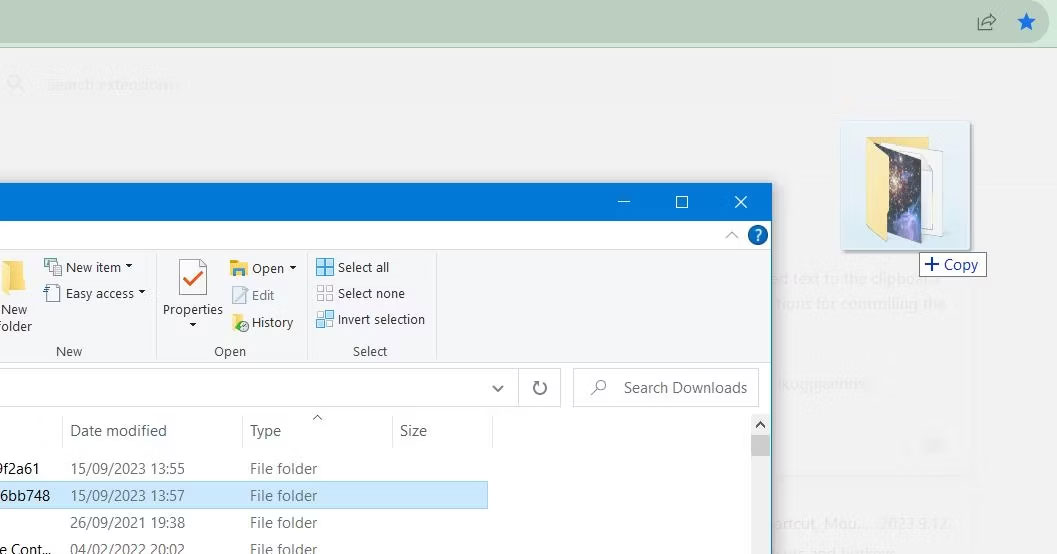
<p style="text-align: justify;">11. Kéo thư mục được giải nén của theme vào tab&nbsp;<strong>Extensions</strong>&nbsp;và nhả nút chuột khi bạn thấy +&nbsp;<strong>Copy</strong>.</p>

<figure>
<div style="text-align: justify;"><img alt="Nút + Copy" data-i="7" data-src="https://st.quantrimang.com/photos/image/2023/09/19/thay-anh-nen-tab-moi-tren-chrome-14.jpg" data-was-processed="true" height="554" src="https://st.quantrimang.com/photos/image/2023/09/19/thay-anh-nen-tab-moi-tren-chrome-14.jpg" width="1057" /></div>

<figcaption>
<div style="text-align: justify;">Nút +&nbsp;Copy</div>
</figcaption>
</figure>

<p style="text-align: justify;">Theme của Chrome bây giờ sẽ thay đổi thành theme bạn vừa tải xuống và cài đặt. Nhấp vào tab trang New Tab để xem hình ảnh của theme được áp dụng cho hình nền Google.</p>

<p style="text-align: justify;">Các theme có sẵn tại Browser-Themes là những theme do người dùng tạo. Những người dùng đó đã tạo chúng bằng công cụ tạo theme trên trang web.</p>

<p style="text-align: justify;">Bạn cũng có thể thiết lập theme của riêng mình bằng cách nhấp vào nút&nbsp;<strong>Create theme</strong>&nbsp;trên trang Browser-Themes. Cấu hình cài đặt bảng màu, hình ảnh và màu sắc theo sở thích, đặt tiêu đề cho theme và nhấp vào tùy chọn&nbsp;<strong>Create</strong>. Sau đó chọn&nbsp;<strong>Download</strong>&nbsp;để lấy file ZIP cho theme.</p>

<p style="text-align: justify;">Chúc các bạn thực hiện thành công!</p>

<div style="text-align: justify;">&nbsp;</div>
		</div>
				<div id="author">
						<p>
				<strong>Nguồn tin:</strong>
				Quantrimang.com:
			</p>
		</div>
	</div>
	<div id="footer" class="clearfix">
		<div id="url">
			<strong>URL của bản tin này: </strong><a href="https://www.nguoicodonvn2008.info/vi/news/savefile/kien-thuc-may-tinh/cach-doi-hinh-nen-google-cai-dat-hinh-nen-cho-chrome-tren-may-tinh-9990.html" title="Cách đổi hình nền Google, cài đặt hình nền cho Chrome trên máy tính">https://www.nguoicodonvn2008.info/vi/news/savefile/kien-thuc-may-tinh/cach-doi-hinh-nen-google-cai-dat-hinh-nen-cho-chrome-tren-may-tinh-9990.html</a>

		</div>
		<div class="clear"></div>
		<div class="copyright">
			&copy; .&#x3A; Nguoicodonvn2008.info - Cõi lòng người cô đơn &#x3A;.
		</div>
		<div id="contact">
			<a href="mailto:admin@nguoicodonvn2008.info">admin@nguoicodonvn2008.info</a>
		</div>
	</div>
</div>
        <div id="timeoutsess" class="chromeframe">
            Bạn đã không sử dụng Site, <a onclick="timeoutsesscancel();" href="https://www.nguoicodonvn2008.info/#">Bấm vào đây để duy trì trạng thái đăng nhập</a>. Thời gian chờ: <span id="secField"> 60 </span> giây
        </div>
        <div id="openidResult" class="nv-alert" style="display:none"></div>
        <div id="openidBt" data-result="" data-redirect=""></div>
		</script>
		<div class="car-top">
  <span><img src="https://www.nguoicodonvn2008.info/themes/default/images/car.png" alt=""></span>
</div>
<script src="https://www.nguoicodonvn2008.info/assets/js/jquery/jquery.min.js"></script>
<script>var nv_base_siteurl="/",nv_lang_data="vi",nv_lang_interface="vi",nv_name_variable="nv",nv_fc_variable="op",nv_lang_variable="language",nv_module_name="news",nv_func_name="savefile",nv_is_user=0, nv_my_ofs=-4,nv_my_abbr="EDT",nv_cookie_prefix="nv4c_e856T",nv_check_pass_mstime=1738000,nv_area_admin=0,nv_safemode=0,theme_responsive=0,nv_recaptcha_ver=2,nv_recaptcha_sitekey="",nv_recaptcha_type="image",XSSsanitize=1;</script>
<script src="https://www.nguoicodonvn2008.info/assets/js/language/vi.js"></script>
<script src="https://www.nguoicodonvn2008.info/assets/js/DOMPurify/purify3.js"></script>
<script src="https://www.nguoicodonvn2008.info/assets/js/global.js"></script>
<script src="https://www.nguoicodonvn2008.info/assets/js/site.js"></script>
<script src="https://www.nguoicodonvn2008.info/themes/default/js/news.js"></script>
<script src="https://www.nguoicodonvn2008.info/themes/default/js/main.js"></script>
<script src="https://www.nguoicodonvn2008.info/themes/default/js/custom.js"></script>
<script type="application/ld+json">
        {
            "@context": "https://schema.org",
            "@type": "Organization",
            "url": "https://www.nguoicodonvn2008.info",
            "logo": "https://www.nguoicodonvn2008.info/uploads/angel.gif"
        }
        </script>
<script src="https://www.nguoicodonvn2008.info/themes/default/js/bootstrap.min.js"></script>
<script type="text/javascript">
var $scrolltop = $('.car-top');
$scrolltop.on('click', function () {
    $('html,body').animate({
        scrollTop: 0
    }, 800);
    $(this).addClass("car-run");
    setTimeout(function(){ $scrolltop.removeClass('car-run');}, 1000);
    return false;
});
$(window).on('scroll', function ()
{ 
    if($(window).scrollTop() >= 200)
    {
        $scrolltop.addClass("show");
        $scrolltop.addClass("car-down");
    }
    else
    {
       $scrolltop.removeClass("show");
       setTimeout(function(){ $scrolltop.removeClass('car-down');}, 300);
    }
});
</script>
</body>
</html>